

The important distinction is practical: “Restore default font settings” does not reinstall every font that might have been deleted. It resets Windows’ font settings, including font visibility behavior; it is not a repair installer for damaged or absent system font files. If Segoe UI, Arial, Calibri, or another font is missing from Windows’ inventory, work through the checks below before reaching for registry downloads or “font pack” archives from the web.
Save work and close the affected applications before beginning. Programs commonly load their font lists only when they start, so a successful repair may not be visible until the app has been fully closed and reopened.
 Confirm whether the font is missing system-wide
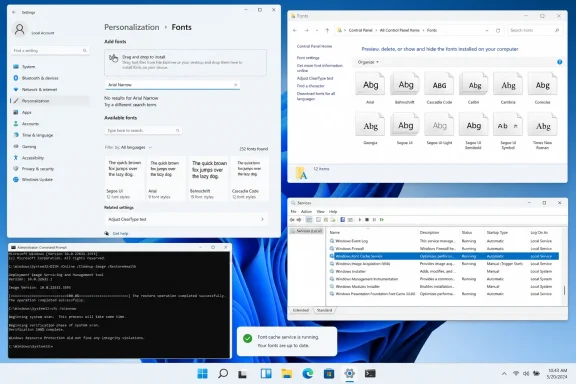
Open Settings with Win + I, then go to Personalization > Fonts in Windows 11 or Windows 10. Use the search field under Available fonts and search for the font by family name, such as Segoe UI, Arial, or Calibri.
This is the first useful dividing line. If the font appears in Settings but is missing only in Word, Adobe Acrobat, a browser, or a design application, Windows itself probably still has the font. Microsoft’s Fonts documentation specifically notes that not every app supports every custom font, so test the font in a second application before changing Windows settings.
For a second view of the same inventory, press Win + R, type the following, and press Enter:
shell:fonts
That opens the classic Fonts folder. It remains useful because it exposes the older Control Panel options that are not prominently surfaced in the modern Settings app.
If the font is visible in both Windows locations but absent from one program, take the low-risk route first:
- Fully exit the affected program rather than merely closing its window.
- Check Task Manager for a remaining process belonging to that program, and end it only after saving work.
- Reopen the app and look for the font again.
- If it is an Office app, remember that a document or template can specify its own preferred font. Reinstalling or resetting Windows fonts will not automatically alter a Word template or a document’s formatting.
A font that is present in Windows but absent only in one application is an application configuration or font-enumeration problem until proven otherwise. Rebuilding the whole system font cache before performing this check creates unnecessary work and can obscure the original cause.
Restore Windows’ default font settings
If you have changed font visibility settings, used a customization utility, or simply want Windows to return its built-in font preferences to their normal state, open the classic font settings page.
- Search for and open Control Panel.
- Set View by to Category if necessary.
- Select Appearance and Personalization > Fonts.
- In the left pane, select Font settings.
- Select Restore default font settings.
- Restart Windows, then reopen the application that showed the wrong font.
On systems using the icon view in Control Panel, the shorter route is Control Panel > Fonts > Font settings.
This option is worthwhile when fonts are hidden because of language-related settings or when the font configuration has been altered. However, do not treat the button as a cure-all. Microsoft’s current font-management guidance documents viewing, hiding, installing, and uninstalling fonts; it does not describe this reset as a mechanism for repopulating deleted Windows font files.
That limitation explains a common troubleshooting dead end: the reset finishes successfully, but the requested font is still absent. The setting was reset; the font file was not restored because it was never there to be registered.
If you use more than one display language, also review the available language features. Microsoft documents a Download fonts for all languages option under the Fonts settings page. That can be appropriate where the missing characters belong to an optional language font set, rather than to the core Latin font families installed with Windows.
Reinstall a known missing non-system font safely
If the absent font is a font you installed yourself—perhaps a corporate typeface, a purchased design font, or a font supplied with a project—obtain it again from its legitimate vendor, license portal, or internal software repository. Do not download a similarly named file from a random “free fonts” site merely to make a document look right.
Microsoft supports installing TrueType (.ttf) and OpenType (.otf) files in Windows. Extract a ZIP archive first, right-click the font file, then choose Install. Choose Install for all users only when the font is approved for everyone on that PC and you have administrative rights.
After installation, return to Settings > Personalization > Fonts and verify that the family appears. Then close and reopen the program that needs it. Office applications, in particular, do not reliably refresh an already-open font menu when a new font is added.
Avoid reinstalling a system font such as Segoe UI from an unofficial download. A file can carry the correct family name while being the wrong version, missing styles, improperly licensed, or malicious. If a Windows-supplied font has truly disappeared, use Windows repair tools rather than a third-party font archive.
Restart the Windows Font Cache Service before deleting cache files
Windows uses a font cache to avoid repeatedly processing font data. Microsoft has previously documented a Windows 10 font-cache fault that made shortcut-installed fonts vanish after a restart, and its current Windows Search troubleshooting guidance still recommends restarting the Windows Font Cache Service as a repair step. The service restart is the safer first response when installed fonts are present but appear inconsistently across Windows components or applications.
To restart it:
- Save open work and close affected apps.
- Press
Win + R, typeservices.msc, and press Enter. - Locate Windows Font Cache Service.
- Right-click it and select Stop.
- Wait a few seconds, then right-click it again and select Start.
- Restart the affected application and test the font list.
If Windows reports that the service cannot be stopped because it is in use, do not force-kill unrelated processes or change the service startup type. Restart the PC first and test again. Disabling this service permanently is a poor fix: Microsoft’s documentation on the older cache issue warned that bypassing the font boot cache can increase startup disk activity.
A service restart refreshes the component without erasing anything. Try it before rebuilding cache files manually.
Rebuild the font cache only when the inventory is intact but rendering is wrong
A cache rebuild is appropriate when the font is listed in Settings and the Fonts folder, yet it is substituted incorrectly, does not appear in several apps, or Windows shows stale previews after installation or removal. It is not the right fix for a font that is genuinely absent from the Windows inventory.
First, create a restore point if this is a managed workstation or if you have previously changed font-related registry values. The cache itself is disposable, but a font problem may have been caused by a wider customization change.
Then follow this sequence:
- Close all programs that might use fonts, including Office apps, browsers, Adobe apps, chat clients, and game launchers.
- Open
services.mscand stop Windows Font Cache Service. - Open File Explorer and enter this path in its address bar:
%windir%\ServiceProfiles\LocalService\AppData\Local
- If prompted for permission, select Continue.
- Delete files whose names begin with
FontCacheand any cache files inside theFontCachefolder if it exists. Do not delete the whole Local profile directory. - Restart the computer.
Windows recreates font-cache data during startup. The first launch of a font-heavy application may take slightly longer than usual; that is expected. Once Windows restarts, confirm the font in Settings first, then reopen the application where the problem was visible.
If the cache files cannot be deleted, leave them alone and restart. Files still locked by the operating system will ordinarily be replaced or refreshed as Windows starts. Repeatedly taking ownership of system profile folders is disproportionate to a typography issue and creates more risk than benefit.
Repair Windows when built-in font files are actually absent
If standard Windows fonts are missing from both Settings and the Fonts folder, resetting font settings and clearing cache files cannot restore them. At that point, use the operating system’s component-repair tools.
Open Command Prompt as administrator and run:
DISM.exe /Online /Cleanup-Image /RestoreHealth
Wait for DISM to complete, then run:
sfc /scannow
Microsoft’s System File Checker guidance recommends running DISM before SFC. DISM repairs the Windows component store used as a repair source, while sfc /scannow checks protected system files and replaces damaged or missing protected files from that source.
Do not interrupt either command. A successful SFC result stating that it found corrupt files and repaired them is a strong indication that a reboot and retest are justified. A result reporting no integrity violations does not prove every third-party or per-user font is healthy; it only means Windows did not find corruption among protected system files.
If the wrong typeface began immediately after a font changer, a .reg file, a Windows “tweaking” package, or malware, remove or reverse that change before repeating cache work. Font substitution can be controlled by registry entries, and a reset of the Fonts Control Panel setting will not reliably undo every third-party registry modification. System Restore is the cleaner escalation if the timing is known and a restore point predates the change.
The practical endpoint is simple: verify the font in Windows’ inventory, restore default font settings when the configuration is wrong, restart the Font Cache Service before deleting cache data, and reserve DISM plus SFC for missing Windows-supplied files. That order fixes the common cases without turning a repairable font-list problem into a risky system-wide cleanup.