
settings.json. Backing up that file before a reset, clean Windows installation, or PC migration preserves the part of Terminal that is easiest to forget and most tedious to rebuild.Microsoft’s current Windows Terminal documentation identifies different paths for the Store-installed stable, Preview, and Canary channels, plus a separate path for unpackaged installs such as Scoop or Chocolatey. The important practical detail is that these channels can coexist: copying the stable build’s settings will not automatically protect a separate Preview or Canary configuration.
For most people, a proper backup takes less than a minute. The safe approach is to copy the file while Windows Terminal is fully closed, store a dated copy outside the PC’s system drive, and restore by merging deliberately rather than blindly overwriting a newer configuration.
 Find the
 settings.json File for Your Terminal Install
The easiest route is through Windows Terminal itself. Open Terminal, select the drop-down arrow beside the tabs, choose Settings, then select Open JSON file in the lower-left corner. That opens the active configuration file in your default text editor; use File Explorer or your editor’s Save As dialog to reveal its folder.
If Terminal will not open, press Win+R, enter the relevant path below, and press Enter. Microsoft documents these locations:
| Windows Terminal edition | Configuration path |
|---|---|
| Stable Store/MSIX release | %LOCALAPPDATA%\Packages\Microsoft.WindowsTerminal_8wekyb3d8bbwe\LocalState\settings.json |
| Preview release | %LOCALAPPDATA%\Packages\Microsoft.WindowsTerminalPreview_8wekyb3d8bbwe\LocalState\settings.json |
| Canary release | %LOCALAPPDATA%\Packages\Microsoft.WindowsTerminalCanary_8wekyb3d8bbwe\LocalState\settings.json |
| Unpackaged release, including many Scoop and Chocolatey installs | %LOCALAPPDATA%\Microsoft\Windows Terminal\settings.json |
Use the address bar in File Explorer exactly as shown, including the percent signs. Windows expands %LOCALAPPDATA% to your user profile’s local application-data folder.
Do not assume every machine uses the stable Store package. A user who installed Windows Terminal Preview for testing may have a completely separate settings.json, with separate profiles and keyboard shortcuts. If you use more than one edition, back up each file and give each backup a name that makes the channel obvious.
Microsoft’s Terminal FAQ also notes a neighboring state.json file. That is runtime-generated state rather than the main configuration you maintain. It is generally not the file to carry from one PC to another: preserve settings.json first, then allow the destination installation to create fresh runtime state.
What the Backup Preserves—and What It Does Not
A copied settings.json can preserve custom profiles for PowerShell, Command Prompt, Git Bash, SSH, Python environments, WSL distributions, developer toolchains, and other command-line applications. It also carries global options such as the default profile, default terminal size, launch mode, tab settings, custom actions, aliases, color schemes, fonts, and profile-specific starting directories.
It does not install the software that a profile launches. A backup containing a profile that points to C:\Program Files\Git\bin\bash.exe will not make Git Bash work on a new PC unless Git is installed at that path. The same is true for PowerShell 7, MSYS2, Cygwin, Anaconda, Visual Studio developer shells, and custom scripts.
WSL deserves particular attention. Microsoft documents that Terminal dynamically generates profiles for installed shell sources such as WSL and PowerShell. A saved customization can still be useful, but restoring a profile does not restore the Linux distribution, its packages, its home directory, or its files. Back up WSL separately before resetting Windows, and install or import the distribution on the new machine before expecting its Terminal profile to work.
Paths to icons, background images, scripts, or startup directories may also break after a migration. Microsoft’s profile documentation specifically supports assets stored in Terminal’s RoamingState directory through ms-appdata:///roaming/ paths. If you use that method, save the referenced image files as well—not merely settings.json.
A good Terminal backup is therefore a small configuration bundle:
- Copy
settings.jsonfrom every Terminal edition you use. - Copy any custom icon or background-image files stored in Terminal’s
RoamingStatefolder. - Copy scripts and configuration files referenced by a profile’s
commandlineorstartingDirectory. - Record or back up the programs, WSL distributions, fonts, and tools that those profiles require.
Do not upload an unreviewed settings file to a public repository. Most Terminal settings are harmless, but custom command lines, environment variables, remote-host names, mapped paths, and tool arguments can disclose information about your work environment. Inspect the file before syncing it through a shared service.
Make a Dated Backup Before Resetting Windows
Close every Windows Terminal window first. This avoids copying a file while you are changing settings through the graphical interface or while an editor has unsaved modifications.
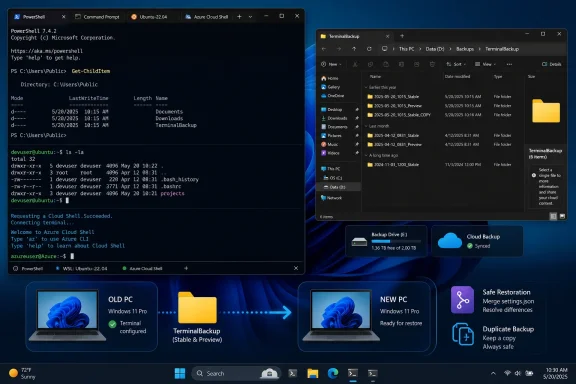
Then create a backup folder in a location that will survive the reset: an external drive, a private cloud folder, a home server, or another PC. A clear structure makes restoration much less error-prone:
TerminalBackup\
  2026-08-29\
    WindowsTerminal-Stable-settings.json
    WindowsTerminal-Preview-settings.json
    RoamingState\
    README.txt
For a manual backup, copy settings.json, paste it into the dated folder, and rename the copy. Renaming the backup copy is safe; do not rename the active configuration file inside LocalState.
PowerShell can make the same backup repeatable. This example saves the stable channel’s settings file to a dated folder in Documents:
$stamp = Get-Date -Format "yyyy-MM-dd"
$source = Join-Path $env:LOCALAPPDATA `
  "Packages\Microsoft.WindowsTerminal_8wekyb3d8bbwe\LocalState\settings.json"
$backup = Join-Path $env:USERPROFILE "Documents\TerminalBackup\$stamp"

New-Item -ItemType Directory -Force -Path $backup | Out-Null
Copy-Item -LiteralPath $source `
  -Destination (Join-Path $backup "WindowsTerminal-Stable-settings.json") `
  -Force
If PowerShell reports that the source cannot be found, do not create an empty replacement file. Check whether you are using Preview, Canary, or an unpackaged installation, then adjust the source path accordingly.
Before moving on, open the copied backup with Notepad or Visual Studio Code. You should see readable JSON containing settings such as profiles, schemes, actions, or defaultProfile. A file that is zero bytes, contains only an error message, or was copied from a temporary editor location is not a usable backup.
Restore Without Destroying Newer Settings
After installing Windows Terminal on the destination PC, launch it once and close it. That establishes the appropriate package folders and generates the destination’s initial configuration. Install the shells and tools your profiles depend on before restoration where possible, especially PowerShell 7, Git, WSL distributions, and custom fonts.
Next, make a new backup of the destination’s current settings.json. This is the protection against overwriting changes you made after the move began, and it provides a clean fallback if the imported configuration contains obsolete paths or unsupported settings.
For a straightforward replacement on a fresh PC:
- Close Windows Terminal and any editor with
settings.jsonopen. - Open the correct destination
LocalStatefolder. - Rename the existing file to
settings.before-restore.json. - Copy in the backup file and rename it to exactly
settings.json. - Start Windows Terminal and check that profiles, colors, actions, and the default profile appear as expected.
A full replacement is appropriate when the destination file is still the untouched default and the old configuration is your known-good setup. It is a poor choice when you have already customized the new machine, installed tools that created new profiles, or changed settings after making the backup.
In those cases, open the old and new files side by side and merge only the settings you need. Copy custom entries from the old file’s profiles.list, schemes, and actions sections into the new file while retaining destination-specific paths and recently added options. Keep matching braces, commas, and quotation marks intact; settings.json permits comments, but it is still structured JSON and a missing comma can prevent Terminal from reading it.
Microsoft’s documentation explains why careful merging pays off: dynamically generated profiles are tied to installed sources, while manually defined profiles can contain fixed executable paths. A restored WSL profile may be unnecessary once Terminal detects the installed distribution; a manually created Git Bash profile may need a path adjustment if Git landed somewhere else.
Verify Profiles Before Deleting the Old Copy
Start by opening your expected default profile. Then use the new-tab drop-down to test each custom profile one at a time. Check the working directory, icon, color scheme, font, and any startup command that launches a script or activates an environment.
If Windows Terminal opens but one profile fails, inspect the profile’s commandline, startingDirectory, and icon fields. Correct paths first. If the failure is limited to WSL, verify the distribution separately with wsl --list --verbose; Terminal cannot repair a missing distro from a profile definition.
If Terminal reports an error after you restore the file, close it and revert to settings.before-restore.json. Then merge smaller sections from the old configuration into the new one rather than copying the entire file again. Holding Alt while selecting Terminal’s Settings option opens its generated defaults.json, according to Microsoft’s installation guidance, which can help distinguish a custom setting from the current built-in default. Do not edit defaults.json: Terminal regenerates it and ignores changes there.
The durable result is a backup that includes the configuration and the dependencies behind it. settings.json preserves the Terminal experience you designed; a separate backup of WSL, scripts, images, fonts, and installed tools is what makes that experience usable after the old Windows installation is gone.