

ataribravo
New Member
Member details
- Joined
- Aug 30, 2021
- Messages
- 5
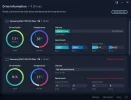
I have Windows 10 Pro (just shy of licensed) installed on a 970 Plus M.2 drive (see all specs in signature). The PC is not running at the speed I would have expected (for instance my Random Read/Write values are pitiful (see attachment). I either have my BIOS incorrectly set up, too much junk installed/uninstalled or the Windows gods are punishing me for a non-licensed copy (but read on, I'm going legit).
I just installed another 970 Plus 1TB drive and want to put a fresh install with a fully licensed copy of Windows 10 Pro on it and be able to boot off either one until I am comfortable that I have installed all the software that I want, and then I will format the first drive for data use.
I have read that if the current boot drive (Drive 1) is active when I boot off the Win DVD to format and install the new OS on Drive 2, they will somehow be connected so Windows can auto-enable dual booting. And, that if I format Drive 1 later, Drive 2 will no longer function since it had dependency on Drive 1. Does that make sense?
Is there a way to disable a single m.2 slot (in Device Manager perhaps or BIOS)?
Is there a better way to approach this? I mostly just don't want to be "down" while I'm starting over. I want the option to boot off the old drive as needed the run things until I have the new drive ready to go.
Thanks in advance for everyone's time and consideration.
I just installed another 970 Plus 1TB drive and want to put a fresh install with a fully licensed copy of Windows 10 Pro on it and be able to boot off either one until I am comfortable that I have installed all the software that I want, and then I will format the first drive for data use.
I have read that if the current boot drive (Drive 1) is active when I boot off the Win DVD to format and install the new OS on Drive 2, they will somehow be connected so Windows can auto-enable dual booting. And, that if I format Drive 1 later, Drive 2 will no longer function since it had dependency on Drive 1. Does that make sense?
Is there a way to disable a single m.2 slot (in Device Manager perhaps or BIOS)?
Is there a better way to approach this? I mostly just don't want to be "down" while I'm starting over. I want the option to boot off the old drive as needed the run things until I have the new drive ready to go.
Thanks in advance for everyone's time and consideration.
Attachments
Last edited:

