

📎 AI Summary:
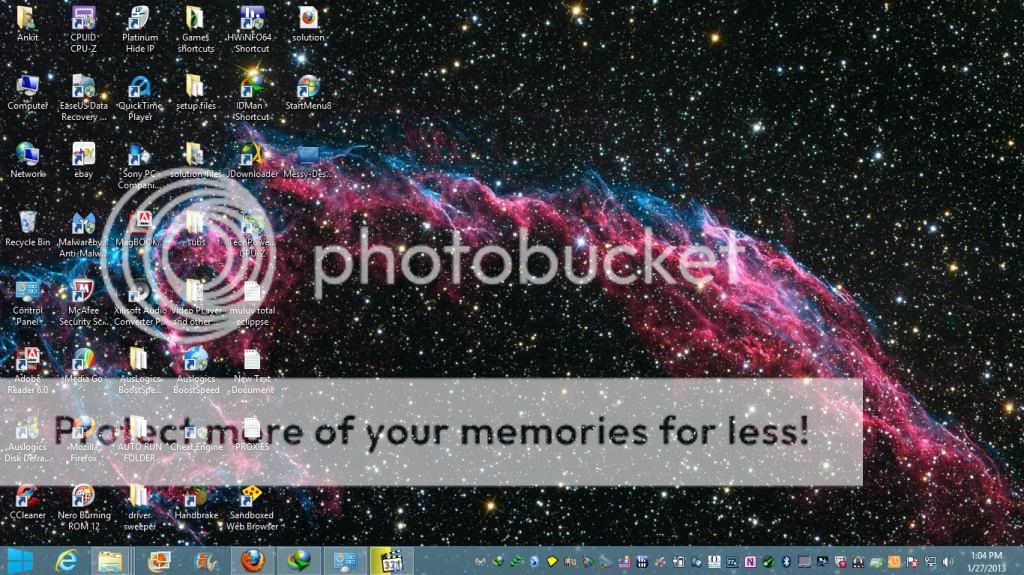
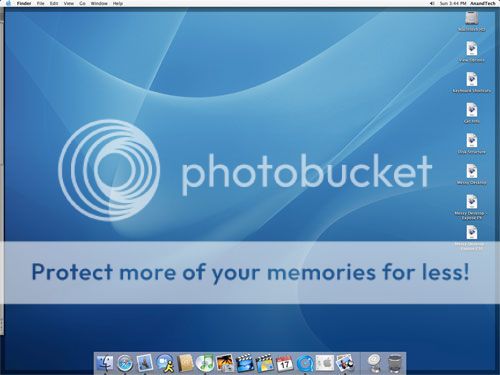
The original poster asks for help in customizing their desktop to replicate a grid-style, organized layout similar to their second screenshot. A respondent suggests using ObjectDock for Windows 8 and provides a wallpaper resource, along with tips for manually arranging icons. Another user comments that they prefer the first desktop appearance. Overall, the thread centers around desktop customization tips with a positive tone, offering tools and resources to achieve the desired look.
The original poster asks for help in customizing their desktop to replicate a grid-style, organized layout similar to their second screenshot. A respondent suggests using ObjectDock for Windows 8 and provides a wallpaper resource, along with tips for manually arranging icons. Another user comments that they prefer the first desktop appearance. Overall, the thread centers around desktop customization tips with a positive tone, offering tools and resources to achieve the desired look.

Solution

Hi,
Try this link which has a version of ObjectDock for win 8:
ObjectDock for Windows 8 to Customize Desktop
Once you've installed and configured the app to your liking you can always right click the Task bar, choose properties and click 'auto hide task bar'.
If you want to find a wallpaper similar to the one shown then try this site here:
http://wallbase.cc/home
It's one of the best sites I know for wallpapers.
The actual desktop icons can be physically moved by yourself over to the left hand side of the screen.
It won't be exactly like the screen you provided for example but very close.
Try this link which has a version of ObjectDock for win 8:
ObjectDock for Windows 8 to Customize Desktop
Once you've installed and configured the app to your liking you can always right click the Task bar, choose properties and click 'auto hide task bar'.
If you want to find a wallpaper similar to the one shown then try this site here:
http://wallbase.cc/home
It's one of the best sites I know for wallpapers.
The actual desktop icons can be physically moved by yourself over to the left hand side of the screen.
It won't be exactly like the screen you provided for example but very close.

kemical
Essential Member
Member details
- Joined
- Aug 28, 2007
- Messages
- 36,163
Hi,
Try this link which has a version of ObjectDock for win 8:
ObjectDock for Windows 8 to Customize Desktop
Once you've installed and configured the app to your liking you can always right click the Task bar, choose properties and click 'auto hide task bar'.
If you want to find a wallpaper similar to the one shown then try this site here:
http://wallbase.cc/home
It's one of the best sites I know for wallpapers.
The actual desktop icons can be physically moved by yourself over to the left hand side of the screen.
It won't be exactly like the screen you provided for example but very close.
Try this link which has a version of ObjectDock for win 8:
ObjectDock for Windows 8 to Customize Desktop
Once you've installed and configured the app to your liking you can always right click the Task bar, choose properties and click 'auto hide task bar'.
If you want to find a wallpaper similar to the one shown then try this site here:
http://wallbase.cc/home
It's one of the best sites I know for wallpapers.
The actual desktop icons can be physically moved by yourself over to the left hand side of the screen.
It won't be exactly like the screen you provided for example but very close.
Last edited by a moderator:


