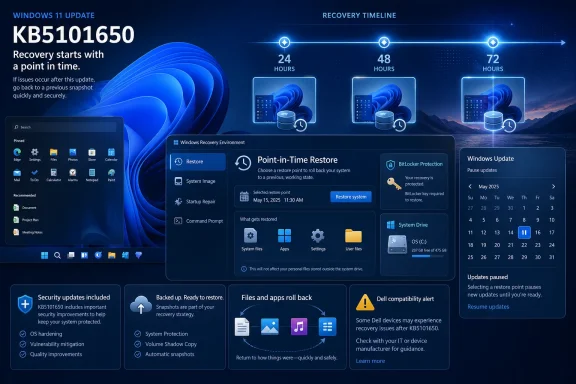
Windows 11 KB5101650 is now rolling out as the mandatory July 2026 Patch Tuesday update, moving Windows 11 25H2 to build 26200.8875 and Windows 11 24H2 to build 26100.8875. The release combines this month’s security fixes with a broader recovery system, substantial Bluetooth repairs, accessibility additions, and the changes first previewed in June’s optional KB5095093 update.
The update appears in Settings as “2026-07 Security Update (KB5101650),” and Microsoft has also published x64 and Arm64 offline installers in the Microsoft Update Catalog. As reported by Windows Latest, those packages are unusually large: approximately 5.38GB for Windows 11 25H2 and 4.8GB for Windows 11 24H2.
Administrators should not assume every visible feature will arrive as soon as the PC restarts. Microsoft is using a controlled feature rollout for several additions, while the security fixes and other normal-rollout changes install immediately.
The headline addition is Point-in-Time Restore, a recovery tool designed to return the entire OS volume to a recent working state. Microsoft introduced it to Windows Insiders in November 2025 and announced general availability in June 2026, with KB5101650 bringing it into the regular Patch Tuesday servicing path.
The feature uses Volume Shadow Copy Service to create local, block-level recovery points. Unlike the older System Restore facility, which primarily protects Windows components, drivers, and Registry settings, Point-in-Time Restore can roll back the Windows installation, installed applications, configuration, and local user files.
That wider coverage is both its advantage and its risk. Restoring a PC also removes changes made after the selected recovery point, potentially including recently created documents, passwords, certificates, application data, and configuration changes. It is a rollback mechanism, not a substitute for OneDrive, Windows Backup, or an independent file backup.
Windows creates recovery points every 24 hours under the default configuration and retains them for up to 72 hours. Enterprise administrators can select shorter capture intervals, while eligible Home and unmanaged Pro systems may receive the feature enabled by default.
Microsoft’s documented defaults add several storage qualifications:
Recovery is initiated from the Troubleshoot menu in Windows Recovery Environment. For a PC trapped in a boot loop by a bad driver, update, or configuration change, this could offer a much faster route back than reinstalling Windows and rebuilding applications.
Microsoft has also corrected synchronization between the Windows microphone mute control and compatible headsets using the Bluetooth Hands-Free Profile. Muting from either Windows or the headset should now be reflected at the other end, reducing the risk of an apparently muted microphone remaining active.
The update addresses error 0x9F associated with certain manufacturer Bluetooth drivers and improves simultaneous microphone and audio playback during calls. Classic Bluetooth devices should reconnect faster after hibernation, while LE Audio playback should begin sooner when the microphone is active and recover more reliably after another paired device interrupts the connection.
These repairs matter beyond consumer earbuds. Headset reliability has become an operational concern for organizations relying on Teams, browser-based calling, softphones, and hybrid workstations. A Bluetooth stack that pairs correctly but drops audio under two-way communication is not merely inconvenient; it can make an otherwise serviceable endpoint unusable for meetings and support calls.
The underlying 35-day limit has not changed. Users can select another pause period later, provided the new date remains within 35 days of the current date. This makes repeated deferrals possible with manual intervention, but it does not disable servicing permanently.
Once a pause expires, Windows checks for pending updates and resumes installation. That distinction is important for administrators and Home users treating the calendar as a workaround for mandatory updates: it is a scheduling control, not a new update-blocking policy.
Microsoft’s July 9 Windows vulnerability-management statement also emphasized that AI-assisted research is accelerating vulnerability discovery and analysis. That supports faster patch deployment, but it should not be interpreted as a universal three-day deadline applying identically to every organization. Enterprise teams still need staged validation, deployment rings, rollback planning, and monitoring rather than an uncontrolled fleet-wide release.
A new settings entry in the Widgets navigation area offers more control over the experience. Microsoft has also made responsiveness and reliability changes, which may help users who previously disabled Widgets because of unwanted opening, clutter, or sluggish behavior.
Accessibility settings gain Screen Tint, a customizable full-screen color overlay. Night light primarily adjusts color temperature toward warmer tones, while Screen Tint allows users to select a preferred color and intensity for visual comfort or accessibility requirements.
Magnifier receives finer zoom controls as part of the same accessibility work. Users can enter an exact zoom percentage and adjust the increment directly from Magnifier instead of repeatedly returning to Settings.
The Windows shell also receives reliability work covering blank taskbar icons, desktop switching, third-party shell extensions, sign-in screens, and acrylic visual effects. A Background Intelligent Transfer Service issue that could delay shutdown has been adjusted so Windows spends less time waiting for BITS to stop.
Networking fixes cover Wi-Fi power-related crashes, cellular connectivity, IPv6 VPN use, third-party VPN software, SR-IOV configurations, and Windows Subsystem for Linux mirrored networking behind a VPN. Windows should also preserve network-adapter settings and bindings more reliably during OS upgrades.
New printer installations will prefer Internet Printing Protocol when supported under Microsoft’s Windows Ready Print strategy. The move continues Microsoft’s shift away from vendor-supplied third-party printer drivers, although users can change the behavior in Settings under Bluetooth & devices and Printers & scanners.
Other visible changes include French, German, and Spanish support for enhanced voice access and voice typing on Copilot+ PCs, a configurable touchpad right-click zone, improved Phone Link call routing, and GIPHY replacing Tenor as the GIF provider in the Windows emoji panel.
Windows Update remains the recommended installation route because it downloads only the components appropriate for the PC. The Microsoft Update Catalog’s
Windows 11 24H2 Home and Pro systems should also treat build 26100.8875 as a transition point. Those editions reach end of servicing on October 13, 2026, while Windows 11 24H2 Enterprise and Education continue through October 2027. For administrators still validating Windows 11 25H2, the July update leaves roughly three months—not two—to complete Home and Pro migrations before the October cutoff.
Two vulnerabilities were reportedly exploited before patches became available: CVE-2026-56155, an elevation-of-privilege flaw affecting Active Directory Federation Services, and CVE-2026-56164, an elevation-of-privilege vulnerability in Microsoft SharePoint Server. A publicly disclosed BitLocker security-feature bypass, CVE-2026-50661, is also included.
Microsoft has additionally begun enforcing Transport Driver Interface registration requirements. Legacy applications using sockets over unregistered third-party TDI transports may stop working after updates released on or after July 14, 2026. Administrators running older VPN, filtering, networking, or security software should include those components in deployment-ring testing.
The exploited vulnerabilities make prolonged deferral riskier than usual. Organizations should validate KB5101650 quickly, prioritizing systems connected to AD FS, on-premises SharePoint, and legacy network transports.

 www.thurrott.com
Affected systems may not receive the update when users select Check for updates. Dell owners should not bypass the safeguard hold or manually install the update until they confirm their model is unaffected. Other eligible PCs can continue receiving KB5101650 normally.

On affected PCs, the file could grow excessively and progressively consume free disk space. Microsoft’s release notes say the update improves its disk-space usage. Users who have identified this specific file as the source of unexplained storage loss should prioritize installing KB5101650, provided Windows Update does not apply the Dell safeguard hold.
The update also preserves standard Shut down and Restart options when an installation is pending. Users can choose those ordinary power actions without automatically triggering the update, while Update and shut down and Update and restart remain available separately.

The delay gives administrators additional time to assess storage consumption, Volume Shadow Copy Service interactions, recovery workflows, BitLocker key availability, and the effect of restoring older endpoint-security or policy states. Organizations can still evaluate the feature, but should not expect managed devices to begin creating recovery points automatically after installing July’s update.
PCMag also notes that restoring local files could produce OneDrive synchronization conflicts when the recovered copy differs from the cloud version. IT teams testing Point-in-Time Restore should therefore verify OneDrive behavior and confirm that security agents, policies, certificates, and missing updates are restored or reapplied correctly after recovery.

The update appears in Settings as “2026-07 Security Update (KB5101650),” and Microsoft has also published x64 and Arm64 offline installers in the Microsoft Update Catalog. As reported by Windows Latest, those packages are unusually large: approximately 5.38GB for Windows 11 25H2 and 4.8GB for Windows 11 24H2.
Administrators should not assume every visible feature will arrive as soon as the PC restarts. Microsoft is using a controlled feature rollout for several additions, while the security fixes and other normal-rollout changes install immediately.
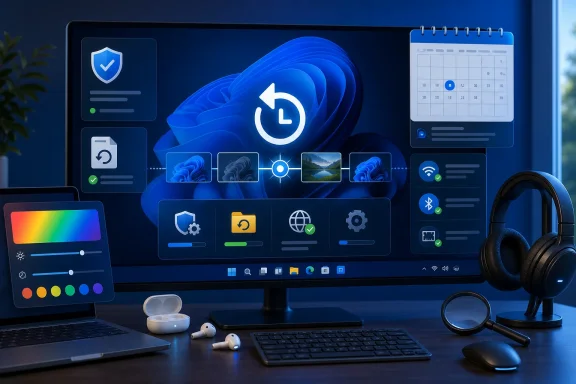 Point-in-Time Restore Rewinds More Than Windows
The headline addition is Point-in-Time Restore, a recovery tool designed to return the entire OS volume to a recent working state. Microsoft introduced it to Windows Insiders in November 2025 and announced general availability in June 2026, with KB5101650 bringing it into the regular Patch Tuesday servicing path.The feature uses Volume Shadow Copy Service to create local, block-level recovery points. Unlike the older System Restore facility, which primarily protects Windows components, drivers, and Registry settings, Point-in-Time Restore can roll back the Windows installation, installed applications, configuration, and local user files.
That wider coverage is both its advantage and its risk. Restoring a PC also removes changes made after the selected recovery point, potentially including recently created documents, passwords, certificates, application data, and configuration changes. It is a rollback mechanism, not a substitute for OneDrive, Windows Backup, or an independent file backup.
Windows creates recovery points every 24 hours under the default configuration and retains them for up to 72 hours. Enterprise administrators can select shorter capture intervals, while eligible Home and unmanaged Pro systems may receive the feature enabled by default.
Microsoft’s documented defaults add several storage qualifications:
- Automatic enablement generally requires an OS volume of at least 200GB.
- Recovery-point storage defaults to 2% of the OS volume.
- The configured allocation can range from 2GB to a maximum equivalent of 50GB.
- Windows stops creating recovery points when free space on the OS volume falls to 20GB or less.
- Old points are removed when they exceed the retention period, hit the storage limit, or compete with low disk space.
Recovery is initiated from the Troubleshoot menu in Windows Recovery Environment. For a PC trapped in a boot loop by a bad driver, update, or configuration change, this could offer a much faster route back than reinstalling Windows and rebuilding applications.
Bluetooth Repairs Target AirPods, Beats, and LE Audio
KB5101650 contains one of Microsoft’s more concentrated rounds of Bluetooth audio fixes. Windows Latest reports faster AirPods pairing, more reliable Beats Studio Pro microphone behavior, and fewer interruptions when using Bluetooth Low Energy Audio devices.Microsoft has also corrected synchronization between the Windows microphone mute control and compatible headsets using the Bluetooth Hands-Free Profile. Muting from either Windows or the headset should now be reflected at the other end, reducing the risk of an apparently muted microphone remaining active.
The update addresses error 0x9F associated with certain manufacturer Bluetooth drivers and improves simultaneous microphone and audio playback during calls. Classic Bluetooth devices should reconnect faster after hibernation, while LE Audio playback should begin sooner when the microphone is active and recover more reliably after another paired device interrupts the connection.
These repairs matter beyond consumer earbuds. Headset reliability has become an operational concern for organizations relying on Teams, browser-based calling, softphones, and hybrid workstations. A Bluetooth stack that pairs correctly but drops audio under two-way communication is not merely inconvenient; it can make an otherwise serviceable endpoint unusable for meetings and support calls.
Windows Update Gets a Calendar Without Losing Its Limit
The Windows Update page now offers a calendar for choosing the date on which paused updates resume. Users can select a specific date up to 35 days away instead of working through fixed one-week increments.The underlying 35-day limit has not changed. Users can select another pause period later, provided the new date remains within 35 days of the current date. This makes repeated deferrals possible with manual intervention, but it does not disable servicing permanently.
Once a pause expires, Windows checks for pending updates and resumes installation. That distinction is important for administrators and Home users treating the calendar as a workaround for mandatory updates: it is a scheduling control, not a new update-blocking policy.
Microsoft’s July 9 Windows vulnerability-management statement also emphasized that AI-assisted research is accelerating vulnerability discovery and analysis. That supports faster patch deployment, but it should not be interpreted as a universal three-day deadline applying identically to every organization. Enterprise teams still need staged validation, deployment rings, rollback planning, and monitoring rather than an uncontrolled fleet-wide release.
Quieter Widgets and a More Flexible Screen Tint
The Widgets board receives a less intrusive default configuration. It no longer opens simply because the pointer passes over its taskbar area, while notifications and taskbar badges are reduced. Dashboard indicators can still show new activity, but Microsoft is attempting to keep Widgets from becoming an accidental interruption.A new settings entry in the Widgets navigation area offers more control over the experience. Microsoft has also made responsiveness and reliability changes, which may help users who previously disabled Widgets because of unwanted opening, clutter, or sluggish behavior.
Accessibility settings gain Screen Tint, a customizable full-screen color overlay. Night light primarily adjusts color temperature toward warmer tones, while Screen Tint allows users to select a preferred color and intensity for visual comfort or accessibility requirements.
Magnifier receives finer zoom controls as part of the same accessibility work. Users can enter an exact zoom percentage and adjust the increment directly from Magnifier instead of repeatedly returning to Settings.
File Explorer, Networking, and Printing Get Practical Fixes
File Explorer should start faster after KB5101650, while disk-image mounting and address-bar handling have been improved. Microsoft has corrected problems involving quoted paths, double backslashes, OneDrive shortcuts opened with administrative privileges, duplicate OneDrive Favorites entries, and case-only file renaming.The Windows shell also receives reliability work covering blank taskbar icons, desktop switching, third-party shell extensions, sign-in screens, and acrylic visual effects. A Background Intelligent Transfer Service issue that could delay shutdown has been adjusted so Windows spends less time waiting for BITS to stop.
Networking fixes cover Wi-Fi power-related crashes, cellular connectivity, IPv6 VPN use, third-party VPN software, SR-IOV configurations, and Windows Subsystem for Linux mirrored networking behind a VPN. Windows should also preserve network-adapter settings and bindings more reliably during OS upgrades.
New printer installations will prefer Internet Printing Protocol when supported under Microsoft’s Windows Ready Print strategy. The move continues Microsoft’s shift away from vendor-supplied third-party printer drivers, although users can change the behavior in Settings under Bluetooth & devices and Printers & scanners.
Other visible changes include French, German, and Spanish support for enhanced voice access and voice typing on Copilot+ PCs, a configurable touchpad right-click zone, improved Phone Link call routing, and GIPHY replacing Tenor as the GIF provider in the Windows emoji panel.
Windows Update remains the recommended installation route because it downloads only the components appropriate for the PC. The Microsoft Update Catalog’s
.msu packages are better suited to offline servicing, troubleshooting Windows Update failures, or controlled deployment across multiple machines.Windows 11 24H2 Home and Pro systems should also treat build 26100.8875 as a transition point. Those editions reach end of servicing on October 13, 2026, while Windows 11 24H2 Enterprise and Education continue through October 2027. For administrators still validating Windows 11 25H2, the July update leaves roughly three months—not two—to complete Home and Pro migrations before the October cutoff.
Update: July Patch Tuesday Includes Two Exploited Zero-Days (July 14, 2026)
Newer reporting emphasizes that KB5101650 carries an unusually large security payload. BleepingComputer counted 570 vulnerabilities across Microsoft products, while Tenable counted 569 because of classification differences. Both describe July 2026 as Microsoft’s largest Patch Tuesday release to date.Two vulnerabilities were reportedly exploited before patches became available: CVE-2026-56155, an elevation-of-privilege flaw affecting Active Directory Federation Services, and CVE-2026-56164, an elevation-of-privilege vulnerability in Microsoft SharePoint Server. A publicly disclosed BitLocker security-feature bypass, CVE-2026-50661, is also included.
Microsoft has additionally begun enforcing Transport Driver Interface registration requirements. Legacy applications using sockets over unregistered third-party TDI transports may stop working after updates released on or after July 14, 2026. Administrators running older VPN, filtering, networking, or security software should include those components in deployment-ring testing.
The exploited vulnerabilities make prolonged deferral riskier than usual. Organizations should validate KB5101650 quickly, prioritizing systems connected to AD FS, on-premises SharePoint, and legacy network transports.
Windows 11 PC - Thurrott.com
www.thurrott.com
Update: Microsoft Blocks KB5101650 on Some Dell PCs (July 15, 2026)
Microsoft has temporarily withheld KB5101650 from a limited number of Intel-based Dell PCs following reports of unexpected shutdowns, performance degradation, excessive heat, and increased battery drain. ProPakistani reports that Microsoft and Dell are investigating the compatibility issue.Affected systems may not receive the update when users select Check for updates. Dell owners should not bypass the safeguard hold or manually install the update until they confirm their model is unaffected. Other eligible PCs can continue receiving KB5101650 normally.
Eight New Upgrades With Windows 11 July Update
Microsoft has released the July 2026 Patch Tuesday update for Windows 11, bringing security fixes, bug repairs, and several major new features. The update
propakistani.pk
Update: KB5101650 Fixes Runaway Capability Access Log (July 15, 2026)
TechRadar highlights an additional storage fix in KB5101650 affectingCapabilityAccessManager.db-wal, a write-ahead log used by Windows to track application access to resources such as the camera, microphone, and location.On affected PCs, the file could grow excessively and progressively consume free disk space. Microsoft’s release notes say the update improves its disk-space usage. Users who have identified this specific file as the source of unexplained storage loss should prioritize installing KB5101650, provided Windows Update does not apply the Dell safeguard hold.
The update also preserves standard Shut down and Restart options when an installation is pending. Users can choose those ordinary power actions without automatically triggering the update, while Update and shut down and Update and restart remain available separately.
New Windows 11 update is a big one — these are my top 4 features, including the ability to pause updates indefinitely | TechRadar
Plus an important cure for the nasty bug that eats drive space
www.techradar.com
Update: Managed PCs Keep Point-in-Time Restore Disabled Until 26H2 (July 15, 2026)
PCMag reports that Point-in-Time Restore remains disabled by default on enterprise-managed systems, including domain-joined and endpoint-managed Windows 11 Pro devices. Microsoft currently plans to defer automatic enablement on those PCs until Windows 11 26H2, rather than activating the broader rollback system immediately with KB5101650.The delay gives administrators additional time to assess storage consumption, Volume Shadow Copy Service interactions, recovery workflows, BitLocker key availability, and the effect of restoring older endpoint-security or policy states. Organizations can still evaluate the feature, but should not expect managed devices to begin creating recovery points automatically after installing July’s update.
PCMag also notes that restoring local files could produce OneDrive synchronization conflicts when the recovered copy differs from the cloud version. IT teams testing Point-in-Time Restore should therefore verify OneDrive behavior and confirm that security agents, policies, certificates, and missing updates are restored or reapplied correctly after recovery.
More Stable, Less Annoying: A Massive Patch Tuesday Update Arrives Just When Windows Needs It
A brand-new recovery tool, a quieter Widgets board, and an indefinite pause button for system updates are among the welcome features rolling out to Windows 11 PCs.
au.pcmag.com
References
- Primary source: Windows Latest
Published: 2026-07-14T16:52:56+00:00
Windows 11 KB5101650 out with features, direct download links for offline installer (.msu)
Windows 11 KB5101650 is rolling out, and it comes with several minor new features for Bluetooth and system stability, but it’s a great update nonetheless. The July 2026 Patch Tuesday update has been released via Windows Update, and Microsoft has posted direct download links for the... www.windowslatest.com
Last edited: