

Microsoft has launched shared and delegated mailbox scheduling in the Microsoft Teams Events app, giving executive assistants, chiefs of staff, communications teams, and other trusted organizers a cleaner way to create events under the identity audiences expect to see. Rather than sending invitations from an assistant’s personal account, organizers can select a leader’s delegated mailbox or an organizational shared mailbox, improving continuity, trust, and ownership throughout the event lifecycle. Listed as Microsoft 365 Roadmap ID 561912, the feature reached general availability in June 2026 for Teams on Windows and Mac in worldwide commercial tenants, with Microsoft marking it launched and updating the roadmap entry on July 20, 2026.
Calendar delegation is hardly new to Microsoft 365. Exchange and Outlook have supported assistants managing another person’s calendar for decades, while shared mailboxes have long provided departments with persistent identities such as [email protected], [email protected], or [email protected].
The problem has been consistency across Microsoft’s expanding event stack. A permission that allowed an assistant to edit a calendar or send a conventional meeting request did not necessarily produce the same experience inside Teams webinars, town halls, registration workflows, event pages, and other structured event tools.
Exchange distinguishes several related but separate capabilities:
That broader object model created a practical gap. A chief of staff might have authority to manage a leader’s Outlook calendar yet still encounter friction when building an executive town hall in Teams. Similarly, a communications department could own a shared mailbox but find that the person clicking the scheduling button became the operational center of an event intended to outlive any one employee.
Roadmap ID 561912 addresses that gap by bringing mailbox selection directly into the Teams event-creation workflow.
This is available through the Teams Events app on Windows and macOS. Microsoft lists both General Availability and Targeted Release rings, with availability for worldwide standard multi-tenant cloud customers.
There is an important limitation: the selected mailbox cannot be changed after the event is saved as a draft. The choice therefore needs to be treated as an architectural decision made at the beginning of the event lifecycle.
That restriction likely reflects the number of linked resources created behind the scenes. Changing the mailbox later could affect calendar ownership, invitation threading, organizer authorization, attendee responses, event pages, and Teams service permissions.
A personal invitation from an unfamiliar assistant can be legitimate while still looking suspicious. An invitation from a known executive, executive office, corporate communications team, or established event address communicates purpose more clearly.
A consistent mailbox identity does not eliminate that threat, but it can reduce ambiguity. An employee receiving an invitation from the Office of the CEO is more likely to understand why it was sent than an employee receiving the same invitation from a contractor or newly appointed assistant.
For external audiences, the effect may be even stronger. Customers and partners often do not know the internal coordinator responsible for building an event, but they may recognize the company’s events or communications address.
This is particularly valuable for recurring event programs:
Before this change, an assistant could schedule an ordinary meeting through Outlook delegation, but structured Teams event creation might require workarounds or leave important capabilities attached to the assistant. The new workflow aligns event administration more closely with established executive-office practices.
Organizations should choose between those models deliberately. Send on Behalf offers transparency about who performed the action, while Send As provides a cleaner executive identity but can make individual actions less obvious to recipients.
The right choice depends on organizational culture, compliance requirements, and the event’s audience. A board meeting may demand clear delegation records, while a broad executive announcement may benefit from a single, familiar sender identity.
When each authorized delegate can manage an event associated with the leader’s mailbox, the operation becomes less fragile. Attendees do not receive a different identity every time internal staffing changes, and the event does not have to be recreated merely because another coordinator assumes responsibility.
However, Microsoft’s longstanding calendar guidance remains relevant: adding too many high-privilege delegates can complicate troubleshooting. Organizations need enough coverage for resilience without granting broad access to everyone who might occasionally help.
That model fits event management especially well. Events frequently involve communications staff, producers, moderators, subject-matter experts, and administrative coordinators who need to collaborate before, during, and after a session.
A shared mailbox is useful when the organization needs:
This creates a cleaner separation between roles:
Administrators and mailbox owners must ensure that each organizer has the appropriate combination of calendar and sending rights. A user who can open a shared mailbox may still lack authority to send invitations from it.
For an individual’s mailbox, Outlook delegate settings can grant calendar access and meeting-processing authority. An administrator may still need to intervene when the organization requires Send As rather than the default Send on Behalf behavior.
Microsoft changed parts of Teams event licensing in April 2026, moving some capabilities previously associated with Teams Premium into Teams Enterprise while retaining Premium for advanced protection, communications, personalization, and intelligence features. Organizations should therefore validate the specific event capability rather than assuming that mailbox access alone supplies every required entitlement.
Mailbox selection appears in the planning stage. This is where the organizer decides whether the event belongs to an individual, a leader, a team identity, or a dedicated event identity.
Other delegates for the mailbox owner may then be able to edit the event. This can be particularly effective for an executive office with multiple authorized staff members, provided the delegates have compatible permissions and follow a coordinated change-management process.
A shared mailbox is still preferable when the organization wants a long-lived departmental identity. The trade-off is that co-organizers may not receive complete parity across every scheduling and management function.
The practical rule is simple: choose a shared mailbox for persistent organizational identity and an event mailbox for maximum event-specific collaboration.
Microsoft warns that co-organizers receive full parity only when an event mailbox is used. With personal, delegate, or shared mailboxes, they may be unable to edit certain scheduling details or manage other event elements.
This distinction prevents a meeting role from silently becoming access to someone’s email or calendar. It also explains why a co-organizer may help run Q&A or manage participants during the event yet remain unable to alter invitation details stored under a shared mailbox.
Organizations should map both layers separately:
A lightweight change process is advisable:
The improvement is most visible when something changes. Updates, cancellations, reminders, and registration information can continue to come from the same mailbox even if another employee has taken over event administration.
For customers and partners, a stable event address can become part of the relationship. Recipients can search for prior invitations, recognize follow-up messages, and reply to a mailbox monitored by a team instead of hoping that one employee is available.
Users should still inspect unexpected invitations, especially when they request credentials, payments, file downloads, or unusual actions. Administrators should protect delegates with multifactor authentication, Conditional Access, risk-based sign-in controls, and appropriate monitoring.
The feature improves identity consistency, but it should complement rather than replace security controls.
It may also reduce unsupported workarounds, such as sharing credentials, temporarily changing organizers, creating events under generic licensed user accounts, or asking senior leaders to perform final scheduling actions themselves.
That model supports professional event operations without requiring everyone to sign in as the same account. Microsoft explicitly advises against signing in using shared mailbox credentials for conventional shared-mailbox Teams meeting scenarios; users should work through their own identities and delegated permissions.
Avoiding shared credentials improves accountability. Authentication logs identify the actual user, while mailbox and event records preserve the organizational context in which the action occurred.
Legal, compliance, and security teams should verify that they can answer four questions:
The first area to watch is cross-platform availability. The roadmap entry specifies Teams desktop and Mac, leaving questions about browser and mobile workflows for organizers who need to make urgent changes away from their primary computer.
Tenant migrations and mailbox conversions present another challenge. Companies frequently merge, rename domains, consolidate shared mailboxes, or move users between tenants. Event portability will become increasingly important as Teams Events evolves into a central enterprise broadcasting platform.
Permission-expiration controls would also help. Temporary event staff could receive mailbox access for a defined period rather than retaining it until an administrator remembers to remove it.
Achieving that safely may require more granular roles. A future model could allow one person to edit scheduling details, another to manage registration, another to control branding, and another to run production without granting all of them broad mailbox access.
As enterprises complete that transition, they should not merely recreate old events in a new interface. This is an opportunity to review mailbox ownership, event templates, delegate permissions, production roles, retention, branding, and accessibility as one integrated operating model.
Microsoft Teams shared and delegated mailbox scheduling is not a flashy attendee-facing feature, but it closes an important gap between corporate authority and the people who perform event work. By letting authorized organizers use a leader’s mailbox or a persistent team identity, Microsoft gives executive offices and event departments a more credible, resilient, and governable way to communicate. The organizations that benefit most will be those that pair the new convenience with disciplined permissions, tested backup procedures, strong identity security, and a clear decision about who truly owns each event.
 Background
Calendar delegation is hardly new to Microsoft 365. Exchange and Outlook have supported assistants managing another person’s calendar for decades, while shared mailboxes have long provided departments with persistent identities such as [email protected], [email protected], or [email protected].The problem has been consistency across Microsoft’s expanding event stack. A permission that allowed an assistant to edit a calendar or send a conventional meeting request did not necessarily produce the same experience inside Teams webinars, town halls, registration workflows, event pages, and other structured event tools.
From Outlook delegation to Teams event operations
Traditional delegation starts with the mailbox owner granting another user access to selected folders, usually the primary calendar. Depending on the assigned level, a delegate may read calendar items, create appointments, modify events, or respond to meeting requests on the owner’s behalf.Exchange distinguishes several related but separate capabilities:
- Calendar permissions determine whether a user can view, create, modify, or delete calendar items.
- Full Access allows a user to open and manage mailbox content but does not, by itself, grant permission to send from that mailbox.
- Send on Behalf identifies the delegate as acting for the mailbox owner.
- Send As makes the message appear to have come directly from the mailbox identity.
- Delegate access combines calendar management with meeting-request handling and other workflow behavior configured through Outlook and Exchange.
Why structured events are more complicated
A normal Teams meeting is largely a calendar item with conferencing information and a set of meeting options. A structured event can also include registration, branded pages, capacity controls, moderated Q&A, presenter management, audience restrictions, RSVP tracking, recordings, event communications, and post-event insights.That broader object model created a practical gap. A chief of staff might have authority to manage a leader’s Outlook calendar yet still encounter friction when building an executive town hall in Teams. Similarly, a communications department could own a shared mailbox but find that the person clicking the scheduling button became the operational center of an event intended to outlive any one employee.
Roadmap ID 561912 addresses that gap by bringing mailbox selection directly into the Teams event-creation workflow.
What Microsoft Has Launched
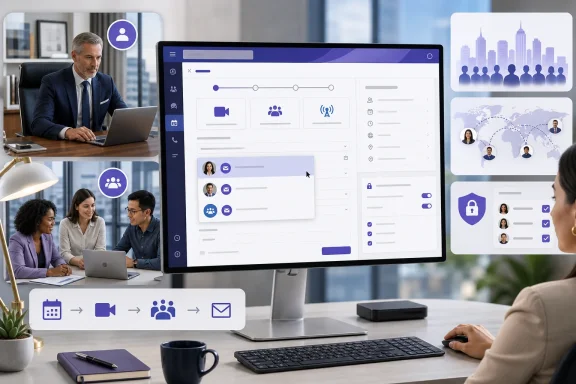
The new capability allows an authorized organizer to choose a shared or delegated mailbox while creating an event in Teams. Invitations and event-related emails can then use the selected identity instead of defaulting to the organizer’s personal mailbox.This is available through the Teams Events app on Windows and macOS. Microsoft lists both General Availability and Targeted Release rings, with availability for worldwide standard multi-tenant cloud customers.
The four mailbox models in Teams Events
The Events app now presents several identity and ownership options, each designed for a different operating model:- Your mailbox uses the creator’s personal identity. It is straightforward but keeps event ownership closely tied to one user.
- A delegate mailbox lets an authorized person organize on behalf of another individual, such as a chief executive, vice president, or department head.
- A shared mailbox uses an organizational identity managed by administrators and accessible to multiple authorized users.
- An event mailbox creates a dedicated identity for the event and gives co-organizers the most complete scheduling and editing parity.
Identity is selected during event creation
In the Events app, the organizer configures who is planning the event and specifies the mailbox from which invitations and event communications should be sent. Anyone with the required access to the selected shared mailbox can participate in editing the event, while other delegates for an individual may be able to work with an event scheduled through that person’s delegated mailbox.There is an important limitation: the selected mailbox cannot be changed after the event is saved as a draft. The choice therefore needs to be treated as an architectural decision made at the beginning of the event lifecycle.
That restriction likely reflects the number of linked resources created behind the scenes. Changing the mailbox later could affect calendar ownership, invitation threading, organizer authorization, attendee responses, event pages, and Teams service permissions.
Why Sender Identity Matters
An event invitation is often the first interaction an attendee has with a webinar, town hall, leadership briefing, or customer presentation. The sender influences whether recipients recognize the event, trust the link, respond promptly, or dismiss the message as unexpected.A personal invitation from an unfamiliar assistant can be legitimate while still looking suspicious. An invitation from a known executive, executive office, corporate communications team, or established event address communicates purpose more clearly.
Trust for recipients
Modern users are repeatedly warned not to trust unexpected meeting invitations. Attackers abuse calendar invitations, file-sharing notices, and fake conferencing links because recipients are accustomed to acting quickly on them.A consistent mailbox identity does not eliminate that threat, but it can reduce ambiguity. An employee receiving an invitation from the Office of the CEO is more likely to understand why it was sent than an employee receiving the same invitation from a contractor or newly appointed assistant.
For external audiences, the effect may be even stronger. Customers and partners often do not know the internal coordinator responsible for building an event, but they may recognize the company’s events or communications address.
Continuity for the organization
Shared mailbox scheduling also separates institutional work from employee tenure. If the original organizer changes roles, takes leave, or leaves the company, the event identity remains associated with the function that owns it.This is particularly valuable for recurring event programs:
- Quarterly financial briefings can remain associated with an investor-relations mailbox.
- Employee town halls can use a corporate-communications identity.
- Training sessions can originate from a learning-and-development mailbox.
- Product demonstrations can use a product-events address.
- Executive engagements can remain tied to an executive-office mailbox.
The Chief of Staff and Executive Assistant Scenario
Microsoft explicitly positions the feature for chiefs of staff and delegated roles, and that is the most obvious use case. Senior leaders rarely build their own large events, yet the event often needs to carry the leader’s authority and recognizable identity.Before this change, an assistant could schedule an ordinary meeting through Outlook delegation, but structured Teams event creation might require workarounds or leave important capabilities attached to the assistant. The new workflow aligns event administration more closely with established executive-office practices.
Acting on behalf of a leader
A delegate mailbox does not necessarily conceal the person performing the work. Under a Send on Behalf configuration, recipients may see that the delegate sent the communication for the leader. Under Send As, the visible sender may be the leader’s mailbox alone.Organizations should choose between those models deliberately. Send on Behalf offers transparency about who performed the action, while Send As provides a cleaner executive identity but can make individual actions less obvious to recipients.
The right choice depends on organizational culture, compliance requirements, and the event’s audience. A board meeting may demand clear delegation records, while a broad executive announcement may benefit from a single, familiar sender identity.
Backup coverage without identity changes
Executive calendar management is rarely performed by one person under all circumstances. A chief of staff may oversee strategy, an executive assistant may handle logistics, and a backup assistant may cover absences.When each authorized delegate can manage an event associated with the leader’s mailbox, the operation becomes less fragile. Attendees do not receive a different identity every time internal staffing changes, and the event does not have to be recreated merely because another coordinator assumes responsibility.
However, Microsoft’s longstanding calendar guidance remains relevant: adding too many high-privilege delegates can complicate troubleshooting. Organizations need enough coverage for resilience without granting broad access to everyone who might occasionally help.
Shared Mailboxes as Event Identities
A shared mailbox represents a team or function rather than an individual. It usually has its own email address and calendar, while authorized employees access it through their own Microsoft 365 accounts.That model fits event management especially well. Events frequently involve communications staff, producers, moderators, subject-matter experts, and administrative coordinators who need to collaborate before, during, and after a session.
How a shared mailbox differs from a Microsoft 365 group
A shared mailbox is not interchangeable with a Team, Microsoft 365 group, distribution list, or channel calendar. Each object has different membership, storage, conversation, calendar, and authorization behavior.A shared mailbox is useful when the organization needs:
- A recognizable sender address.
- A shared inbox for attendee replies and questions.
- A calendar that multiple authorized users can manage.
- Persistent ownership independent of an employee.
- Exchange permissions such as Full Access and Send As.
- A controlled identity that administrators can audit.
Operational ownership
The major advantage of shared mailbox scheduling is that event ownership can follow a business process. Corporate communications owns the town hall, customer success owns the onboarding webinar, or human resources owns the benefits briefing.This creates a cleaner separation between roles:
- The business function owns the event.
- The shared mailbox supplies the persistent identity.
- Authorized staff members perform scheduling and editing work.
- Presenters deliver content without necessarily controlling the event.
- Co-organizers assist with production according to the capabilities available for the chosen mailbox type.
Permissions and Administration
The feature’s success depends on Exchange Online permissions being configured correctly. Teams cannot safely let a user select any mailbox in the tenant simply because its address is known.Administrators and mailbox owners must ensure that each organizer has the appropriate combination of calendar and sending rights. A user who can open a shared mailbox may still lack authority to send invitations from it.
Understanding the permission layers
For a shared mailbox, administrators commonly configure two separate rights:- Full Access allows the user to open the mailbox and manage its contents.
- Send As allows the user to send messages that appear to come from the shared mailbox.
For an individual’s mailbox, Outlook delegate settings can grant calendar access and meeting-processing authority. An administrator may still need to intervene when the organization requires Send As rather than the default Send on Behalf behavior.
A recommended deployment sequence
IT teams should avoid enabling the feature informally and discovering permission gaps during a high-profile event. A controlled rollout can follow this sequence:- Identify the event ownership model. Decide whether each event program should use a personal, delegated, shared, or dedicated event mailbox.
- Create or review the mailbox. Confirm the address, display name, calendar, retention settings, and whether the identity appears correctly in the address book.
- Assign the minimum required permissions. Grant calendar access, Full Access, Send As, or delegate rights according to the actual workflow.
- Test in Teams on a supported desktop client. Create a non-production event and verify that the mailbox appears as an available choice.
- Validate every communication path. Check the initial invitation, updates, cancellations, attendee responses, registration messages, and organizer access.
- Test backup organizers. Confirm that another authorized user can locate and manage the event without relying on the original creator.
- Document offboarding procedures. Ensure access is removed promptly when a staff member changes roles or leaves the organization.
Licensing considerations
Microsoft’s support guidance for conventional Teams meetings scheduled through shared mailboxes notes that either the shared mailbox or the user scheduling the meeting must have an appropriate Teams license. Structured Teams event entitlements can introduce additional licensing considerations based on audience size, production features, branding, and the organization’s Teams subscription.Microsoft changed parts of Teams event licensing in April 2026, moving some capabilities previously associated with Teams Premium into Teams Enterprise while retaining Premium for advanced protection, communications, personalization, and intelligence features. Organizations should therefore validate the specific event capability rather than assuming that mailbox access alone supplies every required entitlement.
Creating an Event with the New Workflow
The Teams Events app serves as a unified hub for webinars, town halls, large meetings, and other structured experiences. Organizers can start from scratch or choose a template, then configure the audience, location, capacity, registration, presenters, and event experience.Mailbox selection appears in the planning stage. This is where the organizer decides whether the event belongs to an individual, a leader, a team identity, or a dedicated event identity.
Core scheduling flow
A typical shared mailbox workflow looks like this:- Open the Events app from the Teams desktop client.
- Choose Create event and start from a blank event or an approved template.
- Enter the event name, description, date, time, and any physical or Teams Rooms locations.
- Open the planning section and select the authorized shared mailbox.
- Add co-organizers and presenters.
- Define who can attend and whether registration is required.
- Configure capacity, audience interaction, Q&A, branding, and production options.
- Save the draft, review the resulting ownership, and publish when ready.
Delegate mailbox workflow
For a delegated event, the process is similar, but the selected mailbox belongs to another person. Teams must recognize the current user as an authorized delegate before presenting or accepting that choice.Other delegates for the mailbox owner may then be able to edit the event. This can be particularly effective for an executive office with multiple authorized staff members, provided the delegates have compatible permissions and follow a coordinated change-management process.
Event mailbox versus shared mailbox
Microsoft’s dedicated event mailbox option deserves attention because it provides the strongest co-organizer parity. With an event mailbox, the service creates an identity specifically for that event, and co-organizers gain fuller scheduling and editing capabilities.A shared mailbox is still preferable when the organization wants a long-lived departmental identity. The trade-off is that co-organizers may not receive complete parity across every scheduling and management function.
The practical rule is simple: choose a shared mailbox for persistent organizational identity and an event mailbox for maximum event-specific collaboration.
Collaboration and Co-Organizer Boundaries
Shared ownership does not mean that every person associated with an event can perform every action. Teams distinguishes among organizers, co-organizers, presenters, and attendees, and the selected mailbox model can further affect what each role can change.Microsoft warns that co-organizers receive full parity only when an event mailbox is used. With personal, delegate, or shared mailboxes, they may be unable to edit certain scheduling details or manage other event elements.
Why co-organizers are not mailbox delegates
A Teams co-organizer is an event role. A mailbox delegate is an Exchange authorization relationship. Assigning one does not necessarily create the other.This distinction prevents a meeting role from silently becoming access to someone’s email or calendar. It also explains why a co-organizer may help run Q&A or manage participants during the event yet remain unable to alter invitation details stored under a shared mailbox.
Organizations should map both layers separately:
- Exchange permissions determine who can act through the mailbox.
- Teams roles determine who can administer the event experience.
- Presenter status determines who can deliver content.
- Event policies and licenses determine which features are available.
Change control for high-profile events
When several delegates can edit the same event, technical access should be paired with human coordination. Two organizers changing the date, audience, presenter list, or registration configuration at the same time can create confusion even if the platform accepts both users.A lightweight change process is advisable:
- Assign one scheduling lead.
- Assign a backup with equivalent mailbox access.
- Record major changes in an organizer chat or project workspace.
- Freeze invitation details before rehearsals.
- Limit final-day edits to named personnel.
- Confirm who is responsible for cancellation or emergency updates.
Consumer and Employee Impact
Attendees may never notice the underlying mailbox selection, which is partly the point. They should simply receive communications from a coherent identity and experience fewer unexplained sender changes.The improvement is most visible when something changes. Updates, cancellations, reminders, and registration information can continue to come from the same mailbox even if another employee has taken over event administration.
A more understandable invitation experience
For employees, familiar organizational identities can make internal communications easier to classify. An invitation from Corporate Communications carries different expectations from one sent by an individual coordinator.For customers and partners, a stable event address can become part of the relationship. Recipients can search for prior invitations, recognize follow-up messages, and reply to a mailbox monitored by a team instead of hoping that one employee is available.
Security awareness still matters
A recognizable sender is not proof that an invitation is safe. Compromised accounts, malicious forwarding rules, display-name spoofing, and abused shared mailboxes remain credible threats.Users should still inspect unexpected invitations, especially when they request credentials, payments, file downloads, or unusual actions. Administrators should protect delegates with multifactor authentication, Conditional Access, risk-based sign-in controls, and appropriate monitoring.
The feature improves identity consistency, but it should complement rather than replace security controls.
Enterprise Impact
For enterprises, mailbox-based event scheduling is primarily an operations and governance improvement. It brings Teams Events closer to the mature delegation model organizations already use in Exchange and Outlook.It may also reduce unsupported workarounds, such as sharing credentials, temporarily changing organizers, creating events under generic licensed user accounts, or asking senior leaders to perform final scheduling actions themselves.
Better separation of duties
A well-designed deployment can separate authority from execution. A communications specialist may create the event, an executive mailbox may provide the visible identity, a producer may control the live experience, and compliance administrators may retain audit oversight.That model supports professional event operations without requiring everyone to sign in as the same account. Microsoft explicitly advises against signing in using shared mailbox credentials for conventional shared-mailbox Teams meeting scenarios; users should work through their own identities and delegated permissions.
Avoiding shared credentials improves accountability. Authentication logs identify the actual user, while mailbox and event records preserve the organizational context in which the action occurred.
Audit and compliance implications
Shared and delegated scheduling can create a more defensible event trail, but administrators must understand what their audit systems record. The visible sender, calendar owner, event organizer, and user who performed an action may not be identical.Legal, compliance, and security teams should verify that they can answer four questions:
- Which mailbox owned or sent the event communication?
- Which user created or modified the event?
- Which permission authorized that user to act?
- Which recipients received each invitation, update, or cancellation?
Strengths and Opportunities
The launch resolves a highly practical mismatch between how organizations assign event work and how event communications have historically been represented.- It creates a consistent sender identity. Invitations can represent the leader, office, or department that actually owns the event.
- It improves operational continuity. Authorized colleagues can continue managing an event when the original scheduler is unavailable.
- It reduces dependence on personal calendars. Institutional events no longer need to revolve around one employee’s mailbox.
- It aligns Teams with Exchange delegation. Organizations can extend familiar mailbox governance into the Teams Events experience.
- It supports professional external communication. Customers and partners receive messages from an address they can recognize and revisit.
- It enables clearer event-program ownership. Repeated webinars or town halls can use a stable functional identity.
- It discourages shared credentials. Staff can act through their own accounts while using properly delegated authority.
- It creates automation opportunities. Shared inbox rules, retention policies, response workflows, and reporting processes can be built around a persistent mailbox.
- It helps executive offices scale. Multiple approved delegates can provide coverage without repeatedly changing the public-facing organizer.
- It complements reusable event templates. Organizations can combine standardized settings with standardized identities for recurring programs.
Risks and Concerns
The new flexibility also introduces governance risks. A trusted mailbox can amplify mistakes because recipients are more likely to act on messages carrying an authoritative identity.- Excessive Send As access can weaken accountability. Organizations should grant it only to users who genuinely need to represent the mailbox.
- Too many delegates can complicate troubleshooting. Concurrent edits and unclear responsibility may produce stale or conflicting event information.
- Mailbox selection is locked after the draft is saved. Choosing the wrong identity may force organizers to recreate the event.
- Co-organizer capabilities can vary. Shared and delegated mailbox events do not provide the same parity as dedicated event mailbox events.
- Permission layers can be misunderstood. Full Access, calendar rights, Send As, Send on Behalf, and Teams roles solve different problems.
- Offboarding gaps can leave residual access. Former assistants or temporary staff must be removed from mailbox and calendar permissions promptly.
- A compromised delegate account can abuse a trusted identity. Strong authentication and monitoring are essential.
- Shared mailbox meetings may retain feature limitations. Administrators should test meeting options, apps, recordings, and editing behavior before standardizing a workflow.
- Licensing assumptions can cause late failures. The ability to select a mailbox does not guarantee entitlement to every event scale or premium feature.
- Audit interpretation may be complex. The visible sender may not reveal which individual performed the action.
What to Watch Next
The launch is a meaningful step, but it does not erase all differences between Exchange calendars, ordinary Teams meetings, and the newer Events app. Microsoft still has room to make event ownership more portable and administration more transparent.The first area to watch is cross-platform availability. The roadmap entry specifies Teams desktop and Mac, leaving questions about browser and mobile workflows for organizers who need to make urgent changes away from their primary computer.
Organizer transfer and mailbox migration
Because mailbox selection becomes fixed after a draft is saved, organizations need clearer recovery paths when an event is created under the wrong identity. A future transfer capability could preserve registrations, links, attendee records, and event settings while changing ownership safely.Tenant migrations and mailbox conversions present another challenge. Companies frequently merge, rename domains, consolidate shared mailboxes, or move users between tenants. Event portability will become increasingly important as Teams Events evolves into a central enterprise broadcasting platform.
Administrative reporting
Administrators would benefit from reporting that combines event identity with delegate activity. Useful views could show which shared mailboxes own upcoming events, which users can edit them, which permissions are unused, and which events depend on employees scheduled for departure.Permission-expiration controls would also help. Temporary event staff could receive mailbox access for a defined period rather than retaining it until an administrator remembers to remove it.
Greater parity across mailbox choices
Microsoft’s warning about limited co-organizer parity suggests that mailbox identity and event collaboration are not yet fully decoupled. Customers will likely want the durable identity of a shared mailbox with the collaborative freedom of a dedicated event mailbox.Achieving that safely may require more granular roles. A future model could allow one person to edit scheduling details, another to manage registration, another to control branding, and another to run production without granting all of them broad mailbox access.
The post-live-events transition
The timing is also significant because Microsoft retired the legacy Teams live events experience on June 30, 2026, directing customers toward town halls and the newer event tooling. Shared and delegated mailbox scheduling helps the replacement platform accommodate the organizational workflows that grew around the older service.As enterprises complete that transition, they should not merely recreate old events in a new interface. This is an opportunity to review mailbox ownership, event templates, delegate permissions, production roles, retention, branding, and accessibility as one integrated operating model.
Microsoft Teams shared and delegated mailbox scheduling is not a flashy attendee-facing feature, but it closes an important gap between corporate authority and the people who perform event work. By letting authorized organizers use a leader’s mailbox or a persistent team identity, Microsoft gives executive offices and event departments a more credible, resilient, and governable way to communicate. The organizations that benefit most will be those that pair the new convenience with disciplined permissions, tested backup procedures, strong identity security, and a clear decision about who truly owns each event.
References
- Primary source: Microsoft 365 Roadmap
Published: 2026-07-20T22:37:15.9046041Z
Microsoft 365 Roadmap | Microsoft 365
The Microsoft 365 Roadmap lists updates that are currently planned for applicable subscribers. Check here for more information on the status of new features and updates.www.microsoft.com
- Official source: support.microsoft.com
Share and access a calendar with edit or delegate permissions in Outlook | Microsoft Support
Learn about calendar delegation in Outlook on the web for business.support.microsoft.com - Official source: learn.microsoft.com
Access a calendar as a delegate by using EWS in Exchange | Microsoft Learn
Learn how to access a calendar as a delegate by using the EWS Managed API or EWS in Exchange.learn.microsoft.com
