

Canon MAXIFY GX5020 print failures in 2026 usually come down to a small set of fixable problems: the printer is not ready, Windows or macOS is holding a stuck job, the network path has broken, or the MegaTank print head needs cleaning. That makes this less a mystery than a sequence problem. The temptation is to reinstall everything, reset everything, or assume the visible ink tanks prove the hardware is fine. The better answer is to move from the least destructive checks to the most invasive ones, because most “won’t print” cases are software or maintenance failures wearing a hardware mask.
The Canon MAXIFY GX5020 is a single-function printer, and that matters more than it first appears. There is no scanner subsystem to confuse the issue, no copier panel to troubleshoot, and no fax state buried three menus down. If it is failing, the failure sits somewhere in the path from document to queue to network to printer engine to paper.
It is also a refillable MegaTank printer using GI-26 pigment ink bottles, not cartridges. That distinction kills off one of the most common bits of generic printer advice: “replace the cartridge.” On this machine, a blank page with visible ink in the tanks points less toward replacement and more toward ink delivery, nozzle health, or print-head maintenance.
The right mental model is therefore not “the printer is dead.” It is “one stage in the print chain has stopped handing off to the next.” The fixes that follow are ordered around that chain, beginning at the printer itself and ending with resets only when the lower-risk repairs have failed.
The LCD is the next place to look. Paper size and paper type mismatches can stop a job even when the document appears to have left the computer successfully. If the screen is telling you that the loaded paper does not match the selected settings, correct that mismatch before chasing drivers or reinstalling software.
A power cycle is still worth doing, but it should be done deliberately. Turn the printer off, unplug it, wait about 30 seconds, reconnect it, and power it back on. That clears many temporary device states without changing settings, deleting queues, or forcing you into a new setup.
For wireless setups, verify that the GX5020 is connected to the same network as the computer or phone sending the job. The model supports both 2.4 GHz and 5 GHz Wi-Fi, which is convenient, but it also means dual-band router configurations can create subtle “same Wi-Fi name, different actual path” confusion. If the printer is on a guest network, isolated IoT network, or old SSID, the job may never arrive.
Ethernet is the underrated test here. The GX5020 includes wired LAN support, and a temporary Ethernet connection can quickly separate printer failure from Wi-Fi failure. If wired printing works, the printer engine and driver are probably fine; the problem is the wireless configuration.
Open Settings, go to Bluetooth & devices, then Printers & scanners, and make sure the Canon entry is the default printer. If “Let Windows manage my default printer” is enabled, Windows may quietly redirect jobs based on recent use. That is helpful when it works and maddening when the last “printer” was a PDF driver or an old device still registered in the system.
Then open the print queue and cancel stuck jobs. A single malformed or stalled document can block every later job behind it. If the queue empties cleanly and a new test print works, you have found the failure without touching the printer at all.
On Windows 10, the older queue controls are still especially important. Make sure “Pause Printing” and “Use Printer Offline” are not checked. Those two settings can turn a healthy printer into a black hole while every application behaves as if printing should work.
Restart it from Services by searching for “services,” opening the Services app, right-clicking Print Spooler, and choosing Restart. This is less drastic than rebooting the whole PC and often more precise. Once the service returns, send one simple test job rather than immediately resubmitting a large PDF or complex document.
If the spooler repeatedly locks up, treat that as evidence rather than bad luck. It may point to a driver conflict, a damaged job file, security software interference, or a broader Windows printing issue. For a one-off jam, restarting the service is a fix; for a recurring jam, it is a symptom collector.
In the print dialog, choose the Canon printer entry that corresponds to the GX5020 or the correct Canon series driver. Avoid stale duplicates unless you know exactly which port and driver they use. If there are multiple Canon entries, print a test page from each or remove the obvious leftovers after confirming the working one.
A restart of the computer is not glamorous, but it is appropriate after you have cleared the queue, checked the printer selection, and adjusted the default printer. Printing touches drivers, services, network discovery, and application state. Rebooting after those changes gives the stack a clean launch without yet deleting or resetting the printer.
Resetting the printing system removes all printers, completed-job information, and printer presets. That is why it should not be the first fix. It is a controlled demolition of the local printing setup, useful when the printer list has become corrupt or stale, but irritating if you have several printers, custom presets, or office configurations.
The path is Apple menu, System Settings, Printers & Scanners, then Control-click the printer list and choose Reset Printing System. Afterward, add the GX5020 again and print a simple test page. If it works immediately after the reset, the failure was probably in macOS’s local printer configuration rather than the Canon hardware.
Because this is a MegaTank machine, visible ink in the tanks does not prove the nozzles are clear. Pigment ink can dry at the nozzle surface, especially after long idle periods. The right diagnostic is not guessing at ink levels but printing a nozzle check pattern.
Load plain Letter or A4 paper, then use the printer’s maintenance menu to run a nozzle check. If the pattern shows missing lines, gaps, or streaks, run Cleaning. If the pattern improves but does not fully recover, run Deep Cleaning.
Ink Flush is the heavy artillery. Canon documents it for cases where cleaning and deep cleaning do not restore normal output, especially after prolonged disuse. It can consume a large amount of ink, so it belongs near the end of the maintenance path, not at the beginning.
Re-run wireless setup on the printer so it stores the current network name, authentication method, and password. Make sure the computer or phone is on the same usable network, not a guest network or isolated VLAN. For home users, this is often as simple as choosing the right SSID again; for small offices, it may require checking that client isolation is not blocking printer discovery.
Canon’s Wi-Fi Connection Assistant can help diagnose and repair the printer’s network setup on Windows and macOS. The Canon PRINT app can also assist with setup and ink-level checks from a phone. Those tools are most useful when the printer is physically fine but cannot be found consistently across the network.
On the GX5020, firmware updates can be initiated from the operation panel through Setup, Device settings, Firmware update, and Install update. Confirm the prompts and wait for the printer to restart automatically. Do not power it off mid-update.
In an office, firmware updates should be handled with a little more ceremony. Check whether the printer is shared, whether users are actively relying on it, and whether a wired connection is available for the update. A small printer can still be a production dependency when it is the device that prints invoices, labels, shipping forms, or school packets five minutes before they are needed.
Under Setup, Device settings, Reset setting, the targeted option for network trouble is LAN settings. Use that when connectivity is the only broken piece, then run Wi-Fi setup again. It is the surgical reset for a printer that appears healthy but has lost its way on the network.
“All data” is broader and more disruptive. It restores settings to defaults, including the administrator password, while leaving certain items such as LCD language, print-head position, and usage totals intact. Use it only when narrower repairs have failed or when you are preparing the printer for a fresh setup.
If the printer still refuses to print after a full reset, the story changes. At that point, you have worked through readiness, host OS, queue state, driver selection, network configuration, print-head maintenance, firmware, and settings. Canon support or hardware service becomes the rational next step rather than another round of random toggles.
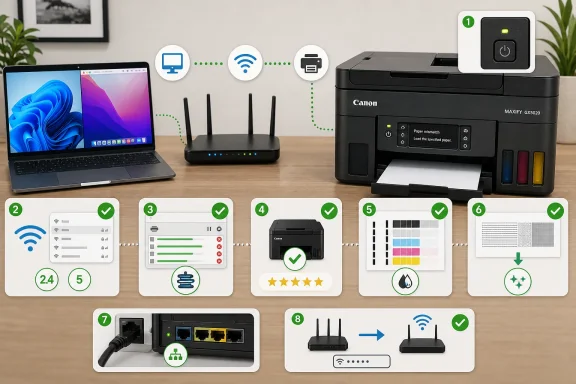 The GX5020 Is Simpler Than Most Printer Problems Make It Feel
The Canon MAXIFY GX5020 is a single-function printer, and that matters more than it first appears. There is no scanner subsystem to confuse the issue, no copier panel to troubleshoot, and no fax state buried three menus down. If it is failing, the failure sits somewhere in the path from document to queue to network to printer engine to paper.It is also a refillable MegaTank printer using GI-26 pigment ink bottles, not cartridges. That distinction kills off one of the most common bits of generic printer advice: “replace the cartridge.” On this machine, a blank page with visible ink in the tanks points less toward replacement and more toward ink delivery, nozzle health, or print-head maintenance.
The right mental model is therefore not “the printer is dead.” It is “one stage in the print chain has stopped handing off to the next.” The fixes that follow are ordered around that chain, beginning at the printer itself and ending with resets only when the lower-risk repairs have failed.
The First Failure Is Often the Printer Saying “Not Yet”
Before Windows, macOS, or Wi-Fi gets blamed, the GX5020 needs to be physically ready. Confirm the power cable is secure, press the ON button, and wait for the ON lamp to stop flashing and stay steady. A flashing lamp is not decorative; it means the printer is busy, initializing, or reporting a condition that must be cleared before it can accept a job.The LCD is the next place to look. Paper size and paper type mismatches can stop a job even when the document appears to have left the computer successfully. If the screen is telling you that the loaded paper does not match the selected settings, correct that mismatch before chasing drivers or reinstalling software.
A power cycle is still worth doing, but it should be done deliberately. Turn the printer off, unplug it, wait about 30 seconds, reconnect it, and power it back on. That clears many temporary device states without changing settings, deleting queues, or forcing you into a new setup.
The Connection Is the Second Suspect, Not an Afterthought
If the printer looks ready but jobs never reach paper, inspect the connection path. With USB, the boring details matter: use a direct connection, avoid hubs, reseat both ends of the cable, and try a different cable if the printer remains invisible or unreliable. A printer that appears in settings but never responds can still be suffering from a marginal USB link.For wireless setups, verify that the GX5020 is connected to the same network as the computer or phone sending the job. The model supports both 2.4 GHz and 5 GHz Wi-Fi, which is convenient, but it also means dual-band router configurations can create subtle “same Wi-Fi name, different actual path” confusion. If the printer is on a guest network, isolated IoT network, or old SSID, the job may never arrive.
Ethernet is the underrated test here. The GX5020 includes wired LAN support, and a temporary Ethernet connection can quickly separate printer failure from Wi-Fi failure. If wired printing works, the printer engine and driver are probably fine; the problem is the wireless configuration.
Windows Can Lose a Job After It Says It Sent One
Windows printing remains a layered system, and that layering is where many phantom failures live. A job can leave an application, enter a queue, appear to process, and still never reach the printer because the selected device is offline, paused, jammed, or simply not the printer you meant to use.Open Settings, go to Bluetooth & devices, then Printers & scanners, and make sure the Canon entry is the default printer. If “Let Windows manage my default printer” is enabled, Windows may quietly redirect jobs based on recent use. That is helpful when it works and maddening when the last “printer” was a PDF driver or an old device still registered in the system.
Then open the print queue and cancel stuck jobs. A single malformed or stalled document can block every later job behind it. If the queue empties cleanly and a new test print works, you have found the failure without touching the printer at all.
On Windows 10, the older queue controls are still especially important. Make sure “Pause Printing” and “Use Printer Offline” are not checked. Those two settings can turn a healthy printer into a black hole while every application behaves as if printing should work.
The Spooler Is Still Windows’ Printer Traffic Cop
When print jobs refuse to cancel or sit forever in limbo, the Windows Print Spooler becomes the next target. The spooler is the service that manages the local print pipeline, and when it hangs, applications can keep sending jobs into a queue that no longer moves.Restart it from Services by searching for “services,” opening the Services app, right-clicking Print Spooler, and choosing Restart. This is less drastic than rebooting the whole PC and often more precise. Once the service returns, send one simple test job rather than immediately resubmitting a large PDF or complex document.
If the spooler repeatedly locks up, treat that as evidence rather than bad luck. It may point to a driver conflict, a damaged job file, security software interference, or a broader Windows printing issue. For a one-off jam, restarting the service is a fix; for a recurring jam, it is a symptom collector.
The Wrong Driver Can Be More Convincing Than a Broken One
A surprisingly common printer failure is not a bad driver but the wrong destination. In a crowded print dialog, the Canon MAXIFY GX5020 can sit beside Microsoft Print to PDF, OneNote, an old Canon entry, a class driver, or another printer on the network. Pick the wrong one and the job may “complete” perfectly without producing a page.In the print dialog, choose the Canon printer entry that corresponds to the GX5020 or the correct Canon series driver. Avoid stale duplicates unless you know exactly which port and driver they use. If there are multiple Canon entries, print a test page from each or remove the obvious leftovers after confirming the working one.
A restart of the computer is not glamorous, but it is appropriate after you have cleared the queue, checked the printer selection, and adjusted the default printer. Printing touches drivers, services, network discovery, and application state. Rebooting after those changes gives the stack a clean launch without yet deleting or resetting the printer.
macOS Has a Cleaner Reset, but It Is Not a First Move
On a Mac, the equivalent failure often presents as a printer that appears installed but will not accept jobs reliably. First confirm the selected printer in the Print dialog, restart the Mac, and check that the printer and Mac are on the same network. If those steps fail, macOS offers a powerful reset option.Resetting the printing system removes all printers, completed-job information, and printer presets. That is why it should not be the first fix. It is a controlled demolition of the local printing setup, useful when the printer list has become corrupt or stale, but irritating if you have several printers, custom presets, or office configurations.
The path is Apple menu, System Settings, Printers & Scanners, then Control-click the printer list and choose Reset Printing System. Afterward, add the GX5020 again and print a simple test page. If it works immediately after the reset, the failure was probably in macOS’s local printer configuration rather than the Canon hardware.
Blank Pages Are a Different Class of Failure
A GX5020 that prints nothing at all is not the same as a GX5020 that feeds paper and produces blank or streaky output. The first problem often lives in the connection or queue. The second usually means the print engine is doing its job but ink is not reaching the page correctly.Because this is a MegaTank machine, visible ink in the tanks does not prove the nozzles are clear. Pigment ink can dry at the nozzle surface, especially after long idle periods. The right diagnostic is not guessing at ink levels but printing a nozzle check pattern.
Load plain Letter or A4 paper, then use the printer’s maintenance menu to run a nozzle check. If the pattern shows missing lines, gaps, or streaks, run Cleaning. If the pattern improves but does not fully recover, run Deep Cleaning.
Ink Flush is the heavy artillery. Canon documents it for cases where cleaning and deep cleaning do not restore normal output, especially after prolonged disuse. It can consume a large amount of ink, so it belongs near the end of the maintenance path, not at the beginning.
Router Changes Break Printers in a Particularly Boring Way
If the GX5020 stopped printing after a router swap, Wi-Fi password change, SSID change, or security-mode change, the likely cause is not mysterious. The printer is trying to use old network credentials. From its point of view, the network it knew has disappeared or now rejects it.Re-run wireless setup on the printer so it stores the current network name, authentication method, and password. Make sure the computer or phone is on the same usable network, not a guest network or isolated VLAN. For home users, this is often as simple as choosing the right SSID again; for small offices, it may require checking that client isolation is not blocking printer discovery.
Canon’s Wi-Fi Connection Assistant can help diagnose and repair the printer’s network setup on Windows and macOS. The Canon PRINT app can also assist with setup and ink-level checks from a phone. Those tools are most useful when the printer is physically fine but cannot be found consistently across the network.
Firmware Updates Belong After the Obvious Fixes
Firmware is not the first explanation for a printer that fails today after working yesterday, but it should not be ignored. Firmware updates can address connectivity, compatibility, and device behavior problems that no amount of queue clearing will solve. The trick is to update only after confirming the printer can remain powered and connected during the process.On the GX5020, firmware updates can be initiated from the operation panel through Setup, Device settings, Firmware update, and Install update. Confirm the prompts and wait for the printer to restart automatically. Do not power it off mid-update.
In an office, firmware updates should be handled with a little more ceremony. Check whether the printer is shared, whether users are actively relying on it, and whether a wired connection is available for the update. A small printer can still be a production dependency when it is the device that prints invoices, labels, shipping forms, or school packets five minutes before they are needed.
Resets Are Useful Because They Are Destructive
The GX5020’s reset menu exists for a reason, but the reason is not convenience. Resetting settings can clear bad configuration, but it also removes information you may need. That is why resets belong at the end of the sequence.Under Setup, Device settings, Reset setting, the targeted option for network trouble is LAN settings. Use that when connectivity is the only broken piece, then run Wi-Fi setup again. It is the surgical reset for a printer that appears healthy but has lost its way on the network.
“All data” is broader and more disruptive. It restores settings to defaults, including the administrator password, while leaving certain items such as LCD language, print-head position, and usage totals intact. Use it only when narrower repairs have failed or when you are preparing the printer for a fresh setup.
If the printer still refuses to print after a full reset, the story changes. At that point, you have worked through readiness, host OS, queue state, driver selection, network configuration, print-head maintenance, firmware, and settings. Canon support or hardware service becomes the rational next step rather than another round of random toggles.
The Ten Fixes That Separate a Bad Print Job From a Bad Printer
The most important discipline in printer troubleshooting is not technical brilliance; it is order. A GX5020 that will not print should be approached like a chain of custody problem, where each step proves or eliminates one handoff before the next is accused.- Confirm the printer is powered on, idle, and free of LCD errors before changing anything on the computer.
- Check USB, Wi-Fi, or Ethernet connectivity and make sure the sending device is on the same usable network.
- Set the Canon printer as the default device, clear the print queue, and disable paused or offline status in Windows.
- Restart the Windows Print Spooler when jobs remain stuck or refuse to cancel.
- Verify that the print dialog is pointed at the correct Canon driver rather than a PDF printer, duplicate queue, or stale device.
- Use nozzle check, cleaning, deep cleaning, and only then Ink Flush when paper feeds but output is blank, faded, or streaked.
References
- Primary source: Technobezz
Published: 2026-06-23T03:20:11.977464
Canon MAXIFY GX5020 Won't Print? 10 Fixes That Actually Work (2026) | Technobezz
You sent a document to your Canon MAXIFY GX5020, the queue says it went through, and yet the rear tray stays empty or the page comes out blank.www.technobezz.com - Official source: learn.microsoft.com
Printing issues caused by Print Spooler service not running - Windows Server | Microsoft Learn
Helps troubleshoot printing issues caused by the Print Spooler service not running.learn.microsoft.com - Official source: answers.microsoft.com
- Related coverage: castleink.com
How to Restart the Print Spooler When It's Stuck (Windows, Mac, and Wh – Castle Ink
You hit print, nothing happens, and either your document is just sitting in the queue with a little spinning icon or Windows tells you the printer is offline even though it isn't. Nine times out of ten, this is the print spooler — the little Windows service that hands documents off to your... castleink.com
- Related coverage: usa.canon.com
- Related coverage: dell.com
- Related coverage: howtogeek.com
How to Cancel or Delete a Stuck Print Job in Windows
Printers just love to malfunction. www.howtogeek.com
- Related coverage: downloads.canon.com
- Related coverage: help.lcusd.net
Clear printer jobs stuck in the print queue – La Cañada Unified School District
If you are unable to print, and you have already rebooted your printer and computer (and there are no error lights or messages) and your...help.lcusd.net - Related coverage: microcenter.com
How to Restart Print Spooler Service on Windows
This guide shows you everything you need to know about restarting the print spooler service on Windows!www.microcenter.com - Related coverage: manualsdir.com
Cleaning the print head | Canon MAXIFY GX5020 Wireless MegaTank Inkjet Color Printer User Manual | Page 95 / 325
Canon MAXIFY GX5020 Wireless MegaTank Inkjet Color Printer User Manual • Cleaning the print head • Canon Printerswww.manualsdir.com
