

Windows 11’s audio quick controls are a small, frequent friction point that adds up: the taskbar volume slider hides the active device name and forces extra clicks to switch outputs, and the Settings layout exposes long lists of audio endpoints that clutter the workflow. You can’t change the OS design overnight, but you can remove the clutter — by disabling unused audio devices in Settings — and reclaim a faster, clearer audio workflow without resorting to hacks or third‑party drivers.
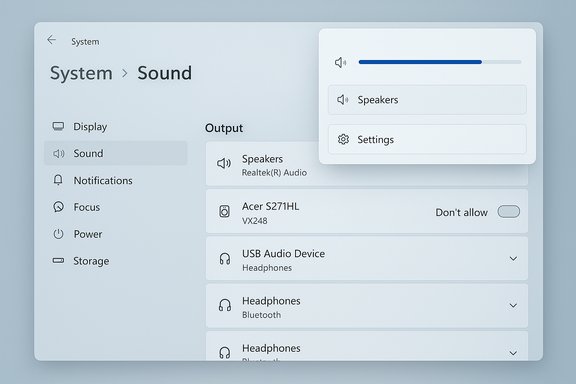
Windows 11 moved the volume control into the Quick Settings flyout, showing a single volume slider by default and hiding names of connected output devices behind an extra click. For people who frequently switch between outputs (internal speakers, wired headphones, Bluetooth headsets, USB DACs, capture dongles, monitors with audio, etc., that extra step is an annoyance and a real productivity loss. The simplest, lowest‑risk fix is to remove the unused devices from the system view so the slider and device picker contain only the outputs you actually use.
You can disable a device directly in Settings — no Device Manager gymnastics required — and later re‑enable it from the same Settings area. This method is officially observable in the Windows 11 Settings UI and is documented by multiple independent guides and community threads.
That complexity is compounded when your PC exposes many audio endpoints — monitors with speakers, capture cards, virtual audio devices, and the occasional legacy device. Each appears in the output list by default, meaning the device picker is longer and slower to scan. Users with multiple devices report the same friction and, in some cases, confusing device reappearances when plugging gear into different ports. Community guides and hands‑on articles recommend trimming the list by disabling unused outputs in Settings — a method both simple and reversible.
Because drivers remain installed, the device can be reactivated by the system if Windows detects it as newly connected (for example, via a different USB port) or if a driver is reinstalled by Windows Update or the device vendor. That behavior explains why some users see previously disabled devices return intermittently.
This is why third‑party tools like EarTrumpet have enduring popularity: they restore task‑centric workflows without waiting for Microsoft to change the UI. For Microsoft, a small tweak — show the active output name next to the volume slider or allow a compact "favorite device" list — could significantly reduce friction with minimal visual cost. Community feedback and independent write‑ups repeatedly point to the same two fixes: either give users clearer identification of the active output, or provide a simple way to prune the device list — which Settings already lets you do, albeit not always persistently.
For users who want a deeper fix for daily audio management, installing a proven utility like EarTrumpet pairs well with device pruning. For sysadmins and privacy‑conscious users, selectively disabling webcams’ mics reduces risk with no operational cost.
Use the Settings toggles as your first choice, escalate to Device Manager only if the toggle fails to stick, and be conscious that device reappearance can happen after reconnection or driver updates. Those minor caveats aside, trimming the audio list is the fastest way to make the Windows 11 taskbar volume control feel usable again.
Disabling unused audio devices is an immediate, reversible, and accessible fix for one of Windows 11’s small but persistent UX problems: too many endpoints and too little context in the taskbar flyout. Trim the list, or use a better tray tool — either way you’ll save clicks and headaches every time you change audio outputs.
Source: PCWorld Windows 11’s taskbar audio settings suck. Here’s how to fix it
 Overview
Windows 11 moved the volume control into the Quick Settings flyout, showing a single volume slider by default and hiding names of connected output devices behind an extra click. For people who frequently switch between outputs (internal speakers, wired headphones, Bluetooth headsets, USB DACs, capture dongles, monitors with audio, etc., that extra step is an annoyance and a real productivity loss. The simplest, lowest‑risk fix is to remove the unused devices from the system view so the slider and device picker contain only the outputs you actually use.You can disable a device directly in Settings — no Device Manager gymnastics required — and later re‑enable it from the same Settings area. This method is officially observable in the Windows 11 Settings UI and is documented by multiple independent guides and community threads.
Background: why Windows 11’s taskbar audio feels worse than Windows 10
Windows 10’s volume flyout showed device names more obviously and made the active output easier to identify at a glance. Windows 11’s Quick Settings prioritizes a minimalist slider, with device selection tucked behind a caret or arrow. That design choice favors a cleaner appearance but makes the most common one‑click tasks (identify the active speaker, switch outputs) take two or three clicks instead of one.That complexity is compounded when your PC exposes many audio endpoints — monitors with speakers, capture cards, virtual audio devices, and the occasional legacy device. Each appears in the output list by default, meaning the device picker is longer and slower to scan. Users with multiple devices report the same friction and, in some cases, confusing device reappearances when plugging gear into different ports. Community guides and hands‑on articles recommend trimming the list by disabling unused outputs in Settings — a method both simple and reversible.
What you can and can’t fix (quick summary)
- You can remove clutter: disable unused audio output and input devices from Settings so they won’t show up in the output list or the taskbar picker.
- You cannot (without Microsoft changing the UI) force the Quick Settings flyout to show the active device name inline with the slider.
- Disabling devices does not uninstall drivers permanently — devices can reappear if reconnected, reinstalled, or moved to another port.
- There are safer alternatives for power users, such as third‑party utilities (EarTrumpet) that restore quick per‑app controls and device routing, but disabling unused devices is a lightweight, built‑in fix.
Step‑by‑step: disable unused sound devices (the quick method)
Follow these numbered steps to hide unused outputs from the taskbar audio picker and the Settings Output list.- Open Settings (press Win + I) and select System > Sound.
- Under the Output section, find the device you want to remove and click the small caret (arrow) beside it to open its properties.
- On the device's properties page, under General > Audio, click Don't allow (this toggles the device to disabled for audio use).
- Back on the main Sound page, the disabled device will no longer appear in the Output list.
- Repeat for any other outputs (or inputs) you don’t want cluttering the list.
- Open Settings > System > Sound and scroll to the Advanced section.
- Click All sound devices.
- Select the device you want to re‑enable and click Allow under Audio.
Quick note on the UI labels
The toggle you’re looking for in the device properties is presented as an Allow/Don't allow control that reads “Allow apps and Windows to use this device for audio” (or a similar phrasing in localized builds). When you hit Don't allow, the device is disabled as an audio endpoint and disappears from the quick lists; Allow brings it back. This is the same control referenced across multiple how‑to guides and forum walkthroughs.Why this works and what it actually does (technical explanation)
When you disable a device via Settings, Windows marks that endpoint so apps and the OS no longer present it as an available audio target. Under the hood, you’re not permanently uninstalling drivers — you’re toggling the audio use of the device. That’s why the change is reversible from All sound devices and why re‑plugging a device or changing ports can cause Windows to re‑expose the endpoint.Because drivers remain installed, the device can be reactivated by the system if Windows detects it as newly connected (for example, via a different USB port) or if a driver is reinstalled by Windows Update or the device vendor. That behavior explains why some users see previously disabled devices return intermittently.
Stepwise checklist — safe order of operations
- Identify the outputs and inputs you actually use regularly.
- Disable extraneous monitors, capture devices, virtual audio endpoints, and unused microphones first.
- Confirm your desired device still exists at the top of Settings > System > Sound > Output.
- Test by clicking the taskbar volume icon and switching quickly to the device selector — it should be shorter and simpler now.
- If a device reappears after reconnecting, re‑disable it or consider disabling it in Device Manager if you want a harder block (administrative rights required).
Alternatives and complements
If the goal is a better UI for sound control rather than fewer devices, consider these options:- EarTrumpet: a lightweight, open‑source system tray replacement that gives per‑app volume sliders and quick device routing from the taskbar. It restores many of the workflow conveniences power users miss in Windows 11. EarTrumpet is widely recommended by community power users as a practical, noninvasive alternative to reworking the Settings UI.
- Use Device Manager: to disable a device at the driver level so Windows doesn’t enumerate it. This is effective but more intrusive; it may require admin rights and a driver reinstall to revert.
- Classic Sound control panel (mmsys.cpl): still useful for legacy options like sample rates and exclusive mode, and for enabling/disabling devices in the old interface.
- Registry or PowerShell: advanced users can toggle device states in registry keys or with scripts, but these methods are riskier and should be used only with backups and clear instructions. MakeUseOf and community forums document multiple approaches including registry edits, but they carry more risk, so prefer the Settings UI if your goal is simply to declutter.
Real‑world examples: when disabling devices solved real problems
- Clutter reduction: many multi‑monitor users have HDMI/DisplayPort outputs listed even though the monitor speakers are unused; disabling those outputs keeps the list focused on the laptop speakers and headphones.
- Crash mitigation for some apps: in certain cases, disabling specific audio endpoints (such as Realtek digital outputs or specific vendor stacks) has been a community‑reported workaround for application crashes. That’s not a formal Microsoft fix, but users have reported that hiding or disabling particular endpoints resolved app instability in isolated cases. Use this approach as a temporary workaround and pursue formal driver fixes where possible.
- Privacy hardening: disabling webcam microphones and other unused inputs reduces the surface area for rogue or compromised apps to capture audio. This is a small, pragmatic privacy step with no downside for users who never use those microphones.
Risks and things to watch for
- Reappearance: disconnecting and reconnecting hardware, moving a device to a different USB port, or allowing Windows Update to reapply drivers can cause previously disabled devices to reappear. If you depend on a permanent hide, consider using Device Manager for a stronger disable or script the re‑disabling process.
- Unexpected app behavior: some apps reference specific physical endpoints; disabling a device they expect could cause them to fail or use a fallback you don’t want. Test conferencing apps and recording software after changes.
- Stereo Mix / Virtual devices: disabling devices may affect composite inputs like Stereo Mix or virtual audio cables used for routing game audio into recording software. If you rely on any virtual audio routing, confirm those elements still work after making changes. Microsoft Q&A threads document scenarios where the Allow/Don't allow toggle interacts with complex capture setups and Stereo Mix behaviors, so double‑check if you record or stream.
- Driver troubleshooting: if you find a device cannot be re‑enabled from Settings (only showing a Don't allow button), Device Manager may need driver reinstallation or a full uninstall/reinstall cycle. The Microsoft community has examples of users needing to reinstall drivers or unplug and re‑plug USB dongles to restore functionality.
Power‑user tips and keyboard workflows
- Quick Settings arrow: click the volume slider and then the small arrow beside it to switch devices in the flyout — useful when you only occasionally need to change outputs.
- EarTrumpet hotkeys: if you adopt EarTrumpet, configure hotkeys for opening the mixer and for muting/unmuting apps. The app supports fast keyboard‑based workflows that beat the native flyout for frequent volume tasks.
- Create a restore point before mass‑disabling devices: if you’re nervous about unintended consequences, create a system restore point or a driver backup before you start. That gives you an easy rollback if a critical device disappears.
- Test calls and recordings: after you trim devices, make a short test call in Teams/Zoom or record a quick clip to ensure the OS and your apps use the intended device.
When to use Device Manager instead
If a device reappears every time you plug it into a different port or Windows keeps reinstalling a problematic driver, you might prefer a stronger approach:- In Device Manager, find the audio device under Audio inputs and outputs or Sound, video and game controllers.
- Right‑click and choose Disable device (this requires admin rights and is more persistent than the Settings toggle).
- To bring the device back, right‑click and choose Enable device.
The UX case for Microsoft: why this matters beyond annoyance
Sound device management is a microinteraction that occurs dozens of times for many users every week — switching a headset for a call, selecting speakers for media, routing game chat to a headset. Every extra click and confusing list amplifies user frustration. The Windows 11 choice to hide the active device behind extra clicks signals a design decision that prefers minimalism over fast access for a frequent task, which is fine for some users but a productivity loss for others.This is why third‑party tools like EarTrumpet have enduring popularity: they restore task‑centric workflows without waiting for Microsoft to change the UI. For Microsoft, a small tweak — show the active output name next to the volume slider or allow a compact "favorite device" list — could significantly reduce friction with minimal visual cost. Community feedback and independent write‑ups repeatedly point to the same two fixes: either give users clearer identification of the active output, or provide a simple way to prune the device list — which Settings already lets you do, albeit not always persistently.
Step‑by‑step example: decluttering a travel laptop
Scenario: you travel with a laptop and a pair of Bluetooth headphones. At home you also have a USB headset and two monitors with audio. The Output list shows five entries; the Quick Settings flyout is slow to scan.- Open Settings > System > Sound.
- Disable the monitor speakers and the capture dongle by clicking each device and selecting Don't allow.
- Keep the internal speakers and your Bluetooth headphones enabled.
- Pair the Bluetooth headphones and set them as the Output when you’re on the go.
- When back in the office, enable the USB headset if needed via All sound devices.
Final verdict: practical, low‑risk, high‑ROI fix
Disabling unused audio devices in Windows 11’s Settings is a practical, low‑risk way to reduce taskbar audio friction. It’s reversible, uses built‑in UI controls, and produces immediate usability gains. The solution is not a cure for a UI design choice; rather, it is a sensible way for users to reclaim a faster workflow without third‑party installs or driver meddling.For users who want a deeper fix for daily audio management, installing a proven utility like EarTrumpet pairs well with device pruning. For sysadmins and privacy‑conscious users, selectively disabling webcams’ mics reduces risk with no operational cost.
Use the Settings toggles as your first choice, escalate to Device Manager only if the toggle fails to stick, and be conscious that device reappearance can happen after reconnection or driver updates. Those minor caveats aside, trimming the audio list is the fastest way to make the Windows 11 taskbar volume control feel usable again.
Appendix — Quick reference commands and locations
- Open Sound Settings: Win + I → System > Sound, or right‑click the taskbar speaker → Sound settings.
- Re‑enable a device: Settings > System > Sound > Advanced > All sound devices → pick device → Allow.
- Classic Sound Panel: run mmsys.cpl to open the legacy playback/recording device dialogs.
- Device Manager (hard disable): Win + X → Device Manager → Audio inputs and outputs or Sound, video and game controllers → right‑click → Disable device.
Disabling unused audio devices is an immediate, reversible, and accessible fix for one of Windows 11’s small but persistent UX problems: too many endpoints and too little context in the taskbar flyout. Trim the list, or use a better tray tool — either way you’ll save clicks and headaches every time you change audio outputs.
Source: PCWorld Windows 11’s taskbar audio settings suck. Here’s how to fix it
