Defender unable to clear viruses

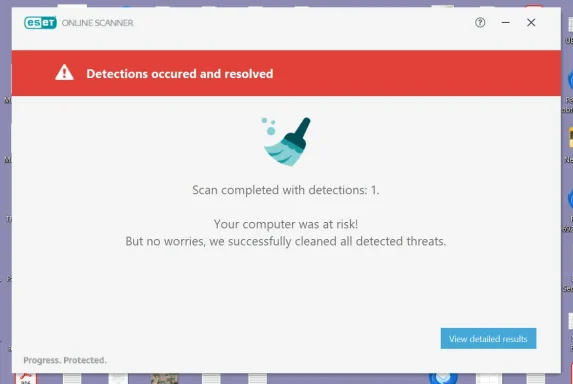
This was quick! But Eset found ONE problem and we don´t know if it is the same that iut cleanes before


Also, it is strange that it did not find TWO that the full Scans found

It is also strange that it cleaned the virus in 2024 and did not clean another (or the same?) identical one

I am happy to copy the original from the pen directly to Thunderbird and continue to investigate month by month. Like you said the viruses are not doing any harm hidden in old email attachments
 

Attachments

Hi Qim,
Yes, your thinking is reasonable — and your confusion is also reasonable because the situation has changed a few times.

Why ESET may now find only one​

This does not necessarily mean anything strange is wrong.
Earlier, ESET may have found two because of one of these:
  1. One detection was in the real AndorraIN.
  2. One detection was in a duplicate copy.
  3. One was in the Recycle Bin.
  4. One was in the accidental nested pop.gmail-1.com copy.
  5. ESET cleaned one earlier, so only one remains now.
So if ESET now finds one in the full original AndorraIN, that may actually mean the second one was already removed or was in a duplicate location.

Yes, you can continue month by month​

If you want to identify the exact message, then yes:
copy the full original AndorraIN from the pen drive back into Thunderbird and continue your month-by-month investigation.
The important point is to keep the pen drive original unchanged.

Safest procedure​

1. Keep the pen drive original untouched​

Do not rename it.
Do not edit it.
Do not let ESET clean the pen drive copy.
That is your emergency backup.

2. Close Thunderbird​

Close Thunderbird completely.

3. Save the current reduced file​

In:
C:\Users\open1\AppData\Roaming\Thunderbird\Profiles\cricit3s.default\Mail\pop.gmail-1.com
Rename the current reduced file:
AndorraIN
to:
AndorraIN.REDUCED_2024_TEST
Also rename:
AndorraIN.msf
to:
AndorraIN.msf.REDUCED_2024_TEST

4. Copy the full original back​

Copy the original full AndorraIN from the pen drive into:
C:\Users\open1\AppData\Roaming\Thunderbird\Profiles\cricit3s.default\Mail\pop.gmail-1.com

5. Open Thunderbird​

Open Thunderbird and check that AndorraIN appears normally.
Thunderbird should recreate the .msf file if needed.

Then investigate month by month​

Since you suspect 2024, do this:
  1. In Thunderbird, go to AndorraIN.
  2. Delete only emails with attachments for January 2024.
  3. Empty Thunderbird Trash.
  4. Run File > Compact Folders.
  5. Close Thunderbird.
  6. Delete the old test file inside:
C:\ESETTEST
  1. Copy the current AndorraIN from Thunderbird into:
C:\ESETTEST
  1. Scan only C:\ESETTEST.

How to interpret it​

If ESET still finds the threat:
  1. Restore the full original again if needed.
  2. Delete January + February 2024.
  3. Compact.
  4. Copy to C:\ESETTEST.
  5. Scan again.
If ESET becomes clean after deleting a certain month, the bad email is probably in that month.
Then you can narrow further by:
  1. first half of the month
  2. second half of the month
  3. week
  4. day

One simpler option​

If you do not care which exact email it was, then you can simply let ESET clean the full C:\ESETTEST\AndorraIN, scan it again, and if clean, copy that cleaned file back into Thunderbird.
But if you want to know the culprit, continue month by month.

My recommendation​

Because you want to finish the investigation, do this:
  1. Restore the full original AndorraIN from the pen drive to Thunderbird.
  2. Work only on the C: copy.
  3. Use C:\ESETTEST only for scanning.
  4. Keep the pen drive backup untouched.
  5. Do not open suspicious attachments.
And yes — these are still old stored email attachments, not an active Windows infection.

 

Brfore I carry on...

I did the renaming of the files and copied the original back into C:

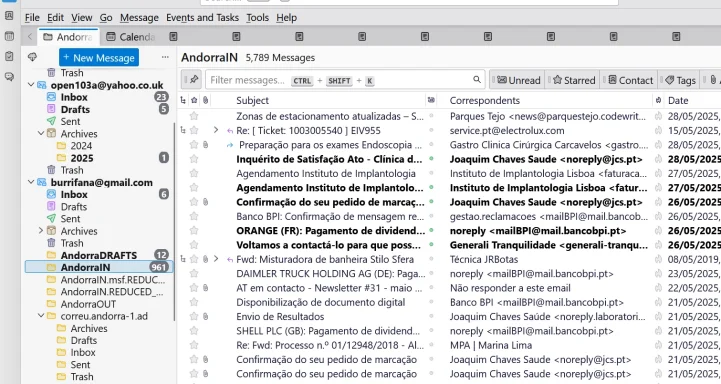
Thunderbird seems to show AndorraIN properly but a few extra folders appeared other than the expect
Screenshot 2026-05-08 092924.webp
ed REDUCED_2024..

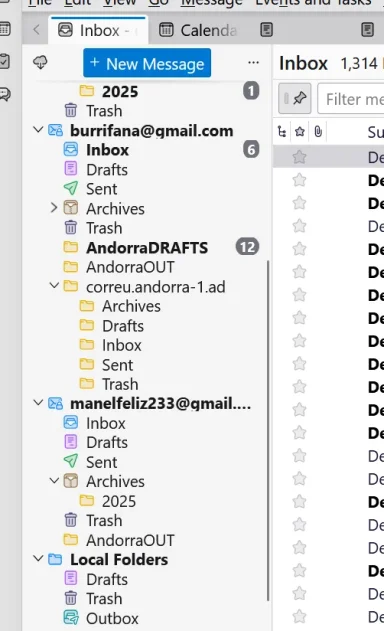
See correu.andorra-1. ad. it was not there before... (attach old and new view)

WHAT SHOULD I DO NOW, as Eset will scan both the AndorraIN and the duplicate below

Should I move the REDUCED files away from Thunderbird folder?
 

Attachments

  • Screenshot 2026-05-09 094051.webp
    Screenshot 2026-05-09 094051.webp
    182.9 KB · Views: 0
Hi Qim,
Yes — I see what happened.
Nothing here looks dangerous, but Thunderbird is showing extra folders because backup/renamed files and old copied folders are still inside the live Thunderbird mail directory.
Thunderbird treats almost anything sitting in that mail folder as a mail folder.

What I see​

In the new Thunderbird view, these extra items are not ideal:
AndorraIN.msf.REDUC...
AndorraIN.REDUCED_...
correu.andorra-1.ad
The first two are your renamed backup/test files. They should not remain inside the live Thunderbird mail folder.
The correu.andorra-1.ad folder is probably an old copied Andorra mailbox folder that has ended up inside the live Gmail/Andorra archive area.

Do not delete yet​

Do not delete them permanently. Move them out of Thunderbird’s live mail folder.

Do this before carrying on​

1. Close Thunderbird completely​

  1. Close Thunderbird.
  2. Wait a few seconds.
  3. If unsure, restart the PC and do not open Thunderbird.

2. Create a holding folder​

Create this folder somewhere easy:
C:\Thunderbird_Hold

3. Open the Thunderbird mail folder​

Go to:
C:\Users\open1\AppData\Roaming\Thunderbird\Profiles\cricit3s.default\Mail\pop.gmail-1.com

4. Move the extra renamed test files out​

Move these out to C:\Thunderbird_Hold:
AndorraIN.REDUCED_...
AndorraIN.msf.REDUC...
Do not leave them in the live Thunderbird folder.

5. Also move the old correu.andorra-1.ad item out​

If you see this inside the same folder:
correu.andorra-1.ad
move it to:
C:\Thunderbird_Hold
If you also see:
correu.andorra-1.ad.sbd
move that too.

6. Leave these in place​

Keep these where they are:
AndorraIN
AndorraIN.msf
AndorraDRAFTS
AndorraDRAFTS.msf
AndorraOUT
AndorraOUT.msf
Those are the real active Andorra folders under the Gmail account.

Then check Thunderbird​

  1. Open Thunderbird.
  2. Look under [email][email protected][/email].
  3. You should ideally see:
AndorraDRAFTS
AndorraIN
AndorraOUT
  1. The extra REDUCED entries and correu.andorra-1.ad should be gone.

Why this matters​

If you leave old test/backup files inside Thunderbird’s active mail folder:
  1. Thunderbird displays them as folders.
  2. ESET may scan them too.
  3. You may get duplicate or confusing detections.
  4. It becomes hard to know which AndorraIN you are testing.

Short answer​

Before continuing, clean up the Thunderbird folder structure:
Move the REDUCED files and the unexpected correu.andorra-1.ad folder out to C:\Thunderbird_Hold.
Do not delete them yet. Once Thunderbird looks normal again, continue with the AndorraIN investigation.
 

If you see this inside the same folder:
correu.andorra-1.ad
move it to:
C:\Thunderbird_Hold
If you also see:
correu.andorra-1.ad.sbd
move that too.


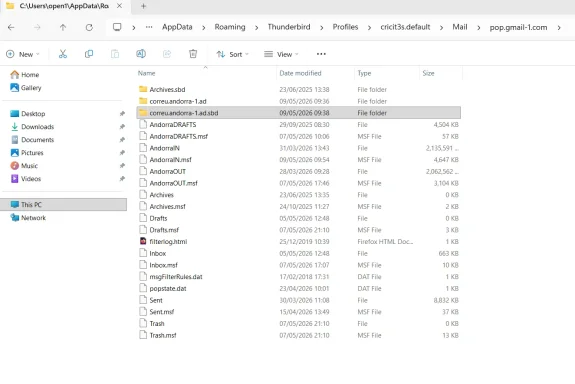
See attach. Should I move the whole folders: 2nd and 3rd line from the top?
 

Attachments

  • Screenshot 2026-05-09 100003.webp
    Screenshot 2026-05-09 100003.webp
    71.3 KB · Views: 0
Yes, Qim — exactly.
In that screenshot, move the 2nd and 3rd yellow folders:
correu.andorra-1.ad
correu.andorra-1.ad.sbd
Move both of them to:
C:\Thunderbird_Hold

Do it this way​

1. Close Thunderbird first​

  1. Close Thunderbird completely.
  2. Wait a few seconds.

2. Create the holding folder if needed​

If it does not already exist, create:
C:\Thunderbird_Hold

3. Move these two folders​

From:
C:\Users\open1\AppData\Roaming\Thunderbird\Profiles\cricit3s.default\Mail\pop.gmail-1.com
move these two folders:
correu.andorra-1.ad
correu.andorra-1.ad.sbd
to:
C:\Thunderbird_Hold

Do not move these​

Leave these where they are:
Archives.sbd
AndorraDRAFTS
AndorraDRAFTS.msf
AndorraIN
AndorraIN.msf
AndorraOUT
AndorraOUT.msf
Inbox
Sent
Trash

Then check Thunderbird​

  1. Open Thunderbird.
  2. Look under [email][email protected][/email].
  3. The unwanted correu.andorra-1.ad folder should disappear.
  4. AndorraIN, AndorraOUT, and AndorraDRAFTS should remain.

Why move, not delete?​

Moving them to C:\Thunderbird_Hold keeps them as a temporary safety backup. Once Thunderbird looks normal and ESET results are clear, you can delete them later if you want.
So yes: move the 2nd and 3rd lines from the top.
 

Next doubt:

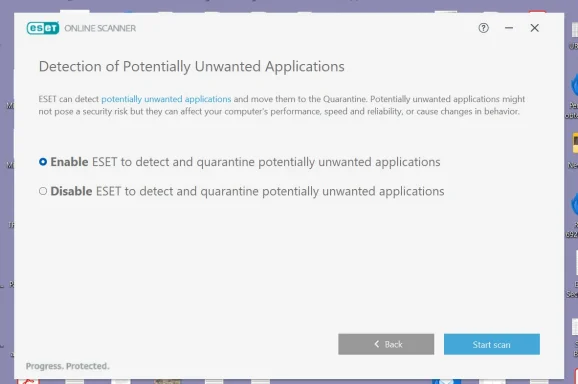
When I do a Full Scan with Eset I get the attached view

I do not get it if I go directly to Custom Scan

I plan to disable the quarantine as if I was going to do Full Scan and then do the Custom Scan

If I scan 6 months and Eset quarantines, I will not discover where is exactly the virus. Best to keep not quarantined
 

Attachments

  • Screenshot 2026-05-09 101507.webp
    Screenshot 2026-05-09 101507.webp
    42.3 KB · Views: 0
Hi Qim,
Your thinking is mostly right, but there is an important detail:
That ESET screen is about Potentially Unwanted Applications, not necessarily the same as the old email viruses/Trojans.
So:
  • Enable = ESET will detect/quarantine potentially unwanted apps too.
  • Disable = ESET will ignore that extra PUA category.
  • It may still detect real malware/Trojans either way.

For your investigation​

Because you are trying to locate the exact bad month/email, it is better if ESET does not automatically quarantine/clean during the investigation.
But if ESET only gives you that PUA option, disabling it may not stop ESET from cleaning a real virus.

Best safe method​

Use only a copy in C:\ESETTEST, as you are doing.
That way, even if ESET quarantines or cleans it, it only affects the test copy, not your real Thunderbird mailbox and not the USB backup.

What I would do​

1. Keep the USB original untouched​

Do not let ESET scan the pen drive copy.

2. Work only with copies​

Use:
C:\ESETTEST\AndorraIN
for ESET testing.

3. If ESET quarantines the test file​

That is not a disaster.
Just delete anything left in:
C:\ESETTEST
Then copy a fresh AndorraIN again from your working Thunderbird copy or from the USB backup, depending on where you are in the test.

If you want to locate the exact month​

Do this:
  1. Restore/copy the full original AndorraIN into Thunderbird.
  2. Delete messages with attachments for the test period, for example January–June 2024.
  3. Empty Thunderbird Trash.
  4. Run File > Compact Folders.
  5. Close Thunderbird.
  6. Delete the old C:\ESETTEST\AndorraIN.
  7. Copy the current Thunderbird AndorraIN into C:\ESETTEST.
  8. Scan only C:\ESETTEST.

How to interpret results​

If ESET still finds the virus:
  • the bad email is not only in the deleted period
  • continue with another period
If ESET finds nothing:
  • the bad email was probably in the period you deleted
  • then restore again and narrow it down by month/week/day

About disabling quarantine​

If ESET gives you an option like:
“Clean threats automatically”
then yes, for investigation, I would turn that off if possible.
But the screen you showed is only for potentially unwanted applications, so disabling that is not the same as disabling all quarantine.

My recommendation​

For now:
  1. Use C:\ESETTEST only.
  2. Keep USB backup unplugged during scans.
  3. If ESET quarantines the test copy, do not worry.
  4. Continue narrowing the period using fresh copies.
Short answer: yes, avoid automatic cleaning if ESET allows it, but since you are scanning only a test copy, quarantine is not dangerous — just inconvenient.
 

It is in the 3rd quarter of 2024, but.... Eset found it and cleaned...

How can I go deeper?

I guess I just upload the file from the pen drive and scan month by month as the virus will reappear from the pen drive

Don't bother to reply. I am just thinking aloud
 

Attachments

  • Screenshot 2026-05-09 105109.webp
    Screenshot 2026-05-09 105109.webp
    29.6 KB · Views: 0
  • ESET 8.txt
    ESET 8.txt
    428 bytes · Views: 0
Hi Qim,
I know you said “don’t bother to reply,” but just to keep you from losing the trail:
Yes — your plan is correct.
The ESET log confirms:
C:\ESETTEST\AndorraIN
contained:
PDF/TrojanDownloader.Agent.BRZ trojan
and ESET cleaned 1 detected file.

How to go deeper​

Because ESET cleaned the test copy, you need to go back to the unchanged original on the pen drive each time.

Suggested next steps​

1. Restore the original again​

  1. Delete the current C:\ESETTEST\AndorraIN.
  2. Copy the original full AndorraIN from the pen drive into C:\ESETTEST.
  3. Unplug the pen drive.

2. Test the months in Q3 2024​

Since you narrowed it to the 3rd quarter of 2024, test:
July 2024
August 2024
September 2024
Do it by deleting one month’s emails with attachments from the Thunderbird working copy, then compacting and scanning the copied AndorraIN.

3. Best order​

Try this:
  1. Delete July 2024 attachments.
  2. Empty Trash.
  3. Compact folders.
  4. Copy current AndorraIN to C:\ESETTEST.
  5. Scan C:\ESETTEST.
If ESET still finds it, restore and try August, then September.

Important​

If ESET finds and cleans it during a test, that means the infected item was still present in that test copy.
If ESET comes back clean after deleting a particular month, that month likely contained the bad message.
You are very close now.
 

Of course! I missed that

Eset cleaned the virus in the ESETTEST folder, not in the Thunderbird AndorraIN file

So the virus is still inside the Thunderbird working file and all I have to do is delete emails with attach for the month of July 2024 leaving August and September, If the scan is Clean, I know the virus is one of the other months
 

Yes, Qim — you’ve got the important point now:
ESET cleaned only the copy in C:\ESETTEST, not the Thunderbird working file.
So the original working AndorraIN inside Thunderbird still contains whatever is being tested.
One correction to your last sentence:

Test logic​

If you delete July 2024 emails with attachments, then scan the resulting AndorraIN copy:

If ESET is clean

That means the infected email was probably in July 2024, because removing July made the detection disappear.

If ESET still detects it​

That means the infected email is probably still in August or September 2024.

So the process is​

  1. Restore/copy the full original AndorraIN back into Thunderbird if needed.
  2. In Thunderbird, delete July 2024 emails with attachments.
  3. Empty Thunderbird Trash.
  4. Run File > Compact Folders.
  5. Close Thunderbird.
  6. Delete the old C:\ESETTEST\AndorraIN.
  7. Copy the current Thunderbird AndorraIN into C:\ESETTEST.
  8. Scan C:\ESETTEST.

Result interpretation​

  • Clean after deleting July = culprit is in July.
  • Still detected after deleting July = culprit is in August or September.
  • Then repeat with August.
You are now using the right method. Just be careful with the interpretation: the month you delete is the suspect if the scan becomes clean.
 

correu.andorra-1.ad , reappeared---

How come?
 

Attachments

  • Screenshot 2026-05-09 110506.webp
    Screenshot 2026-05-09 110506.webp
    40.9 KB · Views: 0
Hi Qim,
It reappeared because Thunderbird is still seeing mail-folder data for:
correu.andorra-1.ad
inside the live mail storage area.
Most likely one of these happened:
  1. You moved only one of the two items, not both.
  2. Thunderbird was open when the move happened.
  3. The folder was copied back when you restored from the pen drive.
  4. There is another matching item still inside the Thunderbird profile.
It is not a new infection. It is just Thunderbird showing whatever mail-folder files/folders it finds.

Important​

When restoring from the pen drive, copy back only:
AndorraIN
Do not copy the whole pop.gmail-1.com folder back, because that can bring back old unwanted folders too.

Do this now​

1. Close Thunderbird completely​

  1. Close Thunderbird.
  2. Wait a few seconds.
  3. If unsure, restart the PC and do not open Thunderbird.

2. Open this folder​

Go to:
C:\Users\open1\AppData\Roaming\Thunderbird\Profiles\cricit3s.default\Mail\pop.gmail-1.com

3. Look again for these items​

Move any of these to:
C:\Thunderbird_Hold
if they exist:
correu.andorra-1.ad
correu.andorra-1.ad.sbd
correu.andorra-1.ad.msf
Move them; do not delete yet.

4. Also check inside C:\Thunderbird_Hold

Make sure they really ended up there.

5. Reopen Thunderbird​

Open Thunderbird again and check whether correu.andorra-1.ad has disappeared from the left panel.

If it appears again after that​

Then it means Thunderbird is finding it somewhere else. In that case, with Thunderbird closed, search inside:
C:\Users\open1\AppData\Roaming\Thunderbird\Profiles\cricit3s.default
for:
correu.andorra-1.ad
Then move any results to:
C:\Thunderbird_Hold

What to leave alone​

Leave these in the live folder:
AndorraIN
AndorraIN.msf
AndorraDRAFTS
AndorraDRAFTS.msf
AndorraOUT
AndorraOUT.msf

Short answer​

It reappeared because some correu.andorra-1.ad folder/file is still inside the live Thunderbird profile or got copied back. Close Thunderbird, move all correu.andorra-1.ad* items out to C:\Thunderbird_Hold, then reopen Thunderbird.
 

correu,andorra.1.ad is totally EMPTY

So, I can carry on as if it was not there
 

Yes, Qim — if correu.andorra-1.ad is totally empty, you can carry on for now.
It is not the thing we are investigating. The important file remains:
AndorraIN

My suggestion​

Do not let it distract you now.
Continue with the AndorraIN investigation:
  1. Work in Thunderbird on AndorraIN.
  2. Delete the month/period you are testing.
  3. Empty Trash.
  4. Run File > Compact Folders.
  5. Close Thunderbird.
  6. Copy the current AndorraIN to:
C:\ESETTEST
  1. Scan C:\ESETTEST.

Later cleanup​

When you finish the virus hunt, you can remove the empty correu.andorra-1.ad display properly by moving these out of the live folder with Thunderbird closed:
correu.andorra-1.ad
correu.andorra-1.ad.sbd
But for now, yes: ignore it and continue.
 

Hi
Well mistakes do happen and AndorraIN file disappeared from Thunderbird

I am going to copy the original from the pen drives, back in,,,, I hope....
 

Hi Qim,
Yes — that is recoverable. Do not worry.
If AndorraIN disappeared from Thunderbird, the safest thing is to restore the original AndorraIN file from the pen drive.

Do this carefully​

1. Close Thunderbird completely​

  1. Close Thunderbird.
  2. Wait a few seconds.
  3. If unsure, restart the PC and do not open Thunderbird.

2. Go to the Thunderbird mail folder​

Open:
C:\Users\open1\AppData\Roaming\Thunderbird\Profiles\cricit3s.default\Mail\pop.gmail-1.com

3. Check whether any old AndorraIN files are still there​

Look for anything like:
AndorraIN
AndorraIN.msf
AndorraIN.REDUCED...
AndorraIN.BEFORE...
If there is no normal AndorraIN, that explains why Thunderbird no longer shows it properly.

4. Copy only the original AndorraIN from the pen drive​

From the pen drive, copy the file:
AndorraIN
Paste it into:
C:\Users\open1\AppData\Roaming\Thunderbird\Profiles\cricit3s.default\Mail\pop.gmail-1.com
Do not copy the whole pop.gmail-1.com folder.
Copy only the single file:
AndorraIN

5. Remove the old index file if present​

If you see this file in the Thunderbird folder:
AndorraIN.msf
delete or rename it to:
AndorraIN.msf.old
Thunderbird will rebuild it automatically.

6. Open Thunderbird​

  1. Open Thunderbird.
  2. Check whether AndorraIN appears again.
  3. It may take a little time to rebuild the folder index.

Important reminder​

Restoring the original AndorraIN from the pen drive may also restore the old ESET detection. That is expected and does not mean anything new happened.
You are just putting the original mailbox back so you can continue testing.

Then continue as before​

Once AndorraIN is visible again:
  1. Delete the period you want to test.
  2. Empty Trash.
  3. Run File > Compact Folders.
  4. Close Thunderbird.
  5. Copy the current AndorraIN to:
C:\ESETTEST
  1. Scan C:\ESETTEST with ESET.
Short answer: yes, copy the original AndorraIN file back from the pen drive, but copy only that file, not the whole folder.
 

Found it!

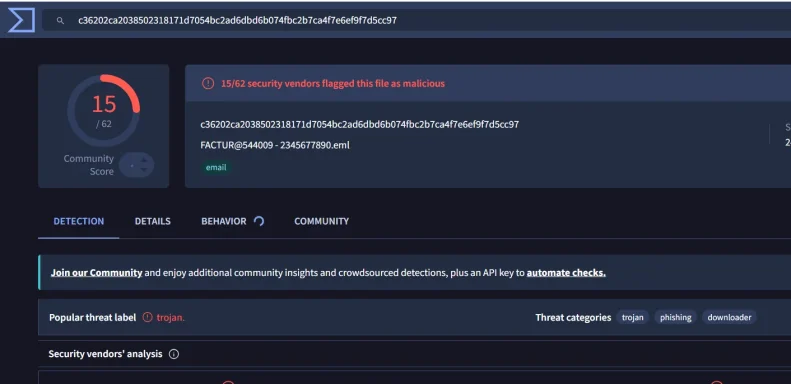
Scanned with VirusTotal and confirmed it'a a virus

I have it on the Desktop and in Thunderbird... What do I do now?
 

Attachments

  • Screenshot 2026-05-09 122607.webp
    Screenshot 2026-05-09 122607.webp
    46 KB · Views: 0
Excellent work, Qim — you found the culprit.
VirusTotal showing 15/62 vendors and labels like trojan / phishing / downloader is enough confirmation. Treat that email as malicious.

Do this now​

1. Do not open it again​

Do not open the .eml file or any attachment inside it.
The file appears to be:
FACTUR@544009 - 2345677890.eml

2. Delete the copy on the Desktop​

  1. Close any preview window.
  2. On the Desktop, right-click the .eml file.
  3. Click Delete.
  4. Empty the Recycle Bin.
If Windows refuses to delete it, let me know.

3. Delete the email from Thunderbird​

In Thunderbird:
  1. Go to AndorraIN.
  2. Find the email:
FACTUR@544009 - 2345677890
  1. Delete it.
  2. Empty Thunderbird Trash.
  3. Run:
File > Compact Folders
This compact step is essential. Without it, the email can remain inside the AndorraIN mailbox file even after deletion.

4. Close Thunderbird​

After compacting:
  1. Close Thunderbird completely.
  2. Wait a few seconds.

5. Test again with ESETTEST​

  1. Delete the old file in:
C:\ESETTEST
  1. Copy the current Thunderbird file:
AndorraIN
from:
C:\Users\open1\AppData\Roaming\Thunderbird\Profiles\cricit3s.default\Mail\pop.gmail-1.com
to:
C:\ESETTEST
  1. Scan only:
C:\ESETTEST
with ESET.

Expected result​

If this was the only remaining bad email, ESET should now say:
No threats found

If ESET still finds something​

Then there is another bad email in AndorraIN, but you have already proved the method works. We would repeat the same process.

Short answer​

Delete:
  1. the .eml file from the Desktop
  2. the matching email from Thunderbird
  3. empty Trash
  4. compact folders
  5. rescan AndorraIN
You are very close to the finish now.
 

Back
Top