

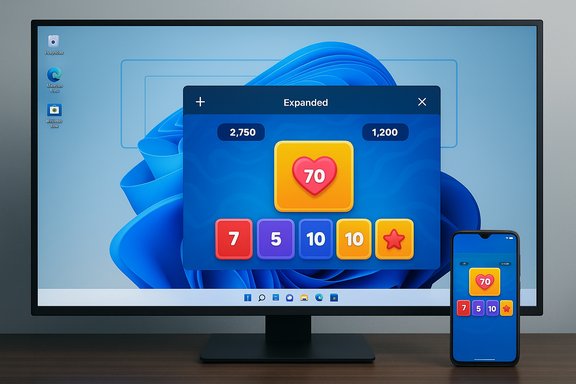
Microsoft’s latest tweak to Phone Link — a quietly rolling “Expanded Mode” for streamed Android apps — is a small change with outsized implications: it makes mobile apps feel less like phone-shaped islands on a desktop and more like first-class Windows windows, but it also exposes the architectural trade-offs of a streaming approach to Android-on‑PC continuity.
Microsoft has been steadily building a continuity layer between Android phones and Windows PCs for years. Phone Link (formerly “Your Phone”), together with the Link to Windows companion on supported Android devices, provides notifications, messaging, recent photos, calls, and — for a subset of devices — an Apps experience that streams individual Android apps from the phone to a window on the PC. That design intentionally treats the phone as the authoritative runtime while Windows acts as an input/output surface. Expanded Mode is the latest evolution of that model: a UI toggle that enlarges a streamed app’s window beyond the fixed, portrait‑sized box Phone Link traditionally used. The change is appearing in preview/Insider flights and is currently flagged behind staged rollouts and device gates. Early hands‑on reporting and community testing show the feature as a small control in the app window’s title bar, plus a Phone Link settings switch to prefer the larger layout by default.
Expanded Mode is a practical step toward a smoother cross‑device workflow, but the real milestone to watch for will be whether Microsoft pairs UX affordances with technical changes — higher‑resolution streams, per‑app heuristics, tighter window management, and enterprise controls — that close the remaining gaps between “phone app streamed to the desktop” and a genuinely native desktop experience.
If you want to try the feature and your devices match the supported list, update Phone Link and Link to Windows, join the Windows Insider Program, and test with apps that already support landscape or tablet layouts — that combination will show Expanded Mode’s current strengths while making the limitations clear.
Source: livemint.com Microsoft is testing a new Expanded Mode for Android app streaming on Windows 11. The update aims to make Android apps f | Mint
 Background
Microsoft has been steadily building a continuity layer between Android phones and Windows PCs for years. Phone Link (formerly “Your Phone”), together with the Link to Windows companion on supported Android devices, provides notifications, messaging, recent photos, calls, and — for a subset of devices — an Apps experience that streams individual Android apps from the phone to a window on the PC. That design intentionally treats the phone as the authoritative runtime while Windows acts as an input/output surface. Expanded Mode is the latest evolution of that model: a UI toggle that enlarges a streamed app’s window beyond the fixed, portrait‑sized box Phone Link traditionally used. The change is appearing in preview/Insider flights and is currently flagged behind staged rollouts and device gates. Early hands‑on reporting and community testing show the feature as a small control in the app window’s title bar, plus a Phone Link settings switch to prefer the larger layout by default. What Expanded Mode is — and what it isn’t
The user-facing view
- Expanded Mode adds a one‑click control in a streamed app’s title bar to switch from the compact, phone‑sized view to a wider, more desktop‑friendly layout.
- A Phone Link setting can make Expanded Mode the default for apps, reducing friction for users who regularly use mobile apps on a PC.
The technical reality under the hood
Expanded Mode does not rehost Android apps as native Windows processes. Phone Link continues to stream framebuffer images from the phone and forward input events back to it. That streaming approach keeps sensitive app state and credentials on the phone — a security advantage — but it also means layout, font rendering, and UI semantics remain phone‑centric unless the Android app itself exposes a responsive layout for larger screens. When Phone Link enlarges a streamed window it is typically scaling the original phone bitmap rather than re‑rendering elements at desktop DPI or reflowing content. This distinction explains the common visual and interaction artifacts testers report.Why Microsoft chose this path
There are three practical reasons Phone Link emphasizes streaming rather than rehosting:- Compatibility: Streaming avoids re‑implementing Android frameworks on Windows and therefore supports a broader range of apps and OS versions with fewer app-side changes.
- Privacy and state: By keeping app execution on the phone, credentials, tokens, and sensitive files remain on the device rather than being installed or stored on the PC.
- Engineering cost and partnerships: Phone Link leverages OEM integrations (Link to Windows often ships preinstalled by vendors like Samsung, HONOR, OPPO, ASUS, vivo, and Xiaomi) so Microsoft can deliver features quickly in partnership with device makers instead of forcing a universal app‑developer migration.
Early tester experience: wins, gaps, and edge cases
Usability wins
- Less cramped UIs: Messaging, media apps, and many productivity tools become easier to use when not confined to a narrow vertical slice.
- Simpler multitasking: Expanded windows play more nicely with Windows layouts and Snap Assist, making drag‑and‑drop and side‑by‑side workflows more practical.
- Low friction: For supported devices, users get the improvement with no additional installations beyond the standard Link to Windows/Phone Link pairing.
Current limitations and reported issues
- Scaling artifacts and legibility: Because the app is still rendered on the phone and streamed at phone resolution, fonts and UI elements can look soft or blurry when scaled up for high‑DPI monitors. Testers have reported legibility problems, especially on ultrawide or 4K displays.
- Letterboxing / black gutters: Portrait‑first apps that don’t provide landscape or responsive layouts frequently show large black runs (letterboxing) on the sides when expanded instead of intelligently reflowing content.
- Windowing quirks: Some early tests show expanded windows aligning to one side of the display and lacking full‑screen maximize behavior, which breaks typical desktop expectations.
- Network and battery trade-offs: Running an expanded, higher‑throughput stream increases local network bandwidth and phone CPU/GPU work, which can accelerate battery drain. For prolonged desktop usage, this has practical implications.
Supported devices, rollout model, and prerequisites
Expanded Mode is rolling out to Windows Insiders first and — like the existing Phone Link Apps experience — is only available for devices that include or support Link to Windows. Microsoft’s Phone Link guidance and supported devices listings make this explicit: Apps and Phone Screen require certain phone OS versions, Link to Windows preinstallation or companion versions, and sometimes minimum Phone Link versions on the PC. Examples of vendors and lines frequently listed as supported include Samsung, HONOR, OPPO, ASUS, vivo, Xiaomi, OnePlus, and select ROG/realme devices. Practical prerequisites:- A PC running Windows 10 (recent builds) or Windows 11 (latest recommended).
- A supported Android device running Android 9.0 or higher for Phone Screen, and Android 11+ for some multi‑app experiences.
- Phone Link and Link to Windows versions that include the Apps capability (Phone Link has been shipping preview builds with incremental version bumps; some hands‑on reporters observed the expanded control in Phone Link v1.25112.33.0 in Dev channel tests).
How to try Expanded Mode today (step‑by‑step)
- Join the Windows Insider Program and opt into the Dev or Beta channel if you want early access to preview features. Expanded Mode is currently appearing in staged Insider flights.
- Update Phone Link from the Microsoft Store to the latest preview build available to your Insider ring.
- On your Android phone, ensure Link to Windows is installed (often preinstalled on supported OEM devices) and updated.
- Pair the phone and PC using the Phone Link onboarding flow (scan the QR code, grant permissions on the phone).
- Open Phone Link’s Apps pane, launch a supported app, and look for the Expanded/Compact toggle near the title bar controls. Use Phone Link Settings > Features > Apps to default to Expanded view when available.
- Use a 5 GHz local Wi‑Fi network and keep the phone relatively close to the router.
- Disable aggressive battery‑saving modes during streaming.
- Test with apps that support landscape or tablet layouts (media players, some shopping apps, or document viewers) as they tend to scale more gracefully.
Security, privacy, and enterprise considerations
Benefits for privacy and data residency
Because apps continue to execute on the phone, tokens, credentials, and app‑local storage remain on the device. That reduces the attack surface that would exist if apps were installed or run natively on the PC. For many threat models this is a meaningful advantage.New considerations introduced by streaming
- Local network exposure: Streaming frames and input events across Wi‑Fi increase reliance on a trusted network. On untrusted or public Wi‑Fi, attackers with network access could more easily attempt to intercept sessions.
- PC-side capture: Any malware on the PC with screen‑capture or keylogging capabilities could exfiltrate streamed content or capture keystrokes sent to the phone through Phone Link.
- Notification visibility limits: Platform-level changes (for example, Android 15’s classification of some notifications as “sensitive” by default) can limit what Phone Link shows on the desktop. Microsoft’s handling depends on companion app privileges and OEM carrier integrations; some phones that ship with the “Companion Device Role” may still surface sensitive notifications while others won’t. These behaviors vary by phone model and OS build.
Guidance for IT and security teams
- Treat Phone Link App streaming as a new endpoint surface when developing corporate device policies.
- Consider Conditional Access, MDM controls, and per‑app policies to restrict or disable Phone Link features on managed devices where data leakage is a concern.
- Pilot Expanded Mode in a controlled ring and document workflows that might surface sensitive data in desktop streams before enabling it broadly.
How Microsoft could improve the experience (and what to watch for)
Expanded Mode is a pragmatic UX step, but several engineering directions would materially improve the experience and broaden adoption:- Adaptive reflow or negotiated higher resolution: Phone Link could negotiate a higher frame resolution or attempt to reflow text (increase font rasterization size) when switching to Expanded Mode, reducing blurred text on high‑DPI displays.
- Per‑app heuristics: Maintain an app profile or whitelist that says “this app supports landscape/tablet layouts” so Phone Link can expand only where sensible and avoid wasted letterboxing for portrait‑only apps.
- Tighter window management: Integrate with Windows shell features — Snap Layouts, maximize, multi‑monitor stretching — so expanded windows behave like native Windows apps.
- Enterprise controls and audit logs: Provide MDM hooks so administrators can limit streaming use and audit cross‑device sessions.
- Network and battery optimizations: Implement smarter bitrate control and phone power profiles for prolonged desktop use.
Competitive context: WSA, emulators, and OEM desktop modes
Phone Link’s streaming model sits alongside other approaches for running Android apps on Windows:- Windows Subsystem for Android (WSA): Runs Android apps locally on the PC and provides a more native windowed experience and crisp rendering; however, it requires app availability for WSA and sometimes developer rework or sideloading. That approach gives superior desktop fidelity but has different compatibility and security trade‑offs.
- Emulators / mirroring tools (scrcpy, Android Studio, third‑party emulators): Provide low‑latency mirroring or a local emulator but often require developer mode, USB debugging, or third‑party installs.
- OEM desktop modes (Samsung DeX historically): Transform the phone into a desktop environment — a different UX with its own constraints and diminishing Windows support in some cases.
Verdict — practical guidance for readers
- For users who rely on occasionally using Android apps on a PC and have a supported phone, Expanded Mode is a meaningful improvement today — it reduces friction and makes many apps usable on a desktop monitor with minimal setup.
- For power users who demand pixel‑perfect text, full maximize behavior, or professional multi‑monitor workflows, Phone Link streaming (even with Expanded Mode) will still fall short of a native WSA or emulator experience. Expect compromises on clarity and window management until Microsoft can negotiate higher resolutions, reflow, or rehost strategies.
- For enterprise deployments, pilot carefully: evaluate privacy implications, network/topology impacts, and whether MDM policies should block or allow Phone Link app streaming for managed profiles.
Final thoughts
Expanded Mode is exactly the kind of incremental product decision that matters: it acknowledges user pain (tiny, phone‑sized app windows on large monitors), delivers an accessible fix that improves day‑to‑day productivity, and preserves the pragmatic streaming architecture Microsoft has chosen for Link to Windows. At the same time, the feature highlights an unavoidable truth — streaming is a trade‑off. Until apps themselves expose responsive designs or Microsoft invests in deeper re‑rendering strategies, some apps will look and behave like glorified phone screens even when given more desktop space.Expanded Mode is a practical step toward a smoother cross‑device workflow, but the real milestone to watch for will be whether Microsoft pairs UX affordances with technical changes — higher‑resolution streams, per‑app heuristics, tighter window management, and enterprise controls — that close the remaining gaps between “phone app streamed to the desktop” and a genuinely native desktop experience.
If you want to try the feature and your devices match the supported list, update Phone Link and Link to Windows, join the Windows Insider Program, and test with apps that already support landscape or tablet layouts — that combination will show Expanded Mode’s current strengths while making the limitations clear.
Source: livemint.com Microsoft is testing a new Expanded Mode for Android app streaming on Windows 11. The update aims to make Android apps f | Mint
