

CRITICAL_PROCESS_DIED is a Windows 10 and Windows 11 blue-screen stop code, also known as bug check 0xEF, that appears when a critical operating-system process terminates unexpectedly and Windows decides it cannot safely continue running. The message sounds dramatic because it is: Windows is telling you that the problem has moved beyond an ordinary app crash. But the fix is usually less exotic than the name suggests. In 2026, the sane approach is still the boring one: remove recent variables, get into recovery, repair Windows methodically, and only then consider a reset or reinstall.
The most common mistake with CRITICAL_PROCESS_DIED is treating the stop code as if it names the broken part. It does not. It tells you that Windows lost a process it considers essential, not whether the root cause was a driver, a damaged system file, a failing SSD, bad RAM, a botched update, or a piece of hardware you installed yesterday.
That distinction matters because the fix is not one magic command. The right workflow is a triage ladder: start with reversible steps, move toward repair tools, and save destructive recovery options for last. That is especially important for home users who may not have a current backup and for administrators who cannot afford to turn every boot failure into a rebuild.
The good news is that the repair path is well worn. Windows has built-in tools for startup repair, Safe Mode, update rollback, system-file checking, image repair, disk checks, memory testing, System Restore, and reset. Used in the right order, they let you narrow the problem without making the machine worse.
Shut the PC down fully, disconnect the new part, and boot again. If the blue screen disappears, the suspect list becomes short: the hardware may be defective, incompatible, underpowered, poorly seated, or paired with a bad driver. If the system still crashes, you have at least removed one variable without touching the Windows installation.
This step is mundane, but it is often the fastest. Blue screens have a way of making people jump straight to command-line surgery, when the real trigger is a loose NVMe drive, unstable memory profile, flaky USB storage device, or newly installed driver package.
For desktop builders, this is also the moment to undo overclocks and aggressive memory settings. A system that was “mostly stable” under games or benchmarks can still fall apart during boot, update servicing, or disk repair.
If Windows cannot boot, force the Windows Recovery Environment by interrupting startup. Power on the machine, wait for the Windows or manufacturer logo, then hold the power button until it shuts off. Repeat that cycle, then start it again; Windows should enter Automatic Repair and expose the recovery options.
This is not a trick so much as a safety hatch. Microsoft designed the recovery environment for exactly this category of failure: a machine that cannot stay alive long enough for normal troubleshooting. From here you can launch Startup Repair, Safe Mode, update removal, System Restore, Command Prompt, and reset options.
The important point is not to panic if the desktop is unreachable. A CRITICAL_PROCESS_DIED loop looks final, but WinRE often remains available even when the normal OS session is unusable.
Do not judge it after thirty seconds. Startup diagnostics can take several minutes, especially on older systems, encrypted drives, or machines recovering from failed updates. If it succeeds, Windows may boot normally without you ever needing to touch SFC, DISM, or reset.
If it fails, that is useful information too. It suggests the problem may live deeper than the boot configuration: in drivers, system files, the component store, storage health, memory, or a recent Windows change.
Startup Repair is not glamorous, but it is the least theatrical answer to a theatrical blue screen. Start there.
From WinRE, choose Troubleshoot, Advanced options, Startup Settings, Restart. When the menu appears, press 4 or F4 for Safe Mode, 5 or F5 for Safe Mode with Networking, or 6 or F6 for Safe Mode with Command Prompt.
If the system runs stably in Safe Mode, the core Windows installation is probably not completely dead. That points toward a third-party driver, service, app, security product, update interaction, or hardware utility that loads during normal startup. If Safe Mode also crashes, the case for deeper system corruption or hardware trouble gets stronger.
Once inside Safe Mode, uninstall the obvious recent suspect. Remove a driver package, hardware utility, VPN client, antivirus suite, RGB controller, storage tool, or system-tuning app that arrived shortly before the first blue screen. Windows troubleshooting is often less about discovering an elegant cause than about reversing the last risky change.
If Windows boots normally or in Safe Mode with Networking, open Windows Update and check for updates. Install pending cumulative updates, servicing stack updates, firmware updates offered through Windows Update, and relevant driver updates. Then open Device Manager and look for devices marked with warning icons.
If the crash began after a driver update, do not reflexively update again. Roll back or uninstall the driver instead. Graphics drivers, storage controller drivers, Wi-Fi/Bluetooth packages, chipset drivers, and third-party security drivers are common places to look because they operate close to the kernel.
If the crash began after a Windows update, use WinRE to remove the latest quality update. Choose Troubleshoot, Advanced options, Uninstall Updates, then uninstall the latest quality update. Feature-update rollback may also appear depending on how recently the upgrade occurred.
This is where Windows troubleshooting becomes uncomfortable: the same pipeline that keeps machines secure can occasionally be the thing that destabilizes a particular PC. The answer is not to avoid updates forever. The answer is to know how to retreat when one specific update breaks one specific system.
Run:
Then wait. Do not close the window at 63 percent because it appears stuck. Do not run five other repair commands at the same time. Let the scan reach 100 percent and read the result.
If SFC reports that it found and repaired corrupted files, restart and test. If it reports that it could not repair some files, that does not mean the effort failed. It means the source SFC relies on may also be damaged, which is where DISM enters the picture.
SFC is useful because it is narrow. It is not trying to reset your PC, wipe apps, or reinterpret your bootloader. It checks protected Windows system files and replaces broken ones where it can. In the escalation ladder, that makes it the right first command-line move.
From an elevated Command Prompt, run:
Then:
Then:
After DISM completes, run
On a normal connected PC, DISM can use Windows Update as a repair source. In locked-down environments, damaged update stacks, or offline repair scenarios, administrators may need to point DISM at a known-good local image and use
The trap is treating DISM as a charm to paste from a forum thread. It is a servicing tool. Run it deliberately, read the result, and follow it with SFC.
From an elevated Command Prompt, run CHKDSK against the Windows volume. For most users that will be:
The
The
This is also the point where practical judgment matters. If CHKDSK repeatedly finds errors, if an SSD disappears, or if the system crashes during disk scans, stop treating the issue as a Windows-only problem. Back up what you can and evaluate the drive.
From WinRE, choose Troubleshoot, Advanced options, System Restore. Pick a restore point from before the blue screens began and let Windows revert the system state.
The catch is obvious: a restore point must already exist. Many users discover System Restore only when it is too late, and some systems have protection disabled or limited to too little disk space. For managed fleets, that makes restore-point policy a quiet but meaningful resilience decision.
When it works, System Restore is elegant because it answers the most important question in Windows repair: “What changed?” Instead of manually unwinding a dozen possible changes, it moves the system back to a known earlier state.
Then test RAM. Search for Windows Memory Diagnostic, launch it, and allow the PC to restart and scan memory. It is not the only memory tester worth using, but it is built in and good enough to catch many obvious faults.
Bad memory can impersonate almost anything. It can corrupt files, crash drivers, damage updates, and make a clean Windows installation look broken. If memory errors appear, stop chasing Windows commands and test modules one at a time, reseat them, disable overclocked profiles, or replace the failing kit.
For laptops and small-form-factor PCs, also consider thermals and power. A marginal charger, failing battery, clogged cooling system, or unstable dock can create symptoms that look like software failure from inside Windows.
If Windows still boots, you can reach reset from Settings. If it does not, use the recovery environment. Choose the option that keeps your files if that is appropriate, but do not confuse “keep my files” with “I do not need a backup.” You still need a backup.
A clean reinstall is the stronger medicine. It can remove corruption and driver debris that survived lighter repairs, but it also erases ambiguity. If the system still crashes after a clean install, the probability shifts hard toward hardware, firmware, or a bad driver introduced after installation.
For IT pros, this is also where time economics take over. There is a point at which further forensic repair costs more than reimaging the machine. The art is knowing whether the user’s data, installed software, licensing, and local configuration make repair worth the extra hour.
The CRITICAL_PROCESS_DIED stop code is frightening because it sounds like Windows has reached a point of no return, but most recoveries are won by disciplined reversals rather than heroic fixes. In 2026, as Windows 11 estates grow older and Windows 10 machines continue to linger in homes and businesses, the best defense is still boring resilience: current backups, cautious driver changes, restore points before risky updates, and a repair process that starts small before reaching for the nuclear option.
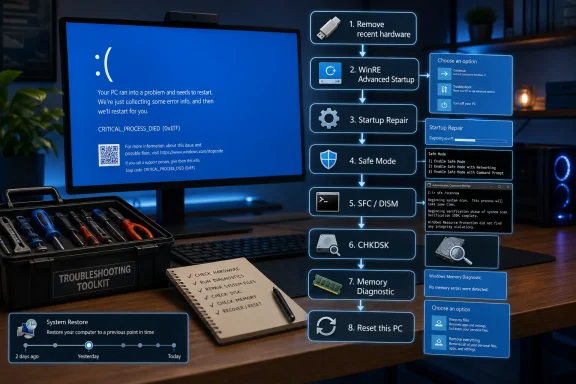 The Error Is a Symptom, Not a Diagnosis
The most common mistake with CRITICAL_PROCESS_DIED is treating the stop code as if it names the broken part. It does not. It tells you that Windows lost a process it considers essential, not whether the root cause was a driver, a damaged system file, a failing SSD, bad RAM, a botched update, or a piece of hardware you installed yesterday.That distinction matters because the fix is not one magic command. The right workflow is a triage ladder: start with reversible steps, move toward repair tools, and save destructive recovery options for last. That is especially important for home users who may not have a current backup and for administrators who cannot afford to turn every boot failure into a rebuild.
The good news is that the repair path is well worn. Windows has built-in tools for startup repair, Safe Mode, update rollback, system-file checking, image repair, disk checks, memory testing, System Restore, and reset. Used in the right order, they let you narrow the problem without making the machine worse.
The First Fix Is to Undo the Last Physical Change
If the crash started after you installed hardware, remove that hardware before doing anything clever. That means RAM, an SSD, a PCIe card, a docking station, an external drive, a USB device, or even a peripheral that arrived with its own driver stack.Shut the PC down fully, disconnect the new part, and boot again. If the blue screen disappears, the suspect list becomes short: the hardware may be defective, incompatible, underpowered, poorly seated, or paired with a bad driver. If the system still crashes, you have at least removed one variable without touching the Windows installation.
This step is mundane, but it is often the fastest. Blue screens have a way of making people jump straight to command-line surgery, when the real trigger is a loose NVMe drive, unstable memory profile, flaky USB storage device, or newly installed driver package.
For desktop builders, this is also the moment to undo overclocks and aggressive memory settings. A system that was “mostly stable” under games or benchmarks can still fall apart during boot, update servicing, or disk repair.
Recovery Mode Is the Doorway to Almost Every Serious Fix
If Windows still reaches the desktop, use Settings to restart into Advanced startup. On Windows 11, that path is Settings, System, Recovery, Advanced startup, Restart now. On Windows 10, it is Settings, Update & Security, Recovery, Advanced startup, Restart now.If Windows cannot boot, force the Windows Recovery Environment by interrupting startup. Power on the machine, wait for the Windows or manufacturer logo, then hold the power button until it shuts off. Repeat that cycle, then start it again; Windows should enter Automatic Repair and expose the recovery options.
This is not a trick so much as a safety hatch. Microsoft designed the recovery environment for exactly this category of failure: a machine that cannot stay alive long enough for normal troubleshooting. From here you can launch Startup Repair, Safe Mode, update removal, System Restore, Command Prompt, and reset options.
The important point is not to panic if the desktop is unreachable. A CRITICAL_PROCESS_DIED loop looks final, but WinRE often remains available even when the normal OS session is unusable.
Startup Repair Deserves the First Swing
Startup Repair should be the first automated fix because it is comparatively low risk. It looks for boot and startup problems and attempts repairs without deleting personal files. From the recovery environment, choose Troubleshoot, Advanced options, Startup Repair, and let the machine work.Do not judge it after thirty seconds. Startup diagnostics can take several minutes, especially on older systems, encrypted drives, or machines recovering from failed updates. If it succeeds, Windows may boot normally without you ever needing to touch SFC, DISM, or reset.
If it fails, that is useful information too. It suggests the problem may live deeper than the boot configuration: in drivers, system files, the component store, storage health, memory, or a recent Windows change.
Startup Repair is not glamorous, but it is the least theatrical answer to a theatrical blue screen. Start there.
Safe Mode Turns a Mystery Crash Into a Controlled Experiment
Safe Mode is the next dividing line. It starts Windows with a minimal set of drivers and services, which makes it invaluable when a normal boot crashes before you can inspect anything.From WinRE, choose Troubleshoot, Advanced options, Startup Settings, Restart. When the menu appears, press 4 or F4 for Safe Mode, 5 or F5 for Safe Mode with Networking, or 6 or F6 for Safe Mode with Command Prompt.
If the system runs stably in Safe Mode, the core Windows installation is probably not completely dead. That points toward a third-party driver, service, app, security product, update interaction, or hardware utility that loads during normal startup. If Safe Mode also crashes, the case for deeper system corruption or hardware trouble gets stronger.
Once inside Safe Mode, uninstall the obvious recent suspect. Remove a driver package, hardware utility, VPN client, antivirus suite, RGB controller, storage tool, or system-tuning app that arrived shortly before the first blue screen. Windows troubleshooting is often less about discovering an elegant cause than about reversing the last risky change.
Drivers and Updates Are Both Medicine and Poison
Keeping Windows and drivers current is good advice, but it has an asterisk. Updates often fix the conditions that cause blue screens; they can also introduce them on a specific hardware configuration. That is why the repair sequence has to handle both possibilities.If Windows boots normally or in Safe Mode with Networking, open Windows Update and check for updates. Install pending cumulative updates, servicing stack updates, firmware updates offered through Windows Update, and relevant driver updates. Then open Device Manager and look for devices marked with warning icons.
If the crash began after a driver update, do not reflexively update again. Roll back or uninstall the driver instead. Graphics drivers, storage controller drivers, Wi-Fi/Bluetooth packages, chipset drivers, and third-party security drivers are common places to look because they operate close to the kernel.
If the crash began after a Windows update, use WinRE to remove the latest quality update. Choose Troubleshoot, Advanced options, Uninstall Updates, then uninstall the latest quality update. Feature-update rollback may also appear depending on how recently the upgrade occurred.
This is where Windows troubleshooting becomes uncomfortable: the same pipeline that keeps machines secure can occasionally be the thing that destabilizes a particular PC. The answer is not to avoid updates forever. The answer is to know how to retreat when one specific update breaks one specific system.
SFC Is the First Command-Line Repair, Not a Ritual
The System File Checker remains one of the most direct tools for this stop code because CRITICAL_PROCESS_DIED often follows damaged or missing system files. Open an elevated Command Prompt if Windows boots, or use Command Prompt from the recovery environment if it does not.Run:
sfc /scannowThen wait. Do not close the window at 63 percent because it appears stuck. Do not run five other repair commands at the same time. Let the scan reach 100 percent and read the result.
If SFC reports that it found and repaired corrupted files, restart and test. If it reports that it could not repair some files, that does not mean the effort failed. It means the source SFC relies on may also be damaged, which is where DISM enters the picture.
SFC is useful because it is narrow. It is not trying to reset your PC, wipe apps, or reinterpret your bootloader. It checks protected Windows system files and replaces broken ones where it can. In the escalation ladder, that makes it the right first command-line move.
DISM Repairs the Store SFC Depends On
DISM, the Deployment Image Servicing and Management tool, repairs the Windows image and component store. In practical terms, if SFC is trying to replace broken files but the local repair source is itself unhealthy, DISM is the tool that may restore that source.From an elevated Command Prompt, run:
Dism /Online /Cleanup-Image /CheckHealthThen:
Dism /Online /Cleanup-Image /ScanHealthThen:
Dism /Online /Cleanup-Image /RestoreHealthAfter DISM completes, run
sfc /scannow again. This order matters because DISM repairs the underlying image, and SFC can then use that healthier base to replace damaged system files.On a normal connected PC, DISM can use Windows Update as a repair source. In locked-down environments, damaged update stacks, or offline repair scenarios, administrators may need to point DISM at a known-good local image and use
/LimitAccess to prevent Windows Update from being used. That is a more advanced path, but it is often the difference between a clean repair and a premature reinstall.The trap is treating DISM as a charm to paste from a forum thread. It is a servicing tool. Run it deliberately, read the result, and follow it with SFC.
CHKDSK Tests the Ground Windows Is Standing On
A system-file repair cannot help much if the drive keeps corrupting the files underneath it. That is why disk checking belongs in the middle of the workflow, especially if the machine freezes, vanishes from BIOS intermittently, reports SMART warnings, or crashes during file-heavy operations.From an elevated Command Prompt, run CHKDSK against the Windows volume. For most users that will be:
chkdsk C: /fThe
/f switch fixes logical file-system errors. If you want a deeper scan that also looks for bad sectors and attempts to recover readable information, use:chkdsk C: /rThe
/r option includes the functionality of /f, but it can take a long time. On large drives, older hard disks, or unhealthy storage, it may run for hours. If Windows says it cannot lock the drive and asks to schedule the check at the next restart, accept and reboot.This is also the point where practical judgment matters. If CHKDSK repeatedly finds errors, if an SSD disappears, or if the system crashes during disk scans, stop treating the issue as a Windows-only problem. Back up what you can and evaluate the drive.
System Restore Is the Undo Button People Forget to Enable
System Restore is not a backup, but it is still valuable when CRITICAL_PROCESS_DIED starts after a driver, update, app, or configuration change. It rolls system files, registry settings, drivers, and installed programs back to a previous restore point while leaving personal files alone.From WinRE, choose Troubleshoot, Advanced options, System Restore. Pick a restore point from before the blue screens began and let Windows revert the system state.
The catch is obvious: a restore point must already exist. Many users discover System Restore only when it is too late, and some systems have protection disabled or limited to too little disk space. For managed fleets, that makes restore-point policy a quiet but meaningful resilience decision.
When it works, System Restore is elegant because it answers the most important question in Windows repair: “What changed?” Instead of manually unwinding a dozen possible changes, it moves the system back to a known earlier state.
Memory and Free Space Are Not Afterthoughts
If the software repairs do not hold, check the hardware basics. Start with free space. A nearly full system drive can make Windows unstable, interfere with updates, block logs and dumps, and leave repair tools with too little room to operate.Then test RAM. Search for Windows Memory Diagnostic, launch it, and allow the PC to restart and scan memory. It is not the only memory tester worth using, but it is built in and good enough to catch many obvious faults.
Bad memory can impersonate almost anything. It can corrupt files, crash drivers, damage updates, and make a clean Windows installation look broken. If memory errors appear, stop chasing Windows commands and test modules one at a time, reseat them, disable overclocked profiles, or replace the failing kit.
For laptops and small-form-factor PCs, also consider thermals and power. A marginal charger, failing battery, clogged cooling system, or unstable dock can create symptoms that look like software failure from inside Windows.
Resetting Windows Is a Last Resort, Not a Shortcut
Reset this PC is the final built-in lever before a clean installation. It can keep personal files or remove them, but either path is disruptive because apps, settings, drivers, and customizations may be removed or changed. Read every screen carefully before committing.If Windows still boots, you can reach reset from Settings. If it does not, use the recovery environment. Choose the option that keeps your files if that is appropriate, but do not confuse “keep my files” with “I do not need a backup.” You still need a backup.
A clean reinstall is the stronger medicine. It can remove corruption and driver debris that survived lighter repairs, but it also erases ambiguity. If the system still crashes after a clean install, the probability shifts hard toward hardware, firmware, or a bad driver introduced after installation.
For IT pros, this is also where time economics take over. There is a point at which further forensic repair costs more than reimaging the machine. The art is knowing whether the user’s data, installed software, licensing, and local configuration make repair worth the extra hour.
The Ten-Step Ladder Keeps Panic Out of the Repair
The strongest CRITICAL_PROCESS_DIED workflow is not the one with the most commands. It is the one that moves from least disruptive to most disruptive while preserving evidence and data.- Remove recently added hardware and undo overclocks before changing Windows.
- Use the Windows Recovery Environment when the desktop will not stay alive long enough to troubleshoot.
- Run Startup Repair first because it is automated, built in, and comparatively safe.
- Use Safe Mode to separate core Windows failure from third-party driver, app, or service problems.
- Repair system files with SFC, repair the Windows image with DISM, and then run SFC again.
- Treat reset or reinstall as the last step, and back up important files before using it.
The CRITICAL_PROCESS_DIED stop code is frightening because it sounds like Windows has reached a point of no return, but most recoveries are won by disciplined reversals rather than heroic fixes. In 2026, as Windows 11 estates grow older and Windows 10 machines continue to linger in homes and businesses, the best defense is still boring resilience: current backups, cautious driver changes, restore points before risky updates, and a repair process that starts small before reaching for the nuclear option.
References
- Primary source: Technobezz
Published: 2026-06-02T12:20:06.633294
CRITICAL_PROCESS_DIED Blue Screen on Windows 11? 10 Ways to Fix It (2026) | Technobezz
Your PC freezes, flashes a blue screen, and the message CRITICAL_PROCESS_DIED appears before it restarts on its own.www.technobezz.com - Official source: learn.microsoft.com
Bug Check 0xEF CRITICAL_PROCESS_DIED - Windows drivers | Microsoft Learn
Learn how the CRITICAL_PROCESS_DIED bug check has a value of 0x000000EF and indicates that a critical system process died.learn.microsoft.com - Official source: support.microsoft.com
Troubleshoot problems updating Windows | Microsoft Support
Learn how to troubleshoot problems updating Windows. Find answers to common questions and issues installing Windows updates.support.microsoft.com - Related coverage: windowscentral.com
How to fix Blue Screen of Death errors on Windows 11 | Windows Central
In this how-to guide, I'll explain the best tips to troubleshoot and fix the Blue Screen of Death (BSOD) error on your device running the latest version of Windows 11.www.windowscentral.com - Official source: answers.microsoft.com
DISM /online /cleanup-image /restorehealth and sfc /scannow doesn't work - Microsoft Q&A
As the subject says, /restorehealth and /scannow doesn't work. I tried to use /restorehealth to fix a component store corruption, but I got the following message: C:\Windows\system32>dism /online /cleanup-image /restorehealth Deployment Image…answers.microsoft.com - Related coverage: itpro.com
How to boot into Windows 11 Safe Mode | IT Pro
Long-time Windows users will already be familiar with Windows 11 Safe Mode, but what exactly is it for and how do you boot your system into it?www.itpro.com
