

Print Screen not working in Windows 11 is usually a shortcut setting, a screenshot saved to the clipboard instead of a file, or a Snipping Tool or keyboard problem—not a failure of Windows itself. These eight fixes cover current Windows 11 PCs, including laptops, external USB or Bluetooth keyboards, and Surface devices. Windows 10 reached end of support on October 14, 2025, so the Settings paths below focus on Windows 11.
Windows 11 can assign PrtScn to open screen snipping rather than immediately copy the entire display. If you expect the old full-screen clipboard behavior, turn that setting off.
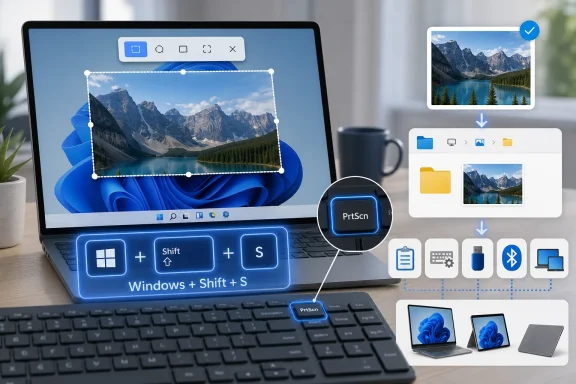
With the switch on, press PrtScn and select a capture type from the toolbar: rectangular, freeform, window, or full screen. The resulting image is copied to the clipboard and Windows should display a Snipping Tool notification.
On compact keyboards without a dedicated Print Screen key, Microsoft documents Fn + Windows logo key + Spacebar as the equivalent screenshot shortcut. Check Pictures > Screenshots afterward.
If the shortcut does not save a file but a plain PrtScn capture can be pasted into Paint, use Snipping Tool and choose Save to select a folder manually. This is a workaround for saving the image while you continue diagnosing the shortcut.
Next, make sure Windows is allowed to show the Snipping Tool notification:
Warning: Reset is more disruptive than Repair. Save any open work first, and expect the app’s local data and preferences to be cleared.
If Snipping Tool is missing or will not launch after Reset:
For a USB keyboard:
Finally, test the keyboard on another PC if possible. If Print Screen fails there too, the keyboard or its firmware is the likely cause. If it works on the other PC, return to the Windows settings and driver fixes above.
For supported Surface keyboards:
Contact the organization’s IT administrator and provide the exact app or remote session where the capture fails, along with the result of testing Windows logo key + Shift + S on the local desktop.
 1. Choose what the Print Screen key should do
Windows 11 can assign PrtScn to open screen snipping rather than immediately copy the entire display. If you expect the old full-screen clipboard behavior, turn that setting off.- Select Start > Settings > Accessibility > Keyboard.
- Find Use the Print Screen button to open screen snipping.
- Turn it:
- On to have PrtScn open the Snipping Tool capture bar.
- Off to use PrtScn for a full-screen capture copied to the clipboard.
- Test the key.
With the switch on, press PrtScn and select a capture type from the toolbar: rectangular, freeform, window, or full screen. The resulting image is copied to the clipboard and Windows should display a Snipping Tool notification.
2. Bypass Print Screen with the Windows snipping shortcut
If only the physical Print Screen key appears dead, use Windows’ direct screen-capture shortcut. This confirms whether the screenshot feature works before changing keyboard drivers or replacing hardware.- Arrange the screen exactly as you want to capture it.
- Press Windows logo key + Shift + S.
- When the screen dims, choose one of the capture modes:
- Rectangle for a selected area.
- Freeform for an irregular area.
- Window for one app window.
- Full screen for all displays.
- Select or capture the required area.
- Open the Snipping Tool notification to edit or save the image, or paste it directly with Ctrl + V.
3. Use the shortcut that saves a screenshot as a file
A standard Print Screen capture normally goes to the clipboard. It does not automatically create an image file. Use the Windows save shortcut when you need a PNG file without first opening Snipping Tool.- Press Windows logo key + PrtScn.
- Wait for the screen to dim briefly.
- Open File Explorer.
- Select Pictures > Screenshots.
On compact keyboards without a dedicated Print Screen key, Microsoft documents Fn + Windows logo key + Spacebar as the equivalent screenshot shortcut. Check Pictures > Screenshots afterward.
If the shortcut does not save a file but a plain PrtScn capture can be pasted into Paint, use Snipping Tool and choose Save to select a folder manually. This is a workaround for saving the image while you continue diagnosing the shortcut.
4. Check the clipboard, notifications, and Snipping Tool
A successful screenshot can look like a failed screenshot when it was copied silently to the clipboard or the notification was suppressed.- Press Windows logo key + V.
- If prompted, select the option to enable Clipboard history.
- Look for the latest screenshot thumbnail.
- Select it, or open Paint and press Ctrl + V.
Next, make sure Windows is allowed to show the Snipping Tool notification:
- Open Start > Settings > System > Notifications.
- Turn Notifications on.
- Find Snipping Tool in the app list and enable its notifications if it is listed.
- Turn off Do not disturb temporarily while testing.
5. Repair or reset Snipping Tool
Use this fix when Windows logo key + Shift + S does nothing, the Print Screen capture bar will not appear, or Snipping Tool opens and then fails.- Open Start > Settings > Apps > Installed apps.
- Find Snipping Tool.
- Select the three-dot More menu beside it.
- Select Advanced options.
- Select Repair.
- Test Windows logo key + Shift + S again.
Warning: Reset is more disruptive than Repair. Save any open work first, and expect the app’s local data and preferences to be cleared.
If Snipping Tool is missing or will not launch after Reset:
- Open Start > Settings > Apps > Installed apps.
- Find Snipping Tool and select More > Uninstall.
- Confirm the removal.
- Open Microsoft Store.
- Search for Snipping Tool from Microsoft and install it.
- In Microsoft Store, check for available app updates.
- Restart Windows and retest the shortcut.
6. Install Windows, Store, and keyboard-driver updates
A problem that begins after an update, sleep cycle, docking event, or Bluetooth reconnect can be caused by the keyboard driver or the app installation.- Open Start > Settings > Windows Update.
- Select Check for updates.
- Install available updates.
- Restart the PC when Windows requests it.
- Go to Settings > Windows Update > Advanced options.
- Select Optional updates.
- Open Driver updates if it appears.
- Select relevant keyboard, Bluetooth, HID, Surface, or manufacturer driver updates.
- Select Download & install.
- Restart the PC even if Windows does not explicitly request one.
- Right-click Start and select Device Manager.
- Expand Keyboards.
- Right-click the affected keyboard and select Update driver.
- Select Search automatically for drivers.
- If Windows does not find a newer driver, check the PC or keyboard manufacturer’s support software or official support site for a Windows 11-compatible driver.
7. Test the keyboard connection and the actual key
If Windows snipping works with Windows logo key + Shift + S, but Print Screen never responds, test the hardware before changing more Windows settings.For a USB keyboard:
- Disconnect the keyboard.
- Wait a few seconds.
- Connect it directly to a different USB port.
- Do not use a USB hub or dock during this test.
- Press PrtScn, then open Paint and press Ctrl + V.
- Replace or recharge the batteries if applicable.
- Disconnect the USB receiver.
- Wait about 10 seconds.
- Reconnect it directly to the PC.
- Test again.
Finally, test the keyboard on another PC if possible. If Print Screen fails there too, the keyboard or its firmware is the likely cause. If it works on the other PC, return to the Windows settings and driver fixes above.
8. Use device-specific or app-specific capture methods
Some devices and applications provide their own supported screenshot method.Surface devices and keyboards
On many Surface tablets, Surface Pro devices, Surface Book, Surface Go, and Surface Studio systems, press and hold Power, then press Volume Up to capture the screen. This shortcut does not work on Surface Laptop.For supported Surface keyboards:
- Press Windows logo key + PrtScn or Windows logo key + Snipping key to save a screenshot.
- Press Fn + Spacebar to open screen snipping.
- Press Fn + Alt + Spacebar to place the active window in the clipboard.
Microsoft Edge and Office
If screenshots fail only inside one application, use that application’s capture command instead of relying on Print Screen.- In Microsoft Edge, select Settings and more > Screenshot, or press Ctrl + Shift + S.
- In Word, Excel, PowerPoint, and Outlook, select Insert > Screenshot, then select an available window or Screen Clipping. In Outlook, click in the message body first.
- In OneNote, use Insert > Screen Clipping.
Work, school, remote, and protected apps
If Print Screen works on the desktop but not in a work application, browser tab, Azure Virtual Desktop session, Windows 365 session, or protected content window, the restriction may be intentional. Organizations can apply policies that block or limit screen capture, and certain apps protect sensitive or copyrighted content. This is not a keyboard failure.Contact the organization’s IT administrator and provide the exact app or remote session where the capture fails, along with the result of testing Windows logo key + Shift + S on the local desktop.
References
- Primary source: Technobezz
Published: 2026-07-19T16:40:58.255000+00:00
Windows Print Screen Not Working? 8 Fixes That Actually Work | Technobezz
Windows Print Screen not working? Fix PrtScn, Snipping Tool, missing files, clipboard captures, and keyboard issues.www.technobezz.com - Official source: support.microsoft.com
Keyboard shortcut for print screen - Microsoft Support
Keyboard shortcut for print screensupport.microsoft.com
