

 How to Fix Audio Problems in VirtualBox
VirtualBox audio issues are usually less mysterious than they first appear. In most cases, the problem comes down to one of three things: the guest VM settings, the host’s audio stack, or missing guest-side integration such as Guest Additions. Oracle’s own documentation makes the core point bluntly: if Enable Audio is not selected in the VM’s Audio settings, the guest will not detect a sound card at all, and the host audio driver and controller choices can materially affect playback behaviorThat means the usual “it doesn’t work” complaint in VirtualBox is often a configuration problem, not a hardware failure. The good news is that audio is one of the easiest VM features to troubleshoot if you approach it in the right order. The bad news is that many users jump straight to reinstalling the VM or the guest OS when a much simpler fix — like selecting the right controller or restarting the Windows Audio service — would have solved it much faster. Oracle’s own guidance and support notes point to settings, host backends, and logging as the key diagnostic layers
The practical takeaway is simple: start with the host, then the VM, then the guest. If your PC audio is fine, the VirtualBox audio checkbox is enabled, the controller matches the guest OS, and Guest Additions are installed where appropriate, the chances are good that sound will come back without dramatic intervention. If not, there are still a few deeper fixes worth trying before you assume the VM is broken beyond repair
Background
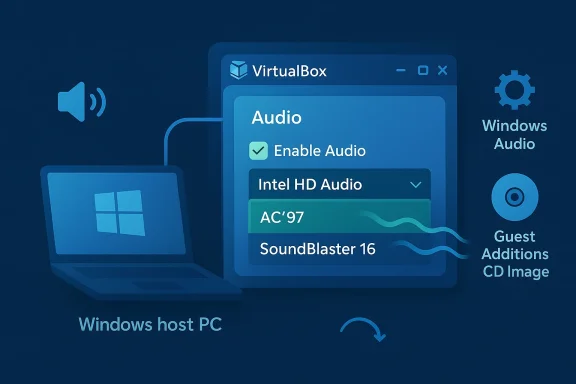
VirtualBox has long been one of the most popular tools for running Windows, Linux, and other guest operating systems on a Windows host. It is particularly attractive to tinkerers, developers, testers, and anyone who wants a disposable sandbox for software experimentation. In that environment, audio matters more than many users expect, because so many everyday workflows now include sound: media playback, web conferencing, application testing, game demos, and accessibility features.Audio in a virtual machine is also more layered than on a physical PC. The host operating system provides the actual audio hardware path, VirtualBox emulates a sound controller inside the guest, and the guest OS still needs a compatible driver to talk to that emulated hardware. Oracle documents that VirtualBox can present the guest with an Intel AC’97 controller, an Intel HD Audio controller, or a SoundBlaster 16 card, with Default typically chosen automatically for new VMs
That architecture explains why audio failures are often intermittent or confusing. The host can be working perfectly while the guest appears silent, or the guest may detect a controller but fail to output sound because the wrong backend is selected. Oracle’s troubleshooting material also notes that host-side performance and power management issues can surface as choppy audio or erratic timing, which means audio symptoms are not always confined to the guest OS itself
A second factor is Guest Additions. While the feature set is often discussed in the context of graphics, clipboard sharing, and mouse integration, Oracle’s documentation still frames Guest Additions as a critical part of the guest integration story, especially for Windows guests, including Windows 11 support in recent releases In practice, many users find that a VM feels incomplete until those extras are installed, even if audio is not literally dependent on them in every configuration.
It is also worth separating consumer-style “no sound” troubleshooting from VM-specific troubleshooting. On a normal Windows PC, the right fix may be a device manager reset, a driver reinstall, or a Windows Audio service restart. In VirtualBox, those same steps can still matter, but they sit alongside VM settings such as controller emulation and host audio driver selection. That is why a methodical, layered approach works best.
Start with the Obvious Checks
Before changing anything in VirtualBox, verify that the host machine itself is healthy. If Windows audio is broken on the host, the guest will often inherit the problem or make it look worse. Check whether speakers or headphones are connected, powered, and selected correctly, and confirm that the host volume is not muted or routed to the wrong output.You should also confirm that Windows itself is fully updated and that your audio driver stack is current. This sounds basic because it is basic, but basic problems are still the most common. If the host is running through a bad driver, no amount of guest-side tweaking will help much.
A quick host-side checklist
- Confirm the host speakers or headset work outside VirtualBox.
- Verify that the host system is not muted.
- Check Windows Update for pending audio or chipset fixes.
- Reboot the host if audio devices recently changed.
- Make sure no app is monopolizing the output device.
Verify VirtualBox Audio Is Enabled
Oracle’s documentation is explicit: the Audio section in a VM’s Settings window determines whether the guest detects a sound card, and the Enable Audio checkbox must be selected for audio to work at all That makes this the first VirtualBox-specific setting to inspect.Open the VM’s Settings, go to Audio, and check whether audio is enabled. If it is off, turn it on and test immediately. If it is already on, look at the audio controller and host driver choices, because those settings determine how VirtualBox bridges the guest and host audio paths.
What the main audio settings mean
Oracle documents several fields in the Audio settings dialog. The Host Audio Driver tells VirtualBox which host backend to use, the Audio Controller lets you choose the emulated sound hardware, and the output/input toggles determine whether playback and recording are active inside the guest In other words, the Audio screen is not just a yes/no switch; it is the control center for how the VM will behave.- Enable Audio must be checked.
- Host Audio Driver should usually stay on Default unless you have a specific reason to override it.
- Audio Controller may need adjustment if the guest OS lacks support for one controller type.
- Enable Audio Output must be active for playback.
- Enable Audio Input matters for microphones and recording workflows.
Choose the Right Audio Controller
If enabling audio does not help, the next likely culprit is the emulated controller. VirtualBox can emulate Intel AC’97, Intel HD Audio, or SoundBlaster 16 Not all guest operating systems handle these options equally well, and older or slimmer guest installs may be more sensitive to controller choice than modern Windows builds.For Windows 11 guests, Intel HD Audio is usually the first controller worth trying, because modern Windows audio support is designed around more recent hardware expectations. If that fails, AC’97 can sometimes be a useful fallback, especially for older guest environments or compatibility testing. SoundBlaster 16 tends to be more of a legacy option and is less likely to be your first best answer.
Why controller choice matters
The guest needs a driver that understands the virtual sound card VirtualBox is pretending to provide. If the guest and the emulated device do not line up properly, the VM may boot normally and still produce no sound. That is why a controller swap can sometimes fix audio instantly, even when the rest of the configuration looks correct.- Try Intel HD Audio first for modern Windows guests.
- Test AC’97 if HD Audio fails.
- Use SoundBlaster 16 only if compatibility demands it.
- Restart the guest after changing the controller.
- Re-test both system sounds and application playback.
Install or Reinstall Guest Additions
Guest Additions are not always the direct fix for sound, but they are a worthwhile part of the recovery process. Oracle says the Guest Additions ISO is available through the Devices menu as Insert Guest Additions CD Image, and that the Windows Guest Additions support modern Windows guests including Windows 11 If your VM is missing key integration components, installing them can restore a cleaner baseline for troubleshooting.Inside the guest, mount the Guest Additions CD image and run the installer appropriate for the guest architecture. Once installation finishes, reboot the VM and test again. This is especially important if the guest has never been updated or if it was cloned from an older VM with different settings.
When Guest Additions are worth trying
Guest Additions are especially useful when the VM has other integration issues alongside audio, such as awkward mouse behavior, poor screen resizing, or clipboard problems. Even if they do not directly install the audio driver you need, they can still help normalize the VM environment and reduce instability.- Use the Devices > Insert Guest Additions CD Image option.
- Install the correct Windows Additions package for the guest architecture.
- Reboot the guest after installation.
- Retest audio playback and microphone input.
- If the guest was copied from another machine, reinstalling may be especially helpful.
Restart the Host Audio Service
If the host is Windows, and especially if the host audio has been flaky recently, restarting the Windows Audio service can be a productive step. The Windows audio service is a central piece of the host’s sound path, and if it is misbehaving, VirtualBox may simply be inheriting that instability rather than causing it.Open the Run dialog with Win + R, launch services.msc, find Windows Audio, and restart it. Then restart VirtualBox and test the VM again. This is one of those fixes that sounds almost too simple, yet it can clear transient service problems that would otherwise send you chasing phantom VM bugs.
Why the audio service matters
The host service owns the live audio pipeline that VirtualBox depends on. If the service is stuck, paused, or not interacting cleanly with the audio device, the guest can appear silent even though its virtual controller is healthy. In that sense, the host audio service is the bridge between the VM and the real speaker output.- Restart Windows Audio.
- If needed, also inspect related Windows audio services.
- Reboot the host after major driver changes.
- Reopen VirtualBox only after the host service is stable.
- Try another audio output device if one is available.
Check Host Power, Sleep, and Performance Behavior
VirtualBox audio problems are not always pure driver problems. Oracle’s troubleshooting guidance notes that host CPU power management can negatively affect virtualization performance and can show up as choppy audio or odd timing behavior in guests That matters because a VM can produce sound that is technically working but still stutters, lags, or desynchronizes.If your host recently slept, hibernated, changed power plans, or switched output devices, try a full shutdown and reboot before digging deeper. Audio backends sometimes recover poorly from sleep transitions, especially when Bluetooth devices or USB headsets are involved. A clean restart often clears hidden state that a VM reset alone will not.
Things to test if audio is choppy, not absent
- Change the host power plan to a more performance-oriented profile.
- Disable aggressive sleep behavior for the moment.
- Test with wired speakers or headphones.
- Reconnect USB audio interfaces after a clean reboot.
- Watch for output-device changes after host suspend or resume.
Use Oracle’s Logging and Audio Debugging When Needed
If the standard fixes fail, Oracle provides a more advanced route: audio debugging. The VirtualBox AudioDebug guidance explains how to identify whether the problem is on the host side or guest side and how to enable output dumping for diagnosis That is not the first step, but it is the right next step when you need evidence rather than guesses.The diagnostic value here is huge because it turns an invisible bug into something inspectable. Dumped audio output files and logs can show whether the guest is generating sound at all, whether the host backend is receiving it, and where the signal chain breaks.
A practical debugging sequence
- Confirm the VM is powered off.
- Enable VirtualBox audio debug output for the affected VM.
- Start the VM and reproduce the problem.
- Inspect the host’s temporary audio files and VirtualBox logs.
- Compare guest behavior with host playback behavior.
Consumer vs Enterprise Impact
For home users, VirtualBox audio usually matters most when testing media apps, running an alternate desktop, or experimenting with software in a disposable environment. In that context, audio failure is frustrating but rarely mission-critical. Still, a silent VM can ruin the experience of testing conferencing tools, multimedia software, or anything involving browser media playback.For enterprises, the stakes are higher because VirtualBox may be used for reproducible testing, application validation, or isolated legacy environments. If audio fails, teams can misread an application bug as a virtualization bug, or vice versa. That can waste engineering time and make test results less trustworthy.
Why enterprises should care more
VirtualBox audio problems can affect training labs, support reproductions, and QA scenarios where sound is part of the test case. If the VM’s audio stack is not stable, testers may incorrectly conclude that an application has broken audio behavior when the real issue is the virtual controller or host backend. That is a false negative waiting to happen.- Consumer impact is often annoyance and lost convenience.
- Enterprise impact can be faulty test outcomes.
- Support teams may waste time reproducing non-bugs.
- Developers may misattribute audio defects to application code.
- Standardized VM baselines reduce inconsistency.
Strengths and Opportunities
VirtualBox’s audio model has a few real strengths, and they are easy to miss when users focus only on what is broken. The biggest advantage is that Oracle exposes enough of the stack to troubleshoot intelligently: the guest can be told whether it should have audio, the controller can be changed, and the host driver can usually remain on a sensible default That gives users meaningful control without forcing them into opaque black-box behavior.Another strength is that the official documentation is clear enough to support systematic diagnosis. The combination of settings guidance, Guest Additions documentation, and AudioDebug instructions makes it possible to move from a simple fix to a deeper one without guesswork
- Clear VM audio controls make the feature easy to test.
- Multiple emulated controllers provide compatibility flexibility.
- Default host driver selection reduces setup friction.
- Guest Additions support improves guest integration.
- Logging and debug output enable advanced diagnosis.
- Windows 11 guest support keeps the platform relevant.
- Separate input/output toggles help with mic and playback testing.
Risks and Concerns
The main risk is that audio problems in VirtualBox can masquerade as many different issues. A missing checkbox, the wrong controller, a stale host driver, a sleeping audio service, or an unstable host power profile can all produce similar symptoms. That ambiguity makes troubleshooting harder than it should be, especially for less experienced users.There is also a supportability risk when users copy old VM templates forward without rechecking audio settings. A VM that used to work on one host may behave differently on another, and the problem can be misread as data corruption or an OS fault. That is a classic virtualization trap.
- Audio failures can be caused by host or guest.
- Symptoms can look the same across different root causes.
- Sleep and resume behavior can destabilize the audio stack.
- Controller incompatibility can be mistaken for driver failure.
- Old VM templates may carry forward bad assumptions.
- Guest Additions may be treated as optional when they are not.
- Debugging without logs can waste time quickly.
Looking Ahead
The best way to think about VirtualBox audio is as a small system with multiple dependency layers, not a single feature you can toggle once and forget. The moment sound fails, you should assume there is a chain to inspect: host hardware, host audio service, VirtualBox audio settings, guest driver support, and in some cases host power behavior. That mental model leads to faster fixes and fewer blind alleys.For Windows 11 users in particular, the core workflow remains straightforward: start by confirming host audio, then verify Enable Audio, then test the controller, then install or refresh Guest Additions, and finally escalate to logging if necessary. That sequence is still the most sensible path because it follows the actual structure of the VirtualBox audio stack.
What to watch next
- Whether the host audio driver remains stable after sleep or resume.
- Whether switching from HD Audio to AC’97 changes behavior.
- Whether Guest Additions improve broader VM integration.
- Whether the guest can record audio, not just play it.
- Whether audio remains stable after a full reboot cycle.
In the end, VirtualBox audio is a good example of how virtualization works at its best when each piece is understood on its own terms. If you respect the separation between host, guest, and emulation, the path back to working sound is usually much shorter than it first appears.
Source: Guiding Tech How to Fix Audio Problems in VirtualBox
Last edited:
