

Windows 11 users set a default printer by opening Settings, going to Bluetooth & devices, selecting Printers & scanners, turning off “Let Windows manage my default printer,” choosing the preferred printer, and clicking Set as default. That plain sequence matters because the real culprit is often not the printer, the driver, or the network, but Windows’ habit of treating the last-used printer as the new favorite. Microsoft built that behavior to be convenient; in homes, offices, and hybrid work setups, it can feel like the operating system is gaslighting the user. The fix is simple, but the lesson is bigger: printing in Windows 11 is still a negotiation between old infrastructure, modern security defaults, and a user interface that hides the decisive switch in plain sight.
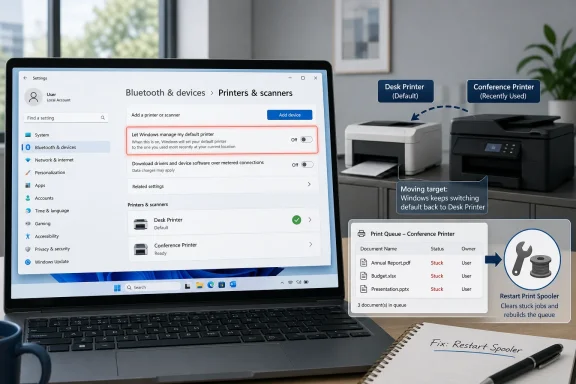
The most important setting on the Printers & scanners page is not the button labeled “Set as default.” It is the toggle beneath the printer list: “Let Windows manage my default printer.” When that switch is on, Windows automatically changes the default printer to the one you used most recently.
That explains the classic office mystery. A user prints to a conference-room printer once, goes back to their desk, and later finds their next document waiting across the building. Nothing “broke” in the traditional sense; Windows simply did what it was configured to do.
This design makes more sense on paper than in practice. Microsoft’s assumption is that the last printer you used is probably the one you want next, especially for mobile users moving between locations. But many people do not think of printers as fluid destinations. They think of one machine as the printer, with every other printer being an exception.
The result is a feature that behaves like a bug. Users set a default, Windows changes it, and the user concludes that Windows ignored them. In reality, the manual default and the automatic management feature are fighting for control, and the automatic feature wins until it is turned off.
That order is not cosmetic. If Windows is still managing the default printer, choosing a default manually is only a temporary gesture. The next successful print job to another device can change the default again, which makes the “Set as default” button feel unreliable even though it is working exactly as designed.
Windows 10 follows the same logic but uses a slightly different route. The printer page lives under Start, Settings, Devices, and Printers & scanners. The Windows-managed-default option appears there as a checkbox rather than the Windows 11-style toggle.
The practical instruction is therefore brutally simple: turn off automatic default-printer management first, then choose the printer. If that sequence is reversed, the user has not really locked anything in. They have merely made a suggestion to an operating system that still believes it knows better.
That is why setting a default printer can feel like a modern mobile-style task until something goes wrong. The Settings app can declare a printer as default, but it cannot magically fix a dead network connection, a sleeping device, a jammed queue, a broken driver, or a stopped Print Spooler service. “Default” only answers the question of where Windows should send the job first.
This distinction is where many troubleshooting guides become muddled. A default printer problem and a printing problem overlap, but they are not identical. The wrong default sends the job to the wrong destination; an offline printer or stuck queue prevents the right destination from doing anything useful.
Windows 11 exposes both realities on the same Printers & scanners page. That is convenient, but it also encourages users to treat all printer failures as one thing. The better mental model is to separate the decision from the delivery: first make Windows choose the right printer, then confirm the print system can actually move the job.
The first checks are still the obvious ones because obvious failures remain the most common. Make sure the printer is powered on, connected to the same network or directly to the PC, and not stuck behind a paper, toner, or display-panel prompt. Printer status in Windows can lag behind reality, but it is often reflecting a genuine communication problem.
A power cycle remains a useful primitive. Turn the printer off, unplug it, wait a few seconds, plug it back in, and turn it on again. That step sounds unsophisticated, but it resets the printer’s network state, clears some transient firmware problems, and forces Windows to rediscover a device that may have gone missing.
Windows 10 users also have a couple of old-style queue controls to inspect. In the print queue’s Printer menu, “Pause Printing” and “Use Printer Offline” can stop jobs even when the printer itself is fine. If either option is selected, clearing it can be the difference between a dead queue and a working default.
Windows 11 exposes the queue through Settings, Bluetooth & devices, Printers & scanners, and then the selected printer. From there, “Open print queue” shows pending jobs. Windows 10 uses similar language, though the button is often labeled “Open queue.”
Canceling stuck jobs is the least destructive repair. Right-click the job and choose Cancel, then wait for Windows to remove it. If there are several stalled jobs, cancel them all and send a small test page before trying the original document again.
This is also where users should resist the urge to keep clicking Print. Repeated print attempts do not fix a jammed queue; they create a longer jam. A single corrupt document, unavailable paper type, bad driver handoff, or sleeping network printer can turn a modest problem into a queue full of duplicates.
Restarting the spooler is the standard next step when canceling jobs does not work. Press Windows key + R, type
This restart is not magic, but it often clears the service’s working state. Jobs that were stuck in limbo may disappear, printer status may refresh, and the queue may become manageable again. For many home and small-office failures, this is the point where the system snaps back to normal.
The spooler also reminds us why printing has become a security and reliability priority for Microsoft. Modern Windows has tightened print behavior over time, particularly around network printing and print server communication. That is good for security, but it also means printing is no longer the casual, anything-goes subsystem many administrators remember from older Windows releases.
The sequence matters. Open Services with Windows key + R, type
Stopping the spooler first is not optional housekeeping. Windows can be using files in that directory while the service is active, and deleting around a running spooler risks failure or inconsistent results. The point is to shut down the traffic controller, clear the jam, and then bring the controller back.
This step is deliberately blunt. It does not diagnose whether the original cause was a bad document, a driver problem, a network timeout, or a printer firmware issue. It simply clears the runway so the next print job gets a fair chance.
That matters because printer defaults are not merely personal preferences in many organizations. They affect where confidential documents land, how departments route costs, which print servers carry load, and whether support desks drown in tickets after a device refresh. A roaming user’s “last used printer” may be convenient in one setting and risky in another.
Administrators should be especially cautious in shared offices, clinics, schools, finance departments, and anywhere print output has privacy implications. A wrong default printer can mean more than inconvenience. It can mean a document appears in a public tray or in a department that should never have received it.
The right answer is not always to disable Windows-managed defaults everywhere. Some mobile users genuinely benefit from automatic switching, particularly when they move predictably between home, office, and branch sites. But the setting should be a deliberate policy choice, not an inherited default that nobody remembers enabling.
But the design still buries the decisive explanation. “Let Windows manage my default printer” is technically accurate, yet it does not plainly say: Windows will change your default printer based on the last printer you used. That missing sentence is the reason so many users think their manual setting failed.
Good settings interfaces do not merely expose switches; they explain consequences. A default printer is a trust relationship. When users choose one, they expect Windows to honor it unless they explicitly choose another destination.
This is where Windows 11’s modern interface collides with Microsoft’s broader habit of adaptive defaults. The operating system increasingly tries to infer intent, recommend settings, and reduce manual configuration. In printing, inference is dangerous because physical output has a location, a tray, and sometimes an audience.
Still, the troubleshooter should not be treated as the first or only answer. If Windows is managing the default printer, the troubleshooter may not solve the underlying annoyance because the system is behaving according to its setting. Likewise, if a printer is physically offline, no software wizard can replace power, network connectivity, or paper.
The best order is practical. First turn off automatic default-printer management and set the intended printer. Then check whether the printer is online. Then clear the queue, restart the spooler, and only then escalate to automated diagnostics if the problem persists.
That order keeps users from confusing configuration with repair. It also avoids the classic Windows support ritual of trying five dramatic fixes before noticing the one toggle that caused the problem in the first place.
 Windows 11 Turns a Printer Choice Into a Moving Target
The most important setting on the Printers & scanners page is not the button labeled “Set as default.” It is the toggle beneath the printer list: “Let Windows manage my default printer.” When that switch is on, Windows automatically changes the default printer to the one you used most recently.That explains the classic office mystery. A user prints to a conference-room printer once, goes back to their desk, and later finds their next document waiting across the building. Nothing “broke” in the traditional sense; Windows simply did what it was configured to do.
This design makes more sense on paper than in practice. Microsoft’s assumption is that the last printer you used is probably the one you want next, especially for mobile users moving between locations. But many people do not think of printers as fluid destinations. They think of one machine as the printer, with every other printer being an exception.
The result is a feature that behaves like a bug. Users set a default, Windows changes it, and the user concludes that Windows ignored them. In reality, the manual default and the automatic management feature are fighting for control, and the automatic feature wins until it is turned off.
The Real Fix Is to Stop Windows From Helping
The correct Windows 11 path is Start, Settings, Bluetooth & devices, and then Printers & scanners. Once there, the user should turn off “Let Windows manage my default printer.” Only after that should they select the printer they actually want and click “Set as default.”That order is not cosmetic. If Windows is still managing the default printer, choosing a default manually is only a temporary gesture. The next successful print job to another device can change the default again, which makes the “Set as default” button feel unreliable even though it is working exactly as designed.
Windows 10 follows the same logic but uses a slightly different route. The printer page lives under Start, Settings, Devices, and Printers & scanners. The Windows-managed-default option appears there as a checkbox rather than the Windows 11-style toggle.
The practical instruction is therefore brutally simple: turn off automatic default-printer management first, then choose the printer. If that sequence is reversed, the user has not really locked anything in. They have merely made a suggestion to an operating system that still believes it knows better.
The Old Control Panel Mindset Still Haunts Printing
Printers are one of the places where Windows 11’s modern Settings app has to paper over decades of legacy architecture. The interface looks clean, but beneath it sits the same broad model Windows has used for years: printer queues, drivers, ports, spooler services, per-user defaults, and sometimes print servers in the middle.That is why setting a default printer can feel like a modern mobile-style task until something goes wrong. The Settings app can declare a printer as default, but it cannot magically fix a dead network connection, a sleeping device, a jammed queue, a broken driver, or a stopped Print Spooler service. “Default” only answers the question of where Windows should send the job first.
This distinction is where many troubleshooting guides become muddled. A default printer problem and a printing problem overlap, but they are not identical. The wrong default sends the job to the wrong destination; an offline printer or stuck queue prevents the right destination from doing anything useful.
Windows 11 exposes both realities on the same Printers & scanners page. That is convenient, but it also encourages users to treat all printer failures as one thing. The better mental model is to separate the decision from the delivery: first make Windows choose the right printer, then confirm the print system can actually move the job.
Offline Is Not a Preference Problem
If the selected default printer shows as offline, setting it as default again is usually pointless. Windows may know exactly where to send the document, but the route is blocked. The print job will sit in the queue until the printer comes back, the connection is restored, or the job is canceled.The first checks are still the obvious ones because obvious failures remain the most common. Make sure the printer is powered on, connected to the same network or directly to the PC, and not stuck behind a paper, toner, or display-panel prompt. Printer status in Windows can lag behind reality, but it is often reflecting a genuine communication problem.
A power cycle remains a useful primitive. Turn the printer off, unplug it, wait a few seconds, plug it back in, and turn it on again. That step sounds unsophisticated, but it resets the printer’s network state, clears some transient firmware problems, and forces Windows to rediscover a device that may have gone missing.
Windows 10 users also have a couple of old-style queue controls to inspect. In the print queue’s Printer menu, “Pause Printing” and “Use Printer Offline” can stop jobs even when the printer itself is fine. If either option is selected, clearing it can be the difference between a dead queue and a working default.
The Queue Is Where Print Jobs Go to Get Stuck
The print queue is the waiting room between the application and the physical printer. When it works, users barely notice it exists. When it fails, every later print job can line up obediently behind one bad document that will never leave.Windows 11 exposes the queue through Settings, Bluetooth & devices, Printers & scanners, and then the selected printer. From there, “Open print queue” shows pending jobs. Windows 10 uses similar language, though the button is often labeled “Open queue.”
Canceling stuck jobs is the least destructive repair. Right-click the job and choose Cancel, then wait for Windows to remove it. If there are several stalled jobs, cancel them all and send a small test page before trying the original document again.
This is also where users should resist the urge to keep clicking Print. Repeated print attempts do not fix a jammed queue; they create a longer jam. A single corrupt document, unavailable paper type, bad driver handoff, or sleeping network printer can turn a modest problem into a queue full of duplicates.
The Print Spooler Remains the System’s Weak Link and Safety Valve
The Print Spooler is the Windows service that manages print jobs and printer interaction. If it is stopped, damaged, or wedged, Windows may be unable to print, show printers properly, or install printer devices. That makes it both a frequent source of trouble and one of the most effective places to intervene.Restarting the spooler is the standard next step when canceling jobs does not work. Press Windows key + R, type
services.msc, press Enter, find Print Spooler, right-click it, and choose Restart. If Restart is not available, Start may be the option Windows presents.This restart is not magic, but it often clears the service’s working state. Jobs that were stuck in limbo may disappear, printer status may refresh, and the queue may become manageable again. For many home and small-office failures, this is the point where the system snaps back to normal.
The spooler also reminds us why printing has become a security and reliability priority for Microsoft. Modern Windows has tightened print behavior over time, particularly around network printing and print server communication. That is good for security, but it also means printing is no longer the casual, anything-goes subsystem many administrators remember from older Windows releases.
Clearing the Spool Folder Is the Last Manual Wrench
When a job refuses to delete even after a spooler restart, the remaining move is to manually clear the spool folder. This should be treated as a last resort because it removes all pending print jobs. Anything still needed must be sent again after the service is restored.The sequence matters. Open Services with Windows key + R, type
services.msc, press Enter, right-click Print Spooler, and select Stop. Then open File Explorer and go to C:\Windows\System32\spool\PRINTERS. Delete the files inside that folder, return to Services, right-click Print Spooler, and select Start.Stopping the spooler first is not optional housekeeping. Windows can be using files in that directory while the service is active, and deleting around a running spooler risks failure or inconsistent results. The point is to shut down the traffic controller, clear the jam, and then bring the controller back.
This step is deliberately blunt. It does not diagnose whether the original cause was a bad document, a driver problem, a network timeout, or a printer firmware issue. It simply clears the runway so the next print job gets a fair chance.
Enterprise Admins Have a Policy Problem, Not Just a Settings Problem
For individual users, the Printers & scanners page is enough. For managed environments, the story moves quickly into policy. Microsoft exposes default-printer management through administrative controls, including policy settings that can turn off Windows’ automatic default-printer behavior for users.That matters because printer defaults are not merely personal preferences in many organizations. They affect where confidential documents land, how departments route costs, which print servers carry load, and whether support desks drown in tickets after a device refresh. A roaming user’s “last used printer” may be convenient in one setting and risky in another.
Administrators should be especially cautious in shared offices, clinics, schools, finance departments, and anywhere print output has privacy implications. A wrong default printer can mean more than inconvenience. It can mean a document appears in a public tray or in a department that should never have received it.
The right answer is not always to disable Windows-managed defaults everywhere. Some mobile users genuinely benefit from automatic switching, particularly when they move predictably between home, office, and branch sites. But the setting should be a deliberate policy choice, not an inherited default that nobody remembers enabling.
Windows 11’s Printer Page Is Cleaner, but Not Yet Clear Enough
Windows 11 deserves some credit for making printer management less ugly than it used to be. The path through Bluetooth & devices is more approachable than the old maze of Control Panel dialogs, device properties, server properties, and queue windows. Most users can now find the printer list without knowing anything about Windows internals.But the design still buries the decisive explanation. “Let Windows manage my default printer” is technically accurate, yet it does not plainly say: Windows will change your default printer based on the last printer you used. That missing sentence is the reason so many users think their manual setting failed.
Good settings interfaces do not merely expose switches; they explain consequences. A default printer is a trust relationship. When users choose one, they expect Windows to honor it unless they explicitly choose another destination.
This is where Windows 11’s modern interface collides with Microsoft’s broader habit of adaptive defaults. The operating system increasingly tries to infer intent, recommend settings, and reduce manual configuration. In printing, inference is dangerous because physical output has a location, a tray, and sometimes an audience.
The Official Troubleshooter Is Useful After the Basics, Not Before Them
Microsoft’s printer troubleshooter, now routed through the Get Help experience, is worth using when manual checks fail. It can run diagnostics and attempt repairs across common printer connection and printing problems. For users who do not want to inspect services or queues, it is a safer path than random registry edits or third-party utilities.Still, the troubleshooter should not be treated as the first or only answer. If Windows is managing the default printer, the troubleshooter may not solve the underlying annoyance because the system is behaving according to its setting. Likewise, if a printer is physically offline, no software wizard can replace power, network connectivity, or paper.
The best order is practical. First turn off automatic default-printer management and set the intended printer. Then check whether the printer is online. Then clear the queue, restart the spooler, and only then escalate to automated diagnostics if the problem persists.
That order keeps users from confusing configuration with repair. It also avoids the classic Windows support ritual of trying five dramatic fixes before noticing the one toggle that caused the problem in the first place.
The Printer Fix That Actually Sticks
The durable fix is not a secret command or a hidden Control Panel relic. It is a short sequence backed by a clear mental model: stop Windows from changing the destination, set the desired destination, and then repair the delivery path if jobs still do not print.- Windows 11 users should go to Settings, Bluetooth & devices, Printers & scanners, and turn off “Let Windows manage my default printer” before choosing a manual default.
- Windows 10 users should use Settings, Devices, Printers & scanners, clear the equivalent checkbox, select the printer, choose Manage, and then set it as default.
- A printer marked Offline needs connectivity troubleshooting before default-printer settings will matter.
- A stuck print queue should be cleared before sending repeated copies of the same document.
- Restarting the Print Spooler is a sensible escalation when jobs will not cancel or the queue refuses to behave.
- Manually emptying
C:\Windows\System32\spool\PRINTERSshould be reserved for stubborn cases because it deletes all pending jobs.
References
- Primary source: Technobezz
Published: 2026-06-02T14:17:16.176116
How to Set a Default Printer in Windows 11 | Technobezz
You click Print, the document vanishes into nowhere, and you realize Windows just sent it to the wrong printer again.www.technobezz.com
