

Windows Update errors are fixed fastest when you diagnose the failure class first—disk runway, EFI/System Reserved partition space, component-store corruption, a known Microsoft bad patch, driver or firmware fallout, or policy targeting—and only then apply the smallest safe repair. That is the difference between troubleshooting and ritual. Error codes such as 0x800f0922 are useful clues, but they are not a verdict that Windows is “corrupt.” The machines that get fixed cleanly are usually the ones where someone stops before the nuclear option and asks what kind of failure the updater is actually reporting.
The bad habit is understandable. Windows Update has trained users to distrust the box in front of them: progress bars stall, reboots roll back, the same code appears across unrelated incidents, and the internet offers a familiar incantation of
The better answer to “how do I fix Windows Update error” is not a longer list of commands. It is a triage workflow. If you can classify the failure before touching the system, you can avoid turning a normal rollback into a boot problem, avoid resizing partitions unnecessarily, avoid blaming WSUS for a consumer Known Issue Rollback, and avoid running corruption repairs when the actual cause is a bad patch Microsoft has already acknowledged.
Windows Update error codes look precise enough to seduce people into overconfidence. A hexadecimal code has the aura of a lab result: if 0x800f0922 appears, surely the internet can tell you exactly what to do. In practice, the same code can surface when an update cannot complete its servicing transaction, when a boot-related partition lacks enough space, when a feature payload cannot be staged, or when a cumulative update hits a known issue in Microsoft’s own package.
That ambiguity is why the first step should be boring. On Windows 11, Microsoft’s consumer guidance starts with the automated Windows Update troubleshooter in the Get Help app, then moves through ordinary checks: power, internet connectivity, free disk space, restart state, and backup. Enthusiasts often skip that because it feels too basic, but basic checks are not beneath serious troubleshooting. They are how you avoid treating a laptop on a flaky connection like a broken component store.
The trap is that many popular fixes are technically valid but diagnostically lazy.
The better posture is to treat Windows Update like a failed deployment. First identify which stage failed. Did the update fail during download, initial install, reboot, or rollback? Did it fail immediately, or at 35 percent after restart? Is one device affected or a fleet? Is the update known bad? Is the machine scanning Microsoft’s public service, Windows Update for Business, Intune, or WSUS? Those distinctions change the fix.
Reserved Storage exists because Microsoft knows this is a recurring failure mode. On supported Windows installations, Reserved Storage is designed to make it more likely updates can download and install without asking the user to manually clear space at the worst possible moment. That does not mean Reserved Storage is magic, and it does not mean every machine has it enabled or sized usefully. It means storage planning is part of servicing reliability, not housekeeping.
WindowsForum’s recent discussion of Reserved Storage captured the practical tension well. Disabling it with an elevated DISM command can temporarily return several gigabytes of space, and that can be attractive on cramped devices. But the safer interpretation is not “turn it off and celebrate.” It is that the DISM toggle can act as a reset lever, after which Reserved Storage should be re-enabled so the next cumulative update has room to breathe.
That distinction matters because many “fix Windows Update” guides encourage users to claw back space indiscriminately. Deleting Windows Update cache files, removing previous installation files, and disabling storage reservations may get one update across the line while making the next one more fragile. A field workflow asks a different question: does the system have enough update runway now, and will it still have enough after the fix?
For home users, that means checking free space before touching repair tools. For administrators, it means treating disk pressure as a fleet signal. A patch failure on one 64GB device may be a local nuisance; the same failure pattern across low-end laptops is a capacity planning problem wearing an error code.
WindowsForum threads around KB5089549 added the missing field texture. Users reported update rollback behavior and tied the error to cramped EFI System Partition space, especially when the installation failed during the reboot phase rather than while downloading in Settings. That distinction is critical. A failure that rolls back around the same point in the boot-time install process is not the same beast as an update that never downloads.
The EFI System Partition is easy to ignore because Windows hides it from ordinary desktop life. It is small, boot-critical, and normally invisible. When it is undersized or cluttered, an update that needs to place or update boot-related files may fail in a way that looks like a generic servicing error to the user. The visible code is 0x800f0922; the underlying problem may be that Windows cannot safely complete the boot-servicing work in the space available.
This is where “smallest safe fix” becomes more than a slogan. If KB5089549 is failing on a Windows 11 24H2 or 25H2 system and Microsoft has acknowledged a known issue, the first move is to check the release health status and whether the Known Issue Rollback applies to that device class. If the machine is consumer or unmanaged business, a restart and time may be safer than partition work. If it is enterprise-managed, the answer may be a specific policy deployment rather than running random local repairs.
Partition resizing should sit much later in the workflow. Expanding an EFI or System Reserved partition can be the correct fix on some systems, especially older or manually migrated installations with tiny boot partitions. But it is also a fix with real blast radius. Before anyone touches partitions, they should have a current backup, BitLocker recovery information, firmware awareness, and a clear reason to believe boot partition space is the blocker.
The problem is cultural, not technical. On forums, social posts, and recycled blog fixes, DISM has become a kind of folk medicine: run it because something went wrong, run it again because the error returned, run it before knowing whether corruption exists. That is not troubleshooting. It is a way of making yourself feel active while the actual signal decays.
There are times when DISM should move near the front of the queue. If Windows Update reports component-store corruption, if CBS logs point to missing or damaged payloads, if multiple unrelated updates and optional features fail, or if SFC reports it cannot repair files, DISM is exactly the right tool. It is also reasonable after malware cleanup, failed servicing experiments, or abrupt power loss during updates.
But DISM will not make a bad Microsoft patch good. It will not enlarge an EFI partition. It will not make an update applicable to the wrong architecture. It will not resolve a WSUS approval mismatch. When DISM reports success and the update still fails, that is not an invitation to repeat the command forever. It is evidence that the failure belongs to another branch of the triage tree.
A practical rule: use DISM when you have reason to suspect the servicing stack or component store, not merely because an update failed. The command is safe enough when used properly, but every unnecessary repair step costs time, obscures the timeline, and tempts the user into escalating toward resets and reinstallations without proof.
KB5089549 is again useful because it shows the modern servicing model in motion. Microsoft can mitigate some non-security regressions through Known Issue Rollback, often automatically for consumer and unmanaged business devices. Managed enterprise devices may need a Group Policy or an administrative action to receive the rollback behavior. That means two machines with the same visible error can require different remedies depending on management state.
This is why checking the Windows release health dashboard and the specific KB page should happen early, not after hours of local surgery. If Microsoft has already acknowledged the failure, the task changes from “repair Windows” to “determine whether this device is in the affected population and how the mitigation reaches it.” For consumers, that may mean restarting and waiting. For admins, it may mean deploying the rollback policy, pausing rings, or holding a rollout until Microsoft ships a superseding update.
The same logic applies to safeguard holds and feature updates. A device may be blocked from an upgrade because Microsoft has identified a compatibility issue with hardware, software, drivers, or firmware. Forcing the upgrade through installation media may satisfy the impatient, but it defeats the warning system. A safeguard hold is not Windows being lazy; it is Windows saying the vendor knows something about this combination that the user may not.
The hard part is psychological. Users who arrived at a search box with “fix Windows Update error” want action. But in patch management, inaction can be the professional move when the vendor has acknowledged a live issue. The art is knowing the difference between waiting for mitigation and ignoring a local fault.
WindowsForum’s coverage of Cloud-Initiated Driver Recovery, planned for Windows Update in 2026 with partner testing before broader automated support, is a signal of where Microsoft thinks the pain is. If driver rollback from the cloud is becoming part of the recovery story, then driver failure is not a fringe scenario. It is central enough that Microsoft wants a pipeline for systems to recover when a bad driver knocks them sideways.
That does not mean every failed update is a driver issue. It means driver and firmware state should be part of triage before destructive repairs. Has the device recently received a BIOS or UEFI update? Is BitLocker enabled, and is the recovery key available? Did the failure begin after a storage controller, GPU, VPN, security agent, or chipset driver update? Does the OEM have a firmware advisory? Those questions matter.
The smallest safe fix might be updating firmware before retrying a feature update, rolling back a problematic device driver, removing a flaky third-party security product temporarily, or waiting for Microsoft and the hardware vendor to revise a block. It might also mean doing nothing until a known driver regression receives a mitigation. The wrong fix is to wipe the Windows Update cache ten times while ignoring the driver that fails every reboot.
This is especially relevant as Windows 11 absorbs more AI PC, Arm, and platform-specific work. The forum’s May 2026 Windows coverage has already been full of faster updates, new Arm hardware, Insider changes, and Microsoft’s attempts to make servicing feel less disruptive. That modernization makes update reliability more important, not less. The more Windows relies on firmware, silicon features, and cloud-mediated recovery, the less useful a one-size-fits-all repair script becomes.
Microsoft’s administrator guidance is explicit about this class of problem. Verify applicability. Check architecture. Confirm prerequisites. Look for paused updates and safeguard holds. Determine whether the device is scanning Windows Update or another endpoint such as WSUS. Those checks sound bureaucratic until you have watched a technician rebuild a client that was simply pointed at a stale WSUS server.
Policy failures often masquerade as stubborn clients. A device may be healthy, online, and fully capable of installing a patch, but the patch is not approved for its group. A feature update may be blocked by a deferral policy. A quality update may be paused. A device may be in the wrong ring. A third-party patch tool may have taken over part of the servicing flow while Windows still displays the visible error.
For IT pros, the workflow should split early between unmanaged and managed systems. On an unmanaged home PC, Get Help, Settings, free space, release health, and local repair tools are reasonable first stops. On a managed PC, local symptoms must be correlated with policy. What does the management console say? What ring is the device in? Are other devices in the same group failing? Has Microsoft published a rollback policy for this known issue, and has it actually been deployed?
This is where Windows Update troubleshooting becomes organizational. If 200 laptops fail the same update after a policy change, the fix is probably not 200 local DISM sessions. If one laptop fails after a disk clone from an older SSD, local partition layout deserves attention. The population pattern is evidence.
The risk is not usually that deleting update cache files destroys Windows. The risk is that it resets the scene before anyone has learned from it. Logs, timestamps, repeated progress points, and staged files can tell a story. If every guide starts by wiping the working area, the user may lose the pattern that would have distinguished an EFI-space failure from a network hiccup.
A better rule is to map the failure stage first. If the update fails during download, check connectivity, VPN, proxy, metered network state, service health, and disk space. If it fails during install before reboot, look at applicability, component store, and local servicing health. If it fails during reboot and rolls back at a consistent percentage, boot partition space, drivers, firmware, and known issues move higher. If it never appears, policy targeting and update source are suspects.
Cache clearing belongs after that staging logic, not before it. It is a reasonable small fix when the evidence points to a stale or damaged local download. It is a distraction when the update package itself has a known rollback issue.
Backups are the dividing line between confidence and recklessness. Before changing partitions, removing recovery data, suspending BitLocker, forcing feature updates, or performing repair installs, the user should have a current backup and recovery keys. It is not enough to assume OneDrive has the important files. A Windows Update failure is annoying; a botched boot partition change without a recovery path is a different class of day.
The same conservative logic applies to Reserved Storage. Temporarily disabling it may reclaim space, but treating that as a permanent optimization misses why the feature exists. If the goal is reliable updating, the safer move is to use the toggle deliberately and then restore the guardrail. A few extra gigabytes look valuable until the next cumulative update needs the room.
Professional troubleshooting also means stopping when the evidence changes. If Microsoft acknowledges a bad patch, stop “repairing” healthy clients. If DISM finds no corruption, stop treating corruption as the main theory. If every affected device is in the same WSUS group, stop blaming individual machines. If failures cluster on one hardware model, stop pretending the update is purely generic.
Windows servicing is moving toward more automation, more rollback logic, and more cloud-assisted recovery, but that does not absolve users and administrators from diagnosis. If anything, it raises the value of disciplined triage, because the same error code may now sit at the intersection of Microsoft’s release pipeline, OEM firmware, hidden boot partitions, storage reservations, and enterprise policy. The next time Windows Update throws 0x800f0922 or another familiar-looking code, the winning move is not to reach for the biggest hammer; it is to identify which part of the servicing chain actually broke, make the smallest safe change, and leave the system more update-ready than you found it.
The bad habit is understandable. Windows Update has trained users to distrust the box in front of them: progress bars stall, reboots roll back, the same code appears across unrelated incidents, and the internet offers a familiar incantation of
sfc, DISM, cache deletion, and in-place repair. Some of those tools are legitimate. The mistake is using them as a first response to every failed patch, because Windows Update is not one problem. It is a supply chain of storage, servicing metadata, boot partitions, drivers, firmware, policy, and Microsoft’s own release quality.The better answer to “how do I fix Windows Update error” is not a longer list of commands. It is a triage workflow. If you can classify the failure before touching the system, you can avoid turning a normal rollback into a boot problem, avoid resizing partitions unnecessarily, avoid blaming WSUS for a consumer Known Issue Rollback, and avoid running corruption repairs when the actual cause is a bad patch Microsoft has already acknowledged.
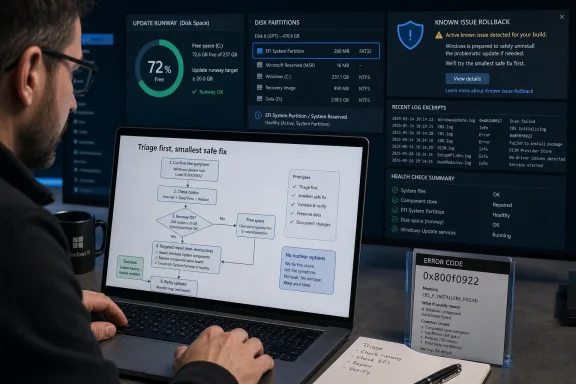 The Error Code Is a Symptom, Not a Diagnosis
Windows Update error codes look precise enough to seduce people into overconfidence. A hexadecimal code has the aura of a lab result: if 0x800f0922 appears, surely the internet can tell you exactly what to do. In practice, the same code can surface when an update cannot complete its servicing transaction, when a boot-related partition lacks enough space, when a feature payload cannot be staged, or when a cumulative update hits a known issue in Microsoft’s own package.That ambiguity is why the first step should be boring. On Windows 11, Microsoft’s consumer guidance starts with the automated Windows Update troubleshooter in the Get Help app, then moves through ordinary checks: power, internet connectivity, free disk space, restart state, and backup. Enthusiasts often skip that because it feels too basic, but basic checks are not beneath serious troubleshooting. They are how you avoid treating a laptop on a flaky connection like a broken component store.
The trap is that many popular fixes are technically valid but diagnostically lazy.
DISM /Online /Cleanup-Image /RestoreHealth followed by sfc /scannow is a real Microsoft-documented repair path for component-store corruption and some installation failures on modern Windows. But a documented repair command is not a universal cure. If the update is blocked because the EFI System Partition is cramped, the component store may be perfectly healthy.The better posture is to treat Windows Update like a failed deployment. First identify which stage failed. Did the update fail during download, initial install, reboot, or rollback? Did it fail immediately, or at 35 percent after restart? Is one device affected or a fleet? Is the update known bad? Is the machine scanning Microsoft’s public service, Windows Update for Business, Intune, or WSUS? Those distinctions change the fix.
Start With the Runway Windows Needs to Land the Plane
Free space is the least glamorous Windows Update failure and one of the easiest to misread. Users see 20GB free on C: and assume storage cannot be the issue. But update installation is not just a file download; Windows stages packages, expands payloads, writes temporary data, maintains rollback capability, and may need space in places that File Explorer does not foreground.Reserved Storage exists because Microsoft knows this is a recurring failure mode. On supported Windows installations, Reserved Storage is designed to make it more likely updates can download and install without asking the user to manually clear space at the worst possible moment. That does not mean Reserved Storage is magic, and it does not mean every machine has it enabled or sized usefully. It means storage planning is part of servicing reliability, not housekeeping.
WindowsForum’s recent discussion of Reserved Storage captured the practical tension well. Disabling it with an elevated DISM command can temporarily return several gigabytes of space, and that can be attractive on cramped devices. But the safer interpretation is not “turn it off and celebrate.” It is that the DISM toggle can act as a reset lever, after which Reserved Storage should be re-enabled so the next cumulative update has room to breathe.
That distinction matters because many “fix Windows Update” guides encourage users to claw back space indiscriminately. Deleting Windows Update cache files, removing previous installation files, and disabling storage reservations may get one update across the line while making the next one more fragile. A field workflow asks a different question: does the system have enough update runway now, and will it still have enough after the fix?
For home users, that means checking free space before touching repair tools. For administrators, it means treating disk pressure as a fleet signal. A patch failure on one 64GB device may be a local nuisance; the same failure pattern across low-end laptops is a capacity planning problem wearing an error code.
0x800f0922 Has Become the Cautionary Tale Windows Needed
The May 2026 Windows 11 security update KB5089549 turned 0x800f0922 into a useful case study because it exposed the weakness of code-first troubleshooting. Microsoft acknowledged that the May 12, 2026 cumulative update for Windows 11 versions 24H2 and 25H2 could fail for some devices with error 0x800f0922. A Known Issue Rollback was listed for the problem, meaning the correct first response for many consumer and unmanaged business devices was not surgery but waiting for mitigation to land, restarting, and confirming the update state.WindowsForum threads around KB5089549 added the missing field texture. Users reported update rollback behavior and tied the error to cramped EFI System Partition space, especially when the installation failed during the reboot phase rather than while downloading in Settings. That distinction is critical. A failure that rolls back around the same point in the boot-time install process is not the same beast as an update that never downloads.
The EFI System Partition is easy to ignore because Windows hides it from ordinary desktop life. It is small, boot-critical, and normally invisible. When it is undersized or cluttered, an update that needs to place or update boot-related files may fail in a way that looks like a generic servicing error to the user. The visible code is 0x800f0922; the underlying problem may be that Windows cannot safely complete the boot-servicing work in the space available.
This is where “smallest safe fix” becomes more than a slogan. If KB5089549 is failing on a Windows 11 24H2 or 25H2 system and Microsoft has acknowledged a known issue, the first move is to check the release health status and whether the Known Issue Rollback applies to that device class. If the machine is consumer or unmanaged business, a restart and time may be safer than partition work. If it is enterprise-managed, the answer may be a specific policy deployment rather than running random local repairs.
Partition resizing should sit much later in the workflow. Expanding an EFI or System Reserved partition can be the correct fix on some systems, especially older or manually migrated installations with tiny boot partitions. But it is also a fix with real blast radius. Before anyone touches partitions, they should have a current backup, BitLocker recovery information, firmware awareness, and a clear reason to believe boot partition space is the blocker.
DISM and SFC Are Scalpels, Not Incense
DISM and SFC deserve their place in the Windows repair toolkit. Microsoft documents theDISM /Online /Cleanup-Image /RestoreHealth path followed by sfc /scannow for fixing Windows Update corruptions and installation failures. The order matters because DISM repairs the Windows image that SFC may rely on to replace damaged system files. Used when the component store is unhealthy, this pair is conservative and sensible.The problem is cultural, not technical. On forums, social posts, and recycled blog fixes, DISM has become a kind of folk medicine: run it because something went wrong, run it again because the error returned, run it before knowing whether corruption exists. That is not troubleshooting. It is a way of making yourself feel active while the actual signal decays.
There are times when DISM should move near the front of the queue. If Windows Update reports component-store corruption, if CBS logs point to missing or damaged payloads, if multiple unrelated updates and optional features fail, or if SFC reports it cannot repair files, DISM is exactly the right tool. It is also reasonable after malware cleanup, failed servicing experiments, or abrupt power loss during updates.
But DISM will not make a bad Microsoft patch good. It will not enlarge an EFI partition. It will not make an update applicable to the wrong architecture. It will not resolve a WSUS approval mismatch. When DISM reports success and the update still fails, that is not an invitation to repeat the command forever. It is evidence that the failure belongs to another branch of the triage tree.
A practical rule: use DISM when you have reason to suspect the servicing stack or component store, not merely because an update failed. The command is safe enough when used properly, but every unnecessary repair step costs time, obscures the timeline, and tempts the user into escalating toward resets and reinstallations without proof.
Microsoft’s Bad Patch Problem Requires Patience, Not Heroics
Windows Update troubleshooting gets harder because sometimes the update is the problem. This is the part vendors dislike admitting and administrators learn the hard way. When Microsoft publishes a cumulative update that later receives a Known Issue Rollback, a compatibility hold, or a documented workaround, local repair work can become not only unnecessary but counterproductive.KB5089549 is again useful because it shows the modern servicing model in motion. Microsoft can mitigate some non-security regressions through Known Issue Rollback, often automatically for consumer and unmanaged business devices. Managed enterprise devices may need a Group Policy or an administrative action to receive the rollback behavior. That means two machines with the same visible error can require different remedies depending on management state.
This is why checking the Windows release health dashboard and the specific KB page should happen early, not after hours of local surgery. If Microsoft has already acknowledged the failure, the task changes from “repair Windows” to “determine whether this device is in the affected population and how the mitigation reaches it.” For consumers, that may mean restarting and waiting. For admins, it may mean deploying the rollback policy, pausing rings, or holding a rollout until Microsoft ships a superseding update.
The same logic applies to safeguard holds and feature updates. A device may be blocked from an upgrade because Microsoft has identified a compatibility issue with hardware, software, drivers, or firmware. Forcing the upgrade through installation media may satisfy the impatient, but it defeats the warning system. A safeguard hold is not Windows being lazy; it is Windows saying the vendor knows something about this combination that the user may not.
The hard part is psychological. Users who arrived at a search box with “fix Windows Update error” want action. But in patch management, inaction can be the professional move when the vendor has acknowledged a live issue. The art is knowing the difference between waiting for mitigation and ignoring a local fault.
Driver and Firmware Fallout Is the Update Problem That Pretends to Be Windows
Not every update failure belongs to Windows Update itself. Cumulative updates increasingly sit beside firmware updates, driver packages, security baseline changes, virtualization features, boot manager updates, and device-specific compatibility logic. A graphics, storage, network, TPM, or firmware issue can surface during update installation and look to the user like a generic Windows patch failure.WindowsForum’s coverage of Cloud-Initiated Driver Recovery, planned for Windows Update in 2026 with partner testing before broader automated support, is a signal of where Microsoft thinks the pain is. If driver rollback from the cloud is becoming part of the recovery story, then driver failure is not a fringe scenario. It is central enough that Microsoft wants a pipeline for systems to recover when a bad driver knocks them sideways.
That does not mean every failed update is a driver issue. It means driver and firmware state should be part of triage before destructive repairs. Has the device recently received a BIOS or UEFI update? Is BitLocker enabled, and is the recovery key available? Did the failure begin after a storage controller, GPU, VPN, security agent, or chipset driver update? Does the OEM have a firmware advisory? Those questions matter.
The smallest safe fix might be updating firmware before retrying a feature update, rolling back a problematic device driver, removing a flaky third-party security product temporarily, or waiting for Microsoft and the hardware vendor to revise a block. It might also mean doing nothing until a known driver regression receives a mitigation. The wrong fix is to wipe the Windows Update cache ten times while ignoring the driver that fails every reboot.
This is especially relevant as Windows 11 absorbs more AI PC, Arm, and platform-specific work. The forum’s May 2026 Windows coverage has already been full of faster updates, new Arm hardware, Insider changes, and Microsoft’s attempts to make servicing feel less disruptive. That modernization makes update reliability more important, not less. The more Windows relies on firmware, silicon features, and cloud-mediated recovery, the less useful a one-size-fits-all repair script becomes.
Policy and Targeting Failures Are Invisible Until You Ask Who Is in Charge
On managed PCs, the first question is not “what command fixes this?” It is “who is the update authority?” A Windows 11 machine may scan Microsoft’s public Windows Update service, Windows Update for Business, Intune policy, Configuration Manager, WSUS, or some hybrid mess inherited from three administrators ago. If the endpoint is wrong, the best local repair command in the world will not approve the missing update.Microsoft’s administrator guidance is explicit about this class of problem. Verify applicability. Check architecture. Confirm prerequisites. Look for paused updates and safeguard holds. Determine whether the device is scanning Windows Update or another endpoint such as WSUS. Those checks sound bureaucratic until you have watched a technician rebuild a client that was simply pointed at a stale WSUS server.
Policy failures often masquerade as stubborn clients. A device may be healthy, online, and fully capable of installing a patch, but the patch is not approved for its group. A feature update may be blocked by a deferral policy. A quality update may be paused. A device may be in the wrong ring. A third-party patch tool may have taken over part of the servicing flow while Windows still displays the visible error.
For IT pros, the workflow should split early between unmanaged and managed systems. On an unmanaged home PC, Get Help, Settings, free space, release health, and local repair tools are reasonable first stops. On a managed PC, local symptoms must be correlated with policy. What does the management console say? What ring is the device in? Are other devices in the same group failing? Has Microsoft published a rollback policy for this known issue, and has it actually been deployed?
This is where Windows Update troubleshooting becomes organizational. If 200 laptops fail the same update after a policy change, the fix is probably not 200 local DISM sessions. If one laptop fails after a disk clone from an older SSD, local partition layout deserves attention. The population pattern is evidence.
Cache Clearing Is the Most Overused Middle Step
Clearing Windows Update’s local download cache has a place. If an update download is stuck, if files are partially downloaded, or if the update client is looping on stale content, resetting the local update components can help. But cache clearing became popular because it is easy to explain, not because it solves every class of update failure.The risk is not usually that deleting update cache files destroys Windows. The risk is that it resets the scene before anyone has learned from it. Logs, timestamps, repeated progress points, and staged files can tell a story. If every guide starts by wiping the working area, the user may lose the pattern that would have distinguished an EFI-space failure from a network hiccup.
A better rule is to map the failure stage first. If the update fails during download, check connectivity, VPN, proxy, metered network state, service health, and disk space. If it fails during install before reboot, look at applicability, component store, and local servicing health. If it fails during reboot and rolls back at a consistent percentage, boot partition space, drivers, firmware, and known issues move higher. If it never appears, policy targeting and update source are suspects.
Cache clearing belongs after that staging logic, not before it. It is a reasonable small fix when the evidence points to a stale or damaged local download. It is a distraction when the update package itself has a known rollback issue.
The Smallest Safe Fix Is Usually the Most Professional One
There is a hierarchy of Windows Update fixes, and the safest path generally moves from observation to reversible action to invasive repair. Restarting, checking release health, freeing ordinary disk space, running the troubleshooter, confirming policy, and retrying after a Known Issue Rollback are low-risk moves. DISM and SFC are still relatively safe, but they should answer a servicing-health question. Partition resizing, in-place repair upgrades, reset-this-PC, and clean installation belong much later.Backups are the dividing line between confidence and recklessness. Before changing partitions, removing recovery data, suspending BitLocker, forcing feature updates, or performing repair installs, the user should have a current backup and recovery keys. It is not enough to assume OneDrive has the important files. A Windows Update failure is annoying; a botched boot partition change without a recovery path is a different class of day.
The same conservative logic applies to Reserved Storage. Temporarily disabling it may reclaim space, but treating that as a permanent optimization misses why the feature exists. If the goal is reliable updating, the safer move is to use the toggle deliberately and then restore the guardrail. A few extra gigabytes look valuable until the next cumulative update needs the room.
Professional troubleshooting also means stopping when the evidence changes. If Microsoft acknowledges a bad patch, stop “repairing” healthy clients. If DISM finds no corruption, stop treating corruption as the main theory. If every affected device is in the same WSUS group, stop blaming individual machines. If failures cluster on one hardware model, stop pretending the update is purely generic.
A Field Workflow for the 0x800f0922 Era
The practical lesson from KB5089549, Reserved Storage debates, DISM guidance, and WindowsForum’s own user reports is that Windows Update repair should be sequential, not superstitious. The user searching for a fix needs a decision path more than a magic command. The administrator needs the same thing, with policy and fleet pattern recognition added.- First, record the update KB, Windows version, failure code, failure stage, and whether the system rolls back during reboot or fails earlier in Settings.
- Check Microsoft’s known issues and release health information before making invasive local changes, especially for a current cumulative update.
- Confirm ordinary disk space and update runway, then treat Reserved Storage as a reliability feature to reset carefully rather than a permanent source of reclaimed capacity.
- Use DISM followed by SFC when the evidence points to component-store or system-file corruption, not as the opening move for every update error.
- Investigate EFI or System Reserved partition space only when the failure pattern suggests boot-time servicing trouble, and back up before changing partitions.
- On managed devices, verify update source, approvals, rings, deferrals, safeguard holds, prerequisites, architecture, and rollback policies before blaming the endpoint.
Windows servicing is moving toward more automation, more rollback logic, and more cloud-assisted recovery, but that does not absolve users and administrators from diagnosis. If anything, it raises the value of disciplined triage, because the same error code may now sit at the intersection of Microsoft’s release pipeline, OEM firmware, hidden boot partitions, storage reservations, and enterprise policy. The next time Windows Update throws 0x800f0922 or another familiar-looking code, the winning move is not to reach for the biggest hammer; it is to identify which part of the servicing chain actually broke, make the smallest safe change, and leave the system more update-ready than you found it.
References
- Primary source: learn.microsoft.com
DISM Storage reserve command-line options | Microsoft Learn
DISM Commands for managing storage reservelearn.microsoft.com - Independent coverage: windowscentral.com
A recent HP laptop BIOS bug is leaving high-end Windows 11 PCs stuck in an endless BitLocker recovery loop | Windows Central
HP confirms its BIOS update is breaking expensive workstations, sparking outrage among users.www.windowscentral.com - Independent coverage: techradar.com
5 things Microsoft isn't fixing with Windows 11 that I'd love to see happen | TechRadar
Dump all the ads, the telemetry, and bring back local installswww.techradar.com - Independent coverage: support.microsoft.com
Troubleshoot problems updating Windows | Microsoft Support
Learn how to troubleshoot problems updating Windows. Find answers to common questions and issues installing Windows updates.support.microsoft.com - Independent coverage: windowslatest.com
Microsoft confirms Windows 11 January 2026 Update issues, releases fix for at least two bugs
Microsoft has confirmed that the Windows 11 January 2026 Update is causing at least three major issues, rolling out fixes for two bugs. www.windowslatest.com
- Independent coverage: guidingtech.com
How to Temporarily Disable Reserved Storage in Windows 11 - Guiding Tech
If you need a bit of storage in a pinch, you can temporarily disable reserved storage in Windows 11 to get a few more GBs for vital apps and updates.www.guidingtech.com
- Related coverage: vpncentral.com
Microsoft confirms Windows 11 KB5089549 can fail with error 0x800f0922
Microsoft has confirmed that the May 2026 security update for Windows 11 can fail to install on some devices with error code 0x800f0922. The issue affects KB5089549, the cumulative update released on May 12, 2026, for Windows 11 version 25H2 and version 24H2. The update moves devices to OS... vpncentral.com
- Related coverage: windows.gadgethacks.com
Windows 11 May 2026 Update Fails for Some PCs: What the EFI Partition Error Means << Windows Tips :: Gadget Hacks
The May 2026 Patch Tuesday update is failing to install on a subset of Windows 11 machines, stalling mid-reboot at roughly 35–36% completion and rolling... windows.gadgethacks.com
- Related coverage: tutos-informatique.com
Windows 11 KB5089549 : erreur 0x800f0922 confirmée
Microsoft confirme un problème d’installation de KB5089549 sur Windows 11 avec l’erreur 0x800f0922. Voici les causes et les solutions proposées.www.tutos-informatique.com - Related coverage: itpro.com
Most common Windows 11 problems and how to fix them | IT Pro
The most common Windows 11 problems that users encounter, from upgrades to Wi-Fiwww.itpro.com
Last edited by a moderator:
