When a community developer rebuilt the Windows Task Scheduler with Fluent Design, WinUI 3 and .NET 8, the result was more than a prettier front end — it exposed how long the platform has been overdue for a modern, approachable automation UX while also reminding power users and admins that beauty doesn't erase complexity or risk.
For decades, the native Windows Task Scheduler has been the quiet backbone of automation on Windows: launching maintenance jobs, invoking backups, running scripts at logon, and supporting countless third‑party installers and management workflows. The core engine — the Task Scheduler service and its APIs — is robust and battle‑tested, but the standard MMC/legacy UI has aged badly. It’s dense, form‑heavy, and unfriendly to newcomers; creating or auditing tasks is often a chore.
That gap is exactly what the open source project FluentTaskScheduler attempts to fill. Built with WinUI 3, Windows App SDK patterns, and .NET 8, it wraps the native Task Scheduler APIs in a modern Fluent Design interface that emphasizes discoverability, monitoring, and safer task construction. The project is an MIT‑licensed repository intended as a user‑facing replacement or companion to Microsoft’s classic taskschd.msc experience.
Below I summarize what the app delivers, then analyze technical architecture, UX tradeoffs, security concerns, and practical guidance for IT pros who want to adopt—or evaluate—this kind of third‑party scheduler UI.
Key user‑facing features include:
But the fundamental truth remains unchanged: scheduled tasks are a powerful and sensitive capability. Any third‑party tool that makes creating, modifying, or storing scheduled tasks easier must be treated with care. Vet releases, prefer building from source where possible, verify secure handling of credentials, and deploy with appropriate operational controls — logging, centralization, and least‑privilege accounts.
If you try a modern scheduler UI in production, do it with a checklist: review credential handling, run in a sandbox first, and make sure your task auditing and SIEM ingestion are in place. The payoff is better automation hygiene and fewer surprises — as long as the convenience of a prettier UI doesn’t lull you into complacency about the privileges it manipulates.
Source: Neowin Someone finally made a modern Windows Task Scheduler with Fluent Design
 Background / Overview
For decades, the native Windows Task Scheduler has been the quiet backbone of automation on Windows: launching maintenance jobs, invoking backups, running scripts at logon, and supporting countless third‑party installers and management workflows. The core engine — the Task Scheduler service and its APIs — is robust and battle‑tested, but the standard MMC/legacy UI has aged badly. It’s dense, form‑heavy, and unfriendly to newcomers; creating or auditing tasks is often a chore.That gap is exactly what the open source project FluentTaskScheduler attempts to fill. Built with WinUI 3, Windows App SDK patterns, and .NET 8, it wraps the native Task Scheduler APIs in a modern Fluent Design interface that emphasizes discoverability, monitoring, and safer task construction. The project is an MIT‑licensed repository intended as a user‑facing replacement or companion to Microsoft’s classic taskschd.msc experience.
Below I summarize what the app delivers, then analyze technical architecture, UX tradeoffs, security concerns, and practical guidance for IT pros who want to adopt—or evaluate—this kind of third‑party scheduler UI.
What FluentTaskScheduler delivers
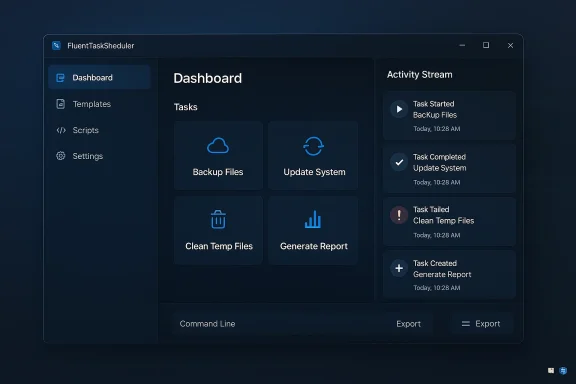
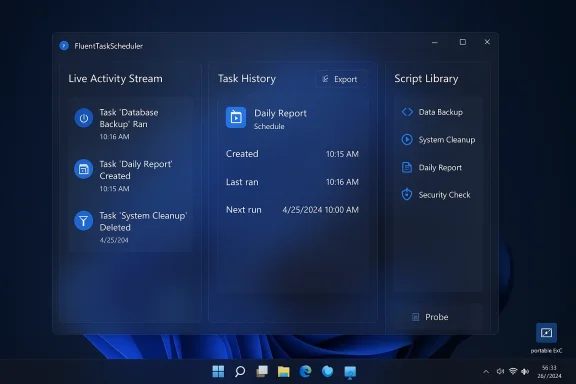
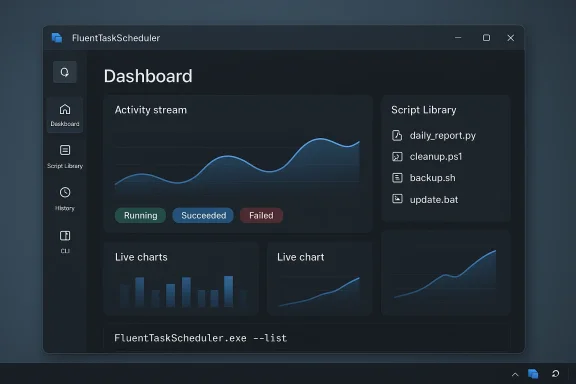
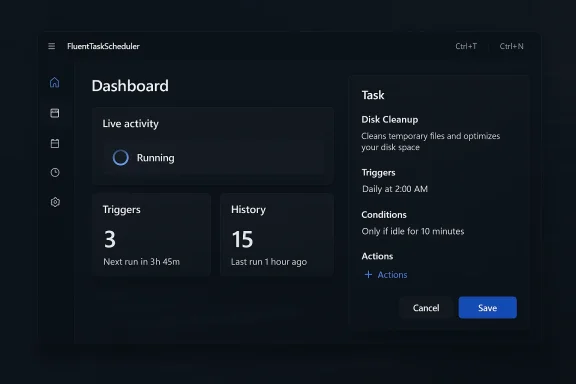
In one phrase: a modern, Fluent‑styled GUI and workflow for creating, inspecting, and running Windows scheduled tasks. The README and app screenshots show a thought‑out set of features that aim to reduce friction for both casual users and administrators.Key user‑facing features include:
- Dashboard & Activity Stream — a live feed of task executions and quick navigation to task details.
- Comprehensive Triggers — time based (one‑time, daily, weekly, monthly), system events (logon, startup, event‑log driven), and advanced options such as random delay, expiration and stop‑after durations.
- Advanced Repetition — repeat intervals with duration windows (e.g., repeat every X minutes for Y hours).
- Script Library — centralized PowerShell or script snippets for reuse across tasks.
- Actions & Conditions UI — run programs or scripts with argument and working directory controls; condition toggles for idle/power/network/wake.
- Task History & Search — recent runs, filters by status/time, CSV export of history.
- Import/Export — task definitions exportable and restorable, command‑line support for headless scenarios.
- CLI Integration — a command‑line interface for automation and remote usage (list tasks as JSON, run tasks, etc.).
- Customization — dark and OLED themes, keyboard shortcuts, system tray integration.
- Privilege controls — UI to set run‑as user, highest privileges, system account selection, and concurrency behavior.
Why this matters: UX, adoption, and automation hygiene
There are three practical reasons a modern front end matters.- Lowering the mistake rate. The legacy Task Scheduler exposes many options packed into nested dialogs. A clearer UI with guided defaults can reduce misconfigured triggers or dangerous “run with highest privileges” defaults. For administrators and power users, reducing configuration errors reduces incidents caused by unintended elevated runs or incorrect paths.
- Faster auditing and remediation. A dashboard with searchable histories and a concise timeline helps spot tasks that misbehave. When combined with exports and CSV history, teams can integrate these artifacts into change management and incident response.
- Bridging CLI and GUI workflows. Many power users rely on schtasks.exe or PowerShell, while others prefer GUIs. FluentTaskScheduler's dual GUI + CLI approach acknowledges both camps, enabling scripted automation pipelines while giving humans an easier inspection surface.
Technical deep dive: how it’s built and what that means
Understanding what FluentTaskScheduler is (and is not) is crucial.Architecture and runtime
- The app is implemented as a WinUI 3 desktop application using the Windows App SDK patterns and compiled against .NET 8. That modern stack allows rich Fluent visuals, animations, and native Windows integration while leveraging current .NET performance and features.
- It is a wrapper around the existing Windows Task Scheduler APIs. In practice this means the app calls into the same underlying service that taskschd.msc, schtasks.exe, and PowerShell use. It does not replace the service or change how tasks are scheduled at the OS level.
- UI files (XAML) and ViewModels are used to present tasks, triggers, and history in an MVVM‑style pattern. This is typical for WinUI-based desktop apps and favors testability and separation of UI logic from domain logic.
Capabilities enabled by the tech stack
- Rich Fluent Design visuals (acrylic/mica‑like surfaces, reveal, depth) and accessibility affordances.
- Cross‑cutting features like toast notifications and system tray integration are natural via Windows APIs.
- Build quality depends heavily on the repo’s CI, test coverage, and whether maintainers sign prebuilt binaries. The open source nature lets organizations compile their own binaries to avoid supply‑chain concerns.
Limitations and constraints
- Because the app uses the Task Scheduler API, it cannot change fundamental Task Scheduler behaviors: e.g., how UAC is handled, how non‑interactive sessions run, or how tasks with saved credentials are stored on disk by Windows.
- The app’s ability to schedule tasks on remote computers depends on Windows permission models and network access; it does not magically add new remote management channels.
- If the app stores or caches sensitive data (passwords, credential tokens, saved scripts), its storage choices are critical. Ideally it should rely on Windows Credential Manager or DPAPI rather than plaintext files.
Security and privacy analysis: benefits and risks
A third‑party UI for scheduling privileged operations introduces both practical benefits and important risks. Below is an objective assessment to help readers decide how to evaluate and operate the software safely.Security benefits
- Easier auditing — the dashboard and history can make it faster to spot suspicious scheduled tasks, reducing dwell time for threats that abuse scheduled jobs.
- Consistency — a single polished UI with pre‑set sensible defaults can reduce opportunities for accidental weak configuration (e.g., scheduling with plaintext credentials).
- Script centralization — a managed script library discourages scattering scripts across user folders (a common operational hygiene win).
Security and safety risks
- Privilege escalation and abuse potential. Scheduled tasks are an established attacker persistence mechanism. Any UI that makes it trivial to create tasks that run as SYSTEM or administrator increases risk if abused. Attackers who obtain local access can weaponize task creation; a modern UI reduces friction for both admins and adversaries.
- Credential handling. If the app allows entering credentials (Run as user / saved password), how those credentials are stored is crucial. Storing passwords insecurely or with poor protection would be a severe vulnerability.
- Supply‑chain and binary authenticity. Prebuilt binaries posted publicly are convenient but require trust. A maliciously altered installer or a compromised release pipeline could ship a trojanized scheduler that creates persistent backdoors.
- Task file manipulation attack surface. Scheduled tasks are represented on disk (C:\Windows\System32\Tasks). Improper handling of the XML or insufficient validation could enable injection or corruption attacks.
- Log and telemetry concerns. The app might collect usage telemetry or store history locally. That is helpful for debugging but must be opt‑in and clear about retention and access controls.
Historical context: Task Scheduler has been a target
The Task Scheduler surface has been implicated in security vulnerabilities in the past (notably privilege escalation issues tied to task creation and file permissions). That history underlines that any tool that interacts with scheduler APIs must be careful in how it creates and manipulates tasks and associated files.How to vet and use FluentTaskScheduler safely (recommended workflow)
If you’re an IT pro or power user intrigued by FluentTaskScheduler, follow a disciplined process before installing it on production machines.- Evaluate the repository and releases
- Prefer building from source yourself if you can: clone the repo, inspect code paths that handle credentials, and compile with your environment’s toolchain.
- If you must use prebuilt releases, download binaries only from the project’s canonical release page, and ideally verify signatures or checksums if the maintainer provides them.
- Review credential usage
- Search the codebase for any credential storage logic.
- Confirm the app uses Windows Credential Manager, DPAPI, or native Windows APIs for secure secrets handling — not plaintext config files.
- Run in an isolated environment first
- Test drive the app in a VM or sandbox. Observe which tasks it creates, what principals they run as, and whether it writes unexpected files to disk.
- Use Sysinternals Process Monitor and Procmon filtering to enumerate file and registry operations during setup and common workflows.
- Audit tasks and policy implications
- After creating test tasks, inspect the corresponding XML files in C:\Windows\System32\Tasks, and check Event Log entries for TaskScheduler Operational events to confirm expected behavior.
- If deploying in an enterprise, discuss with endpoint security and change control teams and update any documented baselines.
- Hardening recommendations for daily use
- Avoid saving plaintext passwords. Use scheduled tasks that run under service accounts or use managed identities where possible.
- Limit the use of “Run with highest privileges” — only for tasks that genuinely require it.
- Enforce principle of least privilege for accounts used by tasks and rotate service credentials regularly.
- Forward Task Scheduler events to a central SIEM or EDR for tamper‑resistant logging and faster detection.
- Operational controls
- Keep the app updated, and subscribe to its issue tracker for security advisories.
- If you rely heavily on task automation, create a documented export of all tasks and version that configuration in a safe repository.
- Use group policies or AppLocker to restrict who can run third‑party scheduling tools in sensitive environments.
For developers and maintainers: constructive security checklist
If you maintain or contribute to a project like FluentTaskScheduler, the following items are essential to increase adoption and trust:- Use Windows native secure storage for credentials (Credential Manager / DPAPI).
- Ship signed releases and publish checksums. Provide reproducible build instructions.
- Implement role‑based features, e.g., restrict certain dangerous operations behind an admin confirmation or UAC elevation.
- Provide audit trails: who created/modified tasks, and when; allow export of these trails.
- Add tests that exercise task creation under multiple principals and validate resulting XML/permissions.
- Offer a hardened mode that defaults to not storing credentials and prompts for them only at run time.
- Document exactly what API calls are used and where elevated privileges are required.
- Consider integrating with enterprise secrets managers for larger deployments.
The UX tradeoffs: power vs. simplicity
A modern UI can hide complexity — which is both an advantage and a hazard. Here are the UX tradeoffs FluentTaskScheduler must navigate:- Guided workflows vs. raw control. Hiding advanced parameters behind toggles helps novices but can frustrate power users who need direct access to XML task definitions or non‑standard triggers.
- Defaults matter. Choosing safe defaults (no saved passwords, non‑elevated run unless required) reduces risk; permissive defaults increase adoption but also attack surface.
- Visual clarity vs. verbosity. Task Scheduler requires many fields. Good UI design should chunk information into digestible steps with inline validation and clear labels to prevent misconfiguration.
Power‑user tips: practical ways to use a modern scheduler safely
- Use the dashboard to baseline expected tasks and export that baseline as a CSV for comparison.
- Leverage the script library to centralize trusted PowerShell scripts, and protect that library with NTFS ACLs.
- Combine CLI exports with version control to track task definition changes over time.
- For admin tasks that require elevation, prefer scheduled tasks that run under dedicated service accounts — not interactive user credentials.
- Regularly search for short, repeating triggers (every 1–5 minutes) in your task list — they are often used by legitimate monitoring but are also favored by persistence mechanisms.
Broader implications: community and Microsoft’s role
This kind of community project underscores two broader trends:- Windows still needs modern replacements for legacy admin tools. Microsoft has modernized many built‑in apps, but automation and admin surfaces remain areas where community tooling can add value quickly.
- Open source UX experimentation matters. Small projects can iterate faster than platform vendors, act as design prototypes, and influence eventual platform improvements. If maintainers adhere to security best practices, their work benefits many users.
Conclusion
FluentTaskScheduler — a WinUI 3 + .NET 8 front end for the Windows Task Scheduler — is an encouraging example of what the community can build when modern UI frameworks meet a long‑neglected admin surface. It addresses real pain points: discoverability, monitoring, and easier task construction. For power users and small orgs, it can be a productivity win.But the fundamental truth remains unchanged: scheduled tasks are a powerful and sensitive capability. Any third‑party tool that makes creating, modifying, or storing scheduled tasks easier must be treated with care. Vet releases, prefer building from source where possible, verify secure handling of credentials, and deploy with appropriate operational controls — logging, centralization, and least‑privilege accounts.
If you try a modern scheduler UI in production, do it with a checklist: review credential handling, run in a sandbox first, and make sure your task auditing and SIEM ingestion are in place. The payoff is better automation hygiene and fewer surprises — as long as the convenience of a prettier UI doesn’t lull you into complacency about the privileges it manipulates.
Source: Neowin Someone finally made a modern Windows Task Scheduler with Fluent Design