FluentTaskScheduler: A Modern WinUI 3 Frontend for Windows Task Scheduler

  • Thread Author
When a community developer rebuilt the Windows Task Scheduler with Fluent Design, WinUI 3 and .NET 8, the result was more than a prettier front end — it exposed how long the platform has been overdue for a modern, approachable automation UX while also reminding power users and admins that beauty doesn't erase complexity or risk.

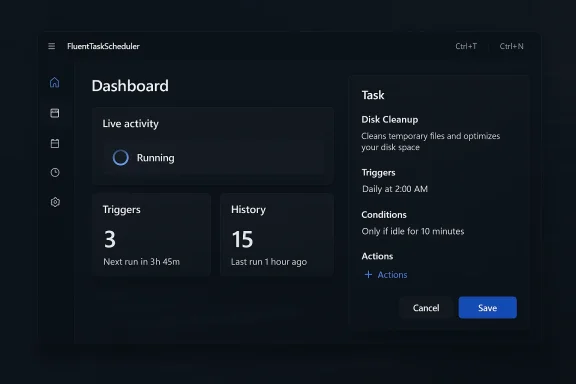
Dark dashboard UI for FluentTaskScheduler showing live activity, triggers, history, and task details.Background / Overview​

For decades, the native Windows Task Scheduler has been the quiet backbone of automation on Windows: launching maintenance jobs, invoking backups, running scripts at logon, and supporting countless third‑party installers and management workflows. The core engine — the Task Scheduler service and its APIs — is robust and battle‑tested, but the standard MMC/legacy UI has aged badly. It’s dense, form‑heavy, and unfriendly to newcomers; creating or auditing tasks is often a chore.
That gap is exactly what the open source project FluentTaskScheduler attempts to fill. Built with WinUI 3, Windows App SDK patterns, and .NET 8, it wraps the native Task Scheduler APIs in a modern Fluent Design interface that emphasizes discoverability, monitoring, and safer task construction. The project is an MIT‑licensed repository intended as a user‑facing replacement or companion to Microsoft’s classic taskschd.msc experience.
Below I summarize what the app delivers, then analyze technical architecture, UX tradeoffs, security concerns, and practical guidance for IT pros who want to adopt—or evaluate—this kind of third‑party scheduler UI.

What FluentTaskScheduler delivers​

In one phrase: a modern, Fluent‑styled GUI and workflow for creating, inspecting, and running Windows scheduled tasks. The README and app screenshots show a thought‑out set of features that aim to reduce friction for both casual users and administrators.
Key user‑facing features include:
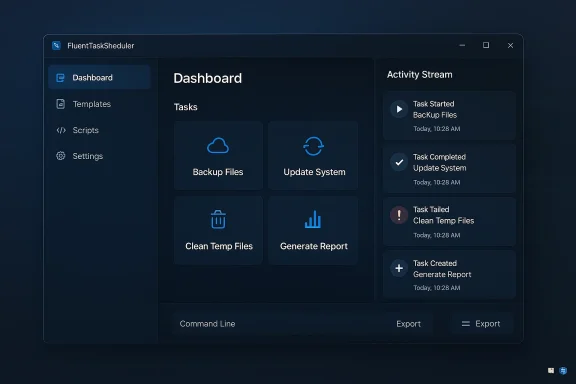
  • Dashboard & Activity Stream — a live feed of task executions and quick navigation to task details.
  • Comprehensive Triggers — time based (one‑time, daily, weekly, monthly), system events (logon, startup, event‑log driven), and advanced options such as random delay, expiration and stop‑after durations.
  • Advanced Repetition — repeat intervals with duration windows (e.g., repeat every X minutes for Y hours).
  • Script Library — centralized PowerShell or script snippets for reuse across tasks.
  • Actions & Conditions UI — run programs or scripts with argument and working directory controls; condition toggles for idle/power/network/wake.
  • Task History & Search — recent runs, filters by status/time, CSV export of history.
  • Import/Export — task definitions exportable and restorable, command‑line support for headless scenarios.
  • CLI Integration — a command‑line interface for automation and remote usage (list tasks as JSON, run tasks, etc.).
  • Customization — dark and OLED themes, keyboard shortcuts, system tray integration.
  • Privilege controls — UI to set run‑as user, highest privileges, system account selection, and concurrency behavior.
These features approximate, and in some cases extend, the functionality of the classic scheduler UI — but presented through modern UX patterns such as a left nav, inline edit dialogs, reveal highlights, and responsive layout.

Why this matters: UX, adoption, and automation hygiene​

There are three practical reasons a modern front end matters.
  • Lowering the mistake rate. The legacy Task Scheduler exposes many options packed into nested dialogs. A clearer UI with guided defaults can reduce misconfigured triggers or dangerous “run with highest privileges” defaults. For administrators and power users, reducing configuration errors reduces incidents caused by unintended elevated runs or incorrect paths.
  • Faster auditing and remediation. A dashboard with searchable histories and a concise timeline helps spot tasks that misbehave. When combined with exports and CSV history, teams can integrate these artifacts into change management and incident response.
  • Bridging CLI and GUI workflows. Many power users rely on schtasks.exe or PowerShell, while others prefer GUIs. FluentTaskScheduler's dual GUI + CLI approach acknowledges both camps, enabling scripted automation pipelines while giving humans an easier inspection surface.
Put another way: a better UI can increase correct usage and encourage responsible automation — provided the implementation follows secure design practices.

Technical deep dive: how it’s built and what that means​

Understanding what FluentTaskScheduler is (and is not) is crucial.

Architecture and runtime​

  • The app is implemented as a WinUI 3 desktop application using the Windows App SDK patterns and compiled against .NET 8. That modern stack allows rich Fluent visuals, animations, and native Windows integration while leveraging current .NET performance and features.
  • It is a wrapper around the existing Windows Task Scheduler APIs. In practice this means the app calls into the same underlying service that taskschd.msc, schtasks.exe, and PowerShell use. It does not replace the service or change how tasks are scheduled at the OS level.
  • UI files (XAML) and ViewModels are used to present tasks, triggers, and history in an MVVM‑style pattern. This is typical for WinUI-based desktop apps and favors testability and separation of UI logic from domain logic.

Capabilities enabled by the tech stack​

  • Rich Fluent Design visuals (acrylic/mica‑like surfaces, reveal, depth) and accessibility affordances.
  • Cross‑cutting features like toast notifications and system tray integration are natural via Windows APIs.
  • Build quality depends heavily on the repo’s CI, test coverage, and whether maintainers sign prebuilt binaries. The open source nature lets organizations compile their own binaries to avoid supply‑chain concerns.

Limitations and constraints​

  • Because the app uses the Task Scheduler API, it cannot change fundamental Task Scheduler behaviors: e.g., how UAC is handled, how non‑interactive sessions run, or how tasks with saved credentials are stored on disk by Windows.
  • The app’s ability to schedule tasks on remote computers depends on Windows permission models and network access; it does not magically add new remote management channels.
  • If the app stores or caches sensitive data (passwords, credential tokens, saved scripts), its storage choices are critical. Ideally it should rely on Windows Credential Manager or DPAPI rather than plaintext files.

Security and privacy analysis: benefits and risks​

A third‑party UI for scheduling privileged operations introduces both practical benefits and important risks. Below is an objective assessment to help readers decide how to evaluate and operate the software safely.

Security benefits​

  • Easier auditing — the dashboard and history can make it faster to spot suspicious scheduled tasks, reducing dwell time for threats that abuse scheduled jobs.
  • Consistency — a single polished UI with pre‑set sensible defaults can reduce opportunities for accidental weak configuration (e.g., scheduling with plaintext credentials).
  • Script centralization — a managed script library discourages scattering scripts across user folders (a common operational hygiene win).

Security and safety risks​

  • Privilege escalation and abuse potential. Scheduled tasks are an established attacker persistence mechanism. Any UI that makes it trivial to create tasks that run as SYSTEM or administrator increases risk if abused. Attackers who obtain local access can weaponize task creation; a modern UI reduces friction for both admins and adversaries.
  • Credential handling. If the app allows entering credentials (Run as user / saved password), how those credentials are stored is crucial. Storing passwords insecurely or with poor protection would be a severe vulnerability.
  • Supply‑chain and binary authenticity. Prebuilt binaries posted publicly are convenient but require trust. A maliciously altered installer or a compromised release pipeline could ship a trojanized scheduler that creates persistent backdoors.
  • Task file manipulation attack surface. Scheduled tasks are represented on disk (C:\Windows\System32\Tasks). Improper handling of the XML or insufficient validation could enable injection or corruption attacks.
  • Log and telemetry concerns. The app might collect usage telemetry or store history locally. That is helpful for debugging but must be opt‑in and clear about retention and access controls.

Historical context: Task Scheduler has been a target​

The Task Scheduler surface has been implicated in security vulnerabilities in the past (notably privilege escalation issues tied to task creation and file permissions). That history underlines that any tool that interacts with scheduler APIs must be careful in how it creates and manipulates tasks and associated files.

How to vet and use FluentTaskScheduler safely (recommended workflow)​

If you’re an IT pro or power user intrigued by FluentTaskScheduler, follow a disciplined process before installing it on production machines.
  • Evaluate the repository and releases
  • Prefer building from source yourself if you can: clone the repo, inspect code paths that handle credentials, and compile with your environment’s toolchain.
  • If you must use prebuilt releases, download binaries only from the project’s canonical release page, and ideally verify signatures or checksums if the maintainer provides them.
  • Review credential usage
  • Search the codebase for any credential storage logic.
  • Confirm the app uses Windows Credential Manager, DPAPI, or native Windows APIs for secure secrets handling — not plaintext config files.
  • Run in an isolated environment first
  • Test drive the app in a VM or sandbox. Observe which tasks it creates, what principals they run as, and whether it writes unexpected files to disk.
  • Use Sysinternals Process Monitor and Procmon filtering to enumerate file and registry operations during setup and common workflows.
  • Audit tasks and policy implications
  • After creating test tasks, inspect the corresponding XML files in C:\Windows\System32\Tasks, and check Event Log entries for TaskScheduler Operational events to confirm expected behavior.
  • If deploying in an enterprise, discuss with endpoint security and change control teams and update any documented baselines.
  • Hardening recommendations for daily use
  • Avoid saving plaintext passwords. Use scheduled tasks that run under service accounts or use managed identities where possible.
  • Limit the use of “Run with highest privileges” — only for tasks that genuinely require it.
  • Enforce principle of least privilege for accounts used by tasks and rotate service credentials regularly.
  • Forward Task Scheduler events to a central SIEM or EDR for tamper‑resistant logging and faster detection.
  • Operational controls
  • Keep the app updated, and subscribe to its issue tracker for security advisories.
  • If you rely heavily on task automation, create a documented export of all tasks and version that configuration in a safe repository.
  • Use group policies or AppLocker to restrict who can run third‑party scheduling tools in sensitive environments.

For developers and maintainers: constructive security checklist​

If you maintain or contribute to a project like FluentTaskScheduler, the following items are essential to increase adoption and trust:
  • Use Windows native secure storage for credentials (Credential Manager / DPAPI).
  • Ship signed releases and publish checksums. Provide reproducible build instructions.
  • Implement role‑based features, e.g., restrict certain dangerous operations behind an admin confirmation or UAC elevation.
  • Provide audit trails: who created/modified tasks, and when; allow export of these trails.
  • Add tests that exercise task creation under multiple principals and validate resulting XML/permissions.
  • Offer a hardened mode that defaults to not storing credentials and prompts for them only at run time.
  • Document exactly what API calls are used and where elevated privileges are required.
  • Consider integrating with enterprise secrets managers for larger deployments.

The UX tradeoffs: power vs. simplicity​

A modern UI can hide complexity — which is both an advantage and a hazard. Here are the UX tradeoffs FluentTaskScheduler must navigate:
  • Guided workflows vs. raw control. Hiding advanced parameters behind toggles helps novices but can frustrate power users who need direct access to XML task definitions or non‑standard triggers.
  • Defaults matter. Choosing safe defaults (no saved passwords, non‑elevated run unless required) reduces risk; permissive defaults increase adoption but also attack surface.
  • Visual clarity vs. verbosity. Task Scheduler requires many fields. Good UI design should chunk information into digestible steps with inline validation and clear labels to prevent misconfiguration.

Power‑user tips: practical ways to use a modern scheduler safely​

  • Use the dashboard to baseline expected tasks and export that baseline as a CSV for comparison.
  • Leverage the script library to centralize trusted PowerShell scripts, and protect that library with NTFS ACLs.
  • Combine CLI exports with version control to track task definition changes over time.
  • For admin tasks that require elevation, prefer scheduled tasks that run under dedicated service accounts — not interactive user credentials.
  • Regularly search for short, repeating triggers (every 1–5 minutes) in your task list — they are often used by legitimate monitoring but are also favored by persistence mechanisms.

Broader implications: community and Microsoft’s role​

This kind of community project underscores two broader trends:
  • Windows still needs modern replacements for legacy admin tools. Microsoft has modernized many built‑in apps, but automation and admin surfaces remain areas where community tooling can add value quickly.
  • Open source UX experimentation matters. Small projects can iterate faster than platform vendors, act as design prototypes, and influence eventual platform improvements. If maintainers adhere to security best practices, their work benefits many users.
At the same time, organizations must remain mindful: third‑party UIs that manage privileged OS features require elevated scrutiny, especially when automation intersects with security and compliance.

Conclusion​

FluentTaskScheduler — a WinUI 3 + .NET 8 front end for the Windows Task Scheduler — is an encouraging example of what the community can build when modern UI frameworks meet a long‑neglected admin surface. It addresses real pain points: discoverability, monitoring, and easier task construction. For power users and small orgs, it can be a productivity win.
But the fundamental truth remains unchanged: scheduled tasks are a powerful and sensitive capability. Any third‑party tool that makes creating, modifying, or storing scheduled tasks easier must be treated with care. Vet releases, prefer building from source where possible, verify secure handling of credentials, and deploy with appropriate operational controls — logging, centralization, and least‑privilege accounts.
If you try a modern scheduler UI in production, do it with a checklist: review credential handling, run in a sandbox first, and make sure your task auditing and SIEM ingestion are in place. The payoff is better automation hygiene and fewer surprises — as long as the convenience of a prettier UI doesn’t lull you into complacency about the privileges it manipulates.

Source: Neowin Someone finally made a modern Windows Task Scheduler with Fluent Design
 

A community developer has taken one of Windows’ most arcane utilities and given it a modern face: a WinUI 3 + .NET 8 frontend for the Windows Task Scheduler that adopts Microsoft’s Fluent Design language, bundles dashboarding and CLI hooks, and exposes both the promise and the hazards of putting a prettier UI on a powerful, privileged system service. //github.com/TRGamer-tech/FluentTaskScheduler))

Dark FluentTaskScheduler dashboard with task tiles and an activity stream.Background / Overview​

For decades the built‑in Windows Task Scheduler has quietly automated everything from overnight maintenance to enterprise‑level jobs. It’s powerful, flexible, and—by design—complex. That complexity has traditionally been fronted by a Win32 MMC snap‑in-style editor that looks and behaves like something from another era. The new community project, published as FluentTaskScheduler, aims to change that by re‑implementing the management surface in a modern, keyboard‑friendly, Fluent‑styled WinUI 3 application while relying on battle‑tested Task Scheduler interop libraries for the heavy lifting.
The project’s README lays out the intent plainly: provide a “professional‑grade wrapper for the Windows Task Scheduler API” that simplifies creating and managing automation tasks, adds a live activity stream and history, and supports advanced triggers and conditions familiar to power users. The codebase is built on .NET 8 and WinUI 3 (Windows App SDK), and delegates the core Task Scheduler interaction to the widely used TaskScheduler Managed Wrapper. (github.com)
Community reaction has been quick and vocal. The author announced the project in several Windows‑focused communities, noting that AI tools helped speed development, and users have responded with a mix of enthusiasm for a readable, modern interface and careful skepticism about missing power‑user features and security implications.

What FluentTaskScheduler actually ships with​

The README and release notes—visible in the project’s repository—spell out a surprisingly complete feature set for an early community tool. Highlights include:
  • Dashboard & Monitoring: activity stream, clickable entries to jump to task details, and a task history view to see recent runs and status. (github.com)
  • Comprehensive Triggers: one‑time, daily/weekly/monthly, event‑log triggers, session state changes (lock/unlock, remote connect/disconnect). (github.com)
  • Advanced Actions & Conditions: run programs or scripts (including PowerShell with helper tips), idle/power/network conditions, wake‑to‑run support, and concurrency options (parallel, queue, ignore). (github.com)
  • Script Library: centralized Management of reusable PowerShell scripts so logic can be separated from task configuration. (github.com)
  • CLI & Automation Hooks: command‑line switches for listing, running, enabling/disabling tasks, and exporting history—useful for headless servers or automation pipelines. (github.com)
  • System Integration & Packaging: system tray minimization, run‑on‑startup option, native toast notifications, and explicit guidance for building with Visual Studio and .NET 8. (github.com)
The repo lists releases and notes a “Command Center” update as of February 10, 2026, indicating active development and iteration. The project is MIT‑licensed and actively published with multiple commits and packaged release artifacts in the repository. (github.com)

Technical foundation​

Two technical choices matter more than most:
  • WinUI 3 / Windows App SDK for UI — WinUI 3 brings Fluent Design controls, modern rendering, and a path to consistent Windows look‑and‑feel, which is why the author used it to deliver the Fluent UI experience. WinUI is the Microsoft‑recommended native UI framework for modern Windows desktop apps and is distributed via the Windows App SDK.
  • TaskScheduler Managed Wrapper for core interop — rather than re‑implementing low‑level COM interop, the project uses the established TaskScheduler Managed Wrapper (by dahall) which has been the go‑to .NET layer for interacting with the Task Scheduler API for many years. That reduces implementation risk and leverages a library used in many production tools.
Both choices carry practical implications: WinUI 3 allows modern visuals and smoother input support, but it also creates targeting and packaging requirements (Visual Studio 2022, Windows App SDK), while using a managed wrapper means the app inherits both the strengths and quirks of that wrapper. The README documents the build prerequisites and calls out admin requirements for certain operations (for example, “Run as SYSTEM” requires elevated privileges). (github.com)

Why a modern UI matters — and what it actually fixes​

On paper, a modern UI is cosmetic. In practice it changes discoverability, reduces friction, and can make powerful features safer for more users.
  • Discoverability: The classic Task Scheduler MMC presents folders and property sheets that are intimidating to non‑admins. A well‑designed dashboard can surface common workflows (run once, daily backup, run at logon) with sensible defaults while still exposing advanced options for power users. FluentTaskScheduler’s dashboard and task templates aim to do that. (github.com)
  • Observability: Task Scheduler’s built‑in history and event logs are useful but scattered. A unified history view and activity stream help you troubleshoot missed runs, repeated failures, and misconfigured triggers faster. The project’s focus on history, log export, and CSV export targets precisely this problem. (github.com)
  • Script reuse and governance: The Script Library is an important, pragmatic addition. Centralizing PowerShell snippets reduces duplication and encourages re‑use, which is helpful in organizational contexts where many similar tasks are created. (github.com)
  • Automation friendliness: A CLI and single‑file deployment option broaden the application’s utility: it can be used interactively by humans and programmatically in automation pipelines. That duality reflects modern devops practices. (github.com)
Making the scheduler feel modern also lowers the bar for administrators and advanced users to adopt automation rather than creating ad‑hoc scheduled scripts or fragile startup shortcuts. That adoption alone can be a net win for reliability and maintainability.

Security, privilege, and audit — the real tradeoffs​

This is where a prettier UI collides with real risk.

Tasks are privileged operations​

Scheduled tasks can run as System, as a specific user with stored credentials, or with highest privileges. That power is necessary—many maintenance jobs must run elevated—but it’s also dangerous if combined with poor UX design that encourages one‑click granting of high privileges. FluentTaskScheduler’s README explicitly warns that features such as “Run as SYSTEM” require running the app as Administrator, and the application supports “Run with highest privileges” and user credential handling. That means the UI is a convenient place to make dangerous decisions. Administrators need to treat it like a privileged admin tool, not a consumer utility. (github.com)

Non‑interactive contexts and session isolation​

Windows Task Scheduler runs non‑interactive tasks in Session 0 by design; GUI apps will not display and tasks expecting desktop interaction can hang. The broader community guidance and Microsoft documentation emphasize that “Run whether user is logged on or not” can break GUI‑dependent actions and that service‑account runs must use non‑UI executables. Any modern UI that makes it easy to attach UI‑centric executables to system tasks must surface this limitation prominently. FluentTaskScheduler documents conditions like “Run only when user is logged on” and includes guidance around PowerShell and execution policy, but the underlying risk remains: a misconfigured task can appear to “succeed” while doing nothing useful.

Attack surface and supply chain​

Shipping a community binary or self‑contained single‑file executable introduces supply‑chain concerns. The repo being MIT‑licensed and published on GitHub helps; readable source and a clear build procedure (Visual Studio + .NET 8) allow audits. But end users who download prebuilt artifacts from a release page must trust the publisher. The author has posted in community forums and disclosed AI use in building the app; that transparency is good, but it’s not a substitute for code review and security testing. Treat any third‑party Task Scheduler GUI like other privileged tools: prefer building from source and reviewing changes before deploying in production environments.

Use of third‑party libraries​

The project depends on the TaskScheduler Managed Wrapper; that’s an established library with many downloads and an active history, but it, too, has subtle behaviors and past quirks (for example, edge cases where AllTasks does not enumerate everything, or nuances around localization and Task Scheduler V2 vs V1). Administrators should understand these dependencies and verify behavior in staging environments before trusting automation at scale.

Usability analysis — where FluentTaskScheduler shines and where it still needs work​

Strengths​

  • Clarity and workflow: The dashboard, task templates, and script library address the core pain points: making common tasks easy to create, and providing clear visibility into what ran and when. The addition of keyboard shortcuts and CLI support reflects attention to both GUI and power users. (github.com)
  • Modernization without reinvention: By pairing WinUI 3 for the front end with a proven managed wrapper for the backend, the project reduces the chance of low‑level bugs in the scheduler logic while offering a modern UX. This is a pragmatic architecture choice.
  • Packaging and build guidance: The README provides a clear build matrix (Visual Studio 2022, .NET 8 SDK), and notes single‑file deployment and troubleshooting tips. That reduces friction for power users who want to vet and build from source. (github.com)

Shortcomings and gaps​

  • Power‑user completeness: Early community feedback highlights missing advanced features: fine‑grained security principals, more complete event trigger editors, and some reliability quirks. Those gaps are exactly why the classic MMC tool persists in admin workflows. FluentTaskScheduler is promising but not yet a drop‑in replacement for all enterprise needs.
  • Performance & responsiveness: WinUI 3 apps can be heavier than native Win32 utilities. For large environments with thousands of tasks or when remote management is required, the current architecture may need optimization or a headless server component. The README lists CLI modes, but a true server/agent model is not present yet. (github.com)
  • Localization & enterprise management: The current repo lists English (en‑US) as the supported language. Enterprises that need localization or Group Policy integration will need further development and testing. (github.com)

How this compares to alternatives​

  • Microsoft’s built‑in Task Scheduler (MMC) remains the reference implementation for completeness and policy compliance, but it’s dated and unfriendly to non‑experts. FluentTaskScheduler aims to be easier to use while preserving features. (github.com)
  • Third‑party schedulers and automation platforms (commercial orchestrators, enterprise job schedulers) offer richer audit, RBAC, and centralized policy, but they are heavier and often require separate infrastructure. FluentTaskScheduler is positioned squarely as a local management tool for individual endpoints or small fleets. (github.com)
  • There are other community GUIs and scripts for Task Scheduler, but few (if any) combine WinUI 3, .NET 8, a modern Fluent UX, a script library, and native CLI support in the same package. That single‑package polish is the project’s unique selling point. (github.com)

Recommendations for administrators and power users​

  • Treat it as a test candidate, not a production replacement. Try FluentTaskScheduler in a controlled environment before deploying to production machines. Validate task behavior, service account usage, and any network dependencies. (github.com)
  • Prefer building from source. The project is MIT‑licensed and provides clear build instructions; building locally reduces supply‑chain risk. Verify the binary you run matches the source or build it yourself. (github.com)
  • Audit scripts and actions. If you import tasks, ensure any actions (PowerShell scripts, executables) are signed, vetted, and follow least privilege. The app’s Script Library can help centralize code, but the code still needs human review. (github.com)
  • Document and log. The app produces crash logs and supports exporting history. Use these features to build traceability into your automation workflows and tie them to existing SIEM/monitoring as needed. (github.com)
  • Understand non‑interactive limitations. Don’t schedule GUI apps to run under System or in “Run whether user is logged on or not” mode; use background‑safe executables or reconfigure tasks to run in interactive sessions.
  • Follow the project and contribute. If you have gaps to fill—localization, RBAC, Group Policy hooks—contribute code or issues upstream. The project’s GitHub repository is the canonical place for discussion and contributions. (github.com)

The role of AI and community development​

The project author disclosed using AI during development. That’s notable in two ways: AI can accelerate UI scaffolding and boilerplate generation, but it cannot replace domain expertise and testing—especially for privileged tools. Community review matters more than ever when machine‑assisted code touches system services. The author’s transparency (noted in their community posts) is welcome, but it’s not a substitute for a formal audit.

Verdict — where this fits in the Windows tooling ecosystem​

FluentTaskScheduler is a well‑designed, ambitious community project that fills a real UX gap for Windows automation. It demonstrates what er management surface can look like: readable, discoverable, and supportive of both GUI workflows and automation pipelines. By building on WinUI 3 and the established TaskScheduler Managed Wrapper, the project balances modern UX with practical interoperability. (github.com)
That said, it belongs to the “promising early release” category. For home users and small teams, it’s an attractive upgrade to the legacy MMC: easier task creation, script reuse, and an attractive activity stream. For enterprise deployments where policy, RBAC, and audited credential handling are mandatory, the project is a starting point rather than a finished migration path. Administrators should validate and sandbox it, prefer building from source, and watch for feature parity with the legacy MMC before considering wholesale replacement. (github.com)

What to watch for next​

  • Security hardening and audit logs: richer audit trails, signed update channels, and RBAC/AD integration would make this production‑ready. (github.com)
  • Localization & enterprise packaging: MSIX packaging, Group Policy templates, and language support will broaden adoption. (github.com)
  • Performance & remote management: a headless server‑agent architecture for large fleets or remote administration could be a natural next step. (github.com)
  • Community contributions and independent audits: security reviews from third parties and community contributions will be essential to building trust.

Conclusion
FluentTaskScheduler proves that the Windows Task Scheduler ecosystem is overdue for a modern UX refresh. The project pairs sensible architectural choices—WinUI 3 for a Fluent front end and the TaskScheduler Managed Wrapper for robust interop—with practical features like a script library, activity feed, and CLI. It is not yet a plug‑and‑play enterprise replacement, and the security risks of managing privileged automation through a new UI are real and material. That said, for administrators and enthusiasts willing to test, audit, and contribute, FluentTaskScheduler is the most promising community effort so far to make Windows automation both approachable and powerful again. (github.com)

Source: Neowin Someone finally made a modern Windows Task Scheduler with Fluent Design
 

FluentTaskScheduler arrives as a tidy, modern face for one of Windows’ oldest background services — and it exposes both the real productivity gains of a better UI and the sharp edges that come with wrapping a privileged system component in third‑party code. ([windowscentral.comcentral.com/microsoft/windows-11/someone-made-a-modern-version-of-task-scheduler-for-windows-11-and-it-looks-awesome)

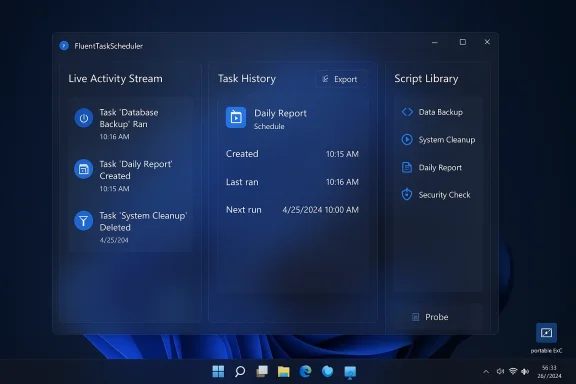
FluentTaskScheduler window showing Live Activity Stream, Task History, and Script Library.Background​

For decades, the built‑in Windows Task Scheduler has been the silent workhorse of the OS: launching maintenance jobs, running scripts, and responding to system events. The underlying scheduler engine is mature and reliable, but the management surface — the MMC snap‑in (taskschd.msc), the command‑line schtasks.exe, and assorted PowerShell cmdlets — has kept much of its legacy workflow and dialogs. That mismatch between a modern OS shell and an aging administration UX is what the open‑source project FluentTaskScheduler aims to fix by providing a modern WinUI 3 front end for the existing scheduler API.
FluentTaskScheduler is not a replacement scheduler engine. It is a client: a self‑contained executable that calls into the same Task Scheduler API Windows already exposes. The developer built the app with WinUI 3, the Windows App SDK, and .NET 8, and packaged it as a portable EXE so you can run it without a formal installer. That combination lets the tool surface the scheduler’s full capabilities while presenting them in a modern Fluent Design shell.

What FluentTaskScheduler brings to the table​

A modern dashboard and visibility by default​

One of the most frequent complaints about the legacy Task Scheduler is discoverability: task history, recent runs, and failure reasons are buried under many clicks. FluentTaskScheduler reorients the UI toward monitoring and day‑to‑day operations by default.
  • Live activity stream and clickable task entries so you can jump from high‑level status to the exact run.
  • Task history surfaced centrally with export options.
  • Search, batch operations, and import/export workflows for managing many tasks at once.
These are the kinds of productivity features that make Task Scheduler useful beyond one‑off admin tasks — they make it usable as part of a daily automation workflow. Windows Central’s coverage highlights these monitoring improvements and notes that the tool intentionally mirrors the scheduler’s engine while improving visibility.

Full trigger and action support (the same engine, cleaner workflow)​

Because the app uses Windows’ Task Scheduler API, it supports the full range of triggers and actions the platform offers:
  • Time‑based triggers (one‑time, daily, weekly, monthly)
  • System events (startup, logon, session state changes)
  • Event‑log triggers (run when a particular event ID is written)
  • Advanced options like random delay, expiration, and automatic stop
The key difference is the configuration workflow: FluentTaskScheduler presents the same capabilities with a modern wizard that reduces dialog hopping. That said, early reviews show some usability gaps (for example, creating folders or the precise sequence to create a new task) that make the UX feel slightly unfinished in places.

Repetition, failure handling, and concurrency controls​

For production‑style automation you often need more than “run at 2:00 AM.” FluentTaskScheduler exposes:
  • Repetition patterns and run duration limits
  • Automatic restart on failure and “run as soon as possible” behaviors
  • Concurrency policies (parallel, queue, ignore new triggers, stop existing instances)
These are the options enterprises already rely on when they build robust scheduled jobs; the value here is exposing those settings in a readable way that reduces error and misconfiguration risk. The app’s feature list—documented in README and in community posts—matches what administrators expect from the underlying engine.

Centralized PowerShell Script Library​

A notable design choice is a Script Library: instead of pasting PowerShell into every task definition, you can maintain reusable scripts and reference them from tasks. That separation of logic (scripts) from schedule (tasks) encourages reuse and easier maintenance.
Practically, this reduces duplication and helps teams version and audit automation code. However, reviewers testing early builds noted the workflow for adding new scripts could be unclear or nonfunctional in some builds — a sign the feature needs polish. Treat the Script Library as promising but still maturing.

System‑level integration and portability​

The developer packaged FluentTaskScheduler as a portable, self‑contained EXE that minimizes to the system tray, supports toast notifications, and can run on startup. It also supports running tasks under different accounts — including highest privileges or SYSTEM — but that capability requires administrative elevation. The packaging choice lowers the barrier to trying the tool but raises important operational and security concerns (discussed later).

Command‑line interface (CLI) for automation​

Although FluentTaskScheduler is GUI‑first, it includes a simple CLI so the tool can be used in headless scenarios or scripted workflows. Typical commands documented in reviews and screenshots include:
  • List tasks as JSON: FluentTaskScheduler.exe --list
  • Run a task: FluentTaskScheduler.exe --run "MyTaskName"
  • Enable/disable tasks: FluentTaskScheduler.exe --enable / --disable "MyTaskName"
  • Export task history to CSV: FluentTaskScheduler.exe --export-history "MyTaskName" --output "C:\logs\history.csv"
CLI support is important for using the tool in repeatable automation pipelines and for remote management where a GUI is incontral.com]

Verification: what I checked and where the facts come from​

Because FluentTaskScheduler is a community project that wraps a privileged Windows API, I cross‑checked the principal claims against multiple sources:
  • Windows Central’s feature writeup provides a hands‑on summary of the UI, tech stack (WinUI 3, Windows App SDK, .NET 8), and the packaging as a portable executable.
  • Community posts (Windows Forum threads and Reddit posts by the project author) confirm the GitHub repo and developer commentary about the tech choices and release cadence. These community sources also document incremental updates and user feedback on usability.
  • Third‑party package listings and portable app sites reflect how the project is distributed in practice (self‑contained portable builds appear in community mirrors). These listings are useful for understanding the distribution model, but they are not primary for security verification.
  • The uploaded copy of the Windows Central material (provided by the user) was also used to ensure the article summary matched the original hands‑on impressions.
Where possible I preferred primary sources (the project’s own repo and README) for definitive technical details. If you evaluate the project in production, always check the actual repository and release notes for the build you intend to use.

Strengths — what FluentTaskScheduler gets right​

1) Makes visibility actionable​

The default dashboard and history view reduce the number of steps needed to find why a task failed or when it last ran. That alone increases trust in scheduled automation, especially for non‑expert users.

2) Modern UX without changing the engine​

By working as a wrapper around the Task Scheduler API, the app preserves existing behaviors and compatibility while delivering a substantially better UX. Admins don’t have to rewrite automation to gain usability improvements.

3) Encourages cleaner automation design​

Centralizing PowerShell scripts in a library and separating them from scheduling reduces duplication and encourages reuse — a best practice in automation design that helps with auditing and version control.

4) Portable and scriptable​

A self‑contained EXE plus an integrated CLI means the tool is quick to trial and can be used on machines without installing an MSI — helpful for troubleshooting or temporary admin sessions.

5) Modern tech stack​

Leveraging WinUI 3 and .NET 8 makes it feasible to keep the UI modern and accessible while tapping improved performance and language features available in the current .NET runtime. Community comments from the author confirm these choices.

Risks and caveats — what to watch out for​

1) Privilege surface: running as SYSTEM or admin is risky​

The app exposes capability to create tasks that run as SYSTEM or “with highest privileges.” That’s a powerful feature, but it means a compromised or buggy client could create scheduled items that survive reboots and run with elevated rights. Always assume that anything that manipulates scheduled tasks at scale — especially with saved credentials or SYSTEM privileges — is high‑impact. Windows Central and community notes explicitly warn that this is third‑party code and should be used at your own risk.

2) Third‑party binary vs. source build​

A self‑contained EXE is convenient, but trusting a community binary requires a level of due diligence:
  • Verify checksums/signatures if the developer publishes them.
  • Prefer building from source if you plan to run the tool on production servers.
  • Audit the repository for telemetry, credential handling, and network behavior.
Community mirrors and portable sites make distribution easier but increase the difficulty of verifying a binary’s provenance. The Windows Central piece stresses that this is not a Microsoft tool and to use it with caution.

3) Usability rough edges in early builds​

The Script Library and some task creation flows were reported as clumsy or unclear in initial testing. These UX gaps can lead to misconfiguration (for example, saving a script in the wrong context or storing credentials insecurely). While these are fixable, they are critical in automation tooling where mistakes can produce recurring errors.

4) Compatibility and maintenance​

Because the app wraps a system API, it should remain compatible with Windows behavior, but the UI itself depends on WinUI 3 and .NET 8 — both moving targets. The project owner will need to keep pace with runtime and SDK updates to avoid breakage on future Windows versions. Community activity looks healthy, but open‑source maintenance is an operational risk to consider.

Practical guidance: how to evaluate and adopt safely​

If you want to try FluentTaskScheduler, follow a short risk‑reduction checklist before you run anything in production:
  • Test in a VM or isolated lab environment first. Try common tasks, observe logs, and verify that tasks executed by FluentTaskScheduler behave identically to ones created with the built‑in MMC.
  • Prefer source builds for production systems. Clone the GitHub repo, inspect the code (or pay someone to audit it), and compile locally. Community posts point to the repo maintained by the author; this is the definitive place to inspect the code. ([reddit.com](. Don’t use the app to create SYSTEM tasks or save credentials unless absolutely necessary. Use least‑privilege accounts and consider role separation for automation.
  • Use version control for scripts. If you use the Script Library, keep your scripts in Git and reference them from your task definitions where possible. That makes rollback and audit far simpler.
  • Monitor task history and exports. Use the app’s export tools (CSV/JSON) and include scheduled task health checks in your monitoring stack. If the GUI is used by many admins, keep an operations log for changes.


How FluentTaskScheduler compares to alternatives​

  • Native tools: taskschd.msc, schtasks.exe, and PowerShell provide full control but with a dated management surface. FluentTaskScheduler keeps the same engine but replaces the UX.
  • Commercial schedulers and orchestration systems: tools like enterprise job schedulers or runbooks offer richer auditing, multi‑node coordination, and RBAC. FluentTaskScheduler is not a substitute for those systems; it’s a modern management client for a local Windows engine.
  • Other community UIs: Historically there have been third‑party GUIs and wrappers, but FluentTaskScheduler’s WinUI 3 interface, script library, and CLI put it among the most polished open‑source clients available today. Community discussion and forum posts reflect that sentiment.

Developer and community signals​

Open‑source utilities live or die by their developer activity and community engagement. The project’s author has published releases and engaged on Reddit with release announcements and feature updates, which is a good sign. Mirrors and portable app pages show distribution beyond a single site, and community threads capture both praise and constructive bug reports. Those signals are positive — but they are not a substitute for careful operational verification when the tool runs with elevated rights.

Feature wishlist and suggestions for the author​

Based on hands‑on impressions and community feedback, a few improvements would make FluentTaskScheduler significantly more production‑ready:
  • Improve Script Library onboarding: a clear “Add Script” flow and example templates would remove friction for non‑PowerShell experts.
  • Folder and organizational features: allow creating task folders inside the UI, with drag‑and‑drop reorganization to scale for many tasks.
  • Digital signatures and release provenance: publish signed releases or reproducible build instructions to make trusting the binary easier.
  • RBAC and change audit trail: even a local audit log of UI changes, who made them, and when would be valuable for teams.
  • Optional “preview mode” or sandboxed validation: run tasks in a simulated environment before scheduling them live, which would reduce the risk of destructive runbook mistakes.

The bigger picture: why a modern Task Scheduler UX matters​

Automation is a multiplier: small, repeatable processes offloaded to the scheduler free up time and reduce human error. For many users, the barrier to using Task Scheduler is UX friction and fear of breaking something. Tools like FluentTaskScheduler reduce that barrier by making automation discoverable and maintainable.
At a platform level, this project is a reminder that Microsoft’s own modernization of Windows has focused on many front‑end surfaces, but deep, admin‑oriented tools still need love. A community project that modernizes the management UX without changing the engine is an elegant, low‑risk way to push the ecosystem forward — provided security and provenance are handled responsibly.

Final assessment​

FluentTaskScheduler is a promising, community‑driven modernization of the Task Scheduler management UX. It delivers genuine value through:
  • Better visibility and monitoring, making scheduled jobs easier to trust and troubleshoot.
  • Cleaner workflows for advanced scheduling options, which helps bridge the gap between casual automation and production‑grade jobs.
  • A centralized script library and CLI hooks, which encourage reuse and automation.
However, it also carries nontrivial risks tied to privilege and distribution. It should be treated as a powerful admin tool that requires the same operational discipline you’d apply to any system‑level utility:
  • Audit the source or build locally before deploying broadly.
  • Avoid using elevated service accounts unless necessary.
  • Start by testing in isolated environments and integrate monitoring before rolling out to production.
If you’re curious, the easiest safe way to experiment is in a VM — try migrating a handful of your standard tasks from the built‑in MMC into FluentTaskScheduler, watch how history and failure reporting improve, and evaluate whether the Script Library and CLI fit your processes. Community reporting and the original hands‑on coverage make it clear the project is actively evolving, and with a few usability and provenance improvements it could become the go‑to UI for Windows task management.

Quick checklist for readers (What to do next)​

  • Download the repository or the portable build referenced by the project’s announcement and review the README.
  • Spin up a snapshot VM and run FluentTaskScheduler there. Replicate a few standard scheduled tasks and validate behavior against taskschd.msc.
  • If you must run it on a production machine, build from source and verify the binary’s signature or checksum.
  • Log all task changes and back up the scheduled‑tasks XML export before bulk edits. Use the app’s export features where available.
FluentTaskScheduler is exactly the kind of community project that demonstrates how small UX improvements can unlock better adoption and safer automation — but it also underscores that modernizing tools that touch system privileges requires care, review, and operational discipline.

Source: Windows Central Someone fixed Task Schedule in Windows 11
 

FluentTaskScheduler is the kind of small, focused project that both exposes a concrete usability gap in Windows 11 and points to a practical, immediately useful fix: a modern, WinUI 3 front-end for the decades‑old Task Scheduler that keeps the same reliable backend while making task automation discoverable, monitorable, and — crucially — usable for more people. (github.com)

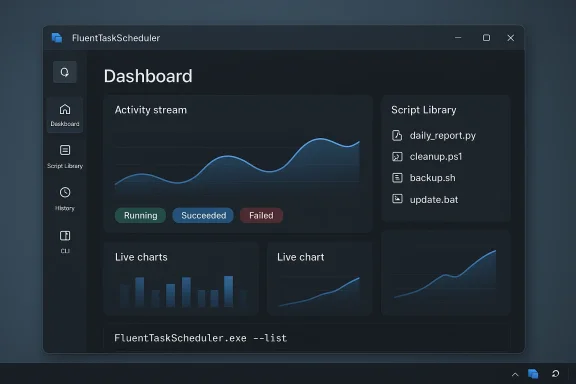
Dark FluentTaskScheduler dashboard showing activity stream, live charts, and a script library.Background​

Windows’ Task Scheduler is one of the platform’s oldest automation engines: a Win32/COM API, exposed to PowerShell, scripts, and management tools for years, and relied on across enterprise and consumer workflows. The underlying API (Task Scheduler 2.0) remains the canonical surface for scheduling jobs, event‑based triggers, and the rich set of options administrators depend on. That API has stayed stable and serviceable, but the native Task Scheduler MMC snap‑in UI has not seen a modern redesign to match Windows 11’s visual and interaction language.
That mismatch has created two practical problems. First, many users struggle to find and interpret task history, triggers, and failure signals in the legacy UI. Second, day‑to‑day maintenance (reusing scripts, bulk edits, exporting hiworkarounds, scattered PowerShell snippets, and fragile homegrown tooling. Community threads and troubleshooting reports show that this friction produces frequent help requests and recurring edge‑case bugs that are often UI or discoverability problems, not API problems.
Enter FluentTaskScheduler: an open‑source, single‑developer project that preserves the Task Scheduler service but wraps it in a modern WinUI 3 interface, adds a centralized script library, and provides CLI integration for automation workflows. The project’s README and release notes lay out the intent: keep the durable backend and replace the brittle UI with a more productive, modern experience. (github.com)

What FluentTaskScheduler is (and what it isn’t)​

A modern front‑end, not a replacement back end​

FluentTaskScheduler is explicitly a wrapper for the existing Windows Task Scheduler API: it uses the same engine Windows itself relies on to schedule and run tasks. That means you get improved UI and management features while retaining the stability and permissions model of the native scheduler. The project documents this design choice clearly. (github.com)

Built with WinUI 3 and .NET 8​

The app is implemented with WinUI 3 (Windows App SDK) for UI and targets .NET 8. That combination means FluentTaskScheduler uses the Microsoft‑recommended modern stack for native Windows desktop apps, giving it fluent controls, native rendering, and a path to consistent visual polish on Windows 11 — at the cost of requiring the .NET 8 runtime and the Windows App SDK to be present on target machines. The README lists .NET 8 and WinUI 3 explicitly in the technology stack. (github.com)

What it provides on top of the legacy UI​

FluentTaskScheduler layers several practical improvements over the native console:
  • A live Dashboard with an activity stream and animated indicators to show tasks that are currently running, recently failed, or succeeded. (github.com)
  • Comprehensive, consolidated history and visual analytics for tasks, with CSV export capability for auditing. (github.com)
  • A Script Library to store and reuse PowerShell scripts centrally instead of copy‑pasting them into many task definitions. (github.com)
  • Robust trigger editing and modernized wizards that present the same scheduling options with a more approachable flow. (github.com)
  • Command‑line interface (CLI) for headless or scripted management — list tasks, run, enable/disable, and export history from scripts. (github.com)
  • System integration such as System Tray, notifications, single‑instance behavior, and optional startup launch. (github.com)
These are pragmatic feature upgrades: they don’t invent new scheduling capabilities but significantly lower the friction in using the scheduler day to day. Independent coverage and community discussion have highlighted the same set of additions as the project’s README.

Deep dive: notable features and how they change daily workflows​

1) Dashboard & Monitoring — visibility where it matters​

The single biggest UX failing in the native Task Scheduler is discoverability: where did the task run, what failed, and why? FluentTaskScheduler presents an activity stream and live status indicators so you can see runs as they happen and quickly jump from an error entry to the task definition and logs.
Benefits:
  • Faster mean time to diagnosis for failures.
  • Easier correlation of repeated failures across tasks.
  • One place to inspect history without juggling Event Viewer filters.
The design converts troubleshooting from a forensic exercise into a click‑driven workflow. The README and demos emphasize the dashboard as a core differentiator. (github.com)

2) Script Library — reuse, not duplication​

Instead of pasting the same PowerShell script into multiple tasks, FluentTaskScheduler allows you to save scripts centrally and reference them from tasks. That brings several operational benefits:
  • One canonical script to update when logic changes.
  • Clear separation between schedule (when) and logic (what).
  • Easier auditing of scripts used across tasks.
The README documents the Script Library and templates; community posts confirm users find the idea attractive for reducing task clutter. That said, some early users have reported the UI for adding new scripts could be more discoverable, which is a minor but real usability gap to be addressed in subsequent updates. (github.com)

3) Advanced repetition, fail‑safe, and concurrency controls​

FluentTaskScheduler surfaces advanced scheduling controls — random delays, expiration, stop‑after durations, and concurrency behaviors (queueing, parallel, ignore new, etc.). These are often available in the native scheduler but buried behind cryptic options. The modern UI makes predictable automation patterns easier to configure and reason about.
Operational impact:
  • Fewer accidental overlapping runs.
  • Better control for scripts that are not idempotent.
  • Easier to configure "run if missed" recovery logic without hunting in XML.
These micro‑improvements reduce operational risk for automation that must be robust (backup jobs, health checks, scheduled deployments). (github.com)

4) CLI and automation friendliness​

A full CLI reference is provided: list tasks as JSON, run a task, enable/disable, and export history to CSV. That makes FluentTaskScheduler useful in automated provisioning, configuration management, and integration with other tools (CI, monitoring, inventory). Example commands from the README:
  • FluentTaskScheduler.exe --list
  • FluentTaskScheduler.exe --run "MyTaskName"
  • FluentTaskScheduler.exe --enable "MyTaskName"
  • FluentTaskScheduler.exe --export-history "MyTaskName" --output "C:\logs\history.csv"
This is a valuable bridge for administrators who want modern UI for human operations but still need scriptable controls for automation. (github.com)

Installation, requirements, and release state​

The project targets .NET 8 and WinUI 3. Building from source requires Visual Studio 2022 and the .NET 8 SDK, and the README documents single‑file deployment options. The service surface area remains the Windows Task Scheduler API; the app is a managed client. (github.com)
The repository shows active releases and recent activity, including a V1.5.0 “First Impressions” release published in early March 2026. Releases and commit history indicate a single maintainer and a modest but growing star count, which suggests the project is usable for enthusiasts and early adopters but not (yet) an enterprise‑grade, multi‑maintainer project. (github.com)
Practical implications:
  • Expect to install or update .NET 8 runtime on machines where you intend to run the GUI.
  • If you prefer not to install runtimes globally, the project supports single‑file self‑contained publishing.
  • Because the app manipulates scheduled tasks, some operations require administrator rights; the README warns that actions like “Run as SYSTEM” need Admin. (github.com)

Strengths: why this matters for Windows 11 users​

  • Immediate usability gains. The dashboard and history exports make monitoring and auditing scheduled automation far simpler than the legacy MMC snap‑in. This lowers the barrier for power users who resisted Task Scheduler because of its arcane UI. (github.com)
  • Better operational hygiene. The Script Library encourages reuse and auditing. Teams that had scripts scattered across tasks can consolidate and centrally maintain logic. (github.com)
  • Bridges GUI and automation. The CLI ensures the app augments, rather than replaces, existing automation workflows — you can use the GUI for discovery and the CLI for scripted provisioning. (github.com)
  • Modern visual language and interaction. WinUI 3 gives FluentTaskScheduler a look and feel consistent with Windows 11, which both lowers cognitive load and makes the scheduler pleasant to use. Independent reporting highlights this contrast with the stock Task Scheduler.
  • Open source transparency. The project is MIT‑licensed and hosted on GitHub, enabling audits, contributions, and forks if needed. The codebase shows an active commit history and releases. (github.com)

Risks, limitations, and hard technical constraints​

No third‑party UI wrapper is a free lunch. FluentTaskScheduler’s choices are pragmatic, but they carry meaningful trade‑offs.

1) Security and privileges​

Because scheduled tasks can run with elevated privileges — and because the app provides shortcuts to “Run as SYSTEM” or change task identities — security hygiene is critical. An attacker who can modify tasks or centrally stored scripts can achieve persistent, elevated code execution.
  • Always treat a third‑party scheduler UI as a privileged administration tool.
  • Prefer to run the UI and any administrative automation from a hardened administrative workstation.
  • Review the GitHub source or run it in a sandbox/VM before deploying broadly. (github.com)
The README explicitly calls out that some features require Administrator rights and that crash logs and preferences are stored under %localappdata% — useful for forensics but also a reminder to review how secrets/scripts are stored. (github.com)

2) Supply‑chain and provenance​

Open source mitigates some risk, but only if you validate the artifacts you install. Practical steps:
  • Prefer installing from the GitHub Releases page rather than random builds.
  • Check release notes, tags, and binary checksums (if provided).
  • If you run in a regulated environment, maintain an internal package of vetted releases.
The project’s single‑maintainer status (one contributor listed) raises a governance signal: if you’re relying on this tool in production, mirror the repo to an internal artifact feed and lock the version you test. The repo shows commits and releases but only one contributor listed; that’s typical for useful hobby projects but changes the maintenance calculus for enterprises. (github.com)

3) API and compatibility constraints​

Because the app sits on top of the Task Scheduler API, it inherits the API’s limitations. Some behaviors (event triggers, history retention, account tokens for tasks that run whether a user is logged on or not) are governed by Windows itself and may require troubleshooting beyond the app. Community threads show that subtle permission and session differences can affect scheduled jobs — problems that a UI cannot always solve.

4) Usability gaps remain​

While FluentTaskScheduler improves many interactions, early testers and reviewers have noted small but meaningful UX rough edges — for example, the script‑addition flow can be less discoverable for some users. Those are solvable problems (better tutorials, in‑app walkthroughs, clearer affordances), but they do temper the “out of the box” polish. Independent coverage and the project’s own release notes mention onboarding and walkthrough features, suggesting the author is addressing usability iteratively.

Security checklist for administrators considering FluentTaskScheduler​

  • Validate the binary: download releases only from the official GitHub Releases page and verify checksums when provided. (github.com)
  • Review the source: if your environment mandates, compile from source in a secure CI pipeline and publish an internally signed artifact.
  • Limit privileges: run the GUI as a non‑admin user where possible and escalate only for operations that require it.
  • Protect script storage: central script storage reduces duplication but concentrates scripts in secure storage (e.g., vaults), and avoid embedding credentials in script library entries.
  • Back up existing tasks: before making bulk changes, export current tasks and event history so you can roll back quickly. FluentTaskScheduler supports CSV export of history. (github.com)
  • Audit changes: enable Windows auditing for task folder changes, and monitor the app’s local logs for unexpected activity. (github.com)

How to evaluate FluentTaskScheduler for your environment — a short playbook​

  • Sandbox the app:
  • Install the recommended .NET 8 runtime in an isolated VM.
  • Run FluentTaskScheduler and inspect how it enumerates existing scheduled tasks. (github.com)
  • Compare outputs:
  • Use the CLI to --list tasks and compare the JSON output to what you see in the native Task Scheduler and Event Viewer to validate parity. (github.com)
  • Test script reuse:
  • Move a non‑sensitive PowerShell script into the Script Library, reference it from two tasks, and update the library script to confirm both tasks pick up the change. (github.com)
  • Validate failure behavior:
  • Configure a task to intentionally fail and watch how history and dashboard entries surface the failure. Export the CSV to validate the data matches Event Viewer logs. (github.com)
  • Operationalize:
  • If you decide to adopt, freeze on a vetted release and integrate the CLI operations into your provisioning scripts for reproducible deployments. The README and release notes provide CLI reference and packaging options. (github.com)

Community reception and project maturity​

FluentTaskScheduler has attracted attention in Windows‑focused communities and mainstream technology press because it tackles a visible UI gap with a real, usable product. Coverage highlights the polish of the WinUI redesign and the practical feature set; community threads discuss how it compares to enterprise or paid scheduler replacements. The GitHub repo has modest but steady interest (stars and releases), and community posts indicate active early testing and feedback. That community interest matters because it fuels usability fixes, bug reports, and incremental hardening.
However, this is not yet a broadly governed, multi‑maintainer project with enterprise SLAs. For individual power usee app is an efficient, lower‑risk upgrade path. For large enterprises, the decision requires governance work: code vetting, internal packaging, and an explicit policy for third‑party privileged tools.

Final analysis: where FluentTaskScheduler fits in the Windows tooling landscape​

FluentTaskScheduler is compelling because it focuses on the part of automation that is most painful: human interaction with scheduled tasks. By making monitoring, auditing, and script reuse straightforward, the project reduces the day‑to‑day cognitive load of running scheduled automation on Windows.
  • For power users and small operations teams, FluentTaskScheduler provides immediate, tangible productivity gains: faster troubleshooting, simpler reuse, and a friendly UI that encourages good hygiene. (github.com)
  • For infrastructure teams and enterprises, the tool is promising but should be adopted behind a governance wall: vet the release, mirror artifacts, and treat the tool as privileged. (github.com)
  • For Microsoft and the platform, the project is a useful reminder: there are many small-but-important UI fixes that would improve Windows for millions of users. The existence and praise of this app make a persuasive case that a modern, first‑party scheduler UI could deliver outsized value. Independent reporting and community discussion both emphasize how much a refreshed UI matters for everyday workflows.

Recommendations for readers​

  • Try it in a VM first. Use the CLI and GUI to confirm parity with your existing scheduled tasks and to assess how it fits your workflows. (github.com)
  • If you are an IT pro or maintainer, compile from source and publish an internally signed package if you plan to use it widely. The repository supports building and single‑file deployment. (github.com)
  • For contributors: usability fixes around the Script Library and clearer onboarding will make the biggest user impact and are likely to attract more adopters.
  • For Microsoft: consider the lesson here — modern front‑ends for durable APIs are high‑value, low‑risk improvements that keep the platform approachable for both casual and power users. Community projects like FluentTaskScheduler show exactly which surface areas deliver the most user value.
FluentTaskScheduler is not a revolution in scheduling engines — it is a practical evolution in how people interact with those engines. For anyone who has ever searched multiple UIs and Event Viewer logs to understand why a nightly job failed, the app is a breath of fresh air; for cautious administrators, it’s a useful tool to evaluate and, with the right safeguards, to adopt. (github.com)

Source: FilmoGaz Modern Task Scheduler App Highlights Missing Features in Windows 11
 

Back
Top