

Solution

Right click the Taskbar and select "Toolbars" at the top of the list.
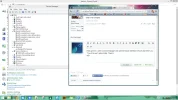
You will then see a picture like mine. I think it would be wise to RE- enable the function you disabled in the Device manager.
You should see, after this, that the item "Touch Keyboard" is ticked. Untick it - done.
You will then see a picture like mine. I think it would be wise to RE- enable the function you disabled in the Device manager.
You should see, after this, that the item "Touch Keyboard" is ticked. Untick it - done.

- Joined
- Oct 16, 2009
- Messages
- 15,155
On my system, deselecting the option for the Taskbar removed the icon, even after a reboot.
Do you have other users on the system, or some other utility related to the touchscreen? Do you even have a touchscreen?
You might check the Task Manger for startup items, maybe something there is keeping it selected after a reboot.
Do you have other users on the system, or some other utility related to the touchscreen? Do you even have a touchscreen?
You might check the Task Manger for startup items, maybe something there is keeping it selected after a reboot.


g2c
Member
- Joined
- Jun 28, 2014
- Messages
- 33
- Thread Author
- #6
Oh, this is the Classic Shall. It allows me to keep sound despite win8. I warmly recommendedI don't know what a couple of those are, but one which would seem to be relevant is the Classic Start Menu. It may very well have some connection to your problem.
g2c
Member
- Joined
- Jun 28, 2014
- Messages
- 33
- Thread Author
- #10
I disabled the HID-compliant touch screen and it removed the keyboard. I believe that one day there will be a mean to disable the on screen keyboard logo from being stuck on the task bar w/o being invited. Meanwhile i don't mind using the mouse (it's a laptop)
Eh, seems a little overboard to have to disable the entire touch screen just to stop the onscreen keyboard from popping up all the time. There has to be a way to turn off the OS keyboard without turning off the whole touch screen.

- Joined
- May 1, 2008
- Messages
- 5,554
Right click the Taskbar and select "Toolbars" at the top of the list.
You will then see a picture like mine. I think it would be wise to RE- enable the function you disabled in the Device manager.
You should see, after this, that the item "Touch Keyboard" is ticked. Untick it - done.
You will then see a picture like mine. I think it would be wise to RE- enable the function you disabled in the Device manager.
You should see, after this, that the item "Touch Keyboard" is ticked. Untick it - done.
g2c
Member
- Joined
- Jun 28, 2014
- Messages
- 33
- Thread Author
- #15
Very strange: after having disabled and re-enabled the touch screen, it now DOES retain the configuration (ticked / unticked) on screen keyboard) after restart
So the bottom line for me is:
disable the touchscreen -> [maybe restart] -> enable the touch screen; wait till windows confirm it did re-enable -> untick the OS KB (toolbar / taskbar) -> done
Creech, does this work for you?
Thanks everybody
So the bottom line for me is:
disable the touchscreen -> [maybe restart] -> enable the touch screen; wait till windows confirm it did re-enable -> untick the OS KB (toolbar / taskbar) -> done
Creech, does this work for you?
Thanks everybody
Similar threads

- Article
- Replies
- 0
- Views
- 282
- Article
- Replies
- 0
- Views
- 230
- Article
- Replies
- 0
- Views
- 2K
- Article
- Replies
- 0
- Views
- 212
- Article
- Replies
- 0
- Views
- 222