

Yes — you can install or reinstall Windows 11 without a flash drive, but only in specific situations and with important caveats: if the PC can boot into Windows (or into its built‑in recovery environment), there are four proven no‑USB methods that work reliably for most home users and technicians. If the target machine is completely blank, severely corrupted, or otherwise unable to boot, a flash drive (or other external boot media) is still the practical, supported route.
Windows 11 supports multiple installation and recovery paths that do not require external USB media. Those options are useful when you want to refresh or upgrade a working system, restore a failing install, or roll out an image across a network. The four mainstream methods that let you avoid a flash drive are:
Conclusion
Installing Windows 11 without a flash drive is practical and officially supported for reinstallations, in‑place upgrades, and repairs — provided the device can boot into Windows or WinRE, or you have enterprise network infrastructure. For the broadest compatibility and absolute control (blank drives, partition edits), a USB installer or PXE remains the definitive solution. Back up first, read firmware and compatibility messages carefully, and prefer Microsoft’s official media when downloading ISOs or using cloud reinstall options.
Source: How2shout Is There a Way to Install Windows 11 Without a Flash Drive? (Yes, Here Are 4 Proven Methods)
 Background / Overview
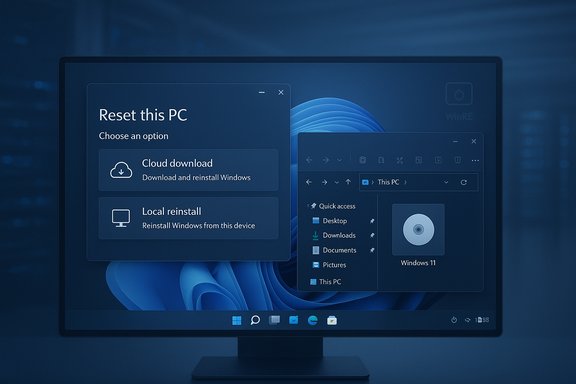
Windows 11 supports multiple installation and recovery paths that do not require external USB media. Those options are useful when you want to refresh or upgrade a working system, restore a failing install, or roll out an image across a network. The four mainstream methods that let you avoid a flash drive are:- Reset This PC (Settings → Recovery) with Cloud download or Local reinstall.
- Mounting and running the official Windows 11 ISO from inside a working Windows session (run setup.exe).
- Windows Recovery Environment (WinRE) — access the same Reset and recovery tools even when Windows is unstable.
- Network / PXE boot — boot and install Windows over a managed network (enterprise scenarios).
Why “no‑USB” installs exist — what they do and don’t do
No‑USB installations fall into two broad categories:- In‑place reinstall or upgrade methods that run while the existing OS is available (Reset This PC, ISO mounted inside Windows, Windows Installation Assistant). These preserve activation, drivers from Windows Update, and — depending on options — your files and applications. They do not let you boot from an empty disk because they rely on a working Windows environment.
- Network or recovery methods (WinRE and PXE) that let you reinstall or repair without physical media. WinRE depends on an intact recovery partition; PXE depends on network infrastructure and is primarily for IT departments.
Method 1 — Reset This PC (the simplest no‑USB reinstall)
Reset This PC is a built‑in Windows feature designed to reinstall or refresh Windows with minimal fuss. It’s the go‑to for most home users who need a clean system or who want to repair a damaged installation and still boot into Windows.What Reset This PC offers
- Keep my files — reinstalls Windows while preserving user files (apps removed).
- Remove everything — wipes user files and apps, reinstalling Windows on the existing partition.
- Cloud download vs Local reinstall — Cloud download fetches a fresh Windows image from Microsoft (~several GB), while local reinstall uses the recovery files already on your PC.
Step‑by‑step (quick)
- Open Settings → System → Recovery.
- Click Reset this PC and choose Keep my files or Remove everything.
- Choose Cloud download for a fresh image (recommended when you suspect corrupted local files), or Local reinstall if bandwidth is limited.
Pros and cons
- Pros: Fast, supported by Microsoft, no external media, preserves activation and drivers. Ideal for most users.
- Cons: Cannot perform BIOS‑level partition changes, depends on a working Windows or intact recovery partition, cloud download requires internet and several gigabytes of data.
When Reset This PC will fail
- The PC won’t boot at all and the recovery partition is missing.
- The system drive is dead or severely corrupted (hardware failure).
- You need to change partition schemes or erase the disk from outside the OS.
Method 2 — Mount the Windows 11 ISO and run setup.exe (no USB required)
If the machine boots to Windows and you want more control (for example, to upgrade or perform an in‑place reinstall), simply download Microsoft’s official Windows 11 ISO, mount it in File Explorer, and run Setup.exe.Why this works
Windows natively mounts ISO files; Setup.exe launched from inside Windows performs the full Windows Setup experience and gives the familiar Keep personal files and apps / Keep personal files only / Nothing options. It’s the same installer used by USB media — but it runs from the host OS rather than from bootable media.Requirements
- A working Windows session on the target machine.
- Enough free disk space (Microsoft recommends at least several GBs; the site suggests ensuring sufficient storage and notes installer downloads can require ~9 GB temporary space for some tools).
Practical ISO sizes and download notes
ISO sizes vary by build and edition (typical modern Windows 11 ISOs are in the 5–6 GB range for stable builds, but exact size changes with cumulative updates and specific language packs). Treat any single number as approximate and verify the file size on the download page after selecting language/edition.Step‑by‑step (safe flow)
- Download the Windows 11 ISO from Microsoft’s Download Windows 11 page.
- In File Explorer, right‑click the ISO and choose Mount.
- Open the mounted virtual DVD drive and double‑click Setup.exe.
- Follow prompts and select whether to keep files/apps or perform a clean install on the existing partition.
Pros and cons
- Pros: Official Microsoft media, no USB required, supports in‑place upgrades that preserve apps and settings.
- Cons: Requires a working OS to run the installer; cannot delete or re‑partition the system disk from outside the running OS; large download size and some manual steps.
Method 3 — Windows Recovery Environment (WinRE)
WinRE is a minimal environment stored in a hidden recovery partition. It offers repair tools and access to Reset This PC when Windows is unstable or when the desktop won’t load.How to access WinRE
- From Settings: System → Recovery → Advanced startup → Restart now.
- From the sign‑in screen: hold Shift and click Restart.
- Automatic: after several failed boots, WinRE may launch automatically.
- From command line: run shutdown /r /o /t 0 to boot into the recovery menu.
What WinRE lets you do
- Run Reset this PC (same choices as in Method 1).
- Use Startup Repair, System Restore, Command Prompt, and UEFI firmware settings. It’s the emergency toolkit for when Windows won’t boot.
Limitations
WinRE depends on the recovery partition being intact. If a vendor recovery image was deleted or the partition is damaged, WinRE will not be available — at that point external media or PXE is required. WinRE’s reinstall options still work within the existing partition structure and are not a substitute for full, offline re‑partitioning.Method 4 — PXE / Network installation (no USB or DVD required)
PXE (Preboot eXecution Environment) lets a target PC boot an installer image over the network. It’s powerful, scalable, and common in enterprise deployments.How PXE works (high level)
A PXE‑capable client uses DHCP to find a PXE server and downloads a boot image (usually Windows PE with an installer) over TFTP/HTTPS. The server supplies the Windows image and an automated or interactive setup proceeds. This is the established method for mass deployment and imaging.Who should use PXE
- IT departments, labs, and service centers installing dozens or hundreds of machines.
- Situations where centralized image control, driver injection, and unattended deployment are needed.
Pros and cons
- Pros: Scalable, centralized images and automation, no physical media to manage.
- Cons: Infrastructure and technical skill required; not practical for single‑machine installs.
Can you perform a true clean install without a flash drive?
Short answer: usually no — not on a truly blank drive or brand‑new PC.- In‑place reinstalls, Reset This PC, and ISO‑run setups can deliver a fresh Windows environment, but they operate within the existing partition layout and from a running system or recovery partition. They cannot boot a target machine from zero or let you delete and re‑create disk partitions while the OS is running on that same drive. For that level of offline control — deleting partitions, converting MBR to GPT, or installing to a blank SSD — you need bootable installation media (USB/DVD) or PXE booted installer.
Practical guide: Which method should you pick?
Use this decision flow to choose the right path.- Is the target PC able to boot into Windows or WinRE?
- Yes: Use Reset This PC (cloud download) for the easiest fresh reinstall.
- Yes and you want more control or the latest ISO: Mount the ISO and run Setup.
- No, but you have a working network and IT infrastructure: PXE.
- No and no PXE: create a bootable USB from another PC with Media Creation Tool.
- Are you installing onto a blank drive or performing partition conversions?
- Yes: You must use bootable media or PXE.
- Is the device flagged “incompatible” (TPM/Secure Boot/CPU)?
- Try enabling TPM or Secure Boot in firmware first. If that’s impossible, community workarounds exist (registry bypass, Rufus “extended” installer) but they’re unsupported by Microsoft and may affect update entitlement. Use with caution and always back up.
Safety checklist — before you attempt any reinstall
- Back up everything: user files, browser data, desktop items, and application licenses. Create a full disk image (Macrium Reflect, Acronis) if you want a bullet‑proof rollback.
- Export BitLocker and TPM recovery keys and ensure you can sign into your Microsoft account.
- Ensure you meet Windows 11 minimum requirements (TPM 2.0, UEFI/Secure Boot, 4 GB RAM, 64 GB storage) — verify with PC Health Check or the OEM website.
- Prefer Cloud download if you suspect system file corruption — it fetches a fresh image from Microsoft. Expect a multi‑GB download.
- If relying on community bypasses for unsupported hardware, understand you may forfeit future feature updates or support. These are workarounds, not official recommendations.
Extra technical notes and verification of key claims
- Microsoft’s minimum system requirements for Windows 11 are published and include 4 GB RAM and 64 GB storage as minimums, along with UEFI/Secure Boot and TPM 2.0 for supported installs. These are current on Microsoft’s official Windows 11 specifications page.
- The Media Creation Tool and Microsoft’s download page explicitly recommend a blank USB or DVD and list 8 GB as the minimum for creating installation media. Practically, community recommendations prefer 16 GB for reliability.
- ISO file sizes vary. Recent stable Windows 11 ISOs are generally in the 5–6 GB range for modern release builds, but sizes change by build and language; always check the actual download size before proceeding. Exact size depends on release (21H2, 22H2, 23H2, 24H2, etc..
- Reset This PC (Cloud download) will typically fetch several gigabytes (~3–9 GB depending on options and the build) — community guidance suggests cloud download needs robust internet and enough free disk space to temporarily hold the image. For some installers, Microsoft notes the Installation Assistant and media creation flows require ~9 GB of free space at certain points.
Common pitfalls and troubleshooting
- Setup aborts early with “This PC can’t run Windows 11”: check Secure Boot and TPM in UEFI, and run PC Health Check. If firmware supports it, enable fTPM/PTT and Secure Boot.
- Running Setup.exe from a mounted ISO and extracting the ISO to a folder are different: always mount the ISO (right‑click → Mount) or burn it to media — don’t simply extract files if you want the standard, supported installer flow.
- If Reset This PC fails and WinRE is unavailable, you’ll need a USB installer or a PXE image. The forum community strongly recommends keeping a bootable USB as a rescue stick — it saves hours in an emergency.
- If you use community bypasses to install on unsupported hardware, expect possible update blocks or compatibility problems later. Always keep a tested backup and be prepared to roll back.
Final verdict — practical recommendations
- For most home users who can boot into Windows: Reset This PC (Cloud download) is the safest, simplest, and recommended no‑USB method. It’s supported, integrated, and minimizes manual steps. Back up first, but this path is designed for normal users.
- For power users who want control over what gets kept, or the latest ISO to test/upgrade now: download and mount the official ISO and run Setup.exe from inside Windows. This gives flexible options and avoids external media.
- For IT and mass deployment: use PXE and centralized deployment tooling. It’s the only practical no‑USB option at scale.
- For blank drives, new systems, or partition‑level control: create a bootable USB (8–16 GB) or use PXE. There is no supported way to perform a complete offline partition wipe and fresh install without bootable media.
Conclusion
Installing Windows 11 without a flash drive is practical and officially supported for reinstallations, in‑place upgrades, and repairs — provided the device can boot into Windows or WinRE, or you have enterprise network infrastructure. For the broadest compatibility and absolute control (blank drives, partition edits), a USB installer or PXE remains the definitive solution. Back up first, read firmware and compatibility messages carefully, and prefer Microsoft’s official media when downloading ISOs or using cloud reinstall options.
Source: How2shout Is There a Way to Install Windows 11 Without a Flash Drive? (Yes, Here Are 4 Proven Methods)
