

January 19, 2026 is no longer a planning date for Intune iOS app protection. Organizations that still have managed iOS apps below Microsoft’s supported baseline can face launch blocks rather than warnings, and the right response depends first on who owns the affected app: App Store-delivered Microsoft and partner apps need an update; internally owned apps need a rebuild or a new wrapping-and-release cycle.
Microsoft’s Intune documentation makes the split clear. For apps built with Xcode 16, the required baseline is Intune App SDK v20.8.0 or Intune App Wrapping Tool v20.8.1. For apps compiled with Xcode 26, both the SDK and wrapping-tool requirement move to v21.1.0. That distinction is not academic: an administrator cannot solve an internally built app’s obsolete SDK by telling users to visit the App Store.
The first operational mistake is treating this as one broad iOS compliance issue. It is not. Intune’s app-protection enforcement reaches the application layer, so the remediation owner changes according to how the app reached the device and how Intune protection was added.
Microsoft and third-party applications delivered through the App Store are, in most cases, a user-update and deployment-management problem. The vendor must publish a compatible build, and the organization must ensure that the current release reaches its users. If the required compatible version is available, the practical outcome is straightforward: prompt, require, or otherwise drive users to update the app.
Internally owned line-of-business apps are different. If developers integrated the Intune App SDK directly, the organization needs to update that integration, rebuild the app, test it, sign it, and redistribute it. If the organization used the Intune App Wrapping Tool, it must wrap the appropriate app binary again with the required tool version, validate the result, and publish the new wrapped package through its established distribution process.
That is why an inventory built only around “apps assigned in Intune” is not enough. The urgent question is whether each managed iOS app is vendor-maintained, SDK-integrated by internal developers, or wrapped internally after development.
A practical inventory process looks like this:
WindowsForum readers have already been discussing the broader January 19 enforcement deadline around SDK updates and Company Portal readiness. The sharper takeaway now is that the date should trigger a packaging inventory, not merely a help desk communication campaign.
An SDK-integrated app is one whose source code was modified to include the Intune App SDK. The organization’s development team owns the change. Updating it means bringing the required SDK version into the project, compiling a new build, testing the app’s protected workflows, and releasing that application through the organization’s normal iOS distribution path.
A wrapped app begins as an existing iOS app binary and is processed through Microsoft’s Intune App Wrapping Tool to add app protection support. Updating it means obtaining the appropriate source binary, applying the current wrapping tool, validating the wrapped output, and publishing the replacement package. The app’s original code may not need an SDK change, but the wrapping operation and resulting package still require formal release ownership.
There are several ways to separate the two operationally without pretending that Intune alone can reconstruct old development history:
The immediate task is to inspect each policy’s Conditional Launch configuration and compare the action against the inventory. A Warn action can surface the requirement while app owners complete their release work. A Block action can prevent unsupported versions from launching managed apps once the policy is evaluated.
That should not be confused with a minimum app version policy. Microsoft’s guidance is that minimum app version policies should be targeted to an individual app. This is an important division of labor:
For organizations that have not yet completed their inventory, the least disruptive sequence is to assess the existing Conditional Launch action, identify all internally controlled packages, establish replacement-build ownership, and validate the releases before relying on Block. The January deadline has passed, but a rushed policy change without package readiness can still turn a compatibility control into a service interruption.
Validate sign-in, access to organizational data, expected data-transfer behavior, and any business-critical handoffs between managed apps. Where the app participates in document workflows, test the real path users take rather than a generic launch test: opening a file, sharing it to an approved managed target, returning to the app, and confirming that protection remains intact.
This is also where stale policy assumptions surface. Intune app protection policies can govern data movement, copy and paste, notifications, web-content handling, and other application behavior. A replacement package that launches cleanly but behaves differently when handling protected data is not a successful remediation.
A basic rollout checklist should include:
The remaining work is not to debate whether the deadline matters; it is to find every internally controlled package that cannot self-update. Once those apps have an owner, a tested replacement, and a known distribution route, Intune’s compatibility block becomes a predictable control rather than an emergency outage.
Microsoft’s Intune documentation makes the split clear. For apps built with Xcode 16, the required baseline is Intune App SDK v20.8.0 or Intune App Wrapping Tool v20.8.1. For apps compiled with Xcode 26, both the SDK and wrapping-tool requirement move to v21.1.0. That distinction is not academic: an administrator cannot solve an internally built app’s obsolete SDK by telling users to visit the App Store.
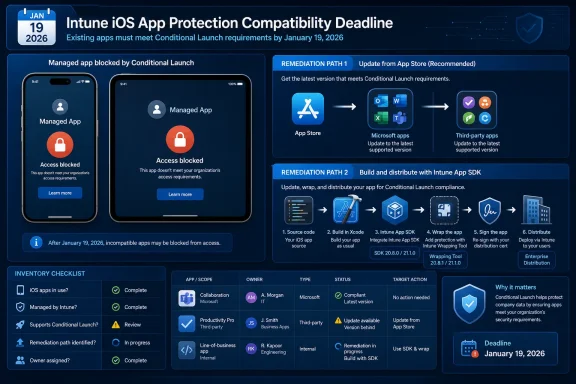 Treat the Compatibility Deadline as an App-Ownership Problem
The first operational mistake is treating this as one broad iOS compliance issue. It is not. Intune’s app-protection enforcement reaches the application layer, so the remediation owner changes according to how the app reached the device and how Intune protection was added.Microsoft and third-party applications delivered through the App Store are, in most cases, a user-update and deployment-management problem. The vendor must publish a compatible build, and the organization must ensure that the current release reaches its users. If the required compatible version is available, the practical outcome is straightforward: prompt, require, or otherwise drive users to update the app.
Internally owned line-of-business apps are different. If developers integrated the Intune App SDK directly, the organization needs to update that integration, rebuild the app, test it, sign it, and redistribute it. If the organization used the Intune App Wrapping Tool, it must wrap the appropriate app binary again with the required tool version, validate the result, and publish the new wrapped package through its established distribution process.
That is why an inventory built only around “apps assigned in Intune” is not enough. The urgent question is whether each managed iOS app is vendor-maintained, SDK-integrated by internal developers, or wrapped internally after development.
Build the Inventory Before Changing Enforcement
Start with the apps actually covered by iOS/iPadOS app protection policies, then classify each one into a remediation lane. Do this before raising enforcement from Warn to Block, because a policy change can expose forgotten internal packages that no one is prepared to replace.A practical inventory process looks like this:
- Open each relevant iOS/iPadOS app protection policy in the Intune admin center and identify the managed apps and user groups in scope.
- Create one record for every app that users may launch under those policies, including the app name, publisher, distribution channel, owning business team, and support contact.
- Mark each app as Microsoft or third-party App Store app, internally SDK-integrated app, or internally wrapped app.
- For internally maintained apps, record the build toolchain used for the current production version. Apps compiled with Xcode 16 require Intune App SDK v20.8.0 or App Wrapping Tool v20.8.1; apps compiled with Xcode 26 require v21.1.0 for either route.
- Confirm who can produce and sign a replacement build. A valid technical upgrade plan is incomplete if the original app owner, signing workflow, distribution group, or release approver has disappeared.
- Put every app without an identified owner into an exception queue immediately. An unowned app is the most likely source of an unexpected block after enforcement is tightened.
WindowsForum readers have already been discussing the broader January 19 enforcement deadline around SDK updates and Company Portal readiness. The sharper takeaway now is that the date should trigger a packaging inventory, not merely a help desk communication campaign.
How to Tell an SDK-Integrated App From a Wrapped App
The distinction matters because the technical work, testing burden, and release authority are different.An SDK-integrated app is one whose source code was modified to include the Intune App SDK. The organization’s development team owns the change. Updating it means bringing the required SDK version into the project, compiling a new build, testing the app’s protected workflows, and releasing that application through the organization’s normal iOS distribution path.
A wrapped app begins as an existing iOS app binary and is processed through Microsoft’s Intune App Wrapping Tool to add app protection support. Updating it means obtaining the appropriate source binary, applying the current wrapping tool, validating the wrapped output, and publishing the replacement package. The app’s original code may not need an SDK change, but the wrapping operation and resulting package still require formal release ownership.
There are several ways to separate the two operationally without pretending that Intune alone can reconstruct old development history:
- Ask the app owner whether Intune libraries are part of the project’s source and build process. If they are, treat it as SDK-integrated.
- Review release documentation and package-handling records for an internal wrapping stage. If a team routinely receives an iOS binary and produces a separate managed package, treat it as wrapped.
- Check whether the deployed app is a direct App Store installation or an internally redistributed package. Internal redistribution is a strong signal that the app needs organization-controlled remediation.
- Do not classify based on the app’s brand name. A Microsoft, partner, or custom app can appear in different management states across different business units.
Use Conditional Launch to Control the Blast Radius
Microsoft’s iOS app protection policy settings include a Conditional Launch control for a minimum Intune SDK version, with Warn or Block access actions. That makes the policy both a security mechanism and a rollout lever.The immediate task is to inspect each policy’s Conditional Launch configuration and compare the action against the inventory. A Warn action can surface the requirement while app owners complete their release work. A Block action can prevent unsupported versions from launching managed apps once the policy is evaluated.
That should not be confused with a minimum app version policy. Microsoft’s guidance is that minimum app version policies should be targeted to an individual app. This is an important division of labor:
- Use the minimum Intune SDK version setting when the compatibility requirement concerns the Intune protection capability embedded in the app.
- Use a minimum app version requirement when one specific application release must be required for its own functional or support reasons.
For organizations that have not yet completed their inventory, the least disruptive sequence is to assess the existing Conditional Launch action, identify all internally controlled packages, establish replacement-build ownership, and validate the releases before relying on Block. The January deadline has passed, but a rushed policy change without package readiness can still turn a compatibility control into a service interruption.
Validation Must Include Protection, Not Just App Launch
A rebuilt or newly wrapped app is not ready because it opens successfully. It must be tested as a policy-managed app under the same user and policy conditions expected in production.Validate sign-in, access to organizational data, expected data-transfer behavior, and any business-critical handoffs between managed apps. Where the app participates in document workflows, test the real path users take rather than a generic launch test: opening a file, sharing it to an approved managed target, returning to the app, and confirming that protection remains intact.
This is also where stale policy assumptions surface. Intune app protection policies can govern data movement, copy and paste, notifications, web-content handling, and other application behavior. A replacement package that launches cleanly but behaves differently when handling protected data is not a successful remediation.
A basic rollout checklist should include:
- Test the updated SDK-integrated or wrapped build against the app protection policies assigned to the pilot users.
- Verify that a user can receive and install the replacement through the organization’s intended distribution path.
- Confirm that the prior version’s user experience is understood if it encounters Warn or Block enforcement.
- Keep the previously working package and release records available until the replacement has passed validation, even if rollback would still need to respect the minimum supported baseline.
- Communicate the precise ownership path to support teams: App Store update for vendor apps, organization-issued replacement for internal apps.
Frequently Asked Questions
Which apps will be blocked?
Apps subject to an Intune app protection policy can be blocked from launching when they do not meet the configured minimum Intune SDK requirement and the Conditional Launch action is set to Block. The specific exposure depends on the policy scope and the versions installed by users.Can users fix every affected app by updating from the App Store?
No. Users can update Microsoft or third-party apps when a compatible App Store release is available. Internally owned SDK-integrated or wrapped line-of-business apps require the organization to create and distribute a replacement package.Which version baseline applies to Xcode 16 builds?
Apps compiled with Xcode 16 need Intune App SDK v20.8.0, while wrapped apps using that toolchain need Intune App Wrapping Tool v20.8.1.What changes for Xcode 26?
For apps compiled with Xcode 26, Microsoft specifies Intune App SDK v21.1.0 and Intune App Wrapping Tool v21.1.0.The remaining work is not to debate whether the deadline matters; it is to find every internally controlled package that cannot self-update. Once those apps have an owner, a tested replacement, and a known distribution route, Intune’s compatibility block becomes a predictable control rather than an emergency outage.
References
- Primary source: learn.microsoft.com
iOS/iPadOS App Protection Policy Settings - Microsoft Intune | Microsoft Learn
This article describes the iOS/iPadOS app protection policy (APP) settings for iOS/iPadOS devices.learn.microsoft.com - Primary source: WindowsForum
Intune MAM Enforcement: Update SDKs and Company Portal by Jan 19 2026 | Windows Forum
Today's Intune change is not a gentle nudge — it's an operational deadline that will immediately affect any organization that hasn't updated its mobile app...windowsforum.com
