

Logitech’s H151 remains one of the simplest, most widely available wired headsets you can buy for everyday voice calls, remote work, and basic media playback — and for Windows 10 users buying from outlets like Amazon.in or other discount channels, it’s important to know what you’re getting, what actually works on a PC, and where small mismatches can produce big headaches. The H151 is a plug-and-play 3.5 mm wired on‑ear headset with a rotating noise‑canceling boom mic and inline controls, and while it delivers reliable voice capture for meetings and class sessions, compatibility nuances (TRRS vs TRS jacks, desktop front/rear panel wiring, and Windows 10’s post‑EOL status) mean that buyers should plan for a few simple checks and, sometimes, a cheap adapter to guarantee the mic works on every PC.
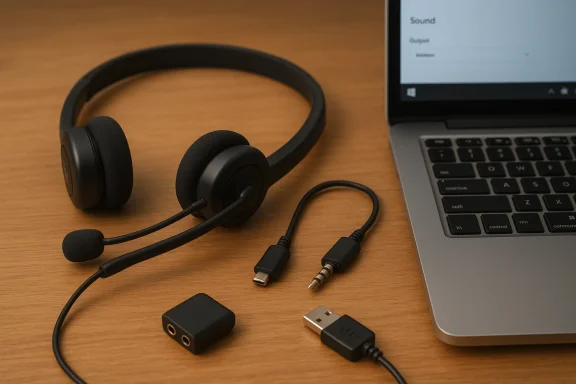
The Logitech H151 is a budget‑oriented wired stereo headset with a single 3.5 mm plug, an adjustable headband, foam ear cushions, and an inline mute/volume control. Logitech’s official technical sheet lists a 3.5 mm TRRS single‑jack connection, headphone frequency response of 20 Hz–20 kHz, microphone response roughly 100 Hz–6.5 kHz, and a cable of about 1.8 m (5.9 ft). These are straightforward specs that position the H151 as an affordable, comfortable option for voice-first use rather than hi‑fi music listening. Retail listings and large resellers echo the same basics: noise‑cancelling boom mic, inline mute/volume, lightweight build, and broad platform compatibility (Windows, macOS, ChromeOS, iOS, Android). The headset’s low impedance (≈22 Ω) makes it easy to drive from phones and laptops. Independent retailer datasheets and product pages repeat the same mechanical and electrical numbers, which helps confirm Logitech’s published specifications.
Important context for Windows 10 buyers: Microsoft ended mainstream support for Windows 10 on October 14, 2025. That means new OS features and some driver-level compatibility improvements will increasingly target Windows 11, and long‑term Bluetooth audio improvements (LE Audio, new codecs) are primarily a Windows 11 story. For wired headsets like the H151 this to‑day use, but ongoing driver and platform support for companion audio utilities or unusual vendor tooling may be limited on legacy Windows 10 systems. Plan for eventual OS migration for full future compatibility.
2. Test on a smartphone. Plug the headset into a phone and make a voice recording or call to confirm mic function. This isolates headset hardware from PC configuration issues. If the mic works on phone but not on PC, the problem is almost certainly PC port wiring.
3. Identify PC ports. If your laptop has a single headset icon jack, you’re likely fine. If your desktop has green and pink jacks, those are separate headphone/mic TRS jacks and the single H151 plug will not reach both signals without an adapter.
4. Use the correct adapter if needed:
Logitech H151’s enduring appeal is its simplicity: a lightweight, inexpensive headset that works well for voice, with a predictable set of limitations and a single hardware caveat — the TRRS single jack. For Windows 10 users (especially those on older desktops) the main work is not technical wizardry but a short compatibility check and possibly a $5–$20 adapter to ensure the mic is recognized. With that small attention to detail, the H151 offers dependable voice performance at a very approachable price.
Source: Born2Invest https://born2invest.com/?b=style-320340512/
 Background / Overview
The Logitech H151 is a budget‑oriented wired stereo headset with a single 3.5 mm plug, an adjustable headband, foam ear cushions, and an inline mute/volume control. Logitech’s official technical sheet lists a 3.5 mm TRRS single‑jack connection, headphone frequency response of 20 Hz–20 kHz, microphone response roughly 100 Hz–6.5 kHz, and a cable of about 1.8 m (5.9 ft). These are straightforward specs that position the H151 as an affordable, comfortable option for voice-first use rather than hi‑fi music listening. Retail listings and large resellers echo the same basics: noise‑cancelling boom mic, inline mute/volume, lightweight build, and broad platform compatibility (Windows, macOS, ChromeOS, iOS, Android). The headset’s low impedance (≈22 Ω) makes it easy to drive from phones and laptops. Independent retailer datasheets and product pages repeat the same mechanical and electrical numbers, which helps confirm Logitech’s published specifications. What you actually get: features and physical details
- Form factor: on‑ear (supra‑aural) with foam earcups and an adjustable headband. Comfortable for short to medium‑length sessions; not a heavy‑duty padded over‑ear design.
- Connection: single 3.5 mm TRRS plug (combined headphone + mic). No USB dongle or wireless radio included. This is the most consequential detail for PC buyers.
- Microphone: rotating boom with basic noise cancellation intended to reduce room background noise; mic frequency response is tuned for voice, not studio recording.
- Controls: inline volume and mute on the cable, convenient for meetings and calls.
- Cable length & weight: ~1.8 m cable, light overall weight (~80 g), making it portable and usable with laptops and desktop setups.
Windows 10 compatibility: what matters and why
The single most important compatibility variable for the H151 on a PC is the type of audio jack your computer exposes and how Windows interacts with it.- Many modern laptops expose a combo headset jack that accepts the four‑pole TRRS plug (tip = left, ring1 = right, ring2 = mic, sleeve = ground), which normally means the headset will work automatically with both audio and microphone. Logitech documents that the H151 uses a single 3.5 mm TRRS to work with combo jacks on phones and many laptops.
- Many desktops and older PCs expose two separate 3.5 mm jacks: one for headphones (TRS stereo output) and one for microphone (TRS mono input). If you plug a single TRRS plug into a PC expecting two separate TRS plugs, the mic will usually not be detected. Community guides and technical primers repeatedly call out this TRRS vs TRS mismatch as the most common cause of “mic not detected” problems on clearance or outlet headsets.
Important context for Windows 10 buyers: Microsoft ended mainstream support for Windows 10 on October 14, 2025. That means new OS features and some driver-level compatibility improvements will increasingly target Windows 11, and long‑term Bluetooth audio improvements (LE Audio, new codecs) are primarily a Windows 11 story. For wired headsets like the H151 this to‑day use, but ongoing driver and platform support for companion audio utilities or unusual vendor tooling may be limited on legacy Windows 10 systems. Plan for eventual OS migration for full future compatibility.
Setting up the H151 on Windows 10 — step‑by‑step (and checks to run)
1. Inspect the plug. Count the insulating rings on the 3.5 mm plug: three rings) means TRRS (one cable for mic + stereo). Two rings (three sections) means TRS (stereo only). If the H151 plug has three rings it expects a combo port on the host.2. Test on a smartphone. Plug the headset into a phone and make a voice recording or call to confirm mic function. This isolates headset hardware from PC configuration issues. If the mic works on phone but not on PC, the problem is almost certainly PC port wiring.
3. Identify PC ports. If your laptop has a single headset icon jack, you’re likely fine. If your desktop has green and pink jacks, those are separate headphone/mic TRS jacks and the single H151 plug will not reach both signals without an adapter.
4. Use the correct adapter if needed:
- TRRS → dual TRS splitter (female TRRS to two male TRS: green headphone + pink mic) — inexpensive and usually the cleanest fix for desktops with separate jacks.
- USB audio adapter (USB → 3.5 mm combo) — bypasses onboard audio entirely and is a robust plug‑and‑power 10 recognizes as a USB audio device. This is the lowest‑effort solution if you don’t want to fiddle with front vs rear panel wiring.
- Settings → System → Sound: select the headset for Output and the headset mic for Input.
- Control Panel → Sound → Recording: show disabled devices and ensure the headset mic is enabled and set as Default Communication Device if necessary.
- Settings → Privacy → Microphone: ensure microphone access is allowed for apps; toggle desktop app permissions if apps cannot see the device.
- If a USB adapter is used, select that adapter as both Output and Input.
Troubleshooting common problems (practical fixes)
- Symptom: Mic not detected on desktop but works on phone.
- Fix: Use a TRRS → dual TRS splitter or a USB audio adapter. Confirm jack wiring (CTIA vs OMTP mismatch is rare but possible; try a CTIA/OMTP swap adapter if nothing else helps).
- Symptom: Mic detected but low volume / noisy.
- Fix: Check Windows recording levels and the microphone boost; update audio drivers from the motherboard or laptop OEM; try rear panel jack or USB adapter; test another headset to rule out headset fault.
- Symptom: Intermittent dropouts or noise when laptop is charging.
- Fix: Ground loop / electrical interference is a common different USB adapter, move power adapter away, or test on battery to see if noise disappears. Some users report noisy mics when laptops are plugged in — a USB dongle or a different port often cures this.
- Symptom: App cannot access microphone even though Windows shows it.
- Fix: Visit Settings → Privacy → Microphone and ensure apps are allowed to access the mic, then restart the app. Also check app‑level audio settings (e.g., Teams, Zoom) and confirm the correct device is selected.
Buying the H151 on Amazon.in or outlet channels: what to watch for
Logitech H151 is widely listed on Indian retail sites and marketplaces; prices vary and outlet or open‑box sellers may show steeper discounts. Price trackers for Amazon.in captured H151 price drops and show it commonly circulates in the ₹1,300–₹1,500 range at retail and slightly lower during promotions. Expect modest savings from an outlet listing, but verify the following before you buy: product condition (new vs open box), included accessories (the H151 is a single cable product — missing cables are uncommon but do occur for open‑box items), warranty terms, and the seller’s return policy. Practical buying checklist for outlets and Amazon.in:- Confirm the seller and shipping terms: prefer “fulfilled by Amazon” or an established retailer for returns.
- Verify the exact SKU/model number (981‑000587 or 981‑000589 variants appear in listings) to avoid counterfeit or mismatched goods.
- Inspect photos and Q&A on the listin plug is present and the inline control exists.
- Check the return window and warranty: Logitech typically offers a one‑year limited warranty, but outlets or open‑box sellers may change coverage.
Performance and real‑world use: strengths and limitations
Strengths- Reliability: Wired, low‑latency connection that works for meetings, VoIP, and basic media playback without driver installs. The H151 will usually “just work” on phones and most laptops with combo jacks.
- **mute and volume controls are convenient for quick call management.
- Comfort & portability: Lightweight design and foam cushions make it comfortable for many users during typical remote‑work sessions.
- Audio fidelity: Designed for voice; headphone frequency response and small drivers mean it’s not a hi‑fi headphone for critical listening. Expect balanced but unexciting sound.
- Build & durability: As a budget headset, the H151 uses light materials; expect adequate but not premium durability for heavy daily abuse. Some buyers have reported wear on the earcups or cable after extended use.
- Port dependence: Single TRRS plug means desktop users with separate jacks will often require a splitter or USB adapter. This is the most common unexpected snag for people who buy the headset expecting plug‑and‑play on any PC.
Security, drivers and Windows 10 EOL considerations
Most wired headsets do not require drivers, and the H151 is effectively driverless as a plain analog headset. The primary platform concern is not device drivers but the host OS lifecycle. With Windows 10 having reached end of support on October 14, 2025, organizations and power users should be aware that receiving future platform improvements or vendor‑supplied audio tool updates is less likely; third‑party accessory apps are also being focused on Windows 11 in many cases. It’s sensible to plan future PC purchases or upgrades to Windows 11 if long‑term vendor support and new Bluetooth/audio features matter. For buyers on managed corporate systems, IT policies can restrict the installation of virtual drivers or changes to audio stacks. When in doubt, consult IT before plugging in new audio devices or installing Umunity guides outline common enterprise restrictions that block microphone access by group policy — these are administrative, not headset faults.Recommended accessories and alternatives
- TRRS → dual TRS splitter (CTIA standard): cheapest fix for desktops with pink/green jacks.
- USB audio adapter (USB‑A or USB‑C): best plug‑and‑play option that bypasses flaky onboard audio and often improves mic gain/noise. Budget $10–$25 for reputable adapters.
- If you need better mic quality for frequent conferencing: consider a dedicated USB condenser/dynamic mic or a certified UC headset with USB dongle (these are pricier but avoid the A2DP/HFP tradeoffs on Bluetooth and give consistent voice pickup).
- Logitech H111/H340 series (if you want a separate mic jack or USB variants) — some Logitech models provide a USB version or dual‑plug variants that are desk‑friendlier.
- Other budget wired headsets from well‑known brands; but always check the connector type and whether the mic is wired over the cable (not Bluetooth‑only). Community reviews repeatedly warn that some “wired” headsets actually route mic over Bluetooth only — test before you buy.
Final verdict: who should buy the H151 — and how to avoid buyer’s remorse
The Logitech H151 is a practical, low‑cost headset that does exactly what it’s meant to do: provide clear, noiseless voice capture for meetings and calls at a price most people find easy to accept. Buy it if you:- Need an affordable headset for online teaching, remote work, or casual gaming voice chat.
- Prefer the reliability of wired audio and the convenience of inline mute/volume.
- Use a laptop with a single combo headset jack or are willing to buy a small adapter for desktop use.
- Need premium audio for music monitoring or professional streaming.
- Require a high‑end microphone for podcasting or broadcast use (use a dedicated USB mic instead).
- Rely on a desktop with separate headphone/mic jacks and want a completely plug‑and‑play experience without buying an adapter (unless the listing explicitly includes a splitter or USB adapter).
Logitech H151’s enduring appeal is its simplicity: a lightweight, inexpensive headset that works well for voice, with a predictable set of limitations and a single hardware caveat — the TRRS single jack. For Windows 10 users (especially those on older desktops) the main work is not technical wizardry but a short compatibility check and possibly a $5–$20 adapter to ensure the mic is recognized. With that small attention to detail, the H151 offers dependable voice performance at a very approachable price.
Source: Born2Invest https://born2invest.com/?b=style-320340512/
