

Windhawk’s modular mods ecosystem is doing more than dressing up Windows—it’s quietly restoring missing functionality, smoothing rough edges, and giving power users surgical control over the Start menu, Taskbar, File Explorer and more, and the nine community‑favorite mods below represent the most practical, low‑risk ways to get the biggest return on that customization effort.
Windhawk is an open‑source, lightweight runtime that hosts single‑purpose “mods” which inject small, targeted changes into Windows processes to modify UI behavior and appearance. Its approach is deliberately modular: install the runtime, browse the catalog, and enable only the mods you want. That design keeps the footprint small and lets you undo changes quickly if something conflicts. The official Windhawk project and its mods are hosted and maintained on GitHub, and the mod catalog lives on Windhawk’s official site—both show the project’s code and release history for transparency. Why this matters: Windhawk takes a different tack from heavyweight theming engines and paid replacements. Instead of replacing core shell components, it injects minimal code to alter behaviour at runtime—an efficient method but one that brings a trade‑off: better flexibility at the cost of a slightly larger attack surface and potential compatibility friction with anti‑cheat or security tooling. Windhawk’s release notes and project documentation explicitly address those trade‑offs and list process exclusions and safety mitigations in recent builds. The nine mods highlighted here are those that deliver immediate usability or productivity wins: clearer window switching on multi‑monitor setups, file management niceties in Explorer, better Taskbar ergonomics and styling, richer clock and telemetry at a glance, faster tab and window cycling, and a one‑click way to restore the classic context menu most power users still prefer. The user‑facing roundup that inspired this feature lists these mods as the top practical choices for most Windows customizers.
Why it helps: When you work across multiple displays, the default Alt+Tab view can become cluttered and slow to scan. Per‑monitor switching reduces visual noise and keeps the switcher relevant to the display you’re currently using.
Install & settings: Install from Windhawk’s catalog and toggle it on. There are no complex dependencies; the mod targets explorer.exe and adjusts the switcher filter. Verify that your Windows build is supported in the mod’s details, and if you use virtual desktops or third‑party window managers, test for expected interactions. Windhawk’s catalog lists this mod and related Alt+Tab utilities. Potential risks: Because this mod hooks into the UI switching logic, it’s a good idea to disable it temporarily if an app behaves oddly or if an anti‑cheat system flags injected UI hooks (rare but possible). Always test after major Windows feature updates.
How it works and configuration tips:
Why it helps: The Taskbar often has unused horizontal space. A simple middle‑click or double‑click shortcut reduces friction for common tasks and avoids hunting for small icons in the tray.
Installation & usage:
How to customize:
Key features and tips:
Why it helps: A more readable Explorer or a theme that contrasts labels better with your wallpaper can reduce eye strain and make finding files faster.
Notes on use:
Why it helps: Clicking small taskbar icons when you have dozens of windows is tedious. Scrolling provides a fluid way to iterate through windows without lifting your hands from the mouse.
Configuration:
Why it helps: It’s a low‑cognitive‑load way to move across many tabs without hitting Ctrl+Tab or hunting for the tiny scroll arrows.
How to set it up:
Why it helps: For power users, the extra step to reach Rename, Properties, or third‑party shell extensions is an annoyance. The mod brings back the full menu exactly where it used to be.
How to use and override: The mod can be set to show the classic menu always, and it supports a modifier (e.g., press Ctrl while right‑clicking) to access the modern menu when needed. This dual‑behavior covers both nostalgic workflows and the handful of times you might want the modern commands.
Caveat: Some third‑party shell extensions may behave differently with the old menu; test with your installed context menu handlers if you depend on context menu plugins.
Source: TechPP 9 Best Windhawk Mods to Unlock the Best Windows Experience - TechPP
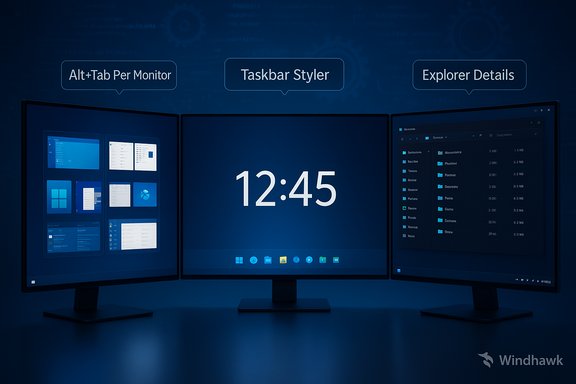 Background / Overview
Windhawk is an open‑source, lightweight runtime that hosts single‑purpose “mods” which inject small, targeted changes into Windows processes to modify UI behavior and appearance. Its approach is deliberately modular: install the runtime, browse the catalog, and enable only the mods you want. That design keeps the footprint small and lets you undo changes quickly if something conflicts. The official Windhawk project and its mods are hosted and maintained on GitHub, and the mod catalog lives on Windhawk’s official site—both show the project’s code and release history for transparency. Why this matters: Windhawk takes a different tack from heavyweight theming engines and paid replacements. Instead of replacing core shell components, it injects minimal code to alter behaviour at runtime—an efficient method but one that brings a trade‑off: better flexibility at the cost of a slightly larger attack surface and potential compatibility friction with anti‑cheat or security tooling. Windhawk’s release notes and project documentation explicitly address those trade‑offs and list process exclusions and safety mitigations in recent builds. The nine mods highlighted here are those that deliver immediate usability or productivity wins: clearer window switching on multi‑monitor setups, file management niceties in Explorer, better Taskbar ergonomics and styling, richer clock and telemetry at a glance, faster tab and window cycling, and a one‑click way to restore the classic context menu most power users still prefer. The user‑facing roundup that inspired this feature lists these mods as the top practical choices for most Windows customizers.The nine mods that unlock the best Windows experience
1. Alt+Tab Per Monitor — smarter window switching on multi‑monitor setups
What it is: The Alt+Tab per monitor mod changes the Alt+Tab switcher behavior so it only shows windows on the monitor where your cursor currently sits, instead of always listing windows from every display on the primary monitor. This is a small change with outsized practical value for multi‑monitor productivity workflows.Why it helps: When you work across multiple displays, the default Alt+Tab view can become cluttered and slow to scan. Per‑monitor switching reduces visual noise and keeps the switcher relevant to the display you’re currently using.
Install & settings: Install from Windhawk’s catalog and toggle it on. There are no complex dependencies; the mod targets explorer.exe and adjusts the switcher filter. Verify that your Windows build is supported in the mod’s details, and if you use virtual desktops or third‑party window managers, test for expected interactions. Windhawk’s catalog lists this mod and related Alt+Tab utilities. Potential risks: Because this mod hooks into the UI switching logic, it’s a good idea to disable it temporarily if an app behaves oddly or if an anti‑cheat system flags injected UI hooks (rare but possible). Always test after major Windows feature updates.
2. Better File Sizes in Explorer Details — folder sizes and sensible units
What it is: Explorer normally omits folder sizes from Details view and shows file sizes always as KBs in the column, which can be misleading for large files. The “Better file sizes in Explorer details” mod adds optional folder size display and improves unit formatting (MB/GB and IEC terms like MiB/GiB) and can mix files and folders sensibly when sorting by size. Why it helps: For anyone who manages disk space, seeing folder sizes inline in Explorer saves time and clicks—no need to open Properties or rely on a separate tool just to get a quick picture of where storage is going.How it works and configuration tips:
- Integration with Everything (the Everything search engine) gives instant folder sizes without expensive recalculation—enable Everything’s folder size indexing and turn on the integration in the mod settings.
- If you prefer not to install Everything, the mod can calculate sizes on demand (useful but slower; the mod offers an option to compute sizes only when Shift is held).
- You can also force the UI to use MB/GB units and switch to IEC abbreviations if you prefer technical accuracy.
3. Click on Empty Taskbar Space — repurpose wasted real estate
What it is: This mod allows you to assign actions to double‑click or middle‑click events on empty areas of the Taskbar—launch an app, open Task Manager, show the desktop, mute audio, or even open the Start menu. It supports two click types so you can map two commands.Why it helps: The Taskbar often has unused horizontal space. A simple middle‑click or double‑click shortcut reduces friction for common tasks and avoids hunting for small icons in the tray.
Installation & usage:
- Install from the Windhawk catalog, open the mod’s settings and choose the click action you want for double and middle clicks.
- Common practical pairings: double‑click = toggle desktop; middle‑click = open Task Manager; or set one to launch a favorite application.
4. Windows 11 Taskbar Styler — visual themes you can tweak
What it is: Taskbar Styler gives you themeable presets and per‑element styling controls for the Windows 11 Taskbar—height, color, background blur/transparency and borders—and it ships with community themes (including retro looks inspired by XP and Vista). The mod’s UI makes targeting individual elements easy. Why it helps: Windows 11’s default Taskbar is intentionally opinionated. This mod returns visual control so you can match your taskbar to your desktop theme, improve legibility, or recreate familiar layouts from older Windows versions.How to customize:
- Browse built‑in themes in the mod settings, or import community themes from the mod’s GitHub if you want more variety.
- Use sliders to adjust Taskbar height and icon dimensions if you need larger targets or less vertical real estate.
5. Taskbar Clock Customization — more than a pretty time string
What it is: Taskbar Clock Customization replaces the stock clock with a configurable two‑line (or multi‑pattern) display, supports custom fonts and colors, and can show live content like news headlines, weather (via wttr.in), and system metrics such as upload/download speed, CPU and RAM usage. It’s a compact information hub in the corner of your screen. Why it helps: Many users want a glanceable KPI line without opening Task Manager, a browser, or a weather app. This mod surfaces that data in the clock area without requiring extra widgets.Key features and tips:
- Custom pattern tokens let you combine time, date, timezone, weather and web content in the top and bottom lines.
- The mod supports multiple time zones and custom formats using pattern placeholders like %time% and %weather%.
- On newer Windows 11 builds, the mod offers more text style controls to tune color and size.
- The mod queries web content for news or weather—if you enable those, be aware of the privacy implications and the external dependencies (wttr.in for weather). If you prefer privacy, limit the clock to local system metrics and time/date formats.
6. Windows 11 File Explorer Styler — give Explorer a personality
What it is: Explorer Styler applies themes to File Explorer—visual improvements such as translucent headers, custom colors and layout tweaks to make the stock Explorer less sterile. The mod ships with a collection of themes and supports community contributions.Why it helps: A more readable Explorer or a theme that contrasts labels better with your wallpaper can reduce eye strain and make finding files faster.
Notes on use:
- Choose a theme from the mod’s drop‑down and click Save settings.
- Many themes include adjustable elements; experiment with small changes before applying a broad theme system‑wide.
7. Cycle Taskbar Buttons with Mouse Wheel — fast window cycling
What it is: This mod lets you cycle through open taskbar buttons by hovering over the taskbar and scrolling the mouse wheel or by using keyboard shortcuts (e.g., Alt+[ and Alt+]). It’s a tiny UX win for people with many open windows.Why it helps: Clicking small taskbar icons when you have dozens of windows is tedious. Scrolling provides a fluid way to iterate through windows without lifting your hands from the mouse.
Configuration:
- Enable the mod and optionally adjust whether the taskbar must be in focus or whether scrolling alone cycles windows.
- There’s an option to reverse scroll direction and to change keyboard shortcuts if desired.
8. Chrome/Edge Scroll Tabs with Mouse Wheel — browser tab scrolling
What it is: This mod enables mouse‑wheel tab switching when the cursor hovers the browser tab bar in Chromium‑based browsers (Chrome, Edge, Brave). Scroll up/down to move across open tabs—essentially bringing mobile style swipe efficiency to desktop browsers.Why it helps: It’s a low‑cognitive‑load way to move across many tabs without hitting Ctrl+Tab or hunting for the tiny scroll arrows.
How to set it up:
- Install the mod and choose the scroll area in Settings to avoid accidental switches (e.g., restrict to tab bar only).
- Reverse direction if the default feels backward.
9. Classic Context Menu on Windows 11 — restore the full right‑click menu
What it is: Windows 11 replaced the long context menu with a compact modern menu that hides many commands behind “Show more options.” The Classic context menu mod restores the full legacy menu by default when you right‑click, eliminating the extra click.Why it helps: For power users, the extra step to reach Rename, Properties, or third‑party shell extensions is an annoyance. The mod brings back the full menu exactly where it used to be.
How to use and override: The mod can be set to show the classic menu always, and it supports a modifier (e.g., press Ctrl while right‑clicking) to access the modern menu when needed. This dual‑behavior covers both nostalgic workflows and the handful of times you might want the modern commands.
Caveat: Some third‑party shell extensions may behave differently with the old menu; test with your installed context menu handlers if you depend on context menu plugins.
Installation, safety and compatibility — practical advice
Windhawk’s architecture uses process injection and function hooks to apply mods at runtime. That approach is efficient and reversible, but it’s worth understanding and mitigating the risks:- Open source and transparency: Windhawk and the official mods are hosted on GitHub under the project account and the windhawk‑mods repo, so you can review source code and changelogs if you want to audit what’s running. Recent release notes show active maintenance (including ARM64 support and process exclusion improvements).
- Antivirus false positives: Because injected processes and unsigned binaries are sometimes flagged by AV engines, you may see false positives. Community discussion shows this is a common pattern; major community‑maintained distributions recommend downloading from the official Windhawk site or GitHub releases and inspecting the binaries yourself if you have concerns. For most users, installing from the official channels and keeping Defender/AV up to date is sufficient.
- Anti‑cheat and game compatibility: Code injection can trigger anti‑cheat systems. Windhawk’s v1.6 release notes explicitly mention updated default process exclusion rules and configurable handling for critical processes—follow those recommendations and disable Windhawk or exclude game processes before launching games with strict anti‑cheat. Test a mod and confirm your primary apps still function before making it permanent.
- Create a Windows System Restore point or an image backup.
- Install Windhawk from the official site or the project’s GitHub releases.
- Enable only one mod at a time and validate system behavior for an hour or two.
- Keep a note of any unusual antivirus alerts—verify they’re false positives before proceeding.
- If you game, disable Windhawk or set clear exclusions for game processes to avoid anti‑cheat conflicts.
Performance, maintenance and versioning
Windhawk’s modular philosophy ensures a small runtime footprint—most users report no visible performance penalty and the project documentation prioritizes stability. However, because mods interact with Explorer and other shell processes, a Windows feature update can sometimes require mod updates or quick fixes from mod authors. The project’s GitHub release history shows both feature updates (ARM64 support, installer options) and bug fixes that respond to Windows changes. That responsiveness is one reason community maintenance matters. Maintenance tips:- Keep Windhawk and your mods updated via Windhawk’s built‑in updater or by checking the mod’s GitHub source.
- After a major Windows update, briefly run Windhawk in Safe Mode or disable all mods to detect compatibility regressions before re‑enabling them one by one.
- If something breaks, use Windhawk’s built‑in troubleshooting toolkit (or restart Explorer) before assuming a mod is the culprit. Community threads often suggest a quick restart of explorer.exe resolves transient styling quirks.
Critical analysis — strengths, limitations and risks
What Windhawk does very well- Surgical fixes for real UX problems. Mods like Better File Sizes and Alt+Tab Per Monitor solve specific pain points without wholesale shell replacements.
- Open source and modular. Transparency gives power users the ability to inspect code and the community a path to iterate quickly. GitHub hosts both the runtime and the official mods collection.
- Low barrier to entry. The catalog and simple toggles make it approachable for non‑developers who want practical improvements.
- Injection model increases attack surface. Even when well‑engineered, runtime hooks are a different security posture than purely user‑space apps. Stick to official mods and consider code review if you use third‑party uploads.
- Compatibility with anti‑cheat and corporate security tools. Organizations that rely on endpoint protection or gaming anti‑cheat systems may disallow injected processes; Windhawk’s exclusion features are helpful but not an absolute guarantee.
- Possible regressions after major Windows updates. Because some mods rely on internal shell behavior, Windows updates can cause temporary breakage—moderate your expectations and keep backups.
- Mod user‑counts and exact compatibility with future Windows builds are volatile. The Windhawk catalog shows current popularity figures per mod, but these numbers change daily and depend on the catalog’s refresh cadence—treat counts as indicative, not definitive. If you need the exact install counts for a decision, check the live mod page before installing.
Practical setup guide — a safe way to get started (step‑by‑step)
- Download Windhawk from the official project page or GitHub releases and install it. Use the lightweight online installer if you prefer a minimal download.
- Create a Windows System Restore point and close high‑risk apps (games, security software UI).
- From Windhawk’s Explore tab, install one mod at a time—start with the ones that promise the biggest usability gains for your workflow (e.g., Alt+Tab Per Monitor or Better File Sizes).
- Configure each mod in its Settings panel and test behavior for at least one regular work session. If anything is odd, disable the mod and check the mod’s changelog or GitHub issues for known problems.
- Keep Windhawk updated and follow the mod authors on GitHub or Discord for timely fixes. Consider pinning the Windhawk GitHub or the mod’s issue page for quick troubleshooting.
Conclusion
Windhawk has matured into a practical, community‑driven customization layer that solves real day‑to‑day friction in Windows. The nine mods covered here—Alt+Tab Per Monitor, Better File Sizes, Click on Empty Taskbar Space, Windows 11 Taskbar Styler, Taskbar Clock Customization, File Explorer Styler, Cycle Taskbar Buttons with Mouse Wheel, Chrome/Edge Scroll Tabs with Mouse Wheel and Classic Context Menu—represent a balanced starter kit: visible productivity wins, modest risk, and easy reversibility. These tweaks restore lost productivity shortcuts and visual clarity without forcing users into heavy theming frameworks or paid apps. That said, Windhawk is not risk‑free—code injection requires thoughtful use. Follow the safety checklist: install from official channels, enable one mod at a time, create restore points, and be cautious around games and corporate endpoints. For most power users and tinkerers, Windhawk’s combination of nimble mods and open‑source transparency makes it the best practical path to a more productive and personalized Windows experience.- Quick reference: To review the official mod pages and developer repo, consult the Windhawk mods catalog and the GitHub repositories for Windhawk and windhawk‑mods; the catalog provides per‑mod details, source links, and changelogs so you can verify behavior and compatibility before installing.
- Final note: If you rely on a locked‑down corporate laptop, check with your IT team before installing runtime injectors. For personal systems, the incremental, reversible nature of Windhawk makes it a sensible first stop for reclaiming missing Windows functionality.
Source: TechPP 9 Best Windhawk Mods to Unlock the Best Windows Experience - TechPP
