

Microsoft’s announced change will block screenshot and screen-capture attempts for applicable Microsoft Purview-protected PDFs when they are opened in the OneDrive or SharePoint web PDF viewer in Microsoft Edge, using rights already configured on the sensitivity label. Targeted Release begins in early August 2026 and completes by mid-August; worldwide General Availability begins in mid-August and completes by late August. Administrators should identify affected labels, validate the SharePoint Online prerequisite, pilot real workflows, and decide whether authorized users have an approved alternative before using browser-routing policy.
The authoritative announcement is the Microsoft 365 Message Center, which describes the Edge web-viewer enforcement, rollout schedule, and the fact that Microsoft is not introducing a separate screenshot-blocking toggle. WindowsForum members reporting on OneDrive/SharePoint PDF Screenshot Blocking in Edge for Purview Labels similarly focused on the operational impact: existing protected PDFs and their existing label rights are what matter, not a new PDF format or a general Windows capture restriction.
This enforcement is narrow. It applies to the OneDrive and SharePoint web PDF viewer in Edge and is driven by existing sensitivity-label protection and rights. It does not establish a promise about every capture utility, every browser, locally downloaded files, or every desktop PDF application. Test those paths in your tenant and record the results as local observations.
Before testing labels, confirm that SharePoint and OneDrive PDF sensitivity-label support is enabled in the tenant. Microsoft documents the following SharePoint Online Management Shell command:
This command enables SharePoint and OneDrive PDF sensitivity-label support. It requires SharePoint Online Management Shell version 16.0.24211.12000 or later.
Treat this as a readiness check, not as a new screenshot-blocking switch. The command supports protected-PDF handling in SharePoint and OneDrive; it does not independently turn Edge screenshot blocking on or off. The announced Edge behavior is tied to existing protection and applicable label rights.
A practical readiness sequence is:
Use the documented sensitivity-label encryption configuration destination rather than relying on a fixed portal click path. Purview navigation and pane names can vary by tenant experience and administrative updates. In your tenant, open the published sensitivity label used for protected files, edit its encryption or access-control configuration, and review the permissions assigned to the pilot users and groups. Microsoft’s configuration reference is Restrict access to content by using sensitivity labels to apply encryption.
For each label that can protect PDFs, document:
WindowsForum’s reporting is useful here because it frames the change as a support and workflow issue, not merely an Edge setting. A user report that “screenshots stopped working” is incomplete unless support can identify the label, the user’s rights, the file location, and the web-viewing path.
That timing makes the test plan executable:
For the Edge web-viewer test, use a consistent set of attempts:
When results differ, record:
Retain current label rights when authorized pilot users can complete the documented workflow through an approved alternative. Escalate to the label owner when a required workflow cannot be completed without capture or another unavailable action. The label owner, information-protection team, and business owner can then decide whether the workflow needs a new approved process or whether the label rights need formal review.
Only after that decision should IT consider using Conditional Access or browser-management policy to route protected-PDF web access to Edge. Routing users to Edge can support the announced web-viewer path, but it should not be used as a substitute for resolving an authorized business requirement.
Possible approved alternatives include:
No separate screenshot-blocking switch has been announced. Confirm the SharePoint and OneDrive PDF sensitivity-label prerequisite with
Which labels should be tested first?
Start with labels used to protect PDFs in OneDrive and SharePoint, especially labels Microsoft recommends reviewing because Copy or EXTRACT rights are not granted. Validate the effective permissions for the actual pilot users.
Will screenshots be blocked in Chrome, Firefox, or a downloaded PDF?
Do not promise that. The announced enforcement applies to the OneDrive and SharePoint web PDF viewer in Edge. Non-Edge browser behavior and downloaded-file outcomes should be recorded as local tenant observations.
What should a user do if a legitimate task relied on a screenshot?
The user should submit a support request identifying the label, file location, browser, viewing path, and capture method. Support should route the case to the information-protection or label owner for an approved alternative or a formal rights review.
Should IT force Edge for protected PDFs?
Consider Edge-only routing through Conditional Access or browser-management policy only after the pilot decision. If authorized users can complete their work through approved alternatives, retain current label rights and document the supported Edge web-viewer path. If they cannot, escalate to the label owner before imposing browser routing.
The report also states that mobile web access, along with non-Edge desktop browsers, is outside the supported enforcement path at general availability. Organizations with BYOD, contractor, or mobile-browser workflows should therefore treat Edge web-viewer testing as the supported scenario and document other paths separately.

 www.windowslatest.com
The authoritative announcement is the Microsoft 365 Message Center, which describes the Edge web-viewer enforcement, rollout schedule, and the fact that Microsoft is not introducing a separate screenshot-blocking toggle. WindowsForum members reporting on OneDrive/SharePoint PDF Screenshot Blocking in Edge for Purview Labels similarly focused on the operational impact: existing protected PDFs and their existing label rights are what matter, not a new PDF format or a general Windows capture restriction.
This enforcement is narrow. It applies to the OneDrive and SharePoint web PDF viewer in Edge and is driven by existing sensitivity-label protection and rights. It does not establish a promise about every capture utility, every browser, locally downloaded files, or every desktop PDF application. Test those paths in your tenant and record the results as local observations.
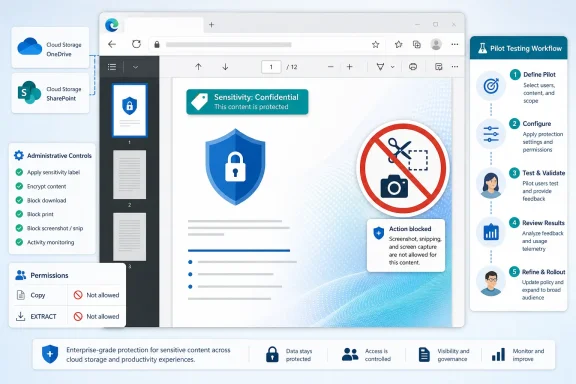 Confirm the SharePoint and OneDrive prerequisite
Before testing labels, confirm that SharePoint and OneDrive PDF sensitivity-label support is enabled in the tenant. Microsoft documents the following SharePoint Online Management Shell command:Set-SPOTenant -EnableSensitivityLabelforPDF $trueThis command enables SharePoint and OneDrive PDF sensitivity-label support. It requires SharePoint Online Management Shell version 16.0.24211.12000 or later.
Treat this as a readiness check, not as a new screenshot-blocking switch. The command supports protected-PDF handling in SharePoint and OneDrive; it does not independently turn Edge screenshot blocking on or off. The announced Edge behavior is tied to existing protection and applicable label rights.
A practical readiness sequence is:
- Update or verify the SharePoint Online Management Shell version.
- Check the tenant setting with the appropriate SharePoint Online administrative process.
- Run the documented command if PDF sensitivity-label support is not enabled.
- Confirm that pilot PDFs are already protected and can be opened from OneDrive or SharePoint.
- Move to label-rights review and user testing.
Find labels that need review
Microsoft recommends reviewing sensitivity labels that do not grant Copy or EXTRACT rights. That recommendation should guide the pilot list, but administrators should not assume that the absence of one individual right always produces one universal, identical capture result. The effective outcome depends on the protected document, the applicable user rights, the viewing path, and the service behavior being tested.Use the documented sensitivity-label encryption configuration destination rather than relying on a fixed portal click path. Purview navigation and pane names can vary by tenant experience and administrative updates. In your tenant, open the published sensitivity label used for protected files, edit its encryption or access-control configuration, and review the permissions assigned to the pilot users and groups. Microsoft’s configuration reference is Restrict access to content by using sensitivity labels to apply encryption.
For each label that can protect PDFs, document:
- Whether encryption is enabled
- The users or groups receiving the label’s permissions
- Whether Copy is granted
- Whether EXTRACT or similarly named extraction/content rights are granted
- The label owner and business owner
- The expected workflow for authorized users
- A pilot PDF stored in OneDrive for Business or a SharePoint Online library
| Field | What to record |
|---|---|
| Label name | Exact published sensitivity-label name |
| Encryption enabled | Yes or no |
| Pilot users or groups | Users whose effective rights will be tested |
| Copy review | Granted, absent, or requires further review |
| EXTRACT review | Granted, absent, or requires further review |
| Label owner | Team authorized to change rights |
| Pilot file location | OneDrive or SharePoint site and library |
| Business workflow | What the user must complete without bypassing policy |
Pilot with Microsoft’s recommended timing
Do not publish a label change or treat a pilot result as final immediately after configuration. Microsoft recommends piloting labels with a small group, waiting at least one hour to validate SharePoint and OneDrive behavior, and then waiting at least one day before making the label available more broadly.That timing makes the test plan executable:
- Select a small pilot group that represents the affected workflow.
- Use existing protected PDFs stored in OneDrive or SharePoint.
- Validate the intended behavior after at least one hour.
- Collect workflow and support feedback.
- Wait at least one day before expanding label availability or making a broader policy decision.
- Document the final decision for each affected label.
Use a test matrix that separates product promises from observations
The announced enforcement path is a protected PDF opened in the OneDrive or SharePoint web viewer in Microsoft Edge. Start there. Do not use an unprotected file, a local file, or an email attachment as the primary validation scenario.| Test path | Steps | What to record |
|---|---|---|
| Edge web PDF viewer | Open the protected PDF directly from OneDrive or SharePoint in Microsoft Edge without downloading it. | This is the announced enforcement path. Record whether the attempted capture is blocked and any user-facing message. |
| Alternate-browser web viewer | Open the same URL in an organization-supported non-Edge browser. | Local observation only. Do not promise equivalent behavior unless your tenant testing confirms it. |
| Download from Edge | Download the PDF from OneDrive or SharePoint, then open it through the normal approved desktop path. | Local observation only. Record download success, app used, and any relevant protection behavior separately. |
| Download from another browser | Repeat the download and desktop-open path from a supported alternate browser. | Local observation only; do not treat it as equivalent to the Edge web viewer. |
| Actual business workflow | Have the pilot user complete the work that previously required a capture or image reference. | Record whether an approved alternative lets the user complete the task. |
- Open the protected PDF in Edge from OneDrive or SharePoint.
- Confirm the file is being viewed in the browser and has not been downloaded.
- Attempt a rectangular capture with Windows + Shift + S.
- Attempt a full-screen capture with Print Screen.
- Attempt a capture with Snipping Tool.
- If your organization permits a managed recording or capture tool, test it separately and record it as a local result.
- Do not attach protected content to tickets. Record the outcome, any error text, and an approved redacted artifact if needed.
When results differ, record:
- User account and relevant group membership
- Sensitivity-label name
- Effective Copy and EXTRACT rights under review
- OneDrive or SharePoint location
- Browser and version
- Whether the PDF was viewed in the browser or downloaded
- Capture method attempted
- Exact observed behavior and message
- Date and pilot status
- Whether the business workflow was completed through an approved method
Make a decision after the pilot
The browser-routing question should follow the workflow decision, not replace it.Retain current label rights when authorized pilot users can complete the documented workflow through an approved alternative. Escalate to the label owner when a required workflow cannot be completed without capture or another unavailable action. The label owner, information-protection team, and business owner can then decide whether the workflow needs a new approved process or whether the label rights need formal review.
Only after that decision should IT consider using Conditional Access or browser-management policy to route protected-PDF web access to Edge. Routing users to Edge can support the announced web-viewer path, but it should not be used as a substitute for resolving an authorized business requirement.
Possible approved alternatives include:
- Sharing the protected file through an authorized collaboration location.
- Providing a controlled, approved excerpt or redacted reference.
- Using an existing review, approval, or case-management process that does not require a screenshot.
- Escalating a documented exception request to the label owner rather than asking users to remove protection or use unmanaged tools.
Frequently Asked Questions
Do administrators need a new switch to enable screenshot blocking?No separate screenshot-blocking switch has been announced. Confirm the SharePoint and OneDrive PDF sensitivity-label prerequisite with
Set-SPOTenant -EnableSensitivityLabelforPDF $true, then review existing protected-PDF labels and rights. The command is a readiness requirement, not a new enforcement control.Which labels should be tested first?
Start with labels used to protect PDFs in OneDrive and SharePoint, especially labels Microsoft recommends reviewing because Copy or EXTRACT rights are not granted. Validate the effective permissions for the actual pilot users.
Will screenshots be blocked in Chrome, Firefox, or a downloaded PDF?
Do not promise that. The announced enforcement applies to the OneDrive and SharePoint web PDF viewer in Edge. Non-Edge browser behavior and downloaded-file outcomes should be recorded as local tenant observations.
What should a user do if a legitimate task relied on a screenshot?
The user should submit a support request identifying the label, file location, browser, viewing path, and capture method. Support should route the case to the information-protection or label owner for an approved alternative or a formal rights review.
Should IT force Edge for protected PDFs?
Consider Edge-only routing through Conditional Access or browser-management policy only after the pilot decision. If authorized users can complete their work through approved alternatives, retain current label rights and document the supported Edge web-viewer path. If they cannot, escalate to the label owner before imposing browser routing.
Update: Additional details (July 20, 2026)
Windows Latest reports that Microsoft’s Message Center identifies the applicable label setting as the Do Not Allow Screen Capture control, with labels lacking Copy (EXTRACT) permission highlighted for review. This remains enforcement of existing Purview protections rather than a new tenant-wide screenshot-blocking switch.The report also states that mobile web access, along with non-Edge desktop browsers, is outside the supported enforcement path at general availability. Organizations with BYOD, contractor, or mobile-browser workflows should therefore treat Edge web-viewer testing as the supported scenario and document other paths separately.
OneDrive will block screenshots of sensitive PDFs, but only in Microsoft Edge (of course)
OneDrive is rolling out a new feature that prevents anyone from capturing screenshots of PDFs labeled "sensitive."
www.windowslatest.com
References
- Primary source: learn.microsoft.com
Enable sensitivity labels for files in SharePoint and OneDrive | Microsoft Learn
Administrators can enable sensitivity label support for Word, Excel, PowerPoint, and PDF files in SharePoint and OneDrive.learn.microsoft.com - Independent coverage: mc.merill.net
MC1409303 - Microsoft Edge enforces screen capture restrictions for sensitivity-labeled PDFs in OneDrive and SharePoint | Microsoft 365 Message Center Archive
Microsoft Edge will enforce screen capture restrictions on sensitivity-labeled PDFs in OneDrive and SharePoint web viewers starting August 2026, aligning with Microsoft Purview…mc.merill.net - Independent coverage: support.microsoft.com
View protected PDFs using Microsoft Edge on Windows or Mac | Microsoft Support
View protected PDFs using Microsoft Edge on Windows or Macsupport.microsoft.com - Independent coverage: sharepointstuff.com
Microsoft roadmap roundup – 06 July 2026 - SharePoint Stuff
This week's edition of the Microsoft 365 roadmap roundup, has new releases across SharePoint, Teams, Purview, and Copilot... sharepointstuff.com
- Independent coverage: techcommunity.microsoft.com
- Independent coverage: roadmapwatch.com
Last edited:

