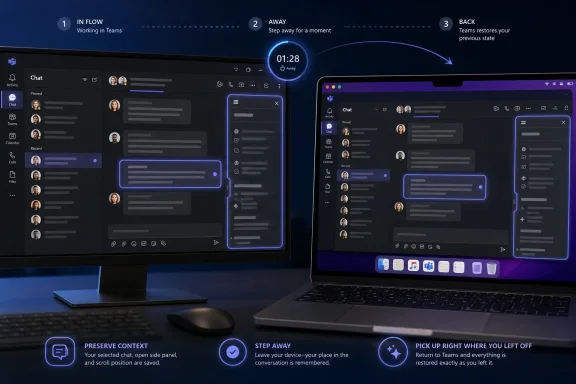
Microsoft Teams began rolling out context preservation for desktop and Mac users in April 2026, restoring recently selected tabs, open side panels, conversation layout, and Quick View message selection when users return to a conversation shortly after leaving it. The feature is small enough to sound like housekeeping, but it lands in one of Teams’ most persistent trouble spots: the cost of getting back to work after Teams forgets where you were. Microsoft is not merely polishing a pane or saving a tab; it is acknowledging that modern collaboration software now competes on continuity as much as communication.
The old fantasy of workplace software is that a user opens an app, completes a task, and exits cleanly. Teams has never lived in that world. It is the place where meetings interrupt chats, chats interrupt documents, documents spawn side panels, and a simple “let me check that thread” detour can turn into a five-minute excavation.
Context preservation is Microsoft’s admission that the typical Teams session is not linear. A user may open a channel, switch to a tab, review a file or app, keep a side panel open, jump into another chat, answer a mention, and then return expecting the previous workspace to still exist. Until now, that expectation has too often collided with a reset view.
The change described in Roadmap ID 557184 is intentionally scoped. It preserves state only when the user returns within a short duration, and it applies to Teams on desktop and Mac in the worldwide standard multi-tenant cloud. That means Microsoft is not promising permanent workspace snapshots or cross-device restoration. It is solving a narrower but more common problem: the accidental loss of place during rapid context switching.
That narrowness matters. Teams does not need to become an IDE-style workspace manager to feel better. For many users, it simply needs to stop punishing them for glancing away.
Teams has spent years expanding from a chat client into a collaboration shell. It now hosts Office documents, third-party apps, meeting notes, workflow surfaces, channel conversations, threaded discussions, Copilot experiences, and admin-governed enterprise integrations. The more Teams becomes a container for work, the more painful it becomes when the container forgets the shape of the work.
That is why context preservation deserves attention despite its modest release-note wording. A chat app can get away with reopening at the latest message. A work hub cannot. If a user was reviewing a tab while keeping a side panel open beside a conversation, the tab, panel, and layout together form the actual working context.
This is also a reminder that “productivity” is often lost in seconds, not hours. The user does not file a ticket because a pane collapsed. They simply click three extra times, search again, reopen a tab, scroll back to a message, and build a private resentment toward the tool they are required to use.
Quick View is part of a broader Teams direction: show the user enough context to act without forcing them to fully navigate the hierarchy. But Quick View only works if the user can trust it to hold their place. If a message list resets every time attention shifts, the feature becomes another transient overlay rather than a reliable work surface.
Restoring the selected message turns Quick View from a glance panel into a resumable task. That is a different posture. It tells the user that Teams understands the difference between “I am done with this” and “I had to leave for a moment.”
This is especially relevant for administrators, incident responders, support teams, and project leads who live inside bursts of parallel communication. They are not reading Teams like a newspaper. They are hopping between fragments of work, each with its own urgency and half-finished decision.
Context preservation fits that broader cleanup. It does not remove complexity; it makes complexity less hostile. A dense interface becomes more tolerable when it remembers the user’s last arrangement.
For WindowsForum readers, the comparison to Windows itself is hard to avoid. Users forgive complexity when state is durable. They can handle many windows, panels, and sessions if the system behaves predictably. What drives people mad is not that there are many surfaces; it is that the software discards their mental map.
Teams has long had a mental-map problem. A channel may contain posts, threads, files, tabs, pinned apps, meeting recaps, and side conversations. The user’s understanding of “where I am” is not just the channel name. It is a combination of selected surface, visible pane, scroll position, and active item.
Context preservation is Microsoft making that implicit map a little more explicit.
For IT departments, this kind of change is useful precisely because it requires little behavior change. Users do not need training to benefit from a restored tab. Admins do not need to evangelize a new workflow. There is no migration project, no new license tier, and no adoption campaign to explain why remembering an open panel is good.
The likely impact is felt most by people who keep Teams open all day. Those users are constantly switching between chats, channels, meetings, calendars, documents, and line-of-business apps embedded inside Teams. A saved layout reduces friction at the point where friction is most expensive: during task resumption.
There is also a support angle. When users believe an app is “losing” their work area, they often describe the problem imprecisely. They may say Teams is slow, broken, confusing, or unreliable. Sometimes the real issue is simpler: the app forces them to reconstruct state too often. Eliminating that irritation can improve perceived reliability even if the underlying architecture does not change dramatically.
That is the platform challenge. Teams is not just Microsoft’s UI; it is a host for other people’s workflows. If the host remembers the selected tab but the app inside the tab loses the selected record, query, form state, or scroll position, users will still experience the return as broken.
The better interpretation is that Teams is moving toward a more session-aware model. Developers building serious Teams apps should assume users will leave and return frequently. They should preserve meaningful state, avoid unnecessary reloads, and treat short interruptions as normal rather than exceptional.
This matters for internal enterprise apps as much as commercial ones. Many organizations have Teams tabs that wrap dashboards, ticketing tools, Power Apps, SharePoint pages, or custom line-of-business systems. Those experiences now sit inside a client that is trying harder to preserve continuity. Poorly behaved embedded content will stand out more.
The feature is also limited to desktop and Mac. That makes sense because complex layouts, side panels, and multi-surface workflows are more central on larger screens. But it also means users moving between phone, web, and desktop should not expect a universal session handoff.
There is another boundary: preservation is not the same as sync. The feature appears designed to restore recent local conversation and view state, not to create a roamable workspace that follows a user across machines. That distinction matters in hot-desking environments, virtual desktop infrastructure, and shared-device scenarios.
Admins should also resist the temptation to treat this as a fix for information architecture. If a tenant has too many channels, inconsistent naming, abandoned teams, or tabs that nobody owns, context preservation will merely make the clutter slightly easier to resume. It will not decide what should exist in the first place.
Teams users do not just need to reach the right information. They need to recover the state of thinking they had before interruption. The selected tab, open side panel, and highlighted Quick View message are proxies for that state. They are the breadcrumbs of attention.
This is why small persistence features can feel disproportionately humane. They reduce the feeling that the user is serving the software. They let a person return to the same shape of work without silently redoing the setup.
Microsoft has been under pressure to make Teams feel lighter, faster, and less sprawling. Performance work helps, but speed alone is not enough if the app quickly takes users to the wrong blank surface. A fast reset is still a reset.
Teams, by contrast, has often felt like a place users enter rather than a set of durable work surfaces they own. Context preservation nudges it closer to the browser model. It says that a conversation can have a local state worth keeping, not just a latest message worth displaying.
That is important because Teams increasingly hosts work that previously lived in browser tabs. The more Microsoft pulls apps, documents, dashboards, and AI-assisted workflows into Teams, the more Teams must inherit the expectations users have for persistent web workspaces.
If Microsoft wants Teams to be the front door for Microsoft 365, it has to behave less like a notification feed and more like an operating environment. Remembering layout is one of the basic manners of such an environment.
Still, IT teams should watch for user reports during the transition. Any feature that changes restoration behavior can create edge cases, especially in environments with custom Teams apps, conditional access policies, virtual desktops, or aggressive client reset practices. If users say Teams is reopening something they did not expect, that feedback may be as useful as complaints that it is not restoring enough.
The most practical response is observational. Help desks should know the feature exists, understand that it is intended to restore recent conversation state, and avoid treating every restored panel or selected message as a glitch. Conversely, they should not promise users that Teams will preserve all work indefinitely.
There may also be privacy and shoulder-surfing considerations in some settings. Restoring a previously selected message or open panel is convenient, but in shared workspaces it can reveal what a user was last viewing. That is not a new problem — Teams already opens to recent activity — but state restoration makes the last workspace more specific.
 Teams Finally Treats Interruption as the Default State
The old fantasy of workplace software is that a user opens an app, completes a task, and exits cleanly. Teams has never lived in that world. It is the place where meetings interrupt chats, chats interrupt documents, documents spawn side panels, and a simple “let me check that thread” detour can turn into a five-minute excavation.Context preservation is Microsoft’s admission that the typical Teams session is not linear. A user may open a channel, switch to a tab, review a file or app, keep a side panel open, jump into another chat, answer a mention, and then return expecting the previous workspace to still exist. Until now, that expectation has too often collided with a reset view.
The change described in Roadmap ID 557184 is intentionally scoped. It preserves state only when the user returns within a short duration, and it applies to Teams on desktop and Mac in the worldwide standard multi-tenant cloud. That means Microsoft is not promising permanent workspace snapshots or cross-device restoration. It is solving a narrower but more common problem: the accidental loss of place during rapid context switching.
That narrowness matters. Teams does not need to become an IDE-style workspace manager to feel better. For many users, it simply needs to stop punishing them for glancing away.
The Smallest UI Fixes Often Reveal the Biggest Product Debt
If this feature sounds obvious, that is the point. “Remember the tab I was on” is not a moonshot; it is table stakes in browsers, editors, messaging apps, and operating systems. Yet in Teams, the accumulation of chats, channels, tabs, meeting artifacts, apps, loops, files, and side panels has made persistence harder than it looks.Teams has spent years expanding from a chat client into a collaboration shell. It now hosts Office documents, third-party apps, meeting notes, workflow surfaces, channel conversations, threaded discussions, Copilot experiences, and admin-governed enterprise integrations. The more Teams becomes a container for work, the more painful it becomes when the container forgets the shape of the work.
That is why context preservation deserves attention despite its modest release-note wording. A chat app can get away with reopening at the latest message. A work hub cannot. If a user was reviewing a tab while keeping a side panel open beside a conversation, the tab, panel, and layout together form the actual working context.
This is also a reminder that “productivity” is often lost in seconds, not hours. The user does not file a ticket because a pane collapsed. They simply click three extra times, search again, reopen a tab, scroll back to a message, and build a private resentment toward the tool they are required to use.
Quick View Is Where the Feature Becomes More Than Cosmetic
The most interesting detail is not tab restoration. It is Quick View restoring the previously selected message. That sounds minor until you consider how Teams is increasingly built around triage: mentions, unread messages, drafts, followed threads, recent activity, and slices of conversation surfaced outside their original channel.Quick View is part of a broader Teams direction: show the user enough context to act without forcing them to fully navigate the hierarchy. But Quick View only works if the user can trust it to hold their place. If a message list resets every time attention shifts, the feature becomes another transient overlay rather than a reliable work surface.
Restoring the selected message turns Quick View from a glance panel into a resumable task. That is a different posture. It tells the user that Teams understands the difference between “I am done with this” and “I had to leave for a moment.”
This is especially relevant for administrators, incident responders, support teams, and project leads who live inside bursts of parallel communication. They are not reading Teams like a newspaper. They are hopping between fragments of work, each with its own urgency and half-finished decision.
Microsoft Is Smoothing the Edges of a Busier Teams
The timing is not accidental. Teams has been changing quickly, especially around its chat and channels experience. Microsoft has been trying to reduce clutter, unify views, introduce more flexible channel layouts, and make Teams feel less like a maze of separate places.Context preservation fits that broader cleanup. It does not remove complexity; it makes complexity less hostile. A dense interface becomes more tolerable when it remembers the user’s last arrangement.
For WindowsForum readers, the comparison to Windows itself is hard to avoid. Users forgive complexity when state is durable. They can handle many windows, panels, and sessions if the system behaves predictably. What drives people mad is not that there are many surfaces; it is that the software discards their mental map.
Teams has long had a mental-map problem. A channel may contain posts, threads, files, tabs, pinned apps, meeting recaps, and side conversations. The user’s understanding of “where I am” is not just the channel name. It is a combination of selected surface, visible pane, scroll position, and active item.
Context preservation is Microsoft making that implicit map a little more explicit.
The Enterprise Win Is Fewer Micro-Failures, Not Fewer Meetings
No one should oversell this as a productivity revolution. It will not make meetings shorter, stop notification overload, or fix bad channel governance. It will not make a chaotic tenant coherent. But enterprise software rarely improves in one cinematic leap; it improves when hundreds of micro-failures stop happening.For IT departments, this kind of change is useful precisely because it requires little behavior change. Users do not need training to benefit from a restored tab. Admins do not need to evangelize a new workflow. There is no migration project, no new license tier, and no adoption campaign to explain why remembering an open panel is good.
The likely impact is felt most by people who keep Teams open all day. Those users are constantly switching between chats, channels, meetings, calendars, documents, and line-of-business apps embedded inside Teams. A saved layout reduces friction at the point where friction is most expensive: during task resumption.
There is also a support angle. When users believe an app is “losing” their work area, they often describe the problem imprecisely. They may say Teams is slow, broken, confusing, or unreliable. Sometimes the real issue is simpler: the app forces them to reconstruct state too often. Eliminating that irritation can improve perceived reliability even if the underlying architecture does not change dramatically.
Developers Should Read This as a Signal About Teams as a Platform
For Teams app developers, context preservation raises expectations. If Microsoft is preserving the shell state, embedded apps and tabs will be judged by whether they preserve their own internal state with equal care. A restored tab that reloads into a blank landing page will feel only half fixed.That is the platform challenge. Teams is not just Microsoft’s UI; it is a host for other people’s workflows. If the host remembers the selected tab but the app inside the tab loses the selected record, query, form state, or scroll position, users will still experience the return as broken.
The better interpretation is that Teams is moving toward a more session-aware model. Developers building serious Teams apps should assume users will leave and return frequently. They should preserve meaningful state, avoid unnecessary reloads, and treat short interruptions as normal rather than exceptional.
This matters for internal enterprise apps as much as commercial ones. Many organizations have Teams tabs that wrap dashboards, ticketing tools, Power Apps, SharePoint pages, or custom line-of-business systems. Those experiences now sit inside a client that is trying harder to preserve continuity. Poorly behaved embedded content will stand out more.
The Limits Are as Important as the Promise
Microsoft’s wording leaves room for caution. “Within a short duration of time” is deliberately vague in the roadmap text supplied for the feature, though related message-center reporting has described a 30-minute window. In practice, users should treat this as short-term restoration, not a guarantee that Teams will preserve every workspace indefinitely.The feature is also limited to desktop and Mac. That makes sense because complex layouts, side panels, and multi-surface workflows are more central on larger screens. But it also means users moving between phone, web, and desktop should not expect a universal session handoff.
There is another boundary: preservation is not the same as sync. The feature appears designed to restore recent local conversation and view state, not to create a roamable workspace that follows a user across machines. That distinction matters in hot-desking environments, virtual desktop infrastructure, and shared-device scenarios.
Admins should also resist the temptation to treat this as a fix for information architecture. If a tenant has too many channels, inconsistent naming, abandoned teams, or tabs that nobody owns, context preservation will merely make the clutter slightly easier to resume. It will not decide what should exist in the first place.
A Tiny Memory Feature Carries a Larger Design Confession
The most revealing part of this update is philosophical. For years, productivity suites have talked about collaboration as if the main problem were access: put everyone in the same space, connect the files, surface the chat, integrate the meeting, add the app. But once everything is accessible, the next problem is orientation.Teams users do not just need to reach the right information. They need to recover the state of thinking they had before interruption. The selected tab, open side panel, and highlighted Quick View message are proxies for that state. They are the breadcrumbs of attention.
This is why small persistence features can feel disproportionately humane. They reduce the feeling that the user is serving the software. They let a person return to the same shape of work without silently redoing the setup.
Microsoft has been under pressure to make Teams feel lighter, faster, and less sprawling. Performance work helps, but speed alone is not enough if the app quickly takes users to the wrong blank surface. A fast reset is still a reset.
The Real Competition Is the Browser Tab
Teams competes with Slack, Zoom, Google Workspace, and Cisco Webex, but it also competes with a much older mental model: the browser tab left exactly where the user abandoned it. People trust browser tabs because they persist messily but predictably. You may have too many of them, but they usually do not forget what page they were on.Teams, by contrast, has often felt like a place users enter rather than a set of durable work surfaces they own. Context preservation nudges it closer to the browser model. It says that a conversation can have a local state worth keeping, not just a latest message worth displaying.
That is important because Teams increasingly hosts work that previously lived in browser tabs. The more Microsoft pulls apps, documents, dashboards, and AI-assisted workflows into Teams, the more Teams must inherit the expectations users have for persistent web workspaces.
If Microsoft wants Teams to be the front door for Microsoft 365, it has to behave less like a notification feed and more like an operating environment. Remembering layout is one of the basic manners of such an environment.
Admins Should Watch the Rollout, Not Over-Plan It
Because the feature is listed as launched and generally available for April 2026, most organizations in the worldwide standard cloud should treat it as either present or arriving through normal client and service rollout behavior. There is no obvious reason to build a formal deployment plan around it unless an organization has unusually strict change-management rules for Teams behavior.Still, IT teams should watch for user reports during the transition. Any feature that changes restoration behavior can create edge cases, especially in environments with custom Teams apps, conditional access policies, virtual desktops, or aggressive client reset practices. If users say Teams is reopening something they did not expect, that feedback may be as useful as complaints that it is not restoring enough.
The most practical response is observational. Help desks should know the feature exists, understand that it is intended to restore recent conversation state, and avoid treating every restored panel or selected message as a glitch. Conversely, they should not promise users that Teams will preserve all work indefinitely.
There may also be privacy and shoulder-surfing considerations in some settings. Restoring a previously selected message or open panel is convenient, but in shared workspaces it can reveal what a user was last viewing. That is not a new problem — Teams already opens to recent activity — but state restoration makes the last workspace more specific.
The April Teams Change That Rewards People Who Bounce Between Threads
This update is best understood as a friction reducer for the way Teams is actually used, not the way collaboration software is demoed. It helps the user who jumps away briefly and expects Teams to keep the desk arranged as it was.- Microsoft lists context preservation for Teams under Roadmap ID 557184, with launched status and general availability beginning in April 2026.
- The feature applies to Microsoft Teams on desktop and Mac for worldwide standard multi-tenant cloud customers.
- Returning to a conversation shortly after leaving it can restore the selected tab, open side panel, and previous layout.
- Returning to Quick View shortly after leaving it can restore the previously selected message.
- The feature should reduce everyday re-navigation friction, but it should not be treated as permanent workspace persistence or cross-device session sync.
- Developers and admins should pay attention to embedded apps and custom tabs, because Teams preserving its shell state will make app-level state loss more noticeable.
References
- Primary source: Microsoft 365 Roadmap
Published: 2026-07-01T23:03:18.2442931Z
Microsoft 365 Roadmap | Microsoft 365
The Microsoft 365 Roadmap lists updates that are currently planned for applicable subscribers. Check here for more information on the status of new features and updates.www.microsoft.com
- Official source: support.microsoft.com
Use a tab in a channel or chat in Microsoft Teams | Microsoft Support
Learn to use an app or specific file in a tab in Microsoft Teams, including adding, removing, getting a link to a tab, and more.support.microsoft.com - Related coverage: blog-en.topedia.com
Microsoft Teams will automatically restore the conversation or view state when you switch away briefly | Topedia Blog
Teams will soon restore users' previously selected tab, open side panels, and message selection when they return to a chat, channel, or Quick View within 30 minutes - helping them pick up right where they left off.blog-en.topedia.com - Related coverage: m365admin.handsontek.net
Microsoft Teams: Context preservation in Teams - M365 Admin
When you return to a conversation within a short duration of time, your selected tab, opened side panel, and layout are restored automatically, so you can keep working without resetting your workspace. In addition, returning to a Quick View within a short duration will restore your previously...m365admin.handsontek.net - Official source: learn.microsoft.com
Multi-window Experience for App Content - Teams | Microsoft Learn
Learn the types of Stageview, full screen UI component invoked to surface your app content. Open content in multi-window using deep links, Adaptive Cards or TeamsJS.learn.microsoft.com - Related coverage: kbworks.eu
Microsoft Teams Context Preservation: No More Lost Tabs
Learn how Microsoft Teams Context Preservation keeps your tabs and panels active for 30 minutes to boost productivity. Rolling out April 2026.kbworks.eu
- Official source: techcommunity.microsoft.com
- Official source: adoption.microsoft.com
- Official source: news.microsoft.com
- Related coverage: techspot.com
Microsoft says the revamped Teams app is twice as fast, uses half the memory | TechSpot
Microsoft has released a revamped and redesigned Teams app for Windows and macOS. The preview version was launched back in March, with the company planning for a...www.techspot.com - Related coverage: windowscentral.com
Microsoft Teams finally adds threads in channels | Windows Central
Microsoft Teams now supports threaded conversations in channels.www.windowscentral.com - Related coverage: techradar.com
Microsoft Teams is finally adding this much-demanded feature - and it could massively boost your productivity | TechRadar
Chats and channels in Microsoft Teams will soon get pop-out optionswww.techradar.com - Related coverage: itpro.com
Microsoft Teams just added a convenient new feature you can find in Slack | IT Pro
Microsoft has announced a raft of new updates for Teams, including a new threaded conversations feature that will simplify long-winded discussions for users.www.itpro.com