

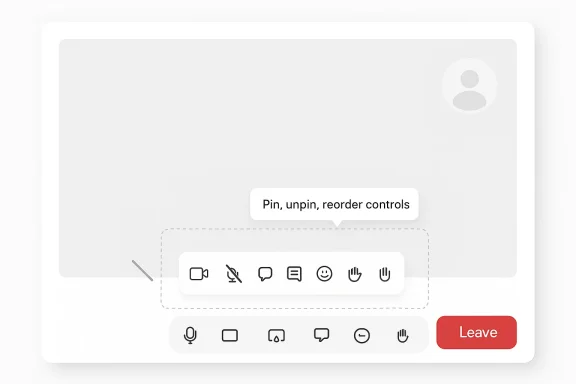
Microsoft Teams is getting a small but potentially meaningful meeting-bar redesign that could save people from some of the app’s most familiar accidental taps. According to Microsoft’s own roadmap language, the Raise Hand control will be tucked under Reactions, while the Leave button will be moved farther to the right to reduce mis-clicks and separate it from the rest of the meeting controls. Microsoft is also preparing a companion feature that lets users pin, unpin, and reorder meeting toolbar controls, giving regular Teams users more say over the layout of their calls.
The change sounds modest, but it touches one of the most sensitive surfaces in modern collaboration software: the in-meeting command bar. Teams meetings have become a kind of digital workplace lobby, and in that space, layout matters almost as much as functionality. A button in the wrong place can mean an unintended raised hand, an awkward interruption, or an accidental exit from a meeting at the worst possible moment.
Microsoft has been steadily iterating on Teams’ meeting interface for years, and this update fits a long pattern of trying to make the experience less cluttered and more forgiving. Earlier Teams toolbar changes already introduced a more discoverable React control, a clearer View button, and a redesigned More menu in public preview, which shows that the company has been rethinking the whole meeting-control model rather than merely shuffling icons around.
The timing also matters. The Microsoft 365 roadmap entry described in reports points to a June 2026 rollout window, but roadmap dates are always subject to change. In practice, that means enterprise admins should treat the update as coming soon rather than guaranteed on a specific day, and users should expect at least some testing or staged rollout before broad availability.
What makes the story interesting is not the button placement itself, but the behavior it reveals. Microsoft is acknowledging that productivity software needs to be designed around human error, not just around feature density. In a world of back-to-back calls, people often react with muscle memory, and Teams seems to be moving toward a layout that reduces friction before users even realize they’ve made a mistake.
That design logic is especially relevant for the Leave button. In conference software, a single click that ends your participation can be more disruptive than a stray reaction emoji, and that is why placing exit controls away from routine collaboration tools is a sound usability move. The company’s wording about the new layout—it may feel different at first—reads like a classic acknowledgment that familiar interfaces are not always the best interfaces.
The benefit is not only social but operational. In long meetings, every moment spent resolving a mistaken control press creates tiny interruptions that add up, especially for teams that use reactions and hand-raising as part of meeting etiquette. Microsoft’s redesign is aimed at exactly that class of irritation: low-level, high-frequency, workflow-breaking friction.
There is also a subtle accessibility implication. Better separation of controls can help users with motor impairments, touch-device users, and anyone navigating a crowded meeting toolbar under time pressure. Even when Microsoft does not position a feature as an accessibility update, changes that reduce accidental activation frequently benefit a wider range of users than the original bug report suggests.
The second notable change is the movement of the Leave button to the far right of the meeting window. This mirrors a common interface pattern in productivity software: isolate the destructive or session-ending command so it is less likely to be triggered while aiming for something adjacent. In that sense, Microsoft is borrowing from a classic UX principle—make the dangerous thing harder to hit.
This is a notable departure from the old one-size-fits-all toolbar philosophy. Meeting software historically tended to impose the same arrangement on all users, assuming that consistency was the main goal. Microsoft’s move suggests a more mature view: consistency still matters, but flexibility can be just as valuable when it reduces cognitive load.
This is also consistent with how Microsoft has handled other meeting-view improvements. The company has repeatedly emphasized giving users more control over how they view meetings, how they interact with participants, and how they access frequently used functions. The toolbar redesign is therefore less of a one-off tweak and more of a continuation of Teams’ gradual shift toward a more adaptive interface.
That direction also aligns with broader trends in collaboration software. Rival platforms have spent years trying to reduce the number of clicks needed to communicate intentions, react to content, or manage meeting status. Microsoft’s answer is not simply to add more features; it is to make the existing ones easier to reach without mistakes.
That is a sensible bet for organizations with heavy meeting loads. If employees spend hours a day in Teams, shaving even a few seconds off each interaction becomes meaningful over time. In that context, the new toolbar is less about novelty and more about cumulative productivity.
For enterprises, the story is broader. Meeting habits, support costs, onboarding friction, and user satisfaction all matter when a collaboration tool becomes the default operating system for internal communication. A toolbar that better matches workflow can reduce confusion in large rollouts, particularly among staff who use Teams on a mix of desktop, web, and mobile devices.
There is also a behavioral loop at work. If users trust the interface to protect them from accidental actions, they are more likely to use the feature set in the first place. That could actually increase use of reactions and hand-raising, which are meant to improve meeting civility and participation.
That decision may depend on policy. Highly regulated environments often prefer stable, documented setups, while creative teams may welcome more flexibility. Microsoft’s move creates room for both approaches, though administrators may need internal guidance to keep the rollout from becoming a support headache.
That matters because users routinely compare Teams against Zoom, Google Meet, and other meeting platforms on one simple metric: how annoying is it to do basic things? If a platform makes reaction controls easier to use and prevents accidental exits, it earns goodwill through competence rather than spectacle. Teams has had to work harder than some rivals on this front, so incremental polish is strategically important.
The key is repetition. Users may not notice one button moving, but they absolutely notice when the interface consistently helps them avoid errors. That is the sort of practical polish that slowly turns into brand loyalty, especially in organizations that standardize on one platform for years.
That tradeoff is especially defensible when the software is used by millions of people in high-stakes work settings. A small interface adjustment that initially feels odd can become an accepted norm quickly if it eliminates enough friction. In other words, Microsoft is asking users for a short period of discomfort in exchange for long-term convenience.
Microsoft has also long used meeting reactions and hand-raising as part of the engagement story in Teams. That means the company has an incentive to keep these tools visible, usable, and understandable without making them easy to trigger by mistake. The new placement attempts to strike that balance by keeping functionality available while reducing accidental activation.
The same is true for reactions. Users often want a quick way to affirm, laugh, or respond without taking over the discussion. When those tools sit beside more critical meeting controls, the chance of a wrong tap rises; when they are grouped logically, the interface becomes easier to predict.
For hosts, the redesign may also reduce the need to interpret accidental signals. If a participant mistakenly raises a hand, the host may spend time responding to a non-issue. Microsoft is essentially trying to cut out the false positives before they reach the presenter’s attention.
The toolbar customization feature adds another layer to the admin story. Once users can reorder controls, some organizations may decide to recommend a canonical arrangement, while others may leave it open. Either way, the support burden will depend on how much variation Microsoft allows across clients and how much the new design differs from the current meeting bar.
A sensible rollout plan would include a few very simple talking points. Users need to know where the Leave button moved, where Raise Hand went, and how toolbar customization works. Once people understand those three ideas, most of the confusion should fade quickly.
The good news is that this is not the kind of update that usually breaks core functionality. It is a layout and interaction change, not a platform migration. That makes the rollout easier to absorb, though it still deserves communication because Teams is one of those tools where small changes can trigger outsized reactions.
If Microsoft continues in this direction, expect more emphasis on control, flexibility, and safer defaults. The company has already shown it is willing to adjust meeting controls, improve discoverability, and let users customize their workspace, and this toolbar redesign looks like another step in that broader strategy. The end goal is a Teams experience that feels less like a fixed interface and more like a meeting environment that adapts to the way people actually communicate.
Source: Windows Central Teams is finally fixing those annoying Raise Hand and Leave buttons
 Overview
The change sounds modest, but it touches one of the most sensitive surfaces in modern collaboration software: the in-meeting command bar. Teams meetings have become a kind of digital workplace lobby, and in that space, layout matters almost as much as functionality. A button in the wrong place can mean an unintended raised hand, an awkward interruption, or an accidental exit from a meeting at the worst possible moment.Microsoft has been steadily iterating on Teams’ meeting interface for years, and this update fits a long pattern of trying to make the experience less cluttered and more forgiving. Earlier Teams toolbar changes already introduced a more discoverable React control, a clearer View button, and a redesigned More menu in public preview, which shows that the company has been rethinking the whole meeting-control model rather than merely shuffling icons around.
The timing also matters. The Microsoft 365 roadmap entry described in reports points to a June 2026 rollout window, but roadmap dates are always subject to change. In practice, that means enterprise admins should treat the update as coming soon rather than guaranteed on a specific day, and users should expect at least some testing or staged rollout before broad availability.
What makes the story interesting is not the button placement itself, but the behavior it reveals. Microsoft is acknowledging that productivity software needs to be designed around human error, not just around feature density. In a world of back-to-back calls, people often react with muscle memory, and Teams seems to be moving toward a layout that reduces friction before users even realize they’ve made a mistake.
Why Microsoft Is Changing the Toolbar
Teams has always had a tension between visibility and safety. The more prominent a button is, the easier it is to find in a hurry, but the easier it is to hit by accident. Raising a hand and leaving a meeting are both actions that should be deliberate, and Microsoft appears to be treating them that way by moving them away from the hottest parts of the toolbar.That design logic is especially relevant for the Leave button. In conference software, a single click that ends your participation can be more disruptive than a stray reaction emoji, and that is why placing exit controls away from routine collaboration tools is a sound usability move. The company’s wording about the new layout—it may feel different at first—reads like a classic acknowledgment that familiar interfaces are not always the best interfaces.
A Small Change With Real Behavioral Impact
This kind of adjustment is often underestimated because it doesn’t add a flashy new capability. Yet UI changes can have outsized effects when they alter the probability of common mistakes. A slightly altered button order can reduce the number of times presenters pause to ask whether a participant has a question, only to discover that the user meant to tap an emoji reaction instead of raising a hand.The benefit is not only social but operational. In long meetings, every moment spent resolving a mistaken control press creates tiny interruptions that add up, especially for teams that use reactions and hand-raising as part of meeting etiquette. Microsoft’s redesign is aimed at exactly that class of irritation: low-level, high-frequency, workflow-breaking friction.
- Fewer accidental hand raises.
- Lower risk of unintended meeting exits.
- Less confusion between reactions and status signals.
- Better separation between disruptive and routine controls.
- More predictable behavior for frequent Teams users.
The Human Factors Angle
The change also reflects a broader shift in software design toward error prevention instead of merely error recovery. Rather than asking users to adapt to the app, Microsoft is adapting the app to common usage patterns. That matters in enterprise environments, where a small usability win can scale across hundreds or thousands of employees.There is also a subtle accessibility implication. Better separation of controls can help users with motor impairments, touch-device users, and anyone navigating a crowded meeting toolbar under time pressure. Even when Microsoft does not position a feature as an accessibility update, changes that reduce accidental activation frequently benefit a wider range of users than the original bug report suggests.
What the New Layout Changes
The clearest visible change is the relocation of Raise Hand under Reactions. That bundling makes conceptual sense because both features communicate status or sentiment rather than controlling the meeting itself. It also reduces the chance that users will interpret hand-raising as a separate, high-priority action when it is better understood as part of the broader expression toolset.The second notable change is the movement of the Leave button to the far right of the meeting window. This mirrors a common interface pattern in productivity software: isolate the destructive or session-ending command so it is less likely to be triggered while aiming for something adjacent. In that sense, Microsoft is borrowing from a classic UX principle—make the dangerous thing harder to hit.
Toolbar Customization Arrives Too
The accompanying customization feature may prove just as important as the new layout. Microsoft says users will be able to pin, unpin, and reorder meeting controls, which should help people tailor the toolbar around the actions they use most. For power users, that’s a practical improvement; for everyone else, it means less hunting around mid-meeting for controls they use every day.This is a notable departure from the old one-size-fits-all toolbar philosophy. Meeting software historically tended to impose the same arrangement on all users, assuming that consistency was the main goal. Microsoft’s move suggests a more mature view: consistency still matters, but flexibility can be just as valuable when it reduces cognitive load.
- Raise Hand moves under Reactions.
- Leave shifts to the right side of the meeting window.
- Toolbar items can be pinned and unpinned.
- Controls can be reordered to fit workflow.
- The new layout is designed to reduce mis-clicks.
How This Fits Teams’ Design Evolution
The Teams interface has been evolving in a series of incremental but meaningful steps. Earlier toolbar usability improvements, first shown in public preview, added a more explicit React button and a refreshed More menu to make the meeting interface easier to navigate. The latest update continues that same trajectory, moving from discoverability toward personalization and error reduction.This is also consistent with how Microsoft has handled other meeting-view improvements. The company has repeatedly emphasized giving users more control over how they view meetings, how they interact with participants, and how they access frequently used functions. The toolbar redesign is therefore less of a one-off tweak and more of a continuation of Teams’ gradual shift toward a more adaptive interface.
From Static Interface to Adaptive Workspace
A static toolbar assumes that all meetings are the same, which is clearly not true. A quick standup, a sales pitch, a training session, and a large all-hands each demand different levels of interaction, and the most effective controls vary by context. Allowing users to customize the meeting bar brings Teams closer to the idea of a personalized workspace rather than a fixed command strip.That direction also aligns with broader trends in collaboration software. Rival platforms have spent years trying to reduce the number of clicks needed to communicate intentions, react to content, or manage meeting status. Microsoft’s answer is not simply to add more features; it is to make the existing ones easier to reach without mistakes.
- More intuitive meeting navigation.
- Better separation of status actions and session actions.
- Greater control for frequent meeting hosts.
- Less dependence on a single toolbar layout.
- A design that supports different meeting styles.
Why This Matters in Enterprise Environments
In enterprise use, toolbar consistency can be a double-edged sword. Standard layouts help with training and support, but they can also freeze in place arrangements that no longer reflect how teams actually work. By letting users customize controls, Microsoft is betting that a modest loss of uniformity will be offset by a gain in efficiency.That is a sensible bet for organizations with heavy meeting loads. If employees spend hours a day in Teams, shaving even a few seconds off each interaction becomes meaningful over time. In that context, the new toolbar is less about novelty and more about cumulative productivity.
Enterprise vs Consumer Impact
For consumers, the most obvious benefit is emotional: fewer embarrassing clicks. Accidentally raising a hand in a casual meeting or hitting Leave while trying to react is a tiny failure, but it’s the kind of thing people remember because it happens in front of others. The new layout should make everyday calls feel slightly calmer and more forgiving.For enterprises, the story is broader. Meeting habits, support costs, onboarding friction, and user satisfaction all matter when a collaboration tool becomes the default operating system for internal communication. A toolbar that better matches workflow can reduce confusion in large rollouts, particularly among staff who use Teams on a mix of desktop, web, and mobile devices.
Why Consumers Notice Errors More Quickly
Consumer users often interpret interface mistakes socially. If they accidentally react, raise a hand, or leave a meeting, the issue is not just technical; it’s visible to everyone else. That visibility gives even small UI changes an outsized perception effect, because the software is helping users avoid an awkward public moment.There is also a behavioral loop at work. If users trust the interface to protect them from accidental actions, they are more likely to use the feature set in the first place. That could actually increase use of reactions and hand-raising, which are meant to improve meeting civility and participation.
Why Enterprises Care About Standardization
Enterprises, however, need to think about change management. A toolbar that can be reordered is useful, but it also creates the possibility of inconsistent user experiences across departments. IT teams will want to decide whether to encourage a default configuration or let employees personalize controls independently.That decision may depend on policy. Highly regulated environments often prefer stable, documented setups, while creative teams may welcome more flexibility. Microsoft’s move creates room for both approaches, though administrators may need internal guidance to keep the rollout from becoming a support headache.
- Consumers benefit most from fewer visible mistakes.
- Enterprises benefit most from workflow fit and efficiency.
- Admins may need policy guidance for consistency.
- Training materials may need light updates.
- Power users will likely adopt the customization first.
Competitive Context
This update also says something about Microsoft’s competitive posture. Collaboration suites now compete not only on calling quality or file sharing, but on the elegance of daily interactions. By reworking the meeting toolbar, Microsoft is signaling that it still sees Teams as a product whose micro-interactions matter just as much as its major feature launches.That matters because users routinely compare Teams against Zoom, Google Meet, and other meeting platforms on one simple metric: how annoying is it to do basic things? If a platform makes reaction controls easier to use and prevents accidental exits, it earns goodwill through competence rather than spectacle. Teams has had to work harder than some rivals on this front, so incremental polish is strategically important.
The UX Arms Race in Meetings
A lot of collaboration software competition has become a quiet UX arms race. One vendor improves meeting reactions, another refines host controls, and a third reduces friction in the pre-join flow. Microsoft’s toolbar work fits neatly into that pattern: it is not a headline-grabbing overhaul, but it is exactly the kind of refinement that can shape user preference over time.The key is repetition. Users may not notice one button moving, but they absolutely notice when the interface consistently helps them avoid errors. That is the sort of practical polish that slowly turns into brand loyalty, especially in organizations that standardize on one platform for years.
Why Microsoft Is Leaning Into Familiarity
It is telling that Microsoft’s own language anticipates resistance by saying the change may feel different at first. That is a subtle admission that familiarity has value, but not sacred value. In a mature product like Teams, the company seems willing to disrupt muscle memory if the payoff is fewer mistakes and a cleaner meeting experience.That tradeoff is especially defensible when the software is used by millions of people in high-stakes work settings. A small interface adjustment that initially feels odd can become an accepted norm quickly if it eliminates enough friction. In other words, Microsoft is asking users for a short period of discomfort in exchange for long-term convenience.
- Microsoft is competing on usability, not just features.
- Small interface gains can drive long-term loyalty.
- Familiarity is being traded for fewer errors.
- Toolbar polish matters in crowded collaboration markets.
- Teams continues to evolve through iterative UX changes.
The Role of Reactions and Hand-Raising
The fact that Raise Hand is being grouped with reactions is not merely a visual cleanup. It reflects the reality that both controls are forms of expression, even if one is more structured than the other. In practice, users often treat hand-raising as a signal and reactions as shorthand, so collapsing them under one umbrella makes the meeting model more coherent.Microsoft has also long used meeting reactions and hand-raising as part of the engagement story in Teams. That means the company has an incentive to keep these tools visible, usable, and understandable without making them easy to trigger by mistake. The new placement attempts to strike that balance by keeping functionality available while reducing accidental activation.
A Better Match for Meeting Etiquette
Meeting etiquette is a surprisingly important part of software design. If the app’s controls make it too easy to interrupt the flow, people stop using the tools that are supposed to improve civility and turn-taking. A cleaner grouping may encourage more people to use the hand-raise feature intentionally, which is the behavior Microsoft wants.The same is true for reactions. Users often want a quick way to affirm, laugh, or respond without taking over the discussion. When those tools sit beside more critical meeting controls, the chance of a wrong tap rises; when they are grouped logically, the interface becomes easier to predict.
What This Means for Presenters
Presenters are likely to see the most immediate benefit from the change. Fewer accidental hand raises mean fewer detours in the middle of a presentation, and a more clearly separated Leave button should reduce the chance that a participant disappears from the call while trying to interact. That makes the room feel more stable and easier to manage.For hosts, the redesign may also reduce the need to interpret accidental signals. If a participant mistakenly raises a hand, the host may spend time responding to a non-issue. Microsoft is essentially trying to cut out the false positives before they reach the presenter’s attention.
Administration, Training, and Rollout Questions
The biggest practical question is how organizations will handle the rollout. Because Microsoft 365 roadmap dates can move, IT teams should expect the change to arrive in a staged manner and plan communication accordingly. That means brief user education, screenshots in training materials, and perhaps a note in internal help pages if the new layout lands broadly.The toolbar customization feature adds another layer to the admin story. Once users can reorder controls, some organizations may decide to recommend a canonical arrangement, while others may leave it open. Either way, the support burden will depend on how much variation Microsoft allows across clients and how much the new design differs from the current meeting bar.
Training Implications
Training teams should probably prepare for a period of mild confusion. Even straightforward changes can produce support tickets when users’ muscle memory no longer aligns with the visible interface. Microsoft’s suggestion that things may feel different at first is a polite way of saying that the company expects a learning curve.A sensible rollout plan would include a few very simple talking points. Users need to know where the Leave button moved, where Raise Hand went, and how toolbar customization works. Once people understand those three ideas, most of the confusion should fade quickly.
- Tell users the Leave button has moved.
- Explain that Raise Hand now lives under Reactions.
- Show where toolbar customization is located.
- Update screenshots in internal guides.
- Encourage feedback after the rollout begins.
Support and Help-Desk Impact
Help desks may initially see questions from users who assume the app is broken. That is common with interface changes, especially when frequently used controls relocate without obvious animation or onboarding. A concise internal announcement could prevent a disproportionate number of low-value tickets.The good news is that this is not the kind of update that usually breaks core functionality. It is a layout and interaction change, not a platform migration. That makes the rollout easier to absorb, though it still deserves communication because Teams is one of those tools where small changes can trigger outsized reactions.
Strengths and Opportunities
Microsoft’s update has several clear advantages, and most of them come down to reducing everyday friction rather than introducing novelty. It is the sort of change that can quietly improve trust in the product because users feel the interface is helping them instead of getting in their way.- Reduces accidental raises of hands.
- Lowers the risk of unintended meeting exits.
- Makes reactions and hand-raising more logically grouped.
- Gives users more control over the toolbar.
- Improves the meeting experience for frequent users.
- Supports better flow in long or high-stakes meetings.
- Reinforces Microsoft’s usability-focused Teams roadmap.
Risks and Concerns
No interface change is risk-free, and the main danger here is not technical failure but user disruption. Anything that moves controls around can initially feel like a downgrade, even when it is actually an improvement. Microsoft’s own acknowledgment that the change may feel different at first suggests the company knows this will not be universally welcomed on day one.- Users may misinterpret the new layout.
- Training materials may become outdated quickly.
- Some users may resist losing familiar button placement.
- Toolbar customization could create inconsistent experiences.
- Enterprises may need extra guidance for standardization.
- Roadmap timing could shift if Microsoft delays rollout.
- Support tickets may rise briefly after release.
Looking Ahead
The most interesting thing about this Teams update is how unglamorous it is. Microsoft is not chasing headlines here; it is doing the kind of careful interface maintenance that keeps a platform usable after years of feature accumulation. That may sound minor, but for a product as central to enterprise work as Teams, these refinements can matter a great deal.If Microsoft continues in this direction, expect more emphasis on control, flexibility, and safer defaults. The company has already shown it is willing to adjust meeting controls, improve discoverability, and let users customize their workspace, and this toolbar redesign looks like another step in that broader strategy. The end goal is a Teams experience that feels less like a fixed interface and more like a meeting environment that adapts to the way people actually communicate.
- Watch for testing or preview availability before the June 2026 target.
- Expect more Teams UX refinements to follow the same pattern.
- Monitor whether toolbar customization is user-only or admin-guided.
- See whether Microsoft adds onboarding prompts or tips.
- Track whether the redesign influences reaction and hand-raise usage.
Source: Windows Central Teams is finally fixing those annoying Raise Hand and Leave buttons
