- Thread Author
- #1
I have two computers on my network. Both use Windows 7-64 and both have Homegroups enabled with all the file types enabled (video, printers, etc).
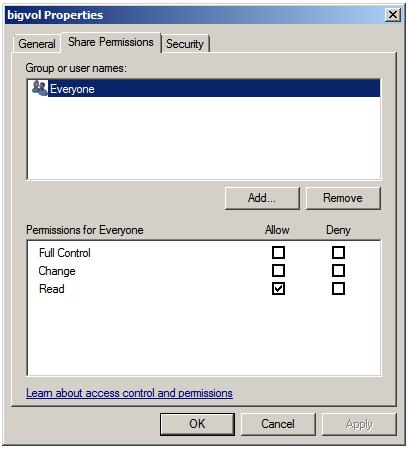
My problem is that I get an error message when I try to connect to any subdirectory under the users name (on the other computer). I can see the file structure and can see the subdirectory, I just cannot open it up when I click on it (using Explorer under the "Network" heading. The error message is something like this: You do not have permission to access (network directory name and file name). By the way, I have enabled sharing with my C: drives on both machines and I can share files with other drives and subdirectories, just not the ones under C:\Users\(UserName) . Any ideas of what setting I am missing?
My problem is that I get an error message when I try to connect to any subdirectory under the users name (on the other computer). I can see the file structure and can see the subdirectory, I just cannot open it up when I click on it (using Explorer under the "Network" heading. The error message is something like this: You do not have permission to access (network directory name and file name). By the way, I have enabled sharing with my C: drives on both machines and I can share files with other drives and subdirectories, just not the ones under C:\Users\(UserName) . Any ideas of what setting I am missing?