Phone Link Photos Move to File Explorer on Windows 11 for Android

  • Thread Author
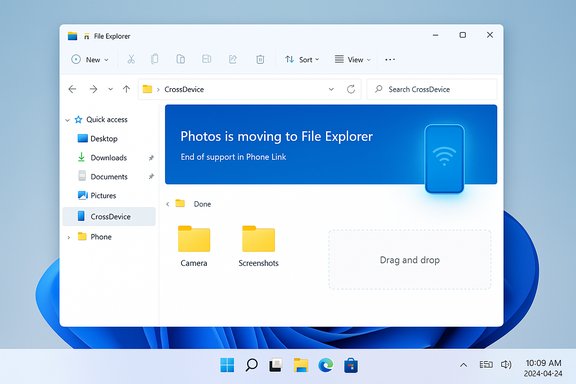
Microsoft is quietly moving the Phone Link app’s built-in photo gallery into File Explorer, replacing the in‑app viewer with a File Explorer–based experience and prompting users to switch to the Mobile Devices/File Explorer flow instead.

Windows 11 desktop with File Explorer showing Android folders and a Phone Link setup panel.Background​

Phone Link (formerly Your Phone) has been one of Windows 11’s most useful cross‑device continuity tools: it mirrors notifications, exposes messages and calls, lets you mirror Android apps in a window, and — until now — included a simple gallery for viewing recent phone photos directly inside the Phone Link UI. That gallery was designed as a lightweight “most recent photos” view for fast grabs and drag‑and‑drop into desktop apps; community investigation and product notes have repeatedly described the view as limited to a working set of recent images rather than a full phone backup.
Over the last year Microsoft pushed deeper integration between Windows and Android by adding a Mobile Devices management pane in Settings and the ability to mount a paired Android phone inside File Explorer as a virtual device. File Explorer’s integration exposes full phone folders, supports multi‑select, drag‑and‑drop, copy/paste, and even video playback — capabilities the Phone Link gallery intentionally avoided to keep the UI focused and lightweight. The File Explorer approach first appeared in Insider previews and broader tests during 2024 and 2025. What surfaced publicly this week is a small but significant change in Phone Link: the app now shows a banner alert in the Photos section telling users that “Photos is moving to File Explorer” and encouraging them to enable the File Explorer/mobile device workflow via Settings. The message frames the move as an “upgrade” because File Explorer supports multi‑select, video playback, and more traditional file operations. Early reporting picked this up and validated that the app is redirecting photo access to the File Explorer integration.

What Microsoft’s official guidance says​

Microsoft’s documentation for the Mobile Devices / File Explorer experience explains the exact user flow and the prerequisites required to use the File Explorer phone mount. To enable File Explorer access you open Settings → Bluetooth & devices → Mobile devices → Manage devices, pair your phone, then toggle Show mobile device in File Explorer. The page explicitly notes supported Android versions, pairing requirements, and the effects of toggling the feature. Key points from Microsoft’s documentation:
  • Supported OS: Windows 11 on the PC and Android (conservative baseline Android 8.0; best compatibility with Android 10–11+). File Explorer mounting specifically requires Android 11 or later in some guidance.
  • How to enable: Settings → Bluetooth & devices → Mobile devices → Manage devices → Add device → pair (QR code or shortlink) → toggle Show mobile device in File Explorer.
  • Capabilities: Browse folders, open/copy/move/rename/delete files, drag & drop between PC apps and the phone, and view videos (File Explorer pulls entire mobile storage rather than a curated “recent” gallery).
Microsoft’s support pages are explicit about the functional shift: File Explorer will show the device like a removable storage entry, and it’s this full‑folder access that Microsoft is positioning as the better place to manage mobile photos and videos.

What’s changing in Phone Link — practical detail​

  • The Phone Link app’s Photos panel now displays a banner redirecting users to File Explorer and will no longer be the primary surface for viewing mobile photos. Early reports show the Photos tile redirects to the appropriate phone folder inside File Explorer when the user taps the banner.
  • The Phone Link app itself is not being removed. Other features — notifications, messaging, call routing, screen mirroring and app streaming (Android only) — continue to live in Phone Link. The change is specifically about where photos are viewed and managed.
  • The Phone Link gallery historically exposed a limited, curated set of recent media (commonly cited at around ~2,000 recent images as a performance boundary), not the phone’s full storage. Moving to File Explorer means you’ll see the entire folder tree and videos, not a truncated “recent” gallery. If you relied on Phone Link’s single‑view gallery that aggregated screenshots and app images, you may need to adapt to the folder‑based navigation in File Explorer.
At the time of writing, Microsoft has not published a formal deprecation schedule that states when the in‑app Photos tab will be removed entirely or whether it will remain but disabled with a persistent redirect. Reporting and community tests indicate Phone Link is already nudging users to switch to File Explorer.

Why Microsoft might be doing this (analysis)​

Microsoft’s design and operational rationale for the move makes practical sense on several levels:
  • Consolidation of functionality reduces duplication of responsibilities across apps. Phone Link’s gallery and File Explorer’s mobile mount overlap. Centralizing photo browsing in File Explorer reduces maintenance and avoids showing the same media in two different Microsoft surfaces.
  • File Explorer provides a richer file‑management model: multi‑select, rename, drag‑and‑drop, video playback, and operations that Phone Link’s gallery was never intended to provide at scale. For users who regularly move photos and videos between phone and PC, File Explorer is more capable.
  • Performance and security: Phone Link’s gallery had to balance bandwidth and latency, typically exposing a recent subset of media; maintaining a separate gallery layer adds complexity and possible data‑consistency overhead. A single backed‑by‑CrossDevice broker in File Explorer simplifies the architecture.
But consolidation is also an engineering choice with user‑experience tradeoffs, and the decision reflects Microsoft’s broader emphasis on consolidating device‑integration surfaces (Settings → Mobile devices → File Explorer) rather than maintaining multiple overlapping viewers.

What this means for users — immediate impacts​

Short term, you’ll notice these practical differences:
  • If you open Phone Link’s Photos area, you may see a banner telling you to use File Explorer; tapping it opens the corresponding folder in File Explorer (or points you to the Manage mobile devices settings if File Explorer access isn’t enabled).
  • File Explorer will show your entire mobile folder structure (Camera, Screenshots, Downloads, app folders) instead of Phone Link’s curated “most recent” grid. That’s better for file management but worse if you liked the single‑pane quick gallery.
  • Videos will be available directly in File Explorer; Phone Link’s Photos view did not support video playback in all configurations.
  • There’s a small setup step: enable the Mobile Devices File Explorer toggle in Settings (Mobile devices → Manage devices → Show mobile device in File Explorer). If you don’t see that option, update Link to Windows/Phone Link and ensure your phone and PC meet the documented OS prerequisites.
If you want to preserve the Phone Link gallery behavior (fast aggregated view of recent shots), you will need to either continue using Phone Link while Microsoft chooses to keep the feature around, or rely on cloud sync (OneDrive/Google Photos) for a unified photos overview on PC, or a third‑party gallery app on Windows that indexes the mounted mobile folders.

How to switch to the File Explorer photo workflow (step‑by‑step)​

  • On Windows 11, open Settings → Bluetooth & devices → Mobile devices.
  • Click Manage devices → Add device (if your phone isn’t already paired). Follow the on‑screen QR code or shortlink flow to pair your Android phone.
  • After pairing, toggle Show mobile device in File Explorer for the phone you want to mount. Note: only one mobile device can be shown in File Explorer at a time.
  • Open File Explorer and look for the device under the left navigation (it may appear under a CrossDevice or device node). Browse to Camera, Screenshots, or other folders to find photos and videos.
Troubleshooting tips:
  • If you don’t see the toggle, ensure you’re on a Windows build and Link to Windows / Phone Link app version that supports the feature; update both through Windows Update and the Microsoft Store.
  • If the phone doesn’t appear in File Explorer after toggling, try toggling the setting off and on, relinking the device, or reinstalling Phone Link / Cross‑Device Experience Host from the Microsoft Store. Community troubleshooting threads document intermittent cases that required a reinstall.

Strengths of the File Explorer approach​

  • Full file access: You can navigate the entire phone directory tree, not just a curated recent view, making it easier to find media saved by apps in non‑Camera folders.
  • Standard file operations: Multi‑select, cut/copy/paste, drag‑and‑drop, rename, delete — all work like with any removable drive, which speeds batch workflows.
  • Video support: File Explorer surfaces video files as well as photos, removing a previous limitation of Phone Link’s gallery.
  • Single place for file management: For many users, treating the phone as a mounted device in File Explorer aligns with long‑standing workflows and third‑party utilities that expect a folder tree.

Weaknesses and risks — what to watch out for​

  • Loss of aggregated gallery UX: Many users valued Phone Link’s single pane that aggregated recent photos from multiple app folders (screenshots, camera, WhatsApp, etc.. File Explorer exposes raw folders, which can be more tedious to scan for a quick screenshot or recent capture. This is a genuine usability regression for certain workflows.
  • Privacy surface area: Giving File Explorer full access to phone storage increases the temptation to drag sensitive photos into shared folders on a PC. The convenience is real, but it raises potential data‑handling missteps for users on shared machines or for admins managing corporate devices.
  • Local caching and disk usage: Some community reports show that the CrossDevice integration may create local copies or metadata under C:\Users\<you>\CrossDevice; users who toggle the feature on/off can find local disk usage changes and will want to remove local copies if disk space matters. Microsoft documents how to delete local copies from the CrossDevice folder.
  • Fragmentation and OEM variance: The quality of experience depends on Link to Windows implementation on the phone and OEM cooperation; Samsung devices typically have the deepest integration. Behavior for rooted phones or heavily skinned OEM Android versions can differ.

Enterprise and security considerations​

For managed devices, IT teams should treat the File Explorer mobile mount as a capability that may interact with existing data‑loss prevention (DLP) and device management policies. Specific considerations:
  • DLP / Files policy: Dragging files from mobile to local drives bypasses some cloud‑only protections. Enterprises should evaluate how File Explorer access interacts with endpoint DLP tools and whether policies should restrict the feature on corporate devices.
  • Provisioning and management: Administrators should test the new flow on representative hardware (various Android OEMs) to validate file access, auditing, and revocation behaviors. Microsoft’s Mobile Devices settings are user‑oriented and may need complementing with Intune/GPO controls in regulated environments.
  • Data residency and caching: Ensure policy covers local copies made by the CrossDevice broker; if local caching is unacceptable, admins should document removal steps and consider blocking the feature. Microsoft documents where to remove local copies created under the CrossDevice path.

Alternatives and workarounds​

If the File Explorer workflow does not fit your needs or you prefer Phone Link’s gallery behavior, consider these options:
  • Use cloud backup and sync (OneDrive or Google Photos) for a cross‑device gallery: OneDrive’s camera backup shows photos in Windows folders and Photos app, which many users already rely on. This gives you a consistent gallery and search capabilities while offloading storage concerns.
  • Continue using Phone Link while Microsoft preserves the feature: It’s possible Microsoft will keep a viewable—but redirected—gallery for a transition period. If Phone Link’s gallery is removed entirely, use a dedicated gallery/organizer on Windows that indexes the mounted mobile folders.
  • Use USB / MTP for bulk transfers: For large library management or full backups, a wired transfer remains the fastest and most reliable option. File Explorer’s wireless mount is best for occasional transfers and quick grabs.

How to prepare and practical recommendations​

  • Confirm your phone meets the documented requirements (Android 11+ for the best File Explorer mount behavior). Update Link to Windows and Phone Link apps to latest versions from the Play Store and Microsoft Store.
  • If you rely on Phone Link’s aggregated gallery, export or back up any workflows that rely on it — for example, move files you expect to access frequently into the Camera folder so they’re easily discoverable in File Explorer.
  • For shared or corporate PCs, discuss whether the File Explorer mount should be enabled by default; consider company policies that govern cross‑device sync and data copying.
  • Keep local disk management in mind. If you enable the mobile device in File Explorer and later remove it, delete the C:\Users\<you>\CrossDevice cache if you don’t want residual local copies. Microsoft documents the location and removal steps.

Critical judgement: strengths versus user experience regressions​

This move exemplifies a classic product tradeoff: consolidation for maintainability and richer file handling at the expense of an easy, curated gallery experience. For users who routinely move photos and videos or need full folder access, File Explorer is objectively better — multi‑select, video support, and drag‑and‑drop are essential productivity features. However, for users who appreciated Phone Link’s fast, single‑pane photo gallery that aggregated disparate camera and app screenshots into a single view, the File Explorer replacement is a step backward — it requires more navigation and removes the simple “recent captures” UX. That UX friction is a tangible loss for certain power workflows (screenshot‑heavy tasks, rapid social sharing, or journalists capturing images). The decision is defensible from Microsoft’s perspective, but it also risks alienating users who value fast, focused gallery access over full file management capabilities.

Unverifiable or open items (caveats)​

  • Microsoft has not published a hard deprecation date for the in‑app Phone Link Photos viewer; available reporting shows the app redirecting to File Explorer but does not document an official removal timeline. Treat any claims about an exact removal date as unverified until Microsoft posts a formal roadmap or release notes.
  • Behavior can vary by OEM and Android build. Some features that work on a Samsung phone may not behave identically on another vendor’s phone; test on your exact device if you rely on specific behaviors. This OEM variance has been repeatedly documented in community and product notes.

Bottom line​

The shift of photo viewing from Phone Link into File Explorer is a pragmatic consolidation that trades a simple curated gallery for a more capable file‑management surface. For many users — particularly those who move large batches of images or videos — File Explorer is a clear functional upgrade: multi‑select, drag‑and‑drop, and video playback matter. For others who used Phone Link as a fast gallery and clipboard for screenshots, the move reduces convenience and reintroduces folder hunting.
Practical next steps: update Phone Link/Link to Windows, enable Show mobile device in File Explorer under Settings → Bluetooth & devices → Mobile devices → Manage devices, and evaluate whether OneDrive or an alternate gallery app better matches your workflow. Microsoft’s support pages explain the setup and prerequisites, and community reports document common troubleshooting steps if the mount doesn’t appear. This is an operationally sensible change but a user‑facing regression for some. Expect more consolidation of overlapping Windows surfaces going forward, and treat this change as a prompt to review cross‑device workflows and backup strategies so your photos remain immediately accessible on the PC — regardless of which Microsoft surface you prefer.

Source: Windows Central Microsoft is removing yet another handy Windows 11 feature — the ability to view photos in the Phone Link app
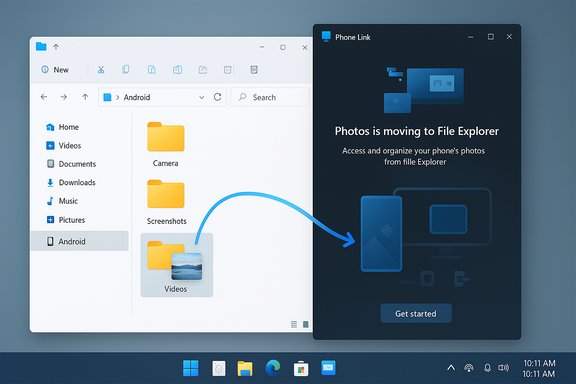
 

Microsoft is quietly moving the Phone Link app’s built‑in photo gallery into File Explorer, removing the Photos gallery from Phone Link and nudging users to manage mobile photos and videos through Windows’ File Explorer instead. This change is already appearing as an in‑app banner in Phone Link that tells users “Photos is moving to File Explorer” and points them to the Settings → Bluetooth & devices → Mobile devices → Manage devices flow so they can enable the File Explorer mount for their paired phone.

Windows 11 File Explorer showing CrossDevice with a banner reading 'Photos is moving to File Explorer.'Background / Overview​

Phone Link (formerly “Your Phone”) became a core Windows feature for bridging Android (and increasingly iPhone) workflows with a PC: notifications, messaging, call handling, app mirroring and—until now—a lightweight, curated Photos gallery that surfaced recent camera photos, screenshots and app images in a single, scrollable view. That gallery was designed as a quick grab‑and‑drop surface for productivity tasks, but Microsoft has been expanding and consolidating its cross‑device model by mounting a paired Android phone directly inside File Explorer so the phone appears like a removable device and exposes the full folder tree. The new File Explorer mount supports multi‑select, rename, drag‑and‑drop, video playback and more — capabilities the Phone Link gallery wasn’t built to handle. Microsoft’s official guidance now documents the Manage mobile devices page and the toggle that enables the File Explorer phone mount: Settings → Bluetooth & devices → Mobile devices → Manage devices → (pair phone) → toggle Show mobile device in File Explorer. The documentation lists the requirements (Windows 11 on the PC; Android 11 or later for the most compatible experience; Link to Windows / Phone Link app minimum versions) and clarifies that File Explorer will present the phone’s storage so you can browse folders, copy, move, rename, delete, and transfer files wirelessly.

What changed in Phone Link — the practical details​

The visible behavior​

  • Open Phone Link and navigate to the Photos tab: instead of a full gallery, many users now encounter a banner that states “Photos is moving to File Explorer” and invites them to enable File Explorer mounting if they haven’t already. Tapping the banner opens the relevant mobile devices settings or the mounted folder in File Explorer on systems where the feature is active. Early reports and hands‑on tests confirm the banner is live in recent builds and rolling to mainstream devices.

Why Microsoft is doing this (their rationale)​

  • Consolidation: Phone Link’s gallery and the File Explorer mount overlap. Microsoft’s message is that presenting mobile files in two places is redundant and that File Explorer offers a fuller file management experience (multi‑select, copy/paste, drag‑and‑drop, video playback). That reasoning is consistent with Microsoft’s documentation and public statements.

What Phone Link still does​

  • Phone Link is not being removed: call handling, messaging, notifications, screen mirroring and other Phone Link features remain intact. The change is specifically about where photos and videos are browsed and managed.

Requirements and technical verification​

Before switching to the File Explorer workflow, verify these technical requirements and constraints — each item below is confirmed against Microsoft’s support documentation and independent reporting.
  • Windows version
  • File Explorer phone mounting is supported on Windows 11. Microsoft’s Manage mobile devices documentation and the File Explorer setup guide both specify Windows 11 as the host OS for the mounted mobile device experience.
  • Android version
  • For reliable operation Microsoft lists Android 11 or later as the recommended baseline and notes that Android 8.0+ may work for some flows, but Android 11+ gives the best compatibility for the full File Explorer mount. This requirement is explicitly documented in Microsoft’s support pages.
  • App and build versions
  • The experience depends on both the Link to Windows app on the phone and Phone Link on the PC reaching certain minimum versions. Microsoft’s docs mention specific Link to Windows versions in their guidance; the common pattern is that newer Link to Windows and Phone Link builds enable the File Explorer mount. Check the Microsoft Store for Phone Link and the Play Store or the OEM’s preinstalled Link to Windows app for updates if you have issues.
  • One device at a time
  • Only one mobile device can be shown in File Explorer at once; toggling the setting on for one phone will disable it for any others. Microsoft explicitly documents that limitation.
  • Local network & services
  • The mount relies on Cross‑Device services and the Connected Devices Platform. If the toggle is grayed out, you may need to check the Connected Devices Platform service, firewall rules, or re‑pair the phone. Microsoft’s Q&A threads and support pages suggest standard troubleshooting steps (update apps, re‑pair, ensure Microsoft account parity) if the toggle refuses to stick.

Step‑by‑step: switch from Phone Link Photos to File Explorer (verified)​

Follow these numbered steps to shift photo management to File Explorer; these steps match Microsoft’s published workflow and real‑world tests.
  • Open Settings → Bluetooth & devices → Mobile devices.
  • Click Manage devices.
  • If your phone isn’t listed, choose Add device and follow the QR code pairing flow (aka.ms/linkpc or the QR shown in Phone Link).
  • Once the phone appears under Manage devices, toggle Show mobile device in File Explorer ON for the phone you want to mount.
  • Open File Explorer and look for your phone under the left navigation (it appears under a CrossDevice or device node). Browse to Camera, Screenshots or other folders.
Troubleshooting quick fixes:
  • If the toggle won’t enable, ensure both devices are signed into the same Microsoft account, update Link to Windows and Phone Link, restart both devices and re‑pair if necessary. Microsoft’s community Q&A and support docs list these as the first investigation steps.

Strengths — what this change delivers​

  • Full folder access: File Explorer exposes the entire phone storage tree (Camera, Screenshots, Downloads, app folders), not a curated “recent” set. That is a meaningful upgrade for users who need to manage video files, app caches or nested folders.
  • Real file operations: You can rename, delete, move, copy/paste, and drag‑and‑drop between PC apps and phone storage — operations that are native in File Explorer and were deliberately limited in the Phone Link gallery. This makes bulk file organization and large transfers easier.
  • Video support: File Explorer playback and file transfers include videos, which Phone Link’s photo gallery historically struggled with or didn’t support consistently.
  • Centralized maintenance: From a Microsoft engineering perspective, consolidating media handling into a single system reduces duplication and long‑term maintenance overhead. That centralization can improve performance consistency and reduce synchronization edge cases.

Risks, friction points and reasons some users will dislike it​

  • Loss of a curated gallery view: Phone Link’s Photos tab gave a single‑pane, aggregated view of recent camera photos and screenshots — a quick gallery UX that many users preferred for fast browsing. File Explorer exposes folders, not a single curated media feed, so finding screenshots or images saved by apps requires navigating into the correct folder tree. That’s more powerful but less immediate. Real‑world reporting and user tests highlight this trade‑off.
  • Slower perceived access for casual users: Phone Link’s gallery returned a visual, app‑like experience optimized for speed; some users report that File Explorer navigation feels slower to reach the same image at a glance, especially if images live outside the Camera folder. That’s a usability regression for people who used the Phone Link gallery as their “phone photos on PC” shortcut.
  • Discovery and path complexity: File Explorer mounts the phone under a CrossDevice path such as C:\Users\<username>\CrossDevice\<PhoneName>\Saved Searches\Camera.search-ms (example paths reported by testers). Users who aren’t comfortable with Windows folder hierarchies will find this less intuitive than a gallery grid.
  • Intermittent behavior & edge cases: Community reports show the toggle can be finicky on some systems — greyed out toggles, mount failures, or missing files — which often trace back to mismatched app versions, OEM battery optimizations, or the Connected Devices Platform service. Expect short‑term friction as Microsoft stabilizes the rollout.
  • Not a true replacement for cloud sync: Users who relied on Phone Link for a quick, curated view may need to adopt cloud sync (OneDrive, Google Photos) to restore a unified gallery experience across devices. File Explorer is a file management surface, not a photo‑centric viewer with AI sorting, memories or cloud albums.

Real‑world behavior & verifiable limits — what to expect​

  • Phone Link’s gallery historically surfaced a subset of recent images (community testing often referenced a working set in the low thousands). That was a design choice for bandwidth and latency reasons rather than a hard archival backup; treat any posted number (for example “~2,000 images”) as observational, not an absolute official cap. Microsoft’s documentation focuses on the intent and the new File Explorer features rather than quantifying the Phone Link gallery cap. Flagged as community‑observed and approximate.
  • File Explorer’s mount is designed for typical file operations and retains a local cache under C:\Users\<username>\CrossDevice\… for offline access and faster browsing; Microsoft describes how to remove local copies by toggling the File Explorer option off and deleting the CrossDevice folder if you want to clear cached files. That behavior is explicitly documented in the File Explorer guidance.

Privacy, security and data‑management considerations​

  • Permissions: the Link to Windows pairing flow requests storage, notifications, contacts and related permissions on the phone. Granting the File Explorer mount expands the desktop’s access to phone storage, so audit permissions during pairing and only pair devices you trust. Microsoft’s pairing flow and Manage mobile devices page explain required permissions.
  • Local copies: deleting files from File Explorer may remove them from the phone. Microsoft documents how to remove local cached copies from the PC (the CrossDevice folder) if you’re concerned about leaving phone media on a shared PC. Use the documented steps to avoid accidental data loss.
  • One device at a time: because only one phone can be shown in File Explorer at once, the corporate or multi‑user scenarios need careful handling (unmounting one phone before mounting another). The operation is explicit in Microsoft’s UI to avoid silent cross‑device exposures.

Troubleshooting & practical tips (tested and documented)​

  • Toggle not working? Confirm the phone and PC use the same Microsoft account, update Phone Link and Link to Windows, disable aggressive battery optimizations for Link to Windows on the phone, restart both devices, and re‑pair. The Microsoft Q&A pages and support documentation list these steps.
  • Missing screenshots or app images in File Explorer? Look for them under the app or download folder (e.g., DCIM/Camera, Pictures/Screenshots, Downloads), because File Explorer exposes the full folder structure rather than a single aggregated camera roll.
  • Want the quick Phone Link gallery back? If you prefer the curated view, you have a few options:
  • Keep using Phone Link if the gallery view still appears on your build (some users on older Windows 10 or non‑updated Phone Link builds still have the old gallery).
  • Use cloud sync (OneDrive, Google Photos) to maintain a unified, searchable gallery across devices.
  • Install a third‑party Windows gallery app that indexes the mounted CrossDevice path and presents an aggregated gallery UI.

Recommendations for power users and enterprise admins​

  • Power users who rely on fast browser‑style photo grabbing should either continue using Phone Link where available or set up OneDrive/Google Photos sync so a single cloud album is always available in the Photos app on Windows.
  • Admins managing shared machines should document the File Explorer mount behavior in corporate device policies: unmount phones, and clear CrossDevice caches before returning devices, and educate users on the implications of local cache and file deletion.
  • Keep Link to Windows and Phone Link up to date on both endpoints; most mount failures and odd behaviors trace back to mismatched app versions or OS requirements. Microsoft’s support pages are the canonical verification for version and Android requirements.

Conclusion — a sensible consolidation with real trade‑offs​

This change is a classic feature consolidation story: Microsoft is moving from a dedicated, curated viewer inside Phone Link to a single, more capable file‑management surface in File Explorer. For users who need full access to phone folders, video handling and bulk file operations, the File Explorer mount is a clear upgrade — it gives the PC the same affordances you get when connecting the phone by USB, but wirelessly. For users who loved Phone Link’s quick, unified gallery for screenshots and recent snaps, the move is a usability regression: the curated grid and single‑pane convenience are hard to replicate in a folder‑first view.
The practical reality is this: if your workflow is file‑centric (moving, renaming, editing or handling videos), adopt the File Explorer workflow and enable Show mobile device in File Explorer in Settings. If you primarily used Phone Link as a fast gallery for quick grabs, either keep a system on which the gallery still works (some older builds and Windows 10 installs still show it), or use cloud sync / a third‑party gallery to restore that experience.
Microsoft’s documentation shows how to enable and manage the File Explorer mount and outlines the compatibility expectations; independent reporting and community tests confirm the in‑app banner and the behavioral trade‑offs being felt by users. Expect more polish as Microsoft rolls the change broadly, but plan your workflow now: update your Phone Link and Link to Windows apps, verify Android 11+ compatibility, and decide whether you prefer a folder‑first or gallery‑first approach for your mobile photos on Windows.
Source: How-To Geek Windows 11 is changing this important Phone Link feature
 

Microsoft is quietly moving the Phone Link app’s in-built gallery into File Explorer, removing the standalone "Photos" view from the Phone Link interface and directing users to manage mobile images and videos through Windows’ file manager instead.

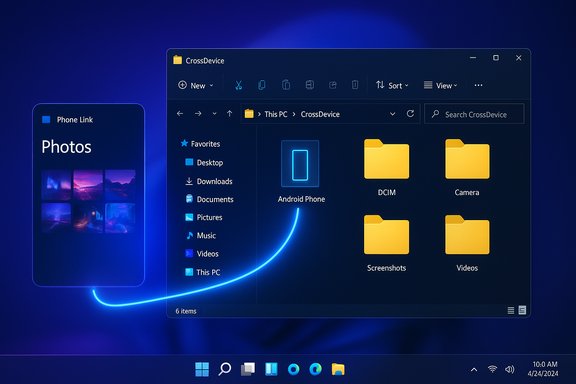
Dark Windows File Explorer showing Android Phone Link and photo folders.Background​

Phone Link has long been Microsoft’s flagship bridge between Android phones and Windows PCs, offering notifications, messages, calls, and a simple gallery view that surfaced recent images from the phone. That in-app Photos view historically queried Android’s MediaStore to present an app-level gallery — a consolidated, recency-sorted collection of screenshots, camera photos and other images without forcing users to navigate the phone’s folder hierarchy. Over the past year Microsoft began rolling a different integration: a File Explorer entry for a paired Android device that exposes the phone’s storage as a virtual shell location (visible under a CrossDevice folder), backed by the Cross-Device Experience Host component and the Link to Windows service on the phone. That File Explorer integration provides full-folder access to photos, videos and other files and supports multi-select, drag-and-drop and standard file operations. Microsoft and a number of outlets documented this rollout and the prerequisites — Android 11+ on the handset, a recent Link to Windows build on the phone, and the Cross-Device Experience Host package on Windows. Today’s change is effectively a consolidation: Microsoft is disabling the Photos tile inside Phone Link and telling users to rely on File Explorer’s mobile device entry for media browsing and management. The shift has started appearing as an in-app alert for affected users, and Microsoft describes the move as an upgrade because File Explorer delivers richer file-management primitives.

What’s changing, exactly​

  • The Phone Link app’s Photos section now shows an alert informing users that “Photos is moving to File Explorer” and that File Explorer offers an improved experience with multi-select, copy/paste and drag-and-drop.
  • Once the change is applied, tapping the Photos tile in Phone Link redirects users to File Explorer, which opens the relevant camera folder (or other folder locations) under the CrossDevice virtual mount point. File Explorer exposes the phone’s full filesystem — not just the camera folder — which means videos and other storage locations become available.
  • If the phone storage does not appear automatically, users must enable the File Explorer integration from Settings > Bluetooth & devices > Mobile devices > Manage devices and turn on Show mobile device in File Explorer; on the phone they must grant Link to Windows the required file access. The Cross‑Device Experience Host app must be up to date on the PC.
These are not cosmetic adjustments — they replace a gallery-style surface that presented media from Android’s MediaStore with a file-system level interface that shows directories, files and saved searches in File Explorer.

Why Microsoft says it’s doing this​

Microsoft frames the change as simplification and better tooling: File Explorer already supports the everyday file operations users need — multi-select, copy/paste, drag-and-drop, rename and bulk management — and File Explorer’s integration exposes videos and other folders the Phone Link gallery never surfaced. Microsoft’s internal logic, as reported, is that maintaining two parallel places in Windows that surface the same mobile photos is redundant. That rationale leans on two principles:
  • Consolidation of file workflows into a single system tool (File Explorer), and
  • Leveraging File Explorer’s richer editing and management affordances compared with Phone Link’s lightweight gallery.
However, the move trades a simplified gallery view for full filesystem control, and the UX differences matter for how people find and interact with screenshots, app-specific images and recent captures.

How the File Explorer integration works (technical overview)​

Cross‑Device Experience Host and virtual shell​

File Explorer shows the paired Android device as a special virtual location under a CrossDevice path (often visible under C:\Users\<username>\CrossDevice or via a sidebar entry). That entry is provided by the Cross‑Device Experience Host component on Windows; when you open it, File Explorer talks to a local broker process that translates Explorer file operations into remote calls to the Link to Windows service running on the phone. Those remote calls perform directory listings, reads, writes, renames and deletions on the phone’s storage.

Phone prerequisites and permissions​

To make this work you typically need:
  • Android 11 or later on the phone, and a current Link to Windows app build. Many rollout notes reference specific Link to Windows version thresholds (for example, builds in the 1.240xx range were required during earlier stages of the rollout).
  • The Cross‑Device Experience Host package installed or updated via the Microsoft Store on Windows.
  • On the PC: Settings > Bluetooth & devices > Mobile devices > Manage devices → opt in to Show mobile device in File Explorer. On the phone: grant Link to Windows the “All file access” or equivalent permission required to expose storage.
These pieces combine to create a responsive, integrated experience that behaves like a network-mounted filesystem for the phone.

UX comparison: Phone Link’s gallery vs File Explorer’s filesystem​

Phone Link (old Photos view) — what users liked​

  • Unified, app-level gallery: the Photos tile showed recent images from across the phone (camera captures, screenshots, images from other apps) without requiring folder navigation. This relied on Android’s MediaStore API to query recent media across directories.
  • Simple, fast preview: thumbnails and a gallery-like scroll made it quick to scan recent captures.
  • Integrated actions tied to Phone Link features: directly saving images to the PC or inserting into messages from the same interface.

File Explorer (the new default) — what you gain​

  • Full file operations: multi-select, copy/paste, drag-and-drop to any folder, rename, delete and a consistent file-management model across Windows.
  • Video access and broader storage visibility: File Explorer exposes videos and provides access to any folder exposed by the phone, not only camera images.
  • Integration with existing workflows: once in File Explorer, you can use Windows’ search, tagging workflows, third‑party apps and bulk tools without leaving the file manager.

File Explorer — what you lose​

  • App-level aggregation: File Explorer shows folders rather than a single aggregated gallery, which makes screenshots and app-specific images less discoverable unless you know where to look. The Phone Link gallery’s MediaStore-based aggregation will no longer be the default path.
  • Simplicity for quick captures: users who relied on Phone Link for rapid screenshot grabs or instant previews may find File Explorer more cumbersome for that specific use case.

Benefits of the move​

  • Power and consistency: File Explorer’s operations are more powerful and consistent with desktop expectations: drag-and-drop, multi-file selection, integration with the Photos app, and the ability to drop files into any desktop app.
  • Access to videos and broader folder set: File Explorer exposes content that Phone Link’s gallery didn’t, including videos and miscellaneous storage folders.
  • Leverages existing Windows infrastructure: less duplication of features between Phone Link and File Explorer simplifies maintenance and can reduce inconsistent behavior between two different UI surfaces.

Risks, caveats and practical downsides​

  • Discoverability regression for screenshots and app images — Users who relied on the gallery-style aggregation for quick access will now need to navigate folders (e.g., a Screenshots folder), which is slower and less forgiving for casual workflows. This is the most visible UX regression for many users.
  • Permissions and security surface — File Explorer’s integration requires All file access granted to Link to Windows on Android. That higher level of access increases the sensitivity of what’s exposed to the PC and amplifies the consequences of misconfiguration or compromised devices. Administrators and security-conscious users should evaluate policies and device hygiene.
  • Accidental deletions and sync semantics — While Phone Link already allowed deletion of local photos on the device, File Explorer’s file-level operations feel more permanent. Microsoft’s documentation clarifies that deleting from Phone Link removes only local files on the device and does not remove cloud backups; the same caveat applies when deleting via File Explorer, but the behavior can be confusing to users who expect cloud-stored images to disappear. Backups and cloud-sync behavior must be managed separately.
  • Reliance on platform services — The File Explorer entry point depends on several Windows services (for example, Windows Search/WSearch and the Cross‑Device Experience Host), as well as the phone’s Link to Windows app. If any piece is out of date or misconfigured, the device may not appear or may present inconsistent behavior. Community reports document occasional issues: missing entries, unexpected CrossDevice folders, and synchronization glitches.
  • Enterprise and multi-profile limitations — The experience is primarily designed for a personal account model. Phone Link has documented limits (such as not supporting multiple Android profiles or work/school accounts in some scenarios), and File Explorer integration may inherit or amplify those constraints for managed devices. Organizations should validate behavior before rolling the feature out to users at scale.

Step-by-step: enable and use File Explorer mobile integration​

  • On PC: open Settings → Bluetooth & devices → Mobile devices → Manage devices.
  • Ensure your phone is paired and listed. Turn on Show mobile device in File Explorer. If the toggle is unavailable, verify that Allow this PC to access your mobile devices is enabled and that Windows Search (WSearch) is running and set to Automatic.
  • On your phone: install/update the Link to Windows app and grant the requested permissions, including All file access if prompted. Android 11 or newer is typically required for full integration.
  • On PC: ensure Cross‑Device Experience Host is installed/updated from the Microsoft Store. File Explorer will then show a CrossDevice device entry (or a named device) under which your phone’s folders appear.
  • Use File Explorer for multi-select, drag-and-drop, and bulk operations. To find screenshots or app-specific images, navigate to the appropriate directories (e.g., Screenshots, DCIM/Camera, or app-specific folders).
If File Explorer does not show the device immediately, sign out and back in, or restart both phone and PC after confirming the above components are up to date.

Privacy and security checklist for users​

  • Treat Link to Windows like any app with broad file access: audit permissions, and grant the minimum required level for your workflow.
  • Keep Link to Windows and Cross‑Device Experience Host up to date via the Play Store and Microsoft Store respectively. Outdated builds are a common cause of sync issues.
  • Understand deletion semantics: removing a locally stored image via File Explorer will permanently delete it from the device’s local storage; it may remain in cloud backups (Google Photos, OneDrive, etc.. Verify backup settings before large cleanups.
  • For corporate devices, consult IT before enabling broad file access or installing software that the enterprise does not manage. The solution is best suited to personal devices or BYOD scenarios where the user controls both endpoints.

What Microsoft’s public documentation shows — and what remains unclear​

Microsoft’s support documentation continues to describe Phone Link’s photo-management capabilities (saving, editing, deleting photos from the phone via the app), but the support page and help articles historically emphasized a Photos gallery inside Phone Link. The in-app alert that redirects Photos to File Explorer indicates a behavioral change with limited fanfare; there does not appear to be a large, separate blog post that explicitly outlines a deprecation timetable for Phone Link’s Photos tile. That leaves some ambiguity about how broadly and quickly the change will roll out, or whether Phone Link’s Photos tile will be removed entirely in future builds. Users should therefore treat the in-app alert as the immediate signal of change, and check Settings if File Explorer integration is not yet visible. The lack of a highly visible, centralized Microsoft announcement means rollout artifacts may vary by Windows build, Insider channel and device configuration.

Practical recommendations for Windows users​

  • If you rely on Phone Link’s gallery for quick access to screenshots, keep an organized folder structure on your phone (for example, use a dedicated Screenshots folder that’s easy to find), or use a third-party gallery app that syncs to cloud storage as a backup.
  • For bulk transfers and edits, embrace File Explorer: add the phone’s CrossDevice root to Quick Access, or use Saved Searches to surface camera captures and screenshots more quickly. File Explorer supports saved-search (.search-ms) shortcuts that can mimic a MediaStore-style view if you build them.
  • Back up your photos to cloud storage before mass deletions. Verify that the cloud service stores images separately from local storage so you do not accidentally remove backed-up copies.

Enterprise implications​

IT teams should evaluate this shift through the lens of device governance and data protection. The change increases the consistency of file operations (good for productivity), but it also:
  • Raises questions about compliance and auditing when broad file access is granted to third-party mobile apps.
  • May complicate mobile device management scenarios where local storage must remain separated from corporate endpoints.
  • Requires re-evaluation of user documentation and help desk scripts: support teams will now need to instruct users to use File Explorer for media tasks previously handled in Phone Link.
Organizations planning rollouts should test the feature across device models and Android versions, and consider restricting Link to Windows or adjusting policies where necessary.

Final analysis — trade-offs and likely trajectory​

The move to File Explorer is pragmatic: Windows’ file manager is more capable for batch operations and provides a single place for file tasks across devices. For users whose workflows revolve around large transfers, video access, or desktop-style file manipulation, this is a clear improvement. The File Explorer integration turns your phone into another storage target in Windows — powerful for power users and creative workflows. However, the change is also a regression for users who valued the Phone Link gallery’s simplicity and app-aware aggregation. MediaStore-based galleries are purpose-built for human discovery; file system views are purpose-built for control. Removing the gallery surface in favor of a file-centric model forces a mental shift: from “I want the most recent image” to “I need to know where the image is stored.” That can be slower and more error-prone for casual scenarios. From a product perspective, consolidation reduces redundancy and maintenance overhead. From a usability perspective, Microsoft should consider adding a lightweight, MediaStore-style quick view inside Phone Link or providing a saved-search template that surfaces recent media inside File Explorer — a hybrid approach that preserves quick discovery while giving users powerful file tools. Until that happens, users must adapt by learning basic folder navigation or using saved searches and Quick Access pinning to rebuild a fast path to recent captures.

Microsoft’s shift is a reminder that as Windows evolves toward tighter multi-device integration, the platform will increasingly favor file-system parity and desktop-style workflows over specialised mobile-style surfaces. The net effect is improved power and consistency at the expense of a small but meaningful amount of convenience for quick photo discovery. Users, IT teams and power users should update their practices, verify permissions and backups, and prepare for a desktop-first model for mobile media management in Windows.
Source: Windows Latest Windows 11 Phone Link app is losing Photos feature, Android gallery moving to File Explorer
 

Back
Top