

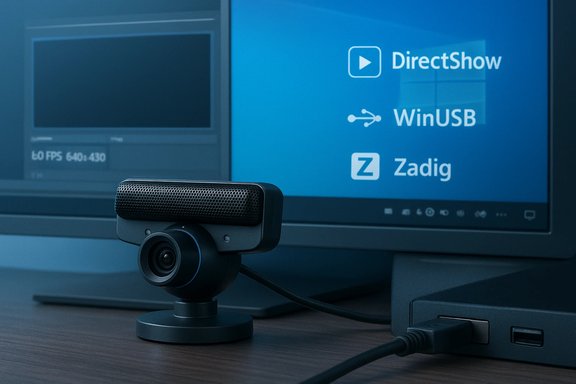
The PlayStation 3 Eye — a tiny, inexpensive camera originally sold as a motion peripheral for the PS3 — remains one of the most cost‑effective ways to get a surprisingly capable external webcam on a Windows 10 PC, provided you choose the right driver path and follow a careful installation and troubleshooting routine. What started as a gaming accessory now enjoys a second life as a low‑cost webcam for streaming, computer vision projects, and general video chat; this guide explains the hardware’s capabilities, walks through the free driver options that work on Windows 10, gives step‑by‑step installation instructions (including the safer open‑driver route), and covers performance, privacy, and practical troubleshooting so you can get the PS3 Eye working reliably without paying for proprietary software.
The PS3 Eye camera was designed by Sony for the PlayStation 3 and was widely produced and sold during the console’s life cycle. Hardware copies are abundant on second‑hand markets and often inexpensive, which is why hobbyists, streamers, and developers still pick them up for PC projects. Out of the box the camera supports several video modes and — in the right driver configuration — very high frame rates that are attractive for low‑latency streaming and computer vision tasks. Official Windows driver support historically came through a third‑party library/driver package called the CL‑Eye Platform (Code Laboratories); in recent years community open‑source drivers have matured and now provide robust alternatives that avoid the quirks and stability problems some users report with the older closed drivers.
Prerequisites:
Source: Born2Invest https://born2invest.com/?b=style-248216612/
 Background / Overview
The PS3 Eye camera was designed by Sony for the PlayStation 3 and was widely produced and sold during the console’s life cycle. Hardware copies are abundant on second‑hand markets and often inexpensive, which is why hobbyists, streamers, and developers still pick them up for PC projects. Out of the box the camera supports several video modes and — in the right driver configuration — very high frame rates that are attractive for low‑latency streaming and computer vision tasks. Official Windows driver support historically came through a third‑party library/driver package called the CL‑Eye Platform (Code Laboratories); in recent years community open‑source drivers have matured and now provide robust alternatives that avoid the quirks and stability problems some users report with the older closed drivers. What the PS3 Eye hardware can do
- Resolutions and frame rates: The hardware supports common low resolutions such as 320×240 and 640×480, and, in appropriate driver modes, can capture very high frame rates (Code Laboratories documented support across a range up to 125 FPS in their advanced mode). Real‑world achievable frame rates depend on USB bus speed, the specific PS3 Eye revision, and the capture format the driver exposes. Do not assume 125 FPS at high resolution without testing.
- Sensor and bridge chips: Different PS3 Eye units may use slightly different bridge processors (OV534 / OV538 variants) and camera sensors; modern open drivers attempt to support the most common variants. That diversity explains occasional differences in behavior between individual units.
- Interface: The camera is USB 2.0 and originally used a vendor interface; to behave like a normal Windows webcam most driver solutions either wrap the camera into DirectShow/MF (Media Foundation) or replace the vendor USB driver with a libusb/WinUSB style driver so user‑mode code can talk to it.
Why people still use the PS3 Eye on Windows 10
- Price-to-performance: Second‑hand PS3 Eye units are often cheaper than new webcams while offering low‑latency capture and high frame rates useful for motion tracking and certain streaming workflows.
- Community support: Open projects and DirectShow wrappers have proliferated; you can run the camera without closed, dated installers if you prefer free and open toolchains.
- Hobby/DIY flexibility: The camera is well supported by developer tools (OpenCV, Cinder, openFrameworks) via community drivers and libraries, making it handy for makers and researchers.
Driver options for Windows 10 — a practical comparison
There are two broad paths you can take to get the PS3 Eye working on Windows 10:1) The legacy / proprietary route: CL‑Eye Platform (Code Laboratories)
- What it is: A signed driver package designed to expose the PS3 Eye as a standard video device with a GUI testing app and two operation modes (basic/advanced). Historically this was the simplest route for users who wanted a plug‑and‑play webcam experience.
- Pros:
- Signed driver and installer makes Windows installation straightforward for many users.
- Exposes the camera to DirectShow, which most Windows apps can use.
- Documented advanced high‑frame‑rate modes.
- Cons:
- The driver package is old and not actively maintained, which can cause instability, compatibility regressions after Windows updates, or bugs in some modern apps. Community reports indicate variable behavior across apps and OS builds.
2) The open‑source/libusb route: PS3EYEDriver family and DirectShow wrappers
- What it is: Several community projects (e.g., inspirit/PS3EYEDriver, PS3EyeDirectShow, timniederhausen/pseye‑driver) implement a libusb‑based user‑mode driver or a DirectShow source filter. They typically require installing a WinUSB/libusb driver to let the community driver talk to the camera.
- Pros:
- Active community development, better compatibility with modern Windows 10 variants.
- Avoids installing older closed binaries; source and installer packages exist for both 32‑ and 64‑bit.
- Often lower CPU usage and fewer crashes in practice for streaming/vision uses according to user reports and project maintainers.
- Cons:
- Requires a few more steps (Zadig / libusbK / libusb‑win32 or WinUSB) and understanding how to change a device’s driver in Device Manager.
- Some solutions require compiling or using installers from GitHub releases; for power users that’s fine, for novices it can be more intimidating.
Step‑by‑step: Two supported installation paths for Windows 10
Below are detailed, tested workflows for both the simple CL‑Eye driver route and the recommended open‑driver route that avoids legacy closed software where possible.A — Quick path: install Code Laboratories CL‑Eye Platform (if you prefer a simple installer)
- Unplug any connected PS3 Eye device from the PC.
- Download the official CL‑Eye Platform / PS3Eye camera driver package (use a trustworthy mirror or vendor distribution). Note: the official page documents Windows XP through Windows 7 era support but many users have installed the package on Windows 10; results vary.
- Run the installer with Administrator privileges and follow prompts. When Windows warns about unsigned or older drivers, choose “Install this driver software anyway” only if you downloaded the package from a trusted source.
- Plug in the PS3 Eye after the installer finishes. Windows should detect a PS3Eye camera device and expose it to applications.
- Test the camera with the Windows Camera app or an application like OBS (select the device from the video capture list).
B — Recommended free/open path: install a libusb/WinUSB driver + PS3EyeDirectShow or PS3EYEDriver
This route uses a modern user‑mode driver and a DirectShow source filter so the camera behaves like a regular webcam in most Windows apps.Prerequisites:
- Administrator account
- A working USB 2.0 or 3.0 port (prefer USB 2.0 for compatibility in some cases)
- Zadig utility (for installing libusb/WinUSB drivers) or libusbK installers
- PS3EyeDirectShow or another prebuilt installer from GitHub releases (choose a release build if available).
- If you previously installed the CL‑Eye driver, uninstall it first and reboot.
- Connect the PS3 Eye to USB. Open Device Manager and locate the PS3 Eye device (it may appear under “Other devices,” “Unknown devices,” or “Imaging devices”).
- Download Zadig (a small portable utility) and run it as Administrator.
- In Zadig:
- Select the PS3 Eye device from the device dropdown (if it’s not visible, enable “List All Devices”).
- Choose the driver to install: libusbK or WinUSB are commonly used. The project README you’re following will usually recommend one (opentrack and some projects prefer libusbK). Install the driver.
- Install the community PS3 Eye DirectShow package or driver package:
- If you’re using PS3EyeDirectShow, download the installer from the project’s releases and run it; it will register DirectShow filters and, where needed, use the WinUSB/libusb driver already installed. If you compiled from source, follow the project’s install instructions.
- Open the Windows Camera app or OBS and select the new camera device. The DirectShow filter should present the camera as a standard capture source.
- If your camera appears but gives a black image, try switching USB ports (some controllers behave differently) and re‑run Zadig choosing a different backend (WinUSB vs libusbK). Community threads confirm this resolves many problems.
- If you want microphone access, libusbK may be preferable for combined audio/video behavior; check the opentrack instructions and project README for recommended driver backends.
OBS, streaming, and app compatibility
- Most streaming software (OBS Studio, VLC, Skype, Zoom) can use the camera once it is exposed via DirectShow or Media Foundation.
- In OBS: add a Video Capture Device source, pick the PS3 Eye capture device, and then adjust capture format and resolution. The camera supports multiple capture formats; if you need less CPU usage, choose a UYVY/YUV mode where available.
- For low‑latency or high‑FPS capture, set the camera to the lower resolution/high‑FPS mode in the driver or DirectShow filter; verify in OBS or the Windows Camera app. The theoretical high‑FPS values are hardware‑dependent and may require lower resolutions to achieve.
Troubleshooting: common problems and fixes
- Camera not detected:
- Uninstall any previous PS3 Eye driver and reboot.
- Try a different USB port (prefer a direct motherboard port).
- Use Zadig again to reinstall or switch between WinUSB and libusbK.
- Black image or grayscale output:
- Verify the application is using the DirectShow device and not a different camera.
- Switch capture formats (UYVY vs RGB) or try a lower resolution. Community troubleshooting commonly resolves black screen issues by changing the driver backend (WinUSB ↔ libusbK) or by switching USB ports.
- App crashes or instability:
- If you installed the older CL‑Eye driver and observe instability, uninstall it and use the open driver approach.
- Close other apps that may hold exclusive access to the camera, then retry. Windows Camera Frame Server interactions can cause conflicts—if you suspect Media Foundation frame server issues, test with different apps and consider toggling driver options.
- Permissions and Windows privacy:
- Ensure Windows privacy settings allow apps to access the camera (Settings → Privacy → Camera). Desktop apps have a separate “allow desktop apps to access your camera” toggle; double‑check it if your chat client shows a black preview. The Windows Camera app and privacy model are well documented and can block camera access if toggled off.
Performance expectations and real‑world limits
- Expect reliable 30–60 FPS at 640×480 and higher frame rates at 320×240 in many setups; pushes to 100+ FPS are possible but depend on capture format, chosen driver mode, and the camera revision. Verify by capturing to disk or monitoring frame rates in OBS.
- CPU load varies significantly by chosen capture format — uncompressed RGB uses more CPU than a packed YUV format passed through a DirectShow filter. Choose the most CPU‑efficient format your application supports if you need higher frame rates.
- USB bus saturation: if you have multiple USB cameras or heavy USB devices on the same root hub, you may see dropped frames; use separate ports or hubs with independent controllers. This is general USB behavior and especially relevant with older USB 2.0 cameras.
Privacy & security considerations
- Any webcam presents a potential privacy surface. Windows provides notifications and settings to control camera access; keep them enabled and periodically audit which apps are allowed to use the camera. If the Camera app or another app works but your conferencing tool does not, check the privacy toggles first.
- Installing third‑party drivers that replace device drivers increases your attack surface. Prefer well‑maintained community projects with active repositories and releases, and avoid downloading drivers from untrusted random pages. If a driver requires disabling driver signature enforcement, that increases risk and should be avoided if possible.
- If you use the PS3 Eye for surveillance or always‑on capture, consider physical mitigations (camera covers) and limit permissions for outside apps.
Where to buy a cheap PS3 Eye (practical guidance, not shopping endorsements)
- Typical places to find PS3 Eye units today are second‑hand marketplaces (auction sites, marketplace listings) and specialty retro gaming stores. Prices fluctuate; check seller ratings and photos to confirm the unit includes a USB cable and is the camera head (some sold units are bundled with other accessories).
- Check device hardware IDs in Device Manager if possible (VID/PID such as USB\VID_1415&PID_2000 is commonly associated with PS3 Eye units) so you can confirm the unit you buy matches known IDs to the drivers you plan to use.
Alternatives: when not to use the PS3 Eye
- If you need native 1080p/4K video, modern budget webcams are now inexpensive and often provide better low‑light performance and simpler plug‑and‑play drivers.
- If you need built‑in microphone quality and official vendor support, a contemporary webcam from a reputable vendor will usually be easier and safer.
- If you want a smartphone camera feed, Windows Phone Link and vendor solutions now make using your phone as a webcam simple and sometimes higher quality than a PS3 Eye — consider that for meetings or streaming where resolution matters.
Critical analysis: strengths, risks, and best practices
Strengths:- Cost efficiency — For hobbyists, the PS3 Eye is frequently the lowest‑cost route to usable external capture hardware.
- High frame rate potential — When properly configured, the device can capture high frame rates attractive for motion applications and low‑latency streaming.
- Driver fragility and Windows updates — The proprietary CL‑Eye driver is dated; community threads document breakages and app incompatibilities after Windows updates. For long‑term reliability, the open‑driver/libusb route tends to be more future‑friendly, but it requires more initial effort.
- Security surface — Installing third‑party kernel or user‑mode drivers may increase the system attack surface. Use reputable project releases, scan installer packages, and prefer signed drivers when available.
- Try the open/libusb route first for stability and transparency.
- Use Zadig carefully and only on the PS3 Eye device, not broadly on unrelated devices.
- Keep a restore point and backup drivers so you can revert if a Windows update breaks capture.
- Test in the Windows Camera app before using in conferencing or streaming software.
Conclusion
The PS3 Eye remains a practical, inexpensive camera for Windows 10 users who are willing to do a little driver work. The two viable approaches are: install the older CL‑Eye driver for a quicker but sometimes less reliable experience, or use modern open drivers (libusb/WinUSB + DirectShow filters) for a more robust and transparent solution. For most Windows 10 users serious about streaming or development work, the open route — installing a libusb backend via Zadig and using PS3EyeDirectShow or related projects — is the best balance between cost, performance, and long‑term compatibility. Always validate frame rate and resolution for your particular unit, keep Windows privacy settings in mind, and prefer reputable downloads to minimize risk. With the right driver and a short setup routine, the PS3 Eye will function as a competent, low‑cost webcam on Windows 10 for free.Source: Born2Invest https://born2invest.com/?b=style-248216612/
