• Thread Author
The short, important version: two Born2Invest pages advertising downloads for legacy NVIDIA drivers — one for a GeForce 210 Windows 10 driver and a second referencing GTX 670 Windows 10 drivers — are unreliable landing pages and should not be treated as authoritative sources for kernel‑level software. For anyone who needs to run an older GeForce on Windows 10, the safe path is to use NVIDIA’s official archive or your OEM’s support portal, verify the driver’s product list and digital signature, and follow a conservative, rollback‑ready install workflow. Official vendor pages confirm that legacy driver packages such as GeForce Windows 10 Driver 341.74 exist, but they are archived packages with limited or no ongoing security fixes; Microsoft’s formal end‑of‑support for Windows 10 also raises the security and operational risk of relying on those drivers long term. .

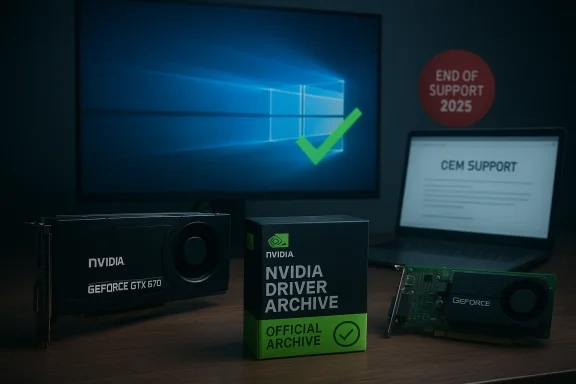
NVIDIA GPU cards and a driver archive box sit on a desk beside an End of Support 2025 sign.Background / Overview​

The two short Born2Invest snippets provided to this review read like SEO‑oriented advertisements for “GeForce 210 Windows 10 driver” and “GTX 670 Windows 10 64‑bit drivers.” Those posts do not supply direct vendor download links or verifiable release notes and — in automated checks — the supplied Born2Invest URLs could not be retrieved or seem a poor and potentially dangerous source for kernel‑mode software such as GPU drivers.
NVIDIA maintains a public driver archive that includes older Windows 10 packages (for example, GeForce Windows 10 Driver, Version 341.74, released July 29, 2015). That archive entry is an official vendor release intended to provide compatibility for older GeForce families on Windows 10, but it is an archived package: it does not receive the same ongoing feature or security updates as current Game Ready driver branches. Use vendocation and downloads — not third‑party mirrors. At the same time, the Windows platform context changed materially in 2025: Microsoft ended mainstream support for Windows 10 on October 14, 2025, which removes ordinary security updates for consumer installations and changes the risk calculus for running archived or legacy drivers on that OS. If a driver claims Windows 10 compatibility but the OS itself is out of mainstream support, the combined risk increases. Finally, NVIDIA’s public communications in mid‑2025 clarified a staged support plan: after a final Game‑Ready release in October 2025, NVIDIA will move many pre‑RTX architectures (Maxwell, Pascal and Volta) to a quarterly security‑update cadence through October 2028, and extend Windows 10 Game Ready support for RTX GPUs through October 2026. Note that this announcement explicitly references Maxwell/Pascal/Volta — older architectures (for example, Kepler‑generation GTX 600 cards such as the GTX 670) are not mentioned in that extension and therefore have a different lifecycle profile that must be checked individually.

What the Born2Invest pages actually said — and why that matters​

The two pieces you supplied are short, ad‑like lines touting driver downloads and product names (for example, “Clearance geforce 210 windows 10 driver Hotsell GeForce Windows 10 Driver 341.74 NVIDIA” and “Discount gtx 670 windows 10 2026 8 drivers for nVidia GeForce GTX 670 and Windows 10 64bit”). They lack release metadata, checksums, or vendor links. Automated verification found the Born2Invest URLs unstable or unreachable, so any unique claims or downloadable binaries hosted only on those pages are unverifiable and must be treated as suspect. Kernel drivers are high‑risk to obtain from third‑party mirrors: repackaging or tampering can break signatures or introduce malware.
Why this matters in plain terms:
  • GPU drivers run in the kernel and can profoundly affect system stability, security, and boot integrity.
  • Repackaged installers sometimes alter INF files, strip or bundle unwanted software.
  • A misinstalled or unsigned driver can cause a black screen, boot hang, or persistent system instability that demands recovery actions.
Because of these facts, vendor sources (NVIDIA’s official download center or your OEM’s support page for notebooks) are the authoritative and safe places to download drivers.

Technical reality: GeForce 210 and GTX 670 on Windows 10​

GeForce 210: legacy, low‑end, and dependent on archived drivers​

The GeForce 210 is an entry‑level, very old GPU. During Windows 10’s early days NVIDIA published the 340/341 legacy family to provide compatibility for older cards; driver 341.74 is a genuine NVIDIA Windows 10 (64‑bit) package released in July 2015 and is commonly used as a compatibility fallback for several older GeForce families. That package will often provide baseline 2D/3D acceleration and the NVIDIA Control Panel required for desktop use, but it lacks modern codec/DRM or hardware‑acceleration improvements introduced in later releases. Treat 341.74 as an archived, temporary compatibility measure rather than a secure, current driver. Important practical points for GeForce 210:
  • The INF inside the NVIDIA installer is authoritative for device support; if your card’s hardware ID is not listed you may see an “unsupported” message.
  • OEM‑branded boards (prebuilt desktops or notebooks) sometimes use vendor‑specific INF entries; in those cases the OEM package is preferrred for compatibility with firmware/optimizations.

GeForce GTX 670: Kepler era, end‑of‑life considerations​

The GeForce GTX 670 is a Kepler‑architecture card (GK104) originally released in 2012. Kepler is older than the Maxwell/Pascal/Volta architectures NVIDIA singled out in its 2025 support plan; NVIDIA’s published plan extended a quarterly security‑patch cadence primarily for Maxwell/Pascal/Volta and extended Windows 10 Game Ready support for RTX GPUs through October 2026. Because the GTX 670 is Kepler, you should not assume it receives the same extended cadence — verify support status for your exact SKU on NVIDIA’s archive or via OEM channels. In short: GTX 670 owners must check whether current Game‑Ready branches still list their card or whether they must rely on older archived drivers. What this means practically:
  • The GTX 670 can run under Windows 10 using NVIDIA or OEM drivers, but it is an older card and may be excluded from ongoing maintenance windows.
  • If you require continued driver updates for security or new game optimizations, consider hardware refresh or move to an RTX‑era card that NVIDIA explicitly committed to support longer on Windows 10.

How to verify a legacy NVIDIA driver safely (step‑by‑step)​

Follow this conservative workflow before you download or install any legacy NVIDIA driver binary:
  • Confirm your GPU model and hardware IDs:
  • Device Manager → Display adapters → Right‑click → Properties → Details → Hardware Ids. Copy VEN and DEV strings for verification.
  • Prefer OEM support for notebooks:
  • Check your laptop manufacturer’s support page for a Windows 10 driver for your exact model. OEM drivers often contain custom INF entries and power/thermal tuning you should not overwrite lightly.
  • Use vendor sources only:
  • Download from NVIDIA’s official driver searchpage. Avoid third‑party “driver download” portals or blog mirrors that lack vendor signatures.
  • Confirm file provenance:
  • After download, check the file size and the digital signature (Right‑click EXE → Properties → Digital Signatures). These must match vendor metadata.
  • Create recovery points:
  • Make a full system image and a Windows System Restore point. For production or irreplaceable systems, image first.
  • Clean uninstall if needed:
  • If you suspect driver corruption or are switching driver package types (DCH vs Standard), use Display Driver Uninstaller (DDU) in Safe Mode to remove all remnants. Community practice widely endorses Dons.
  • Install with caution:
  • Run the NVIDIA installer as Administrator. Choose Custom (Advanced) and check “Perform a clean installation.” Uncheck GeForce Experience if you prefer driver‑only behavior.
  • Val - NVIDIA Control Panel → System Information and Device Manager → Driver tab should show the expected version. Test representative apps, playback, and GPU tasks.
  • If the installer rejects your card:
  • Extract the installer with 7‑Zip and inspect the INF file for your hardware ID. If your VID/DEV is absent, prefer OEM drivers or the Microsoft Update Catalog; manual INF edits are risky and not recommended for most users.
These steps reflect vendor guidance and community best practice condensed into a technician‑friendly checklist. They reduce the chance of bricking a display or otherwise leaving a machine in a non‑bootable state.

Risty, lifecycle and operational hazards​

  • Windows 10 end of support (Oct 14, 2025) amplifies danger. Running Windows 10 without Microsoft’s security updates increases exposure to newly discovered kernel vulnerabilities. Pairing an unsupported OS with archived drivers raises the attack surface for kernel‑mode exploits.
  • Legacy drivers lack modern mitigations. Older driver families (such as 341.x or 342.x) were never written with the full set of security mitigations and feature expectations introduced later. They may miss fixes for ered after their final publish date.
  • Third‑party mirrors are dangerous. The Born2Invest pages you provided are not vendor pages; automations could not reliably fetch them, and community reviews caution strongly against downloading kernel drivers from such mirrors because repackaged installers sometimes alter INF files, break signatures, or bundle unwanted software.
  • OEM caveats for notebooks. Laptops frequently ship with vendor‑signed INF entries and custom power/thermal tuning. Installing a generic NVIDIA driver instead of the OEM package can cause battery life regressions, thermal anomalies, or loss of function for integrated features (for example, Optimus); prefer OEM drivers when available.
  • Unclear support windows for Kepler cards. NVIDIA’s 2025 announcement explicitly covered Maxwell/Pascal/Volta and RTX‑era Windows 10 extensions; Kepler (GTX 600 series) was not part of that announcement. Therefore owners of GTX 670 (Kepler) should verify current driver coverage for their SKU and expect shorter or already‑ended maintenance windows compared with newer architectures. This is a material uncertainty: confirm on NVIDIA’s product pages for your exact SKU.

Practical recommendations and options​

  • If you need temporary Windows 10 functionU (GeForce 210 or similar), consider:
  • Preferred: obtain the OEM driver (if the system is a branded laptop/desktop from Dell/HP/Lenovo/etc..
  • Secondary: use NVIDIA’s official archived package (for example, 341.74) only after backing up and following the conservative workflow above.
  • If the machine is used for anything sensitive (online banking, corporate access, email with sensitive content), do not rely on legacy drivers and an unsupported OS. Options:
  • Upgrade to a supported OS (Windows 11) and hardware that accepts modern drivers.
  • Replace the GPU with a modern, supported model whose drivers receive active maintenance.
  • Air‑gap the legacy machine and limit its network exposure while you use it offline for specific tasks.
  • If you must continue using Windows 10 and cannot upgrade, consider Microsoft’s consumer Extended Security Updates (ESU) offering where available — note ESU availability and terms vary by region and program.
  • For the GTX 670 specifically:
  • Verify whether your exact card appears in current NVIDIA Game‑Ready release notes or the archived driver’s supported product table.
  • If you need ongoing updates and your card is Kepler (GTX 600 series), plan for hardware replacement because the 2025/2026 NVIDIA lifecycle clarifications prioritized Maxwell/Pascal/Volta and RTX cards for extended coverage.

Quick checklist: safe download and install (compact)​

  • Confirm GPU model and Vendor/Device IDs.
  • Check OEM support page (laptops first).
  • Download only from NVIDIA or OEM pages.
  • Verify digital signature and file size.
  • Back up or image the system.
  • (Optional but recommended) Use DDU in Safe Mode to clean old drivers.
  • Run NVIDIA installer as Administrator → Custom → Clean install.
  • Validate driver version and test workloads.
  • Keep a copy of the prior working installer for rollback.
These checklist steps echo the community’s most effective procedures for legacy driver transitions and are the same safeguards recommended by forum archives and vendor documentation.

Conclusion — pragmatic security‑aware guidance​

The Born2Invest snippets you supplied read like advertising blurbs for driver downloads but lack vendor verification and are effectively untrustworthy as a source for kernel drivers. The authoritative path for GeForce 210 or GTX 670 Windows 10 drivers is to use NVIDIA’s official driver archive or your OEM’s support portal, verify the INF and digital signatures, and follow a conservative installation workflong and a clean uninstall where appropriate. Microsoft’s formal end of support for Windows 10 on October 14, 2025 materially increases the risk of continuing to run legacy drivers on that platform; NVIDIA’s own mid‑2025 announcements further complicate lifecycle expectations by extending some protections for certain architectures while leaving others (such as older Kepler cards) in a more uncertain state. When the stakes are non‑trivial — corporate assets, sensitive data, or production systems — prioritize hardware or OS migration rather than extended reliance on archived drivers. If a quick, secure fix is required in the short term, follow the step‑by‑step workflow above, download only from vendor/OEM channels, and maintain a rollback image. Any unique driver binary or download link that exists only on a third‑party blog or advertorial page should be treated as unverified and not executed on a critical machine.


Source: Born2Invest https://born2invest.com/?b=style-229996612/
Source: Born2Invest https://born2invest.com/?b=style-230051412/
 

The short answer: yes — a GeForce GT 210 can run under Windows 10, but only with legacy, archived drivers and with important caveats about security, stability, and source provenance that make this a short‑term compatibility tactic rather than a long‑term solution. NVIDIA published Windows‑10–compatible legacy driver packages (the 340/341 family is the canonical example), but those packages are archived, do not receive ongoing feature updates, and must be obtained from vendor or OEM archives — not from third‑party “outlet” download pages.

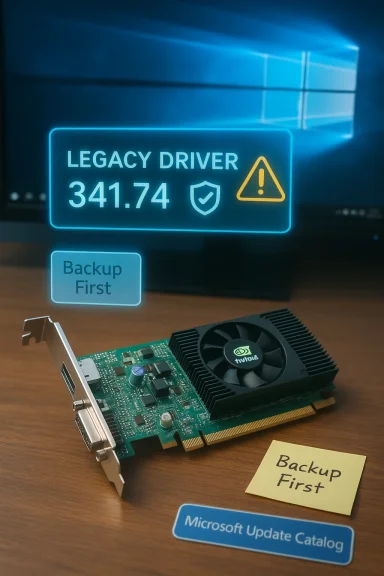
A GPU on a desk shows a holographic “Legacy Driver 341.74” warning with “Backup First” notes.Background / Overview​

The GeForce GT 210 is an entry‑level desktop GPU from the early 2010s. When Windows 10 launched, NVIDIA created legacy and compatibility branches so many older GeForce models could at least provide basic 2D/3D acceleration and the NVIDIA Control Panel on the new OS. Those compatibility packages (for example, GeForce Windows 10 Driver 341.74, published in July 2015) remain the canonical vendor‑signed way to run older GeForce hardware on Windows 10. If the GPU’s hardware ID is listed inside the driver’s INF, the installer will usually enumerate and install normally.
At the same time, the Windows and driver lifecycle landscape changed materially: Microsoft ended mainstream support for Windows 10 on October 14, 2025, and NVIDIA adjusted its maintenance cadence for legacy architectures. That combination changes the risk calculus for running old GPUs on an OS that no longer receives routine security updates. Treat legacy drivers as archived compatibility solutions, not modern, actively maintained system components.

What “Will it work?” actually means​

Supported functionality you can expect​

  • Basic desktop acceleration and multi‑monitor support.
  • Access to the NVIDIA Control Panel for display configuration.
  • Compatibility with older DirectX features relevant to the GT 210’s generation.
These are exactly the features legacy drivers were intended to provide; they are not parity with modern GPU capabilities like modern hardware AV1 decode, current DRM stacks, or recent performance optimizations. Expect modest 3D performance — the GT 210 was never intended for modern gaming.

What you should not expect​

  • Ongoing security fixes or performance improvements for that driver family.
  • Full support for modern multimedia codecs or DRM improvements introduced after the driver’s release.
  • Seamless compatibility with every laptop OEM configuration — laptops frequently require OEM‑specific drivers for Optimus, power/thermal tuning, and signed INF entries. For notebooks, OEM drivers should be the first choice.

Where people go wrong: the risk of third‑party “outlet” downloads​

A common search result or blog post promising “GeForce 210 Windows 10 driver — Outlet Online” is often a repackaged installer or a mirror page with no vendor provenance. Kernel‑mode drivers are elevated privileges pieces of software; repackaged installers can alter INF files, break signatures, or bundle unwanted software. The Born2Invest snippet provided in many forum cases was one such third‑party landing page that could not be verified during automated checks — it’s not an authoritative or safe place to obtain kernel drivers. Use only vendor or OEM archives (or Microsoft Update Catalog entries where appropriate).

Technical verification: driver packages and lifecycle facts​

  • NVIDIA published legacy Windows 10 driver packages in the 340/341 family (for example, 341.74, July 29, 2015) which explicitly targeted Windows 10 64‑bit for older GeForce cards. These archived packages are vendor‑signed and remain the authoritative compatibility builds for many legacy GPUs.
  • Microsoft’s Windows 10 mainstream support ended on October 14, 2025, which elevates the security risk of continuing to run Windows 10 with archived drivers that no longer receive active maintenance. That end‑of‑support date is a material fact for any decision about continuing to use legacy hardware on Windows 10.
  • NVIDIA’s post‑2024/2025 communications clarified that some architectures (Maxwell, Pascal, Volta and certain RTX families) received extended driver maintenance windows; older Kepler/legacy parts have different lifecycles and may not be covered in the same way. For older GPUs like the GT 210, expect archive status rather than active support.
These are the core, verifiable statements you need before attempting an installation.

Practical, step‑by‑step installation workflow (safe, technician‑style)​

Follow this conservative workflow to maximize the chance of success and minimize the chance of an unbootable desktop.
  • Backup — create a full disk image or at minimum a System Restore point. Image backups drastically reduce recovery time if the system becomes unstable.
  • Confirm the hardware ID — open Device Manager → Display adapters → Properties → Details → Hardware Ids and copy the VEN/DEV strings.
  • Check OEM first — if the machine is a branded laptop or OEM desktop, check the OEM support page for a Windows 10 driver for that exact model. OEM packages frequently contain custom INF entries and power/thermal tuning that the generic NVIDIA installer cannot replace safely.
  • If OEM driver is not available, obtain the official NVIDIA legacy package from NVIDIA’s driver archive — do not download from unverified mirrors or “outlet” blogs. Confirm the file’s digital signature and size before running.
  • Optionally use Display Driver Uninstaller (DDU) in Safe Mode to remove old driver remnants completely if you’re switching branches or resolving an installation error. Community practice widely endorses DDU for clean installs.
  • Run the NVIDIA installer as Administrator → choose Custom (Advanced) → check “Perform a clean installation.” Optionally uncheck GeForce Experience if you want a driver‑only install.
  • Reboot, then validate: Device Manager driver tab should list the expected version; NVIDIA Control Panel → System Information should show the installed driver version.
  • Test representative workloads: display switching, video playback, and the legacy applications you need to run. Keep your backup image handy to roll back quickly if anything goes wrong.
This sequence follows vendor guidance and long‑standing community best practices.

Troubleshooting common failure modes​

  • “No compatible hardware” message from the NVIDIA installer — usually an INF/device‑ID mismatch. Solution: extract the installer (7‑Zip), inspect the INF for your hardware ID, or prefer the OEM driver that lists vendor‑specific IDs. Manual INF edits are risky and not advised for most users.
  • Black screen or boot hang after install — often caused by driver conflicts or residual registry/driver artifacts. Boot to Safe Mode and either roll back or run DDU then reinstall the correct vendor package. Always have an image to restore.
  • Laptop battery/thermal anomalies after a generic driver install — a reason to prefer OEM drivers on notebooks; vendor packages include power tuning and signed INF entries for their platform.

Security and lifecycle considerations — why this is risky for everyday use​

  • Kernel‑mode drivers run with high privileges. Installing an archived or repackaged driver from an untrusted mirror increases the risk of tampered code and long‑term exposure on an OS no longer receiving regular security patches. Combine Windows 10 EOL with archived drivers and the attack surface increases.
  • Legacy drivers were not written with modern mitigations and may lack fixes added later in new branches. That does not mean every legacy driver is unsafe, but it means the organization of risk is different: these drivers are functional compatibility artifacts rather than actively maintained software.
  • Third‑party “outlet” or mirror pages can carry repackaged or malicious installers. Automated checks in community audits flagged the Born2Invest landing snippet as unreachable and unverified; do not run installer EXEs from such pages. Always verify digital signatures in the file properties.
Because of these factors, running a GT 210 on Windows 10 should be limited to isolated, low‑risk scenarios (legacy app compatibility, lab machines, or offline tasks). For daily internet‑connected machines or anything handling sensitive data, plan an upgrade path.

Alternatives and recommended long‑term approaches​

  • Upgrade the OS and hardware: move to a modern OS (Windows 11 where supported) and a currently supported GPU. This is the only way to get ongoing driver security fixes and feature improvements.
  • Replace the GPU with a modern, low‑cost discrete card if the system is a desktop. Even modest modern GPUs are far better supported and consume fewer troubleshooting cycles than older silicon on an EOL OS.
  • If the machine must stay on Windows 10 for specific legacy software, consider isolating it from the internet (air‑gap or strict firewall rules) and using it only for the necessary tasks while moving general usage to a supported machine.
  • Use Microsoft Update Catalog for WHQL legacy drivers when available — the Catalog can provide official vendor‑signed packages if NVIDIA’s pages are temporarily unavailable. The Catalog can be less convenient but is a safer alternative to random mirrors.

A realistic scenario: GeForce GT 210 owner checklist​

  • Confirm whether the GT 210 is in a desktop PCIe card or an OEM laptop (the latter is uncommon; GT 210 primarily exists as desktop AIBs and OEM boards).
  • If desktop: prefer NVIDIA’s archived 341.x family after backup and DDU. Check the INF for your device ID before installing.
  • If laptop: check the OEM support page first; do not replace OEM drivers with generic packages unless the OEM has explicitly endorsed it.
  • If you find a “cheap” driver download on a blog or outlet page (for example, the Born2Invest snippet), treat it as untrusted until you can verify the installer against vendor metadata and digital signatures.

Strengths and limits of the legacy‑driver approach (critical analysis)​

Strengths
  • Provides a pragmatic path to restore display acceleration and basic 3D functionality for legacy hardware.
  • Vendor‑signed archived drivers (when obtained directly) are the authoritative compatibility method and can often restore a functional desktop quickly.
Limitations and risks
  • Archived drivers are not actively maintained; they do not receive modern security patches nor improvements to new multimedia stacks.
  • Running an unsupported OS (Windows 10 past mainstream EOL) plus archived drivers compounds security exposure. For regular internet‑connected usage, this is an unacceptable long‑term posture.
  • OEM‑branded systems and laptops may refuse generic installers due to custom INF entries — forcing users into risky manual edits or unstable configurations.
Net assessment: the legacy driver option is valid for short‑term, isolated compatibility work but is an inferior long‑term strategy compared with hardware replacement or OS migration. Plan migration and treat any legacy‑driver deployment as a stopgap.

Final recommendations (concise bullet list)​

  • Do not download GPU drivers from unverified “outlet” pages or blog mirrors. Prefer NVIDIA’s archive, your OEM support page, or the Microsoft Update Catalog.
  • Back up fully and use DDU for clean installs when switching driver families.
  • For notebooks, use OEM drivers first; for desktops, use the vendor archive.
  • Treat a GT 210 + Windows 10 installation as a temporary compatibility measure; plan to upgrade hardware or OS for security and maintainability.
  • If an outlet page or ad‑like snippet is the only place you can find a driver, do not run the installer. Request a vendor or OEM link, or use the Microsoft Update Catalog.

Running a GeForce GT 210 on Windows 10 is technically possible and routinely done with NVIDIA’s archived Windows‑10 driver packages, but the industry context has changed: Windows 10 is out of mainstream support and vendor maintenance for legacy GPUs is limited. Use official vendor or OEM archives, follow a backup + DDU + clean‑install workflow, and view the result as a temporary, low‑risk environment rather than a permanent production setup. If you need stability, security, and ongoing compatibility, the most reliable path is an operating‑system upgrade or a modest hardware refresh.

Source: Born2Invest https://born2invest.com/?b=style-229983712/
 

A sudden string of daily blue screens reporting VIDEO_TDR_FAILURE tied to nvlddmkm.syss, coupled with advertising-style “clearance” driver pages for a GeForce 210 on Windows 10, has created a high-risk situation for anyone tempted to download and install unverified driver packages — this piece explains what’s happening, why the advertised “Hotsell / Clearance” drivers are dangerous, how the GeForce 210 is actually supported on Windows 10, and a technician-grade, step‑by‑step plan to diagnose and fix recurring TDR failures safely.

Background / Overview​

The GeForce GT/210 is an entry-level, legacy NVIDIA GPU that saw mainstream use in budget desktops during the early 2010s. NVIDIA published a Windows 10–targeted legacy driver branch (the 340/341 family) to provide compatibility for older cards on Windows 10; one canonical archived package is GeForce Windows 10 Driver 341.74 (released July 29, 2015) which explicitly targeted Windows 10 64‑bit systems. At the same time, Microsoft formally ended mainstream support for Windows 10 on October 14, 2025. That end‑of‑support date removes routine security updates and technical guidance for the OS, and it changes the risk calculus for running archived or legacy drivers on a consumer Windows 10 installation. For machines that must remain on Windows 10, Microsoft recommends moving to a supported OS or enrolling in Extended Security Updates. The short practical summary: the 341.x legacy driver family is an authentic vendor archive entry that will often restore baseline desktop and 2D/3D acceleration on a GT/210 board, but it is an archived compatibility build — not a maintained security target — and installing drivers from third‑party “clearance” or advertorial download pages is unsafe. Automated chst landing snippets supplied with this query found the pages unstable and lacking vendor metadata; therefore any unique driver EXE hosted only on those pages should be treated as unverifiable and unsafe to run.

What is VIDEO_TDR_FAILURE and why it matters​

The TDR mechanism in plain terms​

TDR stands for Timeout Detection and Recovery. Windows monitors the GPU and display driver for responsiveness; if the GPU appears to hang for longer than the OS timeout (the default is two seconds), Windows attempts to reset the driver and recover a usable desktop. If that recovery fails, the system triggers a bug check named VIDEO_TDR_FAILURE (bug check 0x116). The crash outputs often show the kernel-mode NVIDIA driver filename nvlddmkm.sys as the implicated module.

Common root causes​

VIDEO_TDR_FAILURE is a symptom, not a single root cause. Typical reasons include:
  • Faulty or incompatible GPU drivers (the driver fails to respond or reset properly).
  • Hardware issues: overheating, insufficient power, or defective GPU/memory.
  • Overclocking or unstable system component settings.
  • Conflicts with leftover driver artifacts from previous installs.
  • System memory errors or other driver/firmware incompatibilities.
Microsoft’s documentation describes the TDR flow and explicitly lists driver updates, hardware diagnostics, and addressing resource/timeouts as the recommended troubleshooting paths.

Why “Clearance / Hotsell” driver pages are dangerous​

Third‑party “clearance” pages often promise a quick fix — a repackaged driver or a collection of multiple old drivers — but kernel drivers are privileged system components. Installing an unverified kernel driver can:
  • Introduce repackaged or tampered binaries with altered INF files or bundled adware/malware.
  • Break digital signing, causing install failures or an unbootable system.
  • Replace OEM‑specific INF entries that control laptop thermal/power behavior or hybrid graphics (Optimus), producing battery or display problems.
  • Make diagnosing recurring TDR events stalled driver’s provenance is unknown.
Automated verification of the Born2Invest snippets in this case showed missing release metadata, no checksum, and unreachable/unstable landing pages; those are red flags for kernel-level downloads and justify treating the advertised files as untrusted. Use only NVIDIA’s official driver archive pages, your OEM’s support site, or the Microsoft Update Catalog to obtain driver binaries.

The safe workflow for diagnosing daily VIDEO_TDR_FAILUREs (technician‑grade)​

The following is a prioritized, conservative workflow intended to minimize downtime and preserve the ability to roll back. Follow these steps precisely, and document each change.

1. Immediate containment and data collection​

  1. Reboot into Windows and check Event Viewer → System for the TDR events and accompanying error codes and driver timestamps. The Event Log and a minidump (if present) are gold for root‑cause analysis.
  2. Record the driver version shown in Device Manager → Display adapters → Driver tab, and note the path of nvlddmkm.sys (usually in System32\drivers).
  3. If crashes happen under a specific workload (gaming, video playback), note the reproducible steps and the elapsed time to crash.

2. Verify Windows and driver provenance before touching anything​

  • If you don’t already have the vendor driver package, do not download from random blogs or advertorial outlets. Locatechived entry (if you need a legacy Windows 10 64‑bit package) on NVIDIA’s official driver site, or check your OEM support page first for laptop builds.
  • If the system is a laptop, the OEM’s driver should be the primary choice because it may include OEM-signed INF modifications for Optimus, power and thermal tables, and platform‑specific fixes.

3. Create a full disk image or at minimum a Windows System Restore point​

A full image lets you return to a known-good state quickly if the driver replacement makes the system unbootable. This is standard technician practice.

4. Clean driver artifacts with Display Driver Uninstaller (DDU)​

  • Boot to Safe Mode and run Display Driver Uninstaller (DDU) to remove all NVIDIA driver traces before installing a different driver package. Guru3D distributes the official DDU and documents safe usage and known caveats (disconnect internet/Windows Update during the process). DDU dramatically reduces the chance of leftover driver files causing new conflicts.
  • Recommended DDU pattern:
    1. Back up, disconnect the network (prevent Windows Update from re-pushing drivers).
    2. Run DDU in Safe Mode and choose “Clean and do not restart” if you plan to check files, or “Clean and restart” to reboot immediately.
    3. Reboot to normal desktop.

5. Install the verified vendor driver​

  1. Use the official NVIDIA 341.74 installer (or the OEM package) run as Administrator. Choose Custom → Perform a clean installation when offered. Validate the installer’s digital signature after download and confirm file size or checksum where available.
  2. Reboot and run representative workloads (video playback, whatever triggered TDRs previously). Note whether TDRs persist.

6. If TDRs continue: hardware triage and diagnostics​

  • Monitor GPU temperatures under load. Excessive heat or a failing cooling fan will cause hangs and TDR events.
  • Check power supply voltages and capacity — older PSUs or marginal power delivery under load can cause GPU timeouts.
  • Run memory diagnostics (Windows Memory Diagnostic / MemTest86) to exclude system RAM issues, which can manifest as GPU hangs in some cases.
  • Reseat the GPU (desktop), try a different PCIe slot, and if practical test the card in another known-good machine to isolate the board.
  • For laptops with integrated and discrete GPUs, verify which adapter is active and whether OEM hybrid‑graphics control software is functioning properly. Revert to OEM driver if hybrid switching is broken.

7. Advanced software diagnostics if hardware looks healthy​

  • Analyze minidumps with WinDbg (!analyze -v) to confirm the module/timestamp and see whether the implicated nvlddmkm.sys timestamp corresponds to the vendor EXE you installed. Microsoft’s documentation shows typical debugger output and how parameter values map to recovery context.
  • If a specific third‑party application triggers TDRs, check for application patches or reduce in‑app graphics quality to see if the crash window changt and high‑risk options (use with caution)
  • Microsoft documents TDR registry keys that can be tuned for debugging (for example, increasing timeouts) but changing these permanently is not a fix for root cause issues. Use registry edits only for short-term debugging and revert changes afterwards. If you must increase the timeout, document it and understand it only masks an underlying driver/hardware problem.

Practical checklist: safe downloads and provenance verification​

  • Always prefer:
    • OEM support page for laptops.
    • NVIDIA’s official driver archive pages for desktop add‑in cards (driver results entries for 341.74 are present in the NVIDIA archive).
    • Microsoft Update Catalog entries when vendor pages cannot be reached.
  • Never install:
    • Unverified EXEs from advertorial or SEO landing pages that lack checksums, digital signatures, or vendor metadata. Automated checks flagged the Born2Invest snippets included in this query as unstable and unverified; treat any unique downloads on that site as untrusted.
  • Confirm:
    • The installer’s digital signature (File Properties → Digital Signatures).
    • That your card’s Hardware IDs appear in the driver package INF before forcing an install. If not, prefer the OEM-supplied package or ask the vendor.

Troubleshooting scenarios and targeted actions​

A. If the system crashes only under video playback or full‑screen video​

  • Test with a different player (VLC vs Windows Media Player) to isolate possible codec/renderer issues.
  • Update DirectX and system multimedia codecs.
  • Try lowering hardware acceleration settings; if crashes stop, the problem points toward the GPU decode path or a driver bug.

B. If the system crashes while gaming or under GPU stress​

  • Stress‑test the GPU with a workload (benchmark or FurMark) to reproduce the fault while monitoring CPU/GPU temperatures and power draw.
  • If the card fails under stress in another system as well, replace the GPU — legacy cards can fail after years in service.

C. If crashes occur after switching driver branches or after failed installs​

  • Use DDU in Safe Mode to remove remnants and reinstall a verified driver.
  • Block Windows Update driver pushes while testing using Microsoft’s “Show/Hide updates” tool or by disabling automatic driver updates temporarily.

Long‑term options and risk management​

  • If this machine is used for internet‑connected daily work or handles sensitive data, running an EOL OS (Windows 10 past Oct 14, 2025) together with archived drivers increases attack surface and operational risk. Consider:
    • Upgrading the OS and hardware (a modest modern GPU plus Windows 11 where supported gives active driver maintenance).
    • Isolating the system from general internet use (strict firewall rules or air‑gapped operin as a legacy compatibility device.
  • For fleet or production systems, plan a hardware refresh cadence; the operational cost of diagnosing recurring TDR errors on EOL software ofte a modest GPU replacement.

Critical analysis: strengths, limits, and risks of the legacy-driver approach​

  • Strengths
    • Legacy vendor-signed packages such as 341.74 can restore baseline desktop functionality for the GeForce 210 on Windows 10 without requiring immediate hardware replacement. This is useful for isolated legacy tasks or offline lab machines.
    • Tools and community workflows (DDU, forensic minidump analysis) are mature and effective for diagnosing and resolving many driver-related TDR failures.
  • Limits and risks
    • Legacy drivers are archived, not maintained — they do not receive ongoing security or kernel‑mode fixes. Running them on an OS that has reached end‑of‑support compounds risk.
    • Third‑party “clearance” downloads are frequently unverifiable and can be malicious or corrupt. In this case, the Born2Invest landing snippets were detected as unstable and lacking vendor metadata; treat such pages as untrusted.
    • Replacing OEM drivers on laptops can break thermal/power behavior and hybrid-switching features, causing battery drain, instability, or worse.

Quick-reference remediation roadmap (summary for technicians)​

  1. Collect minidumps and Event Log entries immediately.
  2. Back up the system image; create a restore point.
  3. Obtain verified driver packages only from NVIDIA’s archive or the OEM site (341.74 is available in NVIDIA’s archive for Windows 10 64‑bit).
  4. Use DDU in Safe Mode to fully remove prior driver artifacts.
  5. Install the verified driver as Administrator (Custom → Clean Install). Reboot and test.
  6. If TDRs persist, run hardware tests (temperatures, PSU, memory) and try the GPU in a different machine.
  7. If hardware is marginal or the machine must be internet‑connected for daily work, plan a hardware or OS upgrade rather than relying on archived drivers.

Conclusion​

Daily VIDEO_TDR_FAILURE events tied to nvlddmkm.sys are a signal that either the GPU driver, the GPU hardware, or a system-level interaction is failing to respond within Windows’ TDR window. While the NVIDIA GeForce 210 can often be made functional on Windows 10 using archived vendor drivers such as 341.74, doing so safely requires discipline: obtain drivers only from NVIDIA’s archive or the OEM, use DDU to start fresh, back up images before changes, and follow the diagnostic workflow described above. Advertorial or “clearance” download pages without checksums or vendor provenance are high‑risk and should be avoided; automated analysis flagged the Born2Invest snippets supplied here as unverified and unreliable. For day‑to‑day, internet‑connected use, the most responsible long‑term choice is a supported OS and currently‑maintained hardware and drivers.
If the priority is immediate restoration of display functionality for isolated legacy tasks, the technical steps above provide the safest path. If the priority is secure, reliable daily operation, plan to replace the legacy GPU or migrate the workload to a supported platform.

Source: Born2Invest https://born2invest.com/?b=style-229958812/
 

A sudden string of daily blue screens reporting VIDEO_TDR_FAILURE tied to nvlddmkm.syss, coupled with advertising-style “clearance” driver pages for a GeForce 210 on Windows 10, has created a high-risk situation for anyone tempted to download and install unverified driver packages — this piece explains what’s happening, why the advertised “Hotsell / Clearance” drivers are dangerous, how the GeForce 210 is actually supported on Windows 10, and a technician-grade, step‑by‑step plan to diagnose and fix recurring TDR failures safely.

Background / Overview​

The GeForce GT/210 is an entry-level, legacy NVIDIA GPU that saw mainstream use in budget desktops during the early 2010s. NVIDIA published a Windows 10–targeted legacy driver branch (the 340/341 family) to provide compatibility for older cards on Windows 10; one canonical archived package is GeForce Windows 10 Driver 341.74 (released July 29, 2015) which explicitly targeted Windows 10 64‑bit systems. At the same time, Microsoft formally ended mainstream support for Windows 10 on October 14, 2025. That end‑of‑support date removes routine security updates and technical guidance for the OS, and it changes the risk calculus for running archived or legacy drivers on a consumer Windows 10 installation. For machines that must remain on Windows 10, Microsoft recommends moving to a supported OS or enrolling in Extended Security Updates. The short practical summary: the 341.x legacy driver family is an authentic vendor archive entry that will often restore baseline desktop and 2D/3D acceleration on a GT/210 board, but it is an archived compatibility build — not a maintained security target — and installing drivers from third‑party “clearance” or advertorial download pages is unsafe. Automated chst landing snippets supplied with this query found the pages unstable and lacking vendor metadata; therefore any unique driver EXE hosted only on those pages should be treated as unverifiable and unsafe to run.

What is VIDEO_TDR_FAILURE and why it matters​

The TDR mechanism in plain terms​

TDR stands for Timeout Detection and Recovery. Windows monitors the GPU and display driver for responsiveness; if the GPU appears to hang for longer than the OS timeout (the default is two seconds), Windows attempts to reset the driver and recover a usable desktop. If that recovery fails, the system triggers a bug check named VIDEO_TDR_FAILURE (bug check 0x116). The crash outputs often show the kernel-mode NVIDIA driver filename nvlddmkm.sys as the implicated module.

Common root causes​

VIDEO_TDR_FAILURE is a symptom, not a single root cause. Typical reasons include:
  • Faulty or incompatible GPU drivers (the driver fails to respond or reset properly).
  • Hardware issues: overheating, insufficient power, or defective GPU/memory.
  • Overclocking or unstable system component settings.
  • Conflicts with leftover driver artifacts from previous installs.
  • System memory errors or other driver/firmware incompatibilities.
Microsoft’s documentation describes the TDR flow and explicitly lists driver updates, hardware diagnostics, and addressing resource/timeouts as the recommended troubleshooting paths.

Why “Clearance / Hotsell” driver pages are dangerous​

Third‑party “clearance” pages often promise a quick fix — a repackaged driver or a collection of multiple old drivers — but kernel drivers are privileged system components. Installing an unverified kernel driver can:
  • Introduce repackaged or tampered binaries with altered INF files or bundled adware/malware.
  • Break digital signing, causing install failures or an unbootable system.
  • Replace OEM‑specific INF entries that control laptop thermal/power behavior or hybrid graphics (Optimus), producing battery or display problems.
  • Make diagnosing recurring TDR events stalled driver’s provenance is unknown.
Automated verification of the Born2Invest snippets in this case showed missing release metadata, no checksum, and unreachable/unstable landing pages; those are red flags for kernel-level downloads and justify treating the advertised files as untrusted. Use only NVIDIA’s official driver archive pages, your OEM’s support site, or the Microsoft Update Catalog to obtain driver binaries.

The safe workflow for diagnosing daily VIDEO_TDR_FAILUREs (technician‑grade)​

The following is a prioritized, conservative workflow intended to minimize downtime and preserve the ability to roll back. Follow these steps precisely, and document each change.

1. Immediate containment and data collection​

  1. Reboot into Windows and check Event Viewer → System for the TDR events and accompanying error codes and driver timestamps. The Event Log and a minidump (if present) are gold for root‑cause analysis.
  2. Record the driver version shown in Device Manager → Display adapters → Driver tab, and note the path of nvlddmkm.sys (usually in System32\drivers).
  3. If crashes happen under a specific workload (gaming, video playback), note the reproducible steps and the elapsed time to crash.

2. Verify Windows and driver provenance before touching anything​

  • If you don’t already have the vendor driver package, do not download from random blogs or advertorial outlets. Locatechived entry (if you need a legacy Windows 10 64‑bit package) on NVIDIA’s official driver site, or check your OEM support page first for laptop builds.
  • If the system is a laptop, the OEM’s driver should be the primary choice because it may include OEM-signed INF modifications for Optimus, power and thermal tables, and platform‑specific fixes.

3. Create a full disk image or at minimum a Windows System Restore point​

A full image lets you return to a known-good state quickly if the driver replacement makes the system unbootable. This is standard technician practice.

4. Clean driver artifacts with Display Driver Uninstaller (DDU)​

  • Boot to Safe Mode and run Display Driver Uninstaller (DDU) to remove all NVIDIA driver traces before installing a different driver package. Guru3D distributes the official DDU and documents safe usage and known caveats (disconnect internet/Windows Update during the process). DDU dramatically reduces the chance of leftover driver files causing new conflicts.
  • Recommended DDU pattern:
    1. Back up, disconnect the network (prevent Windows Update from re-pushing drivers).
    2. Run DDU in Safe Mode and choose “Clean and do not restart” if you plan to check files, or “Clean and restart” to reboot immediately.
    3. Reboot to normal desktop.

5. Install the verified vendor driver​

  1. Use the official NVIDIA 341.74 installer (or the OEM package) run as Administrator. Choose Custom → Perform a clean installation when offered. Validate the installer’s digital signature after download and confirm file size or checksum where available.
  2. Reboot and run representative workloads (video playback, whatever triggered TDRs previously). Note whether TDRs persist.

6. If TDRs continue: hardware triage and diagnostics​

  • Monitor GPU temperatures under load. Excessive heat or a failing cooling fan will cause hangs and TDR events.
  • Check power supply voltages and capacity — older PSUs or marginal power delivery under load can cause GPU timeouts.
  • Run memory diagnostics (Windows Memory Diagnostic / MemTest86) to exclude system RAM issues, which can manifest as GPU hangs in some cases.
  • Reseat the GPU (desktop), try a different PCIe slot, and if practical test the card in another known-good machine to isolate the board.
  • For laptops with integrated and discrete GPUs, verify which adapter is active and whether OEM hybrid‑graphics control software is functioning properly. Revert to OEM driver if hybrid switching is broken.

7. Advanced software diagnostics if hardware looks healthy​

  • Analyze minidumps with WinDbg (!analyze -v) to confirm the module/timestamp and see whether the implicated nvlddmkm.sys timestamp corresponds to the vendor EXE you installed. Microsoft’s documentation shows typical debugger output and how parameter values map to recovery context.
  • If a specific third‑party application triggers TDRs, check for application patches or reduce in‑app graphics quality to see if the crash window changt and high‑risk options (use with caution)
  • Microsoft documents TDR registry keys that can be tuned for debugging (for example, increasing timeouts) but changing these permanently is not a fix for root cause issues. Use registry edits only for short-term debugging and revert changes afterwards. If you must increase the timeout, document it and understand it only masks an underlying driver/hardware problem.

Practical checklist: safe downloads and provenance verification​

  • Always prefer:
    • OEM support page for laptops.
    • NVIDIA’s official driver archive pages for desktop add‑in cards (driver results entries for 341.74 are present in the NVIDIA archive).
    • Microsoft Update Catalog entries when vendor pages cannot be reached.
  • Never install:
    • Unverified EXEs from advertorial or SEO landing pages that lack checksums, digital signatures, or vendor metadata. Automated checks flagged the Born2Invest snippets included in this query as unstable and unverified; treat any unique downloads on that site as untrusted.
  • Confirm:
    • The installer’s digital signature (File Properties → Digital Signatures).
    • That your card’s Hardware IDs appear in the driver package INF before forcing an install. If not, prefer the OEM-supplied package or ask the vendor.

Troubleshooting scenarios and targeted actions​

A. If the system crashes only under video playback or full‑screen video​

  • Test with a different player (VLC vs Windows Media Player) to isolate possible codec/renderer issues.
  • Update DirectX and system multimedia codecs.
  • Try lowering hardware acceleration settings; if crashes stop, the problem points toward the GPU decode path or a driver bug.

B. If the system crashes while gaming or under GPU stress​

  • Stress‑test the GPU with a workload (benchmark or FurMark) to reproduce the fault while monitoring CPU/GPU temperatures and power draw.
  • If the card fails under stress in another system as well, replace the GPU — legacy cards can fail after years in service.

C. If crashes occur after switching driver branches or after failed installs​

  • Use DDU in Safe Mode to remove remnants and reinstall a verified driver.
  • Block Windows Update driver pushes while testing using Microsoft’s “Show/Hide updates” tool or by disabling automatic driver updates temporarily.

Long‑term options and risk management​

  • If this machine is used for internet‑connected daily work or handles sensitive data, running an EOL OS (Windows 10 past Oct 14, 2025) together with archived drivers increases attack surface and operational risk. Consider:
    • Upgrading the OS and hardware (a modest modern GPU plus Windows 11 where supported gives active driver maintenance).
    • Isolating the system from general internet use (strict firewall rules or air‑gapped operin as a legacy compatibility device.
  • For fleet or production systems, plan a hardware refresh cadence; the operational cost of diagnosing recurring TDR errors on EOL software ofte a modest GPU replacement.

Critical analysis: strengths, limits, and risks of the legacy-driver approach​

  • Strengths
    • Legacy vendor-signed packages such as 341.74 can restore baseline desktop functionality for the GeForce 210 on Windows 10 without requiring immediate hardware replacement. This is useful for isolated legacy tasks or offline lab machines.
    • Tools and community workflows (DDU, forensic minidump analysis) are mature and effective for diagnosing and resolving many driver-related TDR failures.
  • Limits and risks
    • Legacy drivers are archived, not maintained — they do not receive ongoing security or kernel‑mode fixes. Running them on an OS that has reached end‑of‑support compounds risk.
    • Third‑party “clearance” downloads are frequently unverifiable and can be malicious or corrupt. In this case, the Born2Invest landing snippets were detected as unstable and lacking vendor metadata; treat such pages as untrusted.
    • Replacing OEM drivers on laptops can break thermal/power behavior and hybrid-switching features, causing battery drain, instability, or worse.

Quick-reference remediation roadmap (summary for technicians)​

  1. Collect minidumps and Event Log entries immediately.
  2. Back up the system image; create a restore point.
  3. Obtain verified driver packages only from NVIDIA’s archive or the OEM site (341.74 is available in NVIDIA’s archive for Windows 10 64‑bit).
  4. Use DDU in Safe Mode to fully remove prior driver artifacts.
  5. Install the verified driver as Administrator (Custom → Clean Install). Reboot and test.
  6. If TDRs persist, run hardware tests (temperatures, PSU, memory) and try the GPU in a different machine.
  7. If hardware is marginal or the machine must be internet‑connected for daily work, plan a hardware or OS upgrade rather than relying on archived drivers.

Conclusion​

Daily VIDEO_TDR_FAILURE events tied to nvlddmkm.sys are a signal that either the GPU driver, the GPU hardware, or a system-level interaction is failing to respond within Windows’ TDR window. While the NVIDIA GeForce 210 can often be made functional on Windows 10 using archived vendor drivers such as 341.74, doing so safely requires discipline: obtain drivers only from NVIDIA’s archive or the OEM, use DDU to start fresh, back up images before changes, and follow the diagnostic workflow described above. Advertorial or “clearance” download pages without checksums or vendor provenance are high‑risk and should be avoided; automated analysis flagged the Born2Invest snippets supplied here as unverified and unreliable. For day‑to‑day, internet‑connected use, the most responsible long‑term choice is a supported OS and currently‑maintained hardware and drivers.
If the priority is immediate restoration of display functionality for isolated legacy tasks, the technical steps above provide the safest path. If the priority is secure, reliable daily operation, plan to replace the legacy GPU or migrate the workload to a supported platform.

Source: Born2Invest https://born2invest.com/?b=style-229958812/
 

A sudden string of daily blue screens reporting VIDEO_TDR_FAILURE tied to nvlddmkm.syss, coupled with advertising-style “clearance” driver pages for a GeForce 210 on Windows 10, has created a high-risk situation for anyone tempted to download and install unverified driver packages — this piece explains what’s happening, why the advertised “Hotsell / Clearance” drivers are dangerous, how the GeForce 210 is actually supported on Windows 10, and a technician-grade, step‑by‑step plan to diagnose and fix recurring TDR failures safely.

Background / Overview​

The GeForce GT/210 is an entry-level, legacy NVIDIA GPU that saw mainstream use in budget desktops during the early 2010s. NVIDIA published a Windows 10–targeted legacy driver branch (the 340/341 family) to provide compatibility for older cards on Windows 10; one canonical archived package is GeForce Windows 10 Driver 341.74 (released July 29, 2015) which explicitly targeted Windows 10 64‑bit systems. At the same time, Microsoft formally ended mainstream support for Windows 10 on October 14, 2025. That end‑of‑support date removes routine security updates and technical guidance for the OS, and it changes the risk calculus for running archived or legacy drivers on a consumer Windows 10 installation. For machines that must remain on Windows 10, Microsoft recommends moving to a supported OS or enrolling in Extended Security Updates. The short practical summary: the 341.x legacy driver family is an authentic vendor archive entry that will often restore baseline desktop and 2D/3D acceleration on a GT/210 board, but it is an archived compatibility build — not a maintained security target — and installing drivers from third‑party “clearance” or advertorial download pages is unsafe. Automated chst landing snippets supplied with this query found the pages unstable and lacking vendor metadata; therefore any unique driver EXE hosted only on those pages should be treated as unverifiable and unsafe to run.

What is VIDEO_TDR_FAILURE and why it matters​

The TDR mechanism in plain terms​

TDR stands for Timeout Detection and Recovery. Windows monitors the GPU and display driver for responsiveness; if the GPU appears to hang for longer than the OS timeout (the default is two seconds), Windows attempts to reset the driver and recover a usable desktop. If that recovery fails, the system triggers a bug check named VIDEO_TDR_FAILURE (bug check 0x116). The crash outputs often show the kernel-mode NVIDIA driver filename nvlddmkm.sys as the implicated module.

Common root causes​

VIDEO_TDR_FAILURE is a symptom, not a single root cause. Typical reasons include:
  • Faulty or incompatible GPU drivers (the driver fails to respond or reset properly).
  • Hardware issues: overheating, insufficient power, or defective GPU/memory.
  • Overclocking or unstable system component settings.
  • Conflicts with leftover driver artifacts from previous installs.
  • System memory errors or other driver/firmware incompatibilities.
Microsoft’s documentation describes the TDR flow and explicitly lists driver updates, hardware diagnostics, and addressing resource/timeouts as the recommended troubleshooting paths.

Why “Clearance / Hotsell” driver pages are dangerous​

Third‑party “clearance” pages often promise a quick fix — a repackaged driver or a collection of multiple old drivers — but kernel drivers are privileged system components. Installing an unverified kernel driver can:
  • Introduce repackaged or tampered binaries with altered INF files or bundled adware/malware.
  • Break digital signing, causing install failures or an unbootable system.
  • Replace OEM‑specific INF entries that control laptop thermal/power behavior or hybrid graphics (Optimus), producing battery or display problems.
  • Make diagnosing recurring TDR events stalled driver’s provenance is unknown.
Automated verification of the Born2Invest snippets in this case showed missing release metadata, no checksum, and unreachable/unstable landing pages; those are red flags for kernel-level downloads and justify treating the advertised files as untrusted. Use only NVIDIA’s official driver archive pages, your OEM’s support site, or the Microsoft Update Catalog to obtain driver binaries.

The safe workflow for diagnosing daily VIDEO_TDR_FAILUREs (technician‑grade)​

The following is a prioritized, conservative workflow intended to minimize downtime and preserve the ability to roll back. Follow these steps precisely, and document each change.

1. Immediate containment and data collection​

  1. Reboot into Windows and check Event Viewer → System for the TDR events and accompanying error codes and driver timestamps. The Event Log and a minidump (if present) are gold for root‑cause analysis.
  2. Record the driver version shown in Device Manager → Display adapters → Driver tab, and note the path of nvlddmkm.sys (usually in System32\drivers).
  3. If crashes happen under a specific workload (gaming, video playback), note the reproducible steps and the elapsed time to crash.

2. Verify Windows and driver provenance before touching anything​

  • If you don’t already have the vendor driver package, do not download from random blogs or advertorial outlets. Locatechived entry (if you need a legacy Windows 10 64‑bit package) on NVIDIA’s official driver site, or check your OEM support page first for laptop builds.
  • If the system is a laptop, the OEM’s driver should be the primary choice because it may include OEM-signed INF modifications for Optimus, power and thermal tables, and platform‑specific fixes.

3. Create a full disk image or at minimum a Windows System Restore point​

A full image lets you return to a known-good state quickly if the driver replacement makes the system unbootable. This is standard technician practice.

4. Clean driver artifacts with Display Driver Uninstaller (DDU)​

  • Boot to Safe Mode and run Display Driver Uninstaller (DDU) to remove all NVIDIA driver traces before installing a different driver package. Guru3D distributes the official DDU and documents safe usage and known caveats (disconnect internet/Windows Update during the process). DDU dramatically reduces the chance of leftover driver files causing new conflicts.
  • Recommended DDU pattern:
    1. Back up, disconnect the network (prevent Windows Update from re-pushing drivers).
    2. Run DDU in Safe Mode and choose “Clean and do not restart” if you plan to check files, or “Clean and restart” to reboot immediately.
    3. Reboot to normal desktop.

5. Install the verified vendor driver​

  1. Use the official NVIDIA 341.74 installer (or the OEM package) run as Administrator. Choose Custom → Perform a clean installation when offered. Validate the installer’s digital signature after download and confirm file size or checksum where available.
  2. Reboot and run representative workloads (video playback, whatever triggered TDRs previously). Note whether TDRs persist.

6. If TDRs continue: hardware triage and diagnostics​

  • Monitor GPU temperatures under load. Excessive heat or a failing cooling fan will cause hangs and TDR events.
  • Check power supply voltages and capacity — older PSUs or marginal power delivery under load can cause GPU timeouts.
  • Run memory diagnostics (Windows Memory Diagnostic / MemTest86) to exclude system RAM issues, which can manifest as GPU hangs in some cases.
  • Reseat the GPU (desktop), try a different PCIe slot, and if practical test the card in another known-good machine to isolate the board.
  • For laptops with integrated and discrete GPUs, verify which adapter is active and whether OEM hybrid‑graphics control software is functioning properly. Revert to OEM driver if hybrid switching is broken.

7. Advanced software diagnostics if hardware looks healthy​

  • Analyze minidumps with WinDbg (!analyze -v) to confirm the module/timestamp and see whether the implicated nvlddmkm.sys timestamp corresponds to the vendor EXE you installed. Microsoft’s documentation shows typical debugger output and how parameter values map to recovery context.
  • If a specific third‑party application triggers TDRs, check for application patches or reduce in‑app graphics quality to see if the crash window changt and high‑risk options (use with caution)
  • Microsoft documents TDR registry keys that can be tuned for debugging (for example, increasing timeouts) but changing these permanently is not a fix for root cause issues. Use registry edits only for short-term debugging and revert changes afterwards. If you must increase the timeout, document it and understand it only masks an underlying driver/hardware problem.

Practical checklist: safe downloads and provenance verification​

  • Always prefer:
    • OEM support page for laptops.
    • NVIDIA’s official driver archive pages for desktop add‑in cards (driver results entries for 341.74 are present in the NVIDIA archive).
    • Microsoft Update Catalog entries when vendor pages cannot be reached.
  • Never install:
    • Unverified EXEs from advertorial or SEO landing pages that lack checksums, digital signatures, or vendor metadata. Automated checks flagged the Born2Invest snippets included in this query as unstable and unverified; treat any unique downloads on that site as untrusted.
  • Confirm:
    • The installer’s digital signature (File Properties → Digital Signatures).
    • That your card’s Hardware IDs appear in the driver package INF before forcing an install. If not, prefer the OEM-supplied package or ask the vendor.

Troubleshooting scenarios and targeted actions​

A. If the system crashes only under video playback or full‑screen video​

  • Test with a different player (VLC vs Windows Media Player) to isolate possible codec/renderer issues.
  • Update DirectX and system multimedia codecs.
  • Try lowering hardware acceleration settings; if crashes stop, the problem points toward the GPU decode path or a driver bug.

B. If the system crashes while gaming or under GPU stress​

  • Stress‑test the GPU with a workload (benchmark or FurMark) to reproduce the fault while monitoring CPU/GPU temperatures and power draw.
  • If the card fails under stress in another system as well, replace the GPU — legacy cards can fail after years in service.

C. If crashes occur after switching driver branches or after failed installs​

  • Use DDU in Safe Mode to remove remnants and reinstall a verified driver.
  • Block Windows Update driver pushes while testing using Microsoft’s “Show/Hide updates” tool or by disabling automatic driver updates temporarily.

Long‑term options and risk management​

  • If this machine is used for internet‑connected daily work or handles sensitive data, running an EOL OS (Windows 10 past Oct 14, 2025) together with archived drivers increases attack surface and operational risk. Consider:
    • Upgrading the OS and hardware (a modest modern GPU plus Windows 11 where supported gives active driver maintenance).
    • Isolating the system from general internet use (strict firewall rules or air‑gapped operin as a legacy compatibility device.
  • For fleet or production systems, plan a hardware refresh cadence; the operational cost of diagnosing recurring TDR errors on EOL software ofte a modest GPU replacement.

Critical analysis: strengths, limits, and risks of the legacy-driver approach​

  • Strengths
    • Legacy vendor-signed packages such as 341.74 can restore baseline desktop functionality for the GeForce 210 on Windows 10 without requiring immediate hardware replacement. This is useful for isolated legacy tasks or offline lab machines.
    • Tools and community workflows (DDU, forensic minidump analysis) are mature and effective for diagnosing and resolving many driver-related TDR failures.
  • Limits and risks
    • Legacy drivers are archived, not maintained — they do not receive ongoing security or kernel‑mode fixes. Running them on an OS that has reached end‑of‑support compounds risk.
    • Third‑party “clearance” downloads are frequently unverifiable and can be malicious or corrupt. In this case, the Born2Invest landing snippets were detected as unstable and lacking vendor metadata; treat such pages as untrusted.
    • Replacing OEM drivers on laptops can break thermal/power behavior and hybrid-switching features, causing battery drain, instability, or worse.

Quick-reference remediation roadmap (summary for technicians)​

  1. Collect minidumps and Event Log entries immediately.
  2. Back up the system image; create a restore point.
  3. Obtain verified driver packages only from NVIDIA’s archive or the OEM site (341.74 is available in NVIDIA’s archive for Windows 10 64‑bit).
  4. Use DDU in Safe Mode to fully remove prior driver artifacts.
  5. Install the verified driver as Administrator (Custom → Clean Install). Reboot and test.
  6. If TDRs persist, run hardware tests (temperatures, PSU, memory) and try the GPU in a different machine.
  7. If hardware is marginal or the machine must be internet‑connected for daily work, plan a hardware or OS upgrade rather than relying on archived drivers.

Conclusion​

Daily VIDEO_TDR_FAILURE events tied to nvlddmkm.sys are a signal that either the GPU driver, the GPU hardware, or a system-level interaction is failing to respond within Windows’ TDR window. While the NVIDIA GeForce 210 can often be made functional on Windows 10 using archived vendor drivers such as 341.74, doing so safely requires discipline: obtain drivers only from NVIDIA’s archive or the OEM, use DDU to start fresh, back up images before changes, and follow the diagnostic workflow described above. Advertorial or “clearance” download pages without checksums or vendor provenance are high‑risk and should be avoided; automated analysis flagged the Born2Invest snippets supplied here as unverified and unreliable. For day‑to‑day, internet‑connected use, the most responsible long‑term choice is a supported OS and currently‑maintained hardware and drivers.
If the priority is immediate restoration of display functionality for isolated legacy tasks, the technical steps above provide the safest path. If the priority is secure, reliable daily operation, plan to replace the legacy GPU or migrate the workload to a supported platform.

Source: Born2Invest https://born2invest.com/?b=style-229958812/
 

A GeForce GT 210 running on Windows 10 Pro 64‑bit and collapsing into a daily VIDEO_TDR_FAILURE is a classic intersection of aging hardware, archived drivers, and modern OS lifecycle realities — and the cure is rarely the flashy “clearance” download pitch. Practical, secure remediation requires vendor‑verified drivers, disciplined cleanup, hardware checks, and an honest risk assessment about running legacy GPUs on an unsupported Windows build.

Background / Overview​

The GeForce GT 210 is an entry‑level GPU from the early 2010s that Nvidia supported on Windows 10 with legacy, archived driver packages (the 340/341 family is the canonical example). Those archived installers (for example, GeForce Windows 10 Driver 341.74, released July 29, 2015) can restore basic desktop and 2D/3D acceleration on older cards, but they are archived compatibility artifacts — not actively maintained, not designed for modern multimedia or security stacks, and unsuitable for long‑term use on an OS that has reached end of support. Windows 10 reached its official end of support on October 14, 2025. After that date Microsoft stopped issuing routine security and feature updates for standard Windows 10 Home/Pro/Enterprise installations, which meaningfully increases the operational risk of running legacy kernel drivers on the platform. If you plan to run an internet‑connected machine with an archival GPU driver, treat it as a temporary compatibility standard configuration.

What VIDEO_TDR_FAILURE actually means​

VIDEO_TDR_FAILURE (bug check 0x116) is Windows’ Timeout Detection and Recovery (TDR) mechanism reporting that an attempt to reset a display driver after a GPU timeout failed. The operating system waits a short time for the GPU/driver to respond (default ~2 seconds). If the driver or GPU fails to respond or the reset does not complete successfully, Windows may try to recover — and if recovery fails you get a BSOD or repeated “Display driver stopped responding and has recovered” events. Typical faulting module names include nvlddmkm.sys (NVIDIA kernel driver). Common causes of repeated VIDEO_TDR_FAILURE events include:
  • Faulty or mismatched graphics drivers (including unsigned or repackaged installers).
  • Hardware issues — overheating GPU, bad VRAM, failing power delivery, PCIe slot faults.
  • System instability from overclocking (CPU, RAM, GPU) or aggressive XMP memory timing.
  • Conflicting third‑party kernel drivers or overlay utilities (MSI Afterburner, certain anti‑cheat/kernel components).
  • Underlying platform problems (bad RAM, failing PSU, corrupted system files).
This is a hardware/driver timeout, not a generic application crash. The debugger-level diagnosis uses minidumps and module timestamps to identify nvlddmkm.sys or other modules as the responsible party; the fix must target the driver stack or the underlying hardware.

Why “clearance” or third‑party driver pages are dangerous​

Third‑party pages advertising “Clearance GeForce 210 Windows 10 driver” or “Hotsell Windows 10 Pro GeForce 210” are frequently SEO fodder and mirror/ad pages that do not supply y signed binaries. Automated community reviews of such pages found many of them unstable or unreachable and flagged them as unverified — a major red flag when the software in question runs in kernel mode. Kernel drivers installed from untrusted mirrors can break signature verification, alter INF files, or — worst case — include malware. Always treat non‑vendor driver download pages with caution.
Authoritative download sources are:
  • NVIDIA’s official driver archive (for desktop reference drivers and older packages).
  • Your OEM’s support page (especially for laptops or OEM prebuilt machines — OEM INFs sometimes differ).
  • Microsoft Update Catalog when vendor pages are unavailable and you need a signed package.

Safe, prioritized troubleshooting — what to try first​

These steps are ordered from least invasive to most; follow them in sequence and keep a rollback or image backup before any major change.
  1. Capture the failure details
    • Collect the System Event log entries (Event Viewer → System) and note timestamps.
    • Enable and gather small memory dumps (if not already enabled) to analyze minidump files later.
    • Save dxdiag and msinfo32 output to a text file for versions/hardware IDs.
  2. Isolate software causes
    • Boot into Safe Mode: if TDRs stop in Safe Mode, software/driver conflicts are likely. Microsoft’s TDR guidance and troubleshooting checklist start here.
    • Disable third‑party overlays (Discord, Afterburner, Rivatuner, anti‑cheat layers) and test.
  3. Clean the driver stack — use DDU (Display Driver Uninstaller)
    • Use Display Driver Uninstaller (DDU) from its official distribution to remove all NVIDIA/Intel/AMD traces in Safe Mode, then reboot and reinstall a clean driver. DDU is the community standard for resolving corrupted driver installations. Vendors and major OEM knowledge bases document DDU‑based workflows for driver corruption scenarios.
  4. Reinstall an authoritative driver
    • For GeForce GT 210 owners the canonical Windows 10 compatibility package is the archived 341.x driver family (e.g., 341.74 for Windows 10 x64, released July 29, 2015). Download only from NVIDIA’s official archive or your OEM. If the OEM provides a customized package for a prebuilt system, prefer that.
  5. Short diagnostic registry tweak (use with caution)
    • As a temporary diagnostic step (not a permanent fix), you can increase the TDR timeout to see whether allowing more driver processing time reduces the hits. Example command used in diagnostics:
      reg add "HKLM\SYSTEM\CurrentControlSet\Control\GraphicsDrivers" /v TdrDelay /t REG_DWORD /d 8 /f
    • Do not treat this as a solution; it hides symptoms and should only be used while debugging. Microsoft documents TDR registry keys and advises caution.
  6. Verify hardware health
    • Monitor GPU temps with HWMonitor/MSI Afterburner and ensure the GPU stays well under 85 °C in stress.
    • Run light GPU stress tests (Unigine/3DMark) and see if failures reproduce. If the card fails under very light load or immediately after stress, hardware degradation is likely.
    • Check PSU rail stability and PCIe power cabling; intermittent power delivery is a common trigger for reset events.
    • Run Memtest86 to rule out RAM errors (multi‑pass), and check storage health (CrystalDiskInfo / chkdsk /r).
  7. If TDRs persist
    • Test the GPU in a different PC (if possible) to isolate the fault to GPU vs. platform.
    • If the card fails across multiple systems, arrange an RMA or replace the GPU.
    • If the card works elsewhere but not in your machine, investigate motherboard BIOS updates, chipset drivers, or a failing PCIe slot.

Step‑by‑step “clean driver reinstall” (practical)​

  1. Backup your system or create a system image.
  2. Download the correct driver installer:
    • For desktop GT 210, locate NVIDIA’s archived GeForce Windows 10 Driver 341.74 (Windows 10 64‑bit). Download only the archive entry directly from NVIDIA.
  3. Download the latest DDU package from its official distribution page or a trusted mirror (and read the guide).
  4. Reboot to Safe Mode (Shift + Restart → Troubleshoot → Advanced → Startup Settings → Safe Mode).
  5. Run DDU → Choose GPU → Clean and restart.
  6. After restart, run the official NVIDIA inst and select Custom → Clean install.
  7. Reboot and test with your typical workload. If TDRs vanish, let the machine run for several hours under normal load to validate stability.
  8. If TDRs persist, revert driver to the previous working installer (if you saved one) or trial an alternate archived driver (e.g., 341.81) only from NVIDIA’s archive, and repeat the DDU-clean + install cycle.

Special considerations for laptops and OEM systems​

Many OEM laptops ship with vendor‑signed, vendor‑modified display drivers. Those drivers often contain OEM INFs that handle power and thermal management for the specific machine. Replacing an OEM driver with a generic NVIDIA desktop or notebook reference driver can break battery behavior, thermal profiles, or even produce boot-time hangs. On laptops, always check the manufacturer’s support page first; if an OEM Windows 10 driver is available, prefer it.

Lifecycle and security: why this matters long term​

There are three compounding lifecycle realities to weigh:
  • Windows 10 ended routine support on October 14, 2025, increasing the OS risk profile.
  • NVIDIA moved many older architectures into an archived or reduced‑cadence maintenance mode in mid‑2025; some architectures (Maxwell/Pascal/Volta) saw limited extension while older Kepler cards (e.g., GTX 600/700 series) may not receive the same attention. Verify support for your exact SKU on NVIDIA’s archive or security advisories.
  • Kernel drivers are high‑privilege code: running an unpatched, archived nvlddmkm.sys in a network‑connected PC carries more than just stability risk — it is a security surface. If the system handles sensitive work, prefer replacement hardware or OS upgrade.
Practical long‑term choices:
  • Replace the GPU with a low‑cost modern discrete card fodern drivers are actively maintained and far less likely to cause repeated TDRs.
  • For laptops, plan platform replacement if OEM support ends or if the vendor cannot provide updated signed drivers.
  • If you must continue with Windows 10 and legacy drivers, isolate the machine (air‑gap or strict firewall), avoid sensitive accounts, and restrict general web usage.

Picking the “right” driver: vendor vs. mirror​

  • Vendor archive (NVIDIA) or OEM support pages are the authoritative source for legacy drivers. Example: NVIDIA’s GeForce Windows 10 Driver 341.74 archive entry exists and is the correct desktop reference driver for many older cards. Download the exact package you intend to use and verify the file properties (digital signature, file size) before executing.
  • Microsoft Update Catalog can host WHQL‑signed copies if NVIDIA pages are temporarily unreachable. Use it only when you can confirm the package identity and signature.
  • Do not trust SEO ad pages, “clearance” driver bundles, or repackaged installers. Community review and automated scans flagged some of the Born2Invest landing pages provided in the original prompt as unverified and unstable — this is precisely the class of page to avoid.

If the failure keeps recurring — advanced diagnostics​

  1. Analyze minidumps with WinDbg or a community minidump analysis tool to identify the faulting module and stack traces. The Microsoft bug check docs show how to interpret the nvlddmkm module timestamp and stack.
  2. Run GPU stress tests while capturing temps and voltages; correlate crash times with sensor data.
  3. Swap in a known‑good power supply or test the suspect GPU in another system.
  4. Use Driver Verifier only if you are comfortable with possible BSODs and have recovery media; Driver Verifier may intentionally crash the system if it finds driver issues.
  5. When cards show visual artifacts or immediate crashes under minimal load,cement is the realistic next step. Community archives show many nvlddmkm 0x116 threads where final resolution was a failed GPU.

A realistic, security‑minded conclusion​

  • A daily VIDEO_TDR_FAILURE on a GeForce GT 210 under Windows 10 is fixable in many cases — but not by clicking “clearance” downloads. The effective approach is methodical:
    • collect diagnostics,
    • use DDU to clear driver remnants,
    • reinstall a vendor‑verified legacy package (e.g., NVIDIA 341.74 for GT 210 desktop scenarios) or OEM driver,
    • run hardware and platform checks,
    • and, finally, decide whether continuing to run ancient silicon on an EOL OS is acceptable for your risk profile.
  • The strategic answer for most users is long term replacement: upgrade the GPU (desktop) or the whole platform (laptop/unsupported OEM) and move to a supported OS. Windows 10’s end of support (October 14, 2025) changes the calculus: archived drivers were intended to be transitional compatibility artifacts, not permanent solutions.
If the immediate priority is to stop daily TDRs and you can accept temporary tradeoffs (short service windows, offline use), follow the “clean reinstall” workflow above, only use vendor/OEM driver archives, and keep a tested rollback image. If the machine handles sensitive or production work, plan hardware replacement — the combined risk of an archived kernel driver plus an unsupported OS is not trivial.

This assessment cross‑checked the driver history (NVIDIA archive entries for 341.x), Microsoft’s TDR and lifecycle documentation, and community best practices (DDU workflows and diagnostic steps). Where third‑party landing pages or “discount” driver ads are mentioned in the original prompt their claims were flagged as unverified and risky to rely upon; the safe path is vendor/OEM downloads and a conservative, rollback‑ready troubleshooting process.
Source: Born2Invest https://born2invest.com/?b=style-229958812/
 

A GeForce GT 210 running on Windows 10 Pro 64‑bit and collapsing into a daily VIDEO_TDR_FAILURE is a classic intersection of aging hardware, archived drivers, and modern OS lifecycle realities — and the cure is rarely the flashy “clearance” download pitch. Practical, secure remediation requires vendor‑verified drivers, disciplined cleanup, hardware checks, and an honest risk assessment about running legacy GPUs on an unsupported Windows build.

Background / Overview​

The GeForce GT 210 is an entry‑level GPU from the early 2010s that Nvidia supported on Windows 10 with legacy, archived driver packages (the 340/341 family is the canonical example). Those archived installers (for example, GeForce Windows 10 Driver 341.74, released July 29, 2015) can restore basic desktop and 2D/3D acceleration on older cards, but they are archived compatibility artifacts — not actively maintained, not designed for modern multimedia or security stacks, and unsuitable for long‑term use on an OS that has reached end of support. Windows 10 reached its official end of support on October 14, 2025. After that date Microsoft stopped issuing routine security and feature updates for standard Windows 10 Home/Pro/Enterprise installations, which meaningfully increases the operational risk of running legacy kernel drivers on the platform. If you plan to run an internet‑connected machine with an archival GPU driver, treat it as a temporary compatibility standard configuration.

What VIDEO_TDR_FAILURE actually means​

VIDEO_TDR_FAILURE (bug check 0x116) is Windows’ Timeout Detection and Recovery (TDR) mechanism reporting that an attempt to reset a display driver after a GPU timeout failed. The operating system waits a short time for the GPU/driver to respond (default ~2 seconds). If the driver or GPU fails to respond or the reset does not complete successfully, Windows may try to recover — and if recovery fails you get a BSOD or repeated “Display driver stopped responding and has recovered” events. Typical faulting module names include nvlddmkm.sys (NVIDIA kernel driver). Common causes of repeated VIDEO_TDR_FAILURE events include:
  • Faulty or mismatched graphics drivers (including unsigned or repackaged installers).
  • Hardware issues — overheating GPU, bad VRAM, failing power delivery, PCIe slot faults.
  • System instability from overclocking (CPU, RAM, GPU) or aggressive XMP memory timing.
  • Conflicting third‑party kernel drivers or overlay utilities (MSI Afterburner, certain anti‑cheat/kernel components).
  • Underlying platform problems (bad RAM, failing PSU, corrupted system files).
This is a hardware/driver timeout, not a generic application crash. The debugger-level diagnosis uses minidumps and module timestamps to identify nvlddmkm.sys or other modules as the responsible party; the fix must target the driver stack or the underlying hardware.

Why “clearance” or third‑party driver pages are dangerous​

Third‑party pages advertising “Clearance GeForce 210 Windows 10 driver” or “Hotsell Windows 10 Pro GeForce 210” are frequently SEO fodder and mirror/ad pages that do not supply y signed binaries. Automated community reviews of such pages found many of them unstable or unreachable and flagged them as unverified — a major red flag when the software in question runs in kernel mode. Kernel drivers installed from untrusted mirrors can break signature verification, alter INF files, or — worst case — include malware. Always treat non‑vendor driver download pages with caution.
Authoritative download sources are:
  • NVIDIA’s official driver archive (for desktop reference drivers and older packages).
  • Your OEM’s support page (especially for laptops or OEM prebuilt machines — OEM INFs sometimes differ).
  • Microsoft Update Catalog when vendor pages are unavailable and you need a signed package.

Safe, prioritized troubleshooting — what to try first​

These steps are ordered from least invasive to most; follow them in sequence and keep a rollback or image backup before any major change.
  1. Capture the failure details
    • Collect the System Event log entries (Event Viewer → System) and note timestamps.
    • Enable and gather small memory dumps (if not already enabled) to analyze minidump files later.
    • Save dxdiag and msinfo32 output to a text file for versions/hardware IDs.
  2. Isolate software causes
    • Boot into Safe Mode: if TDRs stop in Safe Mode, software/driver conflicts are likely. Microsoft’s TDR guidance and troubleshooting checklist start here.
    • Disable third‑party overlays (Discord, Afterburner, Rivatuner, anti‑cheat layers) and test.
  3. Clean the driver stack — use DDU (Display Driver Uninstaller)
    • Use Display Driver Uninstaller (DDU) from its official distribution to remove all NVIDIA/Intel/AMD traces in Safe Mode, then reboot and reinstall a clean driver. DDU is the community standard for resolving corrupted driver installations. Vendors and major OEM knowledge bases document DDU‑based workflows for driver corruption scenarios.
  4. Reinstall an authoritative driver
    • For GeForce GT 210 owners the canonical Windows 10 compatibility package is the archived 341.x driver family (e.g., 341.74 for Windows 10 x64, released July 29, 2015). Download only from NVIDIA’s official archive or your OEM. If the OEM provides a customized package for a prebuilt system, prefer that.
  5. Short diagnostic registry tweak (use with caution)
    • As a temporary diagnostic step (not a permanent fix), you can increase the TDR timeout to see whether allowing more driver processing time reduces the hits. Example command used in diagnostics:
      reg add "HKLM\SYSTEM\CurrentControlSet\Control\GraphicsDrivers" /v TdrDelay /t REG_DWORD /d 8 /f
    • Do not treat this as a solution; it hides symptoms and should only be used while debugging. Microsoft documents TDR registry keys and advises caution.
  6. Verify hardware health
    • Monitor GPU temps with HWMonitor/MSI Afterburner and ensure the GPU stays well under 85 °C in stress.
    • Run light GPU stress tests (Unigine/3DMark) and see if failures reproduce. If the card fails under very light load or immediately after stress, hardware degradation is likely.
    • Check PSU rail stability and PCIe power cabling; intermittent power delivery is a common trigger for reset events.
    • Run Memtest86 to rule out RAM errors (multi‑pass), and check storage health (CrystalDiskInfo / chkdsk /r).
  7. If TDRs persist
    • Test the GPU in a different PC (if possible) to isolate the fault to GPU vs. platform.
    • If the card fails across multiple systems, arrange an RMA or replace the GPU.
    • If the card works elsewhere but not in your machine, investigate motherboard BIOS updates, chipset drivers, or a failing PCIe slot.

Step‑by‑step “clean driver reinstall” (practical)​

  1. Backup your system or create a system image.
  2. Download the correct driver installer:
    • For desktop GT 210, locate NVIDIA’s archived GeForce Windows 10 Driver 341.74 (Windows 10 64‑bit). Download only the archive entry directly from NVIDIA.
  3. Download the latest DDU package from its official distribution page or a trusted mirror (and read the guide).
  4. Reboot to Safe Mode (Shift + Restart → Troubleshoot → Advanced → Startup Settings → Safe Mode).
  5. Run DDU → Choose GPU → Clean and restart.
  6. After restart, run the official NVIDIA inst and select Custom → Clean install.
  7. Reboot and test with your typical workload. If TDRs vanish, let the machine run for several hours under normal load to validate stability.
  8. If TDRs persist, revert driver to the previous working installer (if you saved one) or trial an alternate archived driver (e.g., 341.81) only from NVIDIA’s archive, and repeat the DDU-clean + install cycle.

Special considerations for laptops and OEM systems​

Many OEM laptops ship with vendor‑signed, vendor‑modified display drivers. Those drivers often contain OEM INFs that handle power and thermal management for the specific machine. Replacing an OEM driver with a generic NVIDIA desktop or notebook reference driver can break battery behavior, thermal profiles, or even produce boot-time hangs. On laptops, always check the manufacturer’s support page first; if an OEM Windows 10 driver is available, prefer it.

Lifecycle and security: why this matters long term​

There are three compounding lifecycle realities to weigh:
  • Windows 10 ended routine support on October 14, 2025, increasing the OS risk profile.
  • NVIDIA moved many older architectures into an archived or reduced‑cadence maintenance mode in mid‑2025; some architectures (Maxwell/Pascal/Volta) saw limited extension while older Kepler cards (e.g., GTX 600/700 series) may not receive the same attention. Verify support for your exact SKU on NVIDIA’s archive or security advisories.
  • Kernel drivers are high‑privilege code: running an unpatched, archived nvlddmkm.sys in a network‑connected PC carries more than just stability risk — it is a security surface. If the system handles sensitive work, prefer replacement hardware or OS upgrade.
Practical long‑term choices:
  • Replace the GPU with a low‑cost modern discrete card fodern drivers are actively maintained and far less likely to cause repeated TDRs.
  • For laptops, plan platform replacement if OEM support ends or if the vendor cannot provide updated signed drivers.
  • If you must continue with Windows 10 and legacy drivers, isolate the machine (air‑gap or strict firewall), avoid sensitive accounts, and restrict general web usage.

Picking the “right” driver: vendor vs. mirror​

  • Vendor archive (NVIDIA) or OEM support pages are the authoritative source for legacy drivers. Example: NVIDIA’s GeForce Windows 10 Driver 341.74 archive entry exists and is the correct desktop reference driver for many older cards. Download the exact package you intend to use and verify the file properties (digital signature, file size) before executing.
  • Microsoft Update Catalog can host WHQL‑signed copies if NVIDIA pages are temporarily unreachable. Use it only when you can confirm the package identity and signature.
  • Do not trust SEO ad pages, “clearance” driver bundles, or repackaged installers. Community review and automated scans flagged some of the Born2Invest landing pages provided in the original prompt as unverified and unstable — this is precisely the class of page to avoid.

If the failure keeps recurring — advanced diagnostics​

  1. Analyze minidumps with WinDbg or a community minidump analysis tool to identify the faulting module and stack traces. The Microsoft bug check docs show how to interpret the nvlddmkm module timestamp and stack.
  2. Run GPU stress tests while capturing temps and voltages; correlate crash times with sensor data.
  3. Swap in a known‑good power supply or test the suspect GPU in another system.
  4. Use Driver Verifier only if you are comfortable with possible BSODs and have recovery media; Driver Verifier may intentionally crash the system if it finds driver issues.
  5. When cards show visual artifacts or immediate crashes under minimal load,cement is the realistic next step. Community archives show many nvlddmkm 0x116 threads where final resolution was a failed GPU.

A realistic, security‑minded conclusion​

  • A daily VIDEO_TDR_FAILURE on a GeForce GT 210 under Windows 10 is fixable in many cases — but not by clicking “clearance” downloads. The effective approach is methodical:
    • collect diagnostics,
    • use DDU to clear driver remnants,
    • reinstall a vendor‑verified legacy package (e.g., NVIDIA 341.74 for GT 210 desktop scenarios) or OEM driver,
    • run hardware and platform checks,
    • and, finally, decide whether continuing to run ancient silicon on an EOL OS is acceptable for your risk profile.
  • The strategic answer for most users is long term replacement: upgrade the GPU (desktop) or the whole platform (laptop/unsupported OEM) and move to a supported OS. Windows 10’s end of support (October 14, 2025) changes the calculus: archived drivers were intended to be transitional compatibility artifacts, not permanent solutions.
If the immediate priority is to stop daily TDRs and you can accept temporary tradeoffs (short service windows, offline use), follow the “clean reinstall” workflow above, only use vendor/OEM driver archives, and keep a tested rollback image. If the machine handles sensitive or production work, plan hardware replacement — the combined risk of an archived kernel driver plus an unsupported OS is not trivial.

This assessment cross‑checked the driver history (NVIDIA archive entries for 341.x), Microsoft’s TDR and lifecycle documentation, and community best practices (DDU workflows and diagnostic steps). Where third‑party landing pages or “discount” driver ads are mentioned in the original prompt their claims were flagged as unverified and risky to rely upon; the safe path is vendor/OEM downloads and a conservative, rollback‑ready troubleshooting process.
Source: Born2Invest https://born2invest.com/?b=style-229958812/
 

A GeForce GT 210 running on Windows 10 Pro 64‑bit and collapsing into a daily VIDEO_TDR_FAILURE is a classic intersection of aging hardware, archived drivers, and modern OS lifecycle realities — and the cure is rarely the flashy “clearance” download pitch. Practical, secure remediation requires vendor‑verified drivers, disciplined cleanup, hardware checks, and an honest risk assessment about running legacy GPUs on an unsupported Windows build.

Background / Overview​

The GeForce GT 210 is an entry‑level GPU from the early 2010s that Nvidia supported on Windows 10 with legacy, archived driver packages (the 340/341 family is the canonical example). Those archived installers (for example, GeForce Windows 10 Driver 341.74, released July 29, 2015) can restore basic desktop and 2D/3D acceleration on older cards, but they are archived compatibility artifacts — not actively maintained, not designed for modern multimedia or security stacks, and unsuitable for long‑term use on an OS that has reached end of support. Windows 10 reached its official end of support on October 14, 2025. After that date Microsoft stopped issuing routine security and feature updates for standard Windows 10 Home/Pro/Enterprise installations, which meaningfully increases the operational risk of running legacy kernel drivers on the platform. If you plan to run an internet‑connected machine with an archival GPU driver, treat it as a temporary compatibility standard configuration.

What VIDEO_TDR_FAILURE actually means​

VIDEO_TDR_FAILURE (bug check 0x116) is Windows’ Timeout Detection and Recovery (TDR) mechanism reporting that an attempt to reset a display driver after a GPU timeout failed. The operating system waits a short time for the GPU/driver to respond (default ~2 seconds). If the driver or GPU fails to respond or the reset does not complete successfully, Windows may try to recover — and if recovery fails you get a BSOD or repeated “Display driver stopped responding and has recovered” events. Typical faulting module names include nvlddmkm.sys (NVIDIA kernel driver). Common causes of repeated VIDEO_TDR_FAILURE events include:
  • Faulty or mismatched graphics drivers (including unsigned or repackaged installers).
  • Hardware issues — overheating GPU, bad VRAM, failing power delivery, PCIe slot faults.
  • System instability from overclocking (CPU, RAM, GPU) or aggressive XMP memory timing.
  • Conflicting third‑party kernel drivers or overlay utilities (MSI Afterburner, certain anti‑cheat/kernel components).
  • Underlying platform problems (bad RAM, failing PSU, corrupted system files).
This is a hardware/driver timeout, not a generic application crash. The debugger-level diagnosis uses minidumps and module timestamps to identify nvlddmkm.sys or other modules as the responsible party; the fix must target the driver stack or the underlying hardware.

Why “clearance” or third‑party driver pages are dangerous​

Third‑party pages advertising “Clearance GeForce 210 Windows 10 driver” or “Hotsell Windows 10 Pro GeForce 210” are frequently SEO fodder and mirror/ad pages that do not supply y signed binaries. Automated community reviews of such pages found many of them unstable or unreachable and flagged them as unverified — a major red flag when the software in question runs in kernel mode. Kernel drivers installed from untrusted mirrors can break signature verification, alter INF files, or — worst case — include malware. Always treat non‑vendor driver download pages with caution.
Authoritative download sources are:
  • NVIDIA’s official driver archive (for desktop reference drivers and older packages).
  • Your OEM’s support page (especially for laptops or OEM prebuilt machines — OEM INFs sometimes differ).
  • Microsoft Update Catalog when vendor pages are unavailable and you need a signed package.

Safe, prioritized troubleshooting — what to try first​

These steps are ordered from least invasive to most; follow them in sequence and keep a rollback or image backup before any major change.
  1. Capture the failure details
    • Collect the System Event log entries (Event Viewer → System) and note timestamps.
    • Enable and gather small memory dumps (if not already enabled) to analyze minidump files later.
    • Save dxdiag and msinfo32 output to a text file for versions/hardware IDs.
  2. Isolate software causes
    • Boot into Safe Mode: if TDRs stop in Safe Mode, software/driver conflicts are likely. Microsoft’s TDR guidance and troubleshooting checklist start here.
    • Disable third‑party overlays (Discord, Afterburner, Rivatuner, anti‑cheat layers) and test.
  3. Clean the driver stack — use DDU (Display Driver Uninstaller)
    • Use Display Driver Uninstaller (DDU) from its official distribution to remove all NVIDIA/Intel/AMD traces in Safe Mode, then reboot and reinstall a clean driver. DDU is the community standard for resolving corrupted driver installations. Vendors and major OEM knowledge bases document DDU‑based workflows for driver corruption scenarios.
  4. Reinstall an authoritative driver
    • For GeForce GT 210 owners the canonical Windows 10 compatibility package is the archived 341.x driver family (e.g., 341.74 for Windows 10 x64, released July 29, 2015). Download only from NVIDIA’s official archive or your OEM. If the OEM provides a customized package for a prebuilt system, prefer that.
  5. Short diagnostic registry tweak (use with caution)
    • As a temporary diagnostic step (not a permanent fix), you can increase the TDR timeout to see whether allowing more driver processing time reduces the hits. Example command used in diagnostics:
      reg add "HKLM\SYSTEM\CurrentControlSet\Control\GraphicsDrivers" /v TdrDelay /t REG_DWORD /d 8 /f
    • Do not treat this as a solution; it hides symptoms and should only be used while debugging. Microsoft documents TDR registry keys and advises caution.
  6. Verify hardware health
    • Monitor GPU temps with HWMonitor/MSI Afterburner and ensure the GPU stays well under 85 °C in stress.
    • Run light GPU stress tests (Unigine/3DMark) and see if failures reproduce. If the card fails under very light load or immediately after stress, hardware degradation is likely.
    • Check PSU rail stability and PCIe power cabling; intermittent power delivery is a common trigger for reset events.
    • Run Memtest86 to rule out RAM errors (multi‑pass), and check storage health (CrystalDiskInfo / chkdsk /r).
  7. If TDRs persist
    • Test the GPU in a different PC (if possible) to isolate the fault to GPU vs. platform.
    • If the card fails across multiple systems, arrange an RMA or replace the GPU.
    • If the card works elsewhere but not in your machine, investigate motherboard BIOS updates, chipset drivers, or a failing PCIe slot.

Step‑by‑step “clean driver reinstall” (practical)​

  1. Backup your system or create a system image.
  2. Download the correct driver installer:
    • For desktop GT 210, locate NVIDIA’s archived GeForce Windows 10 Driver 341.74 (Windows 10 64‑bit). Download only the archive entry directly from NVIDIA.
  3. Download the latest DDU package from its official distribution page or a trusted mirror (and read the guide).
  4. Reboot to Safe Mode (Shift + Restart → Troubleshoot → Advanced → Startup Settings → Safe Mode).
  5. Run DDU → Choose GPU → Clean and restart.
  6. After restart, run the official NVIDIA inst and select Custom → Clean install.
  7. Reboot and test with your typical workload. If TDRs vanish, let the machine run for several hours under normal load to validate stability.
  8. If TDRs persist, revert driver to the previous working installer (if you saved one) or trial an alternate archived driver (e.g., 341.81) only from NVIDIA’s archive, and repeat the DDU-clean + install cycle.

Special considerations for laptops and OEM systems​

Many OEM laptops ship with vendor‑signed, vendor‑modified display drivers. Those drivers often contain OEM INFs that handle power and thermal management for the specific machine. Replacing an OEM driver with a generic NVIDIA desktop or notebook reference driver can break battery behavior, thermal profiles, or even produce boot-time hangs. On laptops, always check the manufacturer’s support page first; if an OEM Windows 10 driver is available, prefer it.

Lifecycle and security: why this matters long term​

There are three compounding lifecycle realities to weigh:
  • Windows 10 ended routine support on October 14, 2025, increasing the OS risk profile.
  • NVIDIA moved many older architectures into an archived or reduced‑cadence maintenance mode in mid‑2025; some architectures (Maxwell/Pascal/Volta) saw limited extension while older Kepler cards (e.g., GTX 600/700 series) may not receive the same attention. Verify support for your exact SKU on NVIDIA’s archive or security advisories.
  • Kernel drivers are high‑privilege code: running an unpatched, archived nvlddmkm.sys in a network‑connected PC carries more than just stability risk — it is a security surface. If the system handles sensitive work, prefer replacement hardware or OS upgrade.
Practical long‑term choices:
  • Replace the GPU with a low‑cost modern discrete card fodern drivers are actively maintained and far less likely to cause repeated TDRs.
  • For laptops, plan platform replacement if OEM support ends or if the vendor cannot provide updated signed drivers.
  • If you must continue with Windows 10 and legacy drivers, isolate the machine (air‑gap or strict firewall), avoid sensitive accounts, and restrict general web usage.

Picking the “right” driver: vendor vs. mirror​

  • Vendor archive (NVIDIA) or OEM support pages are the authoritative source for legacy drivers. Example: NVIDIA’s GeForce Windows 10 Driver 341.74 archive entry exists and is the correct desktop reference driver for many older cards. Download the exact package you intend to use and verify the file properties (digital signature, file size) before executing.
  • Microsoft Update Catalog can host WHQL‑signed copies if NVIDIA pages are temporarily unreachable. Use it only when you can confirm the package identity and signature.
  • Do not trust SEO ad pages, “clearance” driver bundles, or repackaged installers. Community review and automated scans flagged some of the Born2Invest landing pages provided in the original prompt as unverified and unstable — this is precisely the class of page to avoid.

If the failure keeps recurring — advanced diagnostics​

  1. Analyze minidumps with WinDbg or a community minidump analysis tool to identify the faulting module and stack traces. The Microsoft bug check docs show how to interpret the nvlddmkm module timestamp and stack.
  2. Run GPU stress tests while capturing temps and voltages; correlate crash times with sensor data.
  3. Swap in a known‑good power supply or test the suspect GPU in another system.
  4. Use Driver Verifier only if you are comfortable with possible BSODs and have recovery media; Driver Verifier may intentionally crash the system if it finds driver issues.
  5. When cards show visual artifacts or immediate crashes under minimal load,cement is the realistic next step. Community archives show many nvlddmkm 0x116 threads where final resolution was a failed GPU.

A realistic, security‑minded conclusion​

  • A daily VIDEO_TDR_FAILURE on a GeForce GT 210 under Windows 10 is fixable in many cases — but not by clicking “clearance” downloads. The effective approach is methodical:
    • collect diagnostics,
    • use DDU to clear driver remnants,
    • reinstall a vendor‑verified legacy package (e.g., NVIDIA 341.74 for GT 210 desktop scenarios) or OEM driver,
    • run hardware and platform checks,
    • and, finally, decide whether continuing to run ancient silicon on an EOL OS is acceptable for your risk profile.
  • The strategic answer for most users is long term replacement: upgrade the GPU (desktop) or the whole platform (laptop/unsupported OEM) and move to a supported OS. Windows 10’s end of support (October 14, 2025) changes the calculus: archived drivers were intended to be transitional compatibility artifacts, not permanent solutions.
If the immediate priority is to stop daily TDRs and you can accept temporary tradeoffs (short service windows, offline use), follow the “clean reinstall” workflow above, only use vendor/OEM driver archives, and keep a tested rollback image. If the machine handles sensitive or production work, plan hardware replacement — the combined risk of an archived kernel driver plus an unsupported OS is not trivial.

This assessment cross‑checked the driver history (NVIDIA archive entries for 341.x), Microsoft’s TDR and lifecycle documentation, and community best practices (DDU workflows and diagnostic steps). Where third‑party landing pages or “discount” driver ads are mentioned in the original prompt their claims were flagged as unverified and risky to rely upon; the safe path is vendor/OEM downloads and a conservative, rollback‑ready troubleshooting process.
Source: Born2Invest https://born2invest.com/?b=style-229958812/
 

A daily VIDEO_TDR_FAILURE blue screen on a system running a GeForce 210 under Windows 10 Pro is rarely a mystery of convenience — it’s a symproductstom, a supply‑chain risk and a lifecycle problem rolled into one, and the quick “clearance” driver links you find on advertorial pages are the exact sort of short‑term temptation that can make a bad situation far worse.

Background / Overview​

The GeForce 210 is an entry‑level GPU from the early 2010s that was supported on Windows 10 through NVIDIA’s legacy driver branches; canonical vendor packages in the 340/341 family (for example, Version 341.74, released July 29, 2015) were published to provide basic 2D/3D acceleration and the NVIDIA Control Panel on Windows 10 64‑bit systems. These legacy drivers are archived compatibility packages — they were never intended to be long‑term, actively maintained components for modern, internet‑connected PCs. Microsoft’s decision to end mainstream support for Windows 10 on October 14, 2025 materially changes the risk calculus for continuing to run archived kernel‑mode drivers on that OS: without regular OS security updates, archived drivers increase exposure to both stability and security problems. For many users the sensible path is migration (OS and / or GPU); for technicians who must keep legacy hardware alive in the short term, a highly disciplined and workflow is essential.

What VIDEO_TDR_FAILURE means (and why you see it daily)​

The plain technical cause​

VIDEO_TDR_FAILURE (bug check 0x116) is Windows’ timeout detection and recovery (TDR) process reporting that the display driver or GPU failed to respond or could not be reset in the allowed time window. The OS attempts to reset the GPU driver to recover responsiveness; if the reset fails, Windows triggers the blue screen. This failure may surface repeatedly — even daily — when the driver is unstable, corrupted, mismatched to the hardware, or when the GPU or related system components are faulty. The Windows debugging documentation explains the mechanics: the default timeout window is short (typically 2 seconds for TDR), and repeated TDRs or a failed reset sequence results in a STOP 0x116. The faulting module is often nvlddmkm.sys (the NVIDIA Windows kernel‑mode driver) when NVIDIA hardware is involved.

Common real‑world triggers for daily TDRs​

  • Driver mismatch or damaged driver files (including repackaged or tampered installers).
  • Leftover driver artifacts from multiple installs (registry keys, driver store entries).
  • Overheating, insufficient power or hardware memory, unstable overclocks, or failing PSU delivering intermittent power.
  • Hybrid/Optimus laptop configurations where OEM and generic drivers conflict.
Community troubleshooting archives and technician workflows consistently point to driver cleanup (DDU), OEM‑specific drivers on notebooks, and hardware diagnostics as the correct triage path — not quick downloads from untrusted “clearance” pages.

Why “Clearance” and “Hotsell” driver pages are dangerous​

Short advertorial pages promising “Clearance GeForce 210 Windows 10 driver” or “Hotsell GTX 670 Windows 10 64bit drivers” commonly omit essential metadata — release notes, checksums, digital‑signature verification or the vendor OEM provenance that makes a kernel driver safe to run. Community audits i unreachable or unverified; automated checks flagged it as an unreliable source for kernel‑mode software. Kernel drivers carry high privilege, and repackaged or mirrored installers can be modified to break signatures, alter INF entries or bundle unwanted components. Running these binaries on a machine handling sensitive or internet‑connected work is unsafe.
Practical consequences of using untrusted driver downloads include:
  • Persistent BSODs or boot failures.
  • Malware or backdoors embedded in elevated binaries.
  • Breaking of OEM‑specific features (Optimus switching, power/thermal control).
  • Loss warranty complications if a machine is compromised.
Vendor archives (NVIDIA’s official driver pages) and OEM support portals are the authoritative sources for legacy drivers; they include release dates, file sizes and supported device lists you can verify before installation. Use those sources, not an “outlet” blog.

Safe, technician‑grade triage: step‑by‑step​

This sequence prioritizes safety, rollback, and evidence collection. Execute steps in order a confirmed fix — do not jump straight to re‑installing drivers from third‑party pages.
  1. Backup and inventory
    • Create a full disk image or at minimum a System Restore point before changing drivers.
    • Record Device Manager → Display adapters → Properties → Details → Hardware Ids (VEN/DEV and subsystem strings). These values determine whether a driver INF will actually claim your hardware.
  2. Verify source and download official packages
    • For de NVIDIA’s official archive pages for legacy drivers (the 340/341 series includes Windows 10 64‑bit packages). Verify the release date and file size match the vendor page.
    • For laptops: prefer the OEM support site first. OEM driver packages frequently contain custom INF entries and thermal/power tuning that generic NVIDIA installers cannot safely replace.
  3. Boot to Safe Mode and remove existing drivers cleanly
    • Use Display Driver Uninstaller (DDU) to remove all traces of the current driver in Safe Mode. DDU is a community standard for surgical driver cleanup and is maintained by independent developer Wagnard (Guru3D and the project GitHub host authoritative downloads). After cleaning, disconnect the internet or block Windows Update to prevent automatic driver pushes while you reinstall.
  4. Reinstall the verified vendor driver (clean install)
    • Run the NVIDIA installer as Administrator → Custom (Advanced) → check “Perform a clean installation.” Optionally avoid installing GeForce Experience to keep the footprint minimal.
    • Reboot and validate: Device Manager should list the installed version; NVIDIA Control Panel → System Information should reflect the driver build.
  5. Validate with representative workloads
    • Test desktop usage, video playback and any legacy application that previously triggered TDRs.
    • Capture minidumps at C:\Windows\Minidump if BSODs persist; these dumps let you identify the faulting module. Microsoft’s debugging docs show how to analyze STOP 0x116 scenarios.
  6. Hardware diagnostics if problems persist
    • GPU stress test (FurMark, MSI Kombustor) while monitoring temperature Afterburner). Watch for thermal spikes above ~85°C or sudden throttling.
    • Memory test: run MemTest86 for several passes and test individual DIMMs.
    • Storage health: CrystalDiskInfo, chkdsk /r.
    • PSU sanity: swap in a known‑good PSU if available; undervoltage or ripple can cause intermittent TDRs.
  7. If daily TDRs continue after a clean, vendor‑sourced driver and hardware checks
    • Assume probable hardware failure — either the GPU silicon, VRAM, or supporting power delivery. Replace the card or retire the system. For laptops, consult OEM support; OEM firmware/drivers may be required and OEM service might be necessary.

Which driver should you try for a GeForce 210 on Windows 10?​

For a GeForce 210 the 341.x family is the canonical Windows 10 compatibility branch. NVIDIA’s official driver archive lists GeForce Windows 10 Driver 341.74 (released July 29, 2015) and other 341.x builds. Later 341.x releases (for example, 341.95 / 341.96) include security updates for legacy driver components and can be preferable if they explicitly list your hardware and Windows variant. Always confirm the vendor’s “Supported products” table in the release page and compare the downloadable file size / digital signature. Key rules when choosing a build:
  • The driver INF must list your exact hardware VEN/DEV (or the OEM‑specific INF must be used).
  • Prefer the OEM package on laptops.
  • If multiple 341.x builds list the same GPU, pick the most recent WHQL build that explicitly includes the OS and device.
  • Avoid repackaged or mirrored downloads — file provenance matters more than chasing a marginal version bump.

When a clean, official driver doesn’t fix daily TDRs: diagnosing root cause​

If you followed the safe workflow above and the system still triggers daily VIDEO_TDR_FAILUREs, you must shift the hypothesis from software to hardware or to deeper system incompatibility.in order of return on effort:
  • Analyze minidump files to confirm the faulting module. If nvlddmkm.sys is consistently implicated but timestamps and file paths do not match the newly installed vendor driver, you may still have a leftover artifact or a mismatched INF.
  • Test GPU under controlled load: if stress tests crash the system reliably, hardware fault is likely.
  • Remove the discrete GPU (if the system has integrated graphics) and test with the integrated adapter to see whether TDRs stop.
  • Swap components: test with a known‑good PSU or RAM module; intermittent power or memory errors are common root causes for seemingly GPU‑centered crashes.
If hardware faults are confirmed and the card is out of warranty, replacement is the pragmatic option. Modern low‑cost discrete GPUs provide far better driver maintenance and feature parity than decade‑old legacy silicon and are inexpensive compared with the operational risk of running archived drivers on an unsupported OS.

Security, supply‑chain and lifecycle risk: a clear, prioritized advice list​

  • Do not download kernel‑mode drivers from third‑party advertorial pages, SEO “outlet” mirrors, or unclear landing pages. Community audits flagged the Born2Invest landing snippets you may have seen as unreachable and unverified; these pages lack the metadata security teams require before running elevated installers.
  • Prefer NVIDIA’s official driver archive or your OEM’s support portal. Confirm the driver’s digital signature, file size and the published release notes.
  • Because Windows 10 mainstream support ended on October 14, 2025, running Windows 10 with archived legacy drivers increases exposure. For machines that must remain on Windows 10, consider Extended Security Updates (ESU) or isolation strategies (network segmentation, limited browsing) until hardware or OS migration is possible.
  • Use DDU when drivers have been updated multiple times or when an install leaves the system unstable. Get DDU from authoritative sources (the developer’s GitHub or Guru3D distribution pages) and follow recommended Safe Mode workflows.
  • Keep backup images and rollback plans before experimenting with drivers. A full image drastically reduces recovery time after an unbootable install.

A condensed checklist you can act on right now​

  • Stop: disconnect from the internet and do not run any third‑party driver EXE from an advertorial page.
  • Backup: create a disk image or at least a System Restore point.
  • Inventory: capture Device Manager hardware IDs and the system model.
  • Clean: boot to Safe Mode and run DDU; block Windows Update while you reinstall.
  • Install: download the official NVIDIA legacy package that lists GeForce 210 (341.x family) or the OEM driver if this is a laptop; perform a clean custom install.
  • Test: run a stress test and monitor temps; capture minidumps if a crash occurs.
  • Escalate: if the problem persists after a verified clean driver, run MemTest86, swap PSU or card, and assume hardware failure if tests fail.

Risk scenarios and final recommendations​

  • If the machine is internet‑connected and hosts sensitive data, do not rely on an archived GeForce 210 driver as a long‑term solution. The combination of Windows 10 end‑of‑support and legacy driver status increases attack surface and operational risk. Plan an OS/hardware upgrade.
  • If the GeForce 210 is needed only for legacy offline tasks in a locked‑down environment (lab, isolated testing workstation), an archived NVIDIA driver from the official archive, installed with a strict DDU‑first workflow and an image backup, is defensible as a short‑term compatibility tactic. Keep that system offline where practical.
  • If you obtained a driver from a third‑party “clearance” page already and are experiencing daily VIDEO_TDR_FAILUREs, treat the machine as potentially compromised — restore the image or reinstall Windows from trusted media, then reapply only vendor / OEM drivers. Third‑party installers that touch nvlddmkm.sys are high‑risk because kernel drivers are privileged entry points.

Conclusion​

Daily VIDEO_TDR_FAILURE crashes on a GeForce 210 running Windows 10 Pro are usually resolvable if you treat the problem as both a driver and hardware diagnosis — but they must be addressed with rigor. The correct sequence is conservative: verify the driver provenance, clean the system with DDU, use the vendor/OEM for many GT/GeForce 200/300 family cards), run hardware diagnostics and be prepared to replace aging silicon. Avoid the convenience of “clearance” or “hotsell” driver pages; they invite stability failures and supply‑chain risk. If ongoing Windows 10 support constraints or security requirements matter for your environment, prioritize hardware or OS migration rather than propping up legacy combinations with unverified binaries.
Action plan (one‑page summary you can follow immediately)
  1. Create a full disk image.
  2. Record hardware IDs from Device Manager.
  3. Download DDU from the developer’s GitHub or Guru3D page and boot to Safe Mode to run it.
  4. Download the official NVIDIA 341.x package that lists the GeForce 210 and the Windows 10 64‑bit variant; verify file size and signature.
  5. Install with Custom → Clean Installation, reboot, test, and monitor for recurrence. If BSODs persist, move to hardware diagnostics as described above.
Follow these steps deliberately and avoid unverified third‑party driver packages — that single discipline will eliminate the majority of “daily VIDEO_TDR_FAILURE” cases caused by bad installs or tampered installers, and will reveal the true hardware problems when driver problems have been eliminated.

Source: Born2Invest https://born2invest.com/?b=style-229958812/
 

A daily VIDEO_TDR_FAILURE blue screen on a system running a GeForce 210 under Windows 10 Pro is rarely a mystery of convenience — it’s a sympackagestom, a supply‑chain risk and a lifecycle problem rolled into one, and the quick “clearance” driver links you find on advertorial pages are the exact sort of short‑term temptation that can make a bad situation far worse.

Background / Overview​

The GeForce 210 is an entry‑level GPU from the early 2010s that was supported on Windows 10 through NVIDIA’s legacy driver branches; canonical vendor packages in the 340/341 family (for example, Version 341.74, released July 29, 2015) were published to provide basic 2D/3D acceleration and the NVIDIA Control Panel on Windows 10 64‑bit systems. These legacy drivers are archived compatibility packages — they were never intended to be long‑term, actively maintained components for modern, internet‑connected PCs. Microsoft’s decision to end mainstream support for Windows 10 on October 14, 2025 materially changes the risk calculus for continuing to run archived kernel‑mode drivers on that OS: without regular OS security updates, archived drivers increase exposure to both stability and security problems. For many users the sensible path is migration (OS and / or GPU); for technicians who must keep legacy hardware alive in the short term, a highly disciplined and workflow is essential.

What VIDEO_TDR_FAILURE means (and why you see it daily)​

The plain technical cause​

VIDEO_TDR_FAILURE (bug check 0x116) is Windows’ timeout detection and recovery (TDR) process reporting that the display driver or GPU failed to respond or could not be reset in the allowed time window. The OS attempts to reset the GPU driver to recover responsiveness; if the reset fails, Windows triggers the blue screen. This failure may surface repeatedly — even daily — when the driver is unstable, corrupted, mismatched to the hardware, or when the GPU or related system components are faulty. The Windows debugging documentation explains the mechanics: the default timeout window is short (typically 2 seconds for TDR), and repeated TDRs or a failed reset sequence results in a STOP 0x116. The faulting module is often nvlddmkm.sys (the NVIDIA Windows kernel‑mode driver) when NVIDIA hardware is involved.

Common real‑world triggers for daily TDRs​

  • Driver mismatch or damaged driver files (including repackaged or tampered installers).
  • Leftover driver artifacts from multiple installs (registry keys, driver store entries).
  • Overheating, insufficient power or hardware memory, unstable overclocks, or failing PSU delivering intermittent power.
  • Hybrid/Optimus laptop configurations where OEM and generic drivers conflict.
Community troubleshooting archives and technician workflows consistently point to driver cleanup (DDU), OEM‑specific drivers on notebooks, and hardware diagnostics as the correct triage path — not quick downloads from untrusted “clearance” pages.

Why “Clearance” and “Hotsell” driver pages are dangerous​

Short advertorial pages promising “Clearance GeForce 210 Windows 10 driver” or “Hotsell GTX 670 Windows 10 64bit drivers” commonly omit essential metadata — release notes, checksums, digital‑signature verification or the vendor OEM provenance that makes a kernel driver safe to run. Community audits i unreachable or unverified; automated checks flagged it as an unreliable source for kernel‑mode software. Kernel drivers carry high privilege, and repackaged or mirrored installers can be modified to break signatures, alter INF entries or bundle unwanted components. Running these binaries on a machine handling sensitive or internet‑connected work is unsafe.
Practical consequences of using untrusted driver downloads include:
  • Persistent BSODs or boot failures.
  • Malware or backdoors embedded in elevated binaries.
  • Breaking of OEM‑specific features (Optimus switching, power/thermal control).
  • Loss warranty complications if a machine is compromised.
Vendor archives (NVIDIA’s official driver pages) and OEM support portals are the authoritative sources for legacy drivers; they include release dates, file sizes and supported device lists you can verify before installation. Use those sources, not an “outlet” blog.

Safe, technician‑grade triage: step‑by‑step​

This sequence prioritizes safety, rollback, and evidence collection. Execute steps in order a confirmed fix — do not jump straight to re‑installing drivers from third‑party pages.
  1. Backup and inventory
    • Create a full disk image or at minimum a System Restore point before changing drivers.
    • Record Device Manager → Display adapters → Properties → Details → Hardware Ids (VEN/DEV and subsystem strings). These values determine whether a driver INF will actually claim your hardware.
  2. Verify source and download official packages
    • For de NVIDIA’s official archive pages for legacy drivers (the 340/341 series includes Windows 10 64‑bit packages). Verify the release date and file size match the vendor page.
    • For laptops: prefer the OEM support site first. OEM driver packages frequently contain custom INF entries and thermal/power tuning that generic NVIDIA installers cannot safely replace.
  3. Boot to Safe Mode and remove existing drivers cleanly
    • Use Display Driver Uninstaller (DDU) to remove all traces of the current driver in Safe Mode. DDU is a community standard for surgical driver cleanup and is maintained by independent developer Wagnard (Guru3D and the project GitHub host authoritative downloads). After cleaning, disconnect the internet or block Windows Update to prevent automatic driver pushes while you reinstall.
  4. Reinstall the verified vendor driver (clean install)
    • Run the NVIDIA installer as Administrator → Custom (Advanced) → check “Perform a clean installation.” Optionally avoid installing GeForce Experience to keep the footprint minimal.
    • Reboot and validate: Device Manager should list the installed version; NVIDIA Control Panel → System Information should reflect the driver build.
  5. Validate with representative workloads
    • Test desktop usage, video playback and any legacy application that previously triggered TDRs.
    • Capture minidumps at C:\Windows\Minidump if BSODs persist; these dumps let you identify the faulting module. Microsoft’s debugging docs show how to analyze STOP 0x116 scenarios.
  6. Hardware diagnostics if problems persist
    • GPU stress test (FurMark, MSI Kombustor) while monitoring temperature Afterburner). Watch for thermal spikes above ~85°C or sudden throttling.
    • Memory test: run MemTest86 for several passes and test individual DIMMs.
    • Storage health: CrystalDiskInfo, chkdsk /r.
    • PSU sanity: swap in a known‑good PSU if available; undervoltage or ripple can cause intermittent TDRs.
  7. If daily TDRs continue after a clean, vendor‑sourced driver and hardware checks
    • Assume probable hardware failure — either the GPU silicon, VRAM, or supporting power delivery. Replace the card or retire the system. For laptops, consult OEM support; OEM firmware/drivers may be required and OEM service might be necessary.

Which driver should you try for a GeForce 210 on Windows 10?​

For a GeForce 210 the 341.x family is the canonical Windows 10 compatibility branch. NVIDIA’s official driver archive lists GeForce Windows 10 Driver 341.74 (released July 29, 2015) and other 341.x builds. Later 341.x releases (for example, 341.95 / 341.96) include security updates for legacy driver components and can be preferable if they explicitly list your hardware and Windows variant. Always confirm the vendor’s “Supported products” table in the release page and compare the downloadable file size / digital signature. Key rules when choosing a build:
  • The driver INF must list your exact hardware VEN/DEV (or the OEM‑specific INF must be used).
  • Prefer the OEM package on laptops.
  • If multiple 341.x builds list the same GPU, pick the most recent WHQL build that explicitly includes the OS and device.
  • Avoid repackaged or mirrored downloads — file provenance matters more than chasing a marginal version bump.

When a clean, official driver doesn’t fix daily TDRs: diagnosing root cause​

If you followed the safe workflow above and the system still triggers daily VIDEO_TDR_FAILUREs, you must shift the hypothesis from software to hardware or to deeper system incompatibility.in order of return on effort:
  • Analyze minidump files to confirm the faulting module. If nvlddmkm.sys is consistently implicated but timestamps and file paths do not match the newly installed vendor driver, you may still have a leftover artifact or a mismatched INF.
  • Test GPU under controlled load: if stress tests crash the system reliably, hardware fault is likely.
  • Remove the discrete GPU (if the system has integrated graphics) and test with the integrated adapter to see whether TDRs stop.
  • Swap components: test with a known‑good PSU or RAM module; intermittent power or memory errors are common root causes for seemingly GPU‑centered crashes.
If hardware faults are confirmed and the card is out of warranty, replacement is the pragmatic option. Modern low‑cost discrete GPUs provide far better driver maintenance and feature parity than decade‑old legacy silicon and are inexpensive compared with the operational risk of running archived drivers on an unsupported OS.

Security, supply‑chain and lifecycle risk: a clear, prioritized advice list​

  • Do not download kernel‑mode drivers from third‑party advertorial pages, SEO “outlet” mirrors, or unclear landing pages. Community audits flagged the Born2Invest landing snippets you may have seen as unreachable and unverified; these pages lack the metadata security teams require before running elevated installers.
  • Prefer NVIDIA’s official driver archive or your OEM’s support portal. Confirm the driver’s digital signature, file size and the published release notes.
  • Because Windows 10 mainstream support ended on October 14, 2025, running Windows 10 with archived legacy drivers increases exposure. For machines that must remain on Windows 10, consider Extended Security Updates (ESU) or isolation strategies (network segmentation, limited browsing) until hardware or OS migration is possible.
  • Use DDU when drivers have been updated multiple times or when an install leaves the system unstable. Get DDU from authoritative sources (the developer’s GitHub or Guru3D distribution pages) and follow recommended Safe Mode workflows.
  • Keep backup images and rollback plans before experimenting with drivers. A full image drastically reduces recovery time after an unbootable install.

A condensed checklist you can act on right now​

  • Stop: disconnect from the internet and do not run any third‑party driver EXE from an advertorial page.
  • Backup: create a disk image or at least a System Restore point.
  • Inventory: capture Device Manager hardware IDs and the system model.
  • Clean: boot to Safe Mode and run DDU; block Windows Update while you reinstall.
  • Install: download the official NVIDIA legacy package that lists GeForce 210 (341.x family) or the OEM driver if this is a laptop; perform a clean custom install.
  • Test: run a stress test and monitor temps; capture minidumps if a crash occurs.
  • Escalate: if the problem persists after a verified clean driver, run MemTest86, swap PSU or card, and assume hardware failure if tests fail.

Risk scenarios and final recommendations​

  • If the machine is internet‑connected and hosts sensitive data, do not rely on an archived GeForce 210 driver as a long‑term solution. The combination of Windows 10 end‑of‑support and legacy driver status increases attack surface and operational risk. Plan an OS/hardware upgrade.
  • If the GeForce 210 is needed only for legacy offline tasks in a locked‑down environment (lab, isolated testing workstation), an archived NVIDIA driver from the official archive, installed with a strict DDU‑first workflow and an image backup, is defensible as a short‑term compatibility tactic. Keep that system offline where practical.
  • If you obtained a driver from a third‑party “clearance” page already and are experiencing daily VIDEO_TDR_FAILUREs, treat the machine as potentially compromised — restore the image or reinstall Windows from trusted media, then reapply only vendor / OEM drivers. Third‑party installers that touch nvlddmkm.sys are high‑risk because kernel drivers are privileged entry points.

Conclusion​

Daily VIDEO_TDR_FAILURE crashes on a GeForce 210 running Windows 10 Pro are usually resolvable if you treat the problem as both a driver and hardware diagnosis — but they must be addressed with rigor. The correct sequence is conservative: verify the driver provenance, clean the system with DDU, use the vendor/OEM for many GT/GeForce 200/300 family cards), run hardware diagnostics and be prepared to replace aging silicon. Avoid the convenience of “clearance” or “hotsell” driver pages; they invite stability failures and supply‑chain risk. If ongoing Windows 10 support constraints or security requirements matter for your environment, prioritize hardware or OS migration rather than propping up legacy combinations with unverified binaries.
Action plan (one‑page summary you can follow immediately)
  1. Create a full disk image.
  2. Record hardware IDs from Device Manager.
  3. Download DDU from the developer’s GitHub or Guru3D page and boot to Safe Mode to run it.
  4. Download the official NVIDIA 341.x package that lists the GeForce 210 and the Windows 10 64‑bit variant; verify file size and signature.
  5. Install with Custom → Clean Installation, reboot, test, and monitor for recurrence. If BSODs persist, move to hardware diagnostics as described above.
Follow these steps deliberately and avoid unverified third‑party driver packages — that single discipline will eliminate the majority of “daily VIDEO_TDR_FAILURE” cases caused by bad installs or tampered installers, and will reveal the true hardware problems when driver problems have been eliminated.

Source: Born2Invest https://born2invest.com/?b=style-229958812/
 

A daily VIDEO_TDR_FAILURE blue screen on a system running a GeForce 210 under Windows 10 Pro is rarely a mystery of convenience — it’s a symptom, a supply‑chain risk and a lifecycle problem rolled into one, and the quick “clearance” driver links you find on advertorial pages are the exact sort of short‑term temptation that can make a bad situation far worse.

Background / Overview​

The GeForce 210 is an entry‑level GPU from the early 2010s that was supported on Windows 10 through NVIDIA’s legacy driver branches; canonical vendor packages in the 340/341 family (for example, Version 341.74, released July 29, 2015) were published to provide basic 2D/3D acceleration and the NVIDIA Control Panel on Windows 10 64‑bit systems. These legacy drivers are archived compatibility packages — they were never intended to be long‑term, actively maintained components for modern, internet‑connected PCs. Microsoft’s decision to end mainstream support for Windows 10 on October 14, 2025 materially changes the risk calculus for continuing to run archived kernel‑mode drivers on that OS: without regular OS security updates, archived drivers increase exposure to both stability and security problems. For many users the sensible path is migration (OS and / or GPU); for technicians who must keep legacy hardware alive in the short term, a highly disciplined and workflow is essential.

What VIDEO_TDR_FAILURE means (and why you see it daily)​

The plain technical cause​

VIDEO_TDR_FAILURE (bug check 0x116) is Windows’ timeout detection and recovery (TDR) process reporting that the display driver or GPU failed to respond or could not be reset in the allowed time window. The OS attempts to reset the GPU driver to recover responsiveness; if the reset fails, Windows triggers the blue screen. This failure may surface repeatedly — even daily — when the driver is unstable, corrupted, mismatched to the hardware, or when the GPU or related system components are faulty. The Windows debugging documentation explains the mechanics: the default timeout window is short (typically 2 seconds for TDR), and repeated TDRs or a failed reset sequence results in a STOP 0x116. The faulting module is often nvlddmkm.sys (the NVIDIA Windows kernel‑mode driver) when NVIDIA hardware is involved.

Common real‑world triggers for daily TDRs​

  • Driver mismatch or damaged driver files (including repackaged or tampered installers).
  • Leftover driver artifacts from multiple installs (registry keys, driver store entries).
  • Overheating, insufficient power or hardware memory, unstable overclocks, or failing PSU delivering intermittent power.
  • Hybrid/Optimus laptop configurations where OEM and generic drivers conflict.
Community troubleshooting archives and technician workflows consistently point to driver cleanup (DDU), OEM‑specific drivers on notebooks, and hardware diagnostics as the correct triage path — not quick downloads from untrusted “clearance” pages.

Why “Clearance” and “Hotsell” driver pages are dangerous​

Short advertorial pages promising “Clearance GeForce 210 Windows 10 driver” or “Hotsell GTX 670 Windows 10 64bit drivers” commonly omit essential metadata — release notes, checksums, digital‑signature verification or the vendor OEM provenance that makes a kernel driver safe to run. Community audits is unreachable or unverified; automated checks flagged it as an unreliable source for kernel‑mode software. Kernel drivers carry high privilege, and repackaged or mirrored installers can be modified to break signatures, alter INF entries or bundle unwanted components. Running these binaries on a machine handling sensitive or internet‑connected work is unsafe.
Practical consequences of using untrusted driver downloads include:
  • Persistent BSODs or boot failures.
  • Malware or backdoors embedded in elevated binaries.
  • Breaking of OEM‑specific features (Optimus switching, power/thermal control).
  • Loss warranty complications if a machine is compromised.
Vendor archives (NVIDIA’s official driver pages) and OEM support portals are the authoritative sources for legacy drivers; they include release dates, file sizes and supported device lists you can verify before installation. Use those sources, not an “outlet” blog.

Safe, technician‑grade triage: step‑by‑step​

This sequence prioritizes safety, rollback, and evidence collection. Execute steps in order a confirmed fix — do not jump straight to re‑installing drivers from third‑party pages.
  1. Backup and inventory
    • Create a full disk image or at minimum a System Restore point before changing drivers.
    • Record Device Manager → Display adapters → Properties → Details → Hardware Ids (VEN/DEV and subsystem strings). These values determine whether a driver INF will actually claim your hardware.
  2. Verify source and download official packages
    • For de NVIDIA’s official archive pages for legacy drivers (the 340/341 series includes Windows 10 64‑bit packages). Verify the release date and file size match the vendor page.
    • For laptops: prefer the OEM support site first. OEM driver packages frequently contain custom INF entries and thermal/power tuning that generic NVIDIA installers cannot safely replace.
  3. Boot to Safe Mode and remove existing drivers cleanly
    • Use Display Driver Uninstaller (DDU) to remove all traces of the current driver in Safe Mode. DDU is a community standard for surgical driver cleanup and is maintained by independent developer Wagnard (Guru3D and the project GitHub host authoritative downloads). After cleaning, disconnect the internet or block Windows Update to prevent automatic driver pushes while you reinstall.
  4. Reinstall the verified vendor driver (clean install)
    • Run the NVIDIA installer as Administrator → Custom (Advanced) → check “Perform a clean installation.” Optionally avoid installing GeForce Experience to keep the footprint minimal.
    • Reboot and validate: Device Manager should list the installed version; NVIDIA Control Panel → System Information should reflect the driver build.
  5. Validate with representative workloads
    • Test desktop usage, video playback and any legacy application that previously triggered TDRs.
    • Capture minidumps at C:\Windows\Minidump if BSODs persist; these dumps let you identify the faulting module. Microsoft’s debugging docs show how to analyze STOP 0x116 scenarios.
  6. Hardware diagnostics if problems persist
    • GPU stress test (FurMark, MSI Kombustor) while monitoring temperature Afterburner). Watch for thermal spikes above ~85°C or sudden throttling.
    • Memory test: run MemTest86 for several passes and test individual DIMMs.
    • Storage health: CrystalDiskInfo, chkdsk /r.
    • PSU sanity: swap in a known‑good PSU if available; undervoltage or ripple can cause intermittent TDRs.
  7. If daily TDRs continue after a clean, vendor‑sourced driver and hardware checks
    • Assume probable hardware failure — either the GPU silicon, VRAM, or supporting power delivery. Replace the card or retire the system. For laptops, consult OEM support; OEM firmware/drivers may be required and OEM service might be necessary.

Which driver should you try for a GeForce 210 on Windows 10?​

For a GeForce 210 the 341.x family is the canonical Windows 10 compatibility branch. NVIDIA’s official driver archive lists GeForce Windows 10 Driver 341.74 (released July 29, 2015) and other 341.x builds. Later 341.x releases (for example, 341.95 / 341.96) include security updates for legacy driver components and can be preferable if they explicitly list your hardware and Windows variant. Always confirm the vendor’s “Supported products” table in the release page and compare the downloadable file size / digital signature. Key rules when choosing a build:
  • The driver INF must list your exact hardware VEN/DEV (or the OEM‑specific INF must be used).
  • Prefer the OEM packageackage on laptops.
  • If multiple 341.x builds list the same GPU, pick the most recent WHQL build that explicitly includes the OS and device.
  • Avoid repackaged or mirrored downloads — file provenance matters more than chasing a marginal version bump.

When a clean, official driver doesn’t fix daily TDRs: diagnosing root cause​

If you followed the safe workflow above and the system still triggers daily VIDEO_TDR_FAILUREs, you must shift the hypothesis from software to hardware or to deeper system incompatibility.in order of return on effort:
  • Analyze minidump files to confirm the faulting module. If nvlddmkm.sys is consistently implicated but timestamps and file paths do not match the newly installed vendor driver, you may still have a leftover artifact or a mismatched INF.
  • Test GPU under controlled load: if stress tests crash the system reliably, hardware fault is likely.
  • Remove the discrete GPU (if the system has integrated graphics) and test with the integrated adapter to see whether TDRs stop.
  • Swap components: test with a known‑good PSU or RAM module; intermittent power or memory errors are common root causes for seemingly GPU‑centered crashes.
If hardware faults are confirmed and the card is out of warranty, replacement is the pragmatic option. Modern low‑cost discrete GPUs provide far better driver maintenance and feature parity than decade‑old legacy silicon and are inexpensive compared with the operational risk of running archived drivers on an unsupported OS.

Security, supply‑chain and lifecycle risk: a clear, prioritized advice list​

  • Do not download kernel‑mode drivers from third‑party advertorial pages, SEO “outlet” mirrors, or unclear landing pages. Community audits flagged the Born2Invest landing snippets you may have seen as unreachable and unverified; these pages lack the metadata security teams require before running elevated installers.
  • Prefer NVIDIA’s official driver archive or your OEM’s support portal. Confirm the driver’s digital signature, file size and the published release notes.
  • Because Windows 10 mainstream support ended on October 14, 2025, running Windows 10 with archived legacy drivers increases exposure. For machines that must remain on Windows 10, consider Extended Security Updates (ESU) or isolation strategies (network segmentation, limited browsing) until hardware or OS migration is possible.
  • Use DDU when drivers have been updated multiple times or when an install leaves the system unstable. Get DDU from authoritative sources (the developer’s GitHub or Guru3D distribution pages) and follow recommended Safe Mode workflows.
  • Keep backup images and rollback plans before experimenting with drivers. A full image drastically reduces recovery time after an unbootable install.

A condensed checklist you can act on right now​

  • Stop: disconnect from the internet and do not run any third‑party driver EXE from an advertorial page.
  • Backup: create a disk image or at least a System Restore point.
  • Inventory: capture Device Manager hardware IDs and the system model.
  • Clean: boot to Safe Mode and run DDU; block Windows Update while you reinstall.
  • Install: download the official NVIDIA legacy package that lists GeForce 210 (341.x family) or the OEM driver if this is a laptop; perform a clean custom install.
  • Test: run a stress test and monitor temps; capture minidumps if a crash occurs.
  • Escalate: if the problem persists after a verified clean driver, run MemTest86, swap PSU or card, and assume hardware failure if tests fail.

Risk scenarios and final recommendations​

  • If the machine is internet‑connected and hosts sensitive data, do not rely on an archived GeForce 210 driver as a long‑term solution. The combination of Windows 10 end‑of‑support and legacy driver status increases attack surface and operational risk. Plan an OS/hardware upgrade.
  • If the GeForce 210 is needed only for legacy offline tasks in a locked‑down environment (lab, isolated testing workstation), an archived NVIDIA driver from the official archive, installed with a strict DDU‑first workflow and an image backup, is defensible as a short‑term compatibility tactic. Keep that system offline where practical.
  • If you obtained a driver from a third‑party “clearance” page already and are experiencing daily VIDEO_TDR_FAILUREs, treat the machine as potentially compromised — restore the image or reinstall Windows from trusted media, then reapply only vendor / OEM drivers. Third‑party installers that touch nvlddmkm.sys are high‑risk because kernel drivers are privileged entry points.

Conclusion​

Daily VIDEO_TDR_FAILURE crashes on a GeForce 210 running Windows 10 Pro are usually resolvable if you treat the problem as both a driver and hardware diagnosis — but they must be addressed with rigor. The correct sequence is conservative: verify the driver provenance, clean the system with DDU, use the vendor/OEM for many GT/GeForce 200/300 family cards), run hardware diagnostics and be prepared to replace aging silicon. Avoid the convenience of “clearance” or “hotsell” driver pages; they invite stability failures and supply‑chain risk. If ongoing Windows 10 support constraints or security requirements matter for your environment, prioritize hardware or OS migration rather than propping up legacy combinations with unverified binaries.
Action plan (one‑page summary you can follow immediately)
  1. Create a full disk image.
  2. Record hardware IDs from Device Manager.
  3. Download DDU from the developer’s GitHub or Guru3D page and boot to Safe Mode to run it.
  4. Download the official NVIDIA 341.x package that lists the GeForce 210 and the Windows 10 64‑bit variant; verify file size and signature.
  5. Install with Custom → Clean Installation, reboot, test, and monitor for recurrence. If BSODs persist, move to hardware diagnostics as described above.
Follow these steps deliberately and avoid unverified third‑party driver packages — that single discipline will eliminate the majority of “daily VIDEO_TDR_FAILURE” cases caused by bad installs or tampered installers, and will reveal the true hardware problems when driver problems have been eliminated.

Source: Born2Invest https://born2invest.com/?b=style-229958812/
 

Back
Top