• Thread Author
Samsung has released a Windows beta of Samsung Internet, bringing its mobile browser to PCs for the first time and tying desktop browsing into the broader Galaxy ecosystem with cross‑device sync, Galaxy AI features and a privacy‑forward dashboard.

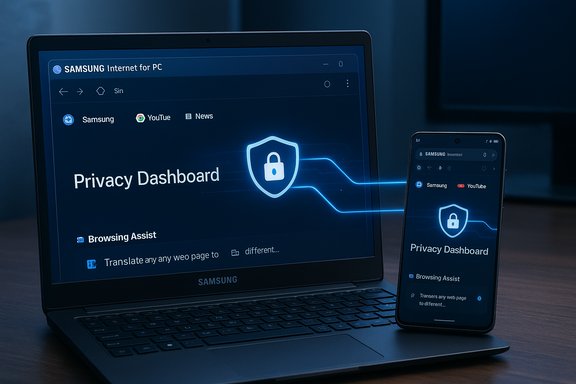
Monitor shows a Privacy Dashboard with a glowing brain icon; a phone displays Browseg Assist beside a cloud sync badge.Background / Overview​

Samsung Internet has been a quietly powerful alternative on Galaxy phones for years: a Chromium‑based browser with strong privacy controls, extension support, and increasingly visible AI tools on mobile. The new PC beta is explicitly positioned as an extension of that mobile experience, aiming to keep bookmarks, open tabs and browsing history consistent between Android phones and Windows PCs while surfacing Galaxy AI capabilities like Browsing Assist for summarization and translation.
The initial beta targets Windows 11 and Windows 10 (version 1809 and later), and Samsung is gating the first wave to users in the United States and South Korea as it scales the rollout. Samsung frames the move as the first step toward a more ambient AI experience across Galaxy devices, where the browser becomes a continuity and intelligence layer rather than a passive renderer.

What Samsung is shipping in the PC beta​

Core features (what’s included now)​

  • Cross‑device sync — bookmarks, browsing history and open tabs can synchronize across devices when you sign into a Samsung Account.
  • Samsung Pass integration (advertised) — Samsung states Samsung Pass will help sign users in and autofill profiles across devices; early beta builds may stage full password‑vault parity.
  • Galaxy AI — Browsing Assist — on‑page summarization, translation and contextual highlights driven by Galaxy AI appear in the desktop client when users are logged into a Samsung Account. Samsung’s mobile documentation shows these features require network access and an account to operate.
  • Privacy Dashboard & smart anti‑tracking — anti‑tracking protections are enabled by default and a Privacy Dashboard reports blocked trackers and lets users manage protections in real time.

Technical foundation​

Samsung Internet for PC remains Chromium‑based, which improves web compatibility and opens the door to Chrome/Edge extension ecosystems — but Chromium lineage alone is not a guarantee of desktop parity (extensions, performance and update cadence still matter greatly).

Why this matters to Windows users and Galaxy owners​

Samsung’s desktop browser is designed to solve a clear, practical problem: many Galaxy owners increasingly move between phone and PC, and until now the easiest way to keep a consistent browsing state has been using Chrome or Edge. A first‑party Samsung browser on Windows can now deliver:
  • A true continuity story — bookmarks, tabs and reading positions that follow you between mobile and desktop.
  • AI tools at larger scale — summarization, translation and context helpers are more useful on larger screens and for information work.
  • A privacy narrative that competes on defaults — anti‑tracking and a real‑time Privacy Dashboard provide immediate visibility into what the browser blocks.
If Samsung nails performance and feature parity (notably password sync and extension behavior), this could become the natural default browser for Galaxy‑centric users.

Critical analysis: strengths, trade‑offs and immediate gaps​

Strengths​

  • Ecosystem continuity is compelling. For users already invested in Samsung accounts and Galaxy phones, the convenience of truly portable browsing state is a meaningful productivity win.
  • Galaxy AI features scale well on desktop. Summaries and on‑page translations are practical helpers for research or skimming longform content, and Samsung’s support documentation confirms these features are mature on mobile.
  • Privacy‑first posture. Built‑in anti‑tracking and a visible Privacy Dashboard are consumer‑friendly defaults that differentiate Samsung Internet from some competitors that rely on opt‑in privacy controls.

Trade‑offs and risks​

  • Password sync parity is uncertain and pivotal. Samsung lists Samsung Pass integration as a headline capability, but prior Windows experiments and early beta messaging indicate password syncing may be staged. If Samsung Pass on PC lacks hardware attestation or full integration with Windows Hello/Windows credential stores, many users will hesitate to switch browsers. Treat any claims of full password parity as provisional until Samsung documents the implementation.
  • AI cloud processing raises governance questions. Browsing Assist and summarization frequently rely on server‑side inference in Galaxy Internet today; Samsung’s support pages and independent reporting note that galaxy AI features require network access and may route content to cloud endpoints for processing. That model improves capability but also transmits page content outside the local device — a serious consideration for enterprise and privacy‑sensitive environments. Customers and admins should demand explicit telemetry, retention and access policies before deploying at scale.
  • Desktop expectations are different. Smooth GPU‑accelerated rendering, multi‑monitor scaling and robust extension behavior are table stakes on Windows. Early experiments in 2023 and testers noted lag, translation gaps and inconsistent extension installs; Samsung must demonstrate high‑quality rendering and extension parity to be competitive.
  • Update cadence and security responsiveness. Chromium derivatives must ingest and deploy security patches promptly. Enterprises must verify Samsung’s patching rhythm and Microsoft Store update behavior before permitting the browser on managed fleets. Any ambiguity here is a show‑stopper for managed environments.

Privacy, AI data flows and what to watch for​

Galaxy AI is useful — but understanding what data is processed, where it goes, and how long it’s retained is critical.
  • Samsung’s mobile documentation for Browsing Assist states that AI features require a network connection and Samsung Account sign‑in; it also lists language and region availability for summarization and translation. That indicates a mixed model (on‑device plus cloud) depending on feature and content.
  • Independent coverage and early reviews show that some AI tasks are processed in Samsung’s cloud services, enabling richer summarization and translation but bringing the usual questions about telemetry, retention and access. Enterprises should assume that some page content may leave the corporate network for processing unless Samsung provides explicit local‑processing or enterprise‑only options.
  • Samsung has used high‑level wording in the past about “non‑storage” processing for certain AI flows; those phrases are promises rather than technical guarantees. Treat such claims cautiously until they are codified in privacy policies or contracts suitable for enterprise review.
Key items for admins and privacy teams to validate before allowing Samsung Internet on managed machines:
  • Exactly what data is sent to Samsung cloud endpoints (full page text, metadata, images, cookies).
  • Retention windows, access controls and whether logs/inputs are accessible to any third parties.
  • Availability of on‑device processing or enterprise deployment options that keep content local.
  • Integration with enterprise identity and credential management (does Samsung Pass integrate with MDM, Windows Hello, and corporate SSO?.

Performance, extensions and the desktop UX​

A Chromium engine is a helpful starting point, but several desktop‑specific engineering tasks remain:
  • GPU/Compositor paths: Proper GPU acceleration, compositor integration and multi‑monitor behavior are essential for smooth scrolling and high refresh‑rate displays. Early Windows appearances showed lag on some hardware; Samsung must close that gap.
  • Extension compatibility: The browser must make extension installation and background processes feel native and predictable. Past tests flagged greyed‑out installs and inconsistent behavior with Chrome Web Store extensions — a non‑starter for many power users. Samsung needs to demonstrate reliable extension flows and correct native messaging support.
  • Password manager interoperability: If Samsung Pass requires a helper app or only works with certain Samsung hardware, the cross‑device convenience claim weakens. True parity requires either seamless Windows Hello integration or a secure, well‑attested helper that meets enterprise standards.

Availability, sign‑up and practical steps for testers​

Samsung announced the beta and sign‑up mechanics as a staged rollout beginning in selected markets. Practical, verified points to act on now:
  • Minimum OS: Windows 11 or Windows 10 (version 1809 and newer).
  • Initial availability: United States and South Korea (region‑gated beta).
  • Enrollment: join through Samsung’s beta sign‑up flow or an in‑app banner in Samsung Internet on your Galaxy phone; accepted testers will receive download instructions. Expect the Microsoft Store to be the primary distribution channel for mainstream installs, though Samsung may provide direct installers for testers.
A short checklist to prepare for beta testing:
  • Confirm OS build (Windows 11 or Windows 10 version 1809+).
  • Create or verify your Samsung Account and sign in on your Galaxy device.
  • Prefer installing from the Microsoft Store when available; if sideloading, verify digital signatures.
  • Test these workflows on a non‑critical machine first: bookmarks/tabs/history sync, Samsung Pass autofill, extension installs, and Galaxy AI summarization/translation.
  • Monitor outbound network flows from the browser to identify AI‑related cloud endpoints. Disable AI features if local processing is required for sensitive pages.

Guidance for IT and enterprise pilots​

Enterprises should treat this release as an experimental pilot, not a supported corporate browser, until Samsung publishes enterprise controls.
Recommended phased approach:
  • Pilot group: deploy to a small set of knowledge workers on unmanaged machines to validate user value and capture issues.
  • Technical validation: confirm extension behavior, test Samsung Pass credential flows, and measure memory/CPU footprint across hardware variants.
  • Network audit: capture and inspect outbound connections while using Browsing Assist to learn what content is transmitted.
  • Policy and contract review: request explicit details on telemetry, retention and contractual privacy terms before approving the browser for managed fleets.
Do not authorize Samsung Internet for corporate fleets until you have clear answers on update cadence (how quickly Chromium security fixes are applied) and AI data governance.

Competitive context and strategic implications​

The desktop browser market on Windows is dominated by Chromium derivatives — Chrome and Edge lead by a large margin — and recent competition has centered on embedding AI into the browsing experience. Samsung’s unique angle is ecosystem continuity. If Samsung can deliver true parity for passwords and extensions while offering genuinely useful AI features, the company can capture a niche of Galaxy‑centric users who prefer a single, consistent browsing experience across phone and PC.
However, for non‑Galaxy users the value is weaker. Incumbents already provide mature extension ecosystems, enterprise policy tooling and enterprise‑grade documentation. Samsung’s success depends on shipping features that matter to the mainstream Windows user (extension reliability, smoothing performance, secure password sync), not just the Galaxy‑loyal crowd.

What to watch next (roadmap signals)​

  • Confirmation that Samsung Pass password vaults sync to Windows and how the integration works (Windows Hello, helper app, or hardware attestation).
  • Published enterprise documentation and an AI data governance whitepaper describing exactly what is processed in the cloud and retention windows.
  • Evidence of extension parity: smooth installs from the Chrome Web Store and support for background extension services.
  • A transparent security/patch cadence that shows Samsung ingesting Chromium security fixes quickly and publishing release notes.

Quick technical verification (what is verified)​

  • The Browsing Assist summarization and translation features require a Samsung Account and network connectivity — this is confirmed in Samsung’s support documentation.
  • The beta supports Windows 11 and Windows 10 (version 1809 and above) and initial availability is region‑gated to the United States and South Korea.
  • Samsung Internet for PC continues to be built on the Chromium stack; early reporting and Samsung’s materials confirm this technical foundation.
If any of these technical claims are mission‑critical for your deployment, verify them hands‑on in the beta and request Samsung’s enterprise documentation for contractual certainty.

Practical recommendations for power users​

  • Try the beta on a spare or virtualized machine first. Test bookmarks/tabs sync and verify Samsung Pass behavior before moving critical credentials.
  • Test extension behavior with your essential extensions (ad blocker, password manager extension, tab manager). If extensions are unreliable, keep a fallback browser configured.
  • Use the Privacy Dashboard and smart anti‑tracking defaults to verify what is being blocked and where you might want to relax controls for specific sites.

Conclusion​

Samsung Internet for PC is a logical, strategically significant move: it closes a practical continuity gap for Galaxy users and brings Galaxy AI features to larger screens where they can deliver real productivity improvements. The initial beta is an encouraging start — a privacy‑minded, Chromium‑based desktop client with cross‑device sync and built‑in AI summarization.
That said, the release is still an early step. Password sync parity, extension reliability, desktop performance and transparent AI data governance are the four critical areas that will determine whether Samsung Internet becomes a mainstream desktop browser for Galaxy owners or remains a useful but niche continuity tool. Administrators and power users should approach the beta with cautious curiosity: test comprehensively, demand documentation on AI and telemetry, and keep incumbent browsers available until Samsung proves parity on the features that matter most.


Source: Samsung Global Newsroom https://news.samsung.com/global/samsung-internet-expands-to-pc-with-new-beta-program/
 

Samsung has quietly reopened the door between Galaxy phones and Windows PCs: a beta of the Chromium‑based Samsung Internet for PC is rolling out to testers in the United States and South Korea beginning October 30, 2025, promising cross‑device sync, Galaxy AI‑powered browsing assists, and a privacy‑forward interface that aims to make the browser the centerpiece of a unified Samsung ecosystem.

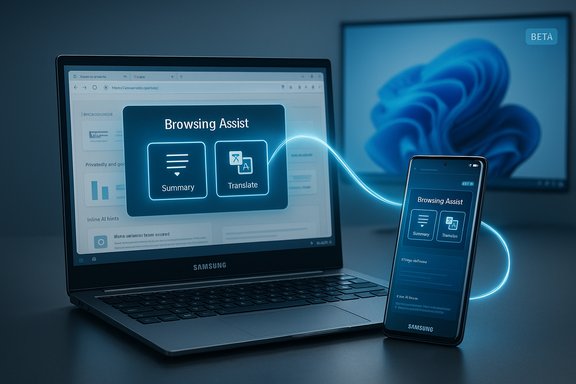
Galaxy laptop and phone with holographic UI for Browsing Assist, Privacy Dashboard, and Sync.Background / Overview​

For more than a decade Samsung Internet has been a mobile‑first browser, a default on Galaxy phones that competed with Chrome and Firefox by leaning into privacy features, extension support and later, AI‑driven helpers. The company’s move to bring that experience to Windows marks a notable strategic shift: instead of leaving desktop continuity to third‑party browsers, Samsung is betting users embedded in the Galaxy ecosystem will prefer a first‑party option that remembers where they left off across devices and brings Galaxy AI to larger screens. This relaunch follows a short‑lived Microsoft Store appearance in late 2023 that was pulled; Samsung’s 2025 rollout is deliberately staged and region‑gated to the US and Korea as the company scales the beta and addresses issues surfaced in earlier experiments. The initial beta supports Windows 11 and Windows 10 (build 1809 or later), and Samsung says ARM‑based Windows devices are included in the compatibility list.

What Samsung Is Shipping in the PC Beta​

Samsung’s messaging for the PC client emphasizes three headline areas: continuity, AI assistance, and privacy controls. The beta is positioned as an extension of the mobile experience rather than a lightweight wrapper, and the feature set reflects that ambition.
  • Cross‑device sync (bookmarks, browsing history, open tabs) tied to a Samsung Account and the company’s ecosystem services.
  • Samsung Pass integration for sign‑ins and form autofill is promised; Samsung lists Samsung Pass as a target capability for the Windows client but early documentation and reports suggest full password vault parity may be staged across releases. Treat password sync as provisional until Samsung publishes precise compatibility and security details.
  • Galaxy AI – Browsing Assist: on‑page summarization, translation, and contextual actions that mirror the mobile “Browsing Assist” features already documented on Samsung support pages. These AI helpers are a primary differentiator Samsung is promoting for desktop use.
  • Privacy features carried over from mobile: Smart Anti‑Tracking by default and a real‑time Privacy Dashboard showing blocked trackers and per‑site controls.
  • Chromium foundation, which should ensure broad web compatibility and the ability to use Chrome Web Store extensions in principle — though extension behavior and full compatibility remain to be validated in beta.
These are practical, consumer‑facing features that directly address why Galaxy owners might prefer a native Samsung browser on desktop: continuity with phones, AI that helps triage information, and built‑in privacy defaults.

System Requirements, Distribution & Regional Availability​

Supported platforms​

Samsung lists support for:
  • Windows 11
  • Windows 10 (version 1809 / October 2018 Update) and later
  • x86/x64 and ARM Windows devices (separate packages where applicable)
Expect to be asked for a Samsung Account to enable sync and Galaxy AI functions. The combination of Windows 10 1809+ and ARM support is intended to cover both legacy PCs and modern ultraportables, including Galaxy Books.

How the beta is being distributed​

Samsung is running a staged, region‑gated beta that begins with the United States and South Korea; broader rollout is planned but timings vary by market. Testers can join the program via Samsung’s beta sign‑up pages and the Samsung Developer / Beta portals; Microsoft Store distribution is expected where available, with signed direct installers for registered testers in some cases. If you see unsigned or leaked installers, treat them as high risk and prefer official channels.

Galaxy AI & Browsing Assist — How It Works, and What to Watch​

Samsung has already integrated Galaxy AI features into its mobile browser: summarization, Read‑Aloud, and multi‑language translation are established on eligible Galaxy devices. On PC, the same set of capabilities is being marketed under Browsing Assist: quick summaries of long pages, inline translations, and contextual suggestions for research or productivity workflows. Important technical reality: much of the heavy lifting for summarization and translation in Samsung Internet today is a hybrid model — some inference runs in Samsung’s cloud services, and some processing can occur on more capable devices. That hybrid arrangement allows richer, higher‑quality results but also means page content may be transmitted to external processing endpoints. Samsung’s mobile documentation and early independent reporting indicate these cloud dependencies; enterprises and privacy‑sensitive users should consider this when enabling AI features. Key points to evaluate when using Browsing Assist:
  • Does the feature offer a local only / on‑device mode for sensitive content? Samsung’s public materials do not, by default, guarantee local‑only processing for all tasks.
  • What telemetry and retention policies apply to page content sent to the cloud? Early beta users should review Samsung’s privacy documentation and test with non‑sensitive pages first.
  • How do AI features behave on paywalled or DRM‑protected sites? Expect limitations; Samsung’s mobile notes indicate some pages cannot be summarized.

Privacy, Samsung Pass & Data Flows — Strengths and Open Questions​

Samsung’s privacy messaging is a notable strength: Smart Anti‑Tracking and a visible Privacy Dashboard that logs blocked trackers are consumer‑friendly features that give a clear sense of what is being blocked. These built‑in defaults differ from browsers that require users to opt in to privacy protections. That said, several practical privacy and security questions remain and should be treated as red flags until Samsung publishes explicit technical documentation:
  • Password sync and Samsung Pass: Samsung advertises Samsung Pass integration for autofill and sign‑ins, but prior Windows experiments and early beta notes show that full password vault parity may be staged or limited by hardware attestation requirements. Samsung Pass on Galaxy devices relies on Knox and hardware‑backed keys — replicating equivalent protections across arbitrary Windows hardware raises complex security questions. Do not assume password sync will work identically on a non‑Samsung Windows laptop until it’s validated.
  • Galaxy AI data flows: Browsing Assist’s summarization likely routes content to cloud inference services in many cases. Organizations should ask for data processing addenda and retention guarantees before enabling AI features on corporate devices. Without contractual assurances and enterprise controls, AI features risk exfiltrating proprietary or regulated information.
  • Telemetry and diagnostics: Beta software often collects additional diagnostic data. Administrators should verify what is collected, whether it is account‑linked, and how long it is retained before permitting the browser in managed fleets.
In short: the privacy dashboard and anti‑tracking protections are compelling, but they exist alongside cloud‑dependent AI features that introduce nontrivial governance questions.

Performance, Extensions & Desktop Expectations​

Moving a mobile browser to desktop is more than lifting features — it requires matching desktop expectations for performance, extension compatibility and deep OS integration.
  • Rendering and smoothness: Desktop users expect GPU‑accelerated rendering, smooth scrolling on high‑refresh monitors, and robust multi‑monitor behavior. Early Windows experiments in 2023 and initial beta reports cited lag and compositor issues; Samsung must demonstrate polished GPU and compositor integration to match Chrome/Edge.
  • Extensions: Samsung Internet is Chromium‑based, which in principle allows Chrome Web Store extensions. However, real‑world extension compatibility depends on Samsung’s implementation of background processes, native messaging and extension permissions. Early tester feedback from prior Windows releases showed inconsistent extension installs; this is a critical area to validate for power users.
  • Update cadence and security patches: Chromium forks must ingest and ship upstream security fixes promptly. Enterprises should request Samsung’s patch cadence and Microsoft Store update behavior before deploying the browser widely. Any ambiguity around how quickly Samsung integrates Chromium security updates is a dealbreaker for managed environments.

Enterprise & Security Guidance​

For IT teams and security administrators evaluating Samsung Internet for PC, treat the initial beta as an experimental client. Do not standardize on it for managed fleets until the following are confirmed:
  • Formal enterprise controls and management APIs are available (policy templates, group policy support, telemetry opt‑outs).
  • A clear, documented data processing agreement for Galaxy AI (what is sent, where it is processed, retention and deletion policies).
  • Password vault behavior: confirm whether Samsung Pass integrates with Windows Hello or the platform credential store, and whether hardware attestation (TPM/secure enclave) is used on non‑Samsung hardware. If not, plan to keep passwords managed by an approved enterprise password manager.
  • Update policy: verify the frequency and channels Samsung will use to deploy Chromium security patches.
If you are piloting the beta, run it in an isolated test image and evaluate the AI features with synthetic or public content first. Document any unexpected network connections or data flows and require written answers from Samsung for any unresolved concerns.

How to Try the Beta — Practical Checklist​

Samsung is inviting early testers to sign up for beta access; here’s a practical checklist to get started safely.
  • Confirm your Windows build: update to Windows 10 (1809+) or Windows 11.
  • Join the official Samsung beta program or Developer Portal and prefer Microsoft Store installs where available. Avoid untrusted executables.
  • Back up bookmarks and export passwords from your current browser before installing. If you rely on Samsung Pass for credentials, test whether they appear on PC — do not delete any live credentials assuming sync parity.
  • Test extensions you rely on (ad blockers, password managers, developer tools) — install common extensions and verify functionality before switching daily workflows.
  • Evaluate Browsing Assist on non‑sensitive pages. Confirm whether summaries or translations require server‑side processing and how long any data is retained. Disable AI features for sensitive or proprietary pages until you have confirmed policies.

Strengths, Risks and Final Analysis​

Samsung Internet for PC has a defensible value proposition for Galaxy users: seamless continuity, integrated AI helpers, and privacy defaults that will appeal to consumers who already use Samsung services. If Samsung executes on performance and resolves password sync and enterprise governance questions, this browser could become the natural desktop companion for many Galaxy owners.
But there are clear risks and open questions:
  • Password sync is the single largest gating factor. If Samsung Pass on Windows lacks hardware‑backed attestation or depends on Galaxy‑specific hardware, many users will continue to rely on Chrome/Edge or third‑party password managers. Early reports strongly recommend treating password parity as likely staged.
  • AI features imply cloud processing. Browsing Assist convenience is real, but transmitting page content to cloud endpoints creates compliance and privacy headaches for corporate or regulated users. Enterprises should demand clear, auditable processing policies before turning this on.
  • Desktop polish matters. Desktop users will judge Samsung Internet not on mobile feature parity but on rendering smoothness, multi‑monitor behavior, extension reliability and update cadence. Early Windows experiments showed rough edges; Samsung must avoid repeating them.
If Samsung addresses these issues — rapid security patching, consistent extension support, clear enterprise controls and documented AI data handling — the company will have a credible offering that strengthens the Galaxy software story. If those pieces remain vague or limited to Samsung‑branded hardware, adoption beyond early enthusiasts and Galaxy Book owners will be constrained.

Conclusion​

Samsung Internet’s return to Windows is more than a product launch — it signals Samsung’s intention to make browsing a connective tissue across phones, tablets, laptops and beyond, with Galaxy AI as the differentiating layer. The beta beginning October 30, 2025, in the United States and Korea is the first step in that plan, delivering familiar mobile features to desktop while exposing the hard work that remains: secure, cross‑platform password sync, transparent AI data governance, and true desktop performance parity. For consumers who live inside the Galaxy ecosystem the beta is worth testing; for enterprises and privacy‑sensitive users, the prudent path is to pilot the browser in isolated environments while demanding clear technical documentation from Samsung on password storage, AI processing, telemetry and patch cadence.
Source: TechPowerUp Samsung Internet Browser Comes to Windows Desktop PCs
 

Samsung has pushed its long-running mobile web browser onto the Windows desktop with a region‑gated beta that promises cross‑device continuity, built‑in Galaxy AI browsing helpers, and a privacy‑forward feature set — a move that shifts Samsung Internet from a mobile exclusive into a direct competitor in the Windows browser arena.

Samsung Internet privacy dashboard shown on a desktop monitor with connected phones.Background​

Samsung Internet debuted on Android more than a decade ago as a default browser on Galaxy phones and gradually built a reputation for robust privacy controls, extension support, and close integration with Samsung services. Bringing that experience to Windows is both strategic and pragmatic: Samsung aims to keep bookmarks, tabs, history and AI features synchronized between phones, tablets and PCs for users who live inside the Galaxy ecosystem — and to offer an alternative to the dominant Chromium‑based desktop browsers. This beta rollout began on October 30, 2025, and is initially available only in the United States and South Korea while Samsung collects tester feedback and scales the distribution. The release is explicitly labeled as a beta and is staged across regions rather than launching globally on day one.

What Samsung is shipping in the Windows beta​

Samsung positions the Windows client as a desktop extension of its mobile browser rather than a stripped‑down wrapper. The beta emphasizes three headline areas: continuity, AI assistance, and privacy controls — all of which mirror Samsung Internet’s mobile identity.

Cross‑device sync (continuity)​

  • Bookmarks, browsing history and open tabs can sync between Galaxy phones and Windows PCs when the user signs in with a Samsung Account. This is the primary continuity story Samsung is using to persuade Galaxy owners to adopt the desktop client.
  • Samsung advertises integration with Samsung Pass (the company’s password vault and autofill service), but early beta materials and tester reports indicate full parity of the password vault across Windows and mobile may be staged and incomplete at launch. Enterprises and power users should not assume full password‑vault continuity in the first beta builds.

Galaxy AI — Browsing Assist​

  • The Windows beta surfaces Browsing Assist, Samsung’s AI‑powered on‑page helper that can summarize long articles, translate content inline, and surface contextual highlights and actions. These AI helpers are a major differentiator Samsung is touting for the PC client.
  • Important technical detail: many of the heavier inference tasks used for summarization and translation are performed in Samsung’s cloud services rather than solely on‑device. That hybrid processing model enables richer results but means page content and some telemetry may be transmitted to Samsung servers for processing. Administrators with strict data residency or compliance requirements should treat this as a non‑trivial data flow to evaluate.

Privacy toolkit​

  • The Windows client carries over Smart Anti‑Tracking and a Privacy Dashboard from its mobile lineage. Anti‑tracking protections are enabled by default and the dashboard provides a realtime count of blocked trackers and per‑site controls. This privacy posture is a core selling point for Samsung Internet on desktop.

Chromium foundation​

  • Samsung Internet for PC is Chromium‑based, using the Blink rendering engine and Chromium plumbing. That decision gives the browser web compatibility and a path to leverage the Chrome/Edge extension ecosystem in principle, but real‑world extension compatibility and the extension management UX will determine whether users feel comfortable switching fully. Past Windows experiments in 2023 showed inconsistent extension behavior; Samsung must demonstrate better extension parity and a reliable update cadence to match incumbents.

Verified technical specifics​

The following claims and technical notes are verified from Samsung’s public messaging and corroborated by independent reporting:
  • Beta start date and regions: Samsung opened the beta on October 30, 2025, to users in the United States and South Korea as the first wave.
  • Supported OS baseline: Windows 11 and Windows 10 (version 1809 / October 2018 Update) or later; Samsung also provides builds purportedly compatible with ARM‑based Windows devices. Confirm your exact Windows build before installing.
  • Core sync scope at launch: Bookmarks, open tabs and browsing history are included in the continuity story; Samsung Pass password parity is listed as a target but may not be fully available at beta launch.
  • Galaxy AI (Browsing Assist) behavior: Offers summarization and translation features; heavy inference is performed in Samsung’s cloud for richer results. This is consistent across Samsung documentation and third‑party testing.
Where details were ambiguous in early reporting — for example the precise mechanics of Samsung Pass on Windows or exact telemetry retention policies for AI tasks — Samsung’s public documentation and the Microsoft Store listing (where available) should be checked by administrators before deploying at scale. Treat additional claims about password vault parity or enterprise SSO integration as provisional until Samsung publishes explicit support matrices.

How Samsung Internet for Windows fits the browser market​

Samsung is placing a calculated bet: many Galaxy owners already prefer Samsung Internet on mobile but use Chrome or Edge on desktop because those browsers provide cross‑platform continuity. By shipping a first‑party Windows client, Samsung reduces that friction and attempts to convert mobile loyalty into a full desktop product‑ecosystem lock‑in.
Key strategic implications:
  • For Galaxy users, a polished Samsung Internet desktop could create genuine continuity — not just synced bookmarks but a single browsing session model spanning phone and PC.
  • For competition, it increases pressure on Chromium‑based rivals to improve their privacy defaults and to integrate better cross‑device harmony (Chrome already provides Google Account sync; Microsoft Edge likewise emphasizes Microsoft Account continuity).
  • For privacy‑minded users, Samsung’s default anti‑tracking and a visible Privacy Dashboard position the browser as a privacy‑forward Chromium alternative — but the cloud‑based Galaxy AI processing complicates the privacy narrative.

Risks, caveats and unanswered questions​

Every early platform push brings trade‑offs. The Samsung Internet Windows beta exposes several important considerations for both consumers and IT or security teams.

1. Password vault parity and Samsung Pass security​

Samsung lists Samsung Pass integration as part of its long‑term plan for the Windows client, but multiple early reports and prior 2023 experiments indicate full password vault parity may not be present at beta launch. Samsung Pass on mobile often leverages device‑specific secure elements (e.g., Knox) that don’t have direct equivalents on generic Windows hardware. Enterprises and users who depend on Samsung Pass should validate behavior and do not migrate critical credentials until parity is confirmed.

2. AI data flows and compliance​

Browsing Assist and other Galaxy AI tools improve productivity but rely on cloud inference. That means web page content — potentially including sensitive or regulated information — may be transmitted to Samsung's AI backend for processing. Organizations with data residency, GDPR, HIPAA, or other regulatory constraints need explicit documentation about content handling, retention, and deletion policies before endorsing the browser for business use. Early beta materials do not fully resolve these enterprise‑grade questions.

3. Extension compatibility and ecosystem maturity​

A Chromium engine offers theoretical extension compatibility, but practical parity depends on Samsung’s extension management, permissions model, and how it handles Chrome Web Store integrations. Prior tests revealed inconsistent extension behavior; without a smooth extension story, many power users will hesitate to switch.

4. Performance and platform polish​

Desktop users expect high‑grade rendering, GPU acceleration, smooth scrolling, and predictable memory behavior. Mobile‑origin browsers sometimes need platform‑specific engineering to match desktop expectations. Samsung must demonstrate comparable performance and a rapid security‑patch cadence for the browser to be treated as a primary choice. Early hands‑on reports vary from “stable” to “still feels like beta,” so expect iterative improvements.

Installation, enrollment and practical steps​

Samsung is distributing the Windows beta through a mix of channels. The conservative approach below matches Samsung’s recommended and common beta distribution paths.
  • Confirm your Windows version: Open Settings → System → About and verify you are on Windows 11 or Windows 10, version 1809 or later. Update if necessary.
  • Create or verify a Samsung Account — required for cross‑device sync and Galaxy AI features.
  • Join the beta program: Enroll through Samsung’s official beta registration pages (Samsung Developer Portal / Samsung Members) for eligibility in the initial wave. If the Microsoft Store listing appears for your region, you may be able to install directly from there.
  • Prefer Microsoft Store installs where available for automatic updates and signed package integrity; use signed direct installers only from official Samsung channels and verify digital signatures (Samsung Electronics Co., Ltd..
  • Test on a spare machine or virtual machine first; export bookmarks and back up passwords before migrating production profiles. Verify Samsung Pass behavior and extension compatibility before moving critical workflows.

For IT and security teams: an evaluation checklist​

  • Validate AI data flows: Request Samsung’s documentation on which data is sent to cloud services, retention windows, and whether sensitive fields are redacted or excluded. Do not permit Browsing Assist for regulated workloads until policies are clear.
  • Confirm password vault parity: Test Samsung Pass behavior on representative Windows hardware and determine whether device attestation or alternative secure elements are required.
  • Extension & SSO compatibility: Check essential enterprise extensions (password managers, security plugins, SSO integrations) for functionality and stability.
  • Update and patch cadence: Require clarity from Samsung on how quickly Chromium security fixes will be ingested and released for Windows builds. Delays here are a security exposure.
  • Pilot scope: Run a staged pilot with rollback plans, user training and logging enabled; monitor crash reports, extension failures and telemetry.

Feature comparison — where Samsung Internet could win​

  • Seamless Galaxy continuity that includes tabs, bookmarks and history could be decisive for heavy Galaxy users who hate juggling different browsers on phone and PC.
  • Built‑in privacy dashboard and anti‑tracking by default is a strong consumer privacy narrative that some competitors only offer behind additional settings or extensions.
  • Galaxy AI features on desktop — if they deliver fast, accurate summarization and translation — will be attractive to readers, researchers and knowledge workers who consume long form content regularly.

Practical recommendations for testers and early adopters​

  • Use a dedicated test account and machine to evaluate cross‑device sync and AI behavior before connecting a primary Samsung Account.
  • Export existing bookmarks and back up passwords so you can restore your prior workflows if the beta behaves unexpectedly.
  • Disable Browsing Assist on pages with sensitive content until you confirm data handling and retention policies.
  • Stress‑test extension behavior: install your essential extensions (tab managers, ad blockers, password manager extensions) and validate that they function consistently.
  • Monitor the Privacy Dashboard and network telemetry while browsing typical sites you use for work to quantify the differences vs your primary browser.

Broader implications​

Samsung’s desktop beta is part of a larger industry pattern: device makers and platform vendors are increasingly integrating mobile and PC experiences, using AI as a differentiator and continuity as a tactic to retain users inside a vendor’s ecosystem. If Samsung executes well, Samsung Internet for Windows could become the de facto desktop companion for millions of Galaxy owners and put pressure on browser incumbents to improve cross‑device continuity and privacy features.
However, the long‑term success of Samsung Internet on Windows depends on the company solving four tough problems: password vault parity, extension compatibility, desktop‑grade performance, and transparent AI data governance. Until those are proven in stable releases, the Windows beta should be treated as an attractive continuity experiment rather than a full replacement for a primary browser in mission‑critical environments.

Conclusion​

Samsung’s arrival on Windows with a beta of Samsung Internet for PC is a noteworthy strategic move: it closes a persistent gap for Galaxy owners and brings Galaxy AI tools to larger screens where they can materially speed reading and research work. The initial beta, launched in the United States and South Korea on October 30, 2025, validates Samsung’s intent to make the browser a continuity and intelligence layer across Galaxy devices. Early adopters will find appealing features — cross‑device sync, a visible Privacy Dashboard, and on‑page AI helpers — but must balance those gains against open questions about Samsung Pass parity, cloud AI data flows, extension support, and desktop performance. For consumers, the beta is worth testing if you value Galaxy continuity; for IT teams, it demands a cautious, documented pilot with attention to compliance and telemetry. Samsung has laid out a compelling starting point; the road ahead will be judged on execution and the company’s willingness to be transparent about security, privacy and enterprise readiness.

Source: TechJuice Samsung Brings Its Internet Browser to Windows PCs with Beta Launch
 

A laptop, smartphone, and tablet display a Privacy Dashboard shield, signaling online privacy.
Samsung has shipped a Windows beta of Samsung Internet for PC, a deliberate relaunch of its long-running mobile browser that converts bookmarks, open tabs and browsing history into a true cross-device continuity layer while bringing Galaxy AI-assisted summarization, translation and privacy tooling to Windows desktops and laptops.

Background / Overview​

Samsung Internet began life as a mobile-first Chromium‑based browser bundled with Galaxy phones, building a reputation for privacy controls, extension support and, more recently, AI-powered helpers. The PC beta — which Samsung opened to testers on October 30, 2025 — marks the company’s most explicit attempt to mirror that mobile experience on Windows and to position the browser as a continuity and intelligence layer across Galaxy devices. The initial beta is region‑gated and available only to users in the United States and South Korea while Samsung collects feedback and scales distribution. Supported platforms at launch include Windows 11 and Windows 10 (version 1809 and later); Samsung also provides builds for ARM‑based Windows devices. To join the beta you must register through Samsung’s developer/beta channels and sign in with a Samsung Account to enable sync and AI features.

What Samsung Internet for PC brings to Windows​

Samsung’s pitch for the PC client centers on three interlocking promises: continuity, ambient AI assistance, and a privacy‑first default posture. Each promise maps to concrete features in the beta.

Cross‑device sync and continuity​

  • Sync of bookmarks, browsing history, and open tabs between Galaxy phones/tablets and Windows PCs when signed into a Samsung Account.
  • Seamless session handoff: the browser can prompt you to resume browsing when switching between phone and PC, aiming to make web sessions portable across screens.
This continuity story is the single most compelling reason for Galaxy owners to try Samsung’s desktop client — it reduces friction for users who currently juggle Chrome/Edge on desktop and Samsung Internet on mobile. That said, continuity depends on parity of higher‑risk features (notably password sync) that may arrive in staged updates rather than day‑one parity.

Galaxy AI: Browsing Assist and contextual helpers​

Samsung Internet for PC surfaces Galaxy AI features under a “Browsing Assist” umbrella that includes:
  • Automatic summarization of long articles to produce quick overviews.
  • On‑page translation and inline language helpers.
  • Contextual highlights and actions (definitions, quick follow‑up links and suggested next steps).
These helpers scale well on larger displays and are designed to speed research and daily information work. Importantly, much of the heavier inference that powers summarization and translation runs in Samsung’s cloud services — a hybrid model that improves capability but routes page content through Samsung’s servers for processing. That technical detail has privacy and compliance implications for businesses and privacy‑sensitive users.

Privacy-first controls: Smart Anti‑Tracking and Privacy Dashboard​

Samsung is carrying over its mobile privacy toolkit:
  • Smart Anti‑Tracking enabled by default to block third‑party trackers, cookies and other cross‑site tracking techniques.
  • A Privacy Dashboard that reports blocked trackers in real time and gives per‑site controls.
  • Built‑in ad‑blocker support and secret/incognito modes that mirror the mobile experience.
These defaults position Samsung Internet as a privacy‑minded Chromium alternative on Windows, giving users immediate visibility into what the browser is blocking. Samsung’s published guidance and newsroom material describe Smart Anti‑Tracking as an on‑by‑default protection you can inspect and tweak via the Privacy Dashboard.

Samsung Pass and sign‑in conveniences​

Samsung advertises Samsung Pass integration for sign‑ins and autofill across devices, which in theory allows saved logins and form data to follow you between phone and PC. The company lists Samsung Pass as a headline capability, but early reporting and tester notes caution that full password‑vault parity with mobile Samsung Pass may be staged and incomplete in first beta builds. Historically, Samsung Pass on Galaxy devices leans on device‑specific security primitives (Knox, secure elements) that are not universally available on generic Windows hardware — transplanting that model to Windows presents technical and security hurdles. Treat password sync as provisional until Samsung publishes a full compatibility matrix.

Installation, system requirements and how the beta is delivered​

Samsung opened a controlled beta on October 30, 2025, initially limited to the US and South Korea. The minimum OS requirements reported across launch coverage are:
  • Windows 11
  • Windows 10 (version 1809 / October 2018 Update) or later
Registration is handled through Samsung’s beta program pages and developer portal; a Samsung Account is required for cross‑device sync and for Galaxy AI features that rely on cloud processing. In regions where Samsung lists the app in the Microsoft Store, the Store is the recommended distribution channel for automatic updates and integrity; Samsung may also provide signed installers to registered testers. Practical checklist before installing:
  1. Verify your Windows build (Settings → System → About).
  2. Back up existing browser profiles and export bookmarks/password vaults.
  3. Create/verify your Samsung Account.
  4. Register for the beta through Samsung’s official beta pages and prefer Microsoft Store installs where available.
  5. Test on a secondary or virtual machine before switching primary workflows.

Technical foundation and extension story​

Samsung Internet for PC continues to be Chromium‑based, using the Blink rendering engine. That choice buys Samsung broad web compatibility out of the gate and creates a theoretical path to the Chrome/Edge extension ecosystems. However, Chromium lineage alone is insufficient for desktop parity — extension compatibility, update cadence, GPU-accelerated rendering and compositor integration are table stakes on Windows. Early experiments in 2023 revealed rough edges (scrolling lag and inconsistent extension installs), and Samsung’s staged beta appears designed to address those gaps before a wide release.
Key technical notes for power users and IT:
  • Expect separate builds for x86/x64 and ARM Windows devices.
  • Validate extension behavior for critical add‑ons (ad blockers, password manager extensions, tab managers).
  • Test GPU acceleration, multi‑monitor scaling and high‑refresh scrolling if you rely on fluid UI performance.

Security and privacy analysis — what Samsung has done well​

  • Privacy by default. Smart Anti‑Tracking enabled by default and a visible Privacy Dashboard give users immediate control and transparency, a strong position against browsers that require manual opt‑in for similar protections.
  • Accounted AI model. By gating powerful AI features behind a Samsung Account and clearly surfacing capabilities like summarization and translation, Samsung reduces accidental usage and provides a point of control for feature opt‑in.
  • Ecosystem continuity. Syncing bookmarks, tabs and history is a validated, high‑value convenience for users invested in Galaxy devices. This makes Samsung Internet a natural option for Galaxy Book owners and Galaxy phone users who want a single continuity story.

Risks, trade‑offs and unanswered questions​

  1. Cloud processing of page content for AI features
    • Browsing Assist’s heavier inference runs in Samsung’s cloud, which improves capability but means page content and some telemetry will be transmitted off‑device. Enterprises and privacy‑sensitive users must evaluate data flows, residency and retention policies before enabling these features on work machines. Samsung’s public messaging confirms the hybrid processing model; explicit telemetry/retention details remain critical for trust.
  2. Password‑vault parity and device security
    • Samsung Pass integration is a promotional headline, but full parity with mobile Samsung Pass may be staged. Samsung Pass on Galaxy devices typically relies on hardware attestation and Knox — capabilities that are not standard on all Windows PCs. Without clear technical mappings to Windows Hello or TPM‑backed storage, enterprise usage of Samsung Pass on Windows remains uncertain. Treat password sync as a potential adoption blocker until clarified.
  3. Extension ecosystem and desktop polish
    • Chromium compatibility does not guarantee that every Chrome extension will behave identically. Early testing in 2023 showed inconsistent extension installs; Samsung must provide a mature extension management UX and rapid security patching cadence to be taken seriously as a primary desktop browser.
  4. Enterprise readiness and management tooling
    • The initial beta is consumer‑focused and region‑gated; there is no public enterprise management or deployment guidance at launch. Organizations with managed fleets should not deploy the beta broadly until Samsung publishes enterprise documentation, group‑policy templates, telemetry controls and SSO/conditional access compatibility notes.
  5. Update cadence and vulnerability response
    • For a Chromium‑based browser to be secure, it must ingest upstream Chromium security fixes rapidly and transparently. Samsung needs to demonstrate a predictable update cadence and clear release notes to convince security teams. Early adopters should monitor patch timelines carefully.

How this changes the Windows browser landscape​

Samsung’s arrival on Windows does not immediately displace Chrome, Edge or Firefox, but it changes the competitive dynamics in two ways:
  • For Galaxy‑centric users, Samsung Internet provides a first‑party continuity story that matches the convenience of Apple’s Safari/macOS tie‑ins or Google’s Chrome ecosystem, potentially reducing the need to force Chrome/Edge on desktop simply for sync.
  • The integration of Galaxy AI features into a desktop browser raises the bar for everyday productivity features: on‑device or hybrid summarization and translation are now expected capabilities, not niche add‑ons. Chromiums’ incumbents (Edge, Chrome) already have AI features, but Samsung’s unique selling point is the ecosystem continuity between mobile and PC combined with Galaxy AI — a wedge for users who read or research across devices.

Recommendations for Windows users and administrators​

For individual users
  • Try the beta on a secondary machine or VM. Export bookmarks and take a password manager backup before switching.
  • Test essential extensions and confirm Samsung Pass behavior with non‑critical accounts.
  • Keep a fallback browser configured until parity for passwords, extensions and performance is proven.
For power users and testers
  1. Validate GPU acceleration and scrolling performance with your usual workloads.
  2. Install and test your critical extensions; note differences in permissions and behavior.
  3. Run privacy checks while Browsing Assist is enabled to determine what content is routed to cloud endpoints.
For IT administrators and security teams
  1. Do not deploy the beta in production fleets. Treat it as an evaluation build and require explicit approval for any pilot.
  2. Demand documentation: telemetry collection, retention windows, data residency, and SSO / conditional access support for Samsung Pass.
  3. Run a short pilot with non‑sensitive users and collect telemetry about extension behavior, update cadence and conditional access flows.

The product trajectory: where Samsung is likely aiming​

Samsung frames this release as the first step toward an Ambient AI era — an environment where the browser becomes a proactive intelligence layer that anticipates user needs across devices. Practically, that roadmap implies:
  • Incremental parity of Samsung Pass and credentials across Windows builds and potentially tighter integration with Windows Hello and TPM-backed key storage.
  • Broader regional rollout beyond the initial US and South Korea beta.
  • Improvements to extension compatibility, update cadence and power/performance polish.
  • Deeper ambient AI features that may surface suggestions proactively (reading summaries, follow‑up actions, or cross‑device reminders).
Each of those ambitions is attainable, but they require Samsung to solve both engineering and governance problems: delivering desktop‑grade performance and extension reliability while being transparent about cloud processing and telemetry associated with AI features.

Final assessment​

Samsung Internet for PC is a logical and strategically significant move for Samsung: it closes a practical continuity gap for Galaxy users and brings Galaxy‑level AI helpers to a platform where they can be meaningfully useful. The beta’s highlights — cross‑device sync, Browsing Assist, and privacy defaults — are sensible, user‑focused features that could sway Galaxy owners to adopt the browser as their daily driver. However, the release is an early, region‑gated step. The four critical areas that will determine whether Samsung Internet becomes a mainstream desktop browser are: password sync parity (Samsung Pass), extension reliability, desktop performance, and transparent AI data governance. Until Samsung publishes enterprise‑grade documentation and demonstrates parity for these functions, the browser will remain a high‑value continuity tool for consumers and early adopters rather than an immediate enterprise replacement for established desktop browsers.
Samsung’s approach — a staged beta, explicit account gating and a clear AI narrative — is pragmatic. The company has an opportunity to deliver a genuinely useful Windows browser that pairs Galaxy convenience with privacy‑forward defaults. The road to mass adoption runs through trust: demonstrate secure handling of AI data, parity for credentials and extensions, and a fast, transparent security update cadence, and Samsung Internet for PC could become the natural default for many Galaxy‑focused Windows users.

Samsung Internet for PC’s beta is available now in the United States and South Korea for Windows 11 and Windows 10 (version 1809 and above); interested testers should register via Samsung’s official beta pages and follow the conservative installation checklist above before adopting it on critical devices.
Source: Sammy Fans Samsung Internet for PC is official, kicking off Ambient AI era
 

Samsung’s long-running mobile-first browser is finally stepping onto desktops: the company launched a beta of Samsung Internet for PC for Windows users today, bringing synchronized bookmarks, history, passwords via Samsung Pass, and Galaxy AI-powered features like Browsing Assist to Windows 11 and Windows 10 (version 1809 and later) machines in the United States and Korea starting October 30, 2025.

Samsung laptop and smartphone showing Browsing Assist with blue, flowing connectivity.Background​

Samsung Internet began life as a mobile browser tightly integrated with Galaxy phones and tablets, earning a loyal following for its privacy tools, performance on mobile hardware, and close ties to Samsung services. For more than a decade the product remained largely mobile-only, with occasional developer experiments for other platforms. The October 30, 2025 beta marks the company’s most concerted, public push to make Samsung Internet a cross-device browser that lives on PCs as well as phones. This move is presented as part of a broader Samsung strategy: delivering a unified ecosystem between Galaxy devices and PCs, and using the browser as a vehicle for Galaxy AI features and privacy-first design. Samsung frames the launch as a “gateway to ambient AI,” where the browser evolves from a passive tool into an intelligent assistant layered on top of web content. That stated vision is forward-looking and aspirational; the current beta demonstrates a first step rather than a finished ambient-AI product.

What Samsung Internet for PC Offers Today​

System requirements and availability​

  • Supported OS: Windows 11 and Windows 10 (version 1809 or later).
  • Initial regions: United States and South Korea for the beta rollout beginning October 30, 2025.
  • Distribution: Samsung is operating a beta program; users can register to participate at the beta signup page.
It’s worth noting that Windows 10 reached its official end of support on October 14, 2025; Windows 10 systems will continue to run apps, but Microsoft no longer provides security updates or feature updates to mainstream Windows 10 installs after that date. That reality changes the calculus for IT teams and security-focused users considering new software installs on Windows 10.

Core features in the beta​

  • Cross-device sync of bookmarks, browsing history, and saved passwords using Samsung Account and Samsung Pass to carry data between phones and PCs.
  • Galaxy AI features, highlighted by Browsing Assist — on-the-fly page summarization and translation — intended to speed information retrieval.
  • Session continuity: a prompt to “pick up where you left off” when switching between Galaxy phones and PCs.
  • Privacy & security tools, including Smart anti-tracking and a real-time Privacy Dashboard to monitor blocked trackers and protections.
  • Support for extensions and add-ons, with initial access to Chrome Web Store add-ons reported, though compatibility and polish vary in beta builds.
These are the headline items Samsung lists; the beta is explicitly scoped for testing cross-device sync, AI-enabled features, and privacy defaults, rather than for supplanting established desktop browsers immediately.

How Samsung Connects Mobile and Desktop: Samsung Pass and Account Sync​

Samsung’s chief advantage in offering a PC browser is the ability to extend services already used on Galaxy devices. The Samsung Account becomes the bridge, and Samsung Pass acts as the credential vault that signs users into websites and autofills profiles across devices.
  • When users sign in with their Samsung Account, Samsung Pass can sync saved passwords and authentication artifacts to the PC client, easing sign-in and form-filling.
  • The browser gives users the option to purge bookmarks, history, and saved credentials upon signing out of the PC, a security-friendly control for shared machines. Early reports indicate this explicit sign-out cleanup is included.
The trade-off here is convenience versus a deeper dependency on Samsung’s account ecosystem. For users already committed to Galaxy hardware and services, the continuity benefits are clear. For privacy-conscious users who avoid cloud account sign-ins, requiring a Samsung Account to unlock full sync functionality may be less appealing.

Galaxy AI and Browsing Assist: What to Expect​

Samsung positions the PC browser as a conduit for Galaxy AI capabilities. At launch, the headline AI capability is Browsing Assist:
  • Browsing Assist offers webpage summarization and on-the-fly translation, intended to save time on long articles, research threads, or multilingual pages.
  • These features are powered by Samsung’s on-device and cloud AI stack (branded as Galaxy AI). The beta’s implementation appears focused on assistant-style capabilities rather than full conversational agents inside the browser.
Caveats and verification:
  • Samsung’s marketing materials emphasize privacy safeguards for AI features, but the exact data flows (what is processed locally versus in the cloud, what telemetry is sent to Samsung, and encryption practices) are not exhaustively disclosed in the public beta announcement. Users and administrators should treat AI-assisted features as functionally useful but also as areas that warrant close scrutiny before being relied upon for sensitive work. This is a forward-looking capability and remains subject to change.

Privacy, Security, and Trust: The Promised Protections​

Privacy is central to Samsung’s positioning of the PC browser. The company highlights a few concrete controls:
  • Smart anti-tracking is turned on by default in recent Samsung Internet releases on mobile and is included on the PC beta to block third-party tracking attempts and advanced techniques like CNAME cloaking.
  • A Privacy Dashboard provides a real-time overview of blocked trackers, pop-ups, and privacy settings, and allows users to change protections quickly.
These protections are similar to what Samsung has built into its mobile variants, and external coverage confirms the company is carrying over privacy-first defaults to the desktop rollout. But there are important practical questions:
  • How granular is the anti-tracking — does it block fingerprinting and all known evasion techniques, or only common third-party trackers?
  • Are AI features processing content purely locally (better privacy) or are snippets and telemetry routed to Samsung cloud services (less private)?
  • Will enterprise admins be able to enforce or audit these protections in managed environments?
Samsung’s press materials promise privacy controls but do not publish a full technical whitepaper on telemetry, server endpoints, or enterprise policy management for the PC beta. Those details will need to be validated as the beta progresses. Treat privacy claims as credible in intent, but await technical documentation or third-party audits for full verification.

Technical Foundation: Chromium, Extensions, and Compatibility​

Samsung Internet for PC is a Chromium-based browser — a natural choice that eases cross-browser compatibility and extension support. Chromium underpins mainstream browsers like Google Chrome, Microsoft Edge, Brave, and others, which brings advantages and constraints.
  • Benefits:
  • Broad web compatibility and predictable rendering across modern sites.
  • Potential access to Chrome Web Store extensions, which dramatically increases extensibility. Early testers report Chrome extensions are discoverable within the beta interface.
  • Limitations and early caveats:
  • Extension compatibility is not yet perfect in the beta; some users report the install flow is grayed-out or requires workarounds. The Chromium core version Samsung ships matters a lot for extension APIs and security fixes — early community feedback suggests testers are watching which Chromium revision Samsung used.
  • The history of Samsung briefly putting a Windows client on the Microsoft Store in 2023 — then removing it — is a reminder the product’s maturation into a stable desktop browser may take time.
For power users and developers, the critical questions are: which Chromium branch is in use, what update cadence will Samsung adopt, and how quickly security patches will be delivered for the Chromium engine. These are operational details Samsung must clarify for the PC browser to be considered a robust, long-term option.

Early Impressions, Community Reaction, and Beta Teething Problems​

Coverage and social discussion from the immediate launch window reveal typical beta-era issues:
  • Reviewers and early testers note a polished UI that feels familiar to Samsung Internet mobile users, but some rough edges exist around extension installs and theme support.
  • Community threads report success signing into Samsung Account and syncing data; others call out compatibility quirks and anecdotally urge Samsung to use a recent Chromium build. One subreddit thread flagged concerns about an older Chromium revision in the beta build. These are normal early-stage signals but important to watch.
If you plan to test the beta now:
  • Expect sign-in and sync features to be the most polished aspects.
  • Test extension compatibility against your core workflows before replacing a primary browser.
  • Keep stability expectations conservative — beta software will have bugs and performance differences versus established desktop browsers.

Market Context: Why This Matters​

Samsung’s desktop push intersects with several broader trends:
  • The desktop browser space is mature but not static. Vendors are experimenting with integrated AI assistants, privacy-first features, and tighter OS-level integrations (Microsoft with Copilot in Edge, Apple with Safari enhancements across macOS, independent efforts like Arc and Vivaldi). Samsung’s entry intensifies competition, especially where mobile-to-desktop continuity matters.
  • Samsung has a unique advantage on devices: a huge installed base of Galaxy phones and tablets that can feed into a cross-device experience. A high-quality PC browser that smoothly syncs with phones could be a differentiator for users who want continuity across screens.
  • The AI angle is timely. Several companies are integrating generative AI into browsing workflows; Samsung is positioning Galaxy AI as its differentiator, but execution (privacy, latency, usefulness) will decide whether these features stick.
For enterprises and IT administrators, the timing is mixed: one the one hand, new browser choices can reduce vendor lock-in; on the other, corporate environments need clarity about security updates, enterprise management (Group Policy, MDM support), and support lifecycles before they approve new client software.

Risks, Unknowns, and What to Watch​

  • Chromium maintenance and patching cadence: Samsung must commit to rapid updates for Chromium security patches. Any lag opens users to known exploits. Community chatter already flags this as a concern pending more transparency.
  • Samsung Account dependency: Sync and AI features require signing into Samsung Account and using Samsung Pass. This raises questions about lock-in and privacy for users who prefer avoiding cloud accounts.
  • Windows 10 end-of-support: With Windows 10 out of mainstream support as of October 14, 2025, running new beta software on that OS has increased risk; users on Windows 10 should be deliberate about security posture and consider upgrading to Windows 11 or enrolling in Extended Security Updates if necessary.
  • Data processing transparency: Samsung’s marketing emphasizes privacy protections for AI, but the beta announcement does not include a full technical paper on data flows or telemetry. Independent audits or detailed whitepapers would materially improve trust.
  • Extension ecosystem and compatibility: Chromium-based does not guarantee a flawless extensions experience. Early reports indicate some friction. Practical compatibility testing is required before deploying the browser to power users.
Any user or organization evaluating Samsung Internet for PC should weigh these risks and test against prioritized workflows rather than switching wholesale on day one.

Practical Recommendations​

For Windows users curious about Samsung Internet for PC:
  • If you’re a Samsung ecosystem user (Galaxy phone/tablet), sign up for the beta to test cross-device sync and AI features — that’s where the browser’s current strengths lie.
  • On Windows 10 machines, be cautious: the OS is out of official support after October 14, 2025. Run the beta in a controlled environment or on a fully patched, Windows 11 machine where possible.
  • Test your essential extensions and enterprise integrations before committing; verify that your workflow extensions behave correctly and that any required management policies are supported.
  • Review Samsung’s privacy settings and the Privacy Dashboard to understand what protections are enabled by default and how to adjust them. Treat AI features as helpful but confirm data handling practices for sensitive content.
For IT teams:
  • Request or validate Samsung’s update policy for Chromium patches and security response times.
  • Confirm support for enterprise deployment tooling (MDM, Group Policy, configuration profiles) before approving broad deployment.
  • Establish a test plan for web app compatibility and extension behavior before recommending the browser to end users.

What Samsung’s Move Might Mean Long-Term​

Samsung’s expansion of Internet to desktop could be the opening salvo in a larger push to unify experience and services across devices. If the company follows through, possible longer-term implications include:
  • A tighter integration between Galaxy AI and desktop workflows, potentially rivaling browser-AI experiences from other vendors.
  • More Samsung-built applications arriving on Windows, especially those tied to AI or cross-device continuity.
  • Pressure on competitors to improve their mobile-to-desktop continuity offerings or to emphasize privacy defaults.
All of this depends on execution: speed and quality of updates, developer tooling, enterprise support, and how transparent Samsung is about AI and telemetry will determine whether Samsung Internet for PC becomes a mainstream option or remains an interesting niche for Galaxy fans. Samsung’s messaging is deliberately optimistic about “ambient AI” and a privacy-first approach; those are strategic aims rather than guaranteed product behaviors today.

Final Verdict — Beta Stage: Worth Testing, Not Yet a Full Replacement​

Samsung Internet for PC is a meaningful and welcome expansion of Samsung’s software ecosystem onto the desktop. The beta brings polished cross-device sync, a familiar mobile-derived UI, and interesting AI features that will appeal to existing Galaxy customers. The inclusion of Smart anti-tracking and a Privacy Dashboard continues Samsung’s mobile-era emphasis on privacy, now extended to PCs. However, important practical questions remain — particularly around Chromium patch cadence, extension compatibility, enterprise management, and the exact privacy posture of AI features. For general users who value continuity with Galaxy phones and want to test browsing summaries or translations powered by Galaxy AI, the beta is a compelling play to try. For organizations and security-sensitive users, the prudent path is to evaluate the beta in controlled tests and wait for more technical transparency and a stable release cadence.
Samsung has taken a sensible first step by opening a limited beta in two markets. The coming months should reveal whether the company can translate its mobile browser strengths into a full-featured desktop product that competes with Chrome, Edge, Firefox, and the growing field of AI-augmented browsers. Until then, this is a promising debut worth watching and testing — but not yet a universal replacement for mature desktop browsers.
Source: TechPowerUp Samsung Internet Browser Comes to Windows Desktop PCs
 

Samsung’s long-running mobile browser has finally crossed the desktop divide: the company has launched a beta of Samsung Internet for PC, bringing its mobile feature set, cross‑device sync, and Galaxy AI assistance to Windows 10 and Windows 11 for the first time.

Samsung desktop setup showing Galaxy AI features and a linked Galaxy phone in blue neon lighting.Background​

Samsung Internet began life as a mobile-first browser and over the last decade matured into a feature-rich Chromium-based alternative on Android and other Samsung platforms. The company has now announced a deliberate push to bring that experience to Windows, packaging familiar mobile tools—bookmark and history sync, Samsung Pass credential sharing, and Galaxy AI powered features—inside a desktop application aimed at users who live inside the Galaxy ecosystem.
This beta is intentionally limited: it targets Windows 10 (version 1809 and later) and Windows 11, and is initially available only in the United States and South Korea. The rollout date and platform requirements are published in Samsung’s official announcement, and independent coverage from multiple outlets confirms the limited beta launch and feature promises. Those details were verified against Samsung’s release materials and additional hands‑on reports.

Overview: what Samsung Internet for PC brings to Windows​

Samsung is framing this desktop release as more than a simple port. Key capabilities available in the initial beta include:
  • Cross‑device sync of bookmarks, history, autofill and saved credentials via Samsung Pass.
  • Session continuity so a browsing session started on phone or tablet can be resumed on PC and vice versa.
  • Galaxy AI — Browsing Assist, which offers on‑the‑fly page summarization and live translation.
  • Privacy features carried over from mobile, including smart anti‑tracking and a live Privacy Dashboard.
  • Support for Windows 10 (v1809+) and Windows 11, with ARM support mentioned in early reports.
The release positions the browser as a bridge between Samsung’s mobile ecosystem and users’ Windows PCs, aiming to deliver a continuous experience across device types while promising to evolve the product into an ambient AI platform over time.

Technical foundation​

Under the hood, Samsung Internet for PC is built on the Chromium engine (the same open‑source foundation that powers Google Chrome and many other modern browsers). That means web compatibility and extension ecosystems will behave similarly to other Chromium browsers in many respects, while Samsung layers its own UI choices, security features, and AI integrations on top.
Because the browser is Chromium-based, users should expect familiar rendering behavior, but real-world performance, extension compatibility, and resource usage will depend on Samsung’s implementation choices for the Windows build.

Deep dive: Galaxy AI and Browsing Assist​

One of the most notable additions is the integration of Galaxy AI capabilities into the browser, with Browsing Assist functioning as the initial AI feature set available in the beta.
  • Browsing Assist is explicitly designed for real‑time webpage summarization and live translation, intended to speed research and reduce tab overload.
  • Samsung describes a roadmap where the browser evolves into an ambient AI platform that learns from behavior and offers context‑aware assistance.
These features are compelling in concept: instant summaries can reduce information noise, and translations integrated into the browsing experience are useful for global content. However, the AI aspects introduce new questions:
  • Data flow and processing model — whether text is processed locally on the device, sent to Samsung servers, or forwarded to third‑party AI providers will materially affect privacy and compliance posture.
  • Personalization / learning — the promise that the browser will learn and adapt over time implies storage and processing of user behavior, which requires transparent controls and clear opt‑in/opt‑out mechanisms.
  • Accuracy and hallucinations — automated summarization and translation systems can be wrong or imprecise; users relying on summaries for legal, medical, or financial decisions should verify original content.
Samsung’s announcement frames Galaxy AI features as built into the browser experience, but the company’s roadmap language is forward‑looking; the degree to which Browsing Assist will be locally processed versus cloud‑based, and what safeguards accompany the feature, will be crucial details users and admins must monitor as the beta unfolds.
Flag: the longer‑term claim that the browser will become a persistent "ambient AI" platform is a company roadmap statement and should be treated as aspirational until concrete implementation details and privacy controls are published.

Privacy and security: Samsung’s pitch and the realities​

Samsung positions privacy at the center of this launch. The beta includes familiar protections from the mobile browser:
  • Smart anti‑tracking to block known third‑party trackers.
  • A Privacy Dashboard that reports what protections are active and shows inferred blocking activity.
  • Integration with Samsung Pass for cross‑device password and credential syncing.
These are meaningful features, but there are practical caveats and risk considerations:
  • Samsung Pass on Windows: syncing saved credentials from Android to Windows increases convenience but also expands the attack surface. Credential syncing to a desktop environment must be protected with strong device enrollment controls, OS‑level protections (e.g., TPM), and robust authentication policies. Administrators and security‑conscious users should test how Samsung Pass stores and encrypts data on Windows and whether Windows Hello or other platform protections are used.
  • Telemetry and AI logging: AI features often require richer event telemetry. Users and organizations should confirm what usage logs are created, where they are stored, and whether any PII or browsing metadata are shared with remote services.
  • Cross‑device tracking: the convenience of continuity features can accidentally centralize behavioral signals into a single account (the Samsung Account), which could be used to build deeper profiles unless Samsung provides granular account and privacy controls.
Samsung’s public statements emphasize privacy by design, but enterprise buyers and privacy‑savvy users should verify implementation details in practice and take a cautious approach during the beta phase.

Compatibility and extensions​

Because Samsung Internet is Chromium‑based, the browser will likely support many Chromium extensions and web platform features, but there are a few points to note:
  • Not all Chrome extensions will behave identically; customizations and Samsung’s own UI layer can change how extensions interact with the browser.
  • Historically, Samsung Internet on Android supports a subset of Chrome/Edge extensions via its own mechanisms; expect some initial limitations on desktop until Samsung stabilizes the extension model.
  • Web standards compatibility should generally be high, but edge cases tied to UA strings or platform APIs may behave differently.
If extension ecosystem parity is important to you, test the specific add‑ons you rely on before switching defaults.

Availability, system requirements, and enrollment​

The initial beta is intentionally narrow in scope:
  • Supported operating systems: Windows 10 (version 1809 and later) and Windows 11.
  • Initial regions: United States and South Korea only at beta launch.
  • Enrollment: Samsung is using a beta sign‑up process; prospective testers must sign in with a Samsung account and register for the beta program.
This staged rollout gives Samsung room to iterate before broader distribution. It also means users outside the two launch regions must wait for subsequent waves.
For IT teams, the requirement to sign in with a Samsung Account is an important detail—credential and account management policies will affect the feasibility of rolling this out in enterprise environments.

Competition and strategic context​

Bringing Samsung Internet to Windows positions Samsung to compete directly with established Chromium‑based browsers, but it’s more accurate to see this as an ecosystem play than a pure browser market share grab.
  • Google Chrome, Microsoft Edge, and Mozilla Firefox dominate desktop usage; Samsung Internet’s competitive strength is ecosystem continuity. Users who live within Samsung’s Galaxy environment gain frictionless sync and Galaxy AI features that are unique to Samsung.
  • The browser can help Samsung deepen user engagement across phones, tablets, and laptops, potentially making Samsung devices stickier for those who value seamless continuity.
  • Apple’s Safari retains its own walled‑garden advantages on macOS and iOS. Samsung is not seeking to replicate Apple’s default‑search deals, but it is aiming to create a compelling cross‑device experience that makes switching costs higher if users adopt Samsung’s tooling.
This strategy mirrors other vertical ecosystem plays: make the experience distinctive enough that users prefer the integrated option even if the underlying web engine is not unique.

Risks, unknowns, and governance concerns​

The release surfaces several risk vectors and governance questions that organizations and privacy‑minded individuals should consider:
  • Data jurisdiction and processing: where is AI processing hosted, and which legal jurisdictions apply to that data?
  • Consent and transparency: are AI features opt‑in by default? Are users shown clear prompts and data handling explanations?
  • Security posture on Windows: how does Samsung secure local credential storage and sync? Does Samsung Pass rely on Windows platform security like TPM and Windows Hello?
  • Update cadence and patching: will Samsung push timely Chromium security updates to the Windows build? A lagging Chromium base could expose users to known CVEs.
  • Enterprise controls: will Microsoft Intune and other management suites be able to configure and manage Samsung Internet in corporate deployments?
  • Vendor lock‑in: heavy reliance on Samsung’s account for cross‑device continuity could make switching away from Samsung tools painful.
These are not reasons to avoid the browser, but they are legitimate considerations. For organizations in regulated sectors (healthcare, finance, public sector), a careful review should precede any pilot.
Flag: some statements about future AI capabilities and ecosystem integration are roadmap commitments rather than guaranteed features—treat them as subject to change.

Practical guidance: how to try the beta safely​

If you decide to test Samsung Internet for PC during the beta, follow these practical steps to keep your data secure and avoid surprises:
  • Use a secondary account or a test Samsung Account instead of your primary consumer account.
  • Install the beta on a non‑production machine or inside a virtual machine for initial evaluation.
  • Export or back up critical passwords and bookmarks before enabling cross‑device syncing.
  • Review privacy and AI settings immediately after install—disable any features you are not comfortable testing.
  • Monitor network traffic to determine if page content or telemetry is being sent to external endpoints for AI processing.
  • Test extension behavior and import/export of profile data from your existing browser to confirm compatibility.
Following these steps will let you evaluate the feature set while limiting risk to personal or business data.

What this means for Windows users and the Galaxy ecosystem​

For Galaxy users who already use Samsung Internet on mobile, the PC beta fills a long‑standing gap: until now, cross‑device continuity required third‑party tools or workarounds. With a desktop browser that syncs history, bookmarks, and passwords—and that offers AI features shared across devices—Samsung strengthens its narrative of a unified Galaxy experience.
For Windows users who are not tied to Samsung hardware, the browser will be judged by three things:
  • How well it performs compared with Chrome and Edge,
  • Whether its privacy and credential sync model is secure and transparent,
  • And whether its AI features deliver reliable value without exposing users to undue risk.
If Samsung can deliver smooth performance, tight integration with Samsung Pass, clear privacy controls, and useful AI features, this browser could become a practical alternative for users who prioritize cross‑device productivity.

Long term outlook and what to watch​

Over the next few months, the beta period should reveal Samsung’s approach to several critical implementation questions:
  • Will AI processing be primarily local or cloud‑based?
  • How quickly will the Windows build receive Chromium security updates?
  • What enterprise management controls will be available for deploying the browser at scale?
  • How broad will the rollout be after the US and Korea beta window?
Keep an eye on update release notes and any published privacy documents that detail data flows for Galaxy AI. These artifacts will determine whether the browser’s AI features create value without eroding user privacy.

Conclusion​

Samsung’s PC browser beta is a strategic, calculated move that prioritizes ecosystem continuity and AI enhancements over a direct, feature‑by‑feature attack on desktop browser incumbents. The initial beta for Windows 10 (v1809+) and Windows 11, limited to the United States and South Korea, brings cross‑device syncing, Samsung Pass integration, smart anti‑tracking, and Galaxy AI Browsing Assist to desktop users in a single package.
The release is exciting for Galaxy‑centric users who have long wanted a first‑party way to carry mobile browsing context to a Windows desktop. At the same time, it raises important questions about how AI features operate, how credentials are protected on Windows, and how Samsung will manage security updates and enterprise controls.
For now, the smartest approach for IT managers and privacy‑conscious users is cautious experimentation: test the beta in a controlled environment, evaluate the privacy and security controls, and watch for further product documentation as Samsung moves the browser beyond its initial, tightly controlled rollout. If Samsung delivers on its promises—fast Chromium parity, transparent AI controls, and strong credential protection—this browser could become a meaningful new option in the crowded desktop browser landscape.

Source: Gadgets 360 https://www.gadgets360.com/apps/new...-beta-for-windows-10-11-pc-galaxy-ai-9549980/
 

Samsung’s long‑running mobile browser has finally stepped onto the desktop stage in an official capacity: the company launched a beta of Samsung Internet for PC on October 30, 2025, making a Chromium‑based Windows client available to testers in the United States and South Korea as the first wave of a staged rollout.

A computer monitor and two smartphones display a Privacy Dashboard with cross-device sync.Background / Overview​

Samsung Internet has been a prominent alternative browser on Android for more than a decade, known for tight Galaxy device integration, a privacy‑first stance in recent releases, and support for content‑blocking add‑ons on mobile. The move to a native Windows client is part of an explicit strategy to close the continuity gap between Galaxy phones/tablets and Windows PCs — synchronizing bookmarks, tabs, history and (eventually) password data via Samsung Pass and the Samsung Account ecosystem. Samsung’s product messaging positions the Windows client as both a privacy‑minded browser and a “gateway to ambient AI” through Galaxy AI features such as Browsing Assist. This release is a formal relaunch of a product that briefly appeared in the Microsoft Store in late 2023 and was subsequently removed. Samsung is treating the 2025 beta as the authoritative, staged introduction to the desktop market. Early coverage from mainstream outlets confirms the October 30, 2025 beta start and the region‑gating to the U.S. and South Korea.

What Samsung Internet for PC ships with (core features)​

Samsung’s official announcement and independent hands‑on reporting show a feature set that mirrors and extends the mobile browser’s priorities: continuity across Galaxy devices, privacy controls, compatibility with Chromium extensions, and selective Galaxy AI capabilities. The headline features at launch include:
  • Cross‑device sync — bookmarks, open tabs and browsing history that follow your Samsung Account‑signed devices.
  • Galaxy AI: Browsing Assist — on‑page summarization and translation functions accessible when signed into a Samsung Account.
  • Smart anti‑tracking — Samsung’s privacy engine to block third‑party trackers and reduce cross‑site tracking.
  • Privacy Dashboard — an at‑a‑glance view of blocked trackers, ad activity and settings.
  • Extension support — the Windows client accepts extensions from the Chrome Web Store (subject to beta‑stage caveats).
  • Secret mode — Samsung’s private browsing mode with optional Secret Mode locking and privacy controls.
  • HTTPS‑first toggle — preference to prefer secure connections when available.
  • Sidebar with AI shortcuts — a right‑edge UI rail for quick access to AI or continuity tools.
These core capabilities are consistent across Samsung’s press materials and independent previews, though the depth of each feature (especially password sync and some AI features) remains explicitly tied to the beta’s staged capabilities and account requirements.

Installation, distribution and regional gating​

Samsung is distributing the initial beta in a deliberately controlled manner. The official guidance is:
  • The beta supports Windows 11 and Windows 10 (version 1809 and later).
  • Early access is restricted to users in the United States and South Korea; Samsung plans broader availability later.
  • Testers are being onboarded via a combination of Microsoft Store listings (where available), Samsung’s beta/developer portals and signed direct installers distributed to registered testers. Opting for Store installs is recommended where possible because of update and signature guarantees.
Practical takeaway: if you’re outside the first‑wave regions you may not find a Microsoft Store listing and should be cautious about downloaded executables surfaced by third parties. Community reporting and Samsung’s own guidance recommend joining the official beta channels (Samsung Developer Portal or Samsung Members) to receive validated installers.

Galaxy AI: what it does, and what it requires​

Samsung promotes the Windows client as an early surface for its ambient AI vision. Key points:
  • Browsing Assist can provide on‑page summaries and inline translations; Samsung’s statement makes clear that some Galaxy AI features are only available when signed into a Samsung Account because they rely on cloud services tied to the company’s Galaxy AI stack.
  • The AI functionality is presented as an optional enhancement rather than a mandatory data‑harvesting feature; however, the utility of Browsing Assist (summaries, translations, read‑aloud, etc. depends on server‑side processing and the browser’s ability to send page text and metadata to Samsung’s cloud systems when enabled. This is consistent with how other AI‑assisted browsers operate (client collects page content and sends prompts/requests to cloud models to generate summaries).
Caveat: Samsung’s messaging explicitly links certain AI features to a Samsung Account. If you prefer a strictly local, offline browsing experience, those cloud‑backed features should be treated as optional and disabled unless you accept the trade‑offs.

Privacy and data handling — what to watch for​

Samsung’s U.S. privacy notice for the browser is comprehensive and contains material disclosures that every Windows user should read before enrolling in a cloud‑connected beta:
  • The browser’s privacy notice states it may collect browsing history, Samsung Account ID, device identifiers, interaction telemetry and, optionally, page content for specific features (e.g., Quick Suggest). It also confirms the use of analytics and third‑party providers for telemetry.
  • The notice explains that enabling certain features (like Quick Suggest or cloud‑backed AI assistants) can cause limited Web page content to be shared with partners or processed in the cloud. The policy also discloses sharing with subsidiaries, service providers, and legal disclosures when requested.
  • Samsung’s Terms of Service for the browser reiterate that the service is proprietary and that by using the service users consent to the privacy notice’s data practices.
Strengths: Samsung is explicit about the categories of data collected, the functional reasons for collection (synching, autofill, feature enablement), and provides controls such as the Privacy Dashboard and Smart anti‑tracking. These are positive signals compared with vendors that hide telemetry behind opaque terms. Risks and trade‑offs: the default collection of browsing metadata and the conditional sharing of page content for certain optional features mean the browser is not a privacy panacea. Users who enable Galaxy AI’s cloud features or Quick Suggest should assume some page text, metadata and usage telemetry will be processed off‑device. That is not unusual for AI‑enhanced browsers, but it’s a non‑trivial trade‑off that needs an informed opt‑in. The privacy notice also explicitly notes that disabling some sharing will reduce feature availability. Flagged / unverifiable claims: where third‑party articles or early testers allege aggressive or surprising uses of data not described in Samsung’s official policy, treat those claims cautiously. Samsung’s published privacy documentation is the authoritative source for current collection practices; community reports can highlight suspicious behavior but should be corroborated against the privacy notice.

Real‑world impressions: performance, extensions and UX rough edges​

Independent hands‑on reports from reviewers and community testers show the beta is functional but rough in areas that matter to desktop users:
  • Several outlets and testers reported laggy scrolling and sub‑60Hz feel, and flagged GPU/hardware acceleration and high CPU usage as issues in early builds. This was also the core complaint when an early Microsoft Store build appeared in late‑2023: desktop performance didn’t match the mobile experience. SamMobile and TechRadar both highlighted these issues in early previews and follow‑ups.
  • Extension support: the Windows client exposes the Chrome Web Store pathway and the browser is Chromium‑based, so extension compatibility exists in principle. But early beta testers have seen extension install buttons greyed out or functionality limited in initial builds; Samsung’s beta notes and community reporting advise that extension support may be incrementally enabled during the beta. That means power users who rely on specific extensions should test carefully and prefer well‑known, actively maintained extensions.
  • Adblocking / Smart anti‑tracking: the browser ships with Smart anti‑tracking and allows content blocker add‑ons; testers reported that the built‑in blocker can leave blanks where ads were placed in some layouts, and that strict modes may still let some ad types through. As a practical workaround, using a mature third‑party blocker (for example, uBlock Origin or a lightweight equivalent from the Chrome Web Store) mitigates most nuisance ads.
  • Stability on VMs and older hardware: some community tests indicate elevated CPU consumption even with no tabs open, which is worrisome when running on virtual machines or older notebooks. Those reports are consistent enough across testers to treat performance as a real risk in early builds; Samsung will need to resolve rendering/acceleration issues before broad adoption. Until then, treat the Windows client as a beta that belongs on test systems rather than primary workstations.
Caveat: early beta performance varies widely by machine, GPU driver, Windows build and whether the installer is from the Store or a direct package. Testers who experience severe CPU spikes should capture Process Explorer traces and provide log feedback to Samsung via the beta channel. Community posts flagged the same pattern in 2023 and during the 2025 beta’s early days, which suggests the company is aware and likely prioritizing fixes.

How Samsung Internet for PC compares to the competition​

Samsung’s Windows browser enters an already crowded Chromium‑dominated market where differentiation is hard. The meaningful angles are:
  • Ecosystem continuity: if you live inside Samsung’s Galaxy ecosystem, the value proposition is simple and direct — native sync of tabs/bookmarks and convenient cross‑device continuity that doesn’t require Chrome or Edge. That’s an advantage for Samsung phone users switching to a Windows PC.
  • Privacy stance: Samsung’s Smart anti‑tracking and Privacy Dashboard give it a better out‑of‑box privacy posture than stock Chrome, and Samsung has been explicit about anti‑tracking being on by default in many regions on mobile. That’s a trustworthy signal for privacy‑minded users who also want continuity features. However, Brave, Firefox, and Edge (with privacy extensions) remain competitive, and users who want a local‑only AI assistant will find Samsung’s cloud‑dependent AI less appealing.
  • AI features: Browsing Assist and the ambient AI framing are notable differentiators on paper, but other browsers are racing to add similar side‑car AI helpers. The critical difference is trust boundaries: Samsung requires a Samsung Account for the full Galaxy AI experience, while some rivals attempt on‑device or opt‑in modes to limit cloud data flows. Users for whom page content privacy matters should evaluate whether Samsung’s cloud processing model fits their threat model.
  • Performance and polish: at launch Samsung trails established desktop browsers in raw polish and performance. Early reports of lag and CPU issues put it behind mature Chromium implementations like Edge and Chrome, which benefit from years of desktop‑focused optimization. Samsung must close this gap quickly to be taken seriously as a daily desktop browser alternative.

Practical guidance: who should try the beta and how to stay safe​

The beta is attractive to Galaxy users who want synchronized browsing and to enthusiasts monitoring AI‑enhanced browsing. That said, adopt a conservative approach:
  • Back up current browser data (export bookmarks; use a password manager) before importing anything from a beta client.
  • If you value stability, run the beta on a secondary machine or a test VM — do not replace a stable, production browser with a beta you rely on for work.
  • Prefer Microsoft Store installs where available; if you must use a direct installer, verify the binary’s digital signature (publisher should read Samsung Electronics Co., Ltd. and any manufacturer‑published checksums.
  • Audit privacy settings on first run: disable cloud‑backed features (Quick Suggest, Browsing Assist) unless you understand and accept the data flows described in Samsung’s privacy notice. Use the Privacy Dashboard to monitor trackers and telemetry.

Enterprise and IT considerations​

For IT teams and security practitioners, Samsung Internet for PC introduces several points of attention:
  • Enterprise policy controls: check if Samsung exposes group policy or MDM hooks for browser configuration, extension whitelisting and update control. At beta launch, enterprise management features are limited or undocumented; deploy only to controlled test groups until management tooling matures.
  • Data residency and compliance: Galaxy AI features that perform cloud processing may send page content and metadata to Samsung cloud services. Compliance teams need to assess whether this behavior fits company data handling rules — especially for regulated industries. Where necessary, instruct testers to disable cloud processing features.
  • Patch cadence and security updates: Samsung will need to demonstrate a regular security update cadence for the Windows client, aligning Chromium security patches with minimal lag. Enterprises should monitor Samsung’s release notes and prioritise vulnerability disclosures before wide‑scale rollouts.

Strengths, weaknesses and the bottom line​

Strengths
  • Ecosystem continuity for Galaxy users is compelling — native sync beats using third‑party bridge solutions.
  • Privacy‑forward features such as Smart anti‑tracking and the Privacy Dashboard are stronger defaults than stock Chrome and align with Samsung’s mobile posture.
  • Chromium base plus extension support gives users access to the Chrome extension ecosystem in principle, preserving most workflows.
Weaknesses and risks
  • Early performance problems — laggy scrolling and elevated CPU usage in some environments — are a practical barrier to daily usage and must be resolved for mainstream adoption. Multiple early‑test reports corroborate these issues.
  • Data‑flow trade‑offs: Galaxy AI and some convenience features require a Samsung Account and cloud processing; users who prioritize local processing or minimal telemetry must opt out and lose functionality. Samsung’s privacy notice is clear on this, but the UX around consent must remain transparent.
  • Regional gating and distribution mean non‑U.S./Korea users will face friction; unofficial installers carry risk and should be avoided.
Bottom line: Samsung Internet for PC is a strategically sensible launch for Samsung’s ecosystem — it fills a continuity gap and brings a privacy‑oriented mobile browser to Windows. However, in early beta form the product is not yet a polished day‑to‑day Chrome or Edge replacement for most users. Galaxy users who value synchronized tabs/bookmarks and are willing to accept a beta’s instability should test it, while mainstream users should wait for performance fixes, fuller extension support and broader region availability.

What to watch next​

  • Samsung’s beta bug tracker and release notes for immediate fixes to the rendering/scrolling issues and CPU usage.
  • The gradual expansion of beta availability beyond the U.S. and South Korea, and whether the Microsoft Store entry appears globally or remains region‑gated.
  • Any enterprise management features (GPO/MDM) and security‑patch cadence updates that would influence IT adoption.
  • Refinements to the Galaxy AI privacy UX — clearer consent screens and an explicit, easy way to keep all AI processing local if Samsung offers it in future builds.

Samsung’s PC browser is an important product for Galaxy‑centric users and a clear statement of intent: the company wants to own more of the cross‑device browsing experience, including AI‑assisted workflows. The beta makes that vision tangible, but it is still a beta — promising in capabilities, but not yet polished in performance or universal in availability. Testers should be vigilant about privacy settings and run the browser in non‑production environments until Samsung resolves the early‑stage performance and distribution issues. Conclusion: the Samsung Internet PC beta is worth watching and worth trying if you’re a Galaxy user eager for continuity and AI features, but it is not yet the finished desktop browser many will need for daily productivity.

Source: gHacks Technology News [Beta] Samsung Internet Browser now available for Windows users in South Korea and U.S. - gHacks Tech News
 

Samsung has quietly pushed its long-running mobile browser onto Windows PCs with a region‑gated beta that promises cross‑device continuity, built‑in Galaxy AI helpers, and a privacy‑forward feature set aimed at Galaxy users and Windows power users alike.

Blue neon screens show Privacy Dashboard and Browsing Assist on a phone and a laptop.Background​

Samsung Internet began life as a mobile‑first browser bundled with Galaxy phones and tablets and, over more than a decade, earned a reputation for strong privacy tooling, extension support on Android, and increasingly visible AI features. The October 30, 2025 beta marks Samsung’s most explicit attempt to convert that mobile advantage into a desktop continuity layer, positioning the browser as a bridge between Galaxy phones and Windows PCs rather than a simple port of a mobile UI.
This release is deliberately staged: the beta opened to testers in the United States and South Korea on October 30, 2025 and targets Windows 11 and Windows 10 (version 1809 and later), with builds advertised for x86/x64 and ARM devices. Samsung is distributing the initial wave through a controlled sign‑up/beta program rather than a global store push.
Samsung previously experimented with a Windows presence in late 2023, when an early Microsoft Store listing briefly surfaced and was pulled. The 2025 relaunch appears more deliberate and scoped: a beta intended to validate continuity, AI integration, and privacy defaults while Samsung observes real‑world behavior and feedback.

What the Windows beta actually delivers​

The headline features Samsung is shipping in the PC beta fall into three buckets: continuity, AI assistance, and privacy controls. Below is a concise breakdown of what testers will see today.

Cross‑device continuity​

  • Bookmarks, browsing history, and open tabs sync between Galaxy devices and Windows when signed into a Samsung Account. This continuity aims to let users pick up browsing where they left off on another device.
  • Session handoff: the browser can prompt you to resume a session started on a phone or tablet when you move to a PC.
These capabilities are the central consumer promise: reduce friction for users who currently run Samsung Internet on mobile but use Chrome, Edge, or Firefox on desktop.

Samsung Pass and autofill​

  • Samsung has integrated Samsung Pass for credential autofill and sign‑in continuity. In theory, saved passwords and profiles can follow you between phone and PC when you’re signed into the same Samsung Account.
Caveat: full parity with mobile Samsung Pass depends on hardware security primitives (Knox, secure elements) that are not guaranteed on generic Windows hardware. Samsung’s own messaging and early tester notes indicate password‑vault parity may be staged and incomplete in early beta builds — treat password sync as provisional until Samsung publishes a full compatibility matrix.

Galaxy AI — Browsing Assist​

  • Browsing Assist brings Galaxy AI features to the desktop: on‑page summarization, inline translation, contextual highlights, and other quick actions intended to speed reading and research work. These are surfaced as in‑browser helpers to condense long articles or translate content without leaving the page.
Important technical detail: much of the heavier inference behind summarization and translation is performed in Samsung’s cloud services rather than entirely on‑device, which improves capability but raises privacy and compliance questions about page content routed to Samsung servers. This hybrid model is mentioned in Samsung’s materials and reported hands‑on coverage. Flagged for enterprise and privacy‑sensitive users.

Privacy Dashboard and Smart anti‑tracking​

  • Smart anti‑tracking is enabled by default, blocking third‑party trackers and reducing cross‑site profiling out of the box.
  • A Privacy Dashboard reports blocked trackers and privacy events in real time and allows per‑site adjustments, mirroring the mobile experience that made Samsung Internet popular with privacy‑mindful users.

Chromium foundation and extensions​

  • The PC client remains Chromium‑based, which provides robust web compatibility and, in principle, access to Chrome‑style extensions. Samsung’s promise of extension compatibility improves the appeal to desktop users — but practical parity will depend on Samsung’s implementation of extension APIs, permissions, and update cadence. Early Windows experiments revealed rough edges around extension installs; Samsung is explicitly using the beta to address those gaps.

System requirements, distribution and availability​

  • Supported OS: Windows 11 and Windows 10 (version 1809 or later). ARM builds are advertised for ARM‑based Windows devices.
  • Initial markets: United States and South Korea, beta began October 30, 2025.
  • Distribution: staged beta sign‑ups via Samsung’s developer/beta channels and expected Microsoft Store listings where available. Samsung may also distribute signed installers to enrolled testers. Prefer Microsoft Store installs for automatic updates and integrity where possible.
A notable operational point: Windows 10 reached end of mainstream support on October 14, 2025. Running new software on an OS that no longer receives regular security updates changes the risk calculus for enterprise adoption; IT teams should weigh OS support status and update policies before endorsing new betas on legacy Windows devices.

Technical and privacy analysis​

Samsung’s strategy is clear: stitch mobile-first conveniences into a desktop product while using Galaxy AI features to differentiate from incumbents. That strategy brings both technical benefits and privacy/security trade‑offs.

The hybrid AI model: capability vs. privacy​

Galaxy AI’s Browsing Assist relies on cloud‑side processing for heavy inference tasks. That design yields higher‑quality summaries and broader language support, but it means page content — or metadata about it — may be transmitted to Samsung servers for processing. For personal, non‑sensitive browsing this trade‑off is reasonable for many users; for regulated industries or enterprises handling confidential information, this model introduces compliance risk without clear documentation on telemetry, retention, and data controls. Samsung’s beta materials and early reporting flag this hybrid pipeline; testers must demand transparency on what is sent, how long it is retained, and whether users can opt out or run on‑device alternatives.

Samsung Pass on Windows: security primitives matter​

Samsung Pass on Galaxy devices uses device‑level security (Knox, secure enclave-like hardware) that provides strong protections for credentials. Windows PCs typically lack those same vendor‑level primitives. Samsung’s claim of Samsung Pass integration on Windows is compelling for continuity, but it is subject to architectural gaps:
  • Without a secure element, password storage models on Windows rely on the OS credential store and may not match the device‑bound guarantees on Galaxy phones.
  • Full parity is therefore likely staged and may require additional Samsung service components, OS features, or hardware support to reach the same trust level as mobile devices. Treat Windows Samsung Pass capability as functional but not necessarily as protective as mobile hardware‑anchored vaults until verified.

Telemetry, update cadence, and patching​

A Chromium base gives Samsung a solid compatibility foundation, but it also means Samsung inherits the responsibility of keeping the rendering engine updated against security vulnerabilities. Organizations should ask:
  • How quickly will Samsung roll security patches for Chromium vulnerabilities?
  • What is the browser’s update cadence and are updates automatic via Microsoft Store?
  • How does Samsung communicate CVE mitigation timelines to enterprise customers?
Early beta distributions should be treated as evaluation builds; production or enterprise deployment requires clear SLAs for updates and a predictable release schedule.

Usability, performance and extension parity​

Moving a phone‑first UI to desktop requires more than reskinning — it demands desktop‑grade performance, consistent extension behavior, and thoughtful multi‑window handling.
  • Performance: early Windows experiments (including the 2023 storefront appearance) suggested rough edges in scrolling, rendering fidelity, and extension behavior. Samsung appears to be iterating to resolve platform‑specific performance issues in the 2025 beta.
  • Extensions: Chromium lineage implies extension compatibility in theory, but many real‑world extensions make assumptions about APIs, host permissions, and background persistence that differ across implementations. Test your essential extensions in the beta before committing.
For power users, the browser’s ability to become a primary desktop tool hinges on extension parity (ad‑blocking, password managers, developer tools), tab management, and resource usage on multi‑monitor setups.

Enterprise and IT considerations​

Enterprises and IT teams should approach the beta cautiously and methodically. Key considerations:
  • Pilot scope: run a controlled pilot (10–25 users) and validate integration with single sign‑on, identity providers, and conditional access.
  • Policies & management: confirm whether Samsung Internet for PC supports enterprise management tooling (Group Policy/Intune templates, MDM configuration capabilities) and whether the company will publish administrative templates for policy enforcement.
  • Compliance: verify data flows when Galaxy AI features are enabled. For regulated workloads, AI processing that routes page content to cloud services may be unacceptable without contractual and technical safeguards.
  • OS support: avoid deploying to unmanaged Windows 10 devices that no longer receive OS security updates; favor Windows 11 or fully‑patched Windows 10 systems for any testing.

Competitive landscape and strategy​

Samsung is entering a crowded field. Major desktop browsers (Chrome, Edge, Firefox) retain large market shares and strong enterprise features. Meanwhile, a growing set of AI‑augmented browsers and sidebars are competing on summarization, agent capabilities, and vertical integrations.
Samsung’s differentiator is its ability to offer first‑party continuity for Galaxy owners: a single company controlling the phone, account, and now browser on PC gives Samsung an advantage in creating seamless handoff experiences. If Samsung nails reliable sync, trustworthy credential handling, and transparent AI controls, Samsung Internet could become the default choice for users who live in the Galaxy ecosystem. If not, it will remain one more Chromium option competing on niche strengths.

Practical recommendations for testers and early adopters​

For readers ready to try the beta, follow a safe, conservative path:
  • Confirm your Windows build (Settings → System → About) and ensure you’re on Windows 11 or Windows 10 1809+ before enrolling.
  • Back up existing browser data: export bookmarks and back up passwords (or ensure a secure password manager export) before signing in with Samsung Account.
  • Join Samsung’s official beta channels and prefer Microsoft Store installs for automatic updates and package integrity. Avoid third‑party installer mirrors.
  • Test critical extensions and enterprise integrations in a non‑production environment. Validate SSO, conditional access, and endpoint protection interoperability.
  • Evaluate Galaxy AI features with representative web content and ask: what is transmitted to the cloud, how long it’s retained, and can AI features be disabled for sensitive sites? Document these outcomes.

Unanswered questions and risks to watch​

Samsung’s beta answers many "what" questions but leaves the "how" and "how fast" open:
  • Will Samsung provide clear, machine‑readable documentation on what Browser Assist sends to cloud services and how long it’s retained? This is critical for privacy and compliance.
  • What is the exact scope and security architecture of Samsung Pass on Windows? How are credentials protected on hardware that lacks Knox‑style secure elements?
  • How quickly will Samsung address Chromium CVEs and publish patch timelines? Organizations need predictable cadence for production adoption.
  • Will Samsung publish enterprise management templates and policy controls to support large‑scale rollouts?
Any claims about full password‑vault parity, enterprise readiness, or global availability should be treated as provisional until Samsung publishes detailed documentation or a stable release. Flag those claims as unverified in mission‑critical settings.

Conclusion​

Samsung Internet for PC’s beta is a pragmatic, well‑scoped step toward a broader Galaxy continuity story. The combination of cross‑device sync, Samsung Pass integration, Privacy Dashboard, and Galaxy AI Browsing Assist creates a compelling narrative: a browser that remembers your place across devices and helps you read, translate, and summarize faster on larger screens.
Yet the real test will be execution: Samsung must demonstrate desktop‑grade performance, transparent AI data handling, robust password‑vault security on heterogeneous Windows hardware, and a dependable security/patch cadence. For everyday Galaxy users curious about continuity and AI helpers, the beta is worth testing in a controlled manner. For enterprises and privacy‑sensitive users, the prudent path remains measured pilots and a demand for detailed technical documentation before broad adoption. The October 30, 2025 beta opens the door; the next months will show whether Samsung can translate mobile strengths into a modern, trustworthy desktop browser.

Source: Phandroid Samsung Internet Makes its Way to Windows PCs via a Beta Version - Phandroid
 

Microsoft’s QR‑pairing flow at aka.ms/linkphoneqr has become the simplest and safest on‑ramp for pairing an Android or iPhone with a Windows 10/11 PC, turning your desktop into a single productivity hub for messages, calls, photos, files and — on supported devices — app streaming.

A monitor and phone display a QR code for linking devices with Phone Link.Background / Overview​

Phone Link (the modern successor to “Your Phone”) and its companion Link to Windows app are Microsoft’s continuity layer designed to collapse device boundaries so a Windows PC can surface phone notifications, SMS/MMS, calls, clipboard content, and recent media. The QR pairing shortlink aka.ms/linkphoneqr (sometimes referenced alongside aka.ms/linkpc and aka.ms/yourpc) launches a mobile browser or the companion app to scan a unique, session‑based QR code shown in the Phone Link app on the PC, thereby establishing an encrypted pairing session with fewer manual errors.
This QR handshake is practical: it reduces manual code entry and accelerates permissions prompts on the phone. The experience is intentionally hybrid — a mix of local Wi‑Fi, Bluetooth Low Energy (BLE) where needed (especially for call routing and some iPhone workflows), and Microsoft account authentication to bind the two devices.

Why Link Phone QR matters in 2025​

Phone Link’s evolution from notification mirror to an integrated cross‑device workspace addresses a common productivity problem: frequent context switches between phone and PC. Users save time by replying to messages with a full keyboard, routing calls through their PC’s microphone and speakers, dragging screenshots directly into desktop apps, and — on supported Android OEMs — running mobile apps in a window on Windows. For power users and remote workers, these conveniences add up to meaningful time savings.
OEM partnerships (notably Samsung and other manufacturers that preinstall Link to Windows) have deepened the experience: app mirroring, drag‑and‑drop file transfers, and tighter File Explorer integration are more reliable on supported devices. Expect feature parity to remain uneven across Android vendors and to trail on iPhone due to platform restrictions, but the overall trend is stronger integration and faster onboarding through the QR flow.

Supported devices and verified system requirements​

Before attempting to pair, verify these baseline requirements — they’re the most repeatable configuration that yields the full Phone Link experience:
  • Windows PC: Windows 10 (May 2019 update / v1903 or later) or Windows 11 with the Phone Link app installed (preinstalled on most modern Windows 11 builds or available from the Microsoft Store).
  • Android phones: Android 7.0+ is the baseline; Android 9/10/11+ is recommended for richer features such as app streaming and File Explorer access. OEMs like Samsung, HONOR, and OPPO often preinstall Link to Windows with deeper support.
  • iPhone: iOS 14+ / iOS 15+ for basic pairing flows; newer iOS versions may be required for the latest features and are often introduced first in Insider test channels. Expect iPhone integration to continuously improve, but not to reach Android parity for app streaming due to platform API limits.
  • Network & hardware: Same Microsoft account signed into both devices is strongly recommended, a stable Wi‑Fi network for best performance (local network preferred), and Bluetooth Low Energy (BLE) support on the PC for call audio and discovery in many pairing scenarios.
Caveats: feature availability can be gated by OEM build choices and Windows Insider channels. If you rely on a specific advanced function (multi‑app streaming, File Explorer integration, enterprise policies), verify it on the exact hardware and OS build you intend to use.

The QR pairing flow: step‑by‑step (PC‑first — recommended)​

The QR method is the least error‑prone route to pairing. Follow these concise steps for a smooth setup:
  • On the PC: open Phone Link (search “Phone Link” in Start) and sign in with your Microsoft account. Select Android (or iPhone if applicable) and choose Pair with QR code — Phone Link will display a unique QR code.
  • On your phone: open a browser and navigate to the shortlink the PC suggests (aka.ms/linkphoneqr or aka.ms/linkpc) or launch the Link to Windows app if already installed. Sign in with the same Microsoft account.
  • In the phone app or the shortlink flow: use the in‑app camera or scanner to scan the QR code displayed on the PC. Grant the requested permissions (notification access, contacts, phone, SMS, storage/media).
  • Finalize: accept any remaining prompts on the PC. Test core features: send an SMS from the PC, verify notifications appear, and try transferring a photo. If QR scanning fails, Phone Link also supports a manual PIN code option.
Pro tips during setup:
  • Disable battery optimization for Link to Windows on Android to avoid background throttling.
  • Keep both devices on the same Wi‑Fi network for best app streaming and transfers.

What you get after pairing — detailed feature map​

Phone Link surfaces a broad feature set. Below is a practical breakdown of what works reliably and where limits still exist.

Messaging and notifications​

  • Read and reply to SMS/MMS from your PC using a full keyboard and richer UI (group chats included in most cases). Notification mirroring allows interaction with many app alerts when the companion has notification access.

Calls​

  • Make and receive cellular calls routed through your PC’s microphone and speakers. BLE is commonly required for reliable call audio routing; check Bluetooth drivers on the PC if calls are unstable.

Photos and files​

  • Browse the most recent images on your phone directly in Phone Link. Microsoft’s practical limit for visible images is commonly stated at about 2,000 most recent photos, a performance choice rather than a hard technical ceiling. Drag‑and‑drop transfers and file sharing are supported — specifics (file size caps, number of files) depend on OEM implementation.

App mirroring / app streaming (Android only, OEM‑dependent)​

  • Supported Android devices (notably many Samsung models and select OEM builds) can stream mobile apps to a PC window while the phone executes the workload. This lets you control mobile apps with mouse, keyboard, and touch input from Windows. Performance is phone CPU and network dependent.

Shared clipboard and extras​

  • Cross‑device clipboard sync allows copy/paste of text and small images between phone and PC. In some setups, the phone can be used as a webcam for video calls, and Link to Windows exposes remote device actions such as locking or hotspot control on certain builds.
Important platform distinctions: Android offers the deepest set of features; iPhone support is improving (message and call access, notifications, file sharing tests) but remains constrained by iOS API limitations and privacy protections. Expect continued incremental improvements, often first visible in Windows Insider builds.

Privacy, security, and enterprise considerations​

Phone Link uses a QR or PIN pairing tied to your Microsoft account and transmits data over local network channels that are encrypted. However, the practical security posture depends on account hygiene, device configuration, and local network trust:
  • Use strong Microsoft account credentials and enable multi‑factor authentication (MFA) for any accounts used to pair devices.
  • Confirm that pairing occurs on a secure local network; avoid pairing on public Wi‑Fi without a trusted VPN.
  • Enterprises should validate encryption and management controls before allowing Phone Link for regulated workflows. Phone Link’s dependence on the Microsoft account and mixed local/cloud flows necessitates governance checks in managed environments.
Flagged claims and unverifiable items:
  • Any third‑party domains or unofficial pages (for example, non‑Microsoft URLs claiming to be the official Phone Link portal) should be treated with suspicion. Verify pairing flows through Microsoft shortlinks (aka.ms/*) and the Microsoft Store rather than unknown websites. The claim in the original article to “Visit aka.ms/LinkPhoneQR: Pair Phone with Windows PC via QR Code is not corroborated in authoritative Microsoft materials and should be treated as unverified. Use the official shortlinks and the Microsoft Store for downloads and updates.

Troubleshooting — common problems and fixes​

When a cross‑device integration spans OS, network, and OEM layers, predictable failure modes emerge. The following checklist addresses the most frequent issues:
  • QR won’t scan: ensure the phone’s camera permission for Link to Windows is enabled, increase screen brightness on the PC, and try scanning from a slightly different distance. If repeated attempts fail, restart Phone Link on the PC to regenerate the QR and retry.
  • Notifications delayed or missing: on Android, disable battery optimization for Link to Windows and check Notification access settings; make sure the app is allowed to run in the background.
  • Call audio issues: ensure Bluetooth is enabled on both devices, update PC Bluetooth drivers, and re‑pair Bluetooth if necessary; BLE support on the PC is often required.
  • App mirroring lags or fails: put both devices on the same high‑speed Wi‑Fi (5 GHz preferred), update both Phone Link and Link to Windows to the latest versions, and confirm the phone model is listed as supported for multi‑app streaming.
  • File transfer errors: check the File Explorer integration requirements (some features need Android 11+ and vendor support) and retry with smaller batches if you encounter timeouts.
If these steps do not resolve the problem, re‑unpair and re‑pair the devices, reinstall Link to Windows on the phone, and check Microsoft’s official Phone Link troubleshooting guides. For enterprise deployments, involve the help desk to verify firewall and policy interactions.

Productivity tips and advanced workflows​

Phone Link is most valuable when it’s woven into a daily workflow. These practical tips will let enthusiasts squeeze more value from the integration:
  • Pin frequently used mirrored apps to the Windows taskbar for single‑click access.
  • Use shared clipboard for multi‑line code snippets, URLs and images that you frequently move between phone and PC. This is a huge time saver for power users.
  • Leverage drag‑and‑drop for screenshots and meeting photos — this beats emailing or manually uploading images to cloud storage for editing.
  • Disable battery optimizations and keep devices on the same Wi‑Fi when using app streaming to minimize latency and dropped sessions.
Advanced setups:
  • Use a dedicated Microsoft account for test devices when evaluating Phone Link features across multiple phones.
  • For hybrid work environments, provision a pilot group to stress test call routing and file transfer expectations before company‑wide rollout.

Real user feedback and practical impressions​

Community feedback in 2025 reinforces the practical gains and recurring pain points. Common praise centers on fast setup via QR pairing, the convenience of PC‑side messaging and call handling, and rapid photo transfers that eliminate laborious multi‑step workflows. On the other hand, users still report uneven behavior across OEMs, occasional disconnects due to aggressive battery management, and slower parity progress for iPhone users. These themes align with tested observations that Phone Link is a productivity multiplier — but one that requires correct hardware, up‑to‑date software, and occasional troubleshooting.

The near‑term roadmap and what to expect next​

Based on recent product signals and independent reporting, expect Microsoft and partner OEMs to prioritize the following areas:
  • Broader OEM and device support for multi‑app streaming and File Explorer integration. Samsung and a handful of partners have already shown deeper integrations; others will follow.
  • Incremental iPhone feature gains: more reliable file transfers, notifications parity, and call features are being trialed on Insider channels with staged public rollouts. Full parity remains constrained by iOS APIs.
  • Smarter notification triage and AI‑assisted replies may appear as Microsoft expands cross‑device AI features across Windows and Microsoft 365 services. These are plausible next steps but the timing and exact feature set are speculative until product announcements arrive. Treat roadmap items that lack official announcements as likely‑to‑change.
Cautionary note: roadmaps and feature rollouts are often staged through Insider channels and OEM previews. Always validate any new capability on the specific device and Windows OS build you control before assuming the feature is generally available.

When Link Phone QR is not the right tool​

Phone Link is powerful, but it’s not a universal substitute for native mobile workflows or enterprise device management:
  • High‑security environments: Phone Link’s dependence on consumer Microsoft accounts and mixed local/cloud flows means enterprises should conduct security audits and require managed device policies (MDM) before broad adoption.
  • Large media transfers: For bulk, high‑speed file movement, native transfer tools (USB, LAN file shares, or device‑specific quick‑share features) may be faster; Phone Link is tuned for daily productivity items rather than bulk backup operations.
  • Gaming or high‑framerate apps: App streaming is not designed for low‑latency, high‑FPS gaming; it’s optimized for productivity and casual app control.

Final verdict — practical recommendations​

Link Phone QR (aka.ms/linkphoneqr) is the recommended entry point to Phone Link pairing: it is faster than manual pairing, reduces human error, and unlocks a broad, practical suite of cross‑device features that deliver real productivity gains. For everyday users and Windows enthusiasts the setup is low friction and the benefits are immediate: fewer context switches, faster message handling, and virtually instant access to recent photos and notifications on the PC.
For IT teams and privacy‑conscious users, adopt a staged approach: pilot the feature set on representative hardware, verify encryption and policy fit, enforce strong Microsoft account controls (MFA), and document acceptable use. Phone Link can be a standard productivity surface, but only after the organization validates it against its security requirements.

Quick checklist before you pair (one‑page summary)​

  • Update Windows to a recent build (Windows 11 preferred) and install Phone Link if missing.
  • Confirm phone OS: Android 7.0+ (Android 10/11+ recommended) or iOS 14/15+ for basic flows.
  • Sign both devices into the same Microsoft account and enable MFA.
  • Ensure BLE is available on the PC for call routing and certain discovery flows.
  • Disable battery optimization for Link to Windows on Android and keep both devices on the same Wi‑Fi for testing.

Phone Link’s QR pairing flow is one of the clearest examples of how small UX improvements — a session QR handshake, simpler permission flows, and OEM cooperation — can convert a convenience feature into a daily productivity tool. Use the steps and checks in this guide to get linked quickly, troubleshoot confidently, and apply Phone Link where it delivers measurable value.
Conclusion: Pairing via aka.ms/linkphoneqr offers a fast, secure and increasingly powerful way to make your Windows PC the center of your mobile workflows — provided you validate device compatibility, respect privacy controls, and follow the practical setup and troubleshooting guidance outlined above.

Source: Technology Org The Ultimate 2025 Guide to Link Phone QR: Seamless Phone-to-PC Pairing Using a QR Code - Technology Org
 

Samsung’s long‑running mobile browser has finally stepped onto the desktop: Samsung has launched a region‑gated beta of Samsung Internet for PC, bringing cross‑device sync, Galaxy AI helpers (branded as Browsing Assist), and the company’s Smart Anti‑Tracking and Privacy Dashboard to Windows 10 (version 1809+) and Windows 11 machines in an initial rollout limited to the United States and South Korea. The beta — announced on October 30, 2025 — ships with builds for both x86/x64 and ARM Windows computers and is explicitly positioned as a bridge between Galaxy phones/tablets and Windows PCs, not merely a port of the mobile UI.

Samsung Privacy Dashboard displayed on a laptop and a smartphone, with a glowing shield icon.Background​

Samsung Internet launched more than a decade ago as the default browser on Galaxy phones and carved out a niche with strong privacy defaults, extension support, and later AI features on mobile. The move to a native Windows client is strategic: Samsung wants to convert the browser from a phone‑first tool into a cross‑device continuity layer that carries bookmarks, open tabs, history and (eventually) credentials between Galaxy devices and PCs. That ambition is framed inside Samsung’s broader vision of ambient AI, where device experiences become more proactive and contextually helpful. This is not Samsung’s first flirtation with Windows. A brief Microsoft Store listing in late 2023 was pulled, creating a small precedent and a set of community expectations and warnings about early quality issues; Samsung’s 2025 relaunch is deliberately staged as a beta to gather feedback and iterate.

What Samsung Internet for PC ships with today​

Samsung’s official announcement and early hands‑on reporting align on the core beta features. These are the practical items Windows users will notice first:
  • Cross‑device sync: bookmarks, browsing history, open tabs and selected autofill data are designed to synchronize across devices when signed into the same Samsung Account. Samsung advertises Samsung Pass integration to provide credential autofill on PC.
  • Galaxy AI — Browsing Assist: on‑page summarization, inline translation and contextual helpers that can condense long articles, translate content and surface quick actions. Samsung frames these as Galaxy AI features accessible when signed into a Samsung Account.
  • Privacy protections: Smart Anti‑Tracking enabled by default and a Privacy Dashboard reporting blocked trackers and providing per‑site controls.
  • Platform and architecture support: Windows 11 and Windows 10 (version 1809 and up) are supported; Samsung publishes both x86/x64 and ARM builds to cover modern laptops and ultraportables.
  • Chromium foundation: the Windows client uses the Chromium rendering engine, which improves standards compatibility and creates a pathway for Chrome‑style extensions (with caveats around compatibility in a beta).
These headline features are consistent across Samsung’s press materials and independent tech coverage, which is a useful cross‑check of Samsung’s claims.

How Browsing Assist works (as announced)​

Browsing Assist is the marquee AI feature for the PC beta: it can produce summaries of web pages, perform automatic translations, and provide contextual highlights and quick actions directly inside the browser. Samsung’s materials and independent reporting indicate that the feature requires a Samsung Account and network access; the heavy inference work appears to run in Samsung’s cloud services in the current implementation, rather than exclusively on‑device. That hybrid architecture improves capability and model freshness but transfers page content to Samsung’s processing endpoints, which has privacy and compliance implications. Treat the ability to summarize or translate sensitive content as contingent on your organization’s policies.

Verified technical specifics and dates​

  • Release date: Samsung announced the Windows beta on October 30, 2025; the company describes this as a limited beta starting in the United States and South Korea.
  • Supported OS: Windows 11 and Windows 10 (version 1809 and later) are listed as supported in Samsung’s materials. The Windows 10 cut‑off (1809) is an explicit compatibility note; admins should verify local Windows builds before installation.
  • Architectures: Samsung provides x86/x64 and ARM builds for the beta, broadening device compatibility to include modern ARM‑based ultrabooks.
These are directly confirmed by Samsung’s press release and reported consistently by major outlets. Where community testing has already occurred, additional caveats — particularly around password sync and extension behavior — have surfaced and should be treated as provisional until Samsung publishes more detailed support notes.

Strengths and why this matters​

Samsung’s PC browser solves a clear, practical problem for Galaxy users: seamless continuity.
  • Real cross‑device continuity: If implemented well, true bookmarks, open tab and history sync eliminates the friction that forces many users to run different browsers on phone versus PC. Samsung’s first‑party solution could be the easiest way for Galaxy owners to keep a single, consistent browsing state.
  • AI where it helps: Summaries and inline translations are natural productivity multipliers on larger screens. For researchers, students and frequent readers, Browsing Assist can reduce time wasted skimming long articles. The larger desktop form factor amplifies the practical value of these helpers.
  • Privacy defaults: Smart Anti‑Tracking and a visible Privacy Dashboard carry over Samsung Internet’s mobile positioning as a privacy‑minded Chromium alternative. Out‑of‑the‑box protections can be appealing to users who prefer sensible defaults without manual configuration.
  • Ecosystem leverage: Samsung can use the browser as a vector to deepen ties to Samsung Account services and Samsung Pass, creating a sticky continuity advantage for users invested in the Galaxy ecosystem.

Risks, trade‑offs, and open questions​

The initial beta raises critical technical and governance questions that should inform any immediate adoption decisions.

Password sync and Samsung Pass parity​

Samsung advertises Samsung Pass integration and password autofill on the PC client, but early community reports and beta behavior indicate that full password vault parity is not guaranteed on day one — particularly on non‑Samsung Windows hardware where Samsung’s secure element and Knox hardware primitives may not exist. This is a gating issue: if Samsung Pass on Windows lacks hardware‑backed attestation or does not integrate securely with Windows Hello and platform credentials, many users and enterprises will hesitate to treat Samsung Internet as their primary browser for credentialed workflows. Treat password sync promises as provisional until Samsung publishes a detailed compatibility matrix and implementation notes.

AI data flows and privacy​

Browsing Assist’s convenience often requires sending page content to cloud inference endpoints. Independent reporting and Samsung’s own documentation confirm that the feature requires network connectivity and account sign‑in. For enterprises and privacy‑sensitive users, that raises immediate questions about data retention, telemetry, third‑party model use, and regulatory compliance. Until Samsung publishes clear technical documentation and processing policies (what is sent, who can access it, how long it’s retained, how it’s secured), organizations should disable AI features for sensitive sites and pilot the beta in isolated environments.

Extension compatibility and desktop polish​

The Windows client is Chromium‑based, but that does not guarantee full, seamless access to every Chrome Web Store extension. Early 2023 experiments revealed disabled extension installs and performance issues; beta testers should validate critical extensions like password managers, ad blockers and tab managers before switching workflows. Desktop users also expect high‑quality GPU acceleration, smooth high‑refresh scrolling, and multi‑monitor stability — all of which were flagged during prior experiments and must be tested in the beta.

Security update cadence and enterprise management​

One of the hardest problems for a new Chromium‑based desktop browser is a fast, transparent update cadence that ingests Chromium security fixes quickly. Enterprises require enterprise‑grade deploy, update and policy controls (Group Policy, MDM profiles, telemetry management). Samsung has not yet published enterprise documentation for these controls in the beta; IT teams should plan pilots and ask Samsung for explicit compatibility and update guarantees before wide deployment.

Practical guidance: how to evaluate the beta safely​

If you want to experiment with Samsung Internet for PC, follow these recommended steps to minimize risk and get reliable results:
  • Sign up for the official beta through Samsung’s channels and install only verified, signed builds (Microsoft Store when available).
  • Test on a non‑production machine or VM first. Back up bookmarks and export passwords from your primary browser before migrating.
  • Verify which sync data actually arrives on PC: bookmarks, history, tabs, and — importantly — saved passwords. Confirm whether Samsung Pass entries are accessible and whether they are protected by Windows Hello or equivalent.
  • Disable Browsing Assist on pages containing sensitive or regulated data until Samsung publishes clear processing and retention policies. Measure network flows if you need to verify data routing for compliance.
  • Test essential extensions and page rendering with your typical workload. If an extension is mission‑critical and fails in Samsung Internet, retain a fallback browser.
These steps reflect both Samsung’s recommended sign‑in path and community guidance from early testers. They will reduce surprises while you evaluate whether the browser’s continuity and AI features provide net value for your workflows.

How Samsung’s move compares with other AI browsers​

The browser market is rapidly evolving: major vendors and startups are embedding LLM‑based features, sidebars and agent helpers into browsing workflows. Samsung’s differentiators are clear:
  • Native continuity across Galaxy devices (bookmarks, tabs, history) gives Samsung a practical stickiness advantage among Galaxy owners.
  • Deep ties to Samsung services (Samsung Account, Samsung Pass, Galaxy AI) create a holistic experience that is harder for third‑party AI overlay startups to replicate.
  • Samsung’s Privacy Dashboard and Smart Anti‑Tracking emphasize privacy by default, a contrast to some early AI browser plays that defaulted to generous telemetry.
However, competitors like Microsoft Edge (Copilot), Google Chrome extensions for AI, and specialist AI browsers compete aggressively on model integrations, side‑panel UIs and enterprise trust. Samsung’s success will depend on execution: delivering parity with incumbents on performance and extension support, and providing clear data governance for AI features.

Enterprise and IT perspective​

For IT managers, the headline items to verify before permitting Samsung Internet in corporate environments are:
  • Formal documentation of credential handling (Samsung Pass implementation on Windows, integration with Windows Hello and secure elements).
  • Clear, auditable AI processing policies for Browsing Assist (what content is sent, how it’s stored, retention windows, third‑party model usage).
  • Patch and update cadence for Chromium security fixes, plus tooling for centralized deployment and telemetry control.
  • Extensibility and compatibility with enterprise extensions and password managers used in your environment.
Until Samsung publishes enterprise‑grade guides and administrators validate the beta in controlled pilots, the prudent approach is: pilot, evaluate telemetry, confirm encryption/backups, and defer broad adoption. Many community contributors reach a similar conclusion: the beta is promising but not yet enterprise‑ready.

The rollout and what to expect next​

Samsung says the Windows beta is the first step and will expand to more markets after the initial US/Korea test. Expect a staged cadence:
  • Early bugfix and parity releases addressing extension and performance issues reported by testers.
  • Expanded Samsung Pass support or a clarified compatibility matrix for password sync across non‑Samsung hardware.
  • More granular controls and transparency around Galaxy AI data flows and a possible on‑device inference option for certain Galaxy‑branded PCs or high‑end phones.
Samsung’s explicit positioning of the browser as a “gateway to ambient AI” suggests the company will iterate the AI feature set aggressively. Whether that iteration centers on cloud‑only models, hybrid on‑device/cloud models, or partner model providers will be critical to user trust and regulatory compliance.

Bottom line​

Samsung Internet for PC is a thoughtful and strategic debut that answers a tangible need for Galaxy users: true, first‑party continuity between phone and PC combined with AI features that are useful on larger screens. The initial beta confirms system requirements (Windows 10 version 1809+, Windows 11), ARM and x86 builds, Smart Anti‑Tracking, a Privacy Dashboard, and Galaxy AI‑powered Browsing Assist as headline features. These claims are consistently presented in Samsung’s press materials and corroborated by independent coverage. At the same time, significant adoption blockers remain: password sync parity (Samsung Pass on arbitrary Windows hardware), the privacy posture of cloud‑based AI processing, extension compatibility and desktop performance, and enterprise management/patching cadence. Those concerns are not hypothetical — they were raised during Samsung’s brief 2023 store appearance and are reiterated by early beta testers — and they are the most important things Samsung must address to shift the browser from “compelling for early Galaxy adopters” to “default browser for mainstream and enterprise Windows users.” For end users: try the beta on a spare machine, export your passwords first, and disable AI features for sensitive sites until Samsung publishes processing and retention details. For IT teams: pilot in a controlled environment, verify credential flows and telemetry, and require clear enterprise documentation before wider rollout. If Samsung can transparently address those questions while keeping performance and extension compatibility solid, Samsung Internet for PC could become a meaningful addition to the modern Windows browser landscape.
Samsung’s arrival on Windows is no longer a rumor or an accidental store listing: it’s a deliberate, beta‑stage attempt to turn the browser into a continuity and AI layer for Galaxy owners on Windows. The first impressions are promising; the hard work is now in proving secure credential parity, transparent AI governance, and desktop‑grade polish. The coming months — through iterative beta releases and documentation updates — will determine whether Samsung Internet for PC becomes the practical, privacy‑minded cross‑device browser Samsung envisions, or a niche convenience for loyal Galaxy users.
Source: ProPakistani Samsung's Galaxy Browser is Now on PC With AI, Cross-Device Sync, and More
 

Samsung has pushed its long-running mobile browser onto Windows PCs with a region‑gated beta that brings cross‑device sync, built‑in Galaxy AI helpers such as Browsing Assist, and Samsung Pass credential integration to Windows 11 and Windows 10 machines in an initial rollout limited to the United States and South Korea.

Samsung laptop and phone display a glowing Browsing Assist UI with Summary and Translate options.Background​

Samsung Internet began life as the default browser on Galaxy phones more than a decade ago and matured into a Chromium‑based alternative on Android and Tizen devices known for privacy features and close ties to Samsung services. The PC beta represents the clearest public attempt to extend that mobile experience to traditional Windows desktops and laptops, positioning the browser as a continuity layer for users invested in the Galaxy ecosystem.
This is not Samsung’s first flirtation with desktop: a Microsoft Store listing briefly appeared in late 2023 before being pulled, which appears to have informed Samsung’s more cautious, region‑gated beta strategy in 2025. The new release is explicitly framed as part of a broader push toward an “ambient AI” vision where browsing becomes actively assisted by intelligence layered on top of page content.

What’s in the PC beta: features at a glance​

Samsung’s Windows beta packages a mix of the mobile browser’s privacy toolkit, continuity features, and Galaxy AI functions. The headline capabilities that testers will find in early builds include:
  • Cross‑device sync for bookmarks, browsing history, and open tabs via a Samsung Account.
  • Samsung Pass integration to autofill credentials and profiles across devices (advertised; parity may be staged).
  • Galaxy AI — Browsing Assist for on‑page summarization, inline translation, and contextual highlights.
  • Smart Anti‑Tracking enabled by default and a Privacy Dashboard showing blocked trackers and per‑site controls.
  • Chromium foundation (Blink engine) for web compatibility and potential extension support, with important caveats on extension parity and update cadence.
  • Support for x86/x64 and ARM Windows devices, and compatibility targets of Windows 11 and Windows 10 (version 1809 or later).
Multiple independent hands‑on and news reports corroborate the feature slate above and confirm the beta’s controlled roll‑out beginning October 30, 2025.

What “Browsing Assist” actually does today​

Browsing Assist is the prominent Galaxy AI feature shipped in the PC beta. At launch it focuses on three consumer‑facing actions:
  • Summarize — create concise overviews of long articles and pages to reduce tab overload.
  • Translate — provide inline translation and language helpers without leaving the page.
  • Contextual helpers — highlight key sentences, surface definitions, and propose quick follow‑up actions.
Reports and Samsung’s documentation indicate that heavy inference for these capabilities is performed in cloud services rather than purely on‑device, which improves capability and latency but has consequences for privacy and enterprise compliance.

Technical specifics and system requirements (verified)​

Samsung’s published and reported compatibility details in the beta are consistent across multiple outlets and internal notes:
  • Supported OS: Windows 11 and Windows 10 (version 1809 / October 2018 Update) and later.
  • Architectures: x86/x64 and ARM Windows builds are listed, with separate packages where applicable.
  • Availability: initial beta region‑gated to United States and South Korea, with a staged roll‑out and enrollment requirements (Samsung Account, beta signup).
  • Engine: built on Chromium/Blink, meaning standard web compatibility expectations, but real‑world extension behavior depends on Samsung’s Windows implementation.
These technical claims are cross‑verified across multiple independent reporting sources and Samsung’s public messaging for the beta program. Treat versions and availability windows as time‑sensitive — the initial beta began rolling out on October 30, 2025.

Privacy, data flow, and AI governance: what’s confirmed and what remains open​

Samsung is shipping the PC client with privacy defaults that mirror its mobile posture: Smart Anti‑Tracking on by default and a visible Privacy Dashboard to inspect blocked trackers. Those protections are consumer‑friendly and provide immediate transparency about cross‑site tracking.
However, the AI capabilities introduce new questions that buyers and admins must treat as unresolved until Samsung publishes fuller technical documentation:
  • Cloud processing vs. local inference: independent reporting and Samsung’s mobile documentation indicate that Browsing Assist uses cloud inference for heavier tasks, meaning page content may be transmitted to Samsung servers for processing. This is plausible and increases capability, but raises data residency and compliance concerns for sensitive content.
  • Telemetry and retention policies: clear, machine‑readable policies about what text is sent for AI processing, how long it’s retained, and who has access are not yet fully documented in the public beta notes. Enterprise deployments should demand explicit, contractable assurances before routing internal pages through cloud inference endpoints.
  • Password vault parity: Samsung Pass is advertised as a cross‑device autofill and credential sync solution, but earlier Windows experiments and the beta indicate that full password‑vault parity may be staged. Samsung Pass’s mobile implementation depends on hardware security (Knox, secure elements) that may not exist on generic Windows machines. Until Samsung documents how it provides equivalent protections (for instance, integration with Windows Hello or secure enclave analogues), treating password sync as provisional is prudent.
Where the product roadmap promises an “ambient AI” platform, those claims should be treated as aspirational until Samsung discloses implementation details, governance controls, and the option for on‑device-only processing.

Performance, extensions, and the desktop experience​

A Chromium engine provides a compatibility baseline, but desktop expectations differ from mobile. Early Windows experiments and the 2023 Store preview exposed practical pitfalls that Samsung must address for the PC client to be more than a Galaxy convenience:
  • Rendering and GPU acceleration: smooth scrolling, compositing, and proper GPU acceleration are table stakes for modern desktop browsing. Prior test builds showed lag and rendering inconsistencies; Samsung must demonstrate polished compositor and GPU support in Windows environments.
  • Extension ecosystem: while the Chromium base opens the door to Chrome Web Store extensions, the beta indicates that extension behavior may be uneven (installation buttons disabled for some users, compatibility gaps). Extension parity is essential for power users and enterprise web apps.
  • Update cadence and security patches: Chromium security fixes are frequent; a major governance point is whether Samsung will promptly absorb upstream Chromium security patches and publish a transparent update cadence and CVE policy for the PC client. Enterprises should request these assurances before fleet deployment.

Availability, distribution, and regional constraints​

Samsung is operating a staged beta program rather than a global Store push. Key distribution points:
  • Enrollment through Samsung’s beta sign‑up / developer channels is required to access early builds.
  • Initial markets: United States and South Korea only for the first wave. Broader rollouts are planned but not dated publicly.
  • Microsoft Store distribution is expected where available, but Samsung may provide direct installers to registered testers; avoid unofficial or leaked installers.
Note that Windows 10 reached its mainstream end‑of‑support milestone (security, feature update calculus changed) in mid‑October 2025; running new preview software on out‑of‑support operating systems increases the attack surface and should be avoided in production environments.

Comparative context: what Samsung gains and where it lags​

Samsung’s strategic advantage is ecosystem continuity. For users already signed into a Samsung Account and carrying Galaxy devices, the promise of bookmarks, open tabs, history, and credentials that follow you across screens is a real convenience that Chrome and Edge only partially match unless you are fully embedded in Google or Microsoft ecosystems. The integration of Galaxy AI at desktop scale is another differentiator: summarization and translation make sense on larger screens for research workflows.
On the other hand, Samsung faces three immediate competitive pressures:
  • Deliver desktop‑grade performance and extension parity to match Chrome and Edge expectations.
  • Provide enterprise controls (MDM, Group Policy templates, update management) that organizations demand before accepting a new browser.
  • Demonstrate clear AI governance and data handling transparency to win trust among privacy‑sensitive users and regulated industries.
Until Samsung closes those gaps, the PC client is most compelling as a first‑party continuity option for Galaxy‑centric consumers rather than a wholesale replacement for power users or enterprise fleets.

Risks and unanswered questions (explicitly flagged)​

  • Password sync security model: claims of Samsung Pass parity are not yet fully verified for generic Windows hardware and may depend on Samsung‑specific security primitives. Treat these claims with caution until Samsung publishes a compatibility matrix and technical documentation.
  • AI content routing and retention: cloud inference for Browsing Assist improves capability but routes page content to remote servers. The exact telemetry, retention periods, and access control policies are not fully documented in the beta notes. This is a material compliance risk for sensitive data.
  • Extension compatibility and critical web apps: some beta reports mention disabled extension install flows and inconsistent behavior; mission‑critical web apps that rely on extensions should be tested thoroughly.
  • Update and patch cadence: long‑term security requires rapid ingestion of Chromium security patches. Samsung must publish explicit update SLAs and vulnerability response processes to reassure enterprise customers.
Each of these items is either explicitly highlighted in Samsung’s beta messaging as “in progress” or reported by independent hands‑on testers; they should therefore be treated as current limits rather than settled capabilities.

Practical recommendations​

For consumers, power users, and IT professionals who want to evaluate Samsung Internet for PC, the following steps will reduce risk and surface meaningful trade‑offs.
  • For curious consumers: enroll in the beta only on a secondary machine or virtualized environment, sign into a Samsung Account with test data, and try cross‑device sync and Browsing Assist on non‑sensitive pages. Validate that bookmarks and open tabs sync as expected.
  • For power users: test your essential extensions and web apps. Create a compatibility checklist for any critical Chrome extensions and monitor for installation issues or broken behavior.
  • For IT teams and security‑minded users: run a controlled pilot (10–25 users), verify update mechanics, request written policies for AI telemetry and data handling, and confirm MDM/Group Policy support before broader deployment. Do not migrate password vaults to Samsung Pass on production machines until Samsung documents equivalent hardware attestation or secure store integration.
  • For enterprises subject to regulation: treat Browsing Assist as potentially routing content off‑premises and update compliance risk assessments accordingly. Require contract language on data processing and retention from Samsung before allowing the client on corporate devices.

The wider significance: Samsung’s move and the browser landscape​

Samsung’s Windows beta is more than a single‑product play: it signals that device OEMs see browsers as critical continuity and AI surfaces. By combining cross‑device sync, password management, and AI helpers under one brand experience, Samsung is betting that convenience and integrated intelligence can move user habits across browsers. If Samsung can deliver polished performance, rapid security updates, and transparent AI governance, the PC client could become a natural default for Galaxy‑centric users and a pressure point for competitors to expand their own continuity and AI integrations.
However, success depends on execution. A browser is a daily work tool for many users and is often managed tightly by IT departments. Performance, extension parity, and policy controls are non‑negotiable, and AI features add a new layer of governance complexity. The October 30, 2025 beta is a strong first step, but the next months of testing and documentation will determine whether Samsung Internet for PC is a polished arm of the Galaxy ecosystem or a niche convenience for early adopters.

Conclusion​

Samsung Internet for PC arrives as a pragmatic, ecosystem‑driven answer to a real user need: seamless continuity between Galaxy phones and Windows PCs combined with AI features that make reading and research faster. The beta’s core strengths — cross‑device sync, Browsing Assist, and a privacy‑forward default — are attractive for Galaxy owners and those who value built‑in summarization and translation tools.
Yet several critical details remain provisional: Samsung Pass parity on generic Windows hardware, the exact AI data‑flow and retention policies for Browsing Assist, extension compatibility, and Samsung’s Chromium security cadence. These are material concerns for power users and organizations and should be validated before broad adoption. The prudent path is to test the beta in controlled environments, verify behavior against your workflows, and demand clear technical documentation from Samsung on password security and AI governance before trusting the browser with sensitive work.
For Galaxy users curious about a genuinely cross‑device browsing life, the PC beta is worth trying — but for enterprises and security‑sensitive deployments, the browser is still in evaluation stage rather than ready for mainstream roll‑out.

Source: ProPakistani https://propakistani.pk/?p=942946/
 

Back
Top