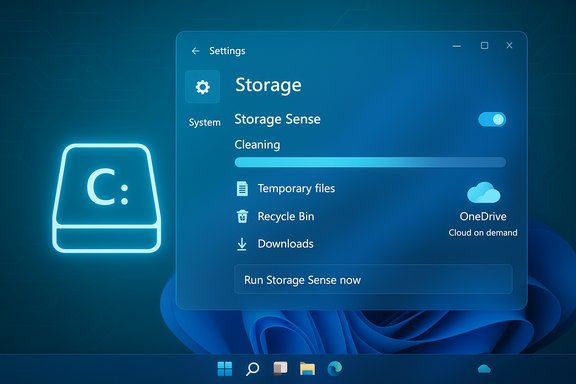
Storage Sense is the quiet Windows 11 background tool that will automatically clean up temporary files, empty your Recycle Bin, remove stale downloads when asked, and even convert locally cached OneDrive files to online‑only — and enabling it correctly can keep a busy PC feeling responsive without constant manual housekeeping.
Windows accumulates clutter: browser caches, app temporary data, installer leftovers, old Windows update files, and locally cached cloud items. Over time these consume space on the system drive, increasing disk fragmentation on HDDs, reducing free space for virtual memory and update staging, and causing higher disk I/O during routine tasks. For many users the result is a computer that feels slower even though the hardware hasn't changed.
Microsoft provides a built‑in automation called Storage Sense to tackle that problem. It’s designed to free space on the system drive (usually C by deleting certain categories of files according to rules you choose, and by making infrequently used cloud files online‑only (Files On‑Demand) so they stop using local disk space. Official documentation explains that Storage Sense is off by default and runs on the system drive; when enabled you can control how often it runs and exactly what it removes. This feature article takes the Pocket‑lint primer on Storage Sense as its starting point, summarizes the practical steps the author recommended, validates the key technical claims against Microsoft and independent coverage, and then digs into configuration details, trade‑offs, and best practices so Windows 11 users can make Storage Sense work safely and effectively.
Storage Sense is not magic — it won’t replace sensible backups or hardware upgrades — but configured carefully it becomes the quiet housekeeper that keeps your PC responsive day after day.
Source: Pocket-lint This hidden Windows 11 setting keeps my computer running quickly
 Background / Overview
Windows accumulates clutter: browser caches, app temporary data, installer leftovers, old Windows update files, and locally cached cloud items. Over time these consume space on the system drive, increasing disk fragmentation on HDDs, reducing free space for virtual memory and update staging, and causing higher disk I/O during routine tasks. For many users the result is a computer that feels slower even though the hardware hasn't changed.Microsoft provides a built‑in automation called Storage Sense to tackle that problem. It’s designed to free space on the system drive (usually C
by deleting certain categories of files according to rules you choose, and by making infrequently used cloud files online‑only (Files On‑Demand) so they stop using local disk space. Official documentation explains that Storage Sense is off by default and runs on the system drive; when enabled you can control how often it runs and exactly what it removes. This feature article takes the Pocket‑lint primer on Storage Sense as its starting point, summarizes the practical steps the author recommended, validates the key technical claims against Microsoft and independent coverage, and then digs into configuration details, trade‑offs, and best practices so Windows 11 users can make Storage Sense work safely and effectively. What Storage Sense actually does (and what it won’t)
Built‑in cleanup actions
Storage Sense can be configured to perform a set of predefined actions automatically:- Remove temporary files and system temporary caches.
- Empty the Recycle Bin after a configurable number of days.
- Delete files in the Downloads folder that haven’t been opened for X days (optional — Downloads are not cleaned by default).
- Convert locally cached cloud files (OneDrive Files On‑Demand) to online‑only if they haven’t been opened in a configured window of time. This does not delete the cloud copy — it frees local disk space by removing the local copy while leaving the item in the cloud.
What Storage Sense does not do
- It only operates on the system drive (C. If you store large files on other drives, Storage Sense won’t manage them.
- It won’t permanently delete cloud content from OneDrive; online‑only conversion frees local space but preserves the cloud copy.
- It does not run when you’re signed out — Storage Sense requires you to be signed in and online for at least ten minutes before it can perform automatic runs.
How to enable and configure Storage Sense (step‑by‑step)
Follow these steps to set up Storage Sense safely and efficiently:- Open Settings: press Windows + I and go to System → Storage.
- Toggle Storage Sense to On. By default Storage Sense remains off until you enable it.
- Click Storage Sense (or Configure Storage Sense or run it now) to open the configuration page.
- Choose when Storage Sense will run:
- During low free disk space (default behavior when turned on), or
- On a schedule: Every day, every week, every month, or during low free space only.
- Configure Temporary files cleanup:
- Choose how long items must sit in the Recycle Bin before being removed.
- Choose how long files in Downloads must be untouched before deletion (Downloads are preserved by default unless you set a time).
- Configure Locally available cloud content:
- If you use OneDrive (Files On‑Demand), set the window after which files not opened become online‑only (e.g., 30 days). Note: Windows 11 22H2 made 30 days the default for cloud files.
- Use Run Storage Sense now if you want to apply your settings immediately.
- Optionally, create a restore point or backup before running an aggressive cleanup pass if you have important un‑backed files in Downloads or temporary folders.
The Storage Sense + OneDrive relationship — what to know
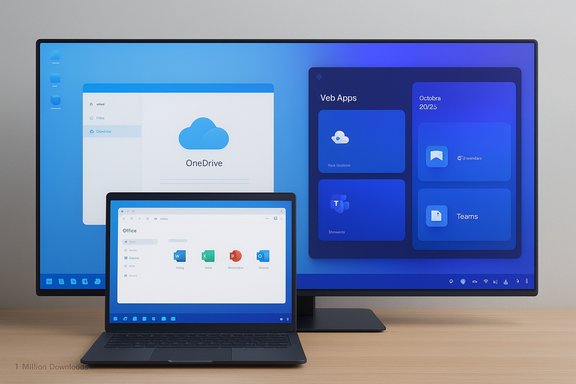
Storage Sense integrates with OneDrive's Files On‑Demand to maximize local free space. OneDrive shows three common states in File Explorer:- Cloud (blue cloud): online‑only; does not take local disk space.
- Locally available: the file has been opened locally and is cached for offline use.
- Always keep on this device (green check): pinned local copy; Storage Sense will not convert these files.
- If you frequently edit or need offline access to file sets, pin them (Always keep on this device).
- If you rely mostly on cloud access and want to maximize local free space, allow Storage Sense to make files online‑only and combine it with a scheduled cleanup cadence.
- If you work offline often, avoid automatic online‑only conversion or choose a long inactivity window.
Verifying the most important technical claims
Several claims commonly repeated about Storage Sense deserve verification; here are the fact‑checked answers:- Claim: “Storage Sense is off by default.” — Verified: Microsoft documentation states Storage Sense is off by default and may be automatically turned on in low‑disk situations only after notifying the user; enabling is a manual toggle.
- Claim: “Storage Sense deletes Downloads automatically.” — Partly true: Storage Sense will not delete Downloads unless you explicitly configure it to do so; the default is to leave Downloads alone. The deletion window is configurable.
- Claim: “Storage Sense can free space by converting OneDrive files to online‑only.” — Verified: Through Files On‑Demand integration, Storage Sense can make inactive cloud files online‑only, freeing local disk space while preserving cloud copies.
- Claim: “Storage Sense runs only on C:.” — Verified: It operates on the system drive only, according to Microsoft, and does not touch other physical or logical drives.
Strengths: why Storage Sense is useful
- Low friction: It’s built into Windows 11 and requires no third‑party app or admin-level intervention to reclaim space. Enabling it takes minutes.
- Customizable: You control schedule, the retention window for Recycle Bin and Downloads, and whether cloud files are converted.
- Integrated cloud handling: When paired with OneDrive Files On‑Demand it can dramatically reduce the local footprint of a large photo/video collection without deleting your cloud copies.
- Safe defaults: Microsoft’s default behavior errs on the cautious side — Downloads and cloud content are not aggressively deleted unless you opt in.
Risks, caveats, and places users frequently get burned
Storage Sense is powerful; with power comes risk. The primary hazards to watch for are:- Accidental loss of files from Downloads: If you enable deletion for Downloads with a short inactivity window you can lose installers, exports, or photos you intended to keep. Because Downloads often contain user‑created files, exercise care — set a long window or exclude Downloads entirely if you’re unsure.
- Offline availability: Converting cloud files to online‑only makes them inaccessible without Internet. If you depend on offline access while traveling or in restricted networks, pin essential files first.
- Scope limitation: Storage Sense only touches the system partition. If you store data on external drives or other partitions, Storage Sense won’t help there; you’ll need manual cleanup or other tooling.
- Misunderstanding of “online‑only”: Some users misinterpret online‑only as “deleted.” Storage Sense does not delete your cloud copy; it only removes the local cache. However, third‑party backups or retention policies might behave differently — confirm your backup plan before mass conversion.
- Corporate or managed devices: IT policies can override or disable Storage Sense, and automated cleanup on managed endpoints can interfere with enterprise backup or compliance rules. Check with IT before changing settings on a company device.
Best practices and a recommended setup for most users
Here’s a practical, conservative setup for Storage Sense that balances convenience with safety:- Leave Storage Sense enabled but set it to run Every week rather than “when low.” This strikes a balance between responsiveness and control.
- Configure Recycle Bin cleanup to 30 days — that preserves deleted items long enough to recover accidental deletions.
- Leave Downloads alone unless you intentionally want them cleaned; if you do enable it, choose 60–90 days as a conservative start.
- Enable the Locally available cloud content rule but set it to 30–60 days, and pin any files you need offline access for. Remember Windows 11 22H2 defaults OneDrive to 30 days; use the UI to lengthen that if appropriate.
- Before you let Storage Sense run automatically for the first time, run it manually using Run Storage Sense now and inspect what it proposes to remove. Back up any irreplaceable files beforehand.
- Use File History or a dedicated backup solution for true data protection. Storage Sense is not a backup tool — it’s a space‑management tool.
Advanced tips for power users and IT admins
- Use Group Policy or MDM to manage Storage Sense settings across a fleet, rather than letting individual users opt in/out. This prevents configuration drift on corporate devices.
- For scripted or hands‑off maintenance on non‑C: volumes, combine PowerShell scripts and scheduled tasks that target specific folders — Storage Sense won’t help here.
- If you rely on third‑party cloud providers, check their client integration: Storage Sense’s cloud conversion only understands Microsoft’s Files On‑Demand model (OneDrive). Other cloud sync clients may have different behaviors and could conflict.
- Keep OneDrive and Windows up to date — OneDrive Files On‑Demand features and behavior can change across builds and updates. Microsoft’s OneDrive client has its own update cadence and release notes.
Troubleshooting quick guide
- “Storage Sense deleted files I wanted”
- Check the Recycle Bin first; Storage Sense’s Recycle Bin cleanup moves items to Recycle Bin before permanent deletion. If Permanent deletion occurred, check backups. Consider longer retention windows or disabling Downloads cleanup.
- “Files show as online‑only; I need them offline now”
- In File Explorer, right‑click the file or folder and select Always keep on this device to force a local copy.
- “Storage Sense didn’t free space”
- Confirm it’s enabled and that you’re logged in and online for at least 10 minutes; check the configuration options and run it manually. Remember it only works on the system drive.
- “I don’t see Files On‑Demand settings”
- Ensure you are signed in to OneDrive and have the current OneDrive client; Files On‑Demand requires the client and certain Windows versions. Corporate WIP (Windows Information Protection) can block Files On‑Demand.
Measuring success: how to tell if Storage Sense is helping
Storage Sense is a storage optimization tool, so measure outcomes in storage and responsiveness:- Disk free space: check Settings → System → Storage before and after a manual run.
- App launch and general responsiveness: measure typical app startup times (stopwatch) and observe subjective snappiness; large gains from Storage Sense are most visible when the system drive was previously very full.
- Boot time improvements are possible but usually limited — Storage Sense affects files and caches more than boot services. For boot speed, focus on trimming startup apps first.
Conclusion — Storage Sense is a safe, effective tool when configured intentionally
Storage Sense is the built‑in, low‑risk answer to disk clutter on Windows 11. Pocket‑lint’s user‑friendly writeup captured the core value proposition — automated cleanups and cloud integration that save space with almost no upkeep required — and Microsoft’s documentation confirms the feature’s behavior, limitations, and safe defaults. For most users the recommended approach is to enable Storage Sense, select a conservative schedule (weekly), avoid aggressive Download deletion, and use Files On‑Demand sensibly — pin important files and allow inactive cloud-only conversion for everything else. Combine Storage Sense with a proper backup strategy and periodic manual checks, and you’ll keep a busy Windows 11 machine running smoothly without losing important files.Storage Sense is not magic — it won’t replace sensible backups or hardware upgrades — but configured carefully it becomes the quiet housekeeper that keeps your PC responsive day after day.
Source: Pocket-lint This hidden Windows 11 setting keeps my computer running quickly