

Microsoft Edge can import Chrome bookmarks, passwords, history, open tabs, and many extensions on Windows 11 in minutes, but the practical switch usually takes several days because the real migration is behavioral, not technical. That is the useful truth buried under years of browser-war baggage. Edge is no longer merely “the thing Windows opens by default,” but it is still very much Microsoft’s browser, with Microsoft’s services waiting at every turn. The result is a switch that is easier than expected, occasionally irritating, and more revealing about modern Windows than about either browser alone.
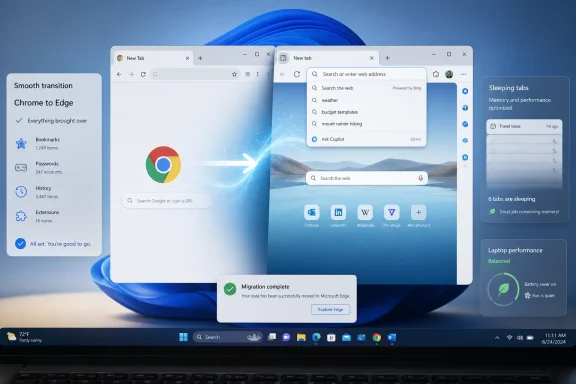
The first surprise in moving from Chrome to Edge is how little drama there is in the actual transfer. Edge’s import flow can pull in the core furniture of a Chrome life: favorites, saved passwords, browsing history, payment data in some configurations, and even currently open tabs. For most users, the handoff feels less like moving house than walking into a room where someone has already arranged the furniture.
That smoothness is not magic. It is the consequence of Microsoft’s strategic surrender to Chromium years ago. Edge and Chrome are rivals in branding, services, sync accounts, and defaults, but underneath they share enough browser DNA that migration no longer feels like crossing an ocean.
This matters because the old browser-switching fear was always loss. Users worried that bookmarks would scatter, passwords would vanish, extensions would not exist, and a decade of accumulated convenience would collapse into a weekend of repair work. In 2026, that fear is mostly outdated for a Chrome-to-Edge move on Windows.
The more accurate warning is subtler: your data moves faster than your instincts. The browser may be ready in five minutes. Your hands, your eyes, and your search habits are not.
The same is true for extensions. Edge can use the Microsoft Edge Add-ons store, but it can also install many extensions from the Chrome Web Store. For anyone relying on an ad blocker, password manager, clipping tool, grammar checker, developer extension, or tab manager, that compatibility is the difference between a real migration and a curiosity.
The trap is that Microsoft has solved the import problem while leaving the defaults problem alive. Edge may feel familiar because it runs on Chromium, but the service layer is Microsoft through and through. Search defaults to Bing, sync defaults to a Microsoft account, and the right side of the window increasingly belongs to Copilot and related sidebar features.
That is not a technical failure. It is a business model asserting itself. Google does the same thing in Chrome with Google Search, Google Password Manager, Gmail, Meet, and account sync. The difference is that many Chrome users have already accepted Google’s gravity as normal; Microsoft’s gravity still feels like an interruption when it appears inside Windows.
Search is the first stop. Edge’s address bar can be changed from Bing to Google, DuckDuckGo, or another engine through Privacy, search, and services, then Address bar and search. The setting is not hard to find once you know where it is, but it is buried just deeply enough that a casual switcher may assume Edge is more locked down than it is.
The complication is Windows 11 itself. Changing the search engine in Edge does not necessarily change what happens when you use search from the taskbar, Start menu, widgets, or other Windows surfaces. Users often experience this as a single “Edge keeps using Bing” problem, when it is really a stack of related defaults owned by different parts of Windows and Microsoft’s web shell.
That distinction is important. Edge, the browser, is fairly configurable. Windows, the operating system, is more opinionated about where Microsoft wants search traffic to go. Anyone switching browsers needs to separate those two frustrations or they will blame Edge for choices made higher up the Windows stack.
Yet the experience still feels wrong for a while. Menus sit in slightly different places. Profile controls look different. The new tab page has Microsoft’s rhythms instead of Google’s. The visual weight of the toolbar is similar but not identical, which is enough to make a familiar workflow feel borrowed.
That is the strange psychology of browser loyalty. Most people do not love Chrome in an active sense; they simply stopped thinking about it years ago. It became the window through which work happened, and invisible tools are difficult to replace precisely because users no longer consciously operate them.
Edge’s biggest challenge is therefore not proving it can browse the web. It can. Its challenge is surviving the period when the user’s hand still moves toward the Chrome icon on the taskbar without asking permission from the brain.
Sleeping Tabs is central to that argument. Edge can put inactive tabs to sleep after a period of inactivity, freeing memory and reducing CPU use without closing the tab. The tab remains visible, often faded, and wakes when clicked.
This is not conceptually new. Browsers have been trying to tame tab overload for years, and Chrome has its own memory-saving features. But Edge’s implementation is tightly integrated and prominent enough that ordinary users are more likely to encounter it as a built-in advantage rather than a buried performance setting.
For Windows 11 users, that matters. A browser is not just an app anymore; it is the app that hosts mail, docs, admin consoles, dashboards, chats, music, shopping, banking, and half the company intranet. Saving resources in that app has an outsized effect on how the rest of the machine feels.
Still, users are not wrong to trust their machines. If a laptop fan spins less often, if Teams and Outlook stop fighting the browser for air, if 20 tabs no longer make the system feel like it is walking through mud, that is meaningful evidence. Not laboratory evidence, perhaps, but operational evidence.
Microsoft has claimed substantial average savings from Sleeping Tabs, including reductions in memory and CPU use, and the feature’s purpose aligns with what users report in real-world switching stories. The precise number will vary; the practical benefit is that Edge is often more aggressive about letting background work go quiet.
That is why the performance argument lands better with laptop users than with desktop users sitting behind 64GB of RAM. On a plugged-in workstation, Chrome’s appetite may be background noise. On a thin Windows laptop with a video call, a spreadsheet, ten research tabs, and a battery already aging badly, browser efficiency stops being theoretical.
The problem is not that Copilot exists. The problem is that Microsoft often treats it as a permanent room fixture rather than a tool the user deliberately takes out of a drawer. A browser window already has tabs, extensions, profile icons, sharing controls, collections, favorites, reader features, and site permissions competing for attention. A persistent AI button can cross the line from helpful to ambient pressure.
For some users, the right move is to keep Copilot available but hidden. For others, it is to disable the toolbar button entirely. Edge gives enough control here to make the browser livable, but Microsoft’s default posture is unmistakable: it wants AI to be near the user’s hand.
That is the broader Windows 11 story as well. Microsoft is not merely building a browser that competes with Chrome. It is building a surface where search, AI assistance, shopping, productivity, identity, and cloud services can converge. Edge is the browser, but it is also the storefront.
Google Meet is a good example. Camera and microphone prompts, remembered preferences, account state, and integration details may feel smoother in Chrome for users who live inside Google Workspace. Sometimes the difference is just an extra click. Sometimes it is the small anxiety before a call when the browser asks again for something you thought it already knew.
That friction is not necessarily Edge’s fault. It is the natural outcome of platform companies optimizing for their own stack. Google has every incentive to make Chrome the most seamless client for Google services, just as Microsoft has every incentive to make Edge feel more at home with Windows, Bing, Microsoft 365, Outlook, and Copilot.
This is where the “best browser” debate becomes less useful than a “best ecosystem fit” debate. If your day runs through Google Workspace, Chrome still has gravity. If your day runs through Windows 11, Microsoft 365, Entra ID, SharePoint, Outlook, and Teams, Edge has a stronger claim than many longtime Chrome users assume.
Edge can import saved Chrome passwords, and for an individual user that may be enough. The browser can then sync them through a Microsoft account, making them available across Edge installations. On a Windows PC where the user is already signed into Microsoft services, that arrangement can feel natural.
The problem appears when a user also lives on Chrome for Android, Chrome on a Mac, or Google Password Manager across devices. Suddenly the switch is not just Chrome to Edge; it is Google identity storage to Microsoft identity storage. The password database becomes another place where the ecosystem split shows.
This is one of the few moments where the best consumer advice and the best IT advice converge: use a dedicated password manager if you can. A third-party password manager reduces the browser’s leverage over your credentials and makes future switching less dramatic. It also keeps the browser decision focused on browsing rather than on the hostage value of saved logins.
Edge inherits much of Chrome’s web compatibility because of Chromium, while offering Microsoft-centric management through group policy, Intune, Microsoft security tooling, and enterprise identity integrations. That combination gives IT departments a browser that works with modern web apps without requiring them to surrender the management plane to Google.
There is also a support argument. In Microsoft-heavy organizations, Edge is already present, already patched through the Windows ecosystem, and already tied into Microsoft’s documentation and security guidance. Standardizing on Edge can reduce browser sprawl, particularly in environments where Chrome was installed mainly because the old Edge or Internet Explorer could not be trusted with modern sites.
But administrators should not mistake technical readiness for user readiness. Employees who have spent a decade in Chrome will notice when search changes, when profiles sync differently, when extensions need approval, and when Google Workspace workflows gain small bumps. A successful Edge migration is as much communication as configuration.
Both companies operate advertising businesses, cloud identity systems, telemetry pipelines, sync services, and increasingly AI-assisted browsing features. Both want users signed in. Both benefit when the browser becomes a personalized, persistent layer over the web rather than a disposable utility.
That does not make the choice meaningless. Microsoft and Google have different business mixes, different enterprise incentives, different privacy controls, and different regulatory histories. Users may reasonably prefer one account system, one data policy, or one administrative model over the other.
But the honest framing is that Edge is not a privacy browser in the way Brave, Firefox with careful configuration, or specialized hardened setups might aspire to be. Edge is a mainstream platform browser. It can be configured more privately, but its default posture is still shaped by Microsoft’s services strategy.
On Windows 11, Edge fits into the system in ways Chrome cannot quite match. It is present after setup, tied into Microsoft account flows, integrated with Windows security and management options, and optimized around Windows power and performance expectations. For many users, that integration is enough to justify the switch.
But native integration has a darker side. Microsoft can blur the line between helping and steering. Search defaults, Copilot prompts, sidebar services, shopping features, and account nudges can make Edge feel less like a quiet browser and more like a managed gateway into Microsoft’s commercial universe.
That is why the right setup matters. Edge becomes far more pleasant when the user actively trims it: choose the search engine, disable unwanted sidebar features, review sync settings, set tab behavior, and install only the extensions that matter. The default Edge experience is Microsoft’s opinion. The configured Edge experience can be yours.
 The Browser Move Is Fast Because Chrome Already Won
The first surprise in moving from Chrome to Edge is how little drama there is in the actual transfer. Edge’s import flow can pull in the core furniture of a Chrome life: favorites, saved passwords, browsing history, payment data in some configurations, and even currently open tabs. For most users, the handoff feels less like moving house than walking into a room where someone has already arranged the furniture.That smoothness is not magic. It is the consequence of Microsoft’s strategic surrender to Chromium years ago. Edge and Chrome are rivals in branding, services, sync accounts, and defaults, but underneath they share enough browser DNA that migration no longer feels like crossing an ocean.
This matters because the old browser-switching fear was always loss. Users worried that bookmarks would scatter, passwords would vanish, extensions would not exist, and a decade of accumulated convenience would collapse into a weekend of repair work. In 2026, that fear is mostly outdated for a Chrome-to-Edge move on Windows.
The more accurate warning is subtler: your data moves faster than your instincts. The browser may be ready in five minutes. Your hands, your eyes, and your search habits are not.
Microsoft Made the Door Wide, Then Put Bing Behind It
Edge’s import wizard is one of the browser’s strongest arguments because it removes the most obvious reason not to try it. You can launch Edge, go into Settings, open Profiles, choose Import browser data, and bring over a Chrome profile with very little friction. It is the sort of product experience Microsoft historically made harder than necessary, which makes its competence here almost suspicious.The same is true for extensions. Edge can use the Microsoft Edge Add-ons store, but it can also install many extensions from the Chrome Web Store. For anyone relying on an ad blocker, password manager, clipping tool, grammar checker, developer extension, or tab manager, that compatibility is the difference between a real migration and a curiosity.
The trap is that Microsoft has solved the import problem while leaving the defaults problem alive. Edge may feel familiar because it runs on Chromium, but the service layer is Microsoft through and through. Search defaults to Bing, sync defaults to a Microsoft account, and the right side of the window increasingly belongs to Copilot and related sidebar features.
That is not a technical failure. It is a business model asserting itself. Google does the same thing in Chrome with Google Search, Google Password Manager, Gmail, Meet, and account sync. The difference is that many Chrome users have already accepted Google’s gravity as normal; Microsoft’s gravity still feels like an interruption when it appears inside Windows.
The First Day Is Mostly a Defaults Audit
The smartest way to switch from Chrome to Edge is not to browse immediately and see what annoys you. It is to spend ten minutes changing the defaults you already know will annoy you. That small investment turns a week of friction into a much shorter adjustment period.Search is the first stop. Edge’s address bar can be changed from Bing to Google, DuckDuckGo, or another engine through Privacy, search, and services, then Address bar and search. The setting is not hard to find once you know where it is, but it is buried just deeply enough that a casual switcher may assume Edge is more locked down than it is.
The complication is Windows 11 itself. Changing the search engine in Edge does not necessarily change what happens when you use search from the taskbar, Start menu, widgets, or other Windows surfaces. Users often experience this as a single “Edge keeps using Bing” problem, when it is really a stack of related defaults owned by different parts of Windows and Microsoft’s web shell.
That distinction is important. Edge, the browser, is fairly configurable. Windows, the operating system, is more opinionated about where Microsoft wants search traffic to go. Anyone switching browsers needs to separate those two frustrations or they will blame Edge for choices made higher up the Windows stack.
The Chrome Icon Is Harder to Replace Than Chrome
The second day of the switch is when muscle memory becomes the main adversary. Ctrl+L still focuses the address bar. Ctrl+T still opens a new tab. Ctrl+W still closes one. DevTools still lives where developers expect it. On paper, almost nothing important has changed.Yet the experience still feels wrong for a while. Menus sit in slightly different places. Profile controls look different. The new tab page has Microsoft’s rhythms instead of Google’s. The visual weight of the toolbar is similar but not identical, which is enough to make a familiar workflow feel borrowed.
That is the strange psychology of browser loyalty. Most people do not love Chrome in an active sense; they simply stopped thinking about it years ago. It became the window through which work happened, and invisible tools are difficult to replace precisely because users no longer consciously operate them.
Edge’s biggest challenge is therefore not proving it can browse the web. It can. Its challenge is surviving the period when the user’s hand still moves toward the Chrome icon on the taskbar without asking permission from the brain.
Edge’s Best Windows Argument Is That It Gets Out of the Way
The case for Edge becomes stronger after a few days with too many tabs open. Not because every machine will reproduce the same RAM numbers, and not because Chrome is uniquely wasteful in every workload. The case is that Edge has spent years optimizing for the kind of Windows laptop behavior users actually notice: fan noise, battery drain, foreground sluggishness, and the slow creep of background tabs eating the day.Sleeping Tabs is central to that argument. Edge can put inactive tabs to sleep after a period of inactivity, freeing memory and reducing CPU use without closing the tab. The tab remains visible, often faded, and wakes when clicked.
This is not conceptually new. Browsers have been trying to tame tab overload for years, and Chrome has its own memory-saving features. But Edge’s implementation is tightly integrated and prominent enough that ordinary users are more likely to encounter it as a built-in advantage rather than a buried performance setting.
For Windows 11 users, that matters. A browser is not just an app anymore; it is the app that hosts mail, docs, admin consoles, dashboards, chats, music, shopping, banking, and half the company intranet. Saving resources in that app has an outsized effect on how the rest of the machine feels.
The RAM Numbers Are Real, But They Are Not a Moral Victory
It is tempting to reduce the switch to a scoreboard: Edge used less memory, Chrome used more, therefore Edge wins. That is satisfying and too simple. Browser memory use depends on tabs, extensions, site behavior, hardware, background services, sleeping policies, and whether a test is measuring resident memory, process groups, or a snapshot in Task Manager.Still, users are not wrong to trust their machines. If a laptop fan spins less often, if Teams and Outlook stop fighting the browser for air, if 20 tabs no longer make the system feel like it is walking through mud, that is meaningful evidence. Not laboratory evidence, perhaps, but operational evidence.
Microsoft has claimed substantial average savings from Sleeping Tabs, including reductions in memory and CPU use, and the feature’s purpose aligns with what users report in real-world switching stories. The precise number will vary; the practical benefit is that Edge is often more aggressive about letting background work go quiet.
That is why the performance argument lands better with laptop users than with desktop users sitting behind 64GB of RAM. On a plugged-in workstation, Chrome’s appetite may be background noise. On a thin Windows laptop with a video call, a spreadsheet, ten research tabs, and a battery already aging badly, browser efficiency stops being theoretical.
Copilot Is Useful Until It Starts Behaving Like Furniture
If Bing is the first obvious Edge default, Copilot is the second. Microsoft has spent the last several years threading AI features through Windows, Edge, Microsoft 365, Bing, and developer tooling, and Edge is one of the most visible places where that strategy meets normal users. The sidebar can summarize pages, help draft text, answer questions, and sit close enough to the browsing experience to feel genuinely convenient.The problem is not that Copilot exists. The problem is that Microsoft often treats it as a permanent room fixture rather than a tool the user deliberately takes out of a drawer. A browser window already has tabs, extensions, profile icons, sharing controls, collections, favorites, reader features, and site permissions competing for attention. A persistent AI button can cross the line from helpful to ambient pressure.
For some users, the right move is to keep Copilot available but hidden. For others, it is to disable the toolbar button entirely. Edge gives enough control here to make the browser livable, but Microsoft’s default posture is unmistakable: it wants AI to be near the user’s hand.
That is the broader Windows 11 story as well. Microsoft is not merely building a browser that competes with Chrome. It is building a surface where search, AI assistance, shopping, productivity, identity, and cloud services can converge. Edge is the browser, but it is also the storefront.
Google Services Still Prefer Google’s House
The strongest reason not to switch remains the same as it has been for years: Google’s services are most comfortable inside Google’s browser. Gmail works well in Edge. Docs works well in Edge. YouTube works well in Edge. But “works” and “feels native” are not always the same thing.Google Meet is a good example. Camera and microphone prompts, remembered preferences, account state, and integration details may feel smoother in Chrome for users who live inside Google Workspace. Sometimes the difference is just an extra click. Sometimes it is the small anxiety before a call when the browser asks again for something you thought it already knew.
That friction is not necessarily Edge’s fault. It is the natural outcome of platform companies optimizing for their own stack. Google has every incentive to make Chrome the most seamless client for Google services, just as Microsoft has every incentive to make Edge feel more at home with Windows, Bing, Microsoft 365, Outlook, and Copilot.
This is where the “best browser” debate becomes less useful than a “best ecosystem fit” debate. If your day runs through Google Workspace, Chrome still has gravity. If your day runs through Windows 11, Microsoft 365, Entra ID, SharePoint, Outlook, and Teams, Edge has a stronger claim than many longtime Chrome users assume.
Passwords Are the Migration Detail That Deserve More Respect
Bookmarks are easy. Tabs are temporary. History is useful but rarely sacred. Passwords are different, because they represent not just convenience but trust.Edge can import saved Chrome passwords, and for an individual user that may be enough. The browser can then sync them through a Microsoft account, making them available across Edge installations. On a Windows PC where the user is already signed into Microsoft services, that arrangement can feel natural.
The problem appears when a user also lives on Chrome for Android, Chrome on a Mac, or Google Password Manager across devices. Suddenly the switch is not just Chrome to Edge; it is Google identity storage to Microsoft identity storage. The password database becomes another place where the ecosystem split shows.
This is one of the few moments where the best consumer advice and the best IT advice converge: use a dedicated password manager if you can. A third-party password manager reduces the browser’s leverage over your credentials and makes future switching less dramatic. It also keeps the browser decision focused on browsing rather than on the hostage value of saved logins.
Enterprise IT Has Already Had This Conversation
For home users, switching from Chrome to Edge can feel like a personal productivity experiment. For administrators, it is a policy question with cost, security, manageability, and user-resistance dimensions. The calculus is more complicated but also more favorable to Edge than it used to be.Edge inherits much of Chrome’s web compatibility because of Chromium, while offering Microsoft-centric management through group policy, Intune, Microsoft security tooling, and enterprise identity integrations. That combination gives IT departments a browser that works with modern web apps without requiring them to surrender the management plane to Google.
There is also a support argument. In Microsoft-heavy organizations, Edge is already present, already patched through the Windows ecosystem, and already tied into Microsoft’s documentation and security guidance. Standardizing on Edge can reduce browser sprawl, particularly in environments where Chrome was installed mainly because the old Edge or Internet Explorer could not be trusted with modern sites.
But administrators should not mistake technical readiness for user readiness. Employees who have spent a decade in Chrome will notice when search changes, when profiles sync differently, when extensions need approval, and when Google Workspace workflows gain small bumps. A successful Edge migration is as much communication as configuration.
The Privacy Trade Is Not Escape, It Is Reassignment
Some users approach Edge as if leaving Chrome automatically means leaving surveillance capitalism behind. That is not how this works. Moving from Chrome to Edge shifts the center of gravity from Google to Microsoft; it does not turn the modern browser into a neutral pipe.Both companies operate advertising businesses, cloud identity systems, telemetry pipelines, sync services, and increasingly AI-assisted browsing features. Both want users signed in. Both benefit when the browser becomes a personalized, persistent layer over the web rather than a disposable utility.
That does not make the choice meaningless. Microsoft and Google have different business mixes, different enterprise incentives, different privacy controls, and different regulatory histories. Users may reasonably prefer one account system, one data policy, or one administrative model over the other.
But the honest framing is that Edge is not a privacy browser in the way Brave, Firefox with careful configuration, or specialized hardened setups might aspire to be. Edge is a mainstream platform browser. It can be configured more privately, but its default posture is still shaped by Microsoft’s services strategy.
The Switch Works Best When You Treat Edge Like a Windows Feature
The most compelling version of Edge is not “Chrome, but with a different logo.” That pitch undersells it and invites disappointment. The better pitch is “the Windows-native Chromium browser,” with all the strengths and annoyances that phrase implies.On Windows 11, Edge fits into the system in ways Chrome cannot quite match. It is present after setup, tied into Microsoft account flows, integrated with Windows security and management options, and optimized around Windows power and performance expectations. For many users, that integration is enough to justify the switch.
But native integration has a darker side. Microsoft can blur the line between helping and steering. Search defaults, Copilot prompts, sidebar services, shopping features, and account nudges can make Edge feel less like a quiet browser and more like a managed gateway into Microsoft’s commercial universe.
That is why the right setup matters. Edge becomes far more pleasant when the user actively trims it: choose the search engine, disable unwanted sidebar features, review sync settings, set tab behavior, and install only the extensions that matter. The default Edge experience is Microsoft’s opinion. The configured Edge experience can be yours.
The Real Migration Checklist Is Shorter Than the Anxiety
The lesson from switching is that Edge’s technical readiness is no longer the debate. The real question is whether the user is willing to spend a few days retraining habits and a few minutes undoing Microsoft’s more assertive defaults. If that sounds tolerable, the browser itself will probably not be the obstacle.- Edge can import Chrome’s essential browsing data quickly enough that the mechanical migration is usually the easiest part of the process.
- Chrome Web Store extension compatibility removes what used to be the biggest practical reason to avoid switching.
- Bing, Copilot, sidebar features, and Windows search behavior should be reviewed immediately because they create most of the early irritation.
- Sleeping Tabs and related efficiency features can make Edge feel lighter on Windows laptops, especially for heavy tab users.
- Google Workspace users may still find Chrome smoother for Meet, account state, and Google-first workflows.
- A dedicated password manager makes the browser choice less risky because credentials stop being tied to either Google’s or Microsoft’s sync system.
References
- Primary source: DigitBin
Published: 2026-06-20T09:13:16.610437
Switching From Chrome to Edge on Windows: What Changes
Switching from Chrome to Edge on Windows 11 is fast on paper but slower in practice. Here is what actually takes time and how you can cut it down.www.digitbin.com - Official source: support.microsoft.com
Change your default search engine in Microsoft Edge | Microsoft Support
Learn how to change your default search engine in Microsoft Edge.support.microsoft.com - Official source: microsoft.com

Sleeping Tabs in Microsoft Edge | Save Memory and Improve Performance
Sleeping Tabs automatically put inactive tabs to sleep in Microsoft Edge to save memory, reduce CPU usage, and improve performance. Customize when tabs sleep and keep important sites active.
www.microsoft.com
- Related coverage: howtogeek.com
How to Save Memory With "Sleeping Tabs" in Microsoft Edge
Do you keep dozens of tabs open at a time? Microsoft Edge's "Sleeping Tabs" feature can prevent them from eating up memory. www.howtogeek.com
- Official source: blogs.windows.com
Sleeping Tabs in Microsoft Edge: Saving extra resources when you need it most
To help users save memory and CPU resources, Microsoft Edge automatically puts tabs to sleep until you return to them. This keeps your browser fast and responsive, even if you use a large number of tabs. Starting in Microsoft Edge 105, we automaticablogs.windows.com - Related coverage: guidingtech.com
How to Stop Edge From Changing Default Search Engine - Guiding Tech
Does Microsoft Edge automatically changes its default search engine? Read this guide for top ways to fix it.www.guidingtech.com
- Related coverage: makeuseof.com
Microsoft Tests Sleeping Tabs for Edge
If you're a chronic tab-opener, you'll want to see how Microsoft is adapting to your habits. www.makeuseof.com
- Official source: learn.microsoft.com
How to turn off Copilot search in Microsoft Edge for desktop? - Microsoft Q&A
Hi! After latest update of Edge I found out that default search "engine" became Copilot though there is Google still selected in settings. I have to choose Google manually when searching in the address bar. Moreover, when I mark some text…learn.microsoft.com - Related coverage: windowscentral.com
Secret UI revamp spotted in Microsoft Edge, built around Copilot | Windows Central
Imagine a world where your browser is seamlessly integrated with AI. Microsoft's discarded Olympia UI for Edge is a glimpse into that future.www.windowscentral.com - Related coverage: techradar.com
Windows 11 could get a change to help banish Edge and Bing - but don't get your hopes up too high | TechRadar
Search box tweak might be in the works - and it'd be a hugely popular movewww.techradar.com - Related coverage: scscc.club
</rdf:Alt> </dc:title> <dc:description> <rdf:Alt> <rdf:li xml:lang="x-default"/> </rdf:Alt> </dc:description> <dc:creator> <rdf:Seq> <rdf:li>Microso
</rdf:Alt> </dc:description> <dc:creator> <rdf:Seq> <rdf:li>Microsoft Accountwww.scscc.club
- Related coverage: learn71.ca
- Related coverage: bitwarden.com
- Related coverage: s3.amazonaws.com

