

Windows 10 ESU should be assigned per device as a temporary security bridge, not adopted as a blanket extension: use consumer enrollment for eligible personal PCs, follow the organization’s documented commercial licensing procedure for managed endpoints, and validate virtual-machine entitlement before assuming coverage. Every ESU record should identify an owner, licensing route, proof of eligibility, and exit date.
Windows 10 reached end of support on October 14, 2025. Extended Security Updates provide critical and important security fixes; they do not provide feature updates, routine non-security fixes, design changes, or general Windows support. Microsoft documents October 13, 2026 as the consumer ESU endpoint.
Before choosing ESU, check whether the PC is eligible for Windows 11 by using Microsoft’s PC Health Check app and Windows 11 eligibility guidance. Compatibility alone does not settle the decision: required applications, peripherals, management tooling, and business workflows still need validation. If an upgrade is practical, schedule it; otherwise, use ESU only for the documented transition period.
The strongest control is a per-device disposition record rather than a general statement that an organization or household “has ESU.” At minimum, record:
Start in Settings > Update & Security > Windows Update after installing all updates and restarting. If the eligible-device enrollment option appears, select it and follow the displayed prompts using the Microsoft account intended to hold the enrollment. Save the confirmation associated with that device.
WindowsForum users have reported opaque failures in which the enrollment experience either does not appear or ends with a blunt error. WindowsForum’s continuing coverage of enrollment failures, deadlines, account-based enrollment, and Microsoft’s rollout fixes shows why the preparation sequence matters: users need a repeatable set of checks rather than guesses about what an unexplained message means.
If enrollment is unavailable or fails:
The consumer exit date must remain explicit. Based on the supplied Microsoft facts, consumer ESU ends on October 13, 2026. Do not plan around an unsupported October 12, 2027 date.
Because commercial procedures can differ by agreement and deployment model, administrators should not improvise a universal portal or activation sequence. The operational workflow is:
Do not infer eligible editions, separate commercial coverage periods, or a universal end date from unsourced tables or summaries. Record only what the organization’s actual agreement, entitlement record, and current Microsoft deployment documentation establish.
For every Windows 10 VM, document:
For pooled and nonpersistent environments, test what happens when an instance is recreated. If the team cannot explain how a rebuilt instance retains or reacquires entitlement and receives ESU updates, coverage has not been demonstrated.
ESU is defensible when a named dependency needs limited time—for example, an application validation project or funded replacement already has a schedule. It is not a credible plan when the device owner is unknown, entitlement cannot be proved, or the exit date is simply “later.”
The final disposition for every device should be one of the following:
Windows 10 reached end of support on October 14, 2025. Extended Security Updates provide critical and important security fixes; they do not provide feature updates, routine non-security fixes, design changes, or general Windows support. Microsoft documents October 13, 2026 as the consumer ESU endpoint.
Before choosing ESU, check whether the PC is eligible for Windows 11 by using Microsoft’s PC Health Check app and Windows 11 eligibility guidance. Compatibility alone does not settle the decision: required applications, peripherals, management tooling, and business workflows still need validation. If an upgrade is practical, schedule it; otherwise, use ESU only for the documented transition period.
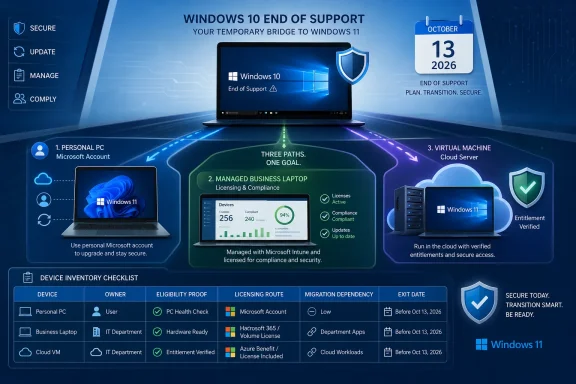 Build the Device Record First
The strongest control is a per-device disposition record rather than a general statement that an organization or household “has ESU.” At minimum, record:- Device name and owner
- Physical, consumer, commercially managed, or virtual status
- Installed Windows version and edition
- Current servicing state
- Intended ESU enrollment or licensing route
- Proof of enrollment, license assignment, or entitlement
- Blocking application, peripheral, or operational dependency
- Target platform
- Named migration owner
- Exit date
| Device type | Verified prerequisites | Enrollment/licensing route | Verification action | Exit condition |
|---|---|---|---|---|
| Personal PC | Windows 10 22H2; current Windows updates; accessible Microsoft account | Consumer ESU option presented in Windows Update; complete one of Microsoft’s offered enrollment methods | Return to Windows Update and retain the enrollment confirmation shown for that device and account | Upgrade, replace, or retire no later than the recorded date and before consumer coverage ends |
| Managed business endpoint | Windows 10 22H2; current updates; valid organizational entitlement confirmed | Procedure specified by the applicable licensing agreement, entitlement portal, and Microsoft commercial ESU deployment documentation | Verify license/activation status and successful receipt of applicable ESU updates through the organization’s management process | Upgrade, replace, reimage, or retire by the approved exception deadline |
| Virtual Windows instance | Platform, image ownership, persistence model, Windows licensing, management authority, and ESU entitlement documented | Only the route expressly authorized by the organization’s Microsoft agreement or cloud/virtualization entitlement | Confirm entitlement and update status after deployment and after any rebuild or image reset | Modernize, remove, or replace the workload by its project deadline |
| Unverified or mixed-use device | Classification or entitlement cannot be proved | Do not assume consumer or commercial coverage | Escalate to the device owner, licensing administrator, or Microsoft support channel | Classification and entitlement are documented, or the device is removed from service |
Prepare the Device Before Enrollment
For any Windows 10 device being considered for ESU, start with the requirements Microsoft has actually documented:- Open Settings > Update & Security > Windows Update.
- Select Check for updates.
- Install available updates and complete required restarts.
- Confirm that the device runs Windows 10 version 22H2.
- Classify the device and choose the applicable consumer, commercial, or entitlement-validation branch.
- Record the intended exit date before approving ESU.
Consumer Enrollment Uses the Microsoft Account Route
Microsoft’s consumer program applies to eligible Windows 10 22H2 PCs with the latest Windows updates installed. Available enrollment options can include syncing PC settings, redeeming Microsoft Rewards points, or making a one-time purchase where Microsoft offers that option.Start in Settings > Update & Security > Windows Update after installing all updates and restarting. If the eligible-device enrollment option appears, select it and follow the displayed prompts using the Microsoft account intended to hold the enrollment. Save the confirmation associated with that device.
WindowsForum users have reported opaque failures in which the enrollment experience either does not appear or ends with a blunt error. WindowsForum’s continuing coverage of enrollment failures, deadlines, account-based enrollment, and Microsoft’s rollout fixes shows why the preparation sequence matters: users need a repeatable set of checks rather than guesses about what an unexplained message means.
If enrollment is unavailable or fails:
- Recheck that the PC is running Windows 10 22H2.
- Run Windows Update again and complete every pending restart.
- Confirm that the intended Microsoft account is accessible and that the same account is used throughout the displayed enrollment process.
- Check whether Windows Update shows an incomplete enrollment, purchase, Rewards redemption, or settings-sync step.
- Capture the exact error message and screen before retrying.
- Use Microsoft’s Windows support portal for the displayed error or contact Microsoft support if the documented prerequisites are met but enrollment still fails.
The consumer exit date must remain explicit. Based on the supplied Microsoft facts, consumer ESU ends on October 13, 2026. Do not plan around an unsupported October 12, 2027 date.
Commercial ESU Requires a Documented Licensing Procedure
Commercial ESU is not consumer enrollment performed repeatedly across company devices. The applicable Microsoft agreement and the entitlement or licensing portal used by the organization determine how ESU is acquired and administered.Because commercial procedures can differ by agreement and deployment model, administrators should not improvise a universal portal or activation sequence. The operational workflow is:
- Have the organization’s Microsoft licensing administrator identify the governing agreement and entitlement channel.
- Use Microsoft’s Windows 10 Extended Security Updates documentation to select the procedure applicable to that agreement and environment.
- Acquire or confirm the required entitlement through the portal named by that agreement or Microsoft’s instructions.
- Follow the documented assignment and activation method for that route.
- Verify activation or entitlement on the endpoint using the method specified in the same documentation.
- Confirm through the organization’s update-management and reporting tools that the endpoint receives an applicable ESU security update.
- Attach procurement evidence, assignment or activation evidence, and update-compliance evidence to the device record.
Do not infer eligible editions, separate commercial coverage periods, or a universal end date from unsourced tables or summaries. Record only what the organization’s actual agreement, entitlement record, and current Microsoft deployment documentation establish.
Virtual Machines Need Entitlement Validation
A Windows 10 virtual machine is not automatically entitled to consumer or commercial ESU because it has one user, runs in a data center, or operates on a cloud platform. Without verified details establishing automatic or included rights for a particular deployment, use an entitlement-validation checklist rather than assuming coverage.For every Windows 10 VM, document:
- Hosting platform and subscription owner
- Persistent, nonpersistent, pooled, or image-based deployment model
- Windows edition and version
- Base-image owner and rebuild process
- Windows licensing and activation method
- Management authority
- Microsoft agreement or service entitlement expected to cover ESU
- Written confirmation of whether ESU is included or must be purchased
- Method for verifying entitlement after deployment, reset, or rebuild
For pooled and nonpersistent environments, test what happens when an instance is recreated. If the team cannot explain how a rebuilt instance retains or reacquires entitlement and receives ESU updates, coverage has not been demonstrated.
Treat Enrollment Failure as a Decision Point
An ESU failure should trigger a cost and risk comparison, not unlimited repair work. First document the error and verify Windows 10 22H2, current updates, device classification, and the intended route. Then compare the effort required to resolve enrollment with the effort required to upgrade, replace, reimage, or retire the system.ESU is defensible when a named dependency needs limited time—for example, an application validation project or funded replacement already has a schedule. It is not a credible plan when the device owner is unknown, entitlement cannot be proved, or the exit date is simply “later.”
The final disposition for every device should be one of the following:
- Upgrade to Windows 11 after compatibility and workflow validation
- Enroll through consumer ESU
- License and activate through the applicable commercial ESU procedure
- Validate a virtual entitlement
- Replace the hardware
- Reimage for another supported purpose
- Retire the workload
Frequently Asked Questions
Does consumer ESU require Windows activation?
The supplied Microsoft facts establish Windows 10 version 22H2 and current updates as consumer prerequisites. They do not establish activation as a stated consumer ESU prerequisite. A reported Windows activation problem should still be resolved separately because ESU does not replace the underlying Windows license.When does consumer Windows 10 ESU end?
Microsoft’s documented consumer endpoint in the supplied facts is October 13, 2026. The unsupported October 12, 2027 date should not be used for migration or budgeting.Can a business use the consumer enrollment process?
An organization-controlled endpoint should follow the route authorized by its Microsoft agreement and licensing documentation. Do not substitute consumer enrollment for a required commercial procedure.Are Windows 10 virtual machines automatically covered?
Do not assume so. Validate the exact cloud, virtualization, licensing, and ESU entitlement for the deployment. Use consumer enrollment only when Microsoft’s applicable terms explicitly permit it; otherwise follow the documented commercial or included-entitlement route.What proves that an ESU plan is complete?
A complete record identifies the device owner, enrollment or licensing route, proof of eligibility and activation or enrollment, successful update verification, migration dependency, target platform, and exit date.References
- Primary source: learn.microsoft.com
Product Lifecycle FAQ - Extended Security Updates | Microsoft Learn
Lifecycle FAQs around the Extended Security Update program.learn.microsoft.com - Independent coverage: reddit.com

Reddit - Please wait for verification
www.reddit.com
- Primary source: WindowsForum
Windows 10 ESU Enrollment Woes: Why It Fails and How to Fix | Windows Forum
Microsoft’s consumer Extended Security Updates (ESU) rollout for Windows 10 promised a one‑year safety net after official support ended, but a growing wave...windowsforum.com
