

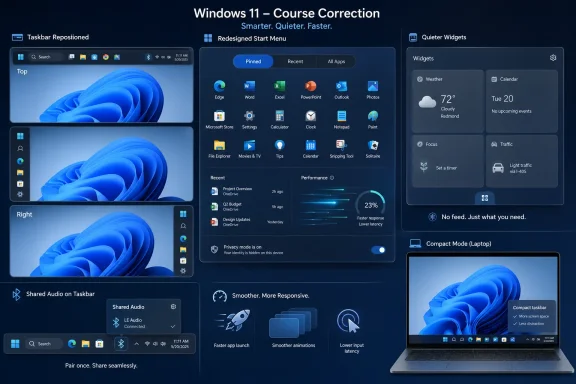
Microsoft is preparing a broad Windows 11 Start menu and taskbar overhaul in 2026, adding movable taskbar positions, a genuinely smaller taskbar, Shared Audio controls, quieter Widgets behavior, resizable Start layouts, section toggles, privacy controls, and deeper WinUI performance work across supported PCs. That is not a cosmetic patch so much as a public retreat from one of Windows 11’s founding bets: that Microsoft could simplify the shell by removing knobs power users had treated as part of the operating system’s social contract. Five years later, the company appears to have accepted that the Start menu and taskbar are not decorative chrome. They are the front door to Windows, and users notice when the locks are changed.
Windows 11 launched with a cleaner visual language, centered icons, rounded corners, and a taskbar that looked more modern in screenshots than it felt under a mouse. The problem was never that Microsoft changed the taskbar. The problem was that it changed the taskbar by removing years of accumulated muscle memory and then asked users to treat the loss as refinement.
For ordinary users, the Start menu and taskbar are where apps begin, windows are recovered, settings are discovered, notifications are skimmed, and work resumes after interruption. For administrators and enthusiasts, they are also where deployment choices, imaging defaults, user training, and help-desk complaints collide. A small change in that strip at the bottom of the screen can become a very large change when multiplied across thousands of desktops.
That is why the return of taskbar repositioning matters beyond nostalgia. The top, left, and right taskbar options were never merely aesthetic. Vertical taskbars are useful on ultrawide monitors, left-side taskbars suit some multi-monitor workflows, and top taskbars serve users who have spent decades building habits around them.
Microsoft’s earlier Windows 11 posture implied that these users were edge cases whose preferences complicated the platform. The new posture is more pragmatic: Windows is at its best when it lets users decide how much of the operating system they want to see.
That distinction matters. A vertical taskbar is not just a horizontal taskbar turned sideways. Start, Search, tooltips, jump lists, system flyouts, notification surfaces, animations, and touch targets all have to understand where the taskbar lives. If they do not, the feature becomes a compatibility theater piece — technically present, functionally awkward.
Early reporting suggests Microsoft is approaching this as a native shell feature rather than a registry stunt. When the taskbar is placed on the left or right, users can align icons toward the top or center. When it sits at the top, icons can remain left-aligned or centered. Open apps with labels and “Never combine” enabled become especially useful in a vertical layout, where window identity can be scanned without hovering.
Still, the first rollout is not expected to recreate every Windows 10 behavior immediately. Auto-hide support, touch gestures, and search box behavior in alternate taskbar positions reportedly remain works in progress. That is the right caution, even if it will frustrate the people who have waited since 2021 for the option to come back.
The larger message is impossible to miss. Microsoft spent the first phase of Windows 11 defending the removal of familiar behaviors. It is now spending the next phase reintroducing them, only after rebuilding enough of the shell to make those choices fit the newer design.
The new “Show smaller taskbar buttons” option reportedly reduces both icon size and the physical height of the taskbar when set to Always. On a 27-inch desktop monitor, that may sound trivial. On a 13- or 14-inch laptop, every vertical pixel is contested territory between browser chrome, web apps, Office ribbons, development environments, Teams, and whatever else the modern workplace has stacked on top of itself.
This is where Windows 11’s early design philosophy often felt at odds with the machines people actually use. The system looked spacious and touch-friendly, but it frequently behaved as if laptop users had desktop real estate to spare. The Start menu could feel oversized, the taskbar fixed, and Widgets too eager to invade.
A real compact taskbar is Microsoft conceding that density is not the enemy of usability. For many Windows users, density is usability. The best interface is not always the one with the most breathing room; sometimes it is the one that gets out of the way.
That behavior was especially grating because the taskbar is not a news site. It is part of the operating system. When an OS-level affordance repeatedly opens a panel filled with algorithmic content, entertainment headlines, ads, and market snippets, it blurs a line users care about: the difference between helping them use the PC and trying to monetize their attention while they are using it.
Microsoft’s reported plan to disable the MSN feed by default and turn off “Open on hover” is therefore more than a quality-of-life adjustment. It is a correction to the incentive structure of the shell. The company appears to be prioritizing a quieter taskbar experience over another surface for engagement.
The same applies to taskbar badging and animated content. Red dots and rotating alerts are effective precisely because they are hard to ignore. But the Windows taskbar already carries enough meaning: running apps, pinned apps, notifications, system status, time, network, sound, battery, and increasingly AI entry points. If everything on it competes for attention, nothing on it feels trustworthy.
A Widgets board that opens on deliberate click and foregrounds pinned mini-apps is a more defensible feature. A Widgets board that pounces during normal pointer movement feels like a growth experiment. Microsoft seems to be choosing the former, at least for now.
Apple users have had a version of this expectation for years in the AirPods ecosystem. Windows, by contrast, has often treated Bluetooth audio as a utilitarian stack rather than a polished experience. Pairing, switching, latency, codec support, and device control have improved, but the emotional bar has remained low: if sound comes out of the right device, users call it a win.
Adding Shared Audio does not fix every Bluetooth headache, and its hardware requirements will limit the audience. Users need compatible Bluetooth LE Audio devices and PCs that support the necessary stack. That means the feature will arrive unevenly, particularly across older machines and mixed corporate fleets.
But the taskbar integration is the key detail. Shared Audio belongs in Quick Settings and the system tray because it is a session-level action. Users should not have to dig through old Control Panel surfaces, vendor utilities, or device-specific apps to do something as simple as sharing audio with the person next to them.
It is also a reminder that Windows can still add delightful features without making them AI-branded. Not every improvement needs a Copilot sidebar. Sometimes the operating system gets better by handling a common physical-world scenario more gracefully.
The new Start menu controls matter because they turn Microsoft’s design opinion into a configurable default rather than a mandate. Section-level toggles for Pinned, Recent, and All Apps would let users decide what the Start menu is for. That sounds obvious, but Windows 11 has often treated Start as a one-size-fits-all surface where Microsoft’s preferred information hierarchy outranks the user’s workflow.
If someone wants a Start menu that is only pinned apps, that should be possible. If someone wants All Apps visible and Recent hidden, that should be possible too. The point is not that every user will obsess over these switches. The point is that Windows should not force every user into the same compromise.
Renaming “Recommended” to “Recent” is a smaller but telling move. The old label carried the whiff of personalization and ranking, even when the section often behaved more like a mixed list of recently installed apps, recent files, and Microsoft-suggested content. “Recent” is more honest. It tells the user what the feature is supposed to do without pretending that the OS has profound insight into intent.
Microsoft also appears to be separating file recommendations from broader recent-file history. That fixes an especially irritating behavior in which disabling the Start menu’s Recommended area could affect File Explorer jump lists or recent-file experiences elsewhere. Users should be able to make the Start menu quieter without breaking useful recency features throughout the OS.
Offering Small and Large layouts — with different app-column counts — gives users a straightforward way to tune density without resorting to third-party tools. It is not the freeform drag-to-resize behavior some Windows 10 users may remember, but it is a meaningful step away from the fixed template that made Windows 11’s Start feel imposed.
Screen real estate has become more valuable, not less. Browser tabs are denser. Web apps behave like desktop suites. Collaboration tools float, dock, pop, and notify. Developers split terminals, editors, browsers, consoles, and documentation. In that context, a Start menu that sprawls vertically can feel like an interruption rather than a launcher.
The privacy mode is similarly practical. Hiding the account name and profile picture from the Start menu surface is not just for streamers. It helps presenters, teachers, consultants, support technicians, and anyone who shares a screen in a semi-public context. Microsoft account identity has slowly crept into more corners of Windows, and users need simple ways to avoid broadcasting it.
These are not revolutionary controls. They are the sort of controls Windows arguably should have had when Windows 11 launched. Their arrival now suggests Microsoft understands that polish without permission can feel like paternalism.
Users forgive many things in an operating system, but they rarely forgive lag in the Start menu. Start is supposed to be instantaneous. When it stutters, hesitates, draws late, or feels disconnected from input, it creates the impression that the entire PC is slower, even if the underlying hardware is fast.
That perception matters for Microsoft because Windows 11 often runs on machines with excellent CPUs, fast NVMe storage, high-refresh displays, and abundant RAM. If the shell still feels inconsistent on that hardware, users do not blame the silicon. They blame Windows.
The Low Latency Profile CPU boost reportedly targets these micro-stutters by prioritizing interactive shell work around surfaces such as Start, File Explorer, and context menus. That is the sort of change that may not show up in a headline benchmark but can change how a PC feels. Latency, not throughput, is often the difference between “modern” and “annoying.”
WinUI also carries symbolic baggage. Microsoft has spent years trying to modernize Windows while dragging behind decades of frameworks, control styles, dialogs, and shell assumptions. A more native, modular approach to the Start menu suggests the company is trying to fix the plumbing rather than merely repainting the faucet.
That shift follows years of frustration among Windows users who felt the company was more interested in pushing new surfaces than repairing old ones. The criticism was not just that Windows 11 lacked a movable taskbar. It was that Microsoft seemed willing to remove established functionality, add feeds and promotional surfaces, and then ask users to be excited about the future.
The timing also matters. Windows 10 is deep into its end-of-support era, and Microsoft needs reluctant holdouts to see Windows 11 as an upgrade rather than a downgrade with stricter hardware requirements. For many of those users, Copilot is not the selling point. A taskbar that behaves properly is.
Enterprise IT will read these changes differently from enthusiasts. Administrators want fewer user complaints, more predictable defaults, manageable policies, and less friction during migrations. A quieter Widgets board and more flexible Start menu could reduce the need for aggressive customization scripts or third-party shell replacements. But each new setting also raises deployment questions: can it be managed, documented, locked, or left to users without generating support churn?
That is where Microsoft still has work to do. Giving consumers knobs is one thing. Giving organizations clean control over those knobs is another. The shell is personal, but in business environments it is also policy.
They are the people who configure family PCs, set up small-business laptops, write deployment guides, answer forum posts, and tell co-workers whether a new Windows release is safe to install. When they are irritated, their irritation travels. When they find a workaround, that workaround becomes folk knowledge. When they conclude an OS is hostile to customization, that reputation sticks.
Windows 11 underestimated this dynamic. The loss of taskbar repositioning, the rigid Start menu, the Widgets feed, and the slow restoration of taskbar features were not isolated annoyances. They became evidence in a broader case that Microsoft had deprioritized the users who care most about the desktop as a tool.
The company now seems to be repairing that relationship by doing something unfashionable in modern software: adding back options. Not prompts, not onboarding cards, not AI-written suggestions, but options. The difference is important. A prompt asks for attention. An option returns control.
There is risk here, of course. Too many settings can make an operating system feel cluttered, inconsistent, and hard to document. But Windows has never succeeded by being the most opinionated desktop OS. It succeeds when it absorbs competing workflows and lets them coexist.
The Start menu and taskbar updates make the Windows 11 upgrade pitch more practical. A user moving from Windows 10 can now see a path back to familiar taskbar positioning. A laptop user can reclaim vertical space. A privacy-conscious presenter can hide account identity from Start. A person annoyed by the Widgets feed can get a calmer default experience.
That matters because migrations are emotional as well as technical. Users do not evaluate a new OS only by whether it supports their apps. They evaluate whether it respects the habits they built over years. Windows 11’s early shell changes often failed that test.
Microsoft does not need to recreate Windows 10 exactly. In fact, it should not. But it does need to prove that Windows 11 can evolve without treating every legacy preference as clutter. The 2026 shell roadmap looks like a step toward that balance.
Shared Audio is already tied to Bluetooth LE Audio support, which means users should not assume every Windows 11 laptop will suddenly behave like a dual-AirPods demo. Movable taskbar support may initially lack pieces users consider essential, especially around auto-hide and alternate-position search behavior. Start menu performance improvements may depend on deeper shell changes that roll out in phases.
There is also the question of defaults. A feature hidden three levels deep in Settings is better than no feature, but it is not the same as a well-designed first-run choice. Microsoft will need to decide whether these controls are discoverable enough for normal users or merely available for the people who already know what to search for.
Still, the fine print should not obscure the direction of travel. Windows 11 is becoming more configurable in the places where users spend the most time. That is the right place for Microsoft to spend its engineering credibility.
Microsoft’s challenge now is to ship these changes cleanly, document them honestly, and resist the temptation to refill every quiet space with another feed, badge, or assistant. The Start menu and taskbar do not need to become monuments to nostalgia, but they do need to feel like they belong to the person sitting at the PC. If Windows 11’s next phase is defined by that principle, the operating system may finally start winning back the users who never wanted spectacle — just a desktop that gets out of their way.
 Microsoft Finally Admits the Shell Is Not a Side Project
Windows 11 launched with a cleaner visual language, centered icons, rounded corners, and a taskbar that looked more modern in screenshots than it felt under a mouse. The problem was never that Microsoft changed the taskbar. The problem was that it changed the taskbar by removing years of accumulated muscle memory and then asked users to treat the loss as refinement.For ordinary users, the Start menu and taskbar are where apps begin, windows are recovered, settings are discovered, notifications are skimmed, and work resumes after interruption. For administrators and enthusiasts, they are also where deployment choices, imaging defaults, user training, and help-desk complaints collide. A small change in that strip at the bottom of the screen can become a very large change when multiplied across thousands of desktops.
That is why the return of taskbar repositioning matters beyond nostalgia. The top, left, and right taskbar options were never merely aesthetic. Vertical taskbars are useful on ultrawide monitors, left-side taskbars suit some multi-monitor workflows, and top taskbars serve users who have spent decades building habits around them.
Microsoft’s earlier Windows 11 posture implied that these users were edge cases whose preferences complicated the platform. The new posture is more pragmatic: Windows is at its best when it lets users decide how much of the operating system they want to see.
The Movable Taskbar Is a Symbol, Not Just a Setting
The marquee change is the one Windows 11 critics have requested since launch: native taskbar repositioning. Microsoft is testing the ability to move the taskbar to the top, left, or right of the screen, with alignment options that adjust to the new placement rather than simply rotating the old layout and hoping for the best.That distinction matters. A vertical taskbar is not just a horizontal taskbar turned sideways. Start, Search, tooltips, jump lists, system flyouts, notification surfaces, animations, and touch targets all have to understand where the taskbar lives. If they do not, the feature becomes a compatibility theater piece — technically present, functionally awkward.
Early reporting suggests Microsoft is approaching this as a native shell feature rather than a registry stunt. When the taskbar is placed on the left or right, users can align icons toward the top or center. When it sits at the top, icons can remain left-aligned or centered. Open apps with labels and “Never combine” enabled become especially useful in a vertical layout, where window identity can be scanned without hovering.
Still, the first rollout is not expected to recreate every Windows 10 behavior immediately. Auto-hide support, touch gestures, and search box behavior in alternate taskbar positions reportedly remain works in progress. That is the right caution, even if it will frustrate the people who have waited since 2021 for the option to come back.
The larger message is impossible to miss. Microsoft spent the first phase of Windows 11 defending the removal of familiar behaviors. It is now spending the next phase reintroducing them, only after rebuilding enough of the shell to make those choices fit the newer design.
Compact Mode Becomes Real When It Gives Space Back
The smaller taskbar change may be less emotionally charged than taskbar repositioning, but it could be more useful day to day. Microsoft has previously experimented with shrinking taskbar icons, but smaller icons alone do not solve the problem users actually complain about. If the taskbar consumes the same vertical strip of screen, shrinking the glyphs is cosmetic.The new “Show smaller taskbar buttons” option reportedly reduces both icon size and the physical height of the taskbar when set to Always. On a 27-inch desktop monitor, that may sound trivial. On a 13- or 14-inch laptop, every vertical pixel is contested territory between browser chrome, web apps, Office ribbons, development environments, Teams, and whatever else the modern workplace has stacked on top of itself.
This is where Windows 11’s early design philosophy often felt at odds with the machines people actually use. The system looked spacious and touch-friendly, but it frequently behaved as if laptop users had desktop real estate to spare. The Start menu could feel oversized, the taskbar fixed, and Widgets too eager to invade.
A real compact taskbar is Microsoft conceding that density is not the enemy of usability. For many Windows users, density is usability. The best interface is not always the one with the most breathing room; sometimes it is the one that gets out of the way.
Widgets Learns That Attention Is Not Free
The Widgets board has been one of Windows 11’s strangest compromises. In concept, it is a lightweight glance surface for weather, calendar items, stocks, traffic, and small app experiences. In practice, many users experienced it as a trapdoor into an MSN-powered feed that could appear after an accidental hover.That behavior was especially grating because the taskbar is not a news site. It is part of the operating system. When an OS-level affordance repeatedly opens a panel filled with algorithmic content, entertainment headlines, ads, and market snippets, it blurs a line users care about: the difference between helping them use the PC and trying to monetize their attention while they are using it.
Microsoft’s reported plan to disable the MSN feed by default and turn off “Open on hover” is therefore more than a quality-of-life adjustment. It is a correction to the incentive structure of the shell. The company appears to be prioritizing a quieter taskbar experience over another surface for engagement.
The same applies to taskbar badging and animated content. Red dots and rotating alerts are effective precisely because they are hard to ignore. But the Windows taskbar already carries enough meaning: running apps, pinned apps, notifications, system status, time, network, sound, battery, and increasingly AI entry points. If everything on it competes for attention, nothing on it feels trustworthy.
A Widgets board that opens on deliberate click and foregrounds pinned mini-apps is a more defensible feature. A Widgets board that pounces during normal pointer movement feels like a growth experiment. Microsoft seems to be choosing the former, at least for now.
Shared Audio Is Small, Modern, and Surprisingly Windows
Shared Audio is the kind of feature that does not dominate enterprise roadmaps but immediately makes sense to anyone who has tried to watch a movie with someone on a laptop in a hotel room, airport, dorm, or shared apartment. The feature uses Bluetooth LE Audio to let two pairs of supported headphones listen to the same Windows 11 PC at the same time, with taskbar-accessible controls for managing the session.Apple users have had a version of this expectation for years in the AirPods ecosystem. Windows, by contrast, has often treated Bluetooth audio as a utilitarian stack rather than a polished experience. Pairing, switching, latency, codec support, and device control have improved, but the emotional bar has remained low: if sound comes out of the right device, users call it a win.
Adding Shared Audio does not fix every Bluetooth headache, and its hardware requirements will limit the audience. Users need compatible Bluetooth LE Audio devices and PCs that support the necessary stack. That means the feature will arrive unevenly, particularly across older machines and mixed corporate fleets.
But the taskbar integration is the key detail. Shared Audio belongs in Quick Settings and the system tray because it is a session-level action. Users should not have to dig through old Control Panel surfaces, vendor utilities, or device-specific apps to do something as simple as sharing audio with the person next to them.
It is also a reminder that Windows can still add delightful features without making them AI-branded. Not every improvement needs a Copilot sidebar. Sometimes the operating system gets better by handling a common physical-world scenario more gracefully.
The Start Menu Becomes a Negotiation Instead of a Lecture
The Start menu has been the emotional center of Windows UI disputes for more than a decade. Windows 8 turned it into a full-screen ideology. Windows 10 rebuilt trust by giving users a hybrid model. Windows 11 then simplified the surface again, replacing the tile-era compromise with pinned apps, search, and a Recommended section that many users neither asked for nor trusted.The new Start menu controls matter because they turn Microsoft’s design opinion into a configurable default rather than a mandate. Section-level toggles for Pinned, Recent, and All Apps would let users decide what the Start menu is for. That sounds obvious, but Windows 11 has often treated Start as a one-size-fits-all surface where Microsoft’s preferred information hierarchy outranks the user’s workflow.
If someone wants a Start menu that is only pinned apps, that should be possible. If someone wants All Apps visible and Recent hidden, that should be possible too. The point is not that every user will obsess over these switches. The point is that Windows should not force every user into the same compromise.
Renaming “Recommended” to “Recent” is a smaller but telling move. The old label carried the whiff of personalization and ranking, even when the section often behaved more like a mixed list of recently installed apps, recent files, and Microsoft-suggested content. “Recent” is more honest. It tells the user what the feature is supposed to do without pretending that the OS has profound insight into intent.
Microsoft also appears to be separating file recommendations from broader recent-file history. That fixes an especially irritating behavior in which disabling the Start menu’s Recommended area could affect File Explorer jump lists or recent-file experiences elsewhere. Users should be able to make the Start menu quieter without breaking useful recency features throughout the OS.
Resizing Start Is Really About Trust
The reported Small and Large Start menu layouts are another case where the feature is technically modest but politically important. Windows 11’s Start menu has long felt too large for some screens and too rigid for many workflows. Automatic sizing is convenient only when the automatic choice matches the user’s expectations.Offering Small and Large layouts — with different app-column counts — gives users a straightforward way to tune density without resorting to third-party tools. It is not the freeform drag-to-resize behavior some Windows 10 users may remember, but it is a meaningful step away from the fixed template that made Windows 11’s Start feel imposed.
Screen real estate has become more valuable, not less. Browser tabs are denser. Web apps behave like desktop suites. Collaboration tools float, dock, pop, and notify. Developers split terminals, editors, browsers, consoles, and documentation. In that context, a Start menu that sprawls vertically can feel like an interruption rather than a launcher.
The privacy mode is similarly practical. Hiding the account name and profile picture from the Start menu surface is not just for streamers. It helps presenters, teachers, consultants, support technicians, and anyone who shares a screen in a semi-public context. Microsoft account identity has slowly crept into more corners of Windows, and users need simple ways to avoid broadcasting it.
These are not revolutionary controls. They are the sort of controls Windows arguably should have had when Windows 11 launched. Their arrival now suggests Microsoft understands that polish without permission can feel like paternalism.
WinUI Is the Bet That the Basics Can Feel Fast Again
The most important Start menu work may be the least visible. Microsoft’s reported move toward a deeper WinUI foundation for the Start menu and related shell surfaces is not as easy to demo as a movable taskbar, but it gets closer to the complaint that has haunted Windows 11 since launch: too many core interactions feel heavier than they should.Users forgive many things in an operating system, but they rarely forgive lag in the Start menu. Start is supposed to be instantaneous. When it stutters, hesitates, draws late, or feels disconnected from input, it creates the impression that the entire PC is slower, even if the underlying hardware is fast.
That perception matters for Microsoft because Windows 11 often runs on machines with excellent CPUs, fast NVMe storage, high-refresh displays, and abundant RAM. If the shell still feels inconsistent on that hardware, users do not blame the silicon. They blame Windows.
The Low Latency Profile CPU boost reportedly targets these micro-stutters by prioritizing interactive shell work around surfaces such as Start, File Explorer, and context menus. That is the sort of change that may not show up in a headline benchmark but can change how a PC feels. Latency, not throughput, is often the difference between “modern” and “annoying.”
WinUI also carries symbolic baggage. Microsoft has spent years trying to modernize Windows while dragging behind decades of frameworks, control styles, dialogs, and shell assumptions. A more native, modular approach to the Start menu suggests the company is trying to fix the plumbing rather than merely repainting the faucet.
The Windows 11 Course Correction Is Bigger Than These Ten Features
It would be easy to treat these updates as a checklist: movable taskbar, smaller taskbar, Shared Audio, quieter Widgets, Start section toggles, separate file recommendations, Start resizing, privacy mode, Recent rename, WinUI performance work. But the more interesting story is that they all point in the same direction. Microsoft is moving from assertion to accommodation.That shift follows years of frustration among Windows users who felt the company was more interested in pushing new surfaces than repairing old ones. The criticism was not just that Windows 11 lacked a movable taskbar. It was that Microsoft seemed willing to remove established functionality, add feeds and promotional surfaces, and then ask users to be excited about the future.
The timing also matters. Windows 10 is deep into its end-of-support era, and Microsoft needs reluctant holdouts to see Windows 11 as an upgrade rather than a downgrade with stricter hardware requirements. For many of those users, Copilot is not the selling point. A taskbar that behaves properly is.
Enterprise IT will read these changes differently from enthusiasts. Administrators want fewer user complaints, more predictable defaults, manageable policies, and less friction during migrations. A quieter Widgets board and more flexible Start menu could reduce the need for aggressive customization scripts or third-party shell replacements. But each new setting also raises deployment questions: can it be managed, documented, locked, or left to users without generating support churn?
That is where Microsoft still has work to do. Giving consumers knobs is one thing. Giving organizations clean control over those knobs is another. The shell is personal, but in business environments it is also policy.
Microsoft’s Old Mistake Was Treating Power Users as a Rounding Error
The phrase “power user” often misleads product teams. It sounds like a niche demographic of keyboard-shortcut obsessives and registry editors. In Windows, power users are also the unpaid support network for everyone else.They are the people who configure family PCs, set up small-business laptops, write deployment guides, answer forum posts, and tell co-workers whether a new Windows release is safe to install. When they are irritated, their irritation travels. When they find a workaround, that workaround becomes folk knowledge. When they conclude an OS is hostile to customization, that reputation sticks.
Windows 11 underestimated this dynamic. The loss of taskbar repositioning, the rigid Start menu, the Widgets feed, and the slow restoration of taskbar features were not isolated annoyances. They became evidence in a broader case that Microsoft had deprioritized the users who care most about the desktop as a tool.
The company now seems to be repairing that relationship by doing something unfashionable in modern software: adding back options. Not prompts, not onboarding cards, not AI-written suggestions, but options. The difference is important. A prompt asks for attention. An option returns control.
There is risk here, of course. Too many settings can make an operating system feel cluttered, inconsistent, and hard to document. But Windows has never succeeded by being the most opinionated desktop OS. It succeeds when it absorbs competing workflows and lets them coexist.
The Upgrade Pitch Gets More Practical and Less Theatrical
For the past few years, Microsoft’s Windows messaging has leaned heavily on AI, security, and hardware-era narratives. Those are not irrelevant. Secure-by-default choices matter, and AI features may eventually reshape parts of the Windows experience. But none of that helps if users feel the daily shell is fighting them.The Start menu and taskbar updates make the Windows 11 upgrade pitch more practical. A user moving from Windows 10 can now see a path back to familiar taskbar positioning. A laptop user can reclaim vertical space. A privacy-conscious presenter can hide account identity from Start. A person annoyed by the Widgets feed can get a calmer default experience.
That matters because migrations are emotional as well as technical. Users do not evaluate a new OS only by whether it supports their apps. They evaluate whether it respects the habits they built over years. Windows 11’s early shell changes often failed that test.
Microsoft does not need to recreate Windows 10 exactly. In fact, it should not. But it does need to prove that Windows 11 can evolve without treating every legacy preference as clutter. The 2026 shell roadmap looks like a step toward that balance.
The Fine Print Still Belongs in the Foreground
The cautious read is that several of these changes are still staged across Insider builds, optional updates, and gradual rollouts. That means timing will vary, hardware support will matter, and some features may arrive incomplete or change before broad release. Windows feature delivery is now a rolling negotiation between build numbers, enablement packages, server-side switches, regional policies, and hardware capability.Shared Audio is already tied to Bluetooth LE Audio support, which means users should not assume every Windows 11 laptop will suddenly behave like a dual-AirPods demo. Movable taskbar support may initially lack pieces users consider essential, especially around auto-hide and alternate-position search behavior. Start menu performance improvements may depend on deeper shell changes that roll out in phases.
There is also the question of defaults. A feature hidden three levels deep in Settings is better than no feature, but it is not the same as a well-designed first-run choice. Microsoft will need to decide whether these controls are discoverable enough for normal users or merely available for the people who already know what to search for.
Still, the fine print should not obscure the direction of travel. Windows 11 is becoming more configurable in the places where users spend the most time. That is the right place for Microsoft to spend its engineering credibility.
The Desktop Gets Its Apology in the Language of Toggles
The practical implications of this shell overhaul are clearer than the marketing around it will probably be. Microsoft is not just adding ten features; it is unwinding several assumptions that made Windows 11 feel unnecessarily restrictive.- The taskbar is becoming a configurable workspace again, with top, left, right, and bottom positioning returning after years of user pressure.
- The smaller taskbar option should matter most on laptops and smaller displays because it reduces the taskbar’s physical footprint rather than merely shrinking icons.
- The Widgets board is being pushed toward deliberate use instead of accidental engagement, with the MSN feed and hover behavior reportedly losing their default prominence.
- The Start menu is shifting from a fixed Microsoft-authored layout toward a user-authored surface with section toggles, sizing choices, and more honest “Recent” terminology.
- Shared Audio adds a modern, consumer-friendly feature to the taskbar without requiring an AI narrative to justify its existence.
- The WinUI and low-latency work may prove more important than the visible toggles if it makes Start, File Explorer, and shell flyouts feel immediate again.
Microsoft’s challenge now is to ship these changes cleanly, document them honestly, and resist the temptation to refill every quiet space with another feed, badge, or assistant. The Start menu and taskbar do not need to become monuments to nostalgia, but they do need to feel like they belong to the person sitting at the PC. If Windows 11’s next phase is defined by that principle, the operating system may finally start winning back the users who never wanted spectacle — just a desktop that gets out of their way.
References
- Primary source: Windows Latest
Published: Sat, 06 Jun 2026 23:26:48 GMT
Microsoft is bringing 10 new features to Windows 11's taskbar and Start menu
Microsoft is finally delivering a movable Windows 11 taskbar, a resizable Start menu, and native WinUI performance upgrades to fix Start menu. www.windowslatest.com
- Related coverage: windowscentral.com
I dug into the Windows 11 features insiders got in May 2026 and here’s what matters most | Windows Central
May 2026 brought a wave of Windows 11 improvements, focusing on accessibility, productivity, personalization, and system modernization.www.windowscentral.com - Related coverage: techradar.com
In a shock move from nowhere, it seems Microsoft is finally giving Windows 11 users the ability to configure the right-click menu | TechRadar
Right-click the right waywww.techradar.com - Related coverage: notebookcheck.net
Windows 11 update KB5089573: Shared audio & partition fix - Notebookcheck News
Microsoft's KB5089573 preview adds Shared Audio and NPU tracking to Windows 11, while flagging an EFI partition install failure on older OEM hardware. www.notebookcheck.net
- Official source: learn.microsoft.com
Release Preview Build 26100.8521/26200.8521 - Windows Insider Program | Microsoft Learn
release notes for release preview build 26100.8521/26200.8521learn.microsoft.com - Related coverage: bleepingcomputer.com
Microsoft testing adjustable taskbar, Start menu in Windows 11
Microsoft has finally brought back the resizable taskbar and Start menu to Windows 11 in the latest preview version rolling out to Insiders in the Experimental channel.www.bleepingcomputer.com
- Related coverage: pcworld.com
Windows 11 26H2 is coming: Meet all the new features | PCWorld
Windows 11 26H2 is the next major free update for all Windows users. Among other things, it brings improvements to Explorer, camera control, and AI. Here's an overview.www.pcworld.com - Related coverage: pcgamer.com
Microsoft announces plans to give you more control over the Windows 11 taskbar and Start menu | PC Gamer
Top, bottom, left and right.www.pcgamer.com - Related coverage: tomsguide.com
Microsoft reportedly redesigning Start Menu in Windows 11 after actually listening to user complaints | Tom's Guide
Microsoft is reportedly working on yet another redesign of the Start Menu in Windows.www.tomsguide.com - Official source: adoption.microsoft.com
