Windows 11 April 2026 RDP Warning Bug: KB5083769 and KB5082052 Fixes Needed

Microsoft’s April 2026 Windows 11 quality updates are doing exactly what modern Patch Tuesdays so often do: tightening security in one area while creating friction in another. KB5083769 for Windows 11 25H2 and 24H2 introduces new Remote Desktop safeguards meant to blunt spoofing attacks tied to RDP files, but the change is now colliding with a visible UI bug in the new warning window. Microsoft has acknowledged that the dialog can render incorrectly on multi-monitor systems with mixed display scaling, leaving overlapping text or clipped buttons and making the prompt harder to use. In parallel, Microsoft’s KB5082052 for Windows 11 23H2 also includes the new one-time RDP warning behavior, while enterprises are still dealing with the separate BitLocker recovery issue that accompanied the April security wave.

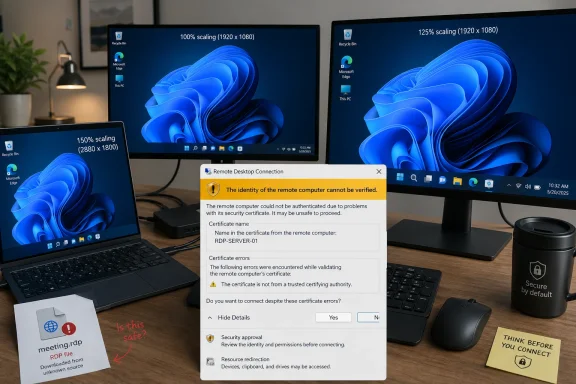
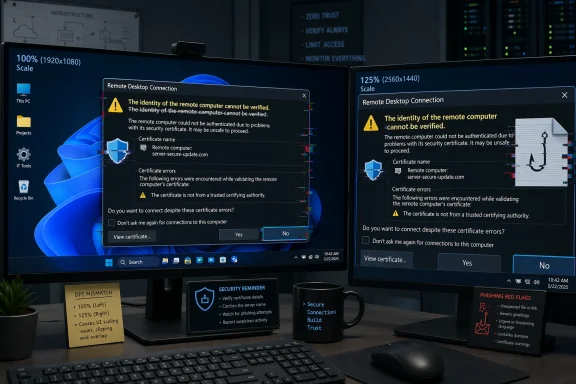
Dual monitors show Windows Remote Desktop certificate warning prompts with “identity cannot be verified” alerts.Overview​

The latest Windows 11 updates are a good reminder that security hardening rarely arrives without some usability tradeoffs. Microsoft is clearly trying to close a phishing-style gap around .rdp files, which can be weaponized to mislead users about where a remote session will connect and what settings it will use. The company’s new approach is more defensive by design: it surfaces connection settings before the session begins and shows a one-time warning the first time an RDP file is opened on a device.
At a technical level, that is a sensible move. Remote Desktop remains a critical enterprise tool, but also a tempting target because the file format can act as a launch point for social engineering. Microsoft’s own support language now explicitly says the update improves protection against phishing attacks that use Remote Desktop files, and the company ties the feature to the April 2026 security cycle. That means this is not an experimental toggle or a fringe feature; it is part of the core monthly security posture for supported Windows 11 releases.
The problem is that the safeguard itself appears to be brittle in a very common workstation setup: multiple monitors with different scale settings. According to Microsoft’s support guidance, the warning window can show overlapping text or partially hidden buttons when displays are set to different scaling values, such as 100% on one monitor and 125% on another. That is especially awkward because the dialog is precisely the kind of trust gate users need to read clearly before proceeding.
This is also happening against a broader backdrop of patch-side turbulence. Microsoft’s April 2026 servicing cadence has already produced a separate BitLocker recovery issue on some managed devices, and that matters because IT teams do not experience update problems in isolation. They experience them as stacked incidents, each one adding a little more pressure to rollout schedules, help desk queues, and user confidence in Windows quality updates.

What Microsoft Changed in RDP Security​

The important shift is not merely that Microsoft added a warning. It is that the company changed the user experience around how RDP settings are presented before a connection is established. The support pages say Remote Desktop now shows all requested connection settings before it connects, with each setting turned off by default, and that a one-time security warning appears the first time an.rdp file is opened on a device.
That design reflects a trust-first approach. Instead of allowing an.rdp file to silently shape a connection, the client now forces the user to acknowledge what is being requested. This is a meaningful defense against spoofing and other deceptive workflows because the attacker’s advantage often comes from speed and familiarity. A warning that clearly spells out the destination and settings can break that flow.

Why this matters for enterprises​

Enterprises live on RDP more than casual users do. Admins, support teams, and remote workers use it as a daily utility, which means any security prompt that adds friction can generate real operational drag. The upside is stronger protection against phishing-style misuse; the downside is that administrators must now account for a prompt that can affect user workflows and remote-support handoffs.
  • Security posture improves because the client is no longer implicitly trusting the file.
  • User comprehension increases because connection parameters are displayed before the session starts.
  • Help desk load can rise if the prompt is unreadable or confusing on certain systems.
  • Workflow consistency matters because remote support often depends on rapid, predictable launches.
  • Policy and training may need updates so staff know what the warning means.
The broader implication is that Microsoft is moving RDP closer to a conscious consent model. That is welcome from a security standpoint, but it also pushes Windows deeper into the familiar tradeoff between hardened defaults and operational convenience. When security dialogs are clear, they help. When they are not, they become just another obstacle users click through without reading.

The Display Scaling Bug​

The bug Microsoft has confirmed is not a crash or a failure to connect. It is more subtle and, in some ways, more annoying: the warning window may not display properly when monitors have different DPI scaling settings. That means mixed environments — common in offices, hot-desking setups, docking stations, and hybrid workstations — are the most likely to trip it.
This is exactly the sort of issue that slips past basic testing because it depends on a matrix of conditions. A single-monitor laptop at 100% scaling might never show the defect, while a dual-monitor workstation with 125% and 100% scaling will. In other words, the issue is not random; it is environment-specific, which is often how Windows UX regressions surface in the real world.

Why mixed-DPI systems are vulnerable​

Windows has spent years trying to make high-DPI behavior feel seamless, but legacy applications and security dialogs still expose edge cases. A warning window that is sized or laid out incorrectly on one display arrangement can end up with clipped controls or overlapping copy. In this case, that is not just a cosmetic defect; it can directly interfere with user decision-making.
Microsoft’s own description makes the impact clear: the text can become difficult to read, and the buttons can become hard to interact with. That is bad enough for ordinary users, but it is even more problematic for IT staff because these prompts often appear during time-sensitive connection attempts. If a warning is meant to slow someone down and make them think, it must still be legible.
The irony is hard to miss. Microsoft introduced the warning to reduce spoofing risk, yet the bug can reduce the warning’s effectiveness precisely when users need clarity most. Security prompts that are partially hidden can create a dangerous form of habituation: users learn to expect annoyance, not guidance. That is the opposite of what Microsoft wants.

The Workarounds Microsoft Recommends​

Microsoft is not offering an emergency rollback here, at least not yet. Instead, it has shared two straightforward workarounds: normalize scaling across all monitors, or use the keyboard to navigate the broken prompt if the mouse targets are unreliable. Those steps are practical, though they are not especially elegant for modern multi-display setups.
The first workaround is the cleanest from a UI perspective. If every display uses the same scaling value, the prompt should render more predictably. The second workaround is more of an accessibility safety valve, but it is important because it gives users a way to proceed even when the dialog is visually compromised.

Microsoft’s two immediate fixes​

  • Set the same Scale value on all displays in Display settings.
  • Use the keyboard: press Tab to move focus and Spacebar to select an option.
These are reasonable support responses, but they also reveal a structural issue with the rollout strategy. Microsoft is asking users to modify a system-wide display preference to accommodate a specific prompt. That may be tolerable in a controlled IT environment, but it is not a great consumer story, especially for users who rely on different scaling values for readability across screens.
The keyboard workaround is particularly telling. It works because it bypasses the visual defect, not because it fixes it. That is often the right short-term answer for a support desk, but it underscores why Microsoft needs to patch the rendering problem quickly. A security dialog should be accessible by design, not by accident.

KB5083769 and KB5082052 in the Bigger April Update Picture​

The Remote Desktop issue cannot be understood in isolation from the rest of April 2026’s Windows servicing stack. Microsoft’s April security releases have already included other problem areas, most notably the BitLocker recovery issue affecting some devices with an unrecommended Group Policy configuration. That makes this a messy month for enterprise patching, even before anyone notices the broken RDP warning.
The same Remote Desktop behavior appears across multiple April 2026 update branches. Windows 11 23H2’s KB5082052 also includes the new RDP warning behavior, showing that Microsoft is pushing the safeguard broadly across supported client channels. This is not a one-off change limited to a single OS generation.

What this says about Microsoft’s priorities​

The pattern suggests Microsoft considers RDP phishing resistance a top-tier security initiative. By implementing the warning across Windows 11 servicing branches, the company is signaling that the threat is significant enough to justify a user-facing behavior change, even with the inevitable support cost. That is a notable posture shift for a product family that often prefers invisible security fixes.
  • The change is broadly deployed, not isolated to a single SKU.
  • The user warning is treated as a security control, not a cosmetic enhancement.
  • The rollout likely reflects pressure from spoofing and phishing risk.
  • The bug shows the limits of shipping security UX changes at scale.
  • Enterprises now need to balance patch urgency against workflow disruption.
This also fits a larger Microsoft pattern in 2026: more emphasis on trust boundaries, more prompt-based protection, and more use of client-side friction to stop social engineering before it succeeds. That direction is understandable, but it leaves Microsoft with a hard requirement: the prompts must be reliable, readable, and consistent across heterogeneous hardware. Otherwise, security hardening becomes another source of support tickets.

Why Remote Desktop Remains a Security Hot Spot​

Remote Desktop is one of those Windows features that never really leaves the critical path. Even as Microsoft pushes cloud management, modern Windows endpoints, and newer support models, RDP remains embedded in admin workflows, enterprise troubleshooting, and remote access. That makes it both indispensable and persistently attractive to attackers.
The threat model here is less about exploit code and more about deception. An attacker who can convince a user to open a malicious or manipulated.rdp file may be able to steer them toward an unexpected session or alter what they believe they are connecting to. That kind of attack benefits from user haste, routine, and trust in familiar workflows.

The strategic logic behind the warning​

Microsoft’s new prompt is trying to attack the moment of assumption. The company is saying, in effect, that opening an RDP file should no longer feel like an invisible handoff. The user should be made aware that a file is proposing a connection with specific settings, and those settings should start disabled so the user has to opt in deliberately.
That is a defensible model, but it comes with a familiar security-product challenge: the more often users see warnings, the more likely they are to ignore them. This is why layout defects matter. A malformed prompt undermines the very confidence Microsoft is trying to build. If the warning looks broken, users may assume the entire process is untrustworthy.
In that sense, the bug is not merely visual. It is reputational. Security UX is part of trust infrastructure, and broken UI can erode confidence in the feature just as quickly as a failed policy. That is especially true in enterprises, where administrators are already being asked to defend patching decisions to skeptical end users.

Enterprise Impact vs. Consumer Impact​

For enterprises, the main concern is control. IT departments can standardize display settings, issue guidance, and train staff to use keyboard navigation if necessary. They can also pace deployment, test the update on multi-monitor environments, and decide whether the new security behavior is worth the operational overhead immediately or after Microsoft ships a fix.
For consumers, the story is simpler and potentially more frustrating. Home users who rarely open.rdp files may only notice the issue if they happen to use a dual-monitor setup for work-from-home tasks or remote support. They are also less likely to know what display scaling means, which makes the workaround less intuitive than Microsoft’s technical language suggests.

Different users, different pain points​

Enterprises can absorb a broken prompt as part of the patch-management lifecycle. Consumers are more likely to see it as a mysterious Windows annoyance. That distinction matters because Microsoft’s user base is not homogeneous; a security change that is acceptable in managed IT may still be irritating in a personal productivity setup.
  • Enterprises can enforce consistent scaling standards on managed endpoints.
  • Consumers may not know how to identify or adjust mixed DPI settings.
  • Help desks need clear scripts for the Tab-and-Spacebar workaround.
  • Remote support teams may need to explain the new warning in advance.
  • Accessibility considerations become more important when buttons are clipped.
The mixed impact is exactly why Microsoft’s patch cadence is so hard to manage at scale. A small UI defect can be a nuisance for one user and a broad workflow problem for another. The difference depends on whether the machine is a casual desktop, a developer rig, or a managed enterprise workstation with multiple displays and remote access baked into the day.

Microsoft’s Support Playbook​

Microsoft’s current playbook is familiar: acknowledge the issue, document the conditions, provide immediate workarounds, and promise a future fix. That is the standard operating mode for Windows quality issues, especially when the bug is limited to a specific combination of factors rather than a catastrophic system failure.
What stands out here is the relative speed of acknowledgment. Microsoft is directly describing the rendering issue and the conditions that trigger it, which gives administrators something concrete to work with. In practice, that reduces guesswork and helps separate the security feature itself from the UI regression that accompanied it.

Why transparency matters here​

When Microsoft tells users exactly how to reproduce or avoid a bug, it is effectively buying trust. Administrators are much more tolerant of rough edges when the company is explicit about symptoms and mitigation. That is especially true when the defect does not block connectivity entirely and can be sidestepped with display or keyboard changes.
A numbered response strategy for IT teams would look like this:
  • Identify systems with mixed monitor scaling.
  • Confirm whether the RDP warning is affected.
  • Standardize scaling where possible.
  • Train users on keyboard navigation as a fallback.
  • Monitor for a future cumulative fix.
That approach is pragmatic, but it also highlights a deeper truth about Windows servicing in 2026: the easiest part of patching is often installation, not adaptation. Microsoft can ship a security control in one release, but the operational reality of multi-monitor desktops, accessibility requirements, and user habits can make the post-install experience far more complicated than the changelog suggests.

Strengths and Opportunities​

Microsoft deserves credit for taking the RDP phishing problem seriously and moving quickly to add a user-facing safeguard across supported Windows 11 branches. The company is also doing the right thing by documenting a workaround instead of leaving admins to diagnose the issue blind. That said, the real opportunity is to turn this into a more polished and durable security experience.
  • Stronger default protection against malicious.rdp file behavior.
  • Better user awareness of requested remote connection settings.
  • Cross-version consistency in security behavior across Windows 11 branches.
  • A clearer phishing defense story for enterprise customers.
  • An accessibility improvement opportunity if Microsoft refines the dialog rendering.
  • Better admin policy alignment with security-conscious remote access workflows.
  • Room to improve telemetry and testing for mixed-DPI, multi-monitor systems.

Risks and Concerns​

The chief concern is that a security dialog that cannot be read cleanly may be ignored, worked around unsafely, or resented by users who already dislike interruption. There is also the broader risk that multiple April update issues will combine to create patch fatigue, particularly in organizations already dealing with BitLocker prompts and other servicing side effects. Microsoft can afford a few rough edges, but only if they are isolated and clearly temporary.
  • Users may click through warnings they cannot read clearly.
  • Help desk demand may increase in mixed-monitor environments.
  • Patch fatigue is rising because of concurrent April issues.
  • Accessibility friction could affect users who rely on visual clarity.
  • Enterprise rollout delays may occur while admins test compatibility.
  • Trust erosion is possible if security prompts appear broken.
  • A delayed fix could make the workaround feel like an official requirement.

Looking Ahead​

The next few weeks will tell us whether this is a narrow rendering issue or the start of a larger feedback cycle around Microsoft’s new RDP security prompt. If the company resolves it quickly in another cumulative update, the feature will likely settle into the background as one more security hardening step. If not, it may become another example of Windows shipping a sound control with a rough first impression.
The broader trend is easy to see: Microsoft wants more explicit user confirmation around sensitive actions, especially when file-driven workflows can be exploited. That means more dialogs, more policy nudges, and more pressure on Windows UX quality. In the long run, the success of these changes will depend less on the abstract security idea and more on whether the prompts remain obvious, accessible, and predictable on real-world systems.
  • A future patch should repair the warning window layout.
  • Enterprises will watch for a possible KIR-style mitigation or follow-up fix.
  • Microsoft may bundle the repair with another servicing release.
  • Administrators should keep monitoring mixed-DPI workstations closely.
  • User education around .rdp file trust prompts will likely become permanent.
Microsoft is right to harden Remote Desktop against abuse, and it is right to surface more information before a connection begins. But the company now has to prove that security can be both stronger and cleaner at the same time. If it can fix the rendering bug quickly, KB5083769 and KB5082052 may be remembered as a necessary step forward rather than another cautionary tale about patch-day collateral damage.

Source: Neowin Microsoft: Windows 11 KB5083769, KB5082052 updates causing Remote Desktop issues
 

Microsoft’s April 2026 Windows security updates have created an awkward Remote Desktop moment: a security feature designed to make RDP files safer can itself become hard to read on some multi-monitor systems. The confirmed issue affects the new warning dialog shown when users open Remote Desktop connection files, particularly when monitors use different display scaling values such as 100% and 125%. For Windows 11 users and administrators, the practical message is clear: the protection is important, the bug is real, and the workaround is manageable until Microsoft ships a permanent fix.

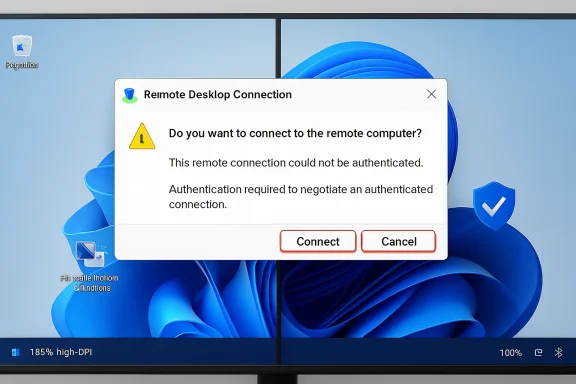
Windows Remote Desktop prompts a failed authentication message with Connect and Cancel options.Background​

Microsoft introduced the new Remote Desktop behavior in the April 2026 security update cycle as part of a broader effort to reduce phishing attacks that abuse Remote Desktop Protocol connection files. These files, commonly ending in .rdp, are not merely shortcuts; they can define the remote host, display behavior, authentication options, and local resource redirections that make a remote session feel seamless. That convenience is exactly why administrators use them, and exactly why attackers have become interested in them.
The affected Windows 11 updates include KB5083769 for Windows 11 versions 24H2 and 25H2, and KB5082052 for Windows 11 version 23H2. Microsoft’s April wave also brought similar Remote Desktop changes to other supported Windows versions, including Windows 10 and Windows Server releases. The issue is therefore not just a niche Windows 11 annoyance, even if Windows 11 desktops are where many users are likely to notice it first.
The underlying security work is tied to CVE-2026-26151, a Remote Desktop spoofing vulnerability associated with insufficient user-interface warning around dangerous operations. In practical terms, Microsoft is trying to make users pause before an RDP file quietly starts a session that shares local resources with a remote computer. That makes the warning dialog more than cosmetic; it is part of the protective boundary between a normal support workflow and a malicious remote-access lure.
The irony is that the new dialog can display incorrectly on systems with more than one monitor when those displays use different scale settings. Microsoft says the warning window may show overlapping text or partially hidden buttons, making the message difficult to read or interact with. That matters because a security prompt that cannot be clearly read is a weakened security prompt, even when the underlying intent is sound.

What Microsoft Changed in Remote Desktop​

A new warning model for RDP files​

The April update changes what happens when a user opens an RDP file. Instead of immediately proceeding with a familiar connection flow, Remote Desktop Connection now presents additional warnings that show what the file is asking the client to do. The dialog is meant to expose connection details before the session begins, including requested redirections of local resources.
This is a shift from trust-by-habit to trust-by-inspection. For years, many users treated RDP files like harmless bookmarks, especially in corporate environments where IT departments distributed them for jump servers, virtual desktops, remote apps, or vendor access. Microsoft is now making the file’s behavior visible at the moment of use.
The protection is most noticeable in two places. First, a one-time educational warning appears the first time a user opens an RDP file after installing the update. Second, an ongoing security dialog appears when RDP files are opened, asking users to review the connection and resource requests before continuing.
Key changes include:
  • A first-launch educational prompt explaining RDP file risks.
  • A connection security dialog before the remote session starts.
  • Resource redirections disabled by default unless the user enables them.
  • Publisher information shown when the RDP file is signed.
  • Unknown publisher warnings for unsigned RDP files.
  • Explicit user interaction before potentially risky local resources are shared.
These changes are not aimed at breaking enterprise Remote Desktop workflows. They are aimed at preventing silent or confusing remote connections where a malicious file can make a user’s machine expose drives, clipboard content, credentials, devices, or other local resources to an attacker-controlled host.

The Display Bug: Small UI Fault, Large Usability Impact​

Why scaling matters​

The confirmed bug appears when a user has multiple monitors with different display scaling settings. A common example is a laptop display at 125% scaling paired with an external monitor at 100%, or a high-DPI display next to a standard office monitor. This is an ordinary modern Windows setup, not an exotic edge case.
Windows has become far better at mixed-DPI environments over the last decade, but dialog boxes remain a frequent source of trouble when applications or legacy UI components do not respond cleanly to scaling changes. Remote Desktop Connection is a long-lived Windows component, and many of its workflows still carry the design assumptions of earlier desktop eras. When security UI is layered onto that foundation, layout bugs can become immediately visible.
Microsoft describes the symptom as overlapping text or partially hidden buttons in the warning window. That means users may be able to see that a warning exists, but not read all of it or confidently click the intended action. In a security context, that is worse than a normal rendering glitch because it can train people to click through a prompt they do not understand.
The bug is likely to affect users who rely on:
  • Laptop-plus-dock setups with different DPI settings.
  • Mixed-resolution monitor arrays in offices and home workstations.
  • Ultrawide and high-DPI displays paired with standard monitors.
  • Hot desks where monitor profiles change frequently.
  • Remote support stations with two or three displays for ticket handling.
  • Accessibility scaling where users intentionally enlarge one display.
The practical result is friction at exactly the point where Microsoft wants users to slow down and make a careful decision. Security prompts must be legible, predictable, and accessible, or users learn to distrust them.

Why the RDP File Threat Became Urgent​

From admin convenience to phishing weapon​

RDP files are powerful because they can automate a Remote Desktop session. A legitimate file can point to a known server, set screen behavior, configure gateway options, and request access to local resources such as drives or the clipboard. In the hands of an administrator, that saves time; in the hands of an attacker, it creates a polished lure.
Attackers have increasingly used legitimate file types and built-in Windows capabilities because they blend into normal workflows. An RDP file does not need to look like malware to create risk. If it convinces a user to connect to an attacker-controlled machine while exposing local resources, the damage can happen through trusted Windows functionality.
Microsoft’s security framing reflects this reality. The issue is not simply that RDP exists, or that remote access is dangerous by definition. The issue is that a user may not understand what an RDP file is about to share before the connection starts.
Important local resources can include:
  • Local drives, which may expose documents, databases, scripts, and cached files.
  • Clipboard content, which may include passwords, tokens, or confidential text.
  • Smart cards and Windows Hello for Business resources, which can affect authentication.
  • WebAuthn and security-key prompts, which can be abused in confusing remote contexts.
  • Printers and ports, which may seem mundane but can still leak information.
  • Cameras and microphones, which raise obvious privacy concerns.
  • USB and Plug and Play devices, which may carry sensitive operational data.
The strongest part of Microsoft’s new design is that it treats redirection as a decision, not a background default. That is a meaningful security improvement even if the first implementation now needs a UI fix.

Enterprise Impact: Help Desks, Jump Hosts, and User Training​

The admin burden arrives first​

Businesses are the most exposed to this bug because businesses use RDP files heavily. Many IT teams distribute saved connection files for help-desk workflows, administrative jump boxes, Remote Desktop Session Host environments, and vendor-managed systems. Those files often exist precisely to simplify repetitive access for users who are not Remote Desktop experts.
The new warning behavior changes that user experience overnight after patch deployment. Even when everything works, users may see unfamiliar language about publishers, requested settings, and resource sharing. When the dialog is also visually broken, the support desk receives a double hit: confusion about a new security prompt plus complaints that the prompt cannot be read.
The problem is particularly relevant for organizations with standardized multi-monitor workstations. Finance, engineering, healthcare administration, operations centers, and IT support teams often use multiple displays with mixed scaling. These are also environments where RDP access may be business-critical.
Enterprises should treat this as a short-term change-management problem rather than a reason to roll back security updates. The safer path is to document the behavior, standardize display scaling where feasible, and review RDP file signing practices. Removing the security update entirely may solve a dialog problem while reopening a larger phishing exposure.
A sensible enterprise response includes:
  • Notify users that new RDP warnings are expected after April updates.
  • Tell users not to ignore unreadable prompts or guess at hidden buttons.
  • Standardize monitor scaling on affected workstations where practical.
  • Use keyboard navigation when the dialog cannot be clicked reliably.
  • Inventory distributed RDP files and remove stale or unnecessary ones.
  • Sign internal RDP files where operationally feasible.
  • Update help-desk scripts so agents recognize the symptom quickly.
The key is to avoid letting a temporary UI bug become a long-term exception process. Once users are trained to bypass Remote Desktop warnings, it becomes much harder to restore good security habits later.

Consumer Impact: Less Common, Still Confusing​

Windows 11 Pro users are most likely to notice​

Most home users will not encounter this issue often because Remote Desktop hosting is not part of the normal Windows 11 Home experience, and many consumers never open RDP files. Still, Windows 11 Pro users, enthusiasts, students, contractors, and home lab operators often use Remote Desktop to access another PC, a server, a virtual machine, or a work environment. For them, the bug may appear suddenly after patching.
The consumer scenario is usually simpler than the enterprise one. A user may have a laptop connected to a second monitor, with Windows scaling the internal panel differently from the external display. They open a saved RDP file, see a warning that appears distorted, and wonder whether the update broke Remote Desktop or whether the file itself is suspicious.
The right answer is nuanced. The warning may be legitimate and newly introduced by Microsoft, while the layout problem may be the confirmed display bug. Users should not assume that every warning is harmless simply because the UI looks broken.
For individual users, the immediate checklist is straightforward:
  • Confirm that the RDP file is expected and came from a trusted source.
  • Check the remote computer name or address before connecting.
  • Avoid enabling local drives unless there is a clear reason.
  • Avoid enabling clipboard sharing when connecting to unfamiliar systems.
  • Set all monitors to the same scaling value if the dialog is unreadable.
  • Use Tab and Spacebar if a button is hidden or hard to click.
Consumers should also understand that manually typing a computer name into Remote Desktop Connection is not the same as opening an RDP file. Microsoft’s new warning behavior is focused on files because files can carry preconfigured settings. That distinction matters when troubleshooting.

The Workarounds: Practical but Imperfect​

Uniform scaling is the cleanest temporary fix​

Microsoft’s primary workaround is to set the same scale value on all monitors. In Windows 11, that means opening Display settings, selecting each connected display, and choosing the same value under Scale & layout. If every monitor uses 100%, 125%, or another matching value, the warning dialog is more likely to render correctly.
This workaround is simple, but it is not cost-free. Users choose different scaling values because displays have different physical sizes, resolutions, and viewing distances. Forcing uniform scaling may make one screen too small, too large, or less comfortable for everyday use.
The second workaround is keyboard navigation. If the mouse cannot reliably select a visible button, the user can press Tab to move focus through the dialog and Spacebar to activate the highlighted option. That is useful, but it assumes the user can still understand which option has focus and what action is being selected.
A safe temporary process looks like this:
  • Open Settings from the Start menu.
  • Go to System and then Display.
  • Select each connected monitor.
  • Set the same Scale value for every display.
  • Reopen the RDP file and verify the warning dialog is readable.
  • If the dialog remains difficult to use, navigate with Tab and select with Spacebar only after confirming the visible text and focus state.
Administrators should be cautious about recommending registry-based reversions or disabling new warning behavior except in tightly controlled cases. Microsoft has provided ways for some environments to manage the dialog behavior, but reducing a security warning should be a risk decision, not a convenience tweak. The better short-term fix is display standardization, user guidance, and RDP file hygiene.

RDP File Signing Becomes More Important​

Trust signals are now part of the workflow​

One of the quieter consequences of the April update is that RDP file signing becomes more visible. An unsigned file may show an unknown-publisher warning, even if it was created internally by a trusted administrator. That can be annoying, but it also exposes a long-standing weakness in many organizations: internal remote-access shortcuts often circulate without strong provenance.
A signed RDP file does not prove that a connection is safe. It proves that the file was signed by a publisher and has not been modified since signing. Users still need to verify that the publisher makes sense and that the remote address is expected.
However, signing gives enterprises a better trust story. If IT distributes RDP files at scale, signing them helps users distinguish approved connection profiles from random attachments or downloads. It also gives security teams a clearer policy hook for endpoint monitoring and user education.
Organizations should now consider:
  • Signing approved RDP files with a trusted certificate.
  • Replacing old connection files that no longer point to valid systems.
  • Publishing RDP files through managed portals rather than email attachments.
  • Training users to question unknown publishers instead of normalizing them.
  • Auditing redirection settings before distributing files.
  • Documenting when local resources should remain disabled.
The update may feel disruptive, but it can push organizations toward a more mature remote-access model. The best outcome is not merely fixing the dialog; it is reducing blind trust in portable connection files.

Security Versus Usability: Microsoft’s Familiar Trade-Off​

Better protection can still produce friction​

This incident highlights a recurring Windows challenge: Microsoft must harden widely used legacy workflows without breaking habits built over decades. Remote Desktop Connection is not a new cloud app where every screen can be redesigned in isolation. It is a deeply embedded administrative tool used across Windows clients, servers, virtual desktop stacks, and third-party management workflows.
Security teams often ask for explicit warnings, disabled defaults, and more user consent. Users and administrators often ask for fewer prompts, stable workflows, and less friction. Both sides are right in their own context.
The Remote Desktop change is defensible because the risk is real. A malicious RDP file can be more dangerous than it appears, particularly when it redirects local drives or authentication-related resources. But a warning dialog must be engineered with the same seriousness as the protocol behavior it is trying to mediate.
Microsoft’s challenge is to ensure that the final fix preserves:
  • Clear layout across mixed-DPI displays.
  • Reliable keyboard accessibility for all dialog controls.
  • Readable warning text in high-contrast and scaled environments.
  • Consistent behavior across Windows 10, Windows 11, and Windows Server.
  • Manageable enterprise policy controls without encouraging unsafe bypasses.
  • Minimal unnecessary prompting for trusted, signed enterprise workflows.
The bug also raises a broader design question. If security prompts become too frequent or too cumbersome, users stop reading them. Microsoft needs to make the warning both unavoidable and intelligible, which is a harder design problem than simply adding another confirmation box.

Patch Tuesday Context: One Issue Among Several​

April’s update wave was busy​

The Remote Desktop warning issue did not arrive in isolation. Microsoft’s April 2026 update cycle also included Secure Boot certificate-related work, BitLocker recovery scenarios for some systems with specific policy configurations, servicing stack updates, and quality fixes. For administrators, the RDP bug is another item on an already crowded post-patch checklist.
The BitLocker issue is especially relevant because it affects trust in the update process. Even if Microsoft says it applies only to a limited set of systems with particular Group Policy conditions, recovery-key prompts can be alarming in managed environments. When users see both BitLocker prompts and Remote Desktop warning changes in the same month, they may perceive the update as broadly unstable.
That perception matters. Patch management is not just technical deployment; it is organizational confidence. If users and help desks believe a monthly update is risky, they may pressure IT teams to pause or defer security rollouts.
For IT departments, April’s update cycle reinforces the need for:
  • Pilot rings before broad deployment.
  • Hardware diversity in test groups, including mixed-DPI monitor setups.
  • BitLocker recovery readiness before Secure Boot-related changes.
  • RDP workflow testing for signed and unsigned files.
  • Clear user communications before visible security prompts appear.
  • Fast internal knowledge-base updates when Microsoft adds known issues.
The Remote Desktop bug is not catastrophic, but it is highly visible. Visible bugs often consume more support attention than deeper issues because they interrupt the user at the moment of action.

Competitive and Market Implications​

Remote access remains a contested space​

Remote Desktop is built into Windows, which gives Microsoft an enormous installed base advantage. But enterprises increasingly compare built-in RDP workflows with Azure Virtual Desktop, Windows 365, VPN-backed admin tools, privileged access platforms, browser-based remote access, and third-party remote support products. Any friction in core RDP behavior pushes some organizations to reassess how they deliver remote access.
The April changes may actually benefit Microsoft’s cloud-managed offerings over time. If signed, brokered, centrally governed access flows provide a smoother user experience than unmanaged RDP files, organizations may prefer them. That aligns with Microsoft’s broader direction: reduce unmanaged local shortcuts and move more identity, policy, and access decisions into managed platforms.
Third-party vendors also have an opportunity. Privileged access management providers, password vaults, remote support platforms, and virtual desktop brokers can differentiate by handling RDP signing, policy controls, and user prompts more gracefully. If Microsoft’s native client becomes stricter, the ecosystem around it becomes more important.
The market signal is clear:
  • Unmanaged RDP files are becoming less acceptable in mature environments.
  • Signed connection artifacts will matter more for user trust.
  • Privileged access tooling can reduce user-facing confusion.
  • Cloud PC and virtual desktop platforms gain a security narrative.
  • Legacy workflows will face more scrutiny as phishing techniques evolve.
This does not mean classic RDP is going away. It means the days of emailing unsigned connection files around an organization with little explanation are numbered.

Strengths and Opportunities​

Microsoft’s April Remote Desktop changes are easy to criticize because of the display bug, but the underlying security direction is strong. The update addresses a real attack path, gives users more visibility into RDP file behavior, and creates an opportunity for organizations to clean up remote-access practices that should have been formalized years ago.
  • Stronger default security because requested redirections are turned off unless approved.
  • Better user awareness through first-launch education and recurring connection warnings.
  • Improved phishing resistance for attacks that rely on confusing RDP file behavior.
  • More pressure to sign RDP files, improving provenance and internal trust signals.
  • Clearer administrator workflows for auditing what connection files actually request.
  • A useful forcing function for retiring stale, undocumented, or risky RDP shortcuts.
  • A chance to modernize remote access through managed portals, privileged access systems, or cloud desktops.

Risks and Concerns​

The risks are not limited to the visual bug itself. The bigger concern is that users may become irritated by a security feature before they understand why it exists, which could undermine the very behavior Microsoft wants to encourage. A warning that appears broken can become a warning that users blindly bypass.
  • Unreadable security prompts may cause users to approve actions without understanding them.
  • Mixed-DPI environments are common, especially among professionals who use external monitors.
  • Help desks may face avoidable ticket volume if organizations do not communicate the change.
  • Unsigned internal RDP files may create warning fatigue even when they are legitimate.
  • Temporary workarounds can reduce accessibility if uniform scaling makes one monitor uncomfortable.
  • Registry or policy bypasses may weaken protections if deployed too broadly.
  • Patch confidence may suffer when the issue is combined with other April update concerns.

What to Watch Next​

Microsoft says it will address the Remote Desktop warning display problem in a future Windows update. The most important question is whether that fix arrives as a preview update, an out-of-band correction, or part of a future cumulative release. Organizations with heavy RDP usage should watch release notes closely rather than assume the issue will disappear silently.
The second question is how Microsoft refines the security model after user and administrator feedback. If too many organizations attempt to revert the dialog behavior, Microsoft may need to improve policy controls, signing guidance, or trusted-publisher experiences. The goal should be to preserve the anti-phishing protection while reducing unnecessary friction for well-managed environments.
Near-term items to monitor include:
  • A cumulative update that fixes mixed-scaling dialog layout.
  • Any expansion of the known issue to additional Windows builds.
  • Updated Microsoft guidance for RDP file signing and enterprise deployment.
  • Vendor updates from privileged access and remote support platforms.
  • New phishing campaigns adapting to the changed warning behavior.
The best move for administrators is to treat this as both a bug and a reminder. Fix the user experience where it breaks, but also take the opportunity to inventory RDP files, reduce unnecessary redirections, and teach users that Remote Desktop files can carry risk.
Microsoft’s Remote Desktop warning bug is not the kind of flaw that should send organizations rushing to uninstall April’s security updates. It is a usability defect in a security feature that points to a larger reality: remote access workflows are now part of the phishing battlefield. Once Microsoft fixes the mixed-scaling display problem, the remaining challenge will be cultural as much as technical—making sure users understand what an RDP file can do before they trust it.

Source: PCWorld Microsoft confirms Remote Desktop bug in April's Windows 11 update
 

Microsoft has confirmed that its April 14, 2026 Windows 11 cumulative updates, including KB5083769 for versions 24H2 and 25H2, can make new Remote Desktop security warning dialogs render incorrectly on mixed-scaling multi-monitor systems before users open RDP file-based connections. The failure is narrow, but the timing is awkward: Microsoft just made that dialog a more important security checkpoint. A prompt designed to slow down phishing attacks is now, for some administrators, slowing down legitimate work instead. That does not make the protection wrong; it makes the rollout look unfinished.

Remote Desktop Connection warns “identity cannot be verified” with certificate error on multiple Windows displays.Microsoft Tightened the Gate, Then Made the Gate Harder to Read​

The April Windows 11 update changed the behavior of Remote Desktop files in a way that is easy to defend on security grounds. RDP files can do more than point a user at a remote machine. They can request local resources, including clipboard, drives, printers, smart cards, cameras, microphones, ports, and other device redirections that become meaningful attack surfaces if a user is tricked into opening a malicious file.
That is why Microsoft’s new warning matters. Starting with the April 2026 security update, Remote Desktop Connection shows a security dialog before an RDP file-based session begins. The dialog is meant to expose the remote computer address, publisher status, and the local resources the file wants to redirect.
Just as important, those requested redirections are turned off by default. The user has to make an affirmative choice. In theory, that is the right nudge: make invisible risk visible, and make risky sharing opt-in rather than assumed.
The bug cuts into that exact design. Microsoft says the warning may show overlapping text or partially hidden buttons when more than one monitor is used with different scaling values, such as one display at 100 percent and another at 125 percent. Anyone who has worked from a laptop docked to an external monitor will recognize that configuration immediately.
This is not an exotic lab setup. It is a normal IT desk.

The RDP File Was Always More Powerful Than It Looked​

For years, RDP files have occupied a strange place in Windows administration. They are convenient enough to feel like shortcuts, but powerful enough to encode session behavior that many users do not inspect. In managed environments, they are everywhere: help desk jump boxes, RemoteApp deployments, lab machines, vendor access workflows, and personal collections of saved administrative endpoints.
That convenience is why attackers like the format. A malicious RDP file does not need to exploit a buffer overflow to be useful. It can simply persuade the user to initiate a connection to attacker-controlled infrastructure while enabling resource sharing that makes local data, authentication material, or devices available to the remote side.
Microsoft’s April change is best understood as an anti-phishing measure rather than a pure Remote Desktop hardening feature. It does not ban RDP files. It tries to force the moment of recognition that phishing routinely bypasses: Where am I connecting, who published this, and what am I giving it access to?
That is why the display bug is more than a cosmetic defect. If the text overlaps or the buttons are obscured, Windows has not merely drawn a bad dialog. It has degraded the very moment when the user is supposed to make a security judgment.
Security UX lives or dies at that moment. A warning that users cannot comfortably read becomes either a roadblock or a ritual. Neither outcome is what Microsoft wanted.

Mixed Scaling Is Not a Corner Case in the Windows World​

The modern Windows desktop is a scaling negotiation. A 14-inch laptop panel may run at 150 percent, a 27-inch 1440p monitor at 100 percent or 125 percent, and a 4K panel somewhere else entirely. Windows has improved dramatically at per-monitor DPI awareness, but every new prompt, dialog, and legacy component still has to survive that reality.
Remote Desktop sits at the intersection of the old and new Windows UI stack. The inbox client has decades of compatibility expectations behind it, yet it is being asked to present a modern risk explanation in a desktop environment that might span multiple DPIs, display origins, and window placement rules.
That is fertile ground for layout bugs. It is also the kind of bug that often survives internal testing because the failure requires a specific combination of conditions: an RDP file, the new April warning, multiple monitors, differing scaling values, and a user path that exposes the broken layout.
But for administrators, “specific” does not mean “rare.” IT pros often use exactly this kind of setup. They have a laptop screen, one or two external displays, and a constant stream of RDP sessions. The people most likely to encounter the new security prompt repeatedly are also among the people most likely to run mixed-scaling multi-monitor desktops.
That is the irony. The bug lands hardest where the feature is most visible.

The Workarounds Are Sensible, but They Reveal the Problem​

Microsoft’s temporary mitigations are straightforward. Users can set the same display scaling value across all monitors, which should allow the dialog to render correctly. If the mouse cannot reliably reach the relevant controls, users can use Tab to move focus and Spacebar to select an option.
Those are acceptable emergency instructions. They are not acceptable as an operating model.
Matching display scaling is easy to say and annoying to live with. Users choose different scaling values because panels differ in size, resolution, distance, and readability. Flattening all of that into one value may make the RDP warning behave, but it can make the rest of the desktop worse.
Keyboard navigation is the better workaround from an accessibility perspective, and it is good that it exists. But a trust prompt should not require users to play focus-order roulette through a partially obscured UI. If the user cannot see which option is highlighted or cannot read the surrounding text, the keyboard path becomes a way through the dialog, not a way to understand it.
That distinction matters. Microsoft did not add this warning merely to create an additional click. It added the warning so the user could inspect connection details and make a deliberate decision. A workaround that preserves the click but weakens comprehension preserves the form of the control while damaging its purpose.

The Security Model Depends on Human Attention​

There is a recurring tension in Windows security: Microsoft adds prompts because invisible decisions are dangerous, and users learn to dismiss prompts because constant friction is exhausting. The April RDP change tries to escape that trap by making the prompt specific. It shows the remote address, publisher information, and requested local resource access.
That specificity is the right design direction. Generic warnings train users to click through. Concrete warnings give users something to verify.
But concrete warnings require legible UI. If the publisher field is hidden, the list of redirections is hard to parse, or the buttons are partly covered, the warning stops being concrete. It becomes another obstacle between the user and the work they were already trying to do.
This is especially important in enterprise environments where workflows depend on muscle memory. Administrators may open dozens of RDP files in a day. Support technicians may connect under time pressure while a user is waiting. If the prompt becomes unpredictable, the incentive is not careful review; the incentive is to find the fastest bypass that restores the old rhythm.
That is how security improvements lose credibility. Not because users hate security, but because broken security UX teaches users that the warning is an implementation problem rather than a risk signal.

April’s Patch Cycle Is Carrying Too Much Operational Weight​

The Remote Desktop warning bug did not arrive alone in administrators’ mental calendars. The same April 2026 patch cycle also brought a BitLocker recovery issue for a limited set of systems with an unrecommended Group Policy configuration involving TPM platform validation and PCR7. Microsoft says that BitLocker issue affects a small number of systems and is generally a one-time recovery event, but it is still exactly the kind of failure that makes patch teams cautious.
This matters because patch management is not just about whether Microsoft has a workaround. It is about how many workarounds an IT team has to absorb while still keeping machines secure. A BitLocker recovery surprise affects boot access. An RDP prompt rendering bug affects remote administration. Both land close to the operational center of managed Windows environments.
Microsoft’s release notes also show that the RDP known issue was added on April 23 and corrected on April 27. That timing is useful because it shows the issue moved from user pain to documented known issue within the same monthly servicing window. It also means administrators evaluating the April update line had to track evolving documentation after deployment had already started.
That is normal in the Windows servicing world, but it is not cost-free. Every known issue update becomes another decision point: pause, proceed, mitigate, communicate, or roll back. The more sensitive the affected component, the more expensive the ambiguity.
Remote Desktop is not a decorative subsystem. For many organizations, it is part of the nervous system.

The New Dialog Is a Policy Change Wearing a UI​

It would be a mistake to treat the April Remote Desktop warning as merely a new pop-up. It is a policy shift. Microsoft is changing the default assumption around RDP files from “open and connect using the file’s requested settings” to “show the requested settings and require explicit approval.”
That is a significant change in user experience, administrator expectation, and third-party tooling. RDP files generated by internal portals, remote access brokers, password vaults, help desk systems, and custom launchers may now create more visible warnings than users previously saw. Unsigned files may appear less trustworthy, even when they come from internal systems that were never built around signing workflows.
Microsoft provides administrative and developer paths for managing aspects of the new dialog, including a temporary registry-based way to revert to previous behavior. But Microsoft also warns that such compatibility paths may not last forever. The direction of travel is clear: the new warning model is meant to become the norm.
That is why the rendering bug is so poorly timed. Microsoft is asking organizations to adapt to a new trust model at the same time that part of that trust model can be visually unreliable. The security logic may be sound, but the rollout asks for patience from the very teams that must explain the change to everyone else.
This is the kind of Windows change that succeeds only if it is boring. The dialog should appear, be readable, show the right information, and let trained users make the right choice. Anything more dramatic becomes a ticket queue.

The Phishing Threat Justifies the Friction​

None of this means Microsoft should retreat from the RDP protections. The underlying threat is real. RDP files are a natural phishing vehicle because they combine familiarity, enterprise legitimacy, and the ability to redirect sensitive local resources into a remote session.
Turning redirections off by default is particularly defensible. Clipboard sharing is convenient, but it can expose secrets. Drive redirection is useful, but it can hand over local files. Smart card and Windows Hello for Business redirection can become identity risk. Camera, microphone, location, and device redirections all carry obvious privacy and security implications.
A user should know when a remote session wants those capabilities. More importantly, a user should have to approve them deliberately.
The industry has learned this lesson in browsers, mobile operating systems, and identity prompts. Permissions need to be visible, contextual, and revocable. Windows Remote Desktop is now moving closer to that model for RDP files, and that is overdue.
The problem is not the warning. The problem is that the warning is now part of the security boundary, and security boundaries have to be engineered with the same seriousness as the protocol changes behind them.

Administrators Should Treat This as a Workflow Bug, Not Just a Display Bug​

For home users, the workaround may be as simple as matching monitor scaling for a while or using the keyboard when the dialog looks wrong. For IT teams, the better response is to map where RDP files actually appear in daily workflows.
That means looking beyond the obvious saved shortcuts on desktops. RDP files may be generated dynamically by portals, launched from documentation, exported by management tools, or distributed by vendors. If those files are unsigned, users may now see unfamiliar warnings. If those users also work on mixed-scaling desks, the warning may be harder to interpret.
The immediate risk is not that the bug creates a remote code execution vulnerability. The risk is that it damages the reliability of a decision point. Users may approve the wrong redirections because they cannot read the prompt, or they may develop a habit of clicking through because the UI is irritating.
Administrators should also be careful about solving the annoyance by disabling the new behavior wholesale. Temporary reversions may be justified in narrow cases, especially where critical workflows break. But making the old behavior permanent would throw away the security improvement that April’s update is trying to deliver.
A more durable response is to sign RDP files where appropriate, rationalize redirection defaults, educate support teams on the new prompt, and document the mixed-scaling workaround until Microsoft ships a fix. That is less satisfying than “install update, problem solved,” but it matches the reality of this patch cycle.

Microsoft Needs to Close the Loop Quickly​

Microsoft says it will address the Remote Desktop warning display issue in a future Windows update. That is the right commitment, but the practical question is how quickly the fix reaches the affected April patch line. The longer this remains a known issue, the more likely organizations are to create their own local exceptions.
That is the danger with security UX bugs. They do not merely annoy users while everyone waits for a patch. They create institutional habits. A help desk that tells users “just press Tab and Space” for long enough may find that users stop reading the warning entirely even after the rendering bug is fixed.
Microsoft also needs to keep the documentation precise. The company’s known issue language is useful because it names the trigger, describes the symptoms, and gives workarounds that do not require uninstalling the security update. That kind of specificity is essential in a servicing environment where administrators are balancing risk from vulnerabilities against risk from regressions.
Still, the episode underscores a larger quality challenge. Windows is increasingly adding security controls at the user-interaction layer: warnings, consent prompts, default-off permissions, stricter trust checks, and policy-driven exceptions. Those controls are only as strong as the interface that presents them.
If Microsoft wants administrators to defend these changes internally, it has to make the user experience dependable from day one.

The Bottom Line​

Microsoft’s April RDP hardening is directionally right, but the mixed-scaling display bug turns a security checkpoint into an operational irritant at exactly the wrong moment.
  • The issue affects the new Remote Desktop warning shown when opening RDP files after April 2026 Windows 11 updates such as KB5083769 and KB5082052.
  • The most visible trigger is a multi-monitor setup where displays use different scaling values, such as 100 percent on one screen and 125 percent on another.
  • The warning may show overlapping text or partially hidden buttons, which can make publisher details and resource redirection choices harder to review.
  • Microsoft’s temporary workarounds are to use matching display scaling across monitors or navigate the dialog with Tab and Spacebar.
  • The underlying security change remains important because RDP files can request access to local resources that attackers may abuse in phishing scenarios.
  • Administrators should avoid reflexively disabling the new warning model and instead treat the bug as a short-term workflow problem while preparing users for the new trust prompt.
The April patch cycle is a reminder that modern Windows security is no longer just about closing vulnerabilities in the background; it is about changing the moments when users and administrators make trust decisions in the foreground. Microsoft is right to make RDP files more transparent and less permissive by default, but that strategy depends on warnings people can actually read. The fix now needs to arrive quickly, not because a clipped dialog is the worst bug Windows has ever shipped, but because the future of endpoint security increasingly depends on small prompts doing very serious work.

Source: WinBuzzer Windows 11 April Patches Trigger Remote Desktop Bug
 

Microsoft confirmed in late April 2026 that new Windows security warnings for Remote Desktop .rdp files can render incorrectly on supported Windows 11, Windows 10, and Windows Server systems when multi-monitor setups use different display scaling values. The bug is narrow, almost comically specific, but its timing is not. Microsoft has just tried to make RDP file launches more explicit and less phishable; now the warning itself can become hard to read. That turns a sensible security improvement into a familiar Windows dilemma: the safest control is only as good as the interface users can actually understand.

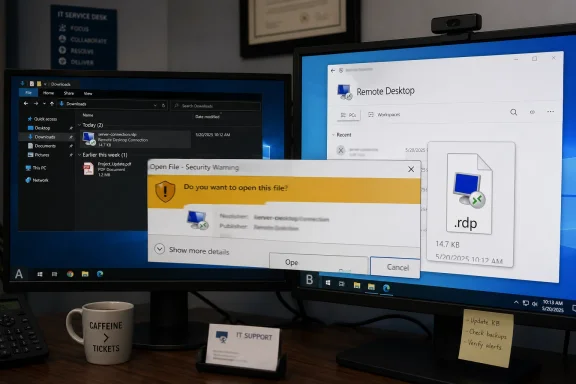
IT staff shows Windows Remote Desktop (RDP) opening warning on dual monitors.Microsoft’s New RDP Guardrail Trips Over the Desktop It Runs On​

The affected warning is not an old nuisance dialog suddenly getting attention. It is part of Microsoft’s April 2026 security update work around Remote Desktop files, a change meant to make .rdp launches more transparent before a connection is made. When a user opens an RDP file, Windows now presents more information about the remote destination, publisher status, and requested local-resource redirections.
That is a meaningful shift because RDP files are not merely shortcuts. They can encode connection settings that decide whether a remote machine can see local drives, clipboard contents, cameras, microphones, smart cards, printers, and other resources. In the wrong hands, that makes them a neat phishing vehicle: the victim thinks they are opening a connection profile, while the attacker gets a bridge into local resources.
The newly confirmed issue undercuts that design in a very Windows way. On systems with more than one monitor and mismatched display scaling — Microsoft’s example is one monitor at 100 percent and another at 125 percent — the warning window may show overlapping text or partially hidden buttons. In other words, the dialog intended to slow the user down and make risk visible may itself become illegible.
This does not mean RDP is broken, nor does it mean every user who installed April’s cumulative updates will see the problem. It means Microsoft has introduced a security-sensitive UX surface that appears vulnerable to mixed-DPI rendering problems, a class of bugs that has haunted Windows for years as laptops, docking stations, 4K monitors, and hot-desking setups became normal.

The Bug Is Small, but the Surface Area Is Not​

It is tempting to file this as a display annoyance. That would be a mistake. Remote Desktop is not a consumer fringe feature; it is connective tissue for administrators, help desks, outsourced support teams, jump boxes, lab environments, remote apps, legacy workflows, and small businesses that still use saved connection files because they are simple and portable.
The April 2026 change affects file-based Remote Desktop launches, not a user manually typing a host name into Remote Desktop Connection. That distinction matters, but it also explains why enterprises care. Saved RDP files are often generated by portals, password vaults, privileged access systems, RemoteApp deployments, documentation pages, and internal tooling. Many environments have treated them as operational plumbing rather than as executable security decisions.
Microsoft’s new model says that plumbing deserves a warning label. The first time a user opens an RDP file after the update, Windows shows an educational prompt explaining the risk. On subsequent launches, the connection security dialog appears before the connection proceeds, showing details such as the remote computer address, publisher information when available, and requested redirections.
The most important security choice is that those requested redirections are turned off by default. A file that asks to share drives, clipboard, devices, or other local resources no longer gets those channels silently. The user must explicitly enable them. That is the right direction, especially for phishing scenarios where the attack depends on the victim not noticing what the file is asking to share.
But the right direction is not the same as a smooth rollout. If the dialog is misrendered, the user may not be able to see which redirections are being requested or which button actually proceeds. Worse, a frustrated employee may learn the wrong lesson: not “RDP files can be dangerous,” but “Windows has put another broken box in front of my work.”

RDP Files Became a Phishing Problem Because They Look Boring​

The security industry has spent years teaching users to fear macros, suspicious attachments, fake sign-in pages, and executable files. RDP files occupy a more awkward category. They are text-based configuration files associated with a legitimate Microsoft client, and in many companies they are part of the daily rhythm of remote administration.
That ordinariness is precisely why they work as bait. A malicious RDP file can point to an attacker-controlled host and request local-resource redirection. If the client connects and shares the wrong things, the remote side may gain access to files, authentication material, clipboard data, or other sensitive resources exposed through the session.
Microsoft’s own guidance now makes the risk plain: an RDP file can do more than choose a target computer. It can carry settings that share parts of the local device with the remote computer. The April update is therefore not cosmetic. It changes the consent boundary from “the file contains the settings” to “the user sees the settings and must opt in.”
That is a good security pattern. It resembles the broader move across operating systems to make implicit trust explicit: camera prompts, location prompts, clipboard prompts, browser permission prompts, OAuth consent screens, and app sandbox controls. The recurring problem is that consent screens only work when they are rare enough to be taken seriously and clear enough to be understood.
The RDP dialog bug attacks the second condition. A warning that overlaps text or hides buttons is not just ugly; it degrades consent. The user cannot make a good decision if the decision surface is scrambled.

APT29 Made the Case for Microsoft Before Microsoft Shipped the Fix​

The pressure behind the change is not theoretical. RDP file abuse has been associated with espionage activity, including campaigns attributed to Russian state-sponsored actors such as APT29. These campaigns showed why a connection file can be a powerful lure: it lets an attacker abuse a trusted Windows component rather than dropping an obvious malware binary.
That distinction matters in modern enterprise defense. Organizations have grown better at blocking commodity payloads, scanning Office documents, and detonating suspicious executables. Attackers respond by looking for formats and workflows that defenders allow because the business needs them. RDP sits squarely in that territory.
A signed or unsigned RDP file is not inherently malicious, and most RDP use is mundane. But attackers do not need every user to fall for a trick. They need a plausible pretext, a path through email or collaboration tools, and a victim whose machine can expose something useful once connected to the wrong place. That is why Microsoft’s new dialogs focus not only on the destination but also on the resources the file wants to redirect.
This is also why unsigned files now get a sharper treatment. If the publisher cannot be verified, Windows labels the connection as unknown. If the file is signed, Windows can show publisher information, though Microsoft correctly warns that a signature is not a blessing from the security gods. A file can be signed by an entity with a confusingly similar name, and trusted-looking labels can still mislead.
The bigger point is cultural. Microsoft is trying to make RDP files feel less like harmless shortcuts and more like security-relevant launch objects. That is overdue. But it also means every defect in the warning path carries more symbolic weight than a normal UI bug.

Mixed-DPI Windows Is Still Where Polish Goes to Die​

The reported trigger — multiple monitors with different scaling settings — will be instantly familiar to anyone who has docked a high-resolution laptop next to older external displays. One screen wants 150 percent scaling, another wants 100 percent, and Windows has to move legacy and modern UI surfaces across both without mangling layout, fonts, hit boxes, or dialog geometry.
This is not a glamorous failure mode, but it is a consequential one. Security dialogs are not ordinary app chrome. They often run at moments of elevated attention, before trust decisions, installation steps, credential flows, remote connections, or policy changes. If those dialogs are built or tested like routine UI, they inherit routine UI failures.
The irony is sharp because Remote Desktop itself is deeply entangled with display behavior. Multi-monitor support, scaling, resolution negotiation, and remote-session presentation are all part of the RDP universe. Yet the bug here appears in the local warning window before the connection is made, not in the remote session. That makes it feel less like an RDP protocol problem and more like an integration problem between a newly introduced security dialog and the realities of modern Windows display configurations.
This is exactly the kind of bug that can survive testing because the reproduction matrix is fiddly. You need the April update, an RDP file path, the new warning, multiple displays, differing scale factors, and likely particular placement or focus behavior. In a lab, every one of those variables is controllable. In the real world, they combine chaotically across docks, GPUs, remote-work desks, conference rooms, and IT workstations.
For Windows enthusiasts, this is an old grievance in a new costume. The operating system has made real progress on high-DPI behavior over the past decade, but mixed-scaling setups remain a stress test for any dialog that assumes pixels, fonts, and controls will behave politely.

The Warning Is a Security Boundary, Not a Compliance Banner​

There is a tendency in enterprise software to treat warnings as legal insulation: show the user a box, require a click, and declare the risk disclosed. That attitude is dangerous here. The RDP warning is not just informing the user that danger exists; it is asking the user to choose which local resources to expose to the remote side.
That makes layout and readability part of the security model. If checkboxes are hidden, text overlaps, or buttons drift away from their labels, the interface no longer faithfully represents the choice. Even if Windows still defaults redirections to off, a broken dialog can encourage rushed clicking, help-desk workarounds, or organization-wide attempts to suppress the new behavior.
Microsoft does provide a temporary administrative escape hatch through policy-backed registry configuration that can revert to the previous dialog behavior. The company also warns that support for that setting may be removed in a future update, which is the right warning to attach. A rollback switch is useful during disruption, but it is not a strategy.
The better enterprise response is to treat the new warning as a forcing function. If internal RDP files are unsigned, sign them. If files request unnecessary redirections, remove those requests. If users rely on RDP files generated by third-party systems, validate how those systems sign or distribute them. If help desks are drowning in tickets, fix the trust chain rather than training users to ignore the prompt.
That said, the display bug complicates the ideal response. Admins cannot simply tell users to read the dialog carefully if some users literally cannot read it. Until Microsoft ships a fix, organizations with affected setups need practical guidance: align display scaling temporarily, move the dialog to a monitor with standard scaling if possible, avoid launching unexpected RDP files, and use managed alternatives for high-risk workflows.

The Enterprise Risk Is Friction Turning Into Folk Remedies​

The security value of the April RDP change depends on adoption. The danger is not only that one dialog renders badly; it is that the rollout teaches organizations to look for ways around the control. In sysadmin culture, a disruptive prompt quickly becomes a registry key, a script, a Group Policy setting, or a wiki page titled “fix annoying RDP warning.”
Some of that reaction is understandable. If a privileged access management tool or RemoteApp workflow suddenly produces scary warnings for files users have opened for years, ticket volume rises. If the warning is then unreadable on a subset of workstations, the pressure to disable it grows. Security controls that arrive without operational polish often lose the internal political fight, even when the threat model is sound.
This is where Microsoft’s execution matters. The company has to fix the rendering bug quickly, but it also has to keep explaining why the warning exists. The message should not be “sorry for the annoying dialog.” It should be “RDP files can grant access to local resources, and the new dialog makes that visible.” Those are very different narratives.
Administrators have a role too. The worst response would be to globally suppress the new dialog and declare victory. That might restore old workflows, but it also restores the old ambiguity that attackers exploited. The more mature response is to inventory where RDP files come from, sign the ones that are legitimate, reduce redirections to the minimum, and teach users that unknown RDP publishers are not a harmless cosmetic issue.
The display bug is therefore a stress test for security governance. Mature shops will use the temporary pain to clean up RDP handling. Less mature shops will hide the prompt and hope email filtering catches the next malicious file. Hope is not a control.

Signing RDP Files Is No Longer Optional Housekeeping​

One of the quiet consequences of Microsoft’s change is that RDP file signing moves from obscure best practice to practical necessity. If an organization distributes RDP files internally, unsigned files now look suspicious by design. That is not Microsoft being dramatic; it is Microsoft admitting that an unsigned connection profile cannot prove who produced it or whether it has been tampered with.
This will be annoying for environments that grew organically. Many admins have folders full of connection files, scripts that emit .rdp profiles, vendor portals that generate them on demand, and password tools that hand them off as part of a privileged session. Those workflows may have functioned perfectly well before April 2026, but they were often relying on user familiarity rather than cryptographic trust.
Signing does not make an RDP file safe. Microsoft’s own guidance is careful on this point. A signature identifies the publisher and helps show the file has not changed since signing; it does not prove the destination is benign or the requested redirections are appropriate. But signing gives the user and the operating system a stronger starting point than “Unknown publisher.”
This is where the security dialog can become useful rather than merely tolerated. A well-managed environment should make normal files look normal and abnormal files stand out. If every legitimate file is unsigned, the warning loses signal. If legitimate files are signed and trimmed to necessary redirections, an unknown or overreaching file becomes easier to challenge.
The April update effectively raises the cost of sloppy RDP distribution. That cost is justified, but Microsoft must also respect the fact that enterprise cleanup takes time. The temporary revert option exists because abrupt security UX changes can break real operations. The danger is letting “temporary” become institutional memory.

Microsoft’s Patch Cadence Is Now a UX Cadence​

Patch Tuesday used to be thought of primarily as a vulnerability and stability event. In 2026, it is also a user-experience deployment mechanism for security policy. A cumulative update can change not only what Windows blocks but what users see, what they must approve, and how administrators must document routine work.
The RDP warning issue shows the risk of that model. Security teams may celebrate a new safeguard; help desks may experience it as a surge in confused calls; users may experience it as a broken dialog; attackers may experience it as a shrinking window of opportunity. All of those can be true at once.
For Microsoft, the lesson is not to avoid these changes. The old behavior around RDP files was too quiet for the threat landscape. The lesson is that security UX needs the same compatibility discipline as kernel changes, authentication changes, or browser hardening. A prompt that becomes a daily feature of enterprise workflows deserves broad testing across display configurations, accessibility settings, localization, assistive technology, and managed-client scenarios.
For customers, the lesson is to stop treating Windows cumulative updates as invisible maintenance. They increasingly carry workflow changes with security intent. That means pilot rings should include not only application owners and power users, but also the weird desks: multi-monitor admins, high-DPI laptop users, help-desk jump-station operators, and staff who live inside remote access tools all day.
The bug also argues for better communication between security and endpoint teams. If security wants a new prompt to stand, endpoint operations must know how it behaves, what breaks it, and when a workaround is acceptable. Otherwise the workaround will be chosen by whoever is under the most ticket pressure.

The April RDP Lesson Microsoft Should Not Waste​

The concrete lesson is simple, but it cuts across security, IT operations, and Windows engineering: a warning about trust must itself be trustworthy. If the user cannot read it, interpret it, or operate it confidently, the warning becomes another prompt in the long history of prompts people learn to dismiss.
For now, the practical posture is to keep the April security updates in place unless an organization has a specific, tested reason to use Microsoft’s temporary fallback. The new RDP protections address a real abuse pattern, and disabling them broadly because of a mixed-scaling bug would be a disproportionate reaction. But Microsoft should move quickly, because every week of broken rendering gives administrators another reason to normalize bypasses.
There is also an opportunity here. The RDP warning can push organizations to modernize how they distribute remote access profiles. Signing, publisher trust, reduced redirection, and user education are not glamorous, but they are precisely the boring controls that make phishing campaigns less profitable.
The most revealing thing about this incident is that it sits at the intersection of two long-running Windows stories. One is Microsoft’s continuing effort to harden old enterprise workflows against modern phishing. The other is the stubborn fragility of desktop UX under the messy conditions where Windows is actually used. The first story is encouraging. The second is why the first one still needs humility.

The RDP Prompt Is a Test of Operational Discipline​

The safest organizations will not treat this as a choice between security and convenience. They will keep the security intent, work around the display defect narrowly, and use the disruption to remove ambiguity from their RDP workflows.
  • Microsoft’s April 2026 updates added new warnings for RDP files because those files can redirect sensitive local resources to a remote system.
  • The confirmed display bug mainly affects multi-monitor systems with different scaling settings, where warning text and buttons may render incorrectly.
  • The issue affects supported Windows client and server versions, but it does not mean all Remote Desktop connections are broken.
  • Organizations should sign legitimate RDP files, minimize requested redirections, and avoid teaching users to ignore unknown-publisher warnings.
  • Temporary fallback settings may reduce disruption, but relying on them broadly weakens the security improvement Microsoft is trying to make.
Microsoft’s next move should be a fast rendering fix, but the bigger story will continue after the pixels line up. RDP files have been promoted from harmless convenience to visible security decision, and that change will outlive this bug. If Microsoft gets the interface right and enterprises do the unglamorous cleanup work, the April 2026 stumble may still end as a net improvement: a rough rollout that forced Windows shops to look more carefully at one of the quietest trust boundaries on the desktop.

Source: SC Media Windows security warnings for RDP files may display incorrectly
 

Back
Top