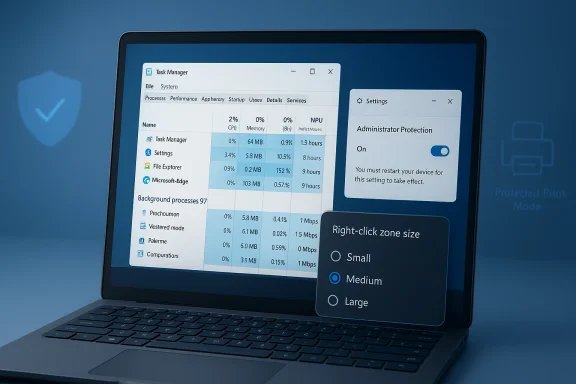
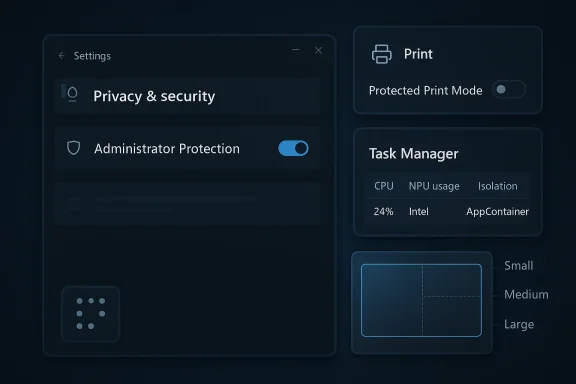
Windows 11 is getting a fresh round of Insider-only refinements in Build 26300.8142, and this flight is less about flashy consumer features than about sharpening the platform’s underpinnings. Microsoft is using the Dev Channel to test Administrator Protection, a touchpad control for the right-click zone, deeper Task Manager visibility into NPUs, a clearer indicator for Windows Protected Print Mode, and a braille fix that matters more than the headline count suggests. The broader signal is just as important: build 26300 remains part of the Windows 11, version 25H2 enablement-package track, which keeps Microsoft’s next annual release on a shared servicing branch and makes these Dev Channel changes part of a broader, staged innovation pipeline.
Microsoft’s Windows Insider program has long functioned as a pressure-test environment for features that may later surface in consumer and enterprise releases. The Dev Channel, in particular, is where the company is willing to be most experimental, which means the distance between a blog post and a shipping feature can be short, long, or nonexistent depending on feedback. That unpredictability is not a bug; it is the core of the model. The company has repeatedly said that features may be changed, removed, or never released beyond Insider previews, and that caveat is part of how it keeps innovation moving without promising every experiment to every customer.
The build number matters here. 26300.8142 sits on the Windows 11, version 25H2 line, and Microsoft has already explained that 25H2 is delivered as an enablement package with a shared servicing branch. That means the underlying codebase and update cadence can stay tightly aligned while Microsoft flips features on or off with smaller package mechanics rather than broad, disruptive upgrades. In practical terms, this helps reduce the distance between preview and release, but it also means any rough edge seen in the Dev Channel can echo into future servicing paths if it survives testing.
The most interesting part of this particular flight is that it blends security, input, observability, and accessibility. That is a familiar pattern for Windows in 2025 and 2026: Microsoft is no longer treating the operating system as a static shell, but as a continuously evolving platform where hardware acceleration, policy, and user experience increasingly intersect. The NPU work in Task Manager is a good example. As NPUs proliferate in Copilot+ PCs and other AI-capable systems, users and admins need a way to see whether those blocks of silicon are actually doing work, not just sitting idle.
There is also a clear enterprise subtext. Administrator Protection is fundamentally about reducing the attack surface of elevated actions, while the printing change reflects Microsoft’s ongoing push toward more secure print workflows. Those are not cosmetic additions. They are part of a broader effort to bring Windows security closer to a least-privilege model, where risky operations are more explicitly controlled and easier to audit. Microsoft’s own documentation describes Administrator Protection as a way to create an isolated admin token for elevated processes, which is exactly the kind of architectural change enterprises notice first.
The new touchpad right-click zone setting is more subtle, but in some ways more consumer-friendly. It lets users choose the size of the lower-right area on a pressable touchpad that maps to right-click behavior, with choices like default, small, medium, and large. Microsoft’s existing touchpad guidance already exposes right-click zone width and height concepts in hardware tuning docs, so this move can be read as the Settings app finally catching up with capabilities the platform and OEMs already understood at a deeper level.
Task Manager gains several new optional columns for NPU usage, NPU Engine, and NPU memory categories, plus an Isolation column to identify apps running in AppContainer. This is a notable expansion of Windows’ built-in observability story. Instead of requiring users to rely on vendor utilities or vague performance summaries, Windows is beginning to expose AI workload behavior in the same place where CPU, memory, and disk usage have lived for years.
The Windows Protected Print Mode update is cosmetic on the surface but meaningful in practice. A new icon in print settings will show where a printer supports the mode, helping users understand compatibility before they hit problems. That matters because protected print mode can alter driver behavior and reduce reliance on legacy print paths, which can be frustrating if a printer is old or if a scanner depends on vendor software. Microsoft support guidance already reflects how often printing changes become a support issue when drivers are affected.
Accessibility also gets a small but real correction: Microsoft says it addressed an issue impacting the use of Braille for Insiders in recent flights. That sort of line can look minor in a changelog, but it is exactly the kind of fix that determines whether preview builds are usable for people who depend on assistive technologies every day. In a product cycle as aggressive as Windows Insider, that kind of stability work should be treated as first-class engineering, not maintenance trivia.
The significance of this rollout is not only the security concept itself but the fact that Microsoft is now allowing the setting to be enabled directly in Windows Security by the user. That suggests the company is preparing for a wider audience beyond managed enterprise environments. It also aligns with the way Windows has been steadily surfacing more security controls in Settings, rather than leaving them buried in policy tools and legacy interfaces.
For IT admins, though, the feature is more complicated. Security changes that improve isolation can also create support overhead if applications, scripts, or workflows assume broader admin access than they should. The long-term value is obvious, but the short-term cost often appears as compatibility friction. In the enterprise world, better security is almost never free; it simply shifts the work from remediation to planning.
This is also a sign that Microsoft is trying to standardize behavior across a fragmented hardware market. The touchpad ecosystem has always been messy, with vendors layering their own apps and customizations on top of Windows. By surfacing a system-level option, Microsoft is implicitly saying that some touchpad behavior should be predictable no matter who made the device.
The detail about a Custom entry preserving OEM settings is especially important. It shows Microsoft is not trying to bulldoze manufacturer tuning. Instead, the company appears to be building a shared language between Windows Settings and vendor apps, which is a more realistic strategy than forcing every laptop brand into one exact behavior model. That sort of coexistence is messy, but it is often the only way Windows can remain flexible.
This matters because the AI PC story has been moving faster than the average user’s ability to verify what the machine is actually doing. With GPU and NPU acceleration spreading across product tiers, users increasingly need a built-in place to see whether an app is really using AI hardware or merely advertising it. Task Manager is not a benchmarking lab, but it is the right first-stop dashboard for basic transparency.
The Isolation column is just as telling. Seeing which apps run in AppContainer helps demystify application boundaries and can be useful for both troubleshooting and security analysis. It gives advanced users a clearer picture of how Windows is segregating workloads, and that fits nicely with the broader security direction of the platform.
The deeper issue is compatibility. When protected print workflows are used, legacy printer and scanner behavior can change, and that often exposes the hidden dependency many users still have on vendor-specific software. Microsoft support guidance in recent months has repeatedly had to explain cases where printers or scanners stop behaving as expected once protected print mode is involved. The icon in this build is an admission that users need more upfront clarity.
There is also a policy story here. Security-hardening features often fail when they are introduced as silent defaults, because users do not know why behavior changed. An indicator in Settings is not a cure-all, but it is a better starting point than surprise. In a mature platform, predictability is a security feature too.
This also reflects a broader truth about Windows engineering: accessibility is not a side project. It is a quality bar for the operating system, especially when the company is asking users to test pre-release code on daily-driver PCs. A build can have exciting AI monitoring features and still fail its mission if core accessibility pathways are unstable.
The fact that the changelog calls out the issue at all is useful. It reminds Insiders that feedback on assistive technology is not merely welcome but needed, because some of the hardest-to-reproduce bugs show up first in accessibility workflows. That is a place where community reporting matters in a very direct way.
It also means the Dev Channel is increasingly serving as a staging area for the next retail cadence rather than a playground detached from the mainstream. The build train has become easier to read: if a feature survives the Insider experiments, it may move into the broader 25H2 lineage with relatively little packaging drama. That is good for Microsoft, because it lowers servicing complexity, and it is good for users, because upgrades can be more incremental.
The tradeoff is that Microsoft must now be far more disciplined about feature flags and rollout control. The company has emphasized Controlled Feature Rollout repeatedly, and this flight continues that pattern. In a world where the same build can look different to different Insiders, the challenge is not just shipping code but managing expectation.
There is also a bigger strategic question underneath all of this: can Windows become the most transparent mainstream platform for AI hardware usage, privilege management, and secure peripherals? That is the direction this build points toward. It is not glamorous, but it is the kind of unflashy engineering that often defines whether an operating system feels modern in practice, not just in marketing.
Source: Microsoft - Windows Insiders Blog Announcing Windows 11 Insider Preview Build 26300.8142 (Dev Channel)
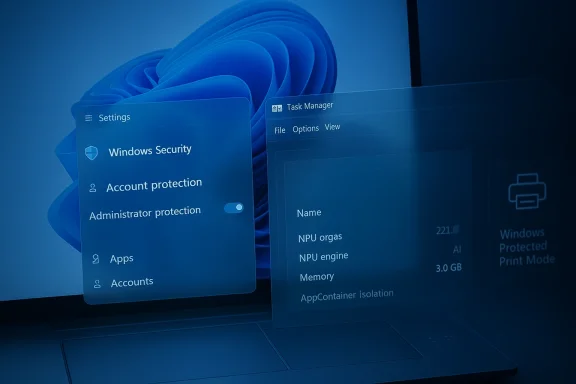 Background
Microsoft’s Windows Insider program has long functioned as a pressure-test environment for features that may later surface in consumer and enterprise releases. The Dev Channel, in particular, is where the company is willing to be most experimental, which means the distance between a blog post and a shipping feature can be short, long, or nonexistent depending on feedback. That unpredictability is not a bug; it is the core of the model. The company has repeatedly said that features may be changed, removed, or never released beyond Insider previews, and that caveat is part of how it keeps innovation moving without promising every experiment to every customer.The build number matters here. 26300.8142 sits on the Windows 11, version 25H2 line, and Microsoft has already explained that 25H2 is delivered as an enablement package with a shared servicing branch. That means the underlying codebase and update cadence can stay tightly aligned while Microsoft flips features on or off with smaller package mechanics rather than broad, disruptive upgrades. In practical terms, this helps reduce the distance between preview and release, but it also means any rough edge seen in the Dev Channel can echo into future servicing paths if it survives testing.
The most interesting part of this particular flight is that it blends security, input, observability, and accessibility. That is a familiar pattern for Windows in 2025 and 2026: Microsoft is no longer treating the operating system as a static shell, but as a continuously evolving platform where hardware acceleration, policy, and user experience increasingly intersect. The NPU work in Task Manager is a good example. As NPUs proliferate in Copilot+ PCs and other AI-capable systems, users and admins need a way to see whether those blocks of silicon are actually doing work, not just sitting idle.
There is also a clear enterprise subtext. Administrator Protection is fundamentally about reducing the attack surface of elevated actions, while the printing change reflects Microsoft’s ongoing push toward more secure print workflows. Those are not cosmetic additions. They are part of a broader effort to bring Windows security closer to a least-privilege model, where risky operations are more explicitly controlled and easier to audit. Microsoft’s own documentation describes Administrator Protection as a way to create an isolated admin token for elevated processes, which is exactly the kind of architectural change enterprises notice first.
Why build 26300.8142 matters
For enthusiasts, this looks like a modest feature drop. For power users and IT admins, it is a map of where Microsoft expects pressure to build next. The touchpad addition shows the company still cares about small ergonomic details, while the Task Manager update reveals an attempt to make AI hardware visible to ordinary users. That combination suggests Windows is trying to stay both tactile and technical at the same time.- It reinforces the 25H2 enablement-package strategy.
- It shows Microsoft is still investing in security-first defaults.
- It gives users more insight into AI-capable hardware.
- It keeps accessibility on the roadmap, even in experimental flights.
Overview of the New Changes
The headline items in this build are not especially numerous, but they are unusually representative of Windows’ current direction. Administrator Protection is being extended so that Insiders can enable it directly from Settings > Privacy & security > Windows Security > Account protection, with a restart required. That is important because it moves the feature from being something primarily managed by IT into something an advanced user can activate from the modern UI.The new touchpad right-click zone setting is more subtle, but in some ways more consumer-friendly. It lets users choose the size of the lower-right area on a pressable touchpad that maps to right-click behavior, with choices like default, small, medium, and large. Microsoft’s existing touchpad guidance already exposes right-click zone width and height concepts in hardware tuning docs, so this move can be read as the Settings app finally catching up with capabilities the platform and OEMs already understood at a deeper level.
Task Manager gains several new optional columns for NPU usage, NPU Engine, and NPU memory categories, plus an Isolation column to identify apps running in AppContainer. This is a notable expansion of Windows’ built-in observability story. Instead of requiring users to rely on vendor utilities or vague performance summaries, Windows is beginning to expose AI workload behavior in the same place where CPU, memory, and disk usage have lived for years.
The Windows Protected Print Mode update is cosmetic on the surface but meaningful in practice. A new icon in print settings will show where a printer supports the mode, helping users understand compatibility before they hit problems. That matters because protected print mode can alter driver behavior and reduce reliance on legacy print paths, which can be frustrating if a printer is old or if a scanner depends on vendor software. Microsoft support guidance already reflects how often printing changes become a support issue when drivers are affected.
Accessibility also gets a small but real correction: Microsoft says it addressed an issue impacting the use of Braille for Insiders in recent flights. That sort of line can look minor in a changelog, but it is exactly the kind of fix that determines whether preview builds are usable for people who depend on assistive technologies every day. In a product cycle as aggressive as Windows Insider, that kind of stability work should be treated as first-class engineering, not maintenance trivia.
What is actually new versus what is staged
Microsoft’s wording matters. Some changes are rolling out gradually to users who toggle on the option to receive the latest updates as soon as they are available, while others are being pushed to everyone in the Dev Channel. That means not every Insider will see the same screen at the same time. It also means the community should be careful not to mistake a missing feature for a broken one, because feature exposure is now part of the rollout mechanics.- Administrator Protection can now be enabled from Settings for some users.
- Touchpad right-click zone size is exposed in a user-facing dropdown.
- Task Manager gains new NPU and isolation visibility.
- Print settings now identify printers that support protected print mode.
- A Braille accessibility issue has been fixed.
Administrator Protection Gets a Broader Ramp
Administrator Protection is one of the most consequential items in this flight, even if many consumers will never touch it. Microsoft describes the feature as a way to keep elevated activity isolated through a hidden, system-generated account and a deprivileged user token, which is a cleaner security model than letting admin rights linger more broadly than needed. The rationale is straightforward: if elevated credentials are harder to misuse, the device is harder to compromise.The significance of this rollout is not only the security concept itself but the fact that Microsoft is now allowing the setting to be enabled directly in Windows Security by the user. That suggests the company is preparing for a wider audience beyond managed enterprise environments. It also aligns with the way Windows has been steadily surfacing more security controls in Settings, rather than leaving them buried in policy tools and legacy interfaces.
For IT admins, though, the feature is more complicated. Security changes that improve isolation can also create support overhead if applications, scripts, or workflows assume broader admin access than they should. The long-term value is obvious, but the short-term cost often appears as compatibility friction. In the enterprise world, better security is almost never free; it simply shifts the work from remediation to planning.
Enterprise implications
Organizations that already invest in least-privilege design will likely see Administrator Protection as a useful tool rather than a disruption. It can fit into broader privilege-hygiene strategies and reduce reliance on standing elevation. For less mature environments, however, the feature will be another reminder that the old habit of running everything with elevated rights is increasingly hard to justify.- Could reduce the blast radius of stolen admin credentials.
- May encourage more disciplined privilege workflows.
- Might expose legacy software that expects persistent elevation.
- Could become a policy baseline for managed Windows 11 devices.
Why users should care
Even consumers who never think about token isolation benefit from the same design direction. If Windows can perform more privileged actions in a more contained way, there is less room for malware and phishing to exploit the system quietly. That is especially relevant on the kind of always-connected, cloud-signed-in PCs Microsoft wants people to buy.Touchpad Customization Gets More Granular
The touchpad change is a classic Windows improvement: small on paper, disproportionately useful in daily life. Microsoft is adding a setting for the size of the right-click zone on touchpads with pressable surfaces, letting users choose between default, small, medium, and large. That is the sort of control that reduces accidental misfires without forcing users to hunt through OEM utilities.This is also a sign that Microsoft is trying to standardize behavior across a fragmented hardware market. The touchpad ecosystem has always been messy, with vendors layering their own apps and customizations on top of Windows. By surfacing a system-level option, Microsoft is implicitly saying that some touchpad behavior should be predictable no matter who made the device.
The detail about a Custom entry preserving OEM settings is especially important. It shows Microsoft is not trying to bulldoze manufacturer tuning. Instead, the company appears to be building a shared language between Windows Settings and vendor apps, which is a more realistic strategy than forcing every laptop brand into one exact behavior model. That sort of coexistence is messy, but it is often the only way Windows can remain flexible.
The ergonomics angle
Touchpad frustrations are usually dismissed as minor until they interrupt productivity. A right-click zone that is too large can trigger accidental context menus, while one that is too small can make a laptop feel inconsistent. By exposing this control, Microsoft is acknowledging that precision matters, especially on thin-and-light devices where the touchpad is the primary pointing surface.- Helps reduce accidental right-clicks.
- Gives power users more control over pointer behavior.
- Can improve consistency across laptop models.
- May reduce reliance on OEM utility apps.
The hardware standards layer
Microsoft’s hardware documentation already treats the right-click zone as a configurable concept, with registry values that map to width and height percentages. Bringing this into Settings does not invent a new capability; it makes an existing capability easier to discover. That is often the best kind of platform improvement, because it lowers friction without expanding complexity for manufacturers.Task Manager Finally Talks NPU
The most forward-looking update in this build may be the new NPU visibility in Task Manager. Microsoft is adding optional columns for NPU usage and NPU Engine on Processes, Users, and Details, plus NPU Dedicated Memory and NPU Shared Memory on the Details page. Neural engines integrated into GPUs will also appear on the Performance page, which makes Windows monitoring more aligned with the hardware reality of modern AI PCs.This matters because the AI PC story has been moving faster than the average user’s ability to verify what the machine is actually doing. With GPU and NPU acceleration spreading across product tiers, users increasingly need a built-in place to see whether an app is really using AI hardware or merely advertising it. Task Manager is not a benchmarking lab, but it is the right first-stop dashboard for basic transparency.
The Isolation column is just as telling. Seeing which apps run in AppContainer helps demystify application boundaries and can be useful for both troubleshooting and security analysis. It gives advanced users a clearer picture of how Windows is segregating workloads, and that fits nicely with the broader security direction of the platform.
Why this is bigger than a UI tweak
The big story here is not that Task Manager has new columns. It is that Microsoft is teaching Windows to explain the AI stack in native language. That is a competitive move, because platforms that can clearly expose hardware utilization make themselves easier to trust, easier to debug, and easier to optimize. In a market where AI features are often opaque, visibility itself becomes a differentiator.- Makes NPU activity visible without third-party tools.
- Helps identify whether workloads are using the right accelerator.
- Improves transparency for Copilot+ PCs and other AI-capable systems.
- Adds a security-oriented view through AppContainer isolation.
Competitive implications
Apple has long had a clean story about its hardware accelerators because it owns the stack end-to-end. Windows, by contrast, has to support many silicon vendors and many drivers. Task Manager’s new NPU visibility is Microsoft’s way of narrowing that usability gap. If it works well, it could make Windows feel less like a patchwork and more like a coherent AI platform.Windows Protected Print Mode Tries to Be Less Invisible
Printing has always been one of Windows’ most fragile ecosystems, and Windows Protected Print Mode is Microsoft’s attempt to make it more secure and more standardized. In this build, Microsoft is adding an icon to show when a printer supports the mode, which should reduce guesswork before users switch settings or install drivers. That small visual cue could save a lot of frustration.The deeper issue is compatibility. When protected print workflows are used, legacy printer and scanner behavior can change, and that often exposes the hidden dependency many users still have on vendor-specific software. Microsoft support guidance in recent months has repeatedly had to explain cases where printers or scanners stop behaving as expected once protected print mode is involved. The icon in this build is an admission that users need more upfront clarity.
There is also a policy story here. Security-hardening features often fail when they are introduced as silent defaults, because users do not know why behavior changed. An indicator in Settings is not a cure-all, but it is a better starting point than surprise. In a mature platform, predictability is a security feature too.
Consumer and enterprise impact
Consumers mostly want printers that just work. Enterprises want printers that are secure, manageable, and consistent. Protected print mode is trying to satisfy both, but those goals can be in tension when older hardware is still in the mix. The icon helps bridge that gap by making support status legible before users invest time in a broken path.- Provides clearer printer capability discovery.
- May reduce failed print setup attempts.
- Supports Microsoft’s move toward more secure print pipelines.
- Could expose compatibility gaps with older devices.
The support burden remains
Even with better UI cues, the real test will be whether users can understand what protected print mode implies for their exact printer and scanner. Microsoft has history here: every print-security shift tends to bring a wave of “my scanner stopped working” questions. The icon is a helpful step, but it is not the end of the support story.Accessibility and Reliability Still Matter
The line about a Braille issue being fixed may be brief, but it is one of the most important items in the build from a human perspective. Accessibility regressions can make an Insider flight effectively unusable for people who depend on screen readers, Braille displays, or assistive input methods. When Microsoft fixes one of these problems quickly, it preserves trust in the preview channel itself.This also reflects a broader truth about Windows engineering: accessibility is not a side project. It is a quality bar for the operating system, especially when the company is asking users to test pre-release code on daily-driver PCs. A build can have exciting AI monitoring features and still fail its mission if core accessibility pathways are unstable.
The fact that the changelog calls out the issue at all is useful. It reminds Insiders that feedback on assistive technology is not merely welcome but needed, because some of the hardest-to-reproduce bugs show up first in accessibility workflows. That is a place where community reporting matters in a very direct way.
Why this should not be overlooked
Accessibility work is often invisible when it succeeds. But in preview builds, invisible can also mean unreported. The best Insider flights are the ones that quietly become usable for more people, and this fix appears to be a step in that direction.- Restores usability for Braille-dependent testers.
- Reinforces the credibility of the Dev Channel.
- Highlights Microsoft’s continuing accessibility commitments.
- Prevents preview builds from excluding key user groups.
How This Fits the 25H2 Strategy
The most important architectural detail in this release is that it is tied to Windows 11, version 25H2 through an enablement package. Microsoft has already used this model to keep annual releases on a shared branch, minimizing the operational disruption of moving from one version to the next. That makes Dev Channel experimentation feel less disconnected from shipping code than it once did.It also means the Dev Channel is increasingly serving as a staging area for the next retail cadence rather than a playground detached from the mainstream. The build train has become easier to read: if a feature survives the Insider experiments, it may move into the broader 25H2 lineage with relatively little packaging drama. That is good for Microsoft, because it lowers servicing complexity, and it is good for users, because upgrades can be more incremental.
The tradeoff is that Microsoft must now be far more disciplined about feature flags and rollout control. The company has emphasized Controlled Feature Rollout repeatedly, and this flight continues that pattern. In a world where the same build can look different to different Insiders, the challenge is not just shipping code but managing expectation.
What this suggests about future releases
If 25H2 continues along this path, expect more emphasis on platform plumbing than on massive one-time interface overhauls. Microsoft seems to prefer targeted enhancements that can be turned on gradually, monitored carefully, and refined over time. That is a quieter release strategy, but it is often a more durable one.- More features hidden behind rollout toggles.
- Continued servicing alignment with prior Windows 11 branches.
- Incremental changes to Settings and Task Manager.
- Ongoing testing of security-related defaults.
Strengths and Opportunities
This build is strongest when you view it as a platform-quality release rather than a feature dump. It improves the everyday usability of Windows while also inching the system toward clearer security and hardware transparency. That blend is strategically smart, because it helps Microsoft address both enthusiast complaints and enterprise requirements without separate code paths.- Better security posture through Administrator Protection.
- Improved touchpad ergonomics for laptop users.
- Clearer AI hardware visibility in Task Manager.
- More predictable printing behavior with protected print indicators.
- Accessibility restoration for Braille users.
- Alignment with 25H2 shared servicing.
- Useful feedback loops for Microsoft and OEM partners.
Risks and Concerns
The downside of this kind of release is that it can still create confusion, especially for users who do not follow Insider mechanics closely. Gradual rollouts, hidden toggles, and feature flights make it harder to tell whether a feature is absent, delayed, or broken. That is manageable for enthusiasts, but it can be opaque for less technical testers.- Compatibility risk if Administrator Protection affects legacy workflows.
- Printer and scanner friction if protected print mode changes behavior.
- OEM fragmentation if touchpad settings conflict with vendor apps.
- Feature visibility confusion due to phased rollout behavior.
- AI hype mismatch if NPU reporting reveals underused hardware.
- Accessibility regressions if Braille fixes are not comprehensive.
- Support burden from new settings that expose old assumptions.
Looking Ahead
The next few Dev Channel flights will tell us whether these changes are isolated experiments or early building blocks for a larger Windows 11 story. The strongest bet is that Administrator Protection, Task Manager’s AI visibility, and the touchpad refinement will keep evolving, while protected print guidance will likely be tuned based on feedback from people who hit real-world device issues. If Microsoft is serious about 25H2 as a smoother, more modular release cycle, these are exactly the sorts of features we should expect to see shaped in public.There is also a bigger strategic question underneath all of this: can Windows become the most transparent mainstream platform for AI hardware usage, privilege management, and secure peripherals? That is the direction this build points toward. It is not glamorous, but it is the kind of unflashy engineering that often defines whether an operating system feels modern in practice, not just in marketing.
- Watch whether Administrator Protection expands beyond Insider settings.
- Watch whether NPU columns become mainstream in Task Manager.
- Watch for follow-up tweaks to touchpad zone sizing.
- Watch printer support guidance for protected print mode compatibility.
- Watch whether accessibility fixes remain stable across later flights.
Source: Microsoft - Windows Insiders Blog Announcing Windows 11 Insider Preview Build 26300.8142 (Dev Channel)