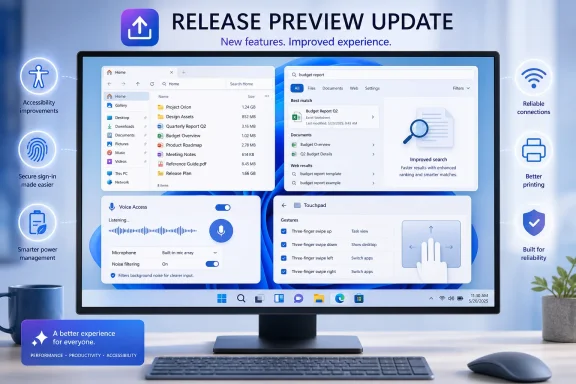
Microsoft has pushed Windows 11 Builds 26100.8942 and 26200.8942 into the Release Preview Channel for versions 24H2 and 25H2, respectively, delivering a broad collection of usability, accessibility, security, search, networking, and performance improvements. The headline additions are Voice Isolation for Voice Access, new precision-touchpad scrolling controls, expanded Windows Hello Enhanced Sign-in Security support for external fingerprint readers, and several practical File Explorer upgrades. Yet the real significance lies in the breadth of the release: Microsoft is refining everyday Windows behavior across laptops, desktops, Copilot+ PCs, virtual desktops, managed networks, printers, power plans, and multilingual environments ahead of wider production deployment.
The July 20, 2026 Release Preview update applies to two closely related Windows 11 servicing branches. Build 26100.8942 targets Windows 11 version 24H2, while Build 26200.8942 targets version 25H2.
Release Preview is the final major testing stage before changes typically move into optional production updates and, eventually, mandatory cumulative updates. Builds in this channel are more conservative than experimental or Beta Channel releases, but they remain pre-release software and should not be treated as risk-free.
That approach benefits users because improvements do not necessarily remain exclusive to the newest annual feature release. It also helps enterprises test nearly identical behavior across mixed 24H2 and 25H2 deployments, although administrators must still account for differences in support lifecycle, policy availability, hardware eligibility, and installed components.
Microsoft frequently activates features through controlled configuration rollouts after the underlying code reaches a PC. Two systems running the same Windows build can consequently show different capabilities, menus, or defaults for a period of time.
This staged delivery model allows Microsoft to monitor telemetry, pause problematic features, and limit the impact of regressions. It also makes troubleshooting more complicated because the build number alone no longer provides a complete description of the experience installed on a device.
The distinction matters. A conventional noise filter may suppress a fan or keyboard but still capture a nearby colleague speaking, whereas Voice Isolation is designed to reduce interference from both environmental noise and competing speakers.
More reliable speaker isolation may help users with limited mobility maintain control of their PC without repeatedly correcting commands. It can also reduce the need to move closer to the microphone or wear a headset throughout the day.
This is not merely a convenience improvement. If Voice Access misinterprets commands, the user may open the wrong control, insert unintended text, or lose confidence in hands-free interaction altogether. Better isolation can therefore improve both accuracy and the perceived safety of voice-driven computing.
Speech systems require more than translating menus. They must recognize commands, account for language structure, interact with localized interface labels, and produce usable text. Korean support represents another step toward broader international availability, although practical accuracy will depend on microphone quality, speaking style, applications, and the completeness of the language model.
This should be particularly useful when moving between devices. A compact ultraportable may have a smaller touchpad requiring shorter gestures, while a workstation-class laptop may provide a much larger surface. The same default sensitivity can feel slow on one machine and excessively responsive on another.
Standardizing the control in Windows also reduces dependence on vendor software. Manufacturer utilities may still provide hardware-specific options, but a native Windows setting gives users a consistent place to adjust basic gesture behavior.
The feature could be valuable in:
That strategy is increasingly important as Windows laptops compete with devices known for consistent trackpad experiences. Hardware quality still matters, but operating-system-level controls can narrow the usability gap between premium notebooks and less expensive PCs.
This is a basic usability improvement that arguably should have arrived much earlier. File size is contextual information, and the unit should help communicate scale rather than force the user to perform arithmetic.
The change will be especially useful when comparing media files, virtual machine images, installers, archives, and disk backups. Exact byte-level information may still matter in property dialogs or specialist tools, but the main file list should prioritize readability.
Tabbed File Explorer became significantly more useful once Windows adopted familiar browser conventions. Consistency reduces the learning curve and allows experienced users to navigate quickly without repeatedly opening context menus.
A practical workflow now looks like this:
Thumbnails in the Recommended section should appear sharper and easier to read. Recommended content remains a divisive feature, especially for users who prefer a traditional folder-first Explorer, but clearer previews can make the section more functional for those who use it.
These fixes also indicate that Microsoft is still optimizing Explorer’s increasingly dynamic Home experience. Cloud content, recommendations, recent items, thumbnails, and account-aware data all introduce loading states that did not exist in the simpler Explorer designs of earlier Windows releases.
Improved handling should benefit users who remember only a fragment of a filename. It may also help in environments where files follow concise naming conventions, including project codes, drive letters, department abbreviations, or version identifiers.
Search performance will still depend on indexing state, configured locations, cloud connectivity, and the type of storage being searched. Nevertheless, better short-query handling lowers the threshold for finding a file when the user has incomplete information.
A search system should not require perfect recall. Users may know a product by its brand, executable name, abbreviation, or an older name. They may also type quickly and introduce errors. More forgiving matching can make Start search feel faster even if the underlying indexing performance remains unchanged.
Microsoft has steadily migrated options from Control Panel into Settings, but discoverability remains inconsistent. Better ranking can compensate for an imperfect information architecture by allowing users to describe the control they want rather than knowing its exact location.
The benefit will depend on whether Windows understands common terminology. Users often search for phrases such as “close lid,” “make text bigger,” “change sleep time,” or “stop apps starting,” which may not match the formal names of the corresponding settings.
Extending ESS to supported peripheral readers creates a path toward stronger biometric sign-in across a wider range of Windows 11 hardware, including qualifying Copilot+ PCs. Users can connect a compatible reader, open Settings > Accounts > Sign-in options, and follow the enrollment process.
Compatibility is the key limitation. An existing USB fingerprint reader will not automatically gain ESS capabilities simply because Windows supports peripheral sensors in principle. The hardware, firmware, drivers, and security implementation must meet Microsoft’s requirements.
External sensor support may help organizations standardize passwordless or reduced-password workflows at fixed workstations. It could also encourage hardware vendors to release more ESS-compatible readers for desktops, kiosks, shared workspaces, and specialized terminals.
Enterprises should still validate the entire device chain. Procurement teams will need to distinguish between ordinary Windows Hello compatibility and explicit ESS support rather than assuming the terms are interchangeable.
The accent-color approach makes Widgets feel more integrated with the desktop and potentially less intrusive. It does not remove notifications, but it changes their emotional weight.
For new users, Weather becomes the only Lock screen widget shown by default. This is a sensible reduction in initial clutter and gives users a simpler baseline from which they can add information according to preference.
The Start menu account control receives a refreshed design and a subscription-status badge for users signed in with a Microsoft account. This can make account information easier to discover, but it also extends Microsoft’s services presence inside a central Windows surface.
A subscription badge may be useful when it communicates an expiring or inactive entitlement. It may be less welcome if the control becomes another promotional route for Microsoft 365 or other paid services. The value will depend on how restrained Microsoft keeps the experience.
Microsoft is also improving system-tray loading when the taskbar is used on a touch device in tablet posture. That change should help convertible PCs, where the transition between keyboard-and-mouse and touch-first use can expose timing and layout problems in the shell.
System sounds are being adjusted for dark mode as well. Although auditory feedback is not visually dark or light, a less jarring sound profile can contribute to a more coherent low-distraction environment.
Users who depend on the bars can restore them under Settings > Accessibility > Magnifier. Changing the default favors a cleaner content area while preserving the feature for touch-based navigation.
This is a reminder that accessibility controls are not universally beneficial in the same configuration. An overlay that helps one user move around the screen may cover critical information for another, so reversible defaults are essential.
Turning it off by default gives users greater control over whether their words are transformed. That is particularly important for technical vocabulary, legal or medical language, quotations, creative writing, and situations where exact transcription matters more than polished prose.
The teaching tip preserves discoverability without making the decision on the user’s behalf. This is a healthier pattern for AI-assisted input: explain the capability, let the user activate it, and provide a clear method to disable it again.
This inconsistency is especially confusing on laptops that move between balanced, performance, power-saving, manufacturer-defined, or administrator-managed profiles. Applying global settings across plans should make user intent more durable.
There is a trade-off. Some advanced users deliberately configure different lid or sleep behavior for each plan. Microsoft’s move favors predictable global preferences over deeply customized per-plan behavior in the modern Settings interface.
A commuter may want Energy saver to activate relatively early, while a user with frequent access to power may prefer a lower threshold. Restoring the control also reduces the impression that Windows is removing options as it modernizes the Settings app.
Microsoft must ensure that the notice remains informational rather than coercive. Setup already contains numerous decisions involving accounts, privacy, cloud services, backups, and subscriptions; every additional page increases complexity and the risk that users approve options without understanding them.
DHCP problems can leave a device with an invalid network configuration, interrupt connectivity after sleep, or force the user to reconnect manually. On a single home PC, that is irritating; across a managed laptop fleet, it can generate a significant support burden.
Modern Standby systems are particularly sensitive because networking and power-state transitions interact in complex ways. A machine may wake with stale lease information or encounter changed network conditions after moving between locations.
Intermittent clipboard failure can be difficult to diagnose because the session itself remains connected. Users may restart applications or entire virtual desktops when the actual failure lies in the redirection channel.
Organizations should still enforce appropriate clipboard policies. Reliability does not remove the security concerns associated with transferring data across session boundaries, especially in regulated or high-sensitivity environments.
Performance improvements can reduce the perceived penalty of secure printing, particularly for offices processing large jobs. They also support Microsoft’s longer-term shift away from complex legacy driver models toward standardized, security-conscious printing technologies.
Time-zone correctness affects more than the clock in the taskbar. Authentication tokens, scheduled tasks, calendar events, logging systems, database entries, compliance records, and distributed applications can all behave incorrectly when local time rules are outdated.
Better estimates can reduce forced restarts and support calls. They can also improve confidence in maintenance windows, particularly when administrators or technicians need to know whether an update is genuinely advancing.
No progress calculation can be perfectly linear because installation time depends on storage speed, CPU performance, installed software, component state, and pending servicing operations. The goal should be credible feedback rather than an unrealistic promise of exact timing.
If too many tasks compete for CPU, storage, and memory at once, users may perceive the update itself as having slowed the PC. Better sequencing or cleanup behavior can shorten that post-installation period.
This is particularly relevant to systems with slower solid-state drives, limited memory, or substantial component-store history. High-end PCs can hide servicing overhead that remains obvious on mainstream hardware.
Removal can provide several benefits:
Unicode variation sequences allow software to request a specific presentation of a character. Losing that support can cause documents, interfaces, or specialized content to display differently from what the author intended.
Mongolian script presents complex shaping requirements because characters change form according to context. Improvements to Mongolian Baiti can therefore affect educational, governmental, publishing, archival, and communication workflows.
These changes may involve a relatively small share of Windows users, but their impact can be substantial for the communities that rely on those scripts. Internationalization quality should be judged by whether Windows works correctly across languages, not merely by how many users encounter each defect.
Desktop users considering external fingerprint hardware should verify ESS support before purchasing a reader. IT teams should validate DHCP behavior after Modern Standby, confirm clipboard policy enforcement in virtual sessions, and retest global power settings across all plans used by their organization.
Feedback should include the Windows build, hardware model, driver versions, feature configuration, and whether the capability arrived through gradual rollout. Those details are increasingly necessary because two nominally identical builds may not have the same feature flags enabled.
Microsoft’s latest Windows 11 Release Preview builds are not defined by one dramatic redesign, but by a sustained effort to make the operating system more adaptable, accessible, and predictable. Voice Isolation, precision-touchpad tuning, clearer File Explorer behavior, external ESS fingerprint support, and deeper enterprise fixes all address genuine weaknesses in everyday Windows use. If Microsoft can move these changes into general availability without introducing fresh regressions, Builds 26100.8942 and 26200.8942 will represent the kind of cumulative update Windows 11 needs most: broad enough to matter, restrained enough to remain familiar, and increasingly willing to give users control over how the operating system behaves.
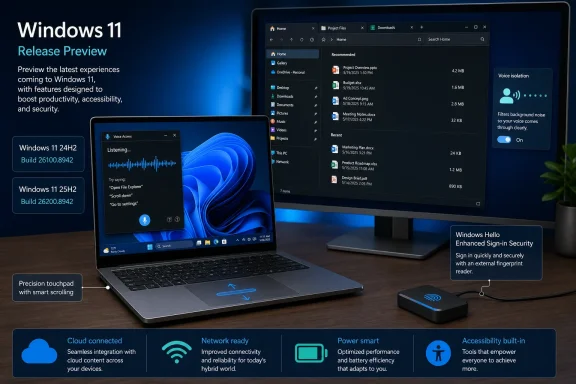 Overview
The July 20, 2026 Release Preview update applies to two closely related Windows 11 servicing branches. Build 26100.8942 targets Windows 11 version 24H2, while Build 26200.8942 targets version 25H2.Release Preview is the final major testing stage before changes typically move into optional production updates and, eventually, mandatory cumulative updates. Builds in this channel are more conservative than experimental or Beta Channel releases, but they remain pre-release software and should not be treated as risk-free.
Why 24H2 and 25H2 are receiving the same changes
Windows 11 versions 24H2 and 25H2 share a closely aligned servicing foundation. Microsoft can therefore distribute many features and fixes to both versions through parallel cumulative builds rather than developing completely separate implementations.That approach benefits users because improvements do not necessarily remain exclusive to the newest annual feature release. It also helps enterprises test nearly identical behavior across mixed 24H2 and 25H2 deployments, although administrators must still account for differences in support lifecycle, policy availability, hardware eligibility, and installed components.
Understanding the gradual rollout
Most of the visible additions in this release are marked for gradual rollout. Installing Build 26100.8942 or 26200.8942 does not guarantee that every listed feature will appear immediately.Microsoft frequently activates features through controlled configuration rollouts after the underlying code reaches a PC. Two systems running the same Windows build can consequently show different capabilities, menus, or defaults for a period of time.
This staged delivery model allows Microsoft to monitor telemetry, pause problematic features, and limit the impact of regressions. It also makes troubleshooting more complicated because the build number alone no longer provides a complete description of the experience installed on a device.
Voice Access Gains Voice Isolation
Voice Access is evolving from a specialized accessibility feature into a more capable hands-free control system. The new Voice Isolation option addresses one of the most difficult problems in practical speech recognition: identifying the intended speaker when other voices and environmental sounds are present.Three speech-processing modes
Windows now offers three recognition modes under Voice Access settings > Improve speech recognition:- Voice Isolation attempts to focus recognition on the enrolled user while filtering other speakers and background noise.
- Remove background noise only suppresses non-speech sounds such as typing, doors closing, and nearby mechanical noise.
- No filtering passes the default microphone input through without additional noise-processing behavior.
The distinction matters. A conventional noise filter may suppress a fan or keyboard but still capture a nearby colleague speaking, whereas Voice Isolation is designed to reduce interference from both environmental noise and competing speakers.
Accessibility in real-world environments
Voice control performs well in quiet demonstrations, but users rarely operate PCs in acoustically perfect rooms. Shared offices, classrooms, living rooms, hospitals, workshops, and customer-service environments can all contain sounds that disrupt speech recognition.More reliable speaker isolation may help users with limited mobility maintain control of their PC without repeatedly correcting commands. It can also reduce the need to move closer to the microphone or wear a headset throughout the day.
This is not merely a convenience improvement. If Voice Access misinterprets commands, the user may open the wrong control, insert unintended text, or lose confidence in hands-free interaction altogether. Better isolation can therefore improve both accuracy and the perceived safety of voice-driven computing.
Korean language support expands the audience
The release also adds Korean support to Voice Access. Language expansion is essential if Microsoft wants voice-based control to become a standard Windows input method rather than an English-centric accessibility layer.Speech systems require more than translating menus. They must recognize commands, account for language structure, interact with localized interface labels, and produce usable text. Korean support represents another step toward broader international availability, although practical accuracy will depend on microphone quality, speaking style, applications, and the completeness of the language model.
Precision Touchpads Become More Configurable
Windows 11 is adding two new controls under Settings > Bluetooth & devices > Touchpad: baseline scroll and zoom speed, and accelerated scrolling. These settings address a long-standing problem in which the operating system exposes extensive pointer customization but offers comparatively limited control over gesture behavior.Scroll and zoom speed
The new baseline setting adjusts how quickly scroll and zoom gestures respond on a precision touchpad. Users can tune the relationship between finger movement and on-screen movement without relying entirely on a PC manufacturer’s control utility.This should be particularly useful when moving between devices. A compact ultraportable may have a smaller touchpad requiring shorter gestures, while a workstation-class laptop may provide a much larger surface. The same default sensitivity can feel slow on one machine and excessively responsive on another.
Standardizing the control in Windows also reduces dependence on vendor software. Manufacturer utilities may still provide hardware-specific options, but a native Windows setting gives users a consistent place to adjust basic gesture behavior.
Accelerated scrolling
Accelerated scrolling increases scrolling speed as the user repeats the gesture. The idea resembles pointer acceleration: deliberate initial movements remain manageable, while repeated swipes allow faster traversal through long content.The feature could be valuable in:
- Large spreadsheets with thousands of rows.
- Long PDF files and technical manuals.
- Source-code repositories.
- Extensive web pages and discussion threads.
- File Explorer folders containing many items.
- Document-editing and content-management applications.
A broader input modernization effort
The new controls build on other recent precision-touchpad additions, including customization of the single-finger right-click zone on compatible hardware. Together, these changes suggest that Microsoft is treating touchpads as a first-class Windows input platform rather than leaving most behavior to hardware vendors.That strategy is increasingly important as Windows laptops compete with devices known for consistent trackpad experiences. Hardware quality still matters, but operating-system-level controls can narrow the usability gap between premium notebooks and less expensive PCs.
File Explorer Receives Practical Refinements
File Explorer receives several changes that are individually small but collectively meaningful. Microsoft is improving unit display, tab navigation, Home-page stability, and thumbnail quality rather than attempting another disruptive redesign.Human-readable file sizes
Details view can now display file sizes using appropriate units such as KB, MB, and GB instead of presenting everything in kilobytes. A large file is therefore easier to evaluate at a glance without mentally converting a long number.This is a basic usability improvement that arguably should have arrived much earlier. File size is contextual information, and the unit should help communicate scale rather than force the user to perform arithmetic.
The change will be especially useful when comparing media files, virtual machine images, installers, archives, and disk backups. Exact byte-level information may still matter in property dialogs or specialist tools, but the main file list should prioritize readability.
Middle-click opens folders in new tabs
Users can now middle-click a folder in the File Explorer address bar or Home page to open it in a new tab. The behavior aligns Explorer more closely with web browsers, where middle-clicking a link commonly opens a background tab.Tabbed File Explorer became significantly more useful once Windows adopted familiar browser conventions. Consistency reduces the learning curve and allows experienced users to navigate quickly without repeatedly opening context menus.
A practical workflow now looks like this:
- Navigate to a frequently used parent folder.
- Middle-click several destinations in the address bar or Home page.
- Allow each location to open in a separate tab.
- Move or compare files across the resulting tab set.
- Close the tabs when the task is complete without creating multiple Explorer windows.
Home-page reliability and visual quality
Microsoft says the update removes a gray flash that could appear while File Explorer Home loaded. It also addresses unexpected scrolling to the top, a frustrating behavior when users are examining content farther down the page.Thumbnails in the Recommended section should appear sharper and easier to read. Recommended content remains a divisive feature, especially for users who prefer a traditional folder-first Explorer, but clearer previews can make the section more functional for those who use it.
These fixes also indicate that Microsoft is still optimizing Explorer’s increasingly dynamic Home experience. Cloud content, recommendations, recent items, thumbnails, and account-aware data all introduce loading states that did not exist in the simpler Explorer designs of earlier Windows releases.
Windows Search Targets Everyday Friction
The update improves search across files, applications, cloud content, connected sources, and Settings. Rather than introducing another highly visible search interface, Microsoft is concentrating on matching behavior and relevance.Shorter file queries
Windows Search now supports two-character file searches more effectively. Short queries are difficult for search systems because they can match enormous numbers of names, abbreviations, extensions, and metadata values.Improved handling should benefit users who remember only a fragment of a filename. It may also help in environments where files follow concise naming conventions, including project codes, drive letters, department abbreviations, or version identifiers.
Search performance will still depend on indexing state, configured locations, cloud connectivity, and the type of storage being searched. Nevertheless, better short-query handling lowers the threshold for finding a file when the user has incomplete information.
Better typo and partial-name matching
App search is being improved to tolerate misspellings and partial application names. This matters because the Start menu often functions as Windows 11’s primary application launcher.A search system should not require perfect recall. Users may know a product by its brand, executable name, abbreviation, or an older name. They may also type quickly and introduce errors. More forgiving matching can make Start search feel faster even if the underlying indexing performance remains unchanged.
More relevant Settings results
Settings search will attempt to place more useful destinations higher in its results. This is increasingly important because Windows settings are distributed across many categories, and some advanced controls still lead to legacy interfaces.Microsoft has steadily migrated options from Control Panel into Settings, but discoverability remains inconsistent. Better ranking can compensate for an imperfect information architecture by allowing users to describe the control they want rather than knowing its exact location.
The benefit will depend on whether Windows understands common terminology. Users often search for phrases such as “close lid,” “make text bigger,” “change sleep time,” or “stop apps starting,” which may not match the formal names of the corresponding settings.
Windows Hello Expands External Fingerprint Security
Windows Hello Enhanced Sign-in Security, commonly abbreviated as ESS, now supports compatible peripheral fingerprint sensors. Previously, ESS support was more closely associated with biometric hardware integrated into the PC.Why peripheral support matters
Desktop users frequently rely on external fingerprint readers because their PCs do not include built-in biometric sensors. Docked laptop users may face a similar problem when the notebook lid is closed or positioned away from the keyboard and monitor.Extending ESS to supported peripheral readers creates a path toward stronger biometric sign-in across a wider range of Windows 11 hardware, including qualifying Copilot+ PCs. Users can connect a compatible reader, open Settings > Accounts > Sign-in options, and follow the enrollment process.
Compatibility is the key limitation. An existing USB fingerprint reader will not automatically gain ESS capabilities simply because Windows supports peripheral sensors in principle. The hardware, firmware, drivers, and security implementation must meet Microsoft’s requirements.
Security beyond convenience
Fingerprint sign-in is often described as a faster alternative to typing a password, but the security architecture matters more than the gesture itself. Enhanced Sign-in Security is intended to provide stronger isolation and protection for biometric authentication data and related operations.External sensor support may help organizations standardize passwordless or reduced-password workflows at fixed workstations. It could also encourage hardware vendors to release more ESS-compatible readers for desktops, kiosks, shared workspaces, and specialized terminals.
Enterprises should still validate the entire device chain. Procurement teams will need to distinguish between ordinary Windows Hello compatibility and explicit ESS support rather than assuming the terms are interchangeable.
Interface Changes Reduce Distraction
Several visual and behavioral adjustments target attention management rather than adding major capabilities. Widgets badges, Lock screen defaults, account controls, Start menu behavior, cursor persistence, and dark-mode sounds all receive attention.Widgets adopt the Windows accent color
Taskbar notification badges for Widgets now use the configured Windows accent color instead of appearing red. Red commonly communicates urgency, errors, or immediate action, so using it for routine content can create unnecessary pressure.The accent-color approach makes Widgets feel more integrated with the desktop and potentially less intrusive. It does not remove notifications, but it changes their emotional weight.
For new users, Weather becomes the only Lock screen widget shown by default. This is a sensible reduction in initial clutter and gives users a simpler baseline from which they can add information according to preference.
Start menu reliability and account status
Windows should now retain the user’s selected Start menu view more reliably. Keyboard navigation is also being improved when focus is placed in the apps list, which benefits power users and people who depend on non-pointer input.The Start menu account control receives a refreshed design and a subscription-status badge for users signed in with a Microsoft account. This can make account information easier to discover, but it also extends Microsoft’s services presence inside a central Windows surface.
A subscription badge may be useful when it communicates an expiring or inactive entitlement. It may be less welcome if the control becomes another promotional route for Microsoft 365 or other paid services. The value will depend on how restrained Microsoft keeps the experience.
Cursor and tablet-posture improvements
The update improves persistence of the configured mouse cursor size. Accessibility preferences are only useful if Windows applies them reliably across sign-in sessions, displays, and shell restarts.Microsoft is also improving system-tray loading when the taskbar is used on a touch device in tablet posture. That change should help convertible PCs, where the transition between keyboard-and-mouse and touch-first use can expose timing and layout problems in the shell.
System sounds are being adjusted for dark mode as well. Although auditory feedback is not visually dark or light, a less jarring sound profile can contribute to a more coherent low-distraction environment.
Accessibility Changes Extend Beyond Voice Access
Voice Isolation is the most prominent accessibility feature, but the release also modifies Magnifier behavior and voice-typing defaults. These changes reflect the difficult balance between discoverability, automation, and avoiding unwanted processing.Cleaner Magnifier operation on touch devices
The horizontal and vertical touch bars used to pan the magnified view are now disabled by default. Microsoft says this prevents the controls from obstructing magnified content.Users who depend on the bars can restore them under Settings > Accessibility > Magnifier. Changing the default favors a cleaner content area while preserving the feature for touch-based navigation.
This is a reminder that accessibility controls are not universally beneficial in the same configuration. An overlay that helps one user move around the screen may cover critical information for another, so reversible defaults are essential.
Fluid dictation is no longer enabled automatically
Fluid dictation will be off by default for new users, with a teaching tip appearing the first time they encounter the feature. Fluid dictation can refine spoken input by correcting grammar, punctuation, and verbal disfluencies, but not every user wants automated rewriting.Turning it off by default gives users greater control over whether their words are transformed. That is particularly important for technical vocabulary, legal or medical language, quotations, creative writing, and situations where exact transcription matters more than polished prose.
The teaching tip preserves discoverability without making the decision on the user’s behalf. This is a healthier pattern for AI-assisted input: explain the capability, let the user activate it, and provide a clear method to disable it again.
Power, Battery, and Setup Become More Consistent
Windows power management has accumulated layers of modern Settings pages, legacy Control Panel options, manufacturer profiles, and device-specific behavior. This update attempts to make changes applied through Settings more consistent across all power plans.Global power settings now affect every plan
Changes to display and sleep timeouts, hibernation, power-button actions, sleep-button actions, and lid-close behavior will apply across all power plans. Previously, users could adjust a setting and later discover that Windows behaved differently after switching plans.This inconsistency is especially confusing on laptops that move between balanced, performance, power-saving, manufacturer-defined, or administrator-managed profiles. Applying global settings across plans should make user intent more durable.
There is a trade-off. Some advanced users deliberately configure different lid or sleep behavior for each plan. Microsoft’s move favors predictable global preferences over deeply customized per-plan behavior in the modern Settings interface.
Energy saver threshold returns
The ability to choose the battery percentage at which Energy saver activates is being restored under Settings > System > Power & battery. Threshold control allows users to balance performance, background activity, and battery longevity according to their own priorities.A commuter may want Energy saver to activate relatively early, while a user with frequent access to power may prefer a lower threshold. Restoring the control also reduces the impression that Windows is removing options as it modernizes the Settings app.
Parental-controls notice during setup
Windows Setup now includes a notice highlighting available family-safety and parental-control features. The addition can help families discover content filters, screen-time tools, and account-management options during initial configuration rather than after a problem occurs.Microsoft must ensure that the notice remains informational rather than coercive. Setup already contains numerous decisions involving accounts, privacy, cloud services, backups, and subscriptions; every additional page increases complexity and the risk that users approve options without understanding them.
Enterprise Reliability Improvements Run Deep
Some of the most consequential changes in the release are unlikely to attract consumer attention. DHCP renewal reliability, Remote Desktop clipboard fixes, secure printing performance, time-zone accuracy, and post-update cleanup can affect thousands of endpoints when deployed at scale.DHCP renewal behavior
Microsoft is improving DHCP renewal reliability in scenarios where a server sends a negative acknowledgment, or NACK. The update also targets devices using Modern Standby.DHCP problems can leave a device with an invalid network configuration, interrupt connectivity after sleep, or force the user to reconnect manually. On a single home PC, that is irritating; across a managed laptop fleet, it can generate a significant support burden.
Modern Standby systems are particularly sensitive because networking and power-state transitions interact in complex ways. A machine may wake with stale lease information or encounter changed network conditions after moving between locations.
Remote Desktop and Azure Virtual Desktop
Clipboard reliability is being improved in certain Remote Desktop and Azure Virtual Desktop sessions. Clipboard redirection is central to many virtualized workflows because users need to move text, commands, identifiers, and sometimes files between local and remote environments.Intermittent clipboard failure can be difficult to diagnose because the session itself remains connected. Users may restart applications or entire virtual desktops when the actual failure lies in the redirection channel.
Organizations should still enforce appropriate clipboard policies. Reliability does not remove the security concerns associated with transferring data across session boundaries, especially in regulated or high-sensitivity environments.
Faster IPPS printing
The update improves pages-per-minute performance for printers using Internet Printing Protocol Secure. IPPS protects print traffic using encrypted transport, making it an important part of modernized Windows printing.Performance improvements can reduce the perceived penalty of secure printing, particularly for offices processing large jobs. They also support Microsoft’s longer-term shift away from complex legacy driver models toward standardized, security-conscious printing technologies.
Time-zone and daylight-saving accuracy
Windows is improving detection of circumstances that should trigger a time-zone-change notification. Daylight-saving data is also being updated for Beirut, Casablanca, Jerusalem, and Nuuk time-zone definitions.Time-zone correctness affects more than the clock in the taskbar. Authentication tokens, scheduled tasks, calendar events, logging systems, database entries, compliance records, and distributed applications can all behave incorrectly when local time rules are outdated.
Servicing, Performance, and Optional AI Components
The build includes changes to Windows Update progress reporting and cleanup logic, while supported Copilot+ PCs gain the ability to remove an installed Image Generation AI component. These additions touch two sensitive areas: update trust and user control over local AI features.More accurate update progress
Microsoft says Windows Update will calculate installation progress more accurately. Progress percentages are often treated as cosmetic, but inaccurate reporting can lead users to assume that an installation has frozen.Better estimates can reduce forced restarts and support calls. They can also improve confidence in maintenance windows, particularly when administrators or technicians need to know whether an update is genuinely advancing.
No progress calculation can be perfectly linear because installation time depends on storage speed, CPU performance, installed software, component state, and pending servicing operations. The goal should be credible feedback rather than an unrealistic promise of exact timing.
Improved post-update cleanup
Changes to update cleanup logic are intended to improve system performance immediately after installation. Windows may perform component cleanup, optimization, indexing, security scans, and other maintenance tasks following a cumulative update.If too many tasks compete for CPU, storage, and memory at once, users may perceive the update itself as having slowed the PC. Better sequencing or cleanup behavior can shorten that post-installation period.
This is particularly relevant to systems with slower solid-state drives, limited memory, or substantial component-store history. High-end PCs can hide servicing overhead that remains obvious on mainstream hardware.
Removing the Image Generation AI component
Supported Copilot+ PCs can now remove the Image Generation AI component where it is installed. This is an important acknowledgment that local AI modules should not be treated as permanently inseparable from the operating system.Removal can provide several benefits:
- Users can reclaim storage if they do not use local image generation.
- Enterprises can reduce unnecessary software components in managed images.
- Security teams can limit capabilities that do not align with organizational policy.
- Administrators can simplify compliance reviews by excluding unused AI functionality.
- Consumers gain more control over what runs on hardware they own.
Fonts and International Text Support
Two font changes demonstrate why operating-system maintenance still requires attention to seemingly narrow details. Windows is restoring Unicode variation-sequence support in Myanmar Text and improving shaping and rendering in Mongolian Baiti.Why font fixes matter
Text rendering is a foundational operating-system function. Incorrect shaping can change the appearance, order, or relationship of characters, affecting readability and sometimes meaning.Unicode variation sequences allow software to request a specific presentation of a character. Losing that support can cause documents, interfaces, or specialized content to display differently from what the author intended.
Mongolian script presents complex shaping requirements because characters change form according to context. Improvements to Mongolian Baiti can therefore affect educational, governmental, publishing, archival, and communication workflows.
These changes may involve a relatively small share of Windows users, but their impact can be substantial for the communities that rely on those scripts. Internationalization quality should be judged by whether Windows works correctly across languages, not merely by how many users encounter each defect.
Strengths and Opportunities
Builds 26100.8942 and 26200.8942 are strongest when they focus on reducing friction in established Windows workflows. The update does not depend on a single marquee feature; it improves many surfaces that users encounter daily.- Voice Isolation could make hands-free PC control viable in noisier, shared environments.
- Touchpad speed and acceleration controls give laptop users more direct control over gesture behavior.
- File Explorer gains familiar browser-style tab navigation and clearer file-size reporting.
- External ESS fingerprint support extends stronger biometric options to desktop and docked configurations.
- Search improvements address misspellings, partial names, short queries, and weak Settings relevance.
- Enterprise fixes target practical pain points in DHCP, virtual desktops, secure printing, and update servicing.
- Removable AI components establish a useful precedent for modular Windows features.
- Power-plan consistency should reduce confusing behavior after users change performance profiles.
Risks and Concerns
The update’s breadth creates a correspondingly wide testing surface. Even small changes to input, authentication, power management, networking, fonts, or the Windows shell can produce unexpected interactions with drivers and third-party software.- Gradual rollout makes feature availability difficult to predict from the build number alone.
- Voice Isolation may behave differently across microphones, audio drivers, accents, and acoustic environments.
- Accelerated scrolling could feel inconsistent until users tune it to their hardware and habits.
- Applying global power changes across all plans may disrupt carefully designed per-plan configurations.
- External fingerprint readers require explicit ESS compatibility, which could confuse buyers.
- File Explorer remains vulnerable to regressions because Home integrates local, cloud, and recommended content.
- Account subscription badges risk turning a system control into a promotional surface.
- Remote Desktop clipboard improvements must be balanced against data-loss-prevention policies.
- AI component removal needs clear dependency handling and protection against unwanted reinstallation.
- Release Preview builds remain pre-release software despite being close to production quality.
What to Watch Next
The immediate question is how quickly Microsoft advances these changes from Release Preview into production. Features that pass validation may appear in an optional non-security preview update before becoming part of a later mandatory cumulative update.Deployment indicators
Users and administrators should monitor several signals:- Whether Microsoft revises the build numbers or release notes after initial Insider feedback.
- Whether any features are paused during the controlled rollout.
- Whether external ESS fingerprint-reader manufacturers publish compatible hardware and updated drivers.
- Whether Voice Isolation requires particular processing hardware or performs consistently across conventional PCs.
- Whether accelerated scrolling receives additional speed or curve controls.
- Whether File Explorer’s Home-page fixes reduce shell crashes, loading artifacts, and navigation resets.
- Whether AI component removal becomes available for more inbox AI packages.
- Whether the same changes appear in upcoming optional production updates for 24H2 and 25H2.
Guidance for testers
Release Preview participants should test workflows rather than merely confirm that a menu appears. Voice Isolation should be evaluated with competing speech and background noise, while touchpad acceleration should be tried in browsers, spreadsheets, PDF readers, and File Explorer.Desktop users considering external fingerprint hardware should verify ESS support before purchasing a reader. IT teams should validate DHCP behavior after Modern Standby, confirm clipboard policy enforcement in virtual sessions, and retest global power settings across all plans used by their organization.
Feedback should include the Windows build, hardware model, driver versions, feature configuration, and whether the capability arrived through gradual rollout. Those details are increasingly necessary because two nominally identical builds may not have the same feature flags enabled.
Microsoft’s latest Windows 11 Release Preview builds are not defined by one dramatic redesign, but by a sustained effort to make the operating system more adaptable, accessible, and predictable. Voice Isolation, precision-touchpad tuning, clearer File Explorer behavior, external ESS fingerprint support, and deeper enterprise fixes all address genuine weaknesses in everyday Windows use. If Microsoft can move these changes into general availability without introducing fresh regressions, Builds 26100.8942 and 26200.8942 will represent the kind of cumulative update Windows 11 needs most: broad enough to matter, restrained enough to remain familiar, and increasingly willing to give users control over how the operating system behaves.
References
- Primary source: Neowin
Published: 2026-07-20T21:57:59+00:00
New Windows 11 24H2, 25H2 Release Preview build adds Voice Isolation, touchpad gestures | Neowin
Check out what's included in the new builds 26100.8942 and 26200.8942 for the Release Preview channel of the Windows 11 Insider program. www.neowin.net
- Official source: learn.microsoft.com
Release Preview Build 26100.8521/26200.8521 - Windows Insider Program | Microsoft Learn
release notes for release preview build 26100.8521/26200.8521learn.microsoft.com - Official source: blogs.windows.com
Releasing Windows 11 Build 26100.4762 to the Release Preview Channel
[UPDATE 7/17] We are releasing Build 26100.4767 (KB5062663) today which is a small update that adds some additional fixes that are documented below. Hello Windows Insiders, today we’re releasing Windowsblogs.windows.com - Related coverage: windowscentral.com
The March Windows 11 Insider Update adds 9 fresh features and improvements worth knowing | Windows Central
Microsoft closes March with a wave of Windows 11 upgrades across Insider channels, improving security, better accessibility, and deeper NPU insights.www.windowscentral.com