In a rare bit of good news for people who still want their Windows desktop to act like a local desktop, OneDrive’s Folder Backup (Known Folder Move) on Windows 11 has quietly gained a better undo flow — in some builds you can now stop folder backup and have OneDrive move your files back to the local profile automatically — even as the wider problem of aggressive, sometimes hard‑to‑notice defaults remains unresolved.
OneDrive’s Folder Backup (also commonly called Known Folder Move or KFM) redirects your most commonly used folders — Desktop, Documents, and Pictures — into your OneDrive folder so they sync to the cloud and are protected from device loss, theft, or local disk failure. To the user and most apps, the folders still appear in their expected locations, but the actual folder paths are now under OneDrive (for example, C:\Users\<you>\OneDrive\Documents). Microsoft documents that flow in its OneDrive help and support pages. This design is deliberate: it’s meant to be a simple, low‑effort protection for the many users who do nothing to back up their files. For people who want the redundancy and cross‑device access, KFM preserves file history, enables web access, and integrates with Microsoft 365 services. But the friction comes from the defaults, the onboarding language, and the recovery UX when you change your mind.
The recent move‑back UX is a positive micro‑change — it acknowledges that users will change their minds and that switching back should be safe and straightforward. But UX improvements do not absolve product teams from the responsibility to make onboarding explicit and reversible by default. In short: a better undo is welcome, but it’s not a substitute for better initial consent and clearer defaults.
However, the deeper issue remains: cloud‑first defaults and uneven onboarding language still create confusion and occasional surprises for users who expect local storage to remain local. The product should offer clearer consent during setup, consistent undo behavior across builds, and more discoverable settings for users who prefer local storage. Until those things are fixed, the new move‑back option is a welcome bandage — not a cure.
For people who value local control and predictable file paths, the practical path remains the same: use local accounts during setup, confirm OneDrive settings before enabling KFM, verify cloud quotas, and — when necessary — use the new undo flow or manual copy steps to restore files to the local profile. The ecosystem is better with the move‑back option in place, but users and administrators should still plan and act defensively.
Conclusion: the thaw is real, but incremental — OneDrive now offers a saner undo when Folder Backup is turned off, which reduces risk and confusion; yet the broader cloud‑first defaults and inconsistent rollout still demand vigilance from users and admins who prefer local-first systems.
Source: Thurrott.com Hell Freezes Over, If Only Slightly
 Background / Overview
OneDrive’s Folder Backup (also commonly called Known Folder Move or KFM) redirects your most commonly used folders — Desktop, Documents, and Pictures — into your OneDrive folder so they sync to the cloud and are protected from device loss, theft, or local disk failure. To the user and most apps, the folders still appear in their expected locations, but the actual folder paths are now under OneDrive (for example, C:\Users\<you>\OneDrive\Documents). Microsoft documents that flow in its OneDrive help and support pages. This design is deliberate: it’s meant to be a simple, low‑effort protection for the many users who do nothing to back up their files. For people who want the redundancy and cross‑device access, KFM preserves file history, enables web access, and integrates with Microsoft 365 services. But the friction comes from the defaults, the onboarding language, and the recovery UX when you change your mind.What changed: a small but meaningful UX improvement
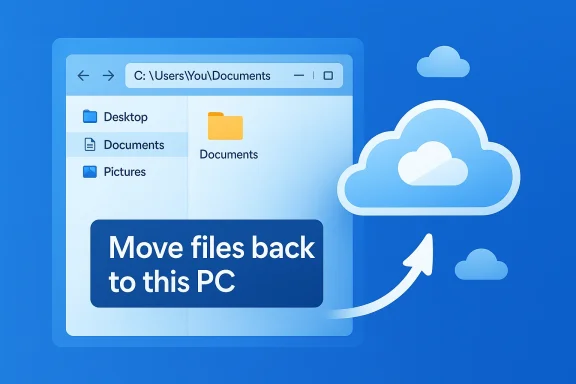
Recently several outlets and community testers noticed an improvement in the stop backup experience: when you turn off Folder Backup, the OneDrive client in some Windows 11 builds now offers an explicit choice to move the backed‑up files back into the local known‑folder location rather than leaving them in OneDrive and simply returning the OS pointer to the local path. This eliminates a manual copy step that used to be required in many builds. The change is incremental but material: it reduces confusion and the risk of leaving files stranded in the cloud when users expect them to be local. At the same time, the larger behavioral problem remains: on many Windows 11 installs, particularly when you sign in with a Microsoft account during the Out‑of‑Box Experience (OOBE) or add an account while online, Windows strongly nudges — and in some configurations silently enables — folder backup. The prompt language can be small, the “Only save files to this PC” choice can be hard to find, and users who decline an initial prompt have reported follow‑ups that still result in folders being redirected. Those community reports are well documented in forums and long‑running threads.Why this matters (and who it affects)
- Non-technical users benefit from KFM’s protection: lost or corrupted devices can be recovered more easily when the important folders are already in the cloud.
- Power users and IT pros are hit by lost local control: local scripts, backups, indexing tools, and policy assumptions that expect files to be under C:\Users\<you>\ now have to account for redirected paths.
- Users on limited storage (free OneDrive accounts) risk quota exhaustion: the free tier for Microsoft accounts is 5 GB while Microsoft 365 subscribers typically get 1 TB; redirecting a large Documents or Pictures library into a free account can quickly produce sync errors and surprises. Microsoft’s plan pages and support docs make these quotas explicit.
- Enterprise admins can and do control the behavior with Group Policy / Intune, but the existence of per‑device default prompts and the option to silently move folders (a policy that can perform the redirect without user interaction) means wide, staged rollouts are required to avoid massive background uploads. Microsoft’s OneDrive/SharePoint guidance documents the available policies, including options to prompt users, silently move folders, and prevent users from turning off KFM.
The technical mechanics you need to know
- When KFM is enabled, Windows changes the known folder pointers so that the system and apps still “see” Documents, Desktop, and Pictures at their usual logical locations, but the actual folder lives under OneDrive.
- Files may be uploaded and represented via Files On‑Demand placeholders (online‑only), fully cached locally, or kept as "always available" depending on your OneDrive settings.
- If you “Stop backup” in older OneDrive clients, the client typically returned the known‑folder pointer to the local path but left the existing data inside OneDrive; users then had to manually copy items back from C:\Users\<you>\OneDrive\Documents to C:\Users\<you>\Documents if they wanted local residency. Microsoft support pages explicitly describe this behavior.
How to detect, undo, and reclaim your folders (practical steps)
The following is a practical sequence tested by community guides and Microsoft’s published steps. Use it carefully — verify files before deleting duplicates.- Open OneDrive settings:
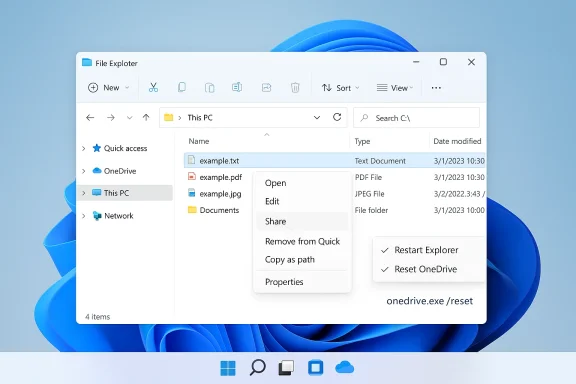
- Click the OneDrive cloud icon in the taskbar, then Help & Settings → Settings → Backup → Manage backup. (Alternate path in some Windows 11 builds: Settings → Accounts → Windows Backup → Manage sync settings.
- Stop backup for each folder:
- For Documents, Pictures, Desktop, click the appropriate toggle and choose Stop backup.
- In builds that support the new option, choose Stop backup and move files back to this PC or the variant that reads Only on my PC to request an automatic move. If that option isn’t present, the client will often return the known‑folder pointer to the local path but leave files in OneDrive.
- Confirm local folder contents:
- Open a File Explorer window, type %userprofile% and open the local Documents / Pictures / Desktop folders to see whether the files are present after stopping backup.
- If files remain in OneDrive:
- Open %userprofile%\OneDrive and the relevant OneDrive\Documents (etc.) folder. Copy or move the needed files back into C:\Users\<you>\Documents in batches.
- Verify integrity before cleanup:
- Open representative files locally to confirm they are intact and metadata preserved before deleting duplicates in OneDrive or emptying the OneDrive recycle bin.
- If you want to stop OneDrive permanently:
- After ensuring files are local, unlink the PC (OneDrive Settings → Account → Unlink this PC). To uninstall OneDrive, use Settings → Apps → Installed apps. Follow the sequence stop backups → move files → unlink → uninstall to avoid orphaned folder pointers.
Strengths of the change — a measured win
- Reduced friction for reclaiming local files. The new “move back” option addresses the worst‑facing UX gap: previously, turning off backup left users to guess at manual copy steps and risk accidental deletions.
- Lower risk of accidental data loss during undoes. Automating the move back step reduces the chance users will delete cloud copies prematurely or fail to rehydrate local backups.
- Practical for reviewers and journalists. For people who test many devices, the move‑back option reduces time spent manually restoring local folder structures during reviews and troubleshooting. Community posts note the new flow is a welcome improvement for those who repeatedly install and reset machines.
Remaining risks, downsides, and unaddressed problems
- Aggressive defaults remain. The fact that OOBE and account sign‑in flows can enable folder backup by default — and that the “Only save files to this PC” option can be buried or omitted in some setups — is the core complaint. Multiple reports describe declining prompts only to later find folders redirected; those reports are largely anecdotal but widespread in forums and coverage. That pattern underpins the criticism that the product nudges users into cloud storage rather than clearly asking for consent. Treat those “auto‑enable after decline” claims as user‑reported and anecdotal; they match many community reports but are not a single documented Microsoft promise.
- Inconsistent rollout of the undo UX. The move‑back choice is available only in certain OneDrive/Windows builds and client versions right now. That patchy availability means some users still face the old manual copy behavior. Microsoft’s documentation and support articles still describe the older behavior as the canonical flow.
- Quota and subscription friction. Redirecting large folders into a free 5 GB account causes sync failures and confusing quota errors; Microsoft’s storage FAQ and plan descriptions make those liwho enable KFM without verifying available cloud storage can quickly run into problems.
- Privacy and compliance concerns. For users with sensitive data, compliance rules, or corporate tenancy issues, a redirect to an unexpectedly configured OneDrive account (or to a different tenant) can create serious risks. Microsoft’s Learn pages document enterprise policy options for KFM, but the end‑user experience on consumer devices still lacks transparent warnings about tenant/account mismatches and cross‑account migration hazards.
- Performance and bandwidth effects. Initial KFM uploads can saturate networks or slow machines during the first sync; Microsoft and community diagnostic guides recommend pausing sync as part of troubleshooting. That guidance confirms background sync can materially impact performance for some device classes.
Policy and administrative controls (what IT should know)
Microsoft exposes control over KFM through Group Policy and Intune settings, with several relevant options documented in the OneDrive and SharePoint guidance:- Prompt users to move Windows known folders to OneDrive. Shows the user prompt but limits how frequently it appears for a rollout.
- Silently move Windows known folders to OneDrive. Redirects folders without user interaction (used typically in managed deployments).
- Prevent users from turning off Known Folder Move. Enforces KFM so users cannot undo the redirect.
Recommendations: what users and admins should do now
- For home users who want true local control:
- Use a local account during OOBE and create a Microsoft account only after you confirm OneDrive settings.
- If OneDrive is already enabled, stop backup first, then use the move‑back option if available; otherwise, manually copy files back and validate them.
- Check your OneDrive quota before enabling KFM. Upgrade or clean cloud storage if required.
- For reviewers, IT pros, and power users:
- Build a small script or checklist for re‑establishing local folder locations after a reset.
- Use imaging or provisioning tools that create a local account and disable OneDrive during initial setup to avoid surprise redirects.
- When testing devices, document which Windows build and OneDrive client version exhibit the new move‑back UX — the behavior is build‑dependent.
- For enterprise admins:
- Use the OneDrive KFM policies to either prompt or silently redirect on your terms; follow Microsoft’s rollout throttling guidance to avoid tenant overload.
- Communicate to users clearly about where files will live after KFM and provide step‑by‑step undo documentation as part of the change control process.
The larger picture: cloud‑first operating systems and the tradeoffs
The OneDrive KFM saga is emblematic of a broader shift: operating systems are becoming cloud‑first platforms rather than strictly local environments. That shift brings real benefits — built‑in disaster recovery, cross‑device continuity, and richer cloud services — but also real tradeoffs for local control, privacy, bandwidth, and predictable file paths that many tools still rely on.The recent move‑back UX is a positive micro‑change — it acknowledges that users will change their minds and that switching back should be safe and straightforward. But UX improvements do not absolve product teams from the responsibility to make onboarding explicit and reversible by default. In short: a better undo is welcome, but it’s not a substitute for better initial consent and clearer defaults.
Caveats and unverifiable claims
- Reports that Windows “silently enables Folder Backup after users decline multiple times” are widespread in community forums and first‑hand accounts, and they formed the basis of much public criticism. These reports are consistent across many threads and articles, but the exact conditions that trigger a silent enablement (specific build numbers, edition differences, OOBE flows, or tenant policies) vary; treat general assertions about universal silent enabling as user‑reported phenomena rather than a single documented Microsoft policy. Microsoft documents both user‑prompt and silent policy modes for administrators, which helps explain why behavior can differ by environment.
Final analysis and takeaway
OneDrive’s incremental UX change — the option to move files back to local folders when stopping Folder Backup — is an important, pragmatic fix that reduces the friction and risk of reclaiming local control. It addresses one of the most user‑visible pain points in the Known Folder Move story. That improvement demonstrates Microsoft is listening to real user pain.However, the deeper issue remains: cloud‑first defaults and uneven onboarding language still create confusion and occasional surprises for users who expect local storage to remain local. The product should offer clearer consent during setup, consistent undo behavior across builds, and more discoverable settings for users who prefer local storage. Until those things are fixed, the new move‑back option is a welcome bandage — not a cure.
For people who value local control and predictable file paths, the practical path remains the same: use local accounts during setup, confirm OneDrive settings before enabling KFM, verify cloud quotas, and — when necessary — use the new undo flow or manual copy steps to restore files to the local profile. The ecosystem is better with the move‑back option in place, but users and administrators should still plan and act defensively.
Conclusion: the thaw is real, but incremental — OneDrive now offers a saner undo when Folder Backup is turned off, which reduces risk and confusion; yet the broader cloud‑first defaults and inconsistent rollout still demand vigilance from users and admins who prefer local-first systems.
Source: Thurrott.com Hell Freezes Over, If Only Slightly


 LatestLY