

Microsoft is not removing the Windows Control Panel in 2026; it is simultaneously modernizing some legacy Windows surfaces while continuing to move everyday configuration tasks into the Windows 11 Settings app. That distinction matters, because the “Control Panel is dead” story has always been too simple. What Microsoft is really building is a smaller, less visible, more specialized Control Panel — one that survives because Windows still has to carry decades of hardware, drivers, management tools, and enterprise assumptions. The old Windows is not being buried in one dramatic release; it is being fenced off, repainted, and gradually made less necessary.
The Control Panel has become the perfect symbol of Windows 11’s central contradiction. Microsoft sells the operating system as modern, calm, rounded, coherent, and touch-friendly. Then a user clicks three layers deep into a printer property, network adapter, sound device, or recovery setting and lands in a dialog that appears to have escaped from another century.
That mismatch has encouraged a familiar conclusion: Microsoft must be slowly killing the Control Panel. In one sense, that is true. The company has spent years moving consumer-facing settings into the modern Settings app, and Windows 11 is more aggressive than Windows 10 about pushing users there.
But “killing” is the wrong verb if it implies a clean execution date. What Microsoft appears to be doing is more bureaucratic and more Windows-like: it is reducing the Control Panel’s territory while modernizing some of the territory that remains.
That means two things can be true at the same time. The Control Panel can be shrinking as a mainstream destination, and Microsoft can still be investing in modernizing legacy UI. Those are not contradictions. They are the strategy.
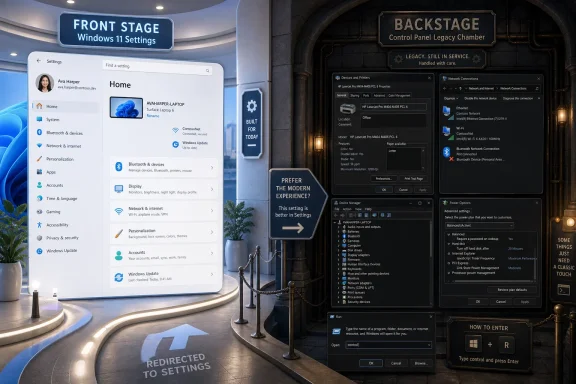
The old assumption was that Microsoft would eventually move every remaining applet into Settings and then delete Control Panel. The more realistic future is messier. Settings becomes the front door for ordinary users, while Control Panel and its surrounding constellation of Win32 tools become a narrower backstage area for administrators, technicians, developers, and edge cases that Microsoft cannot casually break.
That is not an accident. Settings exists because Control Panel was never designed for the modern Windows audience Microsoft now has to serve. The classic Control Panel is dense, inconsistent, and full of overlapping entry points. It was built for a world where configuration was a collection of applets, not a single navigable product surface.
Settings, by contrast, is designed as a consumer operating-system interface. It has search, categories, breadcrumbs, modern typography, adaptive layouts, and a visual language that matches the rest of Windows 11. It also gives Microsoft a cleaner place to integrate cloud accounts, subscription services, security nudges, OneDrive prompts, device health messages, and increasingly AI-adjacent features.
That last point is not incidental. Settings is not just a replacement for Control Panel; it is a product surface. It is where Microsoft can explain, promote, warn, recommend, and steer. Control Panel was a utility shed. Settings is a dashboard.
This is why everyday features keep migrating. Microsoft does not want ordinary users learning the difference between “Devices and Printers,” “Printers & scanners,” print server properties, device properties, and vendor driver panels. It wants them to add a printer, set a default, clear a queue, and move on. The same pattern applies to sound, accounts, display, storage, and recovery.
For mainstream Windows, the question is no longer whether Settings replaces Control Panel. It already has, in daily practice. The harder question is what happens to everything Settings cannot safely absorb.
Windows is not macOS, iOS, ChromeOS, or a Linux distribution with a narrower set of supported commercial expectations. Windows is the general-purpose platform that still has to run accounting software written for an older framework, connect to obscure industrial equipment, manage fleet printers, honor enterprise Group Policy assumptions, support decades of driver models, and keep a shocking number of specialized workflows intact.
That promise is Windows’ advantage. It is also Windows’ burden.
A home user may never touch ODBC Data Source Administrator, advanced BitLocker management, legacy sound routing, restore point configuration, certificate stores, advanced network adapter properties, or old printer driver dialogs. An IT department, however, may rely on them. A developer may need them. A support technician may know exactly which legacy dialog exposes the one setting that fixes a broken deployment.
This is where the phrase “just move it to Settings” collapses under its own simplicity. Moving a visible toggle is easy. Recreating every dependency, extension point, administrative path, driver hook, shell integration, and policy implication behind that toggle is not.
Printers are the canonical Windows example because printing is less a feature than an ecosystem. There are class drivers, vendor drivers, print queues, shared printers, corporate print servers, device-specific capabilities, old management dialogs, deployment scripts, and users who only discover the complexity when something jams before a board meeting. A simplified Settings page can cover the happy path, but Windows still needs deeper machinery for the unhappy one.
The same is true of networking. Settings can handle Wi-Fi passwords and basic VPN connections. But once static IP assignments, adapter bindings, DNS tweaks, old VPN profiles, Hyper-V virtual adapters, and enterprise troubleshooting enter the room, the older tools remain stubbornly useful.
Microsoft cannot pretend those users do not exist. More importantly, it cannot break them without damaging the main reason many organizations still standardize on Windows.
That is a different project. It does not mean every old dialog is being replaced. It means Microsoft is trying to make the remaining old dialogs less jarring, especially in dark mode and in areas where Win32-era UI still clashes with Windows 11’s design system.
The Run dialog is the best example because it is small, ancient, and culturally loaded. It is not a glamorous app. It is a box power users summon with Win+R, type into, and dismiss. Yet its modernization matters because it reveals Microsoft’s broader approach: start with contained legacy surfaces, rebuild or theme them with newer UI technology, and avoid breaking the muscle memory that makes them useful.
A modernized Run dialog built with WinUI 3 is not about transforming Windows into a new OS overnight. It is about proving that Microsoft can take an old, familiar surface and make it feel native to Windows 11 without turning it into a slow, overdesigned mess. The company’s challenge is not merely aesthetic. It has to preserve speed, keyboard behavior, accessibility, reliability, and decades of user expectation.
Dark mode exposes the same tension. Windows 11 has long had a “dark mode” that collapses the moment a legacy dialog flashes white on screen. Users notice because it makes the system feel unfinished. It is not enough for Settings, Start, File Explorer, and modern apps to look coherent if the moment you open a properties dialog the illusion breaks.
So Microsoft’s legacy UI work is a kind of visual treaty with the past. It does not deny that old Windows exists. It tries to make old Windows less embarrassing when it surfaces.
Migration means moving a capability out of Control Panel and into Settings. When that happens, the old entry point may disappear, redirect, or become less important. The user sees fewer reasons to open Control Panel.
Modernization means updating a legacy surface so it better fits Windows 11. That may involve dark mode, new controls, improved typography, WinUI 3, or a more coherent layout. The user still encounters a legacy function, but it no longer looks quite so stranded.
Those tracks can run at the same time because they serve different goals. Migration reduces reliance on Control Panel. Modernization reduces the visual penalty of the reliance that remains.
This is why the Control Panel can be “going away” in consumer terms while still receiving attention in engineering terms. Microsoft can remove common use cases from it and still improve the experience for the uncommon use cases that remain. A smaller Control Panel is not necessarily an abandoned Control Panel.
The danger for users and administrators is assuming every visual refresh means a reprieve, or every migration means imminent deletion. Microsoft is doing neither cleanly. It is pruning and repainting.
That ambiguity is classic Windows. The platform rarely moves by guillotine when compatibility is involved. It moves by redirection, duplication, deprecation language, partial replacement, and long transitional periods in which two ways of doing the same thing coexist until one becomes obscure enough to forget.
That shift changes its identity. For years, Control Panel was the central configuration hub of Windows. Then Settings arrived and created a split-brain experience. Now the split is becoming more deliberate: Settings for ordinary configuration, legacy tools for specialized control.
This is not necessarily bad. In fact, it may be the least bad outcome.
The worst version of the transition would be a Settings app that replaces deep tools with shallow imitations. Windows users have seen this pattern before: a modern page that looks clean but exposes only half the options, with a “related settings” link that dumps the user back into a legacy dialog. That is not modernization. That is fragmentation with rounded corners.
If Microsoft is honest about the divide, it can do better. Settings can serve as the safe, searchable, coherent front end. Advanced tools can remain available for those who need precision. The trick is making the handoff intentional rather than accidental.
Power users do not object to modern UI because it is modern. They object when modern UI hides information, removes affordances, slows common workflows, or assumes the user should not be trusted with the machine. The Control Panel’s survival is partly a referendum on that trust.
A Windows administrator troubleshooting a network adapter does not want a friendly illustration and a recommended action. They want properties, bindings, addresses, drivers, logs, and a path to the thing that actually broke. If Settings cannot provide that depth, the older tool remains necessary.
But the deeper problem is architectural. Windows contains UI built across multiple eras, frameworks, and assumptions. Win32, MMC, old shell components, newer XAML surfaces, Settings pages, inbox apps, web-backed experiences, and vendor extensions all coexist. A consistent design language is hard when the operating system is less a monolith than an archaeological site.
This is why Microsoft’s tooling work matters. If the company can create repeatable internal methods for adding dark mode, updating controls, or wrapping legacy behavior in modern surfaces, the pace of cleanup can improve. If every dialog requires bespoke surgery, Windows 11 will continue to modernize one small corner at a time while the rest of the house stays yellowed.
There is also a performance trap. Windows users are quick to punish modern surfaces that feel slower than the old ones. A redesigned Run dialog, for example, cannot simply look better. It has to appear instantly, accept input immediately, and preserve keyboard-first behavior. If it misses those marks, users will interpret the redesign as bloat.
That is the credibility problem Microsoft faces. It must prove that modern Windows UI can be not only prettier but as fast and controllable as the old interfaces it replaces. Otherwise, every modernization effort will be treated with suspicion before users even test it.
The company’s recent emphasis on fundamentals suggests it understands this. Windows 11’s reputation has suffered when modern surfaces appeared unfinished, inconsistent, or less capable than what they replaced. The Control Panel transition will succeed only if Microsoft stops treating visual coherence and functional depth as opposing values.
When a user enables dark mode, they expect the system to honor that choice. In Windows 11, that expectation has often been only partly met. Modern surfaces comply; old dialogs frequently do not. The result is not just aesthetic inconsistency but a sense that Windows is pretending to be more modern than it is.
That matters because coherence is a form of confidence. Users are more likely to trust an operating system that behaves like one product. When every third settings path looks different, Windows feels less engineered than accumulated.
Microsoft’s dark mode work on legacy surfaces is therefore more than a paint job. It is an attempt to reduce the number of moments when the OS breaks character. The fewer visual time-warps users encounter, the less Control Panel feels like an abandoned basement.
Still, dark mode cannot be the end state. A dark legacy dialog is still a legacy dialog. It may be more comfortable to look at, but it does not automatically become easier to understand, more accessible, or better integrated with Settings search. Cosmetic modernization buys time. It does not finish the migration.
That distinction is important. Microsoft can make the old Windows less old-looking, but it still has to decide which old workflows deserve first-class modern equivalents and which should remain specialist tools.
For administrators, the question is not whether a dialog looks like Windows 7. It is whether a known workflow still works after an update. It is whether documentation remains valid, whether scripts and policies behave as expected, whether help desk staff can walk users through a fix, and whether a modern replacement exposes enough control to solve real incidents.
That is why Microsoft’s slow pace is frustrating but rational. Enterprises dislike stagnation, but they hate surprise breakage more. A clumsy migration of printer management, BitLocker recovery options, network configuration, or restore tooling would create more anger than another year of visual inconsistency.
The Settings app also changes support dynamics. It is easier to guide a novice through Settings than through Control Panel. It is harder, however, when the modern path covers only the basics and the actual fix still requires a legacy applet. This creates a two-layer support model: simple issues become easier, complex issues may become harder to explain because the route to the advanced tool is less obvious.
Microsoft’s challenge is to make that layering explicit. If an advanced option remains in a legacy tool, Settings should route to it clearly and honestly. Nothing irritates IT pros faster than a modern page that hides the real controls behind vague links, redirects, or search results that do not find the thing by its historic name.
The best version of the future is not one where Control Panel vanishes overnight. It is one where users who do not need it never see it, and users who do need it can still reach it without spelunking.
As common settings leave, what remains will be the difficult stuff: legacy device configuration, administrative tools, specialized applets, compatibility paths, and corners of the OS too entangled to migrate quickly. The Control Panel of the future may be less crowded, but also more concentrated with complexity.
That creates an odd perception problem. Users who open Control Panel in 2026 or beyond may increasingly encounter only the most technical parts of Windows. That could make it seem even more archaic, because all the friendly, common tasks have departed for Settings. The remaining experience becomes a museum of hard cases.
Microsoft can mitigate this by modernizing the surfaces that remain, but it cannot make every advanced workflow consumer-friendly without reducing its power. Some tools are complex because the jobs they do are complex. The correct design goal is not to sand off every edge. It is to make the hierarchy understandable and the escape hatches reliable.
This is where Windows differs from platforms that are more willing to remove legacy affordances. Apple can make cleaner breaks because it controls more of the stack and is more comfortable forcing transitions. Microsoft has historically made a different bargain: carry more forward, tolerate more mess, keep more old things working.
Windows users complain about that bargain, often fairly. They also benefit from it. The same compatibility debt that keeps old dialogs alive is the debt that lets an organization run critical software long after a cleaner platform would have cut it loose.
The Control Panel is moving from center stage to backstage. It will still be there for the people who know the door code, but the audience will increasingly see the Settings app.
Microsoft’s most believable path is not a future where Windows has no legacy corners, because that version of Windows would break too much of what makes Windows valuable. The more likely future is one where ordinary users live almost entirely in Settings, while administrators and power users continue to find older machinery behind cleaner doors. If Microsoft can make that machinery look coherent without making it weaker, the Control Panel may finally stop being a symbol of Windows’ failure to modernize and become something more useful: the part of Windows that stayed old enough to keep the new Windows from breaking.
 Microsoft’s Real Plan Is Not Demolition, but Containment
The Control Panel has become the perfect symbol of Windows 11’s central contradiction. Microsoft sells the operating system as modern, calm, rounded, coherent, and touch-friendly. Then a user clicks three layers deep into a printer property, network adapter, sound device, or recovery setting and lands in a dialog that appears to have escaped from another century.That mismatch has encouraged a familiar conclusion: Microsoft must be slowly killing the Control Panel. In one sense, that is true. The company has spent years moving consumer-facing settings into the modern Settings app, and Windows 11 is more aggressive than Windows 10 about pushing users there.
But “killing” is the wrong verb if it implies a clean execution date. What Microsoft appears to be doing is more bureaucratic and more Windows-like: it is reducing the Control Panel’s territory while modernizing some of the territory that remains.
That means two things can be true at the same time. The Control Panel can be shrinking as a mainstream destination, and Microsoft can still be investing in modernizing legacy UI. Those are not contradictions. They are the strategy.
The old assumption was that Microsoft would eventually move every remaining applet into Settings and then delete Control Panel. The more realistic future is messier. Settings becomes the front door for ordinary users, while Control Panel and its surrounding constellation of Win32 tools become a narrower backstage area for administrators, technicians, developers, and edge cases that Microsoft cannot casually break.
The Settings App Won the Consumer War Years Ago
For most Windows 11 users, the Settings app has already won. Display scaling, Bluetooth pairing, Windows Update, personalization, app permissions, storage cleanup, accounts, accessibility, and basic networking all live comfortably enough in Settings. A user buying a new laptop in 2026 can plausibly spend months without opening Control Panel at all.That is not an accident. Settings exists because Control Panel was never designed for the modern Windows audience Microsoft now has to serve. The classic Control Panel is dense, inconsistent, and full of overlapping entry points. It was built for a world where configuration was a collection of applets, not a single navigable product surface.
Settings, by contrast, is designed as a consumer operating-system interface. It has search, categories, breadcrumbs, modern typography, adaptive layouts, and a visual language that matches the rest of Windows 11. It also gives Microsoft a cleaner place to integrate cloud accounts, subscription services, security nudges, OneDrive prompts, device health messages, and increasingly AI-adjacent features.
That last point is not incidental. Settings is not just a replacement for Control Panel; it is a product surface. It is where Microsoft can explain, promote, warn, recommend, and steer. Control Panel was a utility shed. Settings is a dashboard.
This is why everyday features keep migrating. Microsoft does not want ordinary users learning the difference between “Devices and Printers,” “Printers & scanners,” print server properties, device properties, and vendor driver panels. It wants them to add a printer, set a default, clear a queue, and move on. The same pattern applies to sound, accounts, display, storage, and recovery.
For mainstream Windows, the question is no longer whether Settings replaces Control Panel. It already has, in daily practice. The harder question is what happens to everything Settings cannot safely absorb.
The Control Panel Survives Because Windows Still Has to Be Windows
The reason Control Panel refuses to disappear is not nostalgia. It is compatibility.Windows is not macOS, iOS, ChromeOS, or a Linux distribution with a narrower set of supported commercial expectations. Windows is the general-purpose platform that still has to run accounting software written for an older framework, connect to obscure industrial equipment, manage fleet printers, honor enterprise Group Policy assumptions, support decades of driver models, and keep a shocking number of specialized workflows intact.
That promise is Windows’ advantage. It is also Windows’ burden.
A home user may never touch ODBC Data Source Administrator, advanced BitLocker management, legacy sound routing, restore point configuration, certificate stores, advanced network adapter properties, or old printer driver dialogs. An IT department, however, may rely on them. A developer may need them. A support technician may know exactly which legacy dialog exposes the one setting that fixes a broken deployment.
This is where the phrase “just move it to Settings” collapses under its own simplicity. Moving a visible toggle is easy. Recreating every dependency, extension point, administrative path, driver hook, shell integration, and policy implication behind that toggle is not.
Printers are the canonical Windows example because printing is less a feature than an ecosystem. There are class drivers, vendor drivers, print queues, shared printers, corporate print servers, device-specific capabilities, old management dialogs, deployment scripts, and users who only discover the complexity when something jams before a board meeting. A simplified Settings page can cover the happy path, but Windows still needs deeper machinery for the unhappy one.
The same is true of networking. Settings can handle Wi-Fi passwords and basic VPN connections. But once static IP assignments, adapter bindings, DNS tweaks, old VPN profiles, Hyper-V virtual adapters, and enterprise troubleshooting enter the room, the older tools remain stubbornly useful.
Microsoft cannot pretend those users do not exist. More importantly, it cannot break them without damaging the main reason many organizations still standardize on Windows.
Modernization Is a Visual Treaty With the Past
The more interesting development is not that Settings keeps absorbing features. That has been happening for years. The interesting part is that Microsoft is also putting effort into making legacy surfaces look less alien inside Windows 11.That is a different project. It does not mean every old dialog is being replaced. It means Microsoft is trying to make the remaining old dialogs less jarring, especially in dark mode and in areas where Win32-era UI still clashes with Windows 11’s design system.
The Run dialog is the best example because it is small, ancient, and culturally loaded. It is not a glamorous app. It is a box power users summon with Win+R, type into, and dismiss. Yet its modernization matters because it reveals Microsoft’s broader approach: start with contained legacy surfaces, rebuild or theme them with newer UI technology, and avoid breaking the muscle memory that makes them useful.
A modernized Run dialog built with WinUI 3 is not about transforming Windows into a new OS overnight. It is about proving that Microsoft can take an old, familiar surface and make it feel native to Windows 11 without turning it into a slow, overdesigned mess. The company’s challenge is not merely aesthetic. It has to preserve speed, keyboard behavior, accessibility, reliability, and decades of user expectation.
Dark mode exposes the same tension. Windows 11 has long had a “dark mode” that collapses the moment a legacy dialog flashes white on screen. Users notice because it makes the system feel unfinished. It is not enough for Settings, Start, File Explorer, and modern apps to look coherent if the moment you open a properties dialog the illusion breaks.
So Microsoft’s legacy UI work is a kind of visual treaty with the past. It does not deny that old Windows exists. It tries to make old Windows less embarrassing when it surfaces.
The Two Tracks Are Easy to Confuse and Dangerous to Misread
The confusion around Control Panel comes from treating migration and modernization as the same process. They are not.Migration means moving a capability out of Control Panel and into Settings. When that happens, the old entry point may disappear, redirect, or become less important. The user sees fewer reasons to open Control Panel.
Modernization means updating a legacy surface so it better fits Windows 11. That may involve dark mode, new controls, improved typography, WinUI 3, or a more coherent layout. The user still encounters a legacy function, but it no longer looks quite so stranded.
Those tracks can run at the same time because they serve different goals. Migration reduces reliance on Control Panel. Modernization reduces the visual penalty of the reliance that remains.
This is why the Control Panel can be “going away” in consumer terms while still receiving attention in engineering terms. Microsoft can remove common use cases from it and still improve the experience for the uncommon use cases that remain. A smaller Control Panel is not necessarily an abandoned Control Panel.
The danger for users and administrators is assuming every visual refresh means a reprieve, or every migration means imminent deletion. Microsoft is doing neither cleanly. It is pruning and repainting.
That ambiguity is classic Windows. The platform rarely moves by guillotine when compatibility is involved. It moves by redirection, duplication, deprecation language, partial replacement, and long transitional periods in which two ways of doing the same thing coexist until one becomes obscure enough to forget.
Power Users Are Becoming the Control Panel’s Natural Constituency
The Control Panel is no longer the place Microsoft wants average users to explore. It is becoming the place people go when they already know what they are looking for.That shift changes its identity. For years, Control Panel was the central configuration hub of Windows. Then Settings arrived and created a split-brain experience. Now the split is becoming more deliberate: Settings for ordinary configuration, legacy tools for specialized control.
This is not necessarily bad. In fact, it may be the least bad outcome.
The worst version of the transition would be a Settings app that replaces deep tools with shallow imitations. Windows users have seen this pattern before: a modern page that looks clean but exposes only half the options, with a “related settings” link that dumps the user back into a legacy dialog. That is not modernization. That is fragmentation with rounded corners.
If Microsoft is honest about the divide, it can do better. Settings can serve as the safe, searchable, coherent front end. Advanced tools can remain available for those who need precision. The trick is making the handoff intentional rather than accidental.
Power users do not object to modern UI because it is modern. They object when modern UI hides information, removes affordances, slows common workflows, or assumes the user should not be trusted with the machine. The Control Panel’s survival is partly a referendum on that trust.
A Windows administrator troubleshooting a network adapter does not want a friendly illustration and a recommended action. They want properties, bindings, addresses, drivers, logs, and a path to the thing that actually broke. If Settings cannot provide that depth, the older tool remains necessary.
Microsoft’s Design Problem Is Really an Architecture Problem
It is tempting to reduce the Control Panel saga to taste. Some users prefer the old density. Others prefer the new clarity. Some hate Windows 11’s softened aesthetic. Others think the classic panels look absurd on a modern display.But the deeper problem is architectural. Windows contains UI built across multiple eras, frameworks, and assumptions. Win32, MMC, old shell components, newer XAML surfaces, Settings pages, inbox apps, web-backed experiences, and vendor extensions all coexist. A consistent design language is hard when the operating system is less a monolith than an archaeological site.
This is why Microsoft’s tooling work matters. If the company can create repeatable internal methods for adding dark mode, updating controls, or wrapping legacy behavior in modern surfaces, the pace of cleanup can improve. If every dialog requires bespoke surgery, Windows 11 will continue to modernize one small corner at a time while the rest of the house stays yellowed.
There is also a performance trap. Windows users are quick to punish modern surfaces that feel slower than the old ones. A redesigned Run dialog, for example, cannot simply look better. It has to appear instantly, accept input immediately, and preserve keyboard-first behavior. If it misses those marks, users will interpret the redesign as bloat.
That is the credibility problem Microsoft faces. It must prove that modern Windows UI can be not only prettier but as fast and controllable as the old interfaces it replaces. Otherwise, every modernization effort will be treated with suspicion before users even test it.
The company’s recent emphasis on fundamentals suggests it understands this. Windows 11’s reputation has suffered when modern surfaces appeared unfinished, inconsistent, or less capable than what they replaced. The Control Panel transition will succeed only if Microsoft stops treating visual coherence and functional depth as opposing values.
Dark Mode Became the Canary in the Legacy Mine
Dark mode is a surprisingly useful lens for understanding the whole problem. It is easy to dismiss as cosmetic, but in Windows it reveals which parts of the OS belong to the present and which are still wired to the past.When a user enables dark mode, they expect the system to honor that choice. In Windows 11, that expectation has often been only partly met. Modern surfaces comply; old dialogs frequently do not. The result is not just aesthetic inconsistency but a sense that Windows is pretending to be more modern than it is.
That matters because coherence is a form of confidence. Users are more likely to trust an operating system that behaves like one product. When every third settings path looks different, Windows feels less engineered than accumulated.
Microsoft’s dark mode work on legacy surfaces is therefore more than a paint job. It is an attempt to reduce the number of moments when the OS breaks character. The fewer visual time-warps users encounter, the less Control Panel feels like an abandoned basement.
Still, dark mode cannot be the end state. A dark legacy dialog is still a legacy dialog. It may be more comfortable to look at, but it does not automatically become easier to understand, more accessible, or better integrated with Settings search. Cosmetic modernization buys time. It does not finish the migration.
That distinction is important. Microsoft can make the old Windows less old-looking, but it still has to decide which old workflows deserve first-class modern equivalents and which should remain specialist tools.
Enterprises Will Judge the Transition by What Breaks
Consumer commentary often treats the Control Panel as an aesthetic embarrassment. Enterprise IT sees something different: risk.For administrators, the question is not whether a dialog looks like Windows 7. It is whether a known workflow still works after an update. It is whether documentation remains valid, whether scripts and policies behave as expected, whether help desk staff can walk users through a fix, and whether a modern replacement exposes enough control to solve real incidents.
That is why Microsoft’s slow pace is frustrating but rational. Enterprises dislike stagnation, but they hate surprise breakage more. A clumsy migration of printer management, BitLocker recovery options, network configuration, or restore tooling would create more anger than another year of visual inconsistency.
The Settings app also changes support dynamics. It is easier to guide a novice through Settings than through Control Panel. It is harder, however, when the modern path covers only the basics and the actual fix still requires a legacy applet. This creates a two-layer support model: simple issues become easier, complex issues may become harder to explain because the route to the advanced tool is less obvious.
Microsoft’s challenge is to make that layering explicit. If an advanced option remains in a legacy tool, Settings should route to it clearly and honestly. Nothing irritates IT pros faster than a modern page that hides the real controls behind vague links, redirects, or search results that do not find the thing by its historic name.
The best version of the future is not one where Control Panel vanishes overnight. It is one where users who do not need it never see it, and users who do need it can still reach it without spelunking.
The Control Panel Is Becoming Smaller, Not Simpler
A smaller Control Panel does not automatically mean a simpler Windows. In some ways, it may mean the opposite.As common settings leave, what remains will be the difficult stuff: legacy device configuration, administrative tools, specialized applets, compatibility paths, and corners of the OS too entangled to migrate quickly. The Control Panel of the future may be less crowded, but also more concentrated with complexity.
That creates an odd perception problem. Users who open Control Panel in 2026 or beyond may increasingly encounter only the most technical parts of Windows. That could make it seem even more archaic, because all the friendly, common tasks have departed for Settings. The remaining experience becomes a museum of hard cases.
Microsoft can mitigate this by modernizing the surfaces that remain, but it cannot make every advanced workflow consumer-friendly without reducing its power. Some tools are complex because the jobs they do are complex. The correct design goal is not to sand off every edge. It is to make the hierarchy understandable and the escape hatches reliable.
This is where Windows differs from platforms that are more willing to remove legacy affordances. Apple can make cleaner breaks because it controls more of the stack and is more comfortable forcing transitions. Microsoft has historically made a different bargain: carry more forward, tolerate more mess, keep more old things working.
Windows users complain about that bargain, often fairly. They also benefit from it. The same compatibility debt that keeps old dialogs alive is the debt that lets an organization run critical software long after a cleaner platform would have cut it loose.
The Future Control Panel Will Be a Backstage Pass
The practical reading for Windows users is straightforward: do not expect Control Panel to disappear soon, but do expect it to matter less in ordinary use. Microsoft’s direction is now clear enough to plan around, even if the end date remains undefined.The Control Panel is moving from center stage to backstage. It will still be there for the people who know the door code, but the audience will increasingly see the Settings app.
- Microsoft is shrinking the Control Panel by moving everyday tasks into Settings, not by deleting every legacy tool at once.
- Microsoft is also modernizing some old Windows surfaces so the remaining legacy UI looks less out of place in Windows 11.
- Printers, drivers, networking, encryption, recovery, and other specialist workflows are the hard cases that keep legacy configuration paths alive.
- Power users and administrators should expect coexistence for years, with Settings acting as the front door and older tools remaining for deeper control.
- The success of the transition will depend less on visual polish than on whether modern replacements preserve the precision, speed, and reliability of the old tools.
Microsoft’s most believable path is not a future where Windows has no legacy corners, because that version of Windows would break too much of what makes Windows valuable. The more likely future is one where ordinary users live almost entirely in Settings, while administrators and power users continue to find older machinery behind cleaner doors. If Microsoft can make that machinery look coherent without making it weaker, the Control Panel may finally stop being a symbol of Windows’ failure to modernize and become something more useful: the part of Windows that stayed old enough to keep the new Windows from breaking.
References
- Primary source: MakeUseOf
Published: 2026-06-01T18:10:07.001397
The Control Panel isn't dying after all — here's what Microsoft is actually doing with it
The power user may finally be getting the GUI control hub they have always wanted. www.makeuseof.com
- Related coverage: windowsforum.com
Windows 11 Modernizing Legacy UI: Dark Mode and WinUI 3 for Control Panel Tools | Windows Forum
Microsoft is finally signaling that the long-running split personality of Windows 11 may not be permanent. According to reporting around Marcus Ash, the...windowsforum.com - Related coverage: windowscentral.com
Microsoft confirms Windows 11 dark mode upgrades are coming | Windows Central
Dark mode is finally coming to more areas of the OS on Windows 11, including legacy interfaces like the File Explorer and more, Microsoft confirms.www.windowscentral.com - Official source: learn.microsoft.com
Support Dark and Light themes in Win32 apps - Windows apps | Microsoft Learn
Learn how to detect system theme changes for dark or light mode.learn.microsoft.com - Related coverage: profesionalreview.com
Microsoft quiere modernizar más elementos heredados de Windows 11, pero el viejo Panel de Control todavía no se va
La compañía traba para modernizar más elementos heredados de Windows 11, un objetivo que afecta a cuadros de diálogo, ventanas y máswww.profesionalreview.com - Related coverage: windowsnews.ai
Windows 11 Control Panel Gets Dark Mode and WinUI 3 Modernization in Latest Update - Windows News
Windows 11 Control Panel tools now feature dark mode and WinUI 3 modernization in latest update, addressing visual inconsistencies while maintaining...windowsnews.ai
- Related coverage: techradar.com
Windows 11's Run prompt is getting a makeover and a handy extra power – but already there are worries Microsoft will ruin it | TechRadar
Hidden change in testing shows Run shouldn't look like it belongs in Windows 95 for much longerwww.techradar.com - Related coverage: electronicsandbooks.com
- Related coverage: tomshardware.com
You can still run the original Nvidia Control Panel by grabbing it from the Microsoft Store today — app remains useful to adjust a handful of RTX Pro and Quadro features, and may be handy for troubleshooting | Tom's Hardware
Is this control panel old yet gold, or did you bid it good riddance?www.tomshardware.com - Related coverage: windowslatest.com
Microsoft explains why it still can’t fully kill Control Panel in Windows 11
Microsoft is phasing out the Control Panel in Windows 11 in favor of the Settings app, but the transition is careful due to old drivers. www.windowslatest.com
- Official source: support.microsoft.com
Deprecation of Microsoft Support Diagnostic Tool (MSDT) and MSDT Troubleshooters | Microsoft Support
Learn more about the deprecation of Microsoft Support Diagnostic Tool (MSDT) and MSDT Troubleshooters.support.microsoft.com - Related coverage: notebookcheck.net
Microsoft moves one step closer to killing the classic Control Panel with new Windows 11 update - Notebookcheck News
Microsoft has moved another batch of Windows 11 settings from the Control Panel to the Settings app. The change is part of the Windows 11 Insider build 22509. Among the settings that have moved, advanced sharing options like public folder sharing are the most prominent. www.notebookcheck.net
- Related coverage: pureinfotech.com
Windows 11's Control Panel isn't going anywhere yet – and Microsoft finally says why - Pureinfotech
The Control Panel isn't gone yet. Windows 11's migration to Settings is slow and careful to avoid breaking decades-old hardware and drivers. pureinfotech.com
- Related coverage: howtogeek.com
Windows 11's Control Panel Won't Let You Uninstall Apps Soon
There's a new Insider build for Windows 11 out and it has a change that many will dislike. www.howtogeek.com
- Related coverage: thewincentral.com
Windows 11 Moves Another Control Panel Feature to Settings
Microsoft is phasing out the classic Control Panel as user account rename and other features move to the Settings app in Windows 11. thewincentral.com
- Related coverage: pcworld.com
Windows is finally ditching Control Panel (maybe) | PCWorld
...but we've heard that before. Who knows if it'll stick this time? And if it does, how soon until it actually happens?www.pcworld.com
