

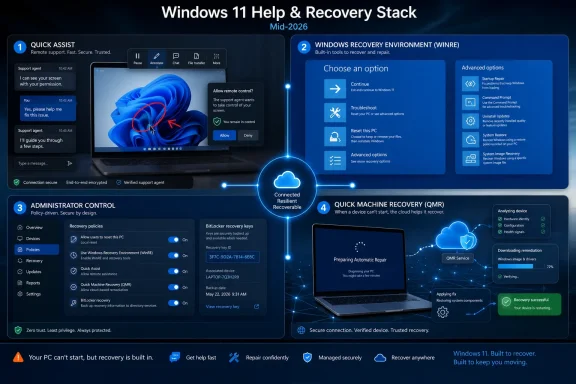
Windows 11’s help-and-recovery story in mid-2026 is no longer a collection of dusty Control Panel wizards: Microsoft has pushed users toward Quick Assist, Get Help, Settings-based troubleshooters, Windows Recovery Environment, and Quick Machine Recovery as the practical support stack for broken PCs. The shift is bigger than a UI cleanup. It is Microsoft’s bet that Windows support should be more connected, more guided, and more cloud-aware — even when the machine is sick enough that it cannot boot normally. That bet may make recovery faster for ordinary users, but it also gives administrators a new surface to govern and skeptics a fresh reason to ask how much of Windows repair should depend on Microsoft’s online machinery.
The old Windows troubleshooting model was local, fragmented, and strangely reassuring. A printer failed, a network adapter disappeared, Windows Update got stuck, and somewhere in Settings or Control Panel there was a small diagnostic tool that would poke at services, reset a cache, or tell you what it could not fix. It was not glamorous, but it felt like part of the operating system.
The newer Windows 11 model is more ambitious and less self-contained. Microsoft increasingly routes users through Get Help, Quick Assist, cloud-backed support flows, and recovery paths that can phone home for remediation. The operating system is still doing the work, but the center of gravity has moved from “run this local wizard” to “let Windows and Microsoft’s support infrastructure guide you through the problem.”
That is the context behind the otherwise modest-looking Thurrott.com attachment pages published June 25, 2026, around Windows 11 Field Guide material with names like “qa-annotate,” “wre-pitr,” and “other-troubleshooters.” The pages themselves are skeletal, but the labels point at the three pillars of modern Windows recovery: remote help through Quick Assist, reset and repair paths inside Windows Recovery Environment, and the remaining Settings troubleshooters that still exist for day-to-day failures.
This is not just documentation housekeeping. Microsoft is quietly rewriting the social contract of Windows troubleshooting. A PC problem used to be something the user, a local technician, or an admin solved with local tools; now it is increasingly something that begins in Windows, crosses through Microsoft’s cloud, and may end with a remote helper drawing on your screen.
The “qa-annotate” label from Thurrott’s attachment page suggests a focus on one of Quick Assist’s most practical tools: annotation. That feature matters because remote support is often less about taking control than establishing shared context. A helper who can point, circle, mark, and guide can avoid the worst version of remote support, where the user is reduced to reading out filenames and dialog boxes while everyone loses patience.
For families, small offices, and informal support networks, Quick Assist is a gift. It lowers the threshold for competent help. It also keeps users away from the remote-access software jungle, where scam warnings and legitimate tools can look uncomfortably similar to nontechnical eyes.
But that same convenience is exactly why administrators treat Quick Assist cautiously. Microsoft’s own enterprise guidance has long acknowledged that organizations using another remote support platform may choose to disable or remove Quick Assist if it is not part of their support model. The reason is not that Quick Assist is inherently malicious; it is that remote access is too important to leave unmanaged.
That is why the modern Quick Assist experience is as much about trust rituals as technology. Users must know who is helping them. They must understand when control has been granted. They must know that a real support session does not begin because a random pop-up or unsolicited phone call says their computer is infected.
This is where Windows 11’s built-in status can be both a blessing and a liability. A Microsoft-branded tool feels more legitimate than a third-party download, and that is good when the helper is actually legitimate. But legitimacy can also be borrowed in the user’s mind. “Open Quick Assist” sounds official because it is official, even if the person giving the instruction is not.
For IT departments, the answer is policy. Quick Assist should either be part of the support playbook, documented and governed, or it should be removed from the equation. The gray zone is the danger: available enough for users to launch, but not incorporated into training, logging expectations, or help desk procedure.
The “wre-pitr” label appears to reference the “Reset this PC” path inside Windows Recovery Environment. That is one of the most important recovery flows in Windows because it sits between minor troubleshooting and full reinstallation. It promises the thing panicked users most want: a way to make Windows usable again without necessarily losing everything.
In practice, reset is both powerful and misunderstood. The “keep my files” option is not a time machine. It can preserve personal files while removing apps and resetting Windows, but it does not guarantee that every setting, driver, application state, or local customization survives intact. The “remove everything” path is more drastic still, and on business machines it may collide with encryption, provisioning, device management, and data retention requirements.
That is why WinRE remains a professional tool even when wrapped in consumer-friendly language. A home user may see a blue recovery screen with a handful of options. An admin sees a chain of implications: BitLocker recovery keys, OEM recovery partitions, driver availability, offline servicing, domain or Entra join state, and whether the user’s data is actually backed up anywhere sane.
Windows 11’s recovery improvements are meaningful, but they do not repeal the old rule: the backup that matters is the one made before the failure. Cloud sync can help, especially for Desktop, Documents, and Pictures folders routed through OneDrive, but sync is not the same as versioned, tested backup. If a bad deletion, ransomware event, or account problem syncs across devices, convenience can become propagation.
For enthusiasts and IT pros, this is where the conversation gets practical. Keep installation media handy. Know where BitLocker keys are stored. Maintain offline or immutable backups for important data. Test recovery paths on representative hardware before a mass deployment, not after the first executive laptop fails to boot on a Monday morning.
Microsoft can improve the runway, but it cannot land the plane for every environment. Recovery is only as good as the assumptions underneath it.
That is a major architectural statement. Traditional WinRE tools were local because the assumption was local failure. Quick Machine Recovery assumes a different failure class: widespread breakage, known-bad components, and a need for targeted remediation that can arrive after the damage has already happened.
The timing is not accidental. The industry has spent the last two years rethinking resilience after high-profile update failures demonstrated how quickly endpoint monocultures can become operational crises. Microsoft’s Windows Resiliency Initiative is, in part, an attempt to make Windows less brittle when the problem is not one user doing something foolish but an ecosystem-scale event.
This is also where Microsoft’s cloud-first instincts look most defensible. If thousands or millions of machines are failing for the same reason, a connected recovery environment can be better than asking each user to download an ISO, build USB media, follow a script, or wait for IT to visit every desk. The more standardized the failure, the more valuable a centralized fix becomes.
Those caveats matter. A recovery feature that works beautifully for one class of bad update may be useless for failed storage, broken firmware, damaged partitions, misconfigured networks, or environments where outbound connectivity is blocked. Enterprises that rely on proxies, strict egress controls, certificate inspection, or isolated networks cannot assume a cloud recovery path will behave like it does on a home broadband connection.
There is also a governance question. On managed machines, administrators need to know whether Quick Machine Recovery is enabled, what policy controls exist, how diagnostic data is handled, and how the feature interacts with existing endpoint management. A feature intended to reduce downtime can still become a compliance discussion if it changes how a broken device communicates during recovery.
Microsoft’s challenge is to make QMR boring. The best recovery infrastructure is the kind no one thinks about until it saves a weekend. To get there, the company has to document it clearly, expose the right controls, and avoid burying meaningful behavior behind friendly toggles that do not explain what happens when the PC is already in distress.
For many users, this feels like regression. The old troubleshooters were blunt, but they sometimes did exactly what was needed: restart a service, reset a component, clear a queue, or expose a useful error. The newer Get Help flows can feel more polished while also feeling less direct, particularly when they route users through guided text, web content, or agent escalation instead of performing a concrete local action.
Microsoft’s defense is straightforward. Legacy diagnostic tools can become security liabilities, duplication accumulates, and support experiences built years apart produce inconsistent results. Consolidating troubleshooting into modern interfaces gives Microsoft a better chance to update content, retire unsafe components, and guide users through problems in language they understand.
The skeptical view is also fair. A troubleshooting button that opens a help experience instead of fixing something can feel like Windows is outsourcing responsibility to a chatbot-shaped funnel. Users do not want an engagement surface; they want the printer to print.
This is where Microsoft’s support strategy intersects with its broader Windows 11 design philosophy. The company wants fewer legacy panels, fewer duplicated tools, and more experiences that can be serviced independently of major OS releases. That makes sense for Microsoft. It does not always feel better for the person troubleshooting a broken audio device five minutes before a meeting.
The distinction matters because Windows support is not merely a feature category. It is part of the operating system’s credibility. People forgive complexity when the machine works. When it does not, every extra click, account prompt, cloud dependency, or vague recommendation feels like evidence that the platform has lost the plot.
A good Get Help experience should be humble. It should run the fix when it can, explain the limitation when it cannot, and escalate cleanly when human support or deeper repair is required. It should not behave as though search results are a substitute for diagnostics.
Quick Assist may be acceptable for ad hoc support in a small business but forbidden in a regulated enterprise. Get Help may be fine for consumers but irrelevant or undesirable on locked-down endpoints. Quick Machine Recovery may be a resilience win, but only if the organization understands its network and policy requirements. WinRE may be essential, but also a place where BitLocker, local admin policy, and recovery keys determine whether anyone can actually proceed.
This means Windows 11 support planning increasingly belongs in endpoint architecture, not just help desk documentation. Administrators need to decide which tools users are allowed to invoke, which remote support channels are legitimate, how recovery keys are escrowed, and what the expected path is when a device cannot boot.
The worst plan is implicit trust. “Windows has recovery tools” is not an operational strategy. A real strategy says which recovery tools are enabled, who uses them, what data they may expose, how success is measured, and when the device is wiped rather than nursed back to health.
That is genuine progress. Many users never knew where Control Panel troubleshooters lived, never made recovery media, and never understood the difference between repair, reset, restore, and reinstall. A system that brings recovery options forward at the right time can save people from bad downloads and dubious forum advice.
But clarity remains the missing ingredient. “Reset this PC” sounds simple until the user has to choose whether to keep files, remove everything, use cloud download, reinstall locally, clean the drive, or preserve OEM customizations. “Get help” sounds simple until the answer is a support flow instead of a fix. “Quick Assist” sounds simple until the user has to decide whether the person on the other end deserves control.
Microsoft has made help more reachable. It still needs to make the consequences more legible.
That is a more coherent ladder than Windows has often had. The risk is that coherence from Microsoft’s perspective can feel like enclosure from the user’s perspective. When support becomes a service path, Microsoft gains the ability to update and improve it; users lose some of the reassuring tangibility of tools that simply lived on the PC.
The best version of this future is not a Windows that hides all complexity. Windows serves too many audiences for that. The best version is a Windows that presents simple choices to consumers while leaving full, documented, controllable paths for administrators and power users.
That balance has always been hard for Microsoft. Windows is both the family PC and the enterprise endpoint, both the gaming rig and the point-of-sale terminal, both the tinkerer’s box and the regulated workstation. A recovery model that works for one can easily irritate another.
 Microsoft Turns Troubleshooting Into a Managed Service
The old Windows troubleshooting model was local, fragmented, and strangely reassuring. A printer failed, a network adapter disappeared, Windows Update got stuck, and somewhere in Settings or Control Panel there was a small diagnostic tool that would poke at services, reset a cache, or tell you what it could not fix. It was not glamorous, but it felt like part of the operating system.The newer Windows 11 model is more ambitious and less self-contained. Microsoft increasingly routes users through Get Help, Quick Assist, cloud-backed support flows, and recovery paths that can phone home for remediation. The operating system is still doing the work, but the center of gravity has moved from “run this local wizard” to “let Windows and Microsoft’s support infrastructure guide you through the problem.”
That is the context behind the otherwise modest-looking Thurrott.com attachment pages published June 25, 2026, around Windows 11 Field Guide material with names like “qa-annotate,” “wre-pitr,” and “other-troubleshooters.” The pages themselves are skeletal, but the labels point at the three pillars of modern Windows recovery: remote help through Quick Assist, reset and repair paths inside Windows Recovery Environment, and the remaining Settings troubleshooters that still exist for day-to-day failures.
This is not just documentation housekeeping. Microsoft is quietly rewriting the social contract of Windows troubleshooting. A PC problem used to be something the user, a local technician, or an admin solved with local tools; now it is increasingly something that begins in Windows, crosses through Microsoft’s cloud, and may end with a remote helper drawing on your screen.
Quick Assist Is the Human Face of the New Support Stack
Quick Assist is one of the least flashy but most consequential Windows utilities Microsoft ships. It lets one person remotely view or control another Windows PC, with session controls, chat, annotation, and other features designed to make support less like a phone call with a blindfold. In consumer terms, it is the built-in answer to “can you just show me what you’re seeing?” In enterprise terms, it is both useful and potentially awkward.The “qa-annotate” label from Thurrott’s attachment page suggests a focus on one of Quick Assist’s most practical tools: annotation. That feature matters because remote support is often less about taking control than establishing shared context. A helper who can point, circle, mark, and guide can avoid the worst version of remote support, where the user is reduced to reading out filenames and dialog boxes while everyone loses patience.
For families, small offices, and informal support networks, Quick Assist is a gift. It lowers the threshold for competent help. It also keeps users away from the remote-access software jungle, where scam warnings and legitimate tools can look uncomfortably similar to nontechnical eyes.
But that same convenience is exactly why administrators treat Quick Assist cautiously. Microsoft’s own enterprise guidance has long acknowledged that organizations using another remote support platform may choose to disable or remove Quick Assist if it is not part of their support model. The reason is not that Quick Assist is inherently malicious; it is that remote access is too important to leave unmanaged.
The Trust Problem Has Not Gone Away
Remote support tools live in a strange neighborhood. The same affordances that help a legitimate technician fix a machine — screen sharing, control handoff, visible prompts, session codes — are also the affordances abused by support scammers. Microsoft can make Quick Assist safer, but it cannot make remote control socially risk-free.That is why the modern Quick Assist experience is as much about trust rituals as technology. Users must know who is helping them. They must understand when control has been granted. They must know that a real support session does not begin because a random pop-up or unsolicited phone call says their computer is infected.
This is where Windows 11’s built-in status can be both a blessing and a liability. A Microsoft-branded tool feels more legitimate than a third-party download, and that is good when the helper is actually legitimate. But legitimacy can also be borrowed in the user’s mind. “Open Quick Assist” sounds official because it is official, even if the person giving the instruction is not.
For IT departments, the answer is policy. Quick Assist should either be part of the support playbook, documented and governed, or it should be removed from the equation. The gray zone is the danger: available enough for users to launch, but not incorporated into training, logging expectations, or help desk procedure.
Windows Recovery Environment Becomes the Real Control Room
If Quick Assist is the human layer, Windows Recovery Environment is the machine room. WinRE is where Windows goes when normal startup fails, when repair tools need to operate outside the running OS, or when users need to reset, uninstall updates, restore from a point, repair startup, or reach a command prompt. It is the operating system’s emergency vestibule.The “wre-pitr” label appears to reference the “Reset this PC” path inside Windows Recovery Environment. That is one of the most important recovery flows in Windows because it sits between minor troubleshooting and full reinstallation. It promises the thing panicked users most want: a way to make Windows usable again without necessarily losing everything.
In practice, reset is both powerful and misunderstood. The “keep my files” option is not a time machine. It can preserve personal files while removing apps and resetting Windows, but it does not guarantee that every setting, driver, application state, or local customization survives intact. The “remove everything” path is more drastic still, and on business machines it may collide with encryption, provisioning, device management, and data retention requirements.
That is why WinRE remains a professional tool even when wrapped in consumer-friendly language. A home user may see a blue recovery screen with a handful of options. An admin sees a chain of implications: BitLocker recovery keys, OEM recovery partitions, driver availability, offline servicing, domain or Entra join state, and whether the user’s data is actually backed up anywhere sane.
Reset Is Not a Backup Strategy
The most dangerous misconception in Windows recovery is that repair options are substitutes for preparation. They are not. Reset, System Restore, Startup Repair, uninstalling an update, and command-line recovery all assume there is still something recoverable enough to work with. A failed SSD, corrupted user profile, broken firmware update, or botched encryption state can turn a tidy recovery menu into theater.Windows 11’s recovery improvements are meaningful, but they do not repeal the old rule: the backup that matters is the one made before the failure. Cloud sync can help, especially for Desktop, Documents, and Pictures folders routed through OneDrive, but sync is not the same as versioned, tested backup. If a bad deletion, ransomware event, or account problem syncs across devices, convenience can become propagation.
For enthusiasts and IT pros, this is where the conversation gets practical. Keep installation media handy. Know where BitLocker keys are stored. Maintain offline or immutable backups for important data. Test recovery paths on representative hardware before a mass deployment, not after the first executive laptop fails to boot on a Monday morning.
Microsoft can improve the runway, but it cannot land the plane for every environment. Recovery is only as good as the assumptions underneath it.
Quick Machine Recovery Is Microsoft’s CrowdStrike Lesson
The most modern piece of the Windows recovery puzzle is Quick Machine Recovery, Microsoft’s response to a world where a single bad update, driver, or security component can break fleets of machines at once. The feature is designed to let Windows 11 devices that cannot boot enter WinRE, connect to the network, and retrieve Microsoft-provided remediations through Windows Update when available. In other words, the recovery environment itself becomes connected.That is a major architectural statement. Traditional WinRE tools were local because the assumption was local failure. Quick Machine Recovery assumes a different failure class: widespread breakage, known-bad components, and a need for targeted remediation that can arrive after the damage has already happened.
The timing is not accidental. The industry has spent the last two years rethinking resilience after high-profile update failures demonstrated how quickly endpoint monocultures can become operational crises. Microsoft’s Windows Resiliency Initiative is, in part, an attempt to make Windows less brittle when the problem is not one user doing something foolish but an ecosystem-scale event.
This is also where Microsoft’s cloud-first instincts look most defensible. If thousands or millions of machines are failing for the same reason, a connected recovery environment can be better than asking each user to download an ISO, build USB media, follow a script, or wait for IT to visit every desk. The more standardized the failure, the more valuable a centralized fix becomes.
The Cloud Fix Still Needs Local Discipline
Quick Machine Recovery is not magic. Microsoft describes it as a way to remediate certain critical boot failures, especially widespread ones, not as a universal cure for all broken PCs. It depends on WinRE being present and healthy, networking being available, the device being able to reach Microsoft’s services, and a relevant remediation existing in the first place.Those caveats matter. A recovery feature that works beautifully for one class of bad update may be useless for failed storage, broken firmware, damaged partitions, misconfigured networks, or environments where outbound connectivity is blocked. Enterprises that rely on proxies, strict egress controls, certificate inspection, or isolated networks cannot assume a cloud recovery path will behave like it does on a home broadband connection.
There is also a governance question. On managed machines, administrators need to know whether Quick Machine Recovery is enabled, what policy controls exist, how diagnostic data is handled, and how the feature interacts with existing endpoint management. A feature intended to reduce downtime can still become a compliance discussion if it changes how a broken device communicates during recovery.
Microsoft’s challenge is to make QMR boring. The best recovery infrastructure is the kind no one thinks about until it saves a weekend. To get there, the company has to document it clearly, expose the right controls, and avoid burying meaningful behavior behind friendly toggles that do not explain what happens when the PC is already in distress.
The Old Troubleshooters Are Fading, Not Vanishing
The “other-troubleshooters” attachment label points at a quieter but emotionally loaded part of Windows 11: the gradual demotion of classic troubleshooters. Users still find Settings pages for troubleshooting printers, audio, networking, Bluetooth, Windows Update, and other common failures. But the experience is increasingly tied to Get Help and Microsoft’s modern support plumbing rather than the old Microsoft Support Diagnostic Tool era.For many users, this feels like regression. The old troubleshooters were blunt, but they sometimes did exactly what was needed: restart a service, reset a component, clear a queue, or expose a useful error. The newer Get Help flows can feel more polished while also feeling less direct, particularly when they route users through guided text, web content, or agent escalation instead of performing a concrete local action.
Microsoft’s defense is straightforward. Legacy diagnostic tools can become security liabilities, duplication accumulates, and support experiences built years apart produce inconsistent results. Consolidating troubleshooting into modern interfaces gives Microsoft a better chance to update content, retire unsafe components, and guide users through problems in language they understand.
The skeptical view is also fair. A troubleshooting button that opens a help experience instead of fixing something can feel like Windows is outsourcing responsibility to a chatbot-shaped funnel. Users do not want an engagement surface; they want the printer to print.
Get Help Is a Product Strategy Wearing a Life Vest
Get Help occupies an uncomfortable middle ground. It is useful when it gets users to the right support path, especially for common issues where guided steps can prevent bad advice from random search results. It is frustrating when it feels like a web wrapper standing between the user and the diagnostic action they expected.This is where Microsoft’s support strategy intersects with its broader Windows 11 design philosophy. The company wants fewer legacy panels, fewer duplicated tools, and more experiences that can be serviced independently of major OS releases. That makes sense for Microsoft. It does not always feel better for the person troubleshooting a broken audio device five minutes before a meeting.
The distinction matters because Windows support is not merely a feature category. It is part of the operating system’s credibility. People forgive complexity when the machine works. When it does not, every extra click, account prompt, cloud dependency, or vague recommendation feels like evidence that the platform has lost the plot.
A good Get Help experience should be humble. It should run the fix when it can, explain the limitation when it cannot, and escalate cleanly when human support or deeper repair is required. It should not behave as though search results are a substitute for diagnostics.
Administrators Inherit a More Complicated Support Boundary
For IT pros, the new Windows 11 support stack creates a boundary problem. Some tools are for users, some are for help desks, some are for Microsoft support, and some are for recovery when no one can sign in. Those categories overlap in messy ways.Quick Assist may be acceptable for ad hoc support in a small business but forbidden in a regulated enterprise. Get Help may be fine for consumers but irrelevant or undesirable on locked-down endpoints. Quick Machine Recovery may be a resilience win, but only if the organization understands its network and policy requirements. WinRE may be essential, but also a place where BitLocker, local admin policy, and recovery keys determine whether anyone can actually proceed.
This means Windows 11 support planning increasingly belongs in endpoint architecture, not just help desk documentation. Administrators need to decide which tools users are allowed to invoke, which remote support channels are legitimate, how recovery keys are escrowed, and what the expected path is when a device cannot boot.
The worst plan is implicit trust. “Windows has recovery tools” is not an operational strategy. A real strategy says which recovery tools are enabled, who uses them, what data they may expose, how success is measured, and when the device is wiped rather than nursed back to health.
Consumers Get More Help, but Less Clarity
For home users, the picture is friendlier and more confusing. Windows 11 now offers more visible ways to ask for help than older versions did. Search can surface settings, Get Help can guide users, Quick Assist can bring in a trusted friend, and WinRE can appear automatically when startup repeatedly fails.That is genuine progress. Many users never knew where Control Panel troubleshooters lived, never made recovery media, and never understood the difference between repair, reset, restore, and reinstall. A system that brings recovery options forward at the right time can save people from bad downloads and dubious forum advice.
But clarity remains the missing ingredient. “Reset this PC” sounds simple until the user has to choose whether to keep files, remove everything, use cloud download, reinstall locally, clean the drive, or preserve OEM customizations. “Get help” sounds simple until the answer is a support flow instead of a fix. “Quick Assist” sounds simple until the user has to decide whether the person on the other end deserves control.
Microsoft has made help more reachable. It still needs to make the consequences more legible.
The Windows 11 Repair Model Now Has a Center of Gravity
The shape of the new model is becoming clear. For small failures, Microsoft wants users in Settings and Get Help. For human intervention, it wants Quick Assist or enterprise remote support tools. For serious OS damage, it wants WinRE. For widespread boot failures, it wants Quick Machine Recovery. For everything else, it still wants backups, reinstall media, and the oldest support sentence in computing: it depends.That is a more coherent ladder than Windows has often had. The risk is that coherence from Microsoft’s perspective can feel like enclosure from the user’s perspective. When support becomes a service path, Microsoft gains the ability to update and improve it; users lose some of the reassuring tangibility of tools that simply lived on the PC.
The best version of this future is not a Windows that hides all complexity. Windows serves too many audiences for that. The best version is a Windows that presents simple choices to consumers while leaving full, documented, controllable paths for administrators and power users.
That balance has always been hard for Microsoft. Windows is both the family PC and the enterprise endpoint, both the gaming rig and the point-of-sale terminal, both the tinkerer’s box and the regulated workstation. A recovery model that works for one can easily irritate another.
The New Repair Stack Rewards Those Who Prepare Before the Crash
The practical lesson from this shift is not that Windows 11 has suddenly become self-healing. It is that Microsoft is assembling a layered support system that works best when users and administrators understand which layer they are standing on before they need it.- Quick Assist is most useful when users know exactly who is helping them and organizations have decided whether it is an approved remote support channel.
- Windows Recovery Environment remains the essential fallback for startup repair, reset, update removal, restore operations, and command-line intervention.
- Quick Machine Recovery is a promising response to widespread boot failures, but it should be treated as a best-effort resilience feature rather than a replacement for backups or imaging.
- The Settings troubleshooters and Get Help experience are now part of the same support direction, even when users miss the more direct feel of older diagnostic tools.
- Administrators should test recovery behavior on managed Windows 11 devices, including BitLocker, network access, policy controls, and remote support assumptions.
- Home users should keep backups and recovery options ready, because the friendliest repair button still cannot rescue data that exists only on a failing drive.
References
- Primary source: thurrott.com
Published: 2026-06-26T01:10:19.309739
qa-annotate - Thurrott.com
 www.thurrott.com
- Official source: support.microsoft.com
Quick Machine Recovery in Windows | Microsoft Support
Learn about Quick Machine Recovery in Windows.support.microsoft.com - Official source: microsoft.com
Use Quick Assist for Help on Windows 11 | Microsoft Windows
Learn how to use Quick Assist to get safe, remote help on Windows 11 from someone you trust. Discover clear steps to connect and solve PC issues fast.www.microsoft.com
- Official source: learn.microsoft.com
Quick Machine Recovery | Microsoft Learn
Learn about quick machine recovery and how to configure it with the RemoteRemediation configuration service provider (CSP).learn.microsoft.com - Related coverage: windowscentral.com
How Windows 11 can now repair itself after a boot failure | Windows Central
Windows 11 now has Quick Machine Recovery to fix boot failures faster, and in this guide, I'll explain the steps to enable it.www.windowscentral.com - Related coverage: windowsforum.com
Windows 11 Help Playbook: Get Help, Quick Assist, and Built-in Troubleshooters | Windows Forum
Windows 11 gives you more ways to get help than most users realize — from a fast, taskbar search and automated troubleshooters to live Microsoft chat...windowsforum.com
