

Microsoft released Windows 11 Insider Beta build 26220.8370 and Experimental build 26300.8376 on May 8, 2026, giving testers a free K–12 upgrade path from Windows 11 Home to Pro Education while piloting File Explorer, touchpad, administrator protection, notification, and shortcut reliability changes. The interesting part is not that another Insider build landed on a Friday. It is that Microsoft is using its preview channels to sand down the parts of Windows that still make the operating system feel oddly unfinished in daily use. The headline feature may be education licensing, but the real story is a Windows 11 quality push hiding in plain sight.
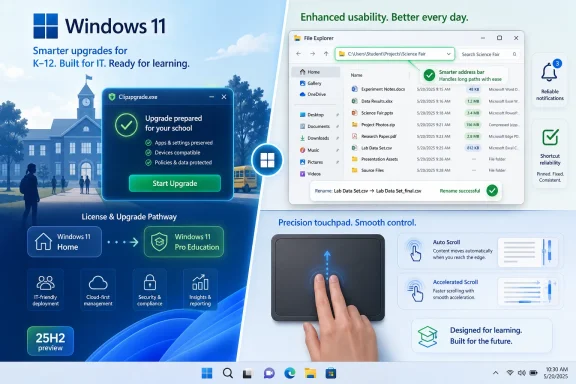
The new K–12 upgrade path is the most institutionally important change in these builds because it addresses a procurement reality Microsoft usually prefers to solve through licensing paperwork rather than through the operating system itself. Schools can now test a flow that upgrades eligible Windows 11 Home devices to Windows 11 Pro Education at no extra cost, provided the device is validated with a K–12 organization account.
That matters because K–12 purchasing is messy. Districts, charter networks, and small private schools often buy hardware through channels where Windows 11 Home machines are cheaper, more available, or bundled into seasonal deals. The problem is that Home edition is not where school IT wants to live once devices need management, policy enforcement, domain or cloud enrollment, and standardized configuration.
Microsoft’s new preview path effectively says: buy the affordable device, then bring it into the managed education world afterward. The workflow is intentionally simple: sign in locally, run Clipupgrade.exe from an elevated Command Prompt, validate with a K–12 organization account, and reboot. It is not exactly consumer-friendly, but it is very much admin-friendly.
The catch is serious enough that it should not be treated as fine print. Microsoft says the upgrade is one-way, and returning to Windows Home requires a clean reinstall. That is a sensible stance for managed education devices, but it also means schools should pilot the process on sacrificial hardware before turning it into an imaging or enrollment habit.
This is Microsoft doing what it often does best when Windows is under pressure from Chromebooks and iPads in education: reducing friction at the licensing boundary. The company does not need to win every classroom on elegance. It only needs to make Windows cheap enough to acquire, manageable enough to support, and familiar enough that schools do not have to rewrite their entire device strategy.
The address bar now accepts paths containing double backslashes and quotation marks. That sounds obscure until you remember how often power users paste paths from scripts, logs, documentation, deployment tools, chat windows, and command-line sessions. File Explorer has long occupied an awkward middle ground between friendly shell and power-user interface; better tolerance for real-world input nudges it toward the latter without compromising the former.
The more readable file size formatting is almost comically overdue. Showing file sizes in appropriate units such as KB, MB, and GB instead of forcing everything into KB-only presentation in Details view is the sort of thing a user should never have had to ask for. It is a small admission that human-readable information still matters in an operating system increasingly obsessed with search boxes, recommendations, and cloud surfaces.
The rename fixes are similarly mundane and similarly welcome. Microsoft says it fixed an issue where text could be repeatedly selected during renaming, and another where case-only name changes were not immediately reflected across local and cloud storage. Anyone who has renamed a file only to see Explorer behave as though it is negotiating with itself knows why this matters.
The best File Explorer improvements are rarely the ones that produce screenshots. They are the ones that remove tiny hesitations from the workflow: the suggestion dropdown closes when it should, the context menu can be navigated more predictably from the keyboard, and a filename change actually looks changed. Windows lives or dies in those half-second interactions.
Automatic scrolling is the most intriguing of the set. Microsoft describes a mode where scrolling can continue without lifting fingers, triggered either by bringing fingers near the edge of the touchpad during scrolling or by holding them still and pressing harder on supported hardware. That places Windows closer to a world where the touchpad is not merely a substitute mouse, but a surface with its own interaction grammar.
Accelerated scrolling is equally practical. Long documents, admin consoles, spreadsheets, logs, and web dashboards are not edge cases for Windows users; they are the job. Repeated scrolling that increases speed can save time in exactly the places where Windows laptops are still asked to behave like workstations.
The single-finger scrolling option is more niche, but it speaks to Microsoft’s broader input problem. Windows has to support traditional mice, precision touchpads, touchscreens, pens, accessibility devices, remoting scenarios, and a huge variety of hardware quality. Every new gesture has to exist inside that zoo without making the platform feel inconsistent.
Microsoft’s note about WinUI 3 is revealing. The company says the new features should work widely across applications, but WinUI 3-based interfaces require newer Windows App SDK versions for complete functionality, with changes being brought to versions 1.8 and 2.0. That is the modern Windows platform in miniature: the shell moves, the app framework follows, and users experience the gap as inconsistency until the stack catches up.
That strategy has been building for years. Windows 11 is no longer updated only through grand annual moments. It is a rolling product, with features staged, toggled, controlled, paused, and revived through channel policy. Insider builds are no longer just previews of a monolithic next release; they are probes into what Microsoft thinks can be safely slipped into the platform over time.
The Experimental channel, formerly Dev in practical terms during the transition, is where Microsoft is more willing to try visible interaction changes such as the new touchpad behavior and File Explorer refinements. The Beta channel gets the education upgrade path and reliability fixes, but not the full set of Explorer and touchpad work in this particular flight. That split is important because it shows Microsoft still treats user-interface behavior as riskier than licensing workflow and targeted bug fixes.
Controlled rollout language remains everywhere. Some features arrive only with toggles enabled, some appear gradually, and Microsoft continues to warn that previewed features may change, vanish, or never ship. That caveat can feel like boilerplate, but it is also a survival mechanism for Windows at its current scale.
For enthusiasts, the frustration is obvious: two machines on the same build may not behave identically. For Microsoft, the benefit is equally obvious: breakage can be measured before it becomes a global support incident. The tension between those two truths defines the modern Insider program.
A notification hang may sound like background plumbing, but notifications are now deeply tied into app launch behavior, background tasks, account experiences, and user trust. When that layer stalls, Windows does not merely lose a toast notification. It can make applications feel broken at the moment users expect them to open.
Shortcut icon reliability is another example of a small problem with outsized symbolic weight. A broken or generic desktop icon makes a system feel shabby even if the underlying application launches perfectly. Windows users have endured this class of glitch for decades, but that longevity should not excuse it.
Administrator Protection also gets a fix, specifically improving Japanese IME reliability when the feature is enabled. That is a narrow change, but a meaningful one. Security features cannot be allowed to punish non-English input users, and enterprise security hardening that breaks everyday text entry will be disabled faster than any attacker could hope.
These fixes are a reminder that Windows quality is not just about avoiding blue screens. It is about preventing the slow accumulation of papercuts that make users believe the platform is unreliable even when its core is stable. Microsoft has spent the Windows 11 era adding new surfaces; it now has to prove it can maintain the old ones with equal care.
Still, reducing the edition mismatch is valuable. If a school can acquire Windows 11 Home hardware and then move it into Windows 11 Pro Education without paying again for the OS edition, the purchasing conversation changes. Hardware availability becomes more flexible, especially for districts responding to budget windows or emergency replacement cycles.
The one-way nature of the upgrade is defensible, but it also signals that Microsoft sees this as an institutional conversion rather than a casual feature. Once the device becomes a school-managed Pro Education machine, it is no longer meant to drift back into consumer territory. That is good for policy consistency and bad for anyone hoping to treat the process as a reversible experiment.
There is also a competitive subtext. Chromebooks have dominated many K–12 conversations because they are easy to enroll, easy to reset, and predictable at scale. Windows cannot simply match that by adding a licensing shortcut, but it can reduce one of the reasons schools avoid Windows devices in the first place.
The question is whether Microsoft will eventually package this into a broader, smoother school onboarding flow. Running an elevated command is acceptable for IT pilots. It is not the final form of a mass deployment story.
That is why the file size formatting change is more than cosmetic. Windows users often work in mixed local and cloud environments, where the difference between a small document, a large media file, a synced placeholder, and a multi-gigabyte archive matters. Making size information readable at a glance supports better decisions without adding another interface layer.
The address bar change is even more revealing for admins and power users. Modern Windows asks users to move constantly between GUI tools, terminals, scripts, remote shares, cloud paths, and documentation. Explorer cannot pretend that paths always arrive neatly typed by hand. It has to survive copy-and-paste reality.
The rename fixes also touch cloud storage integration, an area where Windows still sometimes feels like it is juggling local file system expectations and remote sync semantics. Case-only rename behavior is especially important in mixed environments, because different file systems and services can disagree about how meaningful case is. Even when Microsoft hides the complexity, users feel the delay when the shell does not update immediately.
Explorer’s future may eventually be more search-driven, AI-assisted, or cloud-aware. But its present still depends on boring correctness. These builds suggest Microsoft understands that, at least in this slice of the product.
That does not mean the builds are risk-free. Preview features can be uneven, and the touchpad changes in particular will need broad hardware testing. Gesture behavior that feels natural on one precision touchpad can feel twitchy or inert on another, and automatic scrolling with pressure-based activation depends heavily on hardware capability.
The WinUI 3 caveat is also a reminder that Microsoft still has multiple Windows application worlds moving at different speeds. If gesture features are complete in some apps and incomplete in others, users will not blame WinAppSDK versioning. They will blame Windows.
But the direction is right. A mature operating system earns trust less by announcing revolutions than by removing friction from everyday work. These Insider builds are not revolutionary, and that is precisely why they are worth watching.
Microsoft’s preview machinery is powerful, but it also obscures accountability. A feature can be “rolling out,” “gradually available,” “toggle gated,” “in active development,” or “subject to removal.” All of those states are reasonable in engineering terms. In user terms, they can sound like fog.
For administrators, the advice is straightforward: test the education upgrade path carefully, document the one-way licensing implication, and validate device management outcomes before applying it broadly. For enthusiasts, the Experimental build is the more interesting flight because it contains the File Explorer and touchpad work. For production machines, none of this changes the usual rule: Insider builds are for evaluation, not stability.
The broader message is that Windows 11’s next phase may be less about visible reinvention and more about practical repair. That is not as marketable as AI branding, but it may be more important to the people who use Windows all day.
Source: Neowin Microsoft brings free Windows 11 upgrade, big improvements to File Explorer, with new builds
 Microsoft Turns a Licensing Edge Case Into a School Deployment Strategy
The new K–12 upgrade path is the most institutionally important change in these builds because it addresses a procurement reality Microsoft usually prefers to solve through licensing paperwork rather than through the operating system itself. Schools can now test a flow that upgrades eligible Windows 11 Home devices to Windows 11 Pro Education at no extra cost, provided the device is validated with a K–12 organization account.That matters because K–12 purchasing is messy. Districts, charter networks, and small private schools often buy hardware through channels where Windows 11 Home machines are cheaper, more available, or bundled into seasonal deals. The problem is that Home edition is not where school IT wants to live once devices need management, policy enforcement, domain or cloud enrollment, and standardized configuration.
Microsoft’s new preview path effectively says: buy the affordable device, then bring it into the managed education world afterward. The workflow is intentionally simple: sign in locally, run Clipupgrade.exe from an elevated Command Prompt, validate with a K–12 organization account, and reboot. It is not exactly consumer-friendly, but it is very much admin-friendly.
The catch is serious enough that it should not be treated as fine print. Microsoft says the upgrade is one-way, and returning to Windows Home requires a clean reinstall. That is a sensible stance for managed education devices, but it also means schools should pilot the process on sacrificial hardware before turning it into an imaging or enrollment habit.
This is Microsoft doing what it often does best when Windows is under pressure from Chromebooks and iPads in education: reducing friction at the licensing boundary. The company does not need to win every classroom on elegance. It only needs to make Windows cheap enough to acquire, manageable enough to support, and familiar enough that schools do not have to rewrite their entire device strategy.
File Explorer Gets the Kind of Fixes Users Notice Only When They Are Missing
File Explorer’s updates in Experimental build 26300.8376 are not glamorous, but they are the kind of changes that separate a polished desktop platform from a system that merely works. Microsoft is improving address bar behavior, file size readability, rename handling, and keyboard navigation in context menu flyouts. None of that will sell a Copilot+ PC. All of it will make Windows feel less brittle.The address bar now accepts paths containing double backslashes and quotation marks. That sounds obscure until you remember how often power users paste paths from scripts, logs, documentation, deployment tools, chat windows, and command-line sessions. File Explorer has long occupied an awkward middle ground between friendly shell and power-user interface; better tolerance for real-world input nudges it toward the latter without compromising the former.
The more readable file size formatting is almost comically overdue. Showing file sizes in appropriate units such as KB, MB, and GB instead of forcing everything into KB-only presentation in Details view is the sort of thing a user should never have had to ask for. It is a small admission that human-readable information still matters in an operating system increasingly obsessed with search boxes, recommendations, and cloud surfaces.
The rename fixes are similarly mundane and similarly welcome. Microsoft says it fixed an issue where text could be repeatedly selected during renaming, and another where case-only name changes were not immediately reflected across local and cloud storage. Anyone who has renamed a file only to see Explorer behave as though it is negotiating with itself knows why this matters.
The best File Explorer improvements are rarely the ones that produce screenshots. They are the ones that remove tiny hesitations from the workflow: the suggestion dropdown closes when it should, the context menu can be navigated more predictably from the keyboard, and a filename change actually looks changed. Windows lives or dies in those half-second interactions.
The Touchpad Is Becoming a First-Class Windows Control Surface
The touchpad changes in the Experimental build are more ambitious than the File Explorer refinements. Microsoft is adding controls for scroll and zoom speed, automatic scrolling, accelerated scrolling, and optional single-finger scrolling from the side of a precision touchpad. This is Windows borrowing some of the confidence of modern mobile input while trying not to alienate decades of desktop muscle memory.Automatic scrolling is the most intriguing of the set. Microsoft describes a mode where scrolling can continue without lifting fingers, triggered either by bringing fingers near the edge of the touchpad during scrolling or by holding them still and pressing harder on supported hardware. That places Windows closer to a world where the touchpad is not merely a substitute mouse, but a surface with its own interaction grammar.
Accelerated scrolling is equally practical. Long documents, admin consoles, spreadsheets, logs, and web dashboards are not edge cases for Windows users; they are the job. Repeated scrolling that increases speed can save time in exactly the places where Windows laptops are still asked to behave like workstations.
The single-finger scrolling option is more niche, but it speaks to Microsoft’s broader input problem. Windows has to support traditional mice, precision touchpads, touchscreens, pens, accessibility devices, remoting scenarios, and a huge variety of hardware quality. Every new gesture has to exist inside that zoo without making the platform feel inconsistent.
Microsoft’s note about WinUI 3 is revealing. The company says the new features should work widely across applications, but WinUI 3-based interfaces require newer Windows App SDK versions for complete functionality, with changes being brought to versions 1.8 and 2.0. That is the modern Windows platform in miniature: the shell moves, the app framework follows, and users experience the gap as inconsistency until the stack catches up.
The Insider Channels Are Being Used to Normalize Windows 25H2 Before It Arrives
Both builds sit in the Windows 11 version 25H2 preview family, delivered through enablement-package mechanics that distinguish channel build numbers from the underlying platform baseline. The Beta build is 26220.8370, while the Experimental build is 26300.8376. To normal users those numbers are meaningless; to Windows watchers they reveal Microsoft’s attempt to keep development, flighting, and eventual servicing aligned without making every feature update feel like a full operating-system replacement.That strategy has been building for years. Windows 11 is no longer updated only through grand annual moments. It is a rolling product, with features staged, toggled, controlled, paused, and revived through channel policy. Insider builds are no longer just previews of a monolithic next release; they are probes into what Microsoft thinks can be safely slipped into the platform over time.
The Experimental channel, formerly Dev in practical terms during the transition, is where Microsoft is more willing to try visible interaction changes such as the new touchpad behavior and File Explorer refinements. The Beta channel gets the education upgrade path and reliability fixes, but not the full set of Explorer and touchpad work in this particular flight. That split is important because it shows Microsoft still treats user-interface behavior as riskier than licensing workflow and targeted bug fixes.
Controlled rollout language remains everywhere. Some features arrive only with toggles enabled, some appear gradually, and Microsoft continues to warn that previewed features may change, vanish, or never ship. That caveat can feel like boilerplate, but it is also a survival mechanism for Windows at its current scale.
For enthusiasts, the frustration is obvious: two machines on the same build may not behave identically. For Microsoft, the benefit is equally obvious: breakage can be measured before it becomes a global support incident. The tension between those two truths defines the modern Insider program.
Reliability Fixes Reveal the Cost of Constant Windows Change
The less glamorous fixes in these builds deserve attention because they point to the operational cost of Microsoft’s rolling Windows model. Microsoft says it fixed a Windows Push Notification hang in the previous flight that caused notification problems and some apps to hang on launch. It also improved reliability when loading desktop app icon shortcuts.A notification hang may sound like background plumbing, but notifications are now deeply tied into app launch behavior, background tasks, account experiences, and user trust. When that layer stalls, Windows does not merely lose a toast notification. It can make applications feel broken at the moment users expect them to open.
Shortcut icon reliability is another example of a small problem with outsized symbolic weight. A broken or generic desktop icon makes a system feel shabby even if the underlying application launches perfectly. Windows users have endured this class of glitch for decades, but that longevity should not excuse it.
Administrator Protection also gets a fix, specifically improving Japanese IME reliability when the feature is enabled. That is a narrow change, but a meaningful one. Security features cannot be allowed to punish non-English input users, and enterprise security hardening that breaks everyday text entry will be disabled faster than any attacker could hope.
These fixes are a reminder that Windows quality is not just about avoiding blue screens. It is about preventing the slow accumulation of papercuts that make users believe the platform is unreliable even when its core is stable. Microsoft has spent the Windows 11 era adding new surfaces; it now has to prove it can maintain the old ones with equal care.
Education IT Gets a Useful Shortcut, Not a Magic Wand
The Pro Education upgrade path should help schools, but it does not erase the complexity of Windows deployment in education. A free edition upgrade is only one layer of the stack. Schools still need identity, device management, compliance policy, content filtering, app deployment, update rings, recovery plans, and staff capable of supporting all of it.Still, reducing the edition mismatch is valuable. If a school can acquire Windows 11 Home hardware and then move it into Windows 11 Pro Education without paying again for the OS edition, the purchasing conversation changes. Hardware availability becomes more flexible, especially for districts responding to budget windows or emergency replacement cycles.
The one-way nature of the upgrade is defensible, but it also signals that Microsoft sees this as an institutional conversion rather than a casual feature. Once the device becomes a school-managed Pro Education machine, it is no longer meant to drift back into consumer territory. That is good for policy consistency and bad for anyone hoping to treat the process as a reversible experiment.
There is also a competitive subtext. Chromebooks have dominated many K–12 conversations because they are easy to enroll, easy to reset, and predictable at scale. Windows cannot simply match that by adding a licensing shortcut, but it can reduce one of the reasons schools avoid Windows devices in the first place.
The question is whether Microsoft will eventually package this into a broader, smoother school onboarding flow. Running an elevated command is acceptable for IT pilots. It is not the final form of a mass deployment story.
File Explorer Still Carries the Weight of Windows’ Identity
Microsoft can rename settings pages, redesign taskbars, add AI sidebars, and sprinkle cloud integration across the shell, but File Explorer remains one of the places where users decide whether Windows respects their time. It is the physical geography of the PC translated into software. When it stumbles, the whole operating system feels less trustworthy.That is why the file size formatting change is more than cosmetic. Windows users often work in mixed local and cloud environments, where the difference between a small document, a large media file, a synced placeholder, and a multi-gigabyte archive matters. Making size information readable at a glance supports better decisions without adding another interface layer.
The address bar change is even more revealing for admins and power users. Modern Windows asks users to move constantly between GUI tools, terminals, scripts, remote shares, cloud paths, and documentation. Explorer cannot pretend that paths always arrive neatly typed by hand. It has to survive copy-and-paste reality.
The rename fixes also touch cloud storage integration, an area where Windows still sometimes feels like it is juggling local file system expectations and remote sync semantics. Case-only rename behavior is especially important in mixed environments, because different file systems and services can disagree about how meaningful case is. Even when Microsoft hides the complexity, users feel the delay when the shell does not update immediately.
Explorer’s future may eventually be more search-driven, AI-assisted, or cloud-aware. But its present still depends on boring correctness. These builds suggest Microsoft understands that, at least in this slice of the product.
Microsoft’s Small Fixes Are a Quiet Argument Against Flashy Windows
There is a pattern in these builds: Microsoft is not leading with a new assistant, a new store surface, or a new monetization hook. It is improving touchpad gestures, fixing Explorer input handling, smoothing rename behavior, repairing notification fallout, and making a school edition upgrade easier. This is the Windows work users often say they want, even if it rarely produces keynote applause.That does not mean the builds are risk-free. Preview features can be uneven, and the touchpad changes in particular will need broad hardware testing. Gesture behavior that feels natural on one precision touchpad can feel twitchy or inert on another, and automatic scrolling with pressure-based activation depends heavily on hardware capability.
The WinUI 3 caveat is also a reminder that Microsoft still has multiple Windows application worlds moving at different speeds. If gesture features are complete in some apps and incomplete in others, users will not blame WinAppSDK versioning. They will blame Windows.
But the direction is right. A mature operating system earns trust less by announcing revolutions than by removing friction from everyday work. These Insider builds are not revolutionary, and that is precisely why they are worth watching.
The Real Test Comes After the Toggle
The strongest version of this release is a Windows 11 that becomes easier to deploy in schools, easier to navigate with modern touchpads, and less irritating for users who live in File Explorer. The weaker version is a collection of promising preview changes that arrive unevenly, linger behind feature flags, or ship with just enough inconsistency to generate another round of forum complaints.Microsoft’s preview machinery is powerful, but it also obscures accountability. A feature can be “rolling out,” “gradually available,” “toggle gated,” “in active development,” or “subject to removal.” All of those states are reasonable in engineering terms. In user terms, they can sound like fog.
For administrators, the advice is straightforward: test the education upgrade path carefully, document the one-way licensing implication, and validate device management outcomes before applying it broadly. For enthusiasts, the Experimental build is the more interesting flight because it contains the File Explorer and touchpad work. For production machines, none of this changes the usual rule: Insider builds are for evaluation, not stability.
The broader message is that Windows 11’s next phase may be less about visible reinvention and more about practical repair. That is not as marketable as AI branding, but it may be more important to the people who use Windows all day.
The Build Numbers Tell Admins Where to Look Next
These builds leave a clear trail for anyone deciding whether to test now or wait. The feature split is narrow enough to understand, but broad enough to matter.- Windows 11 Insider Beta build 26220.8370 brings the K–12 Windows 11 Home to Windows 11 Pro Education upgrade path, plus reliability fixes for Administrator Protection, notifications, app launch hangs, and desktop shortcut icons.
- Windows 11 Insider Experimental build 26300.8376 includes those changes and adds the larger File Explorer and precision touchpad improvements.
- The Pro Education upgrade flow is free for eligible K–12 environments, but Microsoft says moving back to Windows Home requires a clean reinstall.
- File Explorer’s changes focus on practical usability, including better address bar input handling, readable file size units, rename fixes, and improved keyboard navigation in context menu flyouts.
- The touchpad work adds more configurable and dynamic scrolling behavior, but complete WinUI 3 support depends on updated Windows App SDK components.
- Both builds remain preview software tied to gradual rollout behavior, so availability and behavior may vary across Insider systems.
Source: Neowin Microsoft brings free Windows 11 upgrade, big improvements to File Explorer, with new builds
