On June 12, 2026, Microsoft released seven Windows 11 Insider builds across Beta, Experimental, Experimental 26H1, Experimental Future Platforms, Release Preview 24H2/25H2, Release Preview 26H1, and Beta 26H1, turning a supposedly simplified testing program into its busiest single-day flighting maze yet. The headline is not merely that Microsoft shipped a lot of preview code. It is that Windows development is now being sliced by version, silicon target, rollout risk, and feature maturity all at once. For Insiders, this is exciting; for everyone else trying to understand where Windows 11 is headed, it is a warning that “channel” no longer means what it used to mean.
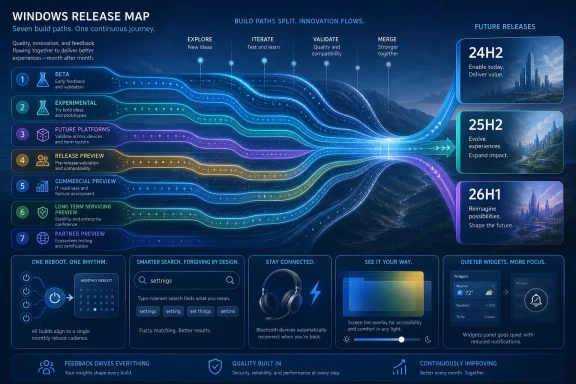
Microsoft’s recent Windows Insider rework was sold as a simplification exercise. The old mental model — Canary, Dev, Beta, Release Preview — had become overloaded, with Dev sometimes feeling less like a developer channel and more like a queue for features that might or might not ever ship. The new structure tries to make the intent clearer: Beta for closer-to-release work, Experimental for earlier feature testing, Release Preview for servicing-adjacent validation, and a Future Platforms lane for deeper architectural work.
That is cleaner in theory. In practice, June 12 showed the cost of precision. Microsoft did not just ship one Experimental build and one Beta build; it shipped parallel versions for 25H2 and 26H1, plus a Future Platforms build in the 29600 series and Release Preview builds for both mainstream and targeted releases.
The result is a program that is easier to define but harder to follow. The labels may now be more honest, but the map has more pins on it. A Windows enthusiast can no longer say “I’m in Beta” and assume that explains much. Beta for which underlying release? Experimental on the 25H2 train, 26H1 train, or future platform train? Release Preview for the mainstream branch or for the silicon-specific branch?
That complexity is not accidental. It reflects the way Windows itself is now built: as a layered product where enablement packages, staged feature rollouts, driver policy, accessibility features, inbox apps, and platform support all move at different speeds. Microsoft is trying to expose that machinery to testers without letting it collapse into chaos. Seven builds in one day suggests the machinery is winning.
The 25H2 branches are the ones most Windows 11 users should care about. They represent the near-term evolution of the operating system that will roll toward ordinary PCs through optional updates, Patch Tuesday releases, and eventually the annual Windows 11 feature update. If a feature appears in Beta 25H2 or Release Preview 25H2, it is no longer speculative in the casual sense. It may still be controlled by staged rollout flags, but it is close enough to production that admins should start paying attention.
The 26H1 builds are stranger. Microsoft has described Windows 11 version 26H1 as a targeted release for new PCs shipping with specific Arm silicon, including Qualcomm’s Snapdragon X2 generation. It is not the normal annual feature release path for existing PCs, and Microsoft has already indicated that 26H1 systems will not simply update onward to the later mainstream Windows release expected later in 2026.
That makes 26H1 both important and easy to misread. It is important because it tells us where Microsoft is focusing platform work for a new hardware wave. It is easy to misread because an Insider build number with a higher version does not necessarily mean “the thing you should install if you want the future of Windows.” For many testers, 25H2 remains the more relevant future.
The Future Platforms build pushes the split even further. That lane exists for work beyond the immediate 25H2 and 26H1 story, the kind of platform development that may take longer to stabilize and may never map neatly onto a consumer-facing feature release. It is the most interesting channel for people tracking Windows architecture, and the least appropriate one for anyone who simply wants to preview new Start menu behavior.
For home users, fewer restarts are a quality-of-life improvement. For IT departments, they are something more: a reduction in scheduling friction. Reboots are where productivity, compliance, user resentment, and help desk tickets intersect. If Microsoft can genuinely consolidate multiple update classes into one predictable restart window, it makes Windows easier to defend in managed environments.
The hard part is not the concept. The hard part is coordination. Firmware updates are not ordinary cumulative updates. Driver updates have hardware-specific failure modes. .NET updates have their own servicing cadence and application compatibility concerns. Aligning these under a single monthly restart sounds simple until one vendor’s firmware package, one audio driver, or one business-critical .NET workload decides otherwise.
That is why Experimental is the right place for this feature. Microsoft needs telemetry across a messy hardware ecosystem before it dares to promise fewer reboots to everyone. But the direction is correct. Windows Update has spent years becoming more reliable in the abstract; now Microsoft is trying to make it feel less intrusive in daily life.
There is a subtle admission here, too. Microsoft no longer appears to believe that users will tolerate endless interruption simply because the updates are important. Security remains non-negotiable, but the experience around security has to become less obnoxious. The single-restart ambition is Microsoft recognizing that update fatigue is a real operational risk.
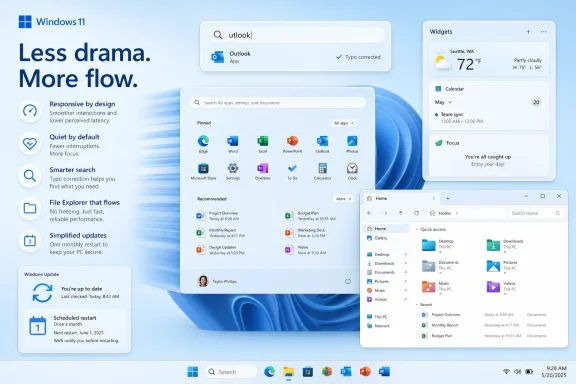
The new Search improvements in the Experimental channel are modest but well targeted. Microsoft says app search is getting better at handling typos, dropped letters, extra letters, and partial words. Settings results are also getting ranking improvements so the right control panel or Settings page surfaces more reliably.
This is the kind of feature that does not sound impressive in a keynote but changes how Windows feels. Search is one of the operating system’s public interfaces to its own complexity. Windows 11 has accumulated settings pages, legacy dialogs, hidden control surfaces, cloud-linked components, and app entries that often require users to know Microsoft’s exact naming convention. Better ranking and typo tolerance reduce the penalty for not thinking like Windows.
It also shows Microsoft nudging Windows Search toward the expectations created by the web. Users expect forgiving input. They expect approximate matches. They expect that “bluetooth mic” or a misspelled app name should still get them somewhere useful. A desktop operating system that cannot do this feels older than it should.
The risk, as always, is that smarter ranking becomes noisier ranking. Windows Search already has a long history of irritating users when local intent gets diluted by web results, promotional surfaces, or irrelevant suggestions. The best version of this change is boring: you mistype a thing, Windows finds the thing, and nothing about the interaction feels like an ad.
That matters because accessibility features increasingly serve two audiences at once. There are users who need them as accommodations, and there are users who discover that the same features make computing more comfortable. Captions, focus modes, magnification tools, color filters, and voice input have all followed this path. What begins as accessibility often becomes general usability.
Magnifier is also getting more precise zoom controls in Beta 25H2 and Release Preview builds. Users can choose preset increments and type exact zoom percentages directly into the Magnifier toolbar. This sounds small until you consider the users who depend on Magnifier for long sessions. Precision is not polish for them; it is the difference between tolerable and exhausting.
Voice access and voice typing are expanding language support for French, German, and Spanish. That is another reminder that Windows accessibility is not only about physical ability. It is also about language, geography, and whether speech-driven workflows are available outside an English-first bubble.
The better story here is not that Windows 11 is suddenly an accessibility triumph. It is that accessibility work is showing up in mainstream flighting channels alongside update servicing, Bluetooth fixes, and Widgets behavior. That is where it belongs. Accessibility should not be a side quest; it should be part of the operating system’s regular evolution.
In the Beta 25H2 and Release Preview 25H2/24H2 builds, Widgets no longer open on hover. Alerts are being reduced, taskbar badge behavior is changing, and the default memory footprint is being cut, especially on lower-memory devices. These are not glamorous changes, but they move Widgets in the direction Windows features should move: present when wanted, quiet when not.
The hover change is especially telling. Opening UI on hover can be efficient when the user expects it. When the user does not, it feels like the system is interrupting without permission. The difference between a helpful panel and a nuisance panel is often a few pixels of cursor movement.
Reducing memory use also matters because Windows 11 increasingly runs across a broad spread of hardware, from premium Copilot+ PCs to older upgraded systems still hanging on. A background feature that behaves acceptably on a 32GB laptop can feel wasteful on an 8GB machine. Microsoft’s explicit mention of lower-memory devices is a welcome acknowledgement that not every Windows user is living inside a demo setup.
The larger point is that Widgets are being normalized. Microsoft is not retreating from them, but it is sanding off the behaviors that make users disable things. That is how a controversial feature survives: not by winning the argument in one release, but by becoming less annoying over several.
The Release Preview 25H2/24H2 builds include improvements for certain Bluetooth audio devices, including faster pairing visibility for Apple’s AirPods, better microphone reliability on Beats Studio Pro headphones, and shorter reconnection time after Windows resumes from sleep. This is precisely the kind of fix that belongs in Release Preview: concrete, device-facing, and likely to reach production soon.
There is an ecosystem story underneath the bug fixes. Windows users do not live inside an all-Microsoft accessory world. They use AirPods, Beats, Logitech peripherals, Xbox controllers, enterprise headsets, bargain earbuds, and hardware that was never tested in the tidy conditions imagined by a driver team. The operating system has to be diplomatic with all of it.
That is why these changes matter beyond the named devices. When Microsoft improves Bluetooth behavior for high-profile consumer audio products, it is also improving the perceived credibility of Windows laptops as everyday personal devices. A premium Windows notebook that stumbles with popular earbuds loses to a phone in the user’s mind, even if the CPU benchmarks are excellent.
For IT departments, audio reliability has become less trivial since hybrid work normalized video meetings as infrastructure. A Bluetooth microphone that fails after resume is not a minor annoyance when it happens five minutes before a call with a client. Windows servicing now has to treat audio polish as business reliability.
This is where Windows enthusiasts sometimes confuse “available” with “arrived.” Microsoft can ship code in a cumulative update while holding individual features behind rollout controls. The operating system may contain the bits, but the user experience still depends on eligibility, region, device class, managed policy, and Microsoft’s own confidence signals.
For administrators, Release Preview is therefore less a playground than a warning system. It shows what is about to become part of the monthly servicing conversation. Even when features are consumer-facing, they can affect support scripts, user training, help desk macros, screenshots in documentation, and policy expectations.
The 24H2/25H2 pairing is also worth noting. Microsoft continues to service multiple Windows 11 versions through closely related build trains, especially where enablement packages let one release share a foundation with another. That approach reduces the engineering burden but complicates communication. A feature can be “for 25H2” while appearing in a Release Preview package that also references 24H2.
This is the Windows servicing bargain of the current era. Smaller enablement-style changes reduce the drama of annual upgrades, but they make it harder to draw clean lines around what changed when. The operating system evolves more continuously, and users are left to decode the version number archaeology.
That distinction matters because Windows is increasingly tied to hardware capability. Copilot+ PCs already made neural processing units part of the Windows feature conversation. The 26H1 branch continues that pattern by aligning an OS release with a particular silicon wave rather than the traditional broad annual upgrade path.
This is sensible from Microsoft’s perspective. New Arm platforms often need deep enablement work around power management, device drivers, emulation, AI acceleration, firmware, and connected standby behavior. Bundling that work into a targeted release lets Microsoft and hardware partners ship machines that are not waiting for the next broad Windows train.
But it is messy for Insiders. The program has always attracted people who want the newest build number, and Microsoft now has to teach them that the newest build number may not be the most relevant one. A 26H1 build can contain features already present in 25H2, while also being less appropriate for a mainstream x86 PC. That is counterintuitive, even if it is technically coherent.
The broader implication is that Windows versions are becoming less universal. The old model imagined a single Windows release rolling across the PC ecosystem. The new model looks more like overlapping release lanes, some broad and some hardware-specific. That may be necessary, but it erodes the simplicity Windows users still expect from version labels.
That is why the same feature can appear in several channels at once, while another feature stays confined to Experimental. Screen tint spans multiple near-term branches because it is probably mature enough for broader validation. The unified update experience stays in Experimental because it touches riskier servicing mechanics. Bluetooth fixes land in Release Preview because they are targeted quality improvements nearing production.
This is also why Microsoft now separates inbox app release notes from OS build release notes. Apps like Calculator, Camera, Clock, Media Player, Paint, Photos, and Sound Recorder can change independently of the Windows build itself. If Microsoft is serious about modular Windows evolution, it needs documentation that reflects modularity.
The downside is cognitive load. Even technically literate users can struggle to answer a simple question: “Do I have this feature?” The answer may depend on build number, channel, controlled rollout state, region, hardware, app version, and whether a specific enablement package is active. That is a lot of footnotes for an operating system.
The challenge for Microsoft is to keep the engineering benefits without making the user experience feel like a shipping manifest. The Insider Program can tolerate complexity; production Windows cannot. A preview tester may enjoy build tables. A school IT admin or small-business consultant wants to know what changed and whether it will break anything.
That does not mean Microsoft has abandoned the AI-first story. Copilot+ PCs and silicon-specific releases remain central to the company’s Windows strategy. But this particular flight is a reminder that the operating system still wins or loses on mundane interactions. Reboot timing matters. Search matters. Bluetooth pairing matters. Hover behavior matters.
For enthusiasts, the temptation is to rank builds by novelty. For administrators, the better ranking is by blast radius. A unified update mechanism has a larger operational footprint than a new app animation. Bluetooth reconnection fixes may matter more to executives than an experimental shell feature. A screen tint option may be life-changing for a subset of users while invisible to others.
That is the editorial irony of seven builds in one day: the volume looks dramatic, but the best changes are mostly anti-drama. Microsoft is trying to make Windows interrupt less, misunderstand less, and fail less obviously. If it succeeds, most users will never know which Insider build proved the point.
 Microsoft Simplified the Signage, Then Multiplied the Roads
Microsoft’s recent Windows Insider rework was sold as a simplification exercise. The old mental model — Canary, Dev, Beta, Release Preview — had become overloaded, with Dev sometimes feeling less like a developer channel and more like a queue for features that might or might not ever ship. The new structure tries to make the intent clearer: Beta for closer-to-release work, Experimental for earlier feature testing, Release Preview for servicing-adjacent validation, and a Future Platforms lane for deeper architectural work.That is cleaner in theory. In practice, June 12 showed the cost of precision. Microsoft did not just ship one Experimental build and one Beta build; it shipped parallel versions for 25H2 and 26H1, plus a Future Platforms build in the 29600 series and Release Preview builds for both mainstream and targeted releases.
The result is a program that is easier to define but harder to follow. The labels may now be more honest, but the map has more pins on it. A Windows enthusiast can no longer say “I’m in Beta” and assume that explains much. Beta for which underlying release? Experimental on the 25H2 train, 26H1 train, or future platform train? Release Preview for the mainstream branch or for the silicon-specific branch?
That complexity is not accidental. It reflects the way Windows itself is now built: as a layered product where enablement packages, staged feature rollouts, driver policy, accessibility features, inbox apps, and platform support all move at different speeds. Microsoft is trying to expose that machinery to testers without letting it collapse into chaos. Seven builds in one day suggests the machinery is winning.
The Seven-Build Day Reveals a New Windows Cadence
The most important thing about this release is not any single feature. It is the cadence. Microsoft has effectively turned the Insider Program into a public-facing version of its internal routing system, where features are tested against several futures at once.The 25H2 branches are the ones most Windows 11 users should care about. They represent the near-term evolution of the operating system that will roll toward ordinary PCs through optional updates, Patch Tuesday releases, and eventually the annual Windows 11 feature update. If a feature appears in Beta 25H2 or Release Preview 25H2, it is no longer speculative in the casual sense. It may still be controlled by staged rollout flags, but it is close enough to production that admins should start paying attention.
The 26H1 builds are stranger. Microsoft has described Windows 11 version 26H1 as a targeted release for new PCs shipping with specific Arm silicon, including Qualcomm’s Snapdragon X2 generation. It is not the normal annual feature release path for existing PCs, and Microsoft has already indicated that 26H1 systems will not simply update onward to the later mainstream Windows release expected later in 2026.
That makes 26H1 both important and easy to misread. It is important because it tells us where Microsoft is focusing platform work for a new hardware wave. It is easy to misread because an Insider build number with a higher version does not necessarily mean “the thing you should install if you want the future of Windows.” For many testers, 25H2 remains the more relevant future.
The Future Platforms build pushes the split even further. That lane exists for work beyond the immediate 25H2 and 26H1 story, the kind of platform development that may take longer to stabilize and may never map neatly onto a consumer-facing feature release. It is the most interesting channel for people tracking Windows architecture, and the least appropriate one for anyone who simply wants to preview new Start menu behavior.
The Reboot Reduction Is the Feature That Actually Matters
Among the new items, Microsoft’s unified update experience is the one with the broadest practical significance. The company is beginning to coordinate driver, .NET, and firmware updates around the monthly quality update so that users see fewer restarts, ideally reducing the experience to a single monthly reboot. This is currently arriving in the Experimental channel, which means it is early, but it addresses one of the oldest complaints about Windows maintenance.For home users, fewer restarts are a quality-of-life improvement. For IT departments, they are something more: a reduction in scheduling friction. Reboots are where productivity, compliance, user resentment, and help desk tickets intersect. If Microsoft can genuinely consolidate multiple update classes into one predictable restart window, it makes Windows easier to defend in managed environments.
The hard part is not the concept. The hard part is coordination. Firmware updates are not ordinary cumulative updates. Driver updates have hardware-specific failure modes. .NET updates have their own servicing cadence and application compatibility concerns. Aligning these under a single monthly restart sounds simple until one vendor’s firmware package, one audio driver, or one business-critical .NET workload decides otherwise.
That is why Experimental is the right place for this feature. Microsoft needs telemetry across a messy hardware ecosystem before it dares to promise fewer reboots to everyone. But the direction is correct. Windows Update has spent years becoming more reliable in the abstract; now Microsoft is trying to make it feel less intrusive in daily life.
There is a subtle admission here, too. Microsoft no longer appears to believe that users will tolerate endless interruption simply because the updates are important. Security remains non-negotiable, but the experience around security has to become less obnoxious. The single-restart ambition is Microsoft recognizing that update fatigue is a real operational risk.
Search Gets Smarter in the Places Users Notice
Windows Search has been a recurring frustration precisely because it sits in the middle of everyday muscle memory. When search fails to find Outlook because the user types “utlook,” the problem is not merely technical. It breaks trust in the shell. Users stop expecting Windows to understand them and start reaching for workarounds.The new Search improvements in the Experimental channel are modest but well targeted. Microsoft says app search is getting better at handling typos, dropped letters, extra letters, and partial words. Settings results are also getting ranking improvements so the right control panel or Settings page surfaces more reliably.
This is the kind of feature that does not sound impressive in a keynote but changes how Windows feels. Search is one of the operating system’s public interfaces to its own complexity. Windows 11 has accumulated settings pages, legacy dialogs, hidden control surfaces, cloud-linked components, and app entries that often require users to know Microsoft’s exact naming convention. Better ranking and typo tolerance reduce the penalty for not thinking like Windows.
It also shows Microsoft nudging Windows Search toward the expectations created by the web. Users expect forgiving input. They expect approximate matches. They expect that “bluetooth mic” or a misspelled app name should still get them somewhere useful. A desktop operating system that cannot do this feels older than it should.
The risk, as always, is that smarter ranking becomes noisier ranking. Windows Search already has a long history of irritating users when local intent gets diluted by web results, promotional surfaces, or irrelevant suggestions. The best version of this change is boring: you mistype a thing, Windows finds the thing, and nothing about the interaction feels like an ad.
Accessibility Is Becoming a Mainstream Design Pressure
Screen tint is one of the more visible new accessibility features in this wave. It applies a color overlay across the entire display to soften intensity and reduce eye strain. The feature is appearing across Beta 26H1, Beta 25H2, and Release Preview 25H2, which suggests Microsoft sees it as more than a speculative experiment.That matters because accessibility features increasingly serve two audiences at once. There are users who need them as accommodations, and there are users who discover that the same features make computing more comfortable. Captions, focus modes, magnification tools, color filters, and voice input have all followed this path. What begins as accessibility often becomes general usability.
Magnifier is also getting more precise zoom controls in Beta 25H2 and Release Preview builds. Users can choose preset increments and type exact zoom percentages directly into the Magnifier toolbar. This sounds small until you consider the users who depend on Magnifier for long sessions. Precision is not polish for them; it is the difference between tolerable and exhausting.
Voice access and voice typing are expanding language support for French, German, and Spanish. That is another reminder that Windows accessibility is not only about physical ability. It is also about language, geography, and whether speech-driven workflows are available outside an English-first bubble.
The better story here is not that Windows 11 is suddenly an accessibility triumph. It is that accessibility work is showing up in mainstream flighting channels alongside update servicing, Bluetooth fixes, and Widgets behavior. That is where it belongs. Accessibility should not be a side quest; it should be part of the operating system’s regular evolution.
Widgets Are Being Taught to Behave
Widgets have been one of Windows 11’s more polarizing features because they carry the smell of engagement design. The panel can be useful, but it has often felt too eager to appear, too eager to notify, and too eager to occupy memory for something many users do not consider essential. Microsoft’s latest changes suggest the company has heard at least part of that complaint.In the Beta 25H2 and Release Preview 25H2/24H2 builds, Widgets no longer open on hover. Alerts are being reduced, taskbar badge behavior is changing, and the default memory footprint is being cut, especially on lower-memory devices. These are not glamorous changes, but they move Widgets in the direction Windows features should move: present when wanted, quiet when not.
The hover change is especially telling. Opening UI on hover can be efficient when the user expects it. When the user does not, it feels like the system is interrupting without permission. The difference between a helpful panel and a nuisance panel is often a few pixels of cursor movement.
Reducing memory use also matters because Windows 11 increasingly runs across a broad spread of hardware, from premium Copilot+ PCs to older upgraded systems still hanging on. A background feature that behaves acceptably on a 32GB laptop can feel wasteful on an 8GB machine. Microsoft’s explicit mention of lower-memory devices is a welcome acknowledgement that not every Windows user is living inside a demo setup.
The larger point is that Widgets are being normalized. Microsoft is not retreating from them, but it is sanding off the behaviors that make users disable things. That is how a controversial feature survives: not by winning the argument in one release, but by becoming less annoying over several.
Bluetooth Fixes Aim at the Everyday Embarrassments
Bluetooth remains one of those areas where Windows can look bad in front of ordinary users. Pairing delays, unreliable microphones, and slow reconnection after sleep are the kinds of defects that make a modern PC feel oddly primitive. They are especially noticeable because phones and tablets have trained users to expect wireless audio to “just work.”The Release Preview 25H2/24H2 builds include improvements for certain Bluetooth audio devices, including faster pairing visibility for Apple’s AirPods, better microphone reliability on Beats Studio Pro headphones, and shorter reconnection time after Windows resumes from sleep. This is precisely the kind of fix that belongs in Release Preview: concrete, device-facing, and likely to reach production soon.
There is an ecosystem story underneath the bug fixes. Windows users do not live inside an all-Microsoft accessory world. They use AirPods, Beats, Logitech peripherals, Xbox controllers, enterprise headsets, bargain earbuds, and hardware that was never tested in the tidy conditions imagined by a driver team. The operating system has to be diplomatic with all of it.
That is why these changes matter beyond the named devices. When Microsoft improves Bluetooth behavior for high-profile consumer audio products, it is also improving the perceived credibility of Windows laptops as everyday personal devices. A premium Windows notebook that stumbles with popular earbuds loses to a phone in the user’s mind, even if the CPU benchmarks are excellent.
For IT departments, audio reliability has become less trivial since hybrid work normalized video meetings as infrastructure. A Bluetooth microphone that fails after resume is not a minor annoyance when it happens five minutes before a call with a client. Windows servicing now has to treat audio polish as business reliability.
Release Preview Is Where Optional Updates Become Real
The Release Preview 25H2/24H2 build is doing the most immediately consequential work in this batch because it is effectively testing the optional update expected in the last week of June. Features validated there typically move toward broader deployment through the next Patch Tuesday rollout, though Microsoft’s staged enablement model means not everyone sees everything on day one.This is where Windows enthusiasts sometimes confuse “available” with “arrived.” Microsoft can ship code in a cumulative update while holding individual features behind rollout controls. The operating system may contain the bits, but the user experience still depends on eligibility, region, device class, managed policy, and Microsoft’s own confidence signals.
For administrators, Release Preview is therefore less a playground than a warning system. It shows what is about to become part of the monthly servicing conversation. Even when features are consumer-facing, they can affect support scripts, user training, help desk macros, screenshots in documentation, and policy expectations.
The 24H2/25H2 pairing is also worth noting. Microsoft continues to service multiple Windows 11 versions through closely related build trains, especially where enablement packages let one release share a foundation with another. That approach reduces the engineering burden but complicates communication. A feature can be “for 25H2” while appearing in a Release Preview package that also references 24H2.
This is the Windows servicing bargain of the current era. Smaller enablement-style changes reduce the drama of annual upgrades, but they make it harder to draw clean lines around what changed when. The operating system evolves more continuously, and users are left to decode the version number archaeology.
26H1 Is a Silicon Story Wearing a Windows Version Number
The most confusing part of this flight is 26H1. A higher number normally implies a newer destination, and newer destinations attract enthusiasts. But Windows 11 version 26H1 is not the mainstream successor that most existing PCs should be chasing. Microsoft has positioned it as a targeted release for new hardware built around specific Arm silicon.That distinction matters because Windows is increasingly tied to hardware capability. Copilot+ PCs already made neural processing units part of the Windows feature conversation. The 26H1 branch continues that pattern by aligning an OS release with a particular silicon wave rather than the traditional broad annual upgrade path.
This is sensible from Microsoft’s perspective. New Arm platforms often need deep enablement work around power management, device drivers, emulation, AI acceleration, firmware, and connected standby behavior. Bundling that work into a targeted release lets Microsoft and hardware partners ship machines that are not waiting for the next broad Windows train.
But it is messy for Insiders. The program has always attracted people who want the newest build number, and Microsoft now has to teach them that the newest build number may not be the most relevant one. A 26H1 build can contain features already present in 25H2, while also being less appropriate for a mainstream x86 PC. That is counterintuitive, even if it is technically coherent.
The broader implication is that Windows versions are becoming less universal. The old model imagined a single Windows release rolling across the PC ecosystem. The new model looks more like overlapping release lanes, some broad and some hardware-specific. That may be necessary, but it erodes the simplicity Windows users still expect from version labels.
The Insider Program Is Becoming a Public Test Matrix
Seven builds in one day looks chaotic if you assume the Insider Program is mainly a way for hobbyists to try tomorrow’s features. It looks more rational if you see it as a public test matrix. Microsoft is testing not just features, but combinations: release branch, servicing path, hardware target, rollout stage, app package, and platform baseline.That is why the same feature can appear in several channels at once, while another feature stays confined to Experimental. Screen tint spans multiple near-term branches because it is probably mature enough for broader validation. The unified update experience stays in Experimental because it touches riskier servicing mechanics. Bluetooth fixes land in Release Preview because they are targeted quality improvements nearing production.
This is also why Microsoft now separates inbox app release notes from OS build release notes. Apps like Calculator, Camera, Clock, Media Player, Paint, Photos, and Sound Recorder can change independently of the Windows build itself. If Microsoft is serious about modular Windows evolution, it needs documentation that reflects modularity.
The downside is cognitive load. Even technically literate users can struggle to answer a simple question: “Do I have this feature?” The answer may depend on build number, channel, controlled rollout state, region, hardware, app version, and whether a specific enablement package is active. That is a lot of footnotes for an operating system.
The challenge for Microsoft is to keep the engineering benefits without making the user experience feel like a shipping manifest. The Insider Program can tolerate complexity; production Windows cannot. A preview tester may enjoy build tables. A school IT admin or small-business consultant wants to know what changed and whether it will break anything.
The Practical Winners Are Quiet Features, Not Flashy Ones
The June 12 build wave does not revolve around a single marquee AI feature, and that is refreshing. The most useful changes here are operational: fewer restarts, better search tolerance, less intrusive Widgets, more reliable Bluetooth, more precise accessibility tools, and richer language support for voice features. These are the kinds of improvements Windows needs if it wants to feel modern without feeling needy.That does not mean Microsoft has abandoned the AI-first story. Copilot+ PCs and silicon-specific releases remain central to the company’s Windows strategy. But this particular flight is a reminder that the operating system still wins or loses on mundane interactions. Reboot timing matters. Search matters. Bluetooth pairing matters. Hover behavior matters.
For enthusiasts, the temptation is to rank builds by novelty. For administrators, the better ranking is by blast radius. A unified update mechanism has a larger operational footprint than a new app animation. Bluetooth reconnection fixes may matter more to executives than an experimental shell feature. A screen tint option may be life-changing for a subset of users while invisible to others.
That is the editorial irony of seven builds in one day: the volume looks dramatic, but the best changes are mostly anti-drama. Microsoft is trying to make Windows interrupt less, misunderstand less, and fail less obviously. If it succeeds, most users will never know which Insider build proved the point.
The Day’s Signal Is Buried in the Build Numbers
Microsoft’s seven-build Friday leaves behind a few concrete lessons for anyone tracking Windows 11’s next phase. The details matter, but the pattern matters more: Windows is becoming a constantly serviced, hardware-aware platform whose preview program now mirrors that complexity in public.- Microsoft released seven Windows 11 Insider builds on June 12, 2026, spanning Beta, Experimental, Future Platforms, and Release Preview lanes across 24H2, 25H2, and 26H1 branches.
- The most important near-term user-facing change is the Experimental test of a unified update experience designed to coordinate driver, .NET, firmware, and monthly quality updates around one restart.
- The 25H2 builds are the most relevant preview path for most existing Windows 11 PCs, while 26H1 remains a targeted release tied to new Arm silicon rather than a normal upgrade destination.
- Release Preview 24H2/25H2 is the branch to watch for features likely to arrive through the late-June optional update and the following Patch Tuesday rollout.
- The most practical improvements in this wave are deliberately unglamorous: better Windows Search tolerance, quieter Widgets, improved Bluetooth audio behavior, and stronger accessibility controls.
- The new Insider structure may be conceptually cleaner than the old one, but the number of simultaneous branches means users and admins must pay closer attention to version, channel, and rollout state than ever before.
References
- Primary source: thurrott.com
Published: Fri, 12 Jun 2026 18:33:17 GMT
Microsoft Releases a Record Seven Windows 11 Insider Builds
Microsoft is wrapping up the week by releasing a record seven Windows 11 preview builds across all Insider Channels.www.thurrott.com - Official source: blogs.windows.com
Announcing new builds 8 June 2026
[Update 6/11/2026: Release notes have now been published to Windows Insider release notes - Windows Insider Program | Microsoft Learn.]blogs.windows.com - Related coverage: windowscentral.com
The 7 biggest Windows 11 Insider changes from early April — and why they matter for 2026 | Windows Central
Microsoft tests various refinements for Windows 11 in the first two weeks of April, and here's all you need to know.www.windowscentral.com - Related coverage: tomshardware.com
Microsoft announces first test build for Windows 11 26H1, aimed at 'specific silicon' — Rumor mill suggests first "H1" release in Windows 11's history might be reserved for upcoming Arm PCs | Tom's Hardware
It's available for testing right now.www.tomshardware.com