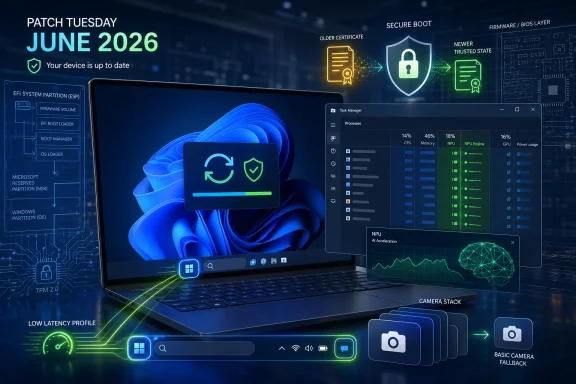
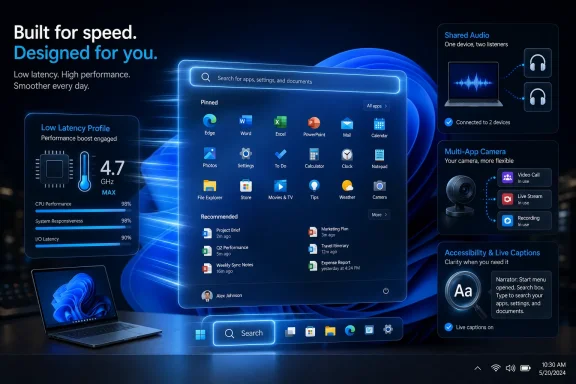
Microsoft is expected to begin rolling out the June 2026 security update for Windows 11 on Tuesday, June 9, 2026, bringing a batch of quality-of-life features to versions 24H2 and 25H2 through the same cumulative servicing channel. The headline is not one giant redesign, but a cluster of smaller changes aimed at making Windows feel faster, less rigid, and more aware of the hardware now shipping in modern PCs. That matters because Windows 11’s reputation problem has rarely been that it lacks features; it is that too many everyday interactions have felt slower, stranger, or more constrained than users expected from a mature desktop OS. June’s update looks like Microsoft trying to win back trust one latency fix, camera setting, and setup checkbox at a time.
For much of the Windows 11 era, Microsoft has talked about beauty, security, AI, and productivity while users kept complaining about the same thing: the operating system did not always feel as immediate as Windows should. Menus could hesitate. File Explorer could stutter. The Start menu, redesigned with great confidence, sometimes behaved like a web app auditioning for a desktop role.
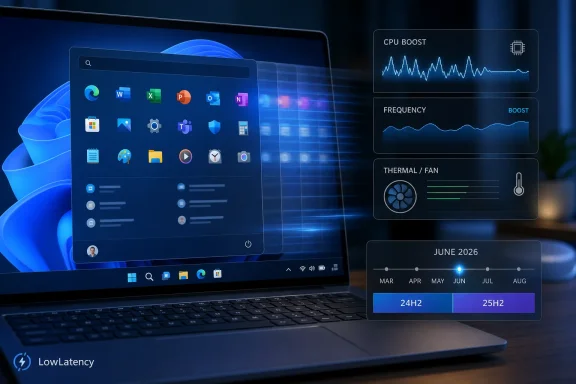
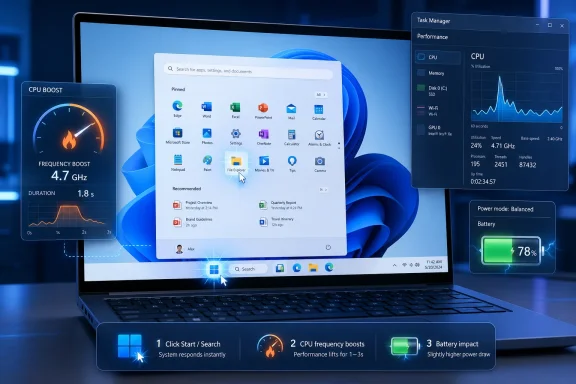
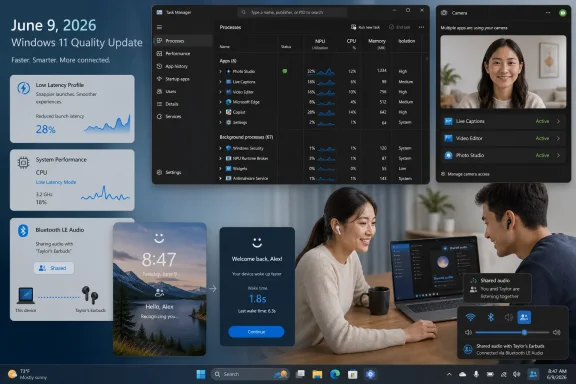
The June 2026 update is interesting because it appears to target that perception directly. The new Low Latency Profile is not a feature users will admire in screenshots, and it will not win a keynote demo by itself. It is a scheduler and power-management behavior that briefly pushes the processor harder during interactive moments, the kind of tiny windows of time in which the user decides whether a system feels fast or sticky.
That is a more meaningful change than it first appears. Desktop performance is not only about benchmark charts or sustained CPU loads. It is about whether an app opens when summoned, whether a flyout appears before the user’s attention drifts, and whether right-clicking feels instantaneous rather than negotiated.
Microsoft reportedly expects the feature to improve app launches by up to 40 percent and some system interactions by up to 70 percent, though those numbers should be treated as best-case figures rather than a universal promise. The real test will be older and lower-end PCs, where a one-to-three-second burst of CPU frequency could make the difference between “this machine is aging” and “this is still fine.”
That invisibility is both sensible and telling. Sensible, because most users should not have to manage processor behavior to make the Start menu open quickly. Telling, because it acknowledges that perceived responsiveness is now a system-level responsibility, not something that can be delegated to faster chips or more RAM.
Windows has long had an uneasy relationship with power management. Laptop users want battery life, gamers want boost clocks, enterprise admins want predictable thermals, and everyone wants the machine to respond instantly without sounding like a small vacuum cleaner. Low Latency Profile tries to thread that needle by spending extra power in short, targeted bursts rather than treating every workload like a marathon.
There will be edge cases. Some users may worry about thermals, fan noise, and battery behavior, especially on thin-and-light laptops where firmware already plays aggressive games with power limits. But if Microsoft’s implementation is disciplined, this is exactly the sort of invisible plumbing that Windows 11 has needed more of.
The feature also hints at a broader engineering shift. Instead of pretending that new visual layers and AI affordances are cost-free, Microsoft is beginning to optimize the path between user intent and UI response. That is the part of the OS users actually feel hundreds of times per day.
The technical foundation matters here. This is not simply pairing two old Bluetooth headsets and hoping the audio stack survives. The feature relies on Bluetooth LE Audio broadcast capabilities, which means hardware support will determine whether it feels magical or merely unavailable.
That hardware caveat will frustrate some users. Bluetooth audio on Windows has historically been a grab bag of codecs, drivers, latency surprises, and headset profile compromises. Shared Audio depends on a more modern ecosystem, so the first wave will inevitably favor newer PCs, newer earbuds, and users who already live near the front edge of device refresh cycles.
Still, the direction is right. For years, Windows treated audio output as a largely individual affair unless users installed third-party routing tools or relied on app-specific tricks. Shared Audio brings a consumer-friendly behavior into the shell itself, with access from Quick Settings and a taskbar indicator when sharing is active.
That taskbar indicator is more than UI polish. Audio broadcasting is a state users should be able to see and end quickly. Microsoft has learned, sometimes the hard way, that ambient sharing features need obvious controls if they are going to feel trustworthy.
The June update adds more visibility across the Processes, Users, and Details tabs, including NPU utilization, active engines, and memory usage. It also expands the Performance view to show neural engines integrated into the GPU. For IT pros, developers, and technically curious users, this gives the AI PC a dashboard rather than a sticker.
That matters because the NPU is still a fuzzy concept for many buyers. CPUs and GPUs have decades of user understanding behind them. People know when the processor is pegged or when a GPU bottleneck is ruining a game. NPUs, by contrast, have often been presented as magic silicon for local AI features that may or may not be active on a given system.
Task Manager can turn that ambiguity into evidence. If an image tool, transcription feature, background effect, or local model is using the NPU, users should be able to see it. If the NPU sits idle while marketing claims swirl around it, users should be able to see that too.
The new Isolation column is another small but useful addition. Showing which apps run inside an AppContainer sandbox gives power users and admins a clearer view of process security boundaries. It is not a full security audit, but it makes Windows’ app isolation model more legible at the exact moment when local AI workloads, packaged apps, and background services are becoming harder to reason about.
The new multi-app camera option changes that by allowing the same webcam stream to be used by multiple applications at once. Microsoft is putting the setting under the Camera page, alongside a basic camera mode intended for troubleshooting. That combination suggests the company is not merely adding a convenience feature; it is acknowledging how fragile camera pipelines can be on real PCs.
This is especially useful in the post-pandemic desktop reality. Cameras are no longer occasional accessories for rare calls. They are part of daily work, streaming, education, remote support, telehealth, and creator workflows. A modern OS should not treat the webcam as a single-use peripheral in a multi-app world.
There are privacy implications, and Microsoft needs to keep the indicators unambiguous. If more than one application can access the camera stream, users must be able to understand when the camera is active and which apps are involved. Convenience cannot come at the cost of turning camera access into a guessing game.
The basic camera mode is less exciting but possibly just as valuable for support desks. Camera issues are notoriously messy because hardware, drivers, privacy permissions, app frameworks, and vendor utilities all collide. A simplified mode gives admins and users a way to separate “the camera is broken” from “the camera’s advanced stack is broken.”
The June update reportedly adds the option during the Out-of-Box Experience, near device-name configuration. Users can define the profile folder name before Windows creates the account directory, provided they follow Windows naming rules and avoid prohibited characters. If they skip it, Windows continues with its default behavior.
This is a small victory for user agency. It does not change the security model, transform setup, or answer every complaint about Microsoft account pressure in Windows 11. But it fixes a real annoyance that has lasted too long because it was probably not painful enough inside Microsoft’s own telemetry dashboards.
For enthusiasts and admins, profile folder naming has practical consequences. Scripts, development environments, backup paths, game saves, and application settings may all expose or depend on the user directory. A clean folder name can prevent years of irritation.
It also reflects a broader truth about Windows: tiny defaults become permanent architecture in people’s lives. A setup screen is not just onboarding. It is where Windows makes decisions that users may carry across the life of a PC.
Authentication delays feel different from other delays. Waiting for an app is annoying; waiting for a device to acknowledge your face or fingerprint can feel oddly personal, as if the machine is hesitating over whether you belong there. That emotional quality makes sign-in responsiveness disproportionately important.
The update also adjusts how Windows chooses default authentication methods. Fingerprint and face recognition remain the default on lock and sign-in screens when available, even if the user previously used another method. But after three PIN uses, Windows shifts back toward PIN until the user changes methods again.
That sounds like a small behavioral tweak, but it reflects how real people interact with devices. Biometrics are convenient until lighting, posture, gloves, docking setups, or camera angle make them less reliable. PIN fallback is not failure; it is part of a healthy authentication flow.
Enterprise environments will care about the details. Windows Hello is often bound up with Enhanced Sign-in Security, device trust, policy, and compliance requirements. Any change that makes biometric sign-in faster without weakening security will be welcomed, but admins will still want to test behavior across hardware generations before assuming consistency.
The Settings app’s storage improvements also matter. Allowing volume sizes to be specified in gigabytes rather than forcing megabyte-style precision makes the interface more human. It is a tiny example of Microsoft remembering that Settings is supposed to be an administration surface, not a unit-conversion exam.
Personalization improvements around color matching for desktop backgrounds continue the same theme. Windows 11 has leaned heavily on visual coherence, sometimes at the expense of control. Better color extraction and matching will not appease users who want full classic-era customization back, but it improves the default experience for everyone else.
The reported USB and battery improvements fall into the same category of maintenance that rarely gets applause but defines day-to-day reliability. Nobody writes love letters to an OS because USB devices behave properly or battery reporting is less weird. They complain loudly when those things fail.
That is the recurring pattern here. June’s update is not about a single flagship experience. It is about reducing friction in places where Windows has taught users to expect friction.
That is now normal for Windows, but normal does not mean simple. Patch Tuesday used to be a relatively straightforward contract: install the update, receive the changes. Modern Windows servicing is more conditional, with enablement packages, staged rollouts, feature flags, and preview updates blurring the line between “shipped” and “available.”
For consumers, the result is mild confusion. One user gets Shared Audio, another does not. One PC exposes a camera setting, another waits. A support article says a feature exists, while a real machine insists otherwise.
For IT departments, the consequences are more serious. Gradual feature delivery complicates validation, documentation, help desk scripts, and user training. Admins can control many aspects of update deployment, but Microsoft’s ongoing shift toward continuous feature delivery means the OS is less static between annual versions than it once was.
This is where Microsoft’s Windows 11 servicing story remains messy. The company wants the flexibility of cloud-era product iteration inside a desktop operating system that enterprises still expect to be predictable. June’s update may be sensible in content, but its delivery model remains part of the larger Windows 11 tension.
If Windows is going to run more local AI workloads, users need visibility into specialized hardware. If video and audio become richer collaboration surfaces, cameras and Bluetooth stacks need to stop behaving like afterthoughts. If AI features make the OS heavier, the shell must become more responsive, not less.
That is why Low Latency Profile may be the most strategically important feature in the bunch. It says Microsoft knows the baseline experience must improve before users will tolerate more intelligence layered on top. A slow AI PC is still a slow PC.
The expanded Task Manager metrics also serve as a quiet accountability mechanism. Microsoft and OEMs can sell NPUs, but Windows now gives users a better way to observe whether workloads actually use them. That visibility may push developers to make better use of local acceleration rather than treating AI hardware as a marketing checkbox.
The June update does not solve the fundamental skepticism around AI in Windows. Many users remain wary of features that feel intrusive, cloudy, or bolted on. But by improving the foundations around performance, hardware visibility, audio, camera, and sign-in, Microsoft is doing the less glamorous work that an AI-capable operating system actually requires.
That is not a small thing. Windows 11 has often suffered when Microsoft treated the desktop as a canvas for strategic priorities rather than a working environment with decades of muscle memory behind it. Users do not reject change automatically; they reject change that slows them down or removes control without offering something better.
This June update seems to understand that bargain. Multi-app camera support gives users more flexibility. Custom profile folder naming gives them more control. Task Manager’s NPU metrics give them more visibility. Low Latency Profile gives them more speed without asking them to learn a new feature.
There is still plenty to criticize. Gradual rollouts remain opaque. Hardware-dependent features like Shared Audio may arrive unevenly. Performance claims need independent testing across real machines, not just ideal configurations. But the direction is healthier than yet another round of shell experiments that ask users to adapt while Windows itself does not.
For Windows enthusiasts, this is the kind of update that may not generate excitement on installation day but could make the OS feel less compromised over time. For admins, it is another reminder that cumulative updates increasingly carry user-visible behavior changes alongside security fixes. For Microsoft, it is proof that polish can be a product strategy.
 Microsoft Finally Ships an Update About Feel, Not Flash
For much of the Windows 11 era, Microsoft has talked about beauty, security, AI, and productivity while users kept complaining about the same thing: the operating system did not always feel as immediate as Windows should. Menus could hesitate. File Explorer could stutter. The Start menu, redesigned with great confidence, sometimes behaved like a web app auditioning for a desktop role.The June 2026 update is interesting because it appears to target that perception directly. The new Low Latency Profile is not a feature users will admire in screenshots, and it will not win a keynote demo by itself. It is a scheduler and power-management behavior that briefly pushes the processor harder during interactive moments, the kind of tiny windows of time in which the user decides whether a system feels fast or sticky.
That is a more meaningful change than it first appears. Desktop performance is not only about benchmark charts or sustained CPU loads. It is about whether an app opens when summoned, whether a flyout appears before the user’s attention drifts, and whether right-clicking feels instantaneous rather than negotiated.
Microsoft reportedly expects the feature to improve app launches by up to 40 percent and some system interactions by up to 70 percent, though those numbers should be treated as best-case figures rather than a universal promise. The real test will be older and lower-end PCs, where a one-to-three-second burst of CPU frequency could make the difference between “this machine is aging” and “this is still fine.”
The Low Latency Profile Is a Quiet Admission About Windows 11
The most revealing part of Low Latency Profile is that users cannot toggle it. There is no grand setting in the Settings app, no Control Panel relic, no “optimize for responsiveness” switch with a marketing paragraph underneath. It simply activates in the background when Windows decides an interactive task would benefit from a short burst of performance.That invisibility is both sensible and telling. Sensible, because most users should not have to manage processor behavior to make the Start menu open quickly. Telling, because it acknowledges that perceived responsiveness is now a system-level responsibility, not something that can be delegated to faster chips or more RAM.
Windows has long had an uneasy relationship with power management. Laptop users want battery life, gamers want boost clocks, enterprise admins want predictable thermals, and everyone wants the machine to respond instantly without sounding like a small vacuum cleaner. Low Latency Profile tries to thread that needle by spending extra power in short, targeted bursts rather than treating every workload like a marathon.
There will be edge cases. Some users may worry about thermals, fan noise, and battery behavior, especially on thin-and-light laptops where firmware already plays aggressive games with power limits. But if Microsoft’s implementation is disciplined, this is exactly the sort of invisible plumbing that Windows 11 has needed more of.
The feature also hints at a broader engineering shift. Instead of pretending that new visual layers and AI affordances are cost-free, Microsoft is beginning to optimize the path between user intent and UI response. That is the part of the OS users actually feel hundreds of times per day.
Shared Audio Turns Bluetooth From Solitary Convenience Into a Social Feature
Shared Audio is the kind of feature that seems obvious once it exists. Windows 11 will allow two people to listen to the same audio stream from a single PC using compatible Bluetooth LE Audio devices. That turns a laptop into a shared movie screen, a travel entertainment device, or a quiet co-op gaming setup without requiring a headphone splitter from a forgotten drawer.The technical foundation matters here. This is not simply pairing two old Bluetooth headsets and hoping the audio stack survives. The feature relies on Bluetooth LE Audio broadcast capabilities, which means hardware support will determine whether it feels magical or merely unavailable.
That hardware caveat will frustrate some users. Bluetooth audio on Windows has historically been a grab bag of codecs, drivers, latency surprises, and headset profile compromises. Shared Audio depends on a more modern ecosystem, so the first wave will inevitably favor newer PCs, newer earbuds, and users who already live near the front edge of device refresh cycles.
Still, the direction is right. For years, Windows treated audio output as a largely individual affair unless users installed third-party routing tools or relied on app-specific tricks. Shared Audio brings a consumer-friendly behavior into the shell itself, with access from Quick Settings and a taskbar indicator when sharing is active.
That taskbar indicator is more than UI polish. Audio broadcasting is a state users should be able to see and end quickly. Microsoft has learned, sometimes the hard way, that ambient sharing features need obvious controls if they are going to feel trustworthy.
Task Manager Becomes a Window Into the AI PC Microsoft Keeps Selling
Task Manager’s expanded NPU monitoring is less glamorous than a Copilot demo, but it may be more important for understanding the next phase of Windows hardware. Microsoft and its partners have spent the last two years telling buyers that neural processing units are central to the future of PCs. Users and admins now need a way to see whether those chips are doing anything useful.The June update adds more visibility across the Processes, Users, and Details tabs, including NPU utilization, active engines, and memory usage. It also expands the Performance view to show neural engines integrated into the GPU. For IT pros, developers, and technically curious users, this gives the AI PC a dashboard rather than a sticker.
That matters because the NPU is still a fuzzy concept for many buyers. CPUs and GPUs have decades of user understanding behind them. People know when the processor is pegged or when a GPU bottleneck is ruining a game. NPUs, by contrast, have often been presented as magic silicon for local AI features that may or may not be active on a given system.
Task Manager can turn that ambiguity into evidence. If an image tool, transcription feature, background effect, or local model is using the NPU, users should be able to see it. If the NPU sits idle while marketing claims swirl around it, users should be able to see that too.
The new Isolation column is another small but useful addition. Showing which apps run inside an AppContainer sandbox gives power users and admins a clearer view of process security boundaries. It is not a full security audit, but it makes Windows’ app isolation model more legible at the exact moment when local AI workloads, packaged apps, and background services are becoming harder to reason about.
Multi-App Camera Support Fixes a Rule That No Longer Made Sense
Windows’ one-app-at-a-time camera behavior has long been one of those limitations users encountered only when it ruined a workflow. A video call could monopolize the webcam. A streaming app could block a meeting app. A content creator juggling preview, capture, and conferencing tools could end up fighting the OS instead of producing anything.The new multi-app camera option changes that by allowing the same webcam stream to be used by multiple applications at once. Microsoft is putting the setting under the Camera page, alongside a basic camera mode intended for troubleshooting. That combination suggests the company is not merely adding a convenience feature; it is acknowledging how fragile camera pipelines can be on real PCs.
This is especially useful in the post-pandemic desktop reality. Cameras are no longer occasional accessories for rare calls. They are part of daily work, streaming, education, remote support, telehealth, and creator workflows. A modern OS should not treat the webcam as a single-use peripheral in a multi-app world.
There are privacy implications, and Microsoft needs to keep the indicators unambiguous. If more than one application can access the camera stream, users must be able to understand when the camera is active and which apps are involved. Convenience cannot come at the cost of turning camera access into a guessing game.
The basic camera mode is less exciting but possibly just as valuable for support desks. Camera issues are notoriously messy because hardware, drivers, privacy permissions, app frameworks, and vendor utilities all collide. A simplified mode gives admins and users a way to separate “the camera is broken” from “the camera’s advanced stack is broken.”
Setup Gets a Small Choice That Users Should Have Had Years Ago
The ability to choose a custom user profile folder name during setup sounds minor until you have lived with the alternative. Windows has often generated profile folder names from Microsoft account details in ways that feel arbitrary, clipped, or simply ugly. Once created, that folder name becomes a stubborn piece of the system’s identity.The June update reportedly adds the option during the Out-of-Box Experience, near device-name configuration. Users can define the profile folder name before Windows creates the account directory, provided they follow Windows naming rules and avoid prohibited characters. If they skip it, Windows continues with its default behavior.
This is a small victory for user agency. It does not change the security model, transform setup, or answer every complaint about Microsoft account pressure in Windows 11. But it fixes a real annoyance that has lasted too long because it was probably not painful enough inside Microsoft’s own telemetry dashboards.
For enthusiasts and admins, profile folder naming has practical consequences. Scripts, development environments, backup paths, game saves, and application settings may all expose or depend on the user directory. A clean folder name can prevent years of irritation.
It also reflects a broader truth about Windows: tiny defaults become permanent architecture in people’s lives. A setup screen is not just onboarding. It is where Windows makes decisions that users may carry across the life of a PC.
Windows Hello Gets Faster Where Delay Feels Personal
Windows Hello performance improvements are another case where milliseconds matter more than feature count. Microsoft is optimizing the Windows Biometric service to reduce latency when resuming from Modern Standby. In plain English, the PC should be better at recognizing you quickly after waking.Authentication delays feel different from other delays. Waiting for an app is annoying; waiting for a device to acknowledge your face or fingerprint can feel oddly personal, as if the machine is hesitating over whether you belong there. That emotional quality makes sign-in responsiveness disproportionately important.
The update also adjusts how Windows chooses default authentication methods. Fingerprint and face recognition remain the default on lock and sign-in screens when available, even if the user previously used another method. But after three PIN uses, Windows shifts back toward PIN until the user changes methods again.
That sounds like a small behavioral tweak, but it reflects how real people interact with devices. Biometrics are convenient until lighting, posture, gloves, docking setups, or camera angle make them less reliable. PIN fallback is not failure; it is part of a healthy authentication flow.
Enterprise environments will care about the details. Windows Hello is often bound up with Enhanced Sign-in Security, device trust, policy, and compliance requirements. Any change that makes biometric sign-in faster without weakening security will be welcomed, but admins will still want to test behavior across hardware generations before assuming consistency.
Search, Storage, USB, Battery, and Personalization Show the Value of Boring Fixes
The smaller changes in the June update may be the ones users notice only after they stop being annoyed. Windows Search gaining the ability to find files with two-character queries is not a revolution, but it removes an arbitrary-feeling limitation. Users do not search according to product-team assumptions; they search according to fragments they remember.The Settings app’s storage improvements also matter. Allowing volume sizes to be specified in gigabytes rather than forcing megabyte-style precision makes the interface more human. It is a tiny example of Microsoft remembering that Settings is supposed to be an administration surface, not a unit-conversion exam.
Personalization improvements around color matching for desktop backgrounds continue the same theme. Windows 11 has leaned heavily on visual coherence, sometimes at the expense of control. Better color extraction and matching will not appease users who want full classic-era customization back, but it improves the default experience for everyone else.
The reported USB and battery improvements fall into the same category of maintenance that rarely gets applause but defines day-to-day reliability. Nobody writes love letters to an OS because USB devices behave properly or battery reporting is less weird. They complain loudly when those things fail.
That is the recurring pattern here. June’s update is not about a single flagship experience. It is about reducing friction in places where Windows has taught users to expect friction.
Controlled Rollouts Keep Turning Patch Tuesday Into a Maybe
The biggest practical caveat is Microsoft’s Controlled Feature Rollout model. Even if the June 2026 security update starts rolling out on June 9, not every user will see every feature immediately. Some improvements arrive gradually, and some may depend on hardware, region, configuration, or Microsoft’s release pacing.That is now normal for Windows, but normal does not mean simple. Patch Tuesday used to be a relatively straightforward contract: install the update, receive the changes. Modern Windows servicing is more conditional, with enablement packages, staged rollouts, feature flags, and preview updates blurring the line between “shipped” and “available.”
For consumers, the result is mild confusion. One user gets Shared Audio, another does not. One PC exposes a camera setting, another waits. A support article says a feature exists, while a real machine insists otherwise.
For IT departments, the consequences are more serious. Gradual feature delivery complicates validation, documentation, help desk scripts, and user training. Admins can control many aspects of update deployment, but Microsoft’s ongoing shift toward continuous feature delivery means the OS is less static between annual versions than it once was.
This is where Microsoft’s Windows 11 servicing story remains messy. The company wants the flexibility of cloud-era product iteration inside a desktop operating system that enterprises still expect to be predictable. June’s update may be sensible in content, but its delivery model remains part of the larger Windows 11 tension.
The AI PC Needs Better Plumbing Before It Needs More Slogans
It is impossible to separate this update from Microsoft’s broader AI PC campaign. NPU monitoring, Windows Hello optimization, camera pipeline changes, and responsiveness work all sit beneath the layer of Copilot and agentic computing that Microsoft would rather talk about on stage. Yet this plumbing is what determines whether those ambitions feel credible.If Windows is going to run more local AI workloads, users need visibility into specialized hardware. If video and audio become richer collaboration surfaces, cameras and Bluetooth stacks need to stop behaving like afterthoughts. If AI features make the OS heavier, the shell must become more responsive, not less.
That is why Low Latency Profile may be the most strategically important feature in the bunch. It says Microsoft knows the baseline experience must improve before users will tolerate more intelligence layered on top. A slow AI PC is still a slow PC.
The expanded Task Manager metrics also serve as a quiet accountability mechanism. Microsoft and OEMs can sell NPUs, but Windows now gives users a better way to observe whether workloads actually use them. That visibility may push developers to make better use of local acceleration rather than treating AI hardware as a marketing checkbox.
The June update does not solve the fundamental skepticism around AI in Windows. Many users remain wary of features that feel intrusive, cloudy, or bolted on. But by improving the foundations around performance, hardware visibility, audio, camera, and sign-in, Microsoft is doing the less glamorous work that an AI-capable operating system actually requires.
The June Build Rewards Users Who Wanted Windows to Behave Like Windows
The most encouraging aspect of this release is its humility. There is no suggestion that Windows must be reinvented around a single assistant, feed, or subscription-shaped idea. Instead, the update improves how the OS launches apps, shares audio, reports hardware usage, handles webcams, names accounts, and signs users in.That is not a small thing. Windows 11 has often suffered when Microsoft treated the desktop as a canvas for strategic priorities rather than a working environment with decades of muscle memory behind it. Users do not reject change automatically; they reject change that slows them down or removes control without offering something better.
This June update seems to understand that bargain. Multi-app camera support gives users more flexibility. Custom profile folder naming gives them more control. Task Manager’s NPU metrics give them more visibility. Low Latency Profile gives them more speed without asking them to learn a new feature.
There is still plenty to criticize. Gradual rollouts remain opaque. Hardware-dependent features like Shared Audio may arrive unevenly. Performance claims need independent testing across real machines, not just ideal configurations. But the direction is healthier than yet another round of shell experiments that ask users to adapt while Windows itself does not.
For Windows enthusiasts, this is the kind of update that may not generate excitement on installation day but could make the OS feel less compromised over time. For admins, it is another reminder that cumulative updates increasingly carry user-visible behavior changes alongside security fixes. For Microsoft, it is proof that polish can be a product strategy.
The June 2026 Update’s Real Message Is in the Small Print
June’s release is best understood as a practical update rather than a showcase update. Its features are concrete, but their value depends on hardware support, rollout timing, and whether Microsoft’s promised responsiveness gains survive contact with real-world PCs.- Windows 11 versions 24H2 and 25H2 are expected to receive the same June 2026 quality update content, with rollout beginning on June 9, 2026.
- Low Latency Profile is designed to make short interactive actions feel faster by briefly boosting processor frequency when Windows detects the need.
- Shared Audio depends on compatible Bluetooth LE Audio hardware, so availability will vary more than the Quick Settings button might suggest.
- Task Manager’s new NPU metrics make AI hardware less abstract by showing utilization, engines, and memory behavior in familiar diagnostic views.
- Multi-app camera support modernizes webcam use for meetings, streaming, recording, and troubleshooting, but clear privacy indicators remain essential.
- The new setup option for custom profile folder names fixes a small but persistent Windows annoyance before it becomes permanent on a new PC.
References
- Primary source: Windows Central
Published: Wed, 03 Jun 2026 19:22:09 GMT
Here are the 6 biggest features and improvements coming to Windows 11 in the June 2026 update on Tuesday | Windows Central
Microsoft's June 2026 Windows 11 update boosts responsiveness, adds Shared Audio, expands NPU metrics, and improves OOBE.www.windowscentral.com - Related coverage: techradar.com
Windows 11 search is getting a fix for a glaring issue that really bugs me — and it's about time | TechRadar
Long compound file names will no longer confuse the search function (hopefully)www.techradar.com - Related coverage: windowslatest.com
Microsoft is killing the one-app-at-a-time camera limit in Windows 11 with new Multi-App mode
Windows 11 has just rolled out a new feature that allows two or more apps to use your camera, ending the one-app-at-a-time camera lock. This change is included with Windows 11 KB5089573 (May 2026 optional update), and it’ll roll out to everyone with the June 2026 Patch Tuesday. Right now... www.windowslatest.com
- Official source: blogs.windows.com
Announcing Windows 11 Insider Preview Build 28020.1743 (Canary Channel)
Hello Windows Insiders, today we are releasing Windows 11 Insider Preview Build 28020.1743 to the Canary Channel. (KB 5081339) What’s new in Canary Build 28020.1743 Changes and Improvements gblogs.windows.com - Related coverage: pureinfotech.com
KB5094126 (build 26200.8655) for Windows 11 drops as part of the June 2026 update - Pureinfotech
KB5094126 (build 26200.8655) for Windows 11 brings Shared Audio, NPU tracking in Task Manager, and faster app launch improvements for 25H2 and 24H2. pureinfotech.com
- Related coverage: pcworld.com
Windows 11 26H2 is coming: Meet all the new features | PCWorld
Windows 11 26H2 is the next major free update for all Windows users. Among other things, it brings improvements to Explorer, camera control, and AI. Here's an overview.www.pcworld.com
- Related coverage: digitbin.com
Windows 11 Low Latency Profile: Faster App Launches in June 2026
Windows 11 Low Latency Profile boosts CPU to max frequency for 1 to 3 seconds when you launch apps or open the Start menu. It rolls out in June 2026.www.digitbin.com - Official source: news.microsoft.com