

When Windows 11 reports low spare capacity or degraded reliability, back up important files immediately and plan to replace the affected storage device. If Windows reports that the drive is set to read-only, back up accessible data immediately; do not assume CHKDSK will remove the warning. Use CHKDSK when the evidence points to a file-system problem, not as a universal response to a critical device warning.
Check the device at:
Settings > System > Storage > Advanced storage settings > Disks & volumes > select the physical disk > Properties
Then follow the branch that matches what Windows actually reports:
The phrase “disk problem” can describe several different conditions. Before running commands, identify which layer Windows is discussing.
A critical device warning concerns the storage device. Microsoft identifies three warnings that Windows may display for supported storage devices:
A file-system concern is different. CHKDSK examines a volume’s file system and file-system metadata. It can report logical errors and, when invoked with the appropriate switch, repair errors within its scope. That does not make CHKDSK a repair mechanism for every storage-health warning.
A low-space condition is simpler: the volume is running out of user-addressable room. WindowsForum’s guide to reclaiming disk space focuses on finding large files, caches, installers, forgotten archives, and other material that can be removed or relocated safely. That is the right lane when Windows is complaining about ordinary free space—not when the disk Properties page shows low spare capacity or degraded reliability.
The order of operations follows from the diagnosis:
Settings > System > Storage > Advanced storage settings > Disks & volumes
Select the physical disk and choose Properties.
Do not rely only on the drive-letter display in File Explorer. A drive letter such as C: identifies a volume used by Windows and applications. The Disks & volumes page lets you see that volume in the context of its physical disk, which is the level at which Windows presents the critical device warning.
For supported devices, the Properties page may display:
WindowsForum’s article on managing offline and online disks makes a related distinction. A disk’s online or offline state concerns whether Windows can access it for normal storage operations. That administrative state does not, by itself, answer the separate question of device reliability. A disk can be visible and online while Windows is also reporting a critical health condition.
The same boundary applies to Disk Management. As WindowsForum’s guide to accessing Disk Management explains, the utility is useful for examining disks, partitions, volumes, drive letters, and configuration. It helps establish what storage Windows recognizes and how that storage is organized. It should not be used to reinterpret a critical device warning as merely a partition-layout problem.
A WindowsForum report on critical storage warnings describes the alert as appearing when available spare capacity falls below the applicable threshold. The important user-facing fact is that Windows classifies it as a critical warning.
Do not respond by assuming that deleting Downloads, emptying the Recycle Bin, or uninstalling a game will clear it. Those actions increase ordinary free space on the volume. They do not address the device warning Windows has reported.
A prudent response is:
Back up important files and replace the affected device. CHKDSK may still be useful if a separate file-system issue also exists, but its result does not override the reliability warning.
A volume can be logically consistent at the moment it is checked while the underlying device continues to report degraded reliability. That is not a contradiction. The two findings describe different layers.
The immediate recommendation is clear: back up the data that can still be accessed. Avoid treating CHKDSK as a documented method for returning the drive to ordinary operation. The supplied facts establish the warning and the need to protect data, but they do not establish a universal cause or a guaranteed repair.
Replacement should not be presented as an automatic Microsoft-documented conclusion for every read-only warning without additional evidence. After the backup is secure, evaluate the device, its role in the system, and the exact warning before deciding how it should be handled. The critical point is that the warning is not merely a request to run a file-system command.
Copy important material to storage that does not depend on the affected physical disk. Moving files from C: to another partition on the same device does not create an independent backup.
Potential destinations include:
After copying, verify the result. Open a representative selection of important files at the destination and confirm that expected folders and files are present. Verification is particularly important when the backup is being made in response to a warning rather than as part of a routine schedule.
WindowsForum discussions about Windows 11 and data loss repeatedly return to this point: a warning is useful only if the user has another copy before access is lost. The forum’s laptop battery-health guide offers a broader parallel. Health indicators are valuable because they can expose a deteriorating condition before the component becomes unusable, but the indicator must be matched to an appropriate response. For storage, that response begins with protecting the data.
Open Windows Terminal (Admin) or Command Prompt as administrator.
To request a status report for the C: volume, run:
Replace
For an online scan of an NTFS volume, run:
The
If CHKDSK reports errors that require correction, run:
The
Back up important data before a repair whenever possible. Unlike a reporting scan,
The result should be interpreted narrowly:
For low spare capacity or degraded reliability:
Use:
Then, if repair is needed:
Do not add unsupported causes to the diagnosis. A file-system error establishes that CHKDSK found a problem in the structures it examines. It does not, by itself, prove why the problem occurred.
Likewise, avoid turning repair into a circular ritual. Run the tool to answer a defined question, review its result, and keep the conclusion within the tool’s documented scope.
WindowsForum’s article on reclaiming disk space recommends identifying what is actually consuming storage rather than deleting files at random. Large personal files, application caches, old installers, and forgotten downloads can account for substantial usage. Storage can also be moved or expanded when cleanup is insufficient.
The relevant actions are:
You can open it by right-clicking Start and selecting Disk Management, or by searching for Create and format hard disk partitions.
WindowsForum’s quick-methods guide emphasizes its role in viewing and administering disks, partitions, and volumes. That makes it useful for confirming:
This separation prevents two common category errors. An online disk is not necessarily a reliable disk, and a volume labeled “Healthy” in a configuration view does not negate a separate critical device warning. In that context, “Healthy” may describe the partition or volume state being shown by that interface, not a comprehensive certification of the hardware.
If Windows reports low spare capacity or degraded reliability, back up important data and replace the device. If it reports read-only status, back up accessible data immediately and evaluate the next step afterward.
Use CHKDSK when the concern is the file system rather than a critical device warning.
Settings > System > Storage > Advanced storage settings > Disks & volumes > select the physical disk > Properties
The final selection matters because the health warning applies to the physical disk, not merely to a drive letter shown in File Explorer.
Low spare capacity is a critical device warning reported through the disk-health interface. Low free space describes how much user-addressable room remains on a volume.
If C: has little free space, clean up files, move data, or expand storage. If Windows reports low spare capacity, back up and replace the affected device.
Do not declare the drive healthy merely because CHKDSK completes without finding file-system errors.
After securing the backup, evaluate the exact device and warning before deciding how the drive should be handled. Do not present CHKDSK as a documented cure for the read-only condition.
What does
It performs an online scan of the NTFS volume identified as C:. It is an appropriate first check when you suspect a file-system issue and no critical device warning has changed the priority to immediate data preservation.
What does
The
Disk Management is valuable, but its configuration status should not be treated as a comprehensive hardware-health verdict.
WindowsForum’s disk-space guidance is particularly useful here because it focuses on finding the real storage consumers rather than applying unrelated repair commands. Cleanup solves a space problem; it does not repair a critical device-health condition.
Windows 11 provides the necessary clues, but users must keep their meanings separate. Low spare capacity and degraded reliability call for backup and replacement. Read-only status calls for immediate backup and careful evaluation. File-system errors call for CHKDSK. Low free space calls for capacity management. The right result comes not from running the largest number of tools, but from choosing the action that matches the warning Windows actually displayed.
Check the device at:
Settings > System > Storage > Advanced storage settings > Disks & volumes > select the physical disk > Properties
Then follow the branch that matches what Windows actually reports:
- Critical device warning: Back up important files immediately. Replace a drive reporting low spare capacity or degraded reliability. For a read-only warning, preserve accessible data and determine the appropriate next step after the backup.
- File-system concern without a critical device warning: Run
chkdsk C: /scan, review the result, and usechkdsk C: /fif file-system errors need repair. - Low free space: Remove unneeded files, move data, or expand storage. Low free space is not the same warning as low spare capacity.
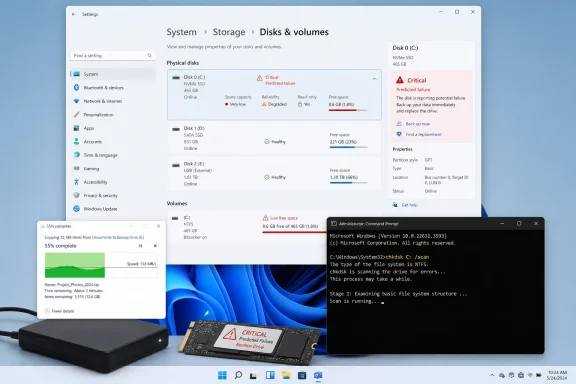 Start With the Warning, Not Your Favorite Utility
The phrase “disk problem” can describe several different conditions. Before running commands, identify which layer Windows is discussing.A critical device warning concerns the storage device. Microsoft identifies three warnings that Windows may display for supported storage devices:
- Spare capacity is low.
- Reliability is degraded.
- The drive is set to read-only.
A file-system concern is different. CHKDSK examines a volume’s file system and file-system metadata. It can report logical errors and, when invoked with the appropriate switch, repair errors within its scope. That does not make CHKDSK a repair mechanism for every storage-health warning.
A low-space condition is simpler: the volume is running out of user-addressable room. WindowsForum’s guide to reclaiming disk space focuses on finding large files, caches, installers, forgotten archives, and other material that can be removed or relocated safely. That is the right lane when Windows is complaining about ordinary free space—not when the disk Properties page shows low spare capacity or degraded reliability.
The order of operations follows from the diagnosis:
- Preserve data when Windows presents a critical device warning.
- Use CHKDSK for file-system assessment and repair.
- Use cleanup or additional storage for low free space.
- Use Disk Management and the Disks & volumes interface for configuration and identification rather than treating either as a universal repair console.
Find the Physical Disk in Windows 11
Open:Settings > System > Storage > Advanced storage settings > Disks & volumes
Select the physical disk and choose Properties.
Do not rely only on the drive-letter display in File Explorer. A drive letter such as C: identifies a volume used by Windows and applications. The Disks & volumes page lets you see that volume in the context of its physical disk, which is the level at which Windows presents the critical device warning.
For supported devices, the Properties page may display:
- Estimated remaining life
- Available spare capacity
- Temperature
- A critical warning, when one has been reported
WindowsForum’s article on managing offline and online disks makes a related distinction. A disk’s online or offline state concerns whether Windows can access it for normal storage operations. That administrative state does not, by itself, answer the separate question of device reliability. A disk can be visible and online while Windows is also reporting a critical health condition.
The same boundary applies to Disk Management. As WindowsForum’s guide to accessing Disk Management explains, the utility is useful for examining disks, partitions, volumes, drive letters, and configuration. It helps establish what storage Windows recognizes and how that storage is organized. It should not be used to reinterpret a critical device warning as merely a partition-layout problem.
What the Three Critical Warnings Require
Low spare capacity
Low spare capacity is one of Microsoft’s documented critical storage warnings. The supplied warning establishes that the device needs attention; it should not be reduced to a complaint about how many files are stored on C:.A WindowsForum report on critical storage warnings describes the alert as appearing when available spare capacity falls below the applicable threshold. The important user-facing fact is that Windows classifies it as a critical warning.
Do not respond by assuming that deleting Downloads, emptying the Recycle Bin, or uninstalling a game will clear it. Those actions increase ordinary free space on the volume. They do not address the device warning Windows has reported.
A prudent response is:
- Back up important data.
- Verify that the copied data is accessible.
- Replace the affected device.
Degraded reliability
A degraded-reliability warning means Windows is reporting a critical reliability condition for the device. It is not the same finding as an NTFS error.Back up important files and replace the affected device. CHKDSK may still be useful if a separate file-system issue also exists, but its result does not override the reliability warning.
A volume can be logically consistent at the moment it is checked while the underlying device continues to report degraded reliability. That is not a contradiction. The two findings describe different layers.
Drive set to read-only
Windows can also report that a drive is set to read-only. In that state, existing data may remain readable while normal writes are unavailable.The immediate recommendation is clear: back up the data that can still be accessed. Avoid treating CHKDSK as a documented method for returning the drive to ordinary operation. The supplied facts establish the warning and the need to protect data, but they do not establish a universal cause or a guaranteed repair.
Replacement should not be presented as an automatic Microsoft-documented conclusion for every read-only warning without additional evidence. After the backup is secure, evaluate the device, its role in the system, and the exact warning before deciding how it should be handled. The critical point is that the warning is not merely a request to run a file-system command.
Back Up Before You Troubleshoot a Critical Warning
When Windows has already displayed a critical device warning, data preservation comes before attempts to make the interface look normal.Copy important material to storage that does not depend on the affected physical disk. Moving files from C: to another partition on the same device does not create an independent backup.
Potential destinations include:
- An external storage device
- A separate internal physical disk
- A network location
- Properly configured cloud storage
After copying, verify the result. Open a representative selection of important files at the destination and confirm that expected folders and files are present. Verification is particularly important when the backup is being made in response to a warning rather than as part of a routine schedule.
WindowsForum discussions about Windows 11 and data loss repeatedly return to this point: a warning is useful only if the user has another copy before access is lost. The forum’s laptop battery-health guide offers a broader parallel. Health indicators are valuable because they can expose a deteriorating condition before the component becomes unusable, but the indicator must be matched to an appropriate response. For storage, that response begins with protecting the data.
Use CHKDSK for the File System
CHKDSK is appropriate when the concern is file-system integrity and no critical device warning has taken priority.Open Windows Terminal (Admin) or Command Prompt as administrator.
To request a status report for the C: volume, run:
chkdsk C:Replace
C: with the letter of the volume you intend to examine. Without a repair switch, CHKDSK reports the volume’s status rather than fixing detected errors.For an online scan of an NTFS volume, run:
chkdsk C: /scanThe
/scan switch performs an online scan. This is a scannable first step when you have a file-system concern but no critical device warning directing you to preserve data first.If CHKDSK reports errors that require correction, run:
chkdsk C: /fThe
/f switch instructs CHKDSK to fix file-system errors. If CHKDSK cannot obtain the access required to repair the system volume, Windows may offer to schedule the operation for the next restart.Back up important data before a repair whenever possible. Unlike a reporting scan,
/f modifies file-system structures to correct detected errors.The result should be interpreted narrowly:
- A clean scan means CHKDSK did not find a file-system problem within the scope of that check.
- A repaired volume means CHKDSK corrected file-system errors it found.
- Neither result cancels a separate low-spare-capacity or degraded-reliability warning.
Keep Hardware Warnings, File-System Errors, and Low Space Separate
After the CHKDSK procedure, the troubleshooting model can be reduced to three categories.Hardware-warning lane
This lane begins when the disk Properties page reports low spare capacity, degraded reliability, or a drive set to read-only.For low spare capacity or degraded reliability:
- Back up important files.
- Verify the backup.
- Replace the device.
- Back up accessible files immediately.
- Verify the backup.
- Evaluate the next step without assuming that CHKDSK is the answer or that every read-only report has the same cause.
File-system lane
This lane applies when the evidence points to logical file-system errors and Windows is not simultaneously presenting a critical device warning.Use:
chkdsk C: /scanThen, if repair is needed:
chkdsk C: /fDo not add unsupported causes to the diagnosis. A file-system error establishes that CHKDSK found a problem in the structures it examines. It does not, by itself, prove why the problem occurred.
Likewise, avoid turning repair into a circular ritual. Run the tool to answer a defined question, review its result, and keep the conclusion within the tool’s documented scope.
Low-space lane
This lane applies when the volume lacks sufficient ordinary free space but Windows is not reporting a critical device warning.WindowsForum’s article on reclaiming disk space recommends identifying what is actually consuming storage rather than deleting files at random. Large personal files, application caches, old installers, and forgotten downloads can account for substantial usage. Storage can also be moved or expanded when cleanup is insufficient.
The relevant actions are:
- Identify large files and folders.
- Remove data that is no longer needed.
- Move appropriate data to another destination.
- Add or expand storage if the workload requires more capacity.
Disk Management Answers a Configuration Question
Disk Management remains useful during storage troubleshooting, provided it is used for the questions it can answer.You can open it by right-clicking Start and selecting Disk Management, or by searching for Create and format hard disk partitions.
WindowsForum’s quick-methods guide emphasizes its role in viewing and administering disks, partitions, and volumes. That makes it useful for confirming:
- Which physical disks Windows recognizes
- Which partitions exist
- Which drive letters are assigned
- Whether a disk is online or offline
- How the available capacity is allocated
This separation prevents two common category errors. An online disk is not necessarily a reliable disk, and a volume labeled “Healthy” in a configuration view does not negate a separate critical device warning. In that context, “Healthy” may describe the partition or volume state being shown by that interface, not a comprehensive certification of the hardware.
Six Moves That Protect Your Data
The most useful Windows 11 storage-health procedure is short enough to keep beside the computer:- Open Settings > System > Storage > Advanced storage settings > Disks & volumes > select the physical disk > Properties.
- Identify whether Windows is reporting a critical device warning, a file-system concern, or ordinary low free space.
- Back up immediately if Windows reports low spare capacity, degraded reliability, or a drive set to read-only.
- Replace a drive reporting low spare capacity or degraded reliability; for read-only status, secure the backup before deciding the next step.
- Run
chkdsk C: /scanwhen the concern is file-system integrity and there is no critical device warning taking priority. - Run
chkdsk C: /fif file-system errors require repair, or reclaim and expand storage if the actual problem is low free space.
Frequently Asked Questions
Should I run CHKDSK as soon as Windows shows a storage warning?
Not automatically. First open the physical disk’s Properties page and read the warning.If Windows reports low spare capacity or degraded reliability, back up important data and replace the device. If it reports read-only status, back up accessible data immediately and evaluate the next step afterward.
Use CHKDSK when the concern is the file system rather than a critical device warning.
What is the exact Windows 11 path for checking disk health?
Open:Settings > System > Storage > Advanced storage settings > Disks & volumes > select the physical disk > Properties
The final selection matters because the health warning applies to the physical disk, not merely to a drive letter shown in File Explorer.
Is low spare capacity the same as low free space?
No.Low spare capacity is a critical device warning reported through the disk-health interface. Low free space describes how much user-addressable room remains on a volume.
If C: has little free space, clean up files, move data, or expand storage. If Windows reports low spare capacity, back up and replace the affected device.
Can deleting files clear a low-spare-capacity warning?
The supplied facts do not support treating file deletion as a remedy for that warning. Deleting files addresses ordinary volume free space. Low spare capacity is presented by Windows as a critical device-health condition.What does degraded reliability mean for the next step?
It means the device has reported a critical reliability warning. Back up important data, verify the backup, and replace the affected device.Do not declare the drive healthy merely because CHKDSK completes without finding file-system errors.
What should I do if the drive is reported as read-only?
Back up all important data that remains accessible. Windows documents read-only status as one of the critical warnings, but the warning alone does not establish a universal cause or a guaranteed repair.After securing the backup, evaluate the exact device and warning before deciding how the drive should be handled. Do not present CHKDSK as a documented cure for the read-only condition.
What does chkdsk C: /scan do?
It performs an online scan of the NTFS volume identified as C:. It is an appropriate first check when you suspect a file-system issue and no critical device warning has changed the priority to immediate data preservation.What does chkdsk C: /f do?
The /f switch tells CHKDSK to fix file-system errors. The command may need exclusive access to the volume, so Windows can offer to schedule the repair for the next restart when C: is in use.Does a clean CHKDSK result prove that the drive is healthy?
No. It means CHKDSK did not find a file-system problem within the scope of that check. A separate device warning can remain valid because it describes a different diagnostic layer.Should I use Disk Management to judge drive reliability?
Use Disk Management to inspect disks, partitions, volumes, drive letters, capacity allocation, and online or offline state. Use the disk Properties page in Settings to read the critical health information Windows exposes.Disk Management is valuable, but its configuration status should not be treated as a comprehensive hardware-health verdict.
What if the only problem is low disk space?
Follow the capacity branch: identify large files, remove data you no longer need, move appropriate files elsewhere, or add storage.WindowsForum’s disk-space guidance is particularly useful here because it focuses on finding the real storage consumers rather than applying unrelated repair commands. Cleanup solves a space problem; it does not repair a critical device-health condition.
What is the safest one-sentence rule?
Critical device warning: back up first; file-system concern without a critical warning: scan and repair as needed; low free space: clean up or expand storage.Windows 11 provides the necessary clues, but users must keep their meanings separate. Low spare capacity and degraded reliability call for backup and replacement. Read-only status calls for immediate backup and careful evaluation. File-system errors call for CHKDSK. Low free space calls for capacity management. The right result comes not from running the largest number of tools, but from choosing the action that matches the warning Windows actually displayed.
References
- Primary source: learn.microsoft.com
chkdsk | Microsoft Learn
Reference article for the chkdsk command, which checks the file system and file system metadata of a volume for logical and physical errors.learn.microsoft.com - Independent coverage: support.microsoft.com
Storage settings in Windows | Microsoft Support
Learn about storage settings in Windows and how reserved storage works to conserve disk space for temporary files, caches, and other files.support.microsoft.com - Primary source: WindowsForum
How to Manage Disk Status in Windows 11: Offline and Online Methods | Windows Forum
Whether you are a seasoned Windows user or a newcomer, managing drives effectively is essential for maintaining optimal performance and organization on your...windowsforum.com
