

Thurrott.com has updated its Windows 11 Field Guide entry on screenshots and screen recordings, putting the latest Snipping Tool workflow—and its Copilot+ PC-only “Perfect screenshot” feature—into one practical reference.
The July 12 update is not a Windows release or a newly announced app feature. It is a refreshed guide chapter from Paul Thurrott covering Windows 11’s built-in capture options, including keyboard shortcuts, Snipping Tool, Xbox Game Bar, file locations, basic editing, and screen recording controls.
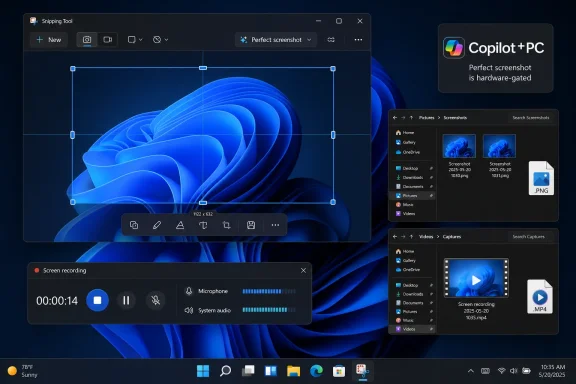
The guide reflects how far Snipping Tool has moved beyond the old basic snip utility. In addition to rectangular, window, full-screen, and freeform captures, it can record a selected area or window, include microphone and system audio, save recordings as MP4 files, and export recordings as GIFs.
For ordinary screenshots, Windows key + Print Screen still saves a full-screen PNG directly to the user’s Pictures\Screenshots folder. Print Screen can be configured to open the Snipping Tool capture interface instead. Xbox Game Bar remains another option: Windows key + Alt + Print Screen captures the active window, while Windows key + Alt + R starts a recording, with results saved under Videos\Captures.
Thurrott also notes a limitation that matters for documentation teams and support desks: Snipping Tool does not capture the mouse pointer. Tools such as ShareX or Greenshot remain necessary when the cursor itself must appear in a training image or incident report.
The feature works in rectangle mode and can be invoked from the Snipping Tool toolbar or by holding Ctrl while making a selection. It analyzes the selected on-screen content locally, then presents adjustable handles before capture.
That restriction is important: the option is not a general Windows 11 upgrade and will not appear on conventional PCs, even if they are fully patched. Microsoft has positioned Perfect screenshot alongside other Copilot+ PC-specific Snipping Tool functions, including Color Picker.
For administrators, the update is mainly a reminder that Windows 11’s bundled capture tooling is now capable enough for most basic end-user support, quick documentation, and lightweight screen-recording tasks without third-party deployment. Organizations that need cursor capture, advanced annotation, controlled upload destinations, or automated redaction will still need separate tools.
The updated Field Guide chapter is available now, while Perfect screenshot remains limited to eligible Copilot+ PCs.
The July 12 update is not a Windows release or a newly announced app feature. It is a refreshed guide chapter from Paul Thurrott covering Windows 11’s built-in capture options, including keyboard shortcuts, Snipping Tool, Xbox Game Bar, file locations, basic editing, and screen recording controls.
 Snipping Tool Gets the Focus
The guide reflects how far Snipping Tool has moved beyond the old basic snip utility. In addition to rectangular, window, full-screen, and freeform captures, it can record a selected area or window, include microphone and system audio, save recordings as MP4 files, and export recordings as GIFs.For ordinary screenshots, Windows key + Print Screen still saves a full-screen PNG directly to the user’s Pictures\Screenshots folder. Print Screen can be configured to open the Snipping Tool capture interface instead. Xbox Game Bar remains another option: Windows key + Alt + Print Screen captures the active window, while Windows key + Alt + R starts a recording, with results saved under Videos\Captures.
Thurrott also notes a limitation that matters for documentation teams and support desks: Snipping Tool does not capture the mouse pointer. Tools such as ShareX or Greenshot remain necessary when the cursor itself must appear in a training image or incident report.
“Perfect Screenshot” Is Hardware-Gated
The more notable item is Perfect screenshot, an AI-assisted Snipping Tool mode limited to Copilot+ PCs. Microsoft describes it as a feature that automatically adjusts a rectangular selection to tightly frame the intended on-screen content, reducing the need for manual cropping afterward.The feature works in rectangle mode and can be invoked from the Snipping Tool toolbar or by holding Ctrl while making a selection. It analyzes the selected on-screen content locally, then presents adjustable handles before capture.
That restriction is important: the option is not a general Windows 11 upgrade and will not appear on conventional PCs, even if they are fully patched. Microsoft has positioned Perfect screenshot alongside other Copilot+ PC-specific Snipping Tool functions, including Color Picker.
For administrators, the update is mainly a reminder that Windows 11’s bundled capture tooling is now capable enough for most basic end-user support, quick documentation, and lightweight screen-recording tasks without third-party deployment. Organizations that need cursor capture, advanced annotation, controlled upload destinations, or automated redaction will still need separate tools.
The updated Field Guide chapter is available now, while Perfect screenshot remains limited to eligible Copilot+ PCs.
References
- Primary source: thurrott.com
Published: 2026-07-12T19:10:09.258185
screenshots-thumb - Thurrott.com
 www.thurrott.com
