

Paul Thurrott’s updated Windows 11 Field Guide highlights a small but useful Snipping Tool feature that is easy to miss: an on-screen ruler for drawing straight lines on screenshots. The “Show ruler/Hide ruler” control appears after a capture is opened for editing, alongside the pen and highlighter tools.
This is not a newly announced Windows 11 feature or a separate download. Thurrott’s July 12 guide update documents the capability as part of the current Snipping Tool editing experience, which Microsoft ships with Windows 11. It is chiefly useful for annotated screenshots, quick UI mockups, and support documentation where freehand lines look sloppy or obscure details.
According to Thurrott, enable the ruler from the screenshot editor, then use the ballpoint pen or highlighter against its edge to create a straight line. With a mouse, place the pointer over the center of the ruler and use the scroll wheel to rotate it. On a multitouch touchpad, a two-finger gesture rotates the guide.
That makes the feature more flexible than a basic horizontal-line tool. Admins marking up a support capture can align an arrow or highlight with a particular button, field, or pane boundary without having to export the image to Paint or another editor first.
The ruler is available while editing a still image, not as an overlay for video recording. Snipping Tool’s recording mode remains more limited: it can record a selected rectangle or window, save the output as MP4, and perform simple beginning-and-end trimming. Users needing more advanced screen-capture functions, such as recording the mouse pointer or deeper video editing, will still need another tool.
Other built-in options remain useful depending on the job:
The practical change here is simply that Windows 11’s built-in screenshot editor can handle neat straight-line annotations without a second app.
This is not a newly announced Windows 11 feature or a separate download. Thurrott’s July 12 guide update documents the capability as part of the current Snipping Tool editing experience, which Microsoft ships with Windows 11. It is chiefly useful for annotated screenshots, quick UI mockups, and support documentation where freehand lines look sloppy or obscure details.
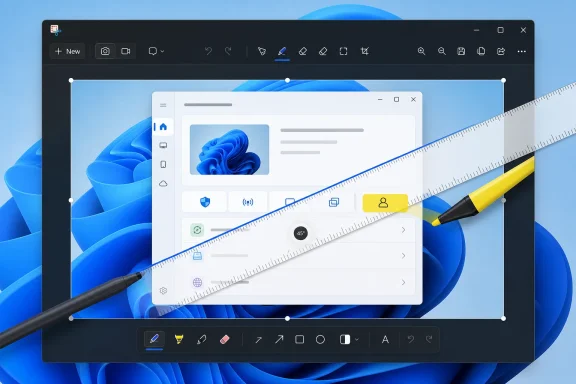 How the ruler works
According to Thurrott, enable the ruler from the screenshot editor, then use the ballpoint pen or highlighter against its edge to create a straight line. With a mouse, place the pointer over the center of the ruler and use the scroll wheel to rotate it. On a multitouch touchpad, a two-finger gesture rotates the guide.That makes the feature more flexible than a basic horizontal-line tool. Admins marking up a support capture can align an arrow or highlight with a particular button, field, or pane boundary without having to export the image to Paint or another editor first.
The ruler is available while editing a still image, not as an overlay for video recording. Snipping Tool’s recording mode remains more limited: it can record a selected rectangle or window, save the output as MP4, and perform simple beginning-and-end trimming. Users needing more advanced screen-capture functions, such as recording the mouse pointer or deeper video editing, will still need another tool.
Snipping Tool remains the default capture path
The guide also reiterates how Windows 11 now handles the Print Screen key by default. Pressing Print Screen launches the Snipping Tool capture interface rather than immediately copying the full display to the clipboard. Users who prefer the older behavior can turn off Use the Print screen key to open screen capture under Settings > Bluetooth & devices > Keyboard.Other built-in options remain useful depending on the job:
- Windows + Print Screen captures the full display, copies it to the clipboard, and saves a PNG in the Screenshots folder.
- Alt + Print Screen captures the active window to the clipboard.
- Windows + Alt + R starts a Game Bar recording, including outside games, with output stored in the Videos Captures folder.
- Snipping Tool can capture rectangular, window, full-screen, and freeform screenshots; its recording controls support rectangular and window selections.
The practical change here is simply that Windows 11’s built-in screenshot editor can handle neat straight-line annotations without a second app.
References
- Primary source: thurrott.com
Published: 2026-07-12T19:10:09.258484
ruler - Thurrott.com
 www.thurrott.com
