• Thread Author
Microsoft’s October 28, 2025 preview cumulative—KB5067036 (OS Builds 26200.7019 for 25H2 and 26100.7019 for 24H2)—has started landing for Windows 11 devices and brings a dense mix of visible shell changes, on‑device and cloud‑assisted AI actions, accessibility improvements, and a broad set of quality fixes; the package is being distributed as an optional Release Preview update and will be exposed gradually to devices via server‑side gating and hardware/license checks.

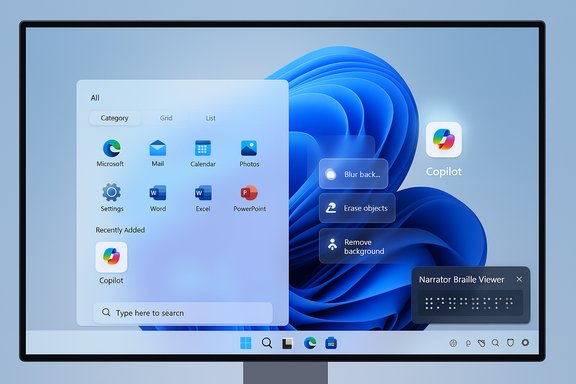
A monitor displaying a Windows-style start menu with Copilot and Narrator Braille Viewer.Background / Overview​

Microsoft packaged KB5067036 as a non‑security preview cumulative intended for validation and pilot testing, not as a forced Patch Tuesday security rollup. That delivery model means the updated binaries for both Windows 11 24H2 and 25H2 are broadly distributed, but visibility of many features is controlled by staged, server‑side flags and device entitlements (for example, Copilot+ hardware and Microsoft 365 Copilot licensing). The update increments the servicing builds to 26100.7019 (24H2) and 26200.7019 (25H2) and is available from Windows Update under Optional/Preview updates or as standalone MSU files via the Microsoft Update Catalog for manual deployment. Administrators and enthusiasts can therefore install the package, but should expect that some features may not appear immediately on every device due to phased rollout. KB5067036 is notable for three overlapping priorities:
  • Shell modernization and usability: a redesigned Start menu and new controls for onscreen hardware indicators and sharing.
  • AI integration across the shell: Click to Do, File Explorer AI actions, and Copilot interactions that blend on‑device and cloud models.
  • Accessibility and security enhancements: improvements to Narrator (including a Braille Viewer), a plugin passkey manager integration, and a collection of reliability fixes for virtualization, updates, and media playback.

What’s new (feature breakdown)​

Below are the most consequential changes in KB5067036, grouped for clarity. Each subsection includes verification of the claim and notes about availability or gating.

Redesigned Start menu: single, scrollable All and new views​

Microsoft promotes a refreshed Start that emphasizes a single, vertically scrollable “All” surface with three view modes—Category, Grid, and List—and improved behavior for large displays and pinned apps. The redesign also integrates a Phone Link quick‑access element when a paired phone is present, and adds settings to hide or tune the Recommended area. This is one of the most visible UX changes in the release. Why it matters: the new Start reduces clicks for users with many apps, improves discoverability, and gives immediate toggles for Recommended content. Availability note: the redesign is being rolled out gradually; installing the preview does not guarantee instant activation—Microsoft flips features progressively to subsets of devices.

File Explorer: AI actions, Recommended files, and performance tweaks​

File Explorer gains several AI‑centric and UI changes:
  • AI actions in the context menu for images (.jpg/.jpeg/.png): Visual Search, Blur Background, Erase Objects, Remove Background. Users can right‑click or press Shift+F10 and select AI actions. Some edits are handled locally on capable hardware; others use cloud models and, for document summarization, may require a Microsoft 365 subscription and a Copilot license.
  • Summarize for files in OneDrive/SharePoint via Copilot — generates summaries without opening each file, but requires Microsoft 365/Copilot entitlement.
  • A Recommended Files feed in File Explorer Home for local and Microsoft accounts, hover quick‑actions (e.g., “Open file location,” “Ask Copilot”), and underlying performance optimizations for cloud file launching and context menus.
Availability and governance: certain AI actions are region‑ and hardware‑gated (for instance, the EEA may be excluded for some features) and tenant/org policies can affect Copilot behavior. Administrators should evaluate DLP and data egress rules before enabling Copilot integrations broadly.

Click to Do and Copilot expansions​

Click to Do receives notable improvements:
  • New and popular action tags to surface common AI‑powered actions.
  • A more concise Summarize output for text entities.
  • A typeable prompt box in some Click to Do contexts and live persona cards when integrated with Microsoft 365 in enterprise scenarios.
These changes push Copilot from a sidebar assistant to a contextual action that can be invoked directly from selections and files—valuable for productivity but increasing the surface for policy review in managed environments.

Advanced Settings and migration of Control Panel options​

A redesigned Advanced page (Settings → System → Advanced) consolidates developer and system-level controls previously scattered in the legacy For Developers area and Control Panel. It adds options like File Explorer + version control, which surfaces Git metadata (branch, diff counts, last commit) for repository folders. Additionally, more time, language, and keyboard controls have been migrated from Control Panel into Settings (date/time formats, clocks, regional number/currency formats, and Unicode UTF‑8 support).
Why this matters: the steady migration of legacy Control Panel settings into Settings continues Microsoft’s modernization work, simplifying configuration for end users but also changing where some enterprise scripts and automation expect settings to live.

Input, keyboard, and Narrator accessibility changes​

Input:
  • New keyboard shortcuts for dashes: Win + - inserts an en dash (–); Win + Shift + - inserts an em dash (—). Note: if Magnifier is active, Win + - still controls Magnifier zoom.
Narrator and Braille:
  • Braille Viewer: Narrator can now display an on‑screen Braille view that mirrors refreshable Braille displays; it requires installing the Braille support package and enabling Narrator’s Braille settings. Narrator’s general reading and navigation in Word was also improved (better list/table announcements, footnote navigation).
Voice access:
  • Natural language commanding and a smoother Fluid Dictation experience (on‑device small language models on Copilot+ hardware) are highlighted in preview notes. Availability is hardware‑dependent.

Passkeys and authentication: plugin credential manager​

Windows 11 now supports a plugin passkey manager integration. After installing a credential manager application that supports the integration, users can enable the plugin under Settings → Accounts → Passkeys → Advanced options and complete verification with Windows Hello. This allows existing passkeys saved to the plugin manager to be used or new passkeys to be saved there.
This expands passkey interoperability but also introduces another credential provider surface that enterprise security teams should validate.

Taskbar, hardware indicators, and Notification Center​

UI refinements include:
  • The ability to reposition hardware indicators (brightness, volume, airplane mode, virtual desktops) via Settings → System → Notifications and selecting onscreen pop‑up position.
  • A redesigned battery icon with percentage option and refined overlays.
  • Notification Center availability on secondary monitors and a larger clock with seconds option when combined with prior August non‑security updates.

Gaming, media, Hyper‑V, and other fixes​

KB5067036 bundles several targeted fixes:
  • Game Bar and overlay performance improvements, especially on multi‑monitor setups with different refresh rates.
  • Fixes for DRM playback issues introduced by earlier updates affecting Enhanced Video Renderer (EVR) with HDCP enforcement—a previously high‑impact regression.
  • Hyper‑V fixes for TPM on ARM64 devices and GPU paravirtualization session freezes.

Important reliability item: Task Manager duplication bug​

Shortly after the optional preview began circulating, users reported a bug where Task Manager would duplicate or refuse to fully close—leaving background taskmgr.exe instances that can consume memory and degrade performance. Multiple outlets documented the issue and Microsoft acknowledged that lingering instances can “potentially degrade device performance.” Workarounds include using Task Manager’s own End Task, running taskkill /im taskmgr.exe /f, or uninstalling the preview until a patch is released. This regression is a high‑visibility problem because Task Manager is a core tool for troubleshooting, and lingering instances can accumulate resource usage if the user repeatedly opens and closes the utility. Microsoft has indicated it is investigating and preparing corrective updates.

Critical analysis — strengths, risks, and real‑world impact​

Strengths: practical UX wins and meaningful accessibility work​

  • Start menu redesign is a real usability improvement. The single, scrollable All view reduces clicks for power users and adapts better to large displays. Early hands‑on coverage consistently praises the increased discoverability and the ability to hide Recommended content.
  • AI actions are thoughtfully embedded where they help. Bringing image edits and document summarization to the right‑click menu removes friction for common tasks (e.g., erasing an unwanted object in a photo or summarizing a long report). Local on‑device processing on Copilot+ hardware reduces latency and offers a privacy advantage when configured correctly.
  • Accessibility improvements are substantive. Narrator’s Braille Viewer and Voice Access enhancements represent a meaningful investment in assistive technologies and can directly improve productivity for users who rely on these tools.
  • Quality fixes address real regressions. The update explicitly targets stubborn media playback regressions and update‑installation errors that affected some users after prior updates, which is important for reliability.

Risks and friction points​

  • Staged rollout and feature gating create fragmentation. Binary‑first delivery with server‑side feature flags means identical build numbers may behave differently across devices. For enterprises, that complicates documentation, support, and pilot verification.
  • Privacy and governance surface expansion. Copilot and Click to Do integrations increase touchpoints where user content might be analyzed by local or cloud models. Organizations must reassess DLP, consent flows, and monitoring to ensure sensitive data isn’t inadvertently uploaded or summarized.
  • Hardware and licensing gating adds complexity. Many features are gated to Copilot+ hardware (NPUs and OEM drivers) or Microsoft 365/Copilot licenses. While that preserves performance expectations, it risks inconsistent user experiences inside mixed fleets. The commonly quoted NPU thresholds in community reporting (for example, approximations around TOPS) are not universally documented by Microsoft and should be treated as provisional until OEM certification guidance is published. Flagged as unverifiable in precise numeric terms.
  • Regression risk in optional previews. As demonstrated by the Task Manager duplication bug and other reports (e.g., Storage Spaces visibility issues on some systems), optional previews can surface regressions that harm productivity—particularly for machines used for troubleshooting or media playback. Conservative users and production fleets should treat this as a pilot release.

Practical guidance: who should install, how to deploy, and recovery​

Who should install KB5067036 now​

  • Enthusiasts and power users who want early access to the Start redesign and Copilot-related features and are comfortable troubleshooting.
  • IT teams running controlled pilot rings that can validate policies, DLP, and EDR interactions in representative hardware configurations.
  • Accessibility testers who need the Narrator Braille Viewer or improved Voice Access flows.
Do not install on mission‑critical production machines that cannot tolerate potential regressions; wait for the broader Patch Tuesday rollout or cumulative non‑preview updates.

How to install (supported manual steps)​

  • Confirm Windows version and build: Run winver or open Settings → System → About to ensure you’re on Windows 11 24H2 or 25H2.
  • Option A (Windows Update — Release Preview): Settings → Windows Update → Windows Insider Program → Get started → Select Release Preview. Enable “Get the latest updates as soon as they’re available,” then Check for updates and pick the Optional/Preview KB5067036 package.
  • Option B (manual MSU): Download the MSU that matches your build/architecture from the Microsoft Update Catalog and install. For multi‑MSU distributions, put all files in a folder and use DISM to discover prerequisites automatically.
  • Reboot when prompted. Some features may appear only after sign‑out or after Microsoft’s server‑side enablement.

How to uninstall or block the preview​

  • Uninstall: Settings → Windows Update → Update history → Uninstall updates → find KB5067036 and remove it, then reboot.
  • Block/Delay: In managed environments, use WSUS/Configuration Manager to withhold the optional preview from broad deployment. For individual users, decline optional updates and keep the “Get the latest updates as soon as they’re available” toggle off.

Recovery/workarounds for Task Manager duplication bug​

  • Use Task Manager’s own End Task to terminate visible instances.
  • Run Command Prompt or PowerShell as admin and execute: taskkill /im taskmgr.exe /f to forcibly terminate lingering taskmgr.exe processes.
  • If instability persists, uninstall KB5067036 until Microsoft issues a corrective cumulative. Multiple outlets and community reports detail this workaround and Microsoft acknowledged the performance risk.

Deployment checklist for admins (recommended)​

  • Inventory: Identify Copilot+/NPU hardware and map which devices are likely to receive on‑device AI features.
  • Pilot ring: Deploy KB5067036 to a small, representative set of devices across hardware, software, and user types.
  • Policy review: Validate DLP, SIEM/EDR ingestion, and consent flows for any Copilot/Click to Do actions that may upload content.
  • Application compatibility: Test media playback, virtualization (Hyper‑V TPM scenarios), and Quick Settings/Quick Cast flows in the pilot.
  • Accessibility test: Validate Narrator Braille Viewer and Voice Access flows on assistive hardware you support.
  • Rollback plan: Prepare rollback/uninstall steps and create user guidance for common regressions (Task Manager workarounds, Storage Spaces visibility issues).

Verification notes and unverifiable claims​

  • Confirmed facts: KB number (KB5067036), release date (October 28, 2025 preview), and target OS builds (26100.7019 and 26200.7019) are published in Microsoft’s release notes and corroborated by multiple independent outlets.
  • Corroborated features: Start redesign, File Explorer AI actions, Click to Do improvements, Braille Viewer in Narrator, plugin passkey manager integration, and the taskbar/hardware indicator controls are documented in Microsoft’s notes and reported by major outlets.
  • Unverifiable or provisional claims: precise hardware thresholds for Copilot+ certification (for example, single numeric TOPS thresholds frequently quoted in community posts) are not formally published by Microsoft in the release notes and should be treated as unverified approximations until Microsoft/OEM certification guidance is available. This caveat applies to any single‑number performance thresholds or exact NPU requirements.

Conclusion​

KB5067036 is a consequential October 2025 preview that stitches together visible Windows 11 refinements (the Start redesign, share and taskbar polish), on‑device and cloud‑assisted AI actions in File Explorer and Click to Do, and meaningful accessibility updates such as Narrator’s Braille Viewer. The update also consolidates more legacy Control Panel options into Settings and addresses important reliability issues, including earlier DRM playback regressions. However, this preview also demonstrates the tradeoffs of Microsoft’s binary‑first / server‑flag rollout model: feature fragmentation, gating by hardware and licensing, and the practical risk of regressions—most notably the Task Manager duplication bug that has already affected a subset of users and required Microsoft investigation. For enthusiasts and accessibility testers the update is an exciting step forward; for enterprises and conservative users the correct approach is measured piloting, an immediate reassessment of governance controls for Copilot flows, and readiness to roll back if regressions affect critical workflows. Keep backups, validate policies, and follow Microsoft’s production cumulative updates if you prioritize stability over early feature exposure.


Source: WinCentral Windows 11 25H2, 24H2 update KB5067036, Download Link
 

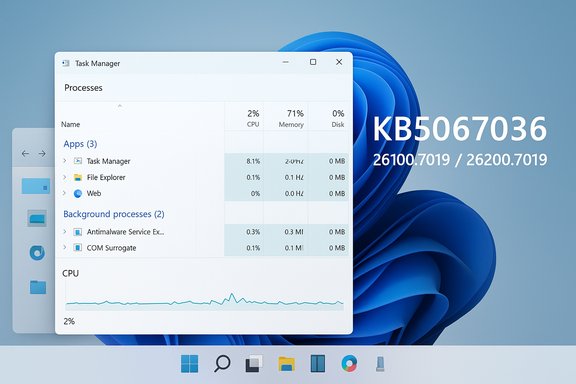
Windows 11 desktop with Task Manager open, showing processes and CPU usage.
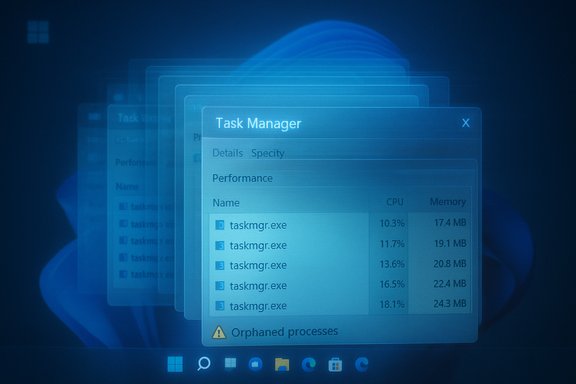
Microsoft’s October preview for Windows 11 — shipped as KB5067036 — landed with a mix of welcome fixes and a quietly disruptive regression: under certain conditions Task Manager’s process (taskmgr.exe) can remain running after the window is closed, causing duplicate, “ghost” Task Manager instances to accumulate in memory until explicitly terminated or the system is rebooted.

Background​

Microsoft published KB5067036 on October 28, 2025 as an optional, non‑security preview cumulative update for Windows 11 servicing branches 24H2 and 25H2, delivering OS build numbers reported as 26100.7019 (24H2) and 26200.7019 (25H2). The package was distributed as a staged/gradual preview and bundled a mix of servicing‑stack fixes, UI polish, and several on‑device AI and Copilot‑related improvements.
The update’s intended scope was functional and reliability improvements rather than security fixes. In addition to the LCU payload, Microsoft combined servicing stack fixes to improve the update pipeline’s resilience — useful for addressing persistent installation failures such as error 0x800f0983 — and shipped other refinements across the Shell, File Explorer, and AI component packages.
Despite these positive items, the preview’s staged rollout model meant features and behavior could vary across systems; that variability amplified the visibility of a lifecycle regression affecting Task Manager on a subset of devices.

What KB5067036 actually contains​

Headline changes (what users saw)​

  • Start menu redesign and UX tweaks aimed at improved discoverability and layout.
  • Taskbar and battery icon refinements, including cosmetic and accessibility adjustments.
  • File Explorer performance and reliability fixes, plus new AI-enabled right‑click actions on supported devices.
  • Servicing‑stack and component store fixes intended to mitigate certain update failures (notably Windows Update error 0x800f0983).
  • On‑device AI / Copilot‑adjacent updates, with many AI components gated to Copilot+ hardware.

Servicing stack and deployment notes​

This preview included SSU‑style improvements intended to make future updates more robust; Microsoft’s approach in 2025 often bundles SSU + LCU payloads so the servicing stack can reliably apply subsequent cumulative packages. Administrators should treat SSU changes as durable — once applied they affect rollback semantics and repair strategies. The packaging and staged enablement model explain why the same KB could behave differently across devices.
Important verification note: some public writeups and early reports referenced a servicing‑stack KB number alongside KB5067036. That specific servicing KB identifier (for example, an item labeled KB5067035) does not appear consistently across the available public summaries in the dataset used for this article and could not be independently verified here — treat any specific SSU KB number that you read elsewhere as something to confirm directly from Microsoft’s official KB or the Microsoft Update Catalog before taking deployment actions. Always validate KB identifiers and build strings against Microsoft’s support documentation before trusting them for rollback or procurement decisions.

AI components and Copilot+ surface​

The preview included updates to on‑device AI modules intended for Copilot+ PCs, including improved image search, content extraction and semantic features. Microsoft ships many AI component updates separately and gates them to eligible hardware (NPUs, firmware and licensing); that means not every machine gets the same binary or model weights. Exact component version identifiers cited in some summaries (for example, a string like 1.2510.1152.0) were not consistently reproducible across public notes in the dataset used for this article and should be verified against Microsoft’s component‑feed metadata if precise version numbers matter to your validation plan.

The Task Manager regression: symptoms, reproduction and scope​

Symptom summary (what users observed)​

A reproducible pattern emerged on affected machines after KB5067036 was applied:
  • Open Task Manager (Ctrl+Shift+Esc).
  • Close Task Manager using the window’s top‑right Close (X) control.
  • Reopen Task Manager and discover an additional “Task Manager” entry in Processes or multiple instances of taskmgr.exe in Details.
  • Repeat the open → close cycle and additional orphaned taskmgr.exe processes can appear, accumulating until manually terminated or cleared by a reboot.

How to verify on your device (technical checklist)​

  1. Confirm the OS build string: press Win+R, type winver, and check for build 26100.7019 or 26200.7019 if you suspect you installed the October preview.
  2. Reproduce the behavior:
    • Open Task Manager (Ctrl+Shift+Esc).
    • Close it with the Close (X) button.
    • Reopen Task Manager and inspect Processes → expand Background processes.
  3. Command‑line checks:
    • PowerShell: Get-Process -Name taskmgr
    • Command Prompt: tasklist /FI "IMAGENAME eq taskmgr.exe"
  4. For deeper forensics, use Sysinternals Process Explorer or ProcMon and capture ETW traces to inspect thread stacks, handles and loaded modules for orphaned instances.

Measured impact and technical details​

Independent community tests and multiple hands‑on reproductions reported that the orphaned Task Manager processes are real Windows processes (taskmgr.exe) and not merely UI artifacts. Per‑instance memory footprints were commonly measured in the low tens of megabytes — typically ~20–30 MB per orphaned instance — and CPU usage per instance is usually minimal (often 0–2%), though aggregate CPU/memory usage can become noticeable if many instances accumulate. Rebooting clears the orphaned instances; they do not persist across restarts.

Reproducibility and scope​

The issue is not universal. The bug reproduces reliably on a subset of devices that have the preview installed, which is consistent with Microsoft’s staged rollouts, server‑side gating of features and device‑specific environmental triggers (drivers, helper services or third‑party process hooks). That variability complicates root‑cause identification and explains why some users saw the behavior immediately while others did not.

Why this matters: practical and operational implications​

For consumers and power users​

On typical consumer machines the problem may be low impact — a few orphaned taskmgr.exe processes will consume modest RAM and be cleared with a reboot. However, for power users who open Task Manager frequently (for example, developers, testers, or power users who repeatedly open the app while troubleshooting), the accumulation can scale into hundreds of megabytes or more in contrived cases, with a corresponding effect on responsiveness and battery life on low‑RAM laptops.

For IT teams and enterprises​

Task Manager is the first‑line diagnostic tool for many administrators. A regression that undermines the reliability of that utility complicates helpdesk workflows and automated troubleshooting that may rely on single, authoritative taskmgr.exe instances. The greater operational risk is not the memory used by a small number of orphaned processes but the erosion of trust in management tooling and the additional triage burden on support teams. Enterprises should treat preview/optional packages as validation flights only and avoid broad deployment until a corrective update is confirmed.

Technical analysis and probable cause (informed hypothesis)​

The available evidence points to a lifecycle/teardown regression introduced by a change to Task Manager’s process‑grouping or monitoring logic in the preview. Modern Task Manager implementations mix a UI thread with background sampling / performance polling threads and references to kernel counters or COM objects. A change in grouping semantics or ownership of sampling objects could leave background threads or references alive after the window closes, preventing the process from terminating even though its main window has been destroyed. Reopening Task Manager then creates a new visible instance, while the previous one remains resident.
This is an informed hypothesis consistent with the symptoms and with the KB’s stated change area; however, the exact internal root cause (specific leaked handle, thread, or COM object) requires Microsoft engineering telemetry, ETW captures and internal process dumps to confirm. Until Microsoft publishes a detailed post‑mortem or a known‑issue acknowledgement with diagnostic details, treat this explanation as plausible but not fully confirmed.

Mitigations, containment and remediation steps​

Immediate user‑level mitigations​

  • Avoid closing Task Manager using the window Close (X) button on systems that have the preview installed. Instead:
    • Use Task Manager’s File → Exit (if available) or the End task action on relevant processes.
    • Use the command-line to terminate orphaned processes: taskkill /IM taskmgr.exe /F
    • PowerShell: Get-Process -Name taskmgr | Stop-Process -Force
  • Reboot the device to clear accumulated orphaned taskmgr.exe instances when convenient.

For administrators and support teams​

  1. Add a simple post‑update diagnostic to your triage checklist:
    • Run PowerShell: Get-Process -Name taskmgr
    • If >1 results, issue a controlled remediation (taskkill) and gather ETW/ProcMon traces.
  2. Pause deployment of KB5067036 in production rings until Microsoft confirms a fix, and pilot the preview in a representative set of test hardware that mirrors production diversity (drivers, VPN clients, EDR/AV agents).
  3. If you must apply the preview in test rings, collect reproducible traces and open support cases with Microsoft (attach ProcMon/ETW dumps and reproduction steps). These artifacts accelerate vendor triage.

Containment checklist (ordered)​

  1. Confirm build string (winver).
  2. Reproduce and capture:
    • Get-Process taskmgr
    • tasklist /FI "IMAGENAME eq taskmgr.exe"
    • ProcMon capture filtered for taskmgr.exe.
  3. Kill orphaned instances using taskkill /IM taskmgr.exe /F or Stop-Process.
  4. Reboot if required for immediate recovery.
  5. Escalate to Microsoft with attached traces if you manage impacted fleets.

What to expect from Microsoft and timelines​

Historically, Microsoft addresses targeted preview regressions with follow‑up updates or out‑of‑band fixes once sufficient telemetry and reproducible traces confirm the root cause. Community reports and vendor telemetry usually spur a known‑issue acknowledgement and a corrective build. Administrators and IT teams should monitor the Microsoft release notes, the Windows Release Health dashboard and official KB pages for an acknowledgement and a subsequent patch before re‑introducing the preview to broader rings. Until a vendor fix is published, pragmatic containment (avoid X‑button closure, use taskkill, pause preview rollout) is the safest path.
Caveat: The presence, exact content and numbering of servicing‑stack KBs that may be combined with KB5067036 vary by channel and packaging. Some third‑party summaries reference specific SSU KB numbers; if you rely on that data for offline deployment or rollback planning, verify the SSU identifier for your architecture and build directly in Microsoft’s Update Catalog or support documentation because the dataset used for this article does not confirm every referenced SSU KB string.

Broader lessons for update management and QA​

  • Preview channels are for validation, not production. Optional preview updates are explicitly intended to gather field telemetry and should remain confined to pilot rings that reflect the diversity of production hardware and software. The Task Manager regression is a textbook example of why that discipline matters.
  • Lifecycle paths must be tested. Close, minimize, uninstall and upgrade sequences for core utilities must be included in automated regression suites; the “close” path is exercised by every user and is an atomic requirement for lifecycle correctness.
  • Collect reproducible traces early. For environment‑dependent regressions, ETW, ProcMon, and process dumps are invaluable; they turn anecdote into actionable engineering artifacts that speed fixes.
  • Maintain recovery options. When SSUs are combined with LCUs, rollback can become more complex. Keep tested recovery images and plan for in‑place repair strategies for fleets that require them.

Final assessment​

KB5067036 packaged meaningful and useful quality and experience improvements for Windows 11 — from Start menu refinements to a targeted servicing‑stack remediation for installation failures and multiple AI component updates for Copilot+ hardware. That said, the Task Manager close‑path regression represents a significant, if not catastrophic, reliability lapse because it affects a fundamental management tool and reproduces in a straightforward manner on a subset of updated devices. The regression is not a security vulnerability, but it does erode confidence in core tooling and adds measurable triage cost for support teams.
Practical next steps for Windows users and administrators:
  1. Treat KB5067036 as optional — test it in pilot rings and avoid broad production deployment until the bug is fixed.
  2. If you already installed the preview and observe duplicate taskmgr.exe instances, use taskkill/Get-Process → Stop-Process, and reboot as needed.
  3. Collect and escalate reproducible traces to Microsoft to accelerate a corrective update.
  4. Validate any reported KB/SSU identifiers against Microsoft’s official KB or the Update Catalog before relying on specific KB numbers for offline installs or rollbacks.
This incident is a reminder that even incremental changes to process‑grouping logic or UI internals can rip through lifecycle code paths in unexpected ways. The sensible operational response is disciplined validation, prompt containment and clear escalation of high‑quality diagnostics — the same practices that keep production fleets reliable while allowing organizations to benefit from Microsoft’s ongoing improvements to Windows 11.

Conclusion: KB5067036 is a useful preview update that addresses real servicing and quality issues and continues Microsoft’s push to integrate on‑device AI features where hardware permits. At the same time, the Task Manager teardown regression is real, measurable and fixable — but not trivial for enterprise fleets. Administrators and power users should move cautiously, validate behavior in representative pilots, and apply the containment steps above until Microsoft issues a targeted remediation.

Source: Cyber Press Windows 11 24H2/25H2 Bug Keeps Task Manager Running After Close
 

Microsoft’s recent optional preview update (KB5067036) introduced a surprising regression: closing Task Manager with the window “X” can leave the underlying taskmgr.exe process running, and each reopen spawns another live instance — producing duplicate Task Manager processes that quietly consume memory and, in aggregate, can degrade system performance on affected Windows 11 devices.

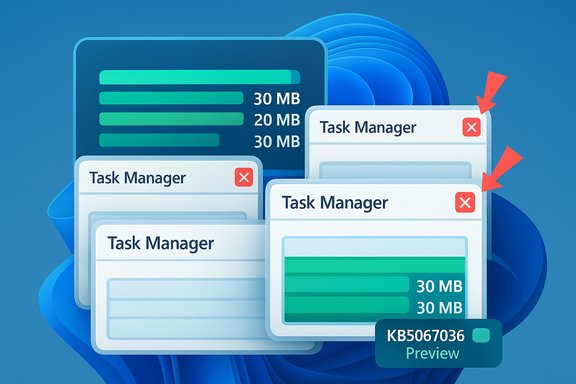
Multiple Task Manager windows displaying progress bars on a blue abstract background.Background / Overview​

The issue first surfaced after the October 28, 2025 preview roll‑out identified as KB5067036 (OS builds 26200.7019 and 26100.7019). Microsoft’s release notes for that package describe a fix to Task Manager’s process grouping logic, but independent testing and community reports rapidly demonstrated a side effect: the close (X) path for Task Manager does not always terminate the process, leaving orphaned taskmgr.exe instances in memory. Multiple reputable outlets and forum threads reproduced the behavior and documented the practical consequences: each orphaned Task Manager instance typically consumes on the order of 20–30 MB of RAM, and repeated open/close cycles can accumulate hundreds of megabytes or even gigabytes in contrived stress tests. The bug is not universal — it appears to be environment‑sensitive — but it is real and visible to system tools such as Task Manager itself, Process Explorer, tasklist, and PowerShell’s Get‑Process.

Why this matters: practical impact​

The symptom seems innocuous until multiple orphaned instances accumulate. The main concerns are:
  • Memory pressure: dozens of 20–30 MB orphaned instances can consume significant RAM on low‑end systems or VMs, causing paging and sluggishness.
  • CPU and battery effects: community tests report small periodic CPU bursts (sampling/polling by background threads), which multiply with each lingering instance and can reduce battery life on laptops.
  • Diagnostic confusion: duplicated Task Manager entries complicate troubleshooting and can mislead support staff into chasing phantom processes.
  • Update governance implications: optional preview releases are intended for testing; this regression underscores the operational risk of deploying preview updates broadly in production environments.
Independent technical reporting and community threads have converged on consistent reproduction steps, making the issue straightforward to verify on a suspect machine. Major independent outlets covered the bug shortly after reports surfaced, and Microsoft’s KB confirmed the preview’s distribution and the Task Manager change that likely precipitated the regression.

Technical explanation (plausible, not definitive)​

Task Manager combines a UI thread (the visible window) with background monitoring threads that sample performance counters, register COM objects, and marshal telemetry. The preview’s stated change to process grouping touches the code that maps UI rows to underlying processes and manages ownership of performance data.
A plausible technical hypothesis — consistent with observable symptoms — is:
  • A change to the grouping logic inadvertently altered lifecycle or teardown semantics.
  • On window close (WM_CLOSE → WM_DESTROY path), a background thread, COM reference, or handle was not released correctly.
  • The UI window is destroyed, but the process remains alive because something is still holding a reference or thread.
  • Reopening Task Manager spawns a new taskmgr.exe process, while the previous one lingers in the background, producing duplicate entries.
This is a reasoned hypothesis grounded in common lifecycle regression patterns, but it is not a confirmed root cause. Microsoft’s engineering traces (ETW, ProcMon, process stacks) would be required to name the exact object or thread responsible. Treat the teardown hypothesis as plausible but unverified until Microsoft publishes a formal post‑mortem.

How to verify whether your PC is affected​

Follow these simple checks:
  • Press Windows+R, type winver, and confirm your OS build (look for builds associated with KB5067036 if you installed the preview).
  • Press Ctrl+Shift+Esc to open Task Manager.
  • Click the top‑right Close (X) button to close Task Manager.
  • Reopen Task Manager and switch to the Processes tab; expand Background processes. If you see more than one “Task Manager” entry and the count increases after repeated open→close cycles, your PC is affected.
  • As an alternative verification, run one of these commands:
  • PowerShell: Get‑Process -Name taskmgr
  • Command Prompt: tasklist /FI "IMAGENAME eq taskmgr.exe"
    Multiple taskmgr.exe entries after closing the window confirm orphaned instances.

Immediate fixes and practical workarounds​

There is no permanent fix until Microsoft ships a corrective update. However, several reliable short‑term mitigations will reclaim resources, avoid further accumulation, and keep systems usable.
  • Fast, one‑line forced kill (recommended for quick remediation):
  • Open an elevated Command Prompt or Windows Terminal (Run as Administrator).
  • Run: taskkill /im taskmgr.exe /f
    This forcibly terminates all running Task Manager instances.
  • PowerShell alternative:
  • Open PowerShell (Admin).
  • Run: Get‑Process -Name taskmgr | Stop‑Process -Force
  • Use Task Manager’s GUI (safer for single instances):
  • Open Task Manager (Ctrl+Shift+Esc).
  • Locate the extra Task Manager entries under Background processes, right‑click each, and select End task. This lets you remove orphaned instances without a global kill.
  • Reboot:
    A full system restart clears all in‑memory orphaned processes and restores a clean state.
  • Avoid creating new orphaned instances:
  • Don’t close Task Manager using the top‑right X until Microsoft issues a fix. Instead, end it from within Task Manager or use Alt+F4 if that triggers a proper exit path on your device (behavior may vary by build).
  • Use Process Explorer:
    If you need richer diagnostics, Sysinternals Process Explorer provides per‑instance handles, thread stacks, and module lists and can be used to inspect which threads or DLLs keep an instance alive. It’s a useful investigative tool that can avoid the duplication behavior while you gather diagnostics.

Step‑by‑step: kill all Task Manager instances (safe, fast)​

  • Press Start, type cmd, right‑click Command Prompt, and choose Run as administrator.
  • At the prompt, type:
    taskkill /im taskmgr.exe /f
  • Press Enter. All active taskmgr.exe processes will be forcibly terminated.
  • Optionally reboot to ensure no lingering background work remains.
PowerShell users:
  • Open PowerShell (Admin).
  • Enter:
    Get‑Process -Name taskmgr | Stop‑Process -Force
These steps are blunt but effective; they prevent incremental memory bloat from repeated Task Manager opens while waiting for an official fix.

For IT administrators and managed fleets​

This regression is a classic preview‑channel cautionary tale. Recommended operational steps:
  • Pause or block KB5067036 on production rings. Preview updates are optional for a reason — test them in a pilot ring before broad deployment. Use Windows Update for Business, WSUS, or Configuration Manager to withhold the preview.
  • Deploy a lightweight detection script to locate affected endpoints:
  • PowerShell snippet to count instances:
    (Get‑Process taskmgr -ErrorAction SilentlyContinue).Count
  • If the count > 1, trigger remediation (taskkill or Stop‑Process) or flag a ticket.
  • Use management tooling to run the forced kill remotely (Intune, SCCM, PowerShell remoting).
  • In helpdesk runbooks, include the quick kill command and the guidance to reboot when necessary.
  • Collect diagnostic artifacts for Microsoft support cases (winver screenshot, ProcMon trace filtered for taskmgr.exe, Process Explorer capture, and optionally an ETW trace). These will be necessary if you open a formal support case.

Uninstalling the preview (rollback) — when and how​

If the preview is unacceptable for production users, removing it is a valid containment option. Keep in mind that some combined servicing packages (SSU + LCU) can have complex uninstall semantics; plan and test rollback actions.
Steps to uninstall via Settings:
  • Open Settings → Windows Update → Update history.
  • Scroll to Related settings and select Uninstall updates.
  • In the Control Panel dialog, locate the update corresponding to KB5067036 and choose Uninstall.
  • Reboot if prompted.
If uninstall isn’t available (combined packages), use Advanced Startup → Troubleshoot → Advanced options → Uninstall Updates, or consult your servicing documentation for DISM /Remove‑Package guidance in managed environments. Always coordinate rollbacks with backup/restore policies for enterprise endpoints.

Risk assessment and who should care most​

  • Home users who rarely open Task Manager and reboot frequently will likely remain largely unaffected. The issue is inconvenient but not catastrophic for intermittent users.
  • Power users, developers, helpdesk engineers, and IT staff who open Task Manager repeatedly are most likely to hit visible resource and usability pain. For those workflows, the bug is an immediate nuisance.
  • Low‑RAM devices and battery‑sensitive laptops are at elevated risk because accumulated orphaned instances can produce noticeable performance and battery impacts.
  • Enterprise fleets should treat optional previews conservatively and use pilot rings for validation. If KB5067036 is staged to managed devices, consider rolling it back in affected clusters and collecting diagnostic artifacts for Microsoft.

What Microsoft has said (and what remains open)​

Microsoft’s KB for the October 28, 2025 preview documents a fix described as addressing Task Manager grouping behavior, and the company has acknowledged that orphaned instances can consume resources and potentially degrade device performance in follow‑up communications with press outlets. However, the initial KB entry did not list the duplicate‑process symptom as a known issue at publish time; that messaging evolved as reporting and reproduction spread. Administrators should watch Microsoft’s Release Health dashboard and the KB entry for an official known‑issue acknowledgement and a timeline for a corrective hotfix.

Practical recommendations (short checklist)​

  • If you’re on the preview channel and rely on Task Manager heavily: pause or uninstall KB5067036 until Microsoft issues a fix.
  • If you’re affected now:
  • Kill all Task Manager processes: taskkill /im taskmgr.exe /f.
  • Reboot when convenient.
  • Avoid closing Task Manager with the X — use End task or an alternative close method.
  • For helpdesk teams: add the kill command to triage scripts and prepare rollback guidance for affected endpoints.
  • For fleet management: detect >1 taskmgr.exe and remediate automatically in your endpoint management system until the vendor patch is available.

What to expect next​

Given the visibility of the bug and its reproducibility, vendors typically follow one of these paths:
  • An out‑of‑band hotfix or cumulative update that corrects the teardown logic.
  • A documented known‑issue and mitigation guidance in the KB while a fix is prepared.
  • If the issue is limited to preview channels, Microsoft may roll the fix into the next staged preview or the next cumulative update.
Independent outlets and community threads expect Microsoft to patch the regression quickly because it affects a core diagnostic utility and is easy to reproduce. Until Microsoft publishes a definitive fix note, follow the mitigations above and prioritize stability for production devices.

Final analysis: strengths, risks, and lessons learned​

  • Strengths of Microsoft’s preview channel: it surfaces environment‑specific regressions before broad distribution, allowing issues to be caught by testers and community pilots. The staged rollout model and Release Health transparency are valuable when working as designed.
  • Risks exposed by this incident: a small change to process grouping touched lifecycle code and produced a visible regression in Task Manager’s close path. That illustrates how UI and lifecycle changes must be tested end‑to‑end, and why preview channels should remain confined to pilot rings in enterprise settings.
  • Practical lesson for users and admins: treat optional preview updates as test artifacts, not production fixes. Maintain up‑to‑date backups, pilot updates in a controlled cohort, and instrument triage scripts that detect and remediate obvious regressions such as duplicate system utilities.
Caveat: specific numbers reported by community stress tests (for example, “2 GB after 100 opens”) are reproducible in those tests but should be treated as experimental results rather than representative telemetry for the whole install base. The precise root cause remains a vendor engineering question and is not conclusively proven in public artifacts — treat teardown and reference‑count hypotheses as plausible, not definitive.

Closing summary
The duplicate Task Manager process issue tied to KB5067036 is a real but manageable regression: it leaves orphaned taskmgr.exe instances when Task Manager is closed via the X button, and each reopen can spawn another live process. The most reliable short‑term remedies are to kill all Task Manager processes (taskkill /im taskmgr.exe /f), use Task Manager’s End task instead of the window close button, or uninstall/defer the optional preview on production systems. Administrators should monitor Microsoft’s KB and Release Health updates for an official patch, deploy detection and remediation for managed fleets, and keep preview channels confined to pilot rings until the issue is resolved.
Source: Neowin How to fix duplicate Task Manager processes in Windows 11
 

Microsoft’s October preview for Windows 11, shipped as KB5067036, has introduced a confounding and potentially costly regression: closing Task Manager with the window “X” can leave the process running in the background, and every reopen spawns a new, lingering Task Manager instance that accumulates RAM and can degrade system performance.

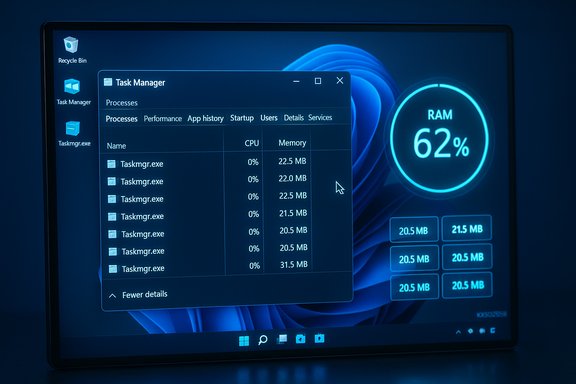
Windows desktop with Task Manager open, showing a neon RAM gauge at 62%.Background​

What KB5067036 was supposed to deliver​

KB5067036 is the optional October 28, 2025 preview update for Windows 11 versions 24H2 and 25H2. Microsoft packaged a number of feature and quality changes into this release, including a refreshed Start experience, updated taskbar battery icons, File Explorer recommendation improvements, and internal Task Manager process-grouping fixes. The update targets OS builds 26200.7019 (25H2) and 26100.7019 (24H2).

Why this is an important context for users and admins​

This preview release is optional and staged; it’s intended to deliver features and fixes to a subset of devices for telemetry and compatibility testing before any wider rollout. That staging explains why not every device receives the same behavior at once, but it also increases the odds that edge-case regressions will appear in the wild. Administrators and cautious users who rely on system stability should treat optional preview updates as what they are: early code intended for testing, not immediate deployment to production endpoints.

What’s happening: the Task Manager duplication bug, explained​

Reproduction and observed behavior​

On systems that installed the October 28, 2025 preview (KB5067036), multiple independent testers and community reports reproduced the same pattern:
  • Open Task Manager (Ctrl+Shift+Esc or via the taskbar).
  • Close it using the window Close (X) button.
  • Reopen Task Manager. Instead of a single instance, you now see the previous Task Manager still running (but without a visible window) and a new Task Manager instance with an active UI.
  • Repeat the open→close cycle and watch the number of background taskmgr.exe processes grow. Each orphaned instance consumes a small but measurable amount of RAM, and with enough repetitions the total memory footprint becomes significant. Rebooting clears the orphaned processes.

Resource impact: how much memory are we talking about?​

Independent tests and community metrics consistently report that each orphaned Task Manager instance consumes roughly 20–30 MB of RAM. That per-process footprint is small in isolation but scales linearly; contrived tests that opened and closed Task Manager dozens or hundreds of times recorded aggregate memory use measured in hundreds of megabytes to multiple gigabytes. In practical terms, low‑RAM laptops and machines that open Task Manager frequently (helpdesk tools, diagnostic scripts, power users) can see noticeable performance and battery-life impact.

Where the bug shows up (builds and channels)​

Microsoft’s release documentation and the preview KB identify the affected OS builds as 26200.7019 (25H2) and 26100.7019 (24H2), rolled out via the October 28, 2025 preview package. Some press reports and aggregators cited a variant build number (for example, 26200.719); that appears to be a reporting inconsistency or typo — the authoritative Microsoft release notes and Release Health dashboard list 26200.7019 and 26100.7019. Treat alternate build numbers in third‑party copy as requiring confirmation against Microsoft’s published build list.

Official status and vendor response​

Microsoft’s acknowledgement and guidance​

Microsoft’s Release Health dashboard explicitly documents the symptom: closing Task Manager with the Close (X) button can leave the process running in the background, and reopening Task Manager causes additional instances to appear. The Release Health entry shows the issue was opened and later mitigated in the Release Health tracker following reports. Microsoft has provided public guidance and indicated remediation work is in progress.

How the company labeled the update (and why that matters)​

KB5067036 is documented as a non‑security preview update. Microsoft lists fixes and improvements in the support article (including a fix to Task Manager’s grouping behavior), but the duplication/regression was not present in the initial KB’s known‑issues list when community reports first appeared — a common pattern with staged, optional updates. As a result, early adopters who manually install optional previews are more likely to encounter regressions before Microsoft has a chance to recognize and remediate them across its channels.

Technical analysis: what likely went wrong​

The symptom points to a teardown/lifecycle regression​

The observable facts (orphaned processes, no visible UI, persistence until explicit termination or reboot) indicate that Task Manager’s process teardown path is not completing correctly. The most plausible technical hypotheses include:
  • A background thread or worker remains alive because a handle, COM object, or event was not released correctly during the close sequence.
  • A change to process‑grouping logic (explicitly noted in the KB) inadvertently altered Task Manager’s shutdown flow, leaving an object referenced and preventing the OS from terminating the process.
  • Feature flags and staged enablement could mean a new code path is only active on some devices, explaining the inconsistent reproduction across systems.
These are evidence‑based inferences rather than vendor-confirmed root-cause statements; Microsoft’s engineers are the only party that can conclusively verify the internal defect and the corrective code path. Treat teardown/thread hypotheses as plausible technical explanations supported by the symptoms, but not definitive until Microsoft publishes a deeper postmortem.

Why it matters for diagnostics and support workflows​

Task Manager is a primary troubleshooting tool for IT staff, developers, and power users. A regression that makes Task Manager itself a source of background resource usage undermines trust and complicates diagnostics — the very scenarios where Task Manager is most needed. For helpdesks that routinely open and close Task Manager as part of triage, the bug can multiply operational load and obscure the real diagnostic signals.

Practical impact — who should be most cautious​

  • Power users and helpdesk engineers who open Task Manager frequently. Repeated open/close cycles are the trigger that creates the orphaned instances.
  • Devices with limited RAM (4–8 GB), where a few hundred megabytes of orphaned Task Manager memory is material.
  • Battery-sensitive laptops where extra background processes contribute to drain and occasional CPU polling spikes.
  • Production endpoints managed by IT teams that might be exposed to optional preview updates if auto‑update settings or "Get the latest updates as soon as they're available" are enabled.
If you’re managing a fleet, treat KB5067036 as an optional preview release and defer it on production devices until Microsoft confirms a fix or until community reports stabilize.

Workarounds and immediate mitigation​

These are the proven, practical steps to recover from or avoid the issue while waiting for an official patch.

Quick fixes if you already have orphaned Task Manager instances​

  • Use Task Manager itself to terminate orphaned entries:
  • Open a Task Manager window.
  • Switch to the Processes or Details tab, select the extra taskmgr.exe entries, and click End task. This manually terminates each orphan.
  • Kill all Task Manager processes from the command line (fast):
  • Open Command Prompt as Administrator and run:
  • taskkill /im taskmgr.exe /f
  • This forces termination of all running Task Manager processes in one command.
  • Reboot the device:
  • A full restart clears the orphaned processes if you prefer a clean state. Rebooting is simple and effective but disrupts active work.

Preventive measures (do this before the problem appears)​

  • Do not install the optional October preview (KB5067036) on production machines or on systems you rely on for critical work. Pause optional and preview updates until the issue is resolved.
  • If you must test the preview, isolate it to a lab or non‑production VM and build a rollback plan (uninstall/update removal steps below).

How to uninstall KB5067036 if needed​

Microsoft documents the standard process for uninstalling updates in Windows 11:
  • Open Settings → Windows Update → Update history → Uninstall updates.
  • In the Control Panel “Installed Updates” list, locate the KB5067036 (or corresponding Quality Update) and choose Uninstall. Note: not all updates are uninstallable; you can only remove updates that Windows allows to be removed.
Alternative steps if the Settings UI isn’t available:
  • Use an elevated Command Prompt and run:
  • wusa /uninstall /kb:5067036
  • If Windows won’t boot, enter Windows Recovery Environment (WinRE) → Troubleshoot → Advanced options → Uninstall Updates and choose the latest quality update.

Recommendations for administrators and advanced users​

For IT administrators managing fleets​

  • Block or defer the optional preview across your environment using your standard update management tooling (WSUS, Intune, SCCM, Group Policy).
  • If some devices already received the update, use telemetry and endpoint agent reports to identify whether any machines are experiencing the Task Manager duplication (look for multiple taskmgr.exe instances in process lists).
  • Prepare a remediation script that:
  • Runs a query to detect multiple taskmgr.exe instances.
  • Executes taskkill /im taskmgr.exe /f when needed.
  • Optionally uninstalls the KB via wusa /uninstall /kb:5067036 if remediation is required and supported on your devices.
  • Train service desk staff to not use the window Close (X) to dismiss Task Manager on affected machines — use End task inside Task Manager or the command-line kill until Microsoft issues a permanent patch.

For security-conscious users​

  • Don’t remove security updates in an attempt to mitigate non‑security preview issues. KB5067036 is a non‑security preview; however, ensure that removing a preview won’t also remove other security fixes. Always weigh the security tradeoff before uninstalling updates.

What this means for Windows update strategy — risk vs. reward​

Strengths of Microsoft’s preview model​

  • The optional preview channel allows Microsoft to field new features and fixes against more diverse hardware and usage profiles before broad rollout.
  • Staged enablement reduces the blast radius in theory by rolling features in phases and enabling telemetry-driven gating.

Weaknesses exposed by this regression​

  • Even optional previews can reach production devices when users manually opt in or auto‑opt settings are enabled; that means regressions can surface publicly and hit end users who didn’t expect “preview” behavior.
  • Core shell components like Task Manager touch deep OS lifecycle and process-model code paths; a seemingly small change (process grouping, for example) can cascade into usability and performance regressions.
  • The duplication bug underlines the persistent risk that UI-level behavior changes interact with low-level state and thread lifecycles in ways that are hard to catch in pre-release testing suites.
The pragmatic takeaway: for stability-minded deployments, treat optional preview updates as test artifacts unless your organization participates in Microsoft’s Insider/preview programs with rollback and isolation plans.

What to watch next and how to stay informed​

  • Monitor Microsoft’s Release Health dashboard and the KB support article for KB5067036 for updates to the known‑issues list and the availability of a corrective update or hotfix. Microsoft has already tracked and marked the Task Manager symptom in its Release Health entries and indicated mitigation activity.
  • Watch major independent tech outlets and community forums for hands‑on reports and reproduction videos. Independent testing frequently surfaces environmental details (hardware, drivers, third‑party utilities) that can explain why some machines are unaffected while others are broken.
  • If you manage devices centrally, plan a swift rollback procedure and scripted remediation for endpoints that inadvertently receive preview updates.

Final analysis — strengths, risks, and practical advice​

KB5067036 is a clear example of the tradeoffs inherent in modern OS servicing: the same preview mechanism that accelerates feature feedback can push early code to live systems, producing regressions in critical tooling. The strong points in Microsoft’s approach are rapid feature iteration and staged telemetry-driven rollouts; the downside is that even optional releases can affect everyday diagnostics if users or IT teams opt into them.
The Task Manager duplication bug itself is not a security exploit — it is a functional regression that leaves legitimate processes running — but it is a significant usability and performance problem for the affected cohorts. The per-instance memory numbers (roughly 20–30 MB per orphaned taskmgr.exe) are small individually but aggregate quickly; that is the core reason administrators should be cautious about adopting this optional preview in production or on critical personal machines. Practical, conservative guidance for the moment:
  • If you value stability, do not install KB5067036 on production devices or machines you rely on daily.
  • If you’ve already installed it, use the documented workarounds (End task, taskkill /im taskmgr.exe /f, or uninstall the update) and plan for a follow‑up patch from Microsoft.
  • IT teams should block optional previews via standard update management tools until Microsoft publishes a fix or until community reporting confirms the regression has been broadly resolved.
The takeaway is simple but important: optional preview updates can deliver welcome features and fixes, but they should be treated as what they are — preview code. For now, patience and a conservative update policy remain the safest paths for most users and organizations.
Conclusion
KB5067036 introduced useful features and some quality improvements, but the Task Manager duplication regression shows how a narrowly scoped change can create disproportionate friction for diagnostics and day‑to‑day stability. The issue is documented by Microsoft and reproduced by multiple independent outlets; practical workarounds exist, and the safest course for most users is to defer the optional preview until a confirmed remedy is released.
Source: 24matins.uk Windows 11 Update KB5067036: Important Warnings and Issues
 

Microsoft has quietly closed a frustrating chapter for many Windows users: after years of intermittent reports that the Start‑menu option “Update and Shut Down” sometimes installed updates only to leave machines powered on, Microsoft has shipped a servicing correction in Insider preview builds and packaged the same change into the October 28, 2025 preview cumulative update KB5067036, which references OS builds 26200.7019 (25H2) and 26100.7019 (24H2).

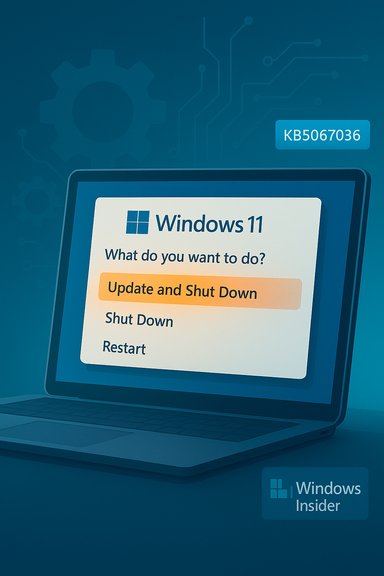
Windows 11 on a laptop showing the “Update and Shut Down” option highlighted.Background / Overview​

For users who picked Update and Shut Down the expectation is simple: let Windows apply pending patches and then power the PC off so it stays silent until you next turn it on. For a significant subset of devices that expectation broke. Systems would often install updates during the shutdown sequence, reboot to complete offline servicing, and then — instead of powering off — land on the lock screen or desktop. That left laptops running overnight, drained batteries, and broke maintenance windows that relied on deterministic shutdowns. Community threads, Microsoft Q&A entries, and help‑desk logs show this is not a single isolated anecdote but a recurring usability problem spanning multiple update cycles. Microsoft’s public release notes for Insider channels summarized the change tersely but clearly: “Fixed an underlying issue which could lead ‘Update and shutdown’ to not actually shut down your PC after.” That line appears in the Windows Insider blog release notes for Beta / Dev preview builds and is repeated in the KB5067036 preview documentation. These two primary entries are the engineering‑level confirmations that Microsoft adjusted servicing orchestration rather than only relabeling UI text.

Why this bug persisted: technical anatomy​

Understanding why a seemingly simple UI action could misbehave requires a short tour of Windows update mechanics. Modern Windows update flows are multi‑stage and tightly coupled with power state semantics:
  • Fast Startup (hybrid shutdown) changes the semantics of a shutdown by preserving a kernel session to disk, which can interact poorly with offline servicing.
  • Many updates perform a staged installation: file staging while the OS runs, then one or more offline commits during shutdown/boot that may require intermediate reboots.
  • Sign‑in and “use my sign‑in info to finish setting up” features can change whether a final configuration step is performed automatically after a reboot.
  • Drivers, third‑party management agents, or firmware interactions can force servicing code to choose a restart path to ensure file consistency.
Those interlocking systems create timing and state conditions that can cause the final “power‑off” step to be skipped or to be implicitly replaced by a restart during servicing. The fix Microsoft describes in Insider and KB notes addresses that orchestration — the logic which decides, across these stages, whether to honor the user’s shutdown intent after offline servicing completes.

What Microsoft shipped and when​

  • September 29, 2025 — Windows Insider release notes for Beta/Dev builds listed a remediation for the “Update and shut down” behavior; the fix appeared in preview flights as a targeted servicing change.
  • October 28, 2025 — Microsoft published the optional preview cumulative update KB5067036 (OS Builds 26200.7019 and 26100.7019) and the KB’s changelog explicitly lists an improvement: “Addressed underlying issue which can cause ‘Update and shutdown’ to not actually shut down your PC after updating.” This is the package most non‑Insider testers will see first if they check Optional updates.
Microsoft’s staged path — Insider preview flights, optional preview cumulative updates, then mainstream cumulative updates via Patch Tuesday after telemetry validation — is the standard quality‑assurance route the company uses for servicing fixes that touch core orchestration logic. Community testing in Insider rings informed the optional KB packaging, and administrators are being advised to pilot the package before broad deployment.

What this means for end users and IT​

This fix is small in scope but large in practical impact. For typical users it restores an everyday expectation: choose “Update and Shut Down” and leave, confident the machine will be off. For IT teams the change removes an intermittent source of automation failure that previously required awkward workarounds.
Practical guidance:
  • If you want the fix now: join the Windows Insider Program (Beta/Dev) and apply preview builds on non‑critical devices.
  • If you prefer stability: wait for the fix to be promoted into the mainstream cumulative update cycle (Patch Tuesday) after Microsoft collects validation telemetry; pilot on a small ring first.
  • If deterministic shutdown is essential today: use “Update and restart” then manually shut down, or temporarily disable Fast Startup as a conservative mitigation.

The long trail of community complaints — how old is “decade‑old”?​

Several tech outlets and commentators characterized the problem as having long roots; community logs and Microsoft Q&A posts show users reporting related update‑and‑shutdown oddities as early as 2018. A Microsoft Q&A thread dating to February 2018 and forum archives from 2018–2024 document similar symptoms where updates would not commit or machines would repeatedly present “Update and restart / Update and shut down” prompts without completing the expected state change. Those records support a multi‑year timeline of user reports. That said, calling it “decades‑old” is an overreach absent direct archival evidence dating to the Windows 8 era with the same bug signature and the exact same root cause — public engineering notes from Microsoft do not cite an origin date that far back. The public record shows persistent reports over several years and multiple Windows versions, but the precise timeline and whether identical servicing logic produced identical symptoms across every Windows release is not fully documented in the public changelogs. Treat claims that the bug goes back “decades” as an understandable rhetorical shorthand used in reporting, not as a granular, verifiable engineering timeline.

Workarounds people used (and why they mattered)​

Before the fix landed, users and administrators adopted several practical workarounds:
  • Manually run Windows Update or use administrative tools to complete updates during business hours.
  • Use “Update and restart” followed by a manual shutdown to guarantee a powered‑off state.
  • Disable Fast Startup (Control Panel → Power Options → Choose what the power buttons do → Turn off fast startup) to restore deterministic shutdown semantics.
  • Scripted installs (via DISM, WSUS, or SCCM/Intune) to force controlled update windows.
These were effective band‑aids but increased operational friction. The servicing change in KB5067036 reduces the need for such measures for most users — provided the preview and subsequent stable rollouts behave across the wide variety of real‑world hardware combinations.

Regressions and risk: the Task Manager duplication issue​

No staged rollout is risk‑free. Within days of the KB5067036 optional preview becoming public, independent reporting and user reports flagged a new regression: Task Manager can duplicate itself and refuse to close via the “X” button, spawning hidden instances that continue running in the background. That bug appears tied to Task Manager changes shipped in the same preview package and has been widely reported by mainstream technology outlets. Workarounds include using Task Manager’s own “End task” or running taskkill /im taskmgr.exe /f, and Microsoft has acknowledged the issue is being investigated. This illustrates two important points:
  • Fixes that touch core orchestration or widely‑used tooling must be validated across many hardware and usage scenarios. A servicing fix that corrects one behavior can inadvertently surface regressions elsewhere.
  • Enterprise rollouts should continue to rely on phased deployment rings and robust rollback/telemetry plans: test, pilot, and only then push broadly.

Why Microsoft’s staged approach matters​

Microsoft’s path — engineer a fix in Insider flights, distribute to Release Preview / optional channel via a KB package, then promote to mainstream cumulative updates — is deliberate. It collects telemetry from a wide set of configurations, lets administrators test prior to broad adoption, and reduces the risk of a high‑impact regression in the stable channel. The October 28 preview move shows the company used the preview model to gather real‑world validation before a full rollout. That approach prevented an immediate, one‑size‑fits‑all deployment but also exposed exposure to preview‑channel regressions such as the Task Manager duplication bug.

Broader implications for Windows update reliability​

This fix is a quality‑of‑life repair that signals several broader trends:
  • A focus on predictable UX semantics. Users rely on promises baked into simple UI actions; when those promises fail, trust erodes faster than it rebuilds. Restoring the intended behavior for a common menu item helps rebuild user confidence.
  • The complexity of modern servicing. Updates that require offline servicing intersect with fast‑boot, firmware, drivers, and credential flows — a brittle intersection that needs careful coordination and telemetry‑driven fixes.
  • The tradeoffs inherent in staged public testing. Insider and optional preview channels are critical for catching edge cases, but testers must be prepared for temporary regressions and churn. The Task Manager issue is a concrete reminder of that tradeoff.
Looking ahead, Microsoft’s continued investment in telemetry, improved QA across lifecycle tests, and possible use of AI‑assisted diagnostics during servicing could reduce the incidence of similarly persistent usability bugs. But the Windows device ecosystem’s sheer heterogeneity means that vigilance and phased testing will remain essential.

Recommendations for readers​

  • Home users: If you depend on the menu option to leave devices powered off, wait for the mainstream cumulative update that incorporates the KB fix, or apply KB5067036 on a spare machine and validate shutdown semantics. If you install the preview and see Task Manager duplication, use taskkill /im taskmgr.exe /f as a temporary mitigation.
  • Power users / enthusiasts: Join Insider channels and report precise repro steps via Feedback Hub to accelerate telemetry for both the fix and any regressions. Collect ETW traces or logs when possible to help Microsoft triage.
  • IT admins: Pilot KB5067036 in a controlled ring, validate shutdown behavior under representative Fast Startup / sign‑in / driver conditions, and hold off on broad deployment until the November cumulative update (or Microsoft’s next stable packaging) confirms the repair. Maintain rollback procedures for optional updates and monitor for known regressions.

What remains uncertain​

  • Microsoft’s public notes describe the fix at a servicing/orchestration level but do not publish a detailed postmortem explaining the exact race condition or code path corrected. That internal detail remains private, so any claim about the precise root cause should be treated as an engineering inference unless Microsoft publishes further technical analysis.
  • The incidence rate across the full installed base — which hardware families and drivers were most affected historically — is telemetry data Microsoft controls. Public forums show wide variance in reproability, which suggests the bug was strongly configuration‑dependent.

Final assessment​

Fixing the “Update and Shut Down” behavior is an overdue but welcome improvement. Microsoft validated the remediation in Insider flights and bundled it into the October 28, 2025 preview package KB5067036 (OS Builds 26200.7019/26100.7019) where the changelog explicitly lists the servicing correction. Those confirmations come directly from Microsoft’s own release notes and KB documentation. Still, the rapid emergence of a Task Manager regression tied to the same preview shows the inherent risk of complex system updates. The correct operational posture for administrators remains cautious: test, pilot, collect diagnostics, and stage rollouts to avoid trading one class of reliability problem for another. Consumers benefit when vendors fix the underlying behavior rather than papering over UI inconsistencies, but the ecosystem risk suggests the job isn’t done until the change is validated in stable cumulative updates and regressions are resolved. For the millions of users who simply wanted a PC that stays off when they asked it to, this is a small but meaningful victory — one that also underscores why rigorous, telemetry‑driven testing and conservative rollout strategies are indispensable in modern operating‑system engineering.

Source: WebProNews Microsoft Squashes Decade-Old Windows Shutdown Bug for Good
 

Windows Task Manager showing processes with CPU and memory usage.
A recent optional preview update for Windows 11 is producing a frustrating and easily reproducible regression: closing Task Manager with the window “X” can leave the underlying taskmgr.exe process running, and each reopen spawns a new visible Task Manager instance while earlier instances persist invisibly in the background — producing duplicate, accumulating processes that can consume memory, CPU cycles, and battery over time.

Background​

Microsoft released the October 28, 2025 non‑security preview cumulative update identified as KB5067036 (delivering OS builds 26100.7019 for 24H2 and 26200.7019 for 25H2). The update bundles several visible UI and functionality changes — notably a redesign of the Start menu, new File Explorer quick actions, updated taskbar and lock‑screen battery icons, and new Copilot+ PC features such as Click to Do, improved Voice Access and agent enhancements — along with numerous under‑the‑hood reliability fixes, including a stated adjustment to Task Manager’s process grouping logic. The package was released as an optional preview and distributed via a staged rollout. That delivery model means features and fixes may be enabled server‑side or rolled out unevenly, which helps explain why the Task Manager problem reproduces on many systems but not on all systems with the preview installed.

What’s happening: symptom and reproduction​

On affected machines the failure mode is simple to reproduce and easy to verify:
  1. Open Task Manager (for example with Ctrl+Shift+Esc).
  2. Click the top‑right Close (X) button to dismiss the window.
  3. Reopen Task Manager and switch to Processes (expand Background processes if necessary).
  4. Observe additional “Task Manager” entries — the count increases with each open → close cycle.
Those leftover entries are real OS processes (taskmgr.exe); they appear in Process Explorer, in Task Manager’s Details tab, and in command‑line tools such as tasklist or PowerShell’s Get‑Process. Community stress tests report that each orphaned instance commonly consumes on the order of 20–30 MB of RAM and may cause small periodic CPU polling spikes (often 0–2% per instance during sample intervals); dozens of accumulated instances can add up to meaningful memory and CPU usage, especially on memory‑constrained laptops and VMs.

Vendor acknowledgement and status​

Microsoft has documented the symptom on its Windows Release Health / known issues pages for Windows 11 and KB5067036. The entry confirms that after installing updates released on or after October 28, 2025 (KB5067036) “closing Task Manager using the Close (X) button does not fully terminate the process,” and that reopening the utility can leave prior instances running in the background, consuming resources. Microsoft’s servicing dashboard lists the issue and indicates that engineering is working on a fix. Independent technical outlets and major tech publications reproduced and reported the problem within days of the preview rollout, corroborating Microsoft’s acknowledgement and providing community‑level reproduction data and mitigation advice.

Why this matters: practical impact​

Task Manager is not only a convenience tool for power users — it is a primary troubleshooting and diagnostics utility for helpdesk staff and administrators. When Task Manager itself behaves as a source of resource leakage, three practical problems arise:
  • Resource accumulation: Repeated open/close cycles can accumulate dozens of taskmgr.exe processes, placing additional memory and CPU pressure on devices with limited resources.
  • Diagnostic confusion: Duplicate Task Manager entries make triage harder; support staff can be misled by phantom processes and waste time chasing symptoms generated by the diagnostic tool itself.
  • Operational risk in fleets: In environments where IT staff frequently open Task Manager across many endpoints, the issue can scale to fleet‑level operational churn and increased support incidents.
The issue is not a security vulnerability — orphaned Task Manager processes are signed Microsoft code and are not persistent across reboot — but the practical nuisance and performance cost are real and measurable.

Confirmed workarounds and mitigations​

Until Microsoft issues an official patch, affected users and administrators can rely on a small set of documented mitigations to stop or reverse resource accumulation. They are straightforward and safe to apply.
  • Avoid clicking the Task Manager window Close (X) button. Instead, use the Task Manager UI to end its own process: in Task Manager’s Processes tab, find Task Manager, right‑click and choose End task. This ensures the process teardown runs through its normal internal paths.
  • Use a one‑line forced kill from an elevated shell to terminate all Task Manager processes at once:
    • Command Prompt or PowerShell (Admin): taskkill /im taskmgr.exe /f
    • PowerShell alternative: Get-Process -Name taskmgr | Stop-Process -Force
      This forcibly terminates every instance of taskmgr.exe and is the fastest remediation if multiple orphaned instances exist.
  • Rebooting the device clears all orphaned instances; it is a guaranteed but less-discriminating remedy.
  • If you do not need the preview features and this update is installed on a production machine, consider uninstalling the optional preview from Settings → Windows Update → Update history → Uninstall updates. For managed environments, pause deployment until Microsoft publishes a corrected package.

Technical analysis: plausible root causes​

The timing and the KB release notes provide a plausible hypothesis: KB5067036 included changes to Task Manager’s process grouping logic — a subsystem that maps UI rows to underlying processes and coordinates how multiple process entries are displayed and sampled. Changes in grouping or ownership semantics commonly touch lifecycle and teardown code paths; a subtle reference‑counting or thread‑lifetime regression in the close/teardown path can prevent the process from exiting even after its UI is destroyed. A likely technical pathway for the bug is that a background sampling thread, COM object, handle to a system resource, or an internal watcher is left referenced or blocked on shutdown; the UI window disappears, but the process remains live because not all cleanup actions completed. Launching Task Manager again spawns a new process (the visible window) while the prior process keeps polling counters and holding resources — that manifests exactly as the observed duplicate instances. This hypothesis fits community observations but remains unverified until Microsoft publishes a vendor post‑mortem or diagnostic trace. Treat this as an informed theory rather than a definitive root cause.

What the telemetry and community tests show​

Independent testers and outlets ran straightforward reproductions and lightweight stress tests. Typical results across multiple reports:
  • Each orphaned Task Manager instance used roughly 20–30 MB of RAM in standard reproductions.
  • CPU usage per instance is usually very small (commonly 0–2%), but aggregated CPU polling across many instances can create noticeable background load.
  • Extreme contrived tests (open/close Task Manager 100+ times) proved the behavior scales: dozens to hundreds of orphaned processes can accumulate and consume hundreds of megabytes to several gigabytes in pathological scenarios — a useful stress demonstration but not typical daily behavior for most users.
Community threads show a mix of affected and unaffected devices. That variability points to staged feature flags, device‑specific configurations, or environmental triggers such as third‑party drivers and services that interact with Task Manager’s internals. Administrators should treat the preview as a test artifact and validate in pilot rings before large‑scale deployment.

Recommendations for home users and IT teams​

For home users:
  • If you installed KB5067036 and notice the duplication, use taskkill /im taskmgr.exe /f to clear orphaned instances and avoid closing Task Manager with the X until Microsoft issues the patch.
  • If you rely on battery life and run on low memory, uninstall the optional preview or pause updates until the fix is released.
For power users and support staff:
  • Reproduce the bug and collect diagnostics (ProcMon traces, ETW traces, Process Explorer stacks) and file a detailed Feedback Hub report or support case; high‑quality diagnostics accelerate vendor triage.
  • Deploy a remediation script in your toolkit that runs taskkill /im taskmgr.exe /f or enumerates taskmgr.exe instances and stops them on demand. This is especially useful when triaging multiple endpoints.
For administrators and enterprise teams:
  • Treat KB5067036 as a preview package and do not deploy it broadly to production fleets. Validate in a pilot ring and monitor for abnormal behavior.
  • Prepare detection rules that alert when multiple taskmgr.exe instances appear on endpoints and include a remediation playbook (forced kill, scheduled reboot, or rollback of the preview).

Assessing the risk: strengths and weaknesses in Microsoft’s preview model​

The KB5067036 incident underscores both the strengths and the inherent tradeoffs of a staged preview model:
  • Strengths:
    • Field testing at scale: Preview updates allow Microsoft to collect telemetry across a huge diversity of hardware and software combinations, catching issues that cannot be fully reproduced in lab environments.
    • Rapid feature validation: The optional preview delivered visible improvements (Start menu redesign, Copilot+ experiences) to early adopters for feedback before broader release.
  • Weaknesses:
    • Regression risk on fundamental paths: Lifecycle code (open → close → teardown) is highly exercised; changes that touch those paths can create high‑impact regressions when they slip through. The Task Manager bug is a canonical example.
    • Staged rollout complexity: Staged feature flags and server‑side gating can make correlation harder for engineers — an issue that can delay broad acknowledgement or remediation.
The sensible operational response is disciplined validation, prompt containment, and high‑quality diagnostic reporting from the field so engineering teams have the artifacts needed to fix the root cause quickly.

Caveats and unverifiable reports​

There are scattered online claims tying KB5067036 to more severe outcomes — for example, installation failures or devices becoming inoperable after the preview. These claims are inconsistent across reports and vary in detail; they remain unverified at scale and should be treated cautiously until reproduced consistently or confirmed by vendor telemetry. Independent coverage noted isolated installation hiccups, but a systematic, confirmed pattern of bricking devices has not been established in trusted vendor or large technical outlet reports. Flag such claims as potentially real but requiring further verification before acting.

Timeline and what to expect next​

Microsoft’s Release Health page shows the issue listed and indicates engineering engagement; historically, Microsoft patches functional regressions in preview updates rapidly once reproductions and telemetry are available. Expect a targeted fix in a forthcoming preview or the next cumulative update channel once Microsoft validates the problem and confirms the corrective changes. In the meantime, the mitigations listed above are effective containment measures.

Quick reference: commands and steps​

  • Verify OS build: Press Win+R, type winver, and confirm the OS build (26100.7019 or 26200.7019 indicates KB5067036).
  • Kill all Task Manager instances (Admin shell): taskkill /im taskmgr.exe /f.
  • End Task from Task Manager (recommended UI method): Open Task Manager → Processes → find Task Manager → right‑click → End task.
  • Uninstall preview (if necessary): Settings → Windows Update → Update history → Uninstall updates.

Conclusion​

The KB5067036 preview delivered useful UI and Copilot+ improvements, but it also introduced a clear teardown regression that can leave taskmgr.exe instances running after the Task Manager window is closed. That regression is reproducible on a subset of updated devices and has been confirmed by Microsoft’s release health notice and multiple independent outlets. The issue is manageable with simple mitigations — avoid using the Close (X) on Task Manager, use End task or taskkill /im taskmgr.exe /f, and treat preview updates as testing artifacts rather than production releases. For IT teams, the incident is a reminder that lifecycle and teardown paths must be tested comprehensively, and that pilot and staging rings remain essential when deploying preview updates across fleets.
Source: gHacks Technology News Windows 11 bug is preventing Task Manager from closing, allowing multiple instances to run - gHacks Tech News
 

Laptop and monitor display update prompts, signaling a fix for update and shutdown.
For the first time in years of user grumbling and forum posts, the Start menu’s long‑promised “Update and shut down” command finally does what it says: install pending updates and then power off the PC. Microsoft documented the correction in Insider release notes and packaged the same servicing change into the October 28, 2025 optional preview cumulative update (KB5067036), which produces OS builds 26200.7019 for Windows 11 25H2 and 26100.7019 for 24H2.

Background / Overview​

For many users the power menu choice Update and shut down is a small convenience intended to let Windows finish installing updates while you walk away. For an intermittently large subset of machines that convenience was false: systems would apply updates but then reboot or return to the lock screen and remain powered on, effectively turning “shut down” into “restart.” That mismatch created real, measurable friction — drained laptop batteries, broken off‑hours maintenance windows and a loss of trust in a basic OS affordance. Community threads and feedback traces document repeated complaints across 2022–2025, and Microsoft finally described and shipped a servicing‑level correction in preview channels.
This article lays out what changed, why the bug lasted so long, how Microsoft rolled the fix out, what to watch for (including reported regressions in the preview package), and practical guidance for home users and administrators who want to adopt the update safely.

What Microsoft shipped (the facts)​

The confirmed artifacts​

  • Microsoft published an optional preview cumulative update on October 28, 2025 identified as KB5067036, which lists the improvement in the Windows Update section: “Addressed underlying issue which can cause ‘Update and shutdown’ to not actually shut down your PC after updating.” The KB produces OS builds 26200.7019 (25H2) and 26100.7019 (24H2).
  • Microsoft also documented the same fix in Windows Insider release notes; for example, the Beta‑channel notes for the September 29, 2025 flight explicitly say: “Fixed an underlying issue which could lead ‘Update and shutdown’ to not actually shut down your PC after.” That language appears in the official Insider blog and served as the initial confirmation of the fix during preview flights.

Independent reporting and community verification​

Independent outlets covering Windows and system administration confirmed the change after the preview release. Outlets such as Windows Central and TechRadar reported the remediation appearing in preview builds and noted the expectation for broader rollout following standard Microsoft staging practices. Community test reports and forum threads (early Insider testers and hobbyist communities) corroborated that the behavior — in many, though not all, previously problematic setups — now honors a true shutdown when users choose Update and shut down.

Technical anatomy: why a two‑word menu item became so hard to trust​

At first glance the symptom seems trivial — a mislabeled menu option. The reality is more complex. Several subsystems and sequencing choices determine the final power state after applying updates:
  • Multi‑phase servicing: Modern Windows updates stage payloads while the system is running, then run offline commits during shutdown/boot. The servicing stack must coordinate staging, offline servicing, and final commit behavior across multiple components.
  • Fast Startup / hybrid shutdown: When Fast Startup (hybrid shutdown) is enabled, Windows writes a kernel session to disk to speed boot‑up. That hybrid shutdown semantics can change whether a shutdown is treated as a cold power‑off or a hibernation‑adjacent state, affecting offline servicing decisions.
  • Driver and firmware handoffs: If a driver or firmware file needs replacement in a way that requires a restart or resumed execution, the servicing logic may prefer a restart to guarantee correct driver initialization.
  • Sign‑in/resume flows: Features that use stored sign‑in information to finish setup after a restart can change the perceived state: if post‑update configuration resumes and lands at the lock screen, that looks like a restart rather than a shutdown.
Those interactions can produce conditional outcomes where the servicing stack decides a restart is required to preserve integrity — even though the user selected shut down. Microsoft’s notes describe the remediation as a change to the underlying servicing orchestration, not a mere UI relabel. That aligns with the correction appearing first in Insider builds where Microsoft can validate telemetry across many hardware combinations before wider distribution.

Why the bug persisted for years (analysis)​

Several factors conspired to make this an elusive, long‑running annoyance:
  • Intermittency and environment dependence: The bug only surfaced on certain combinations of update payloads, drivers, firmware, and Fast Startup states. That made it hard to reproduce deterministically in lab testing and caused many reports to appear anecdotal and inconsistent.
  • Complex update plumbing: The Component‑Based Servicing (CBS) pipeline, servicing stack updates (SSU) and cumulative LCUs are complex and tightly coupled to hardware and third‑party drivers. Small timing differences can yield different outcomes, and a generalized fix must address the orchestration logic rather than patching specific failure cases.
  • Telemetry blind spots for UX semantics: Historically, telemetry has focused on installation success/failure and crash data. A semantic mismatch (UI says “shut down” but action results in “restart”) is harder to detect at scale without focused instrumentation and was often reported via forums and Feedback Hub rather than aggregated telemetric signals.
  • Risk of ripple effects: Changing shutdown sequencing is sensitive. A fix that coerces a shutdown when a restart is required could break update integrity. Microsoft took a conservative approach: validate in Insider channels, roll into optional preview KBs, and only then stage into mainstream Patch Tuesday channels once telemetry looked healthy.
A note on language: some headlines called this a “decade‑old” problem. That framing is overly broad. The anomalous behavior became prominent during Windows 10 and continued intermittently into Windows 11, but the public record and community reporting shows concentrated activity and complaints mainly in the 2021–2025 window; treating the issue as an unbroken, continuous decade‑long failure is hyperbolic. The correction is nevertheless meaningful because it restores an expected behavior that many users had learned to avoid.

How Microsoft rolled the change out (timeline and mechanics)​

  1. Insider validation (Dev/Beta): Microsoft first included the servicing change in Windows Insider preview flights (late September 2025), where release notes explicitly mentioned the fix. Early tester telemetry and anecdotal confirmations suggested the update fixed the majority of previously reproducible scenarios.
  2. Optional preview cumulative update (LCU + SSU): On October 28, 2025, Microsoft released KB5067036 as an optional preview package. This combined a latest servicing stack update (SSU) with the non‑security preview cumulative update (LCU) and explicitly listed the Update‑and‑shutdown fix in its change log, producing OS builds 26200.7019 and 26100.7019. Installing this preview exposes the change earlier than the mainstream Patch Tuesday distribution but carries the usual caveats of optional previews.
  3. Staged Patch Tuesday rollout: Microsoft’s standard pattern is to fold validated preview fixes into the next monthly cumulative update (Patch Tuesday). Community reporting and Microsoft’s rollout cadence indicated the change was staged for broader distribution following the preview cycle; the safe path for most users is to wait for the mainstream cumulative update rather than adopt the optional preview on production machines.

How to get the fix now — step‑by‑step (with safe‑use guidance)​

If you want the fix immediately and accept preview‑update risks, follow these steps. If you prefer stability, wait for the non‑optional Patch Tuesday cumulative update where the change will arrive in a fully supported channel.
  1. Backup critical files and create a system restore point (or full image) so you can roll back if the preview causes regressions.
  2. Open Settings > Windows Update and check for Optional updates. If KB5067036 appears under “Optional updates available”, you can download and install it.
  3. If you manage devices with Windows Update for Business, WSUS or SCCM, obtain the KB package from the Microsoft Update Catalog and stage it in a test ring first.
  4. Validate shutdown semantics on representative hardware after the update: test Update and shut down with typical pending updates and verify the device completes a full power‑off (not a return to the lock screen).
  5. Monitor for unrelated regressions (see next section). If you hit regressions, collect event logs and use DISM / SFC checks, and consider uninstalling the LCU or using recovery media if rollback is required.
Admins should pilot the update in a test ring before wide deployment. Home users who value minimal risk should wait for Microsoft’s mainstream cumulative update.

What to watch for — preview‑update regressions and risks​

Optional preview packages often bundle multiple fixes and features, which raises two practical risks:
  • Unexpected regressions: Early reports tied to KB5067036 noted at least one new issue affecting Task Manager behavior where the Task Manager window could not be closed in some conditions after the update. That regression was reported by community outlets and reproduced by some early testers, illustrating why optional previews should be staged carefully.
  • Operational impact in production: Even if the Update‑and‑shutdown fix is sound, any preview can interact with third‑party drivers, security agents, or specialized in‑house software, causing regressions that are costly in production environments.
  • Telemetry and QA limitations of previews: While Insider and Release Preview channels provide a broad testbed, they can’t mirror every enterprise environment. Administrators should use standard ring deployment strategies: Canary → Pilot → Broad.
Practical mitigation steps:
  • Test the preview on non‑critical devices first.
  • Keep drivers and firmware up to date before installing servicing changes.
  • Provide end users with simple rollback instructions and a helpdesk escalation path.

Why this is more than a cosmetic fix​

On the surface, making a menu item truthful is a small UX polish. In practice it restores a predictable, time‑saving flow that millions of users rely on. Deterministic behavior matters for:
  • Power and battery management: Laptops left running overnight consume battery and reduce component lifetime.
  • Maintenance windows: IT operations that rely on unattended update windows depend on deterministic shutdown semantics.
  • User trust and compliance: When a basic promise in the UI is broken, users invent workarounds (e.g., always choosing Update and restart or using manual shutdown scripts), which reduce the convenience and potentially the update compliance the OS intends to promote.
The fix therefore improves energy efficiency, operational reliability and the platform’s reputation for predictability — small but upstream benefits that reduce helpdesk churn and user frustration at scale.

Recommended actions for Windows users and administrators​

  • Home users seeking maximum stability: Wait for the mainstream cumulative update (Patch Tuesday) and install that rather than the optional preview.
  • Power users and enthusiasts who want the fix now: Install KB5067036 on a spare or non‑critical device first, test shutdown semantics, and only then apply to primary machines.
  • Enterprise administrators: Pilot KB5067036 in a small test ring, validate shutdown behavior under representative update payloads and policies, and verify critical third‑party tools and drivers. Use standard rollback and telemetry collection playbooks if regressions appear.
For everyone: keep drivers and firmware current, and consider disabling Fast Startup temporarily if you need to reproduce or triage shutdown behavior — it is a frequent variable in related diagnostics.

Final assessment — meaningful fix, cautious celebration​

Microsoft’s remediation is a welcome and practical quality‑of‑life fix. The fact that it was implemented at the servicing orchestration level — rather than being treated as a cosmetic relabeling — suggests engineers addressed the root coordination logic between offline servicing and the final power state. That’s the right technical approach and aligns with the fix showing up first in Insider flights and then in the KB5067036 preview. That said, caution is warranted. Optional previews like KB5067036 can introduce different regressions, and early reporting already flagged a Task Manager issue. Administrators and cautious users should treat preview updates as what they are: early access to fixes and features that need validation before broad deployment. The conservative path — pilot then deploy — remains best practice. It’s also worth tempering some of the more dramatic narratives about how long this bug existed. Some stories labeled it a decade‑old failure; the public complaint trail is strongest through the Windows 10 → Windows 11 timeframe and intensifying between 2021 and 2025. The underlying grievance — that a labelled control didn’t always do what it promised — is real, and the fix restores a simple, important expectation of the OS.

Closing thoughts​

Small usability promises matter. When a button says “shut down,” users expect the machine to power off. Microsoft has implemented a servicing orchestration correction and distributed it via Insider channels and an optional preview cumulative update (KB5067036, October 28, 2025) that produces OS builds 26200.7019 (25H2) and 26100.7019 (24H2). That correction restores deterministic shutdown semantics in many previously affected configurations, reducing overnight battery drain and operational surprises. At the same time, the update lifecycle reminder is clear: install previews with care, validate in representative environments, and prefer mainstream cumulative updates for production devices unless you have a robust testing and rollback plan. For users who want the fix now, the optional KB is available for testers; for those who prefer stability, the predictable route is to wait for Microsoft’s staged Patch Tuesday rollout where the change will be delivered to mainstream channels after additional validation.

Source: Techweez Microsoft Quietly Fixes a Decade-Old Windows Update Glitch in Latest 25H2 Build
 

After more than a few nights of users coming back to humming desktops or drained laptop batteries, Microsoft has quietly rolled a servicing fix that finally makes the Start‑menu option “Update and shut down” do what it says: apply updates and power the PC off. The remediation first appeared in late‑September Insider preview builds and was packaged into the October 28, 2025 optional preview cumulative update KB5067036 (producing OS builds 26200.7019 for 25H2 and 26100.7019 for 24H2). Microsoft’s KB entry summarizes the change tersely as “Improved: Addressed underlying issue which can cause ‘Update and shutdown’ to not actually shut down your PC after updating.”

Blue-toned monitor and laptop displaying an 'Update and shut down' screen.Background / Overview​

For many Windows users, the power menu option labelled Update and shut down is a small convenience with outsized expectations: finish installing updates, then go to bed leaving the machine powered off. For years a non‑trivial subset of devices didn’t follow that script. Instead, the system would apply updates, perform a reboot to complete offline servicing, then remain powered on at the lock screen or desktop instead of finishing with a true shutdown. That mismatch turned a short convenience into a reliability problem—laptops drained their batteries overnight, maintenance windows failed, and administrators lost a deterministic action they relied on. Microsoft’s remediation was staged in the standard way: a targeted correction landed in the Windows Insider Dev and Beta channel release notes on September 29, 2025, then Microsoft folded the same servicing change into the optional October 28, 2025 cumulative preview (KB5067036). The company and multiple independent outlets now confirm the fix is being validated for broader rollout during the regular Patch Tuesday cadence.

Why “Update and shut down” behaved poorly​

At surface level, “Update and shut down” looks atomic: apply the update, then power off. Under the hood, modern Windows servicing is a multi‑phase orchestration with several points where things can diverge.

The multi‑phase servicing pipeline​

  • Windows stages updates while the OS is running, but certain replacements (kernel modules, protected system files) require the system to be taken offline before they can be replaced.
  • To commit those replacements, Windows reboots into an offline servicing phase (the black “working on updates” screen). That step is necessary because some files can’t be swapped while they are in use.
  • The servicing stack must preserve the user’s final intent—shutdown versus restart—through these transitions. If the orchestration loses or misapplies the final intent after the offline phase, the system can complete updates and land back in an active state rather than powering off.

Fast Startup and hybrid shutdown semantics​

Fast Startup (the hybrid shutdown behavior) complicates shutdown semantics further. With Fast Startup enabled, Windows does a partial hibernation of the kernel session on shutdown to speed subsequent boots. That hybrid behavior changes the expected lifecycle of kernel and driver states and can interact unpredictably with multi‑stage updates, nudging the orchestrator toward intermediate reboots rather than a clean power‑off. Microsoft documents Fast Startup’s hybrid semantics and why some update scenarios require a true restart to complete. Disabling Fast Startup has been a commonly suggested workaround for users who need deterministic shutdown behavior during updates.

Sign‑in/auto‑finish behaviors and drivers​

Other factors that can alter the final power decision include post‑restart sign‑in flows (features that “use my sign‑in info to finish setting up” after an update), third‑party drivers that refuse replacement until a restart, and background agents that request restart behavior. Combined, those interactions explain why the symptom was intermittent and hardware/configuration dependent: some machines always behaved, others did not. Public notes and community reporting point to these systemic complexities rather than a single obvious UI bug as the cause.

Exactly what Microsoft shipped​

The remediation path and artifacts you should know:
  • Insider validation: Microsoft included the fix in the Windows Insider release notes for the Beta and Dev channels on September 29, 2025—Build 26120.6760 (Beta) and Build 26220.6760 (Dev)—with the explicit note: “Fixed an underlying issue which could lead ‘Update and shutdown’ to not actually shut down your PC after.”
  • Optional Preview cumulative update: The same servicing improvement was incorporated into the optional October 28, 2025 preview cumulative update KB5067036, which produces OS builds 26200.7019 (25H2) and 26100.7019 (24H2) when applied. That KB is published on Microsoft’s Support site and lists the change under Windows Update improvements.
  • Staged broad rollout: Following the preview cycle and telemetry validation, Microsoft planned to distribute the fix via the regular Patch Tuesday release (the second Tuesday of the month), giving administrators and home users time to test before mainstream deployment. Public reporting and rollout tracking pointed to November 11, 2025 as the likely Patch Tuesday window for wider availability.
These items are the canonical anchors for the claim that “Update and shut down” should now behave as labeled in the scenarios Microsoft targeted. Independent outlets confirmed the builds and KB packaging while community testing reported improvements on many test devices.

What we can verify — and what remains opaque​

The public evidence supports several verifiable facts:
  • The remediation text is present in Microsoft’s Insider release notes and in the KB5067036 preview page. That’s the company’s own description of the change.
  • The exact build numbers referenced by Microsoft are 26220.6760 (Dev), 26120.6760 (Beta) for preview flights and 26200.7019 / 26100.7019 as the resulting OS builds in the KB preview packaging. Those entries match the public release notes.
  • Multiple independent outlets and early testers reported that the option behaves correctly in many configurations after applying the preview updates, corroborating Microsoft’s notes.
What remains unverifiable from publicly available materials:
  • The precise internal root cause (for example, whether the bug was a race condition in the servicing orchestrator, an unintended interaction with Fast Startup’s kernel hibernation, or a particular class of driver/agent edge case). Microsoft’s public changelogs and KB notes deliberately avoid low‑level engineering details; the company simply states an “underlying issue” was fixed. Any definitive claim about the exact code path or single root cause must therefore be treated as inference, not confirmed fact, until Microsoft publishes an engineering postmortem.
That distinction matters: the fix is validated behaviorally (the option now powers off in the scenarios Microsoft targeted), but the internal forensic narrative behind the defect remains a private engineering detail. Readers and admins should treat any firm assertions about the exact bug mechanism with caution unless Microsoft provides further technical disclosure.

Early adopters’ experience and reported regressions​

Early testers and preview adopters reported the expected improvement: the power menu option honored a shutdown intent in many previously failing scenarios. However, optional preview bundles can contain unrelated regressions, and some users documented side‑effects after installing KB5067036.
Notable community and press reports include:
  • General confirmation that the fix appeared in preview builds and that many test devices now shut down as expected.
  • Reports of collateral regressions following the optional preview patch—one notably flagged issue did not let Task Manager close properly for some users after the update was applied. That report emerged in international press coverage shortly after the preview’s release and serves as a reminder that preview/optional cumulative updates can include both fixes and unexpected interactions. Administrative caution is advised.
  • Community guidance and forum threads urging admins to pilot the preview on non‑critical hardware, collect logs if they see regressions, and wait for the mainstream cumulative update for broad production deployment.
The practical takeaway is simple: the improvement addresses the user‑facing symptom and is real in many configurations, but preview windows can surface minute regressions that need to be weighed against the immediate benefit.

Why this fix matters (beyond petty annoyance)​

It’s easy to dismiss this as a mere UX quibble. In practice, the misbehavior had tangible ripple effects:
  • Battery and power waste: laptops left “off” but actually running can drain overnight battery and spin fans unnecessarily, reducing battery lifespan and causing annoyance to mobile users.
  • Automation and maintenance workflows: deterministic shutdowns matter for scripted imaging, branch‑office maintenance windows, and scheduled updates. An unplanned powered‑on state undermines those workflows and increases helpdesk load.
  • Trust and compliance: users who stop trusting the power menu will adopt workarounds (e.g., always choose Update and restart, disable update‑at‑shutdown flows, or pause Windows Update), which reduces update compliance and complicates patch management for IT. Restoring predictable semantics reduces friction and encourages correct patching behavior.
In other words, this is a quality‑of‑life fix with operational and security implications. Making the UI label match the actual outcome is core to platform trust.

Recommendations: how to handle the fix in your environment​

The right rollout strategy depends on how critical determinism and uptime are for your devices.
  • For home users who want the fix now:
  • Install KB5067036 from Settings → Windows Update → Optional updates (or download the package for manual install) on a non‑critical test device first.
  • Reboot and test the Update and shut down flow by scheduling a small non‑critical update and verifying the machine is powered off afterward.
  • For IT administrators:
  • Pilot KB5067036 on representative hardware and management agent combinations. Test update workflows, Boot/Shutdown sequences, and Device Guard/BitLocker policies.
  • Collect diagnostics if you see regressions: Windows Update logs, Event Viewer entries, and ETW traces help vendor triage.
  • Stagger broad deployment and wait for the mainstream cumulative update (Patch Tuesday) rollout if deterministic stability matters more than immediate remediation.
  • Quick mitigations if you need deterministic shutdowns today:
  • Use Update and restart followed by manual shutdown if you need absolute certainty that offline servicing completes immediately.
  • Consider temporarily disabling Fast Startup on devices where hybrid shutdown semantics cause unpredictable results (recognize this affects boot speed). Microsoft documents how Fast Startup changes shutdown semantics and why disabling it can produce full shutdown behavior.
Treating the preview as a practical testbed—not a drop‑everything urgent patch—will avoid swapping one annoyance for a collateral regression on production hardware.

Technical checklist for power users and diagnostic steps​

If you want to validate the fix and collect useful evidence should anything go wrong, follow these steps:
  • Ensure the device has the correct preview/OS build after installing KB5067036 (check Settings → System → About or run winver to confirm build numbers).
  • Create a small test update scenario (or wait for a pending cumulative) and choose Update and shut down from the power menu.
  • Let the device complete offline servicing and verify it powers off fully; on reboot, check Event Viewer (System and Setup logs) for servicing events and shutdown reasons.
  • If the machine reboots instead of shutting down, collect Windows Update logs and an ETW trace for the servicing sequence, then report via Feedback Hub or enterprise support channels.
These steps produce the evidence Microsoft’s engineering teams prefer for root‑cause analysis and prioritization—particularly when preview deployments surface rare regressions.

Critical analysis: strengths, risks, and the broader picture​

Strengths​

  • The fix restores a key UX expectation: labels must match behavior. For users who use Update and shut down daily, this is a concrete quality‑of‑life win.
  • Microsoft followed a cautious rollout path—Insider validation, optional preview packaging, then staged rollout—allowing telemetry to confirm the remediation under diverse configurations. That iterative path reduces the chance of a widespread regression.

Risks and residual concerns​

  • Preview bundles are not atomic: KB5067036 is an optional preview package that mixes servicing and other changes. That compositing increases the chance of collateral effects (Task Manager closing issues and other small regressions were reported). Administrators should treat optional previews as a test plane, not a guarantee of production readiness.
  • The lack of a full engineering postmortem leaves uncertainty about whether related edge cases remain. Because Microsoft fixed an “underlying issue” without specifying the exact mechanism, some rare hardware/driver combinations might still behave incorrectly until telemetry exhaustively validates the rollout. That’s why staged deployment remains prudent.

The broader platform lesson​

This episode highlights a perennial truth about modern OS engineering: small, user‑visible interactions are often underpinned by complex, fragile orchestration between power management, servicing, drivers, and user state. Fixing the symptom matters, but broad confidence requires validating the correction across the long tail of hardware and management agents. When a UI expectation like "shutdown" fails to match reality, user trust declines faster than engineers can iterate—so thorough testing and clear public communication still matter.

Final takeaways​

  • The fix is real: Microsoft documented the servicing change and included it in Insider builds and the optional KB5067036 preview, producing OS builds 26200.7019 and 26100.7019, and the change was slated for broader distribution via Patch Tuesday.
  • Users who want the improvement immediately can trial the optional KB on non‑critical devices; cautious admins should pilot and stagger rollouts until the mainstream cumulative update is released.
  • Microsoft has not published a detailed technical postmortem, so specific internal root‑cause assertions remain unverifiable and should be treated as informed inference rather than confirmed fact. Public notes identify an “underlying issue” without deep diagnostics.
  • Practical workarounds—use Update and restart, disable Fast Startup where deterministic shutdown is required, and follow a staged validation approach—remain the safest path for environments that cannot tolerate any regression risk.
This repair restores an everyday promise: when Windows tells you it will install updates and shut down, it should do exactly that. For millions of users and administrators, that predictability is a small technical correction with an outsized practical payoff—one less late‑night surprise and one fewer drained battery to worry about.
Source: PC Gamer After years of trust issues, Windows 11 will now shutdown when you tell it to
 

Microsoft has confirmed that an optional October 28, 2025 Windows 11 preview update (KB5067036) can leave the Task Manager process running after you click the Close (X) button, allowing multiple orphaned copies of taskmgr.exe to accumulate and — in some cases — degrade performance; Microsoft’s Release Health entry and the KB support page document the behavior and list workarounds while engineering investigates.

Overlapping blue-tinted Task Manager windows on a Windows desktop.Background / Overview​

Microsoft shipped the optional, non‑security preview cumulative update identified as KB5067036 on October 28, 2025, which updates Windows 11 to OS builds 26200.7019 (25H2) and 26100.7019 (24H2). The package includes visible UI changes — notably Start menu and battery icon updates — as well as internal fixes that touch Task Manager’s process grouping logic. Shortly after the preview began rolling out, multiple community testers and independent outlets reproduced a consistent, reproducible regression: closing Task Manager with the window Close (X) button does not always terminate the running process, and reopening the utility spawns a new visible window while a previous taskmgr.exe instance remains running in the background. This behavior presents in two observable ways:
  • The Process list shows multiple entries named Task Manager; the Details tab shows multiple running taskmgr.exe processes.
  • Repeating open → close cycles can increase the number of orphaned instances; reboot clears them because they are in‑memory processes.
Microsoft’s Release Health page lists the issue and marks it as under investigation with mitigation guidance; the KB support article repeats the symptom description and provides the same workarounds.

What users are reporting and how to verify if you’re affected​

Short, reproducible steps that users and admins have used to confirm the problem:
  • Press Win+R, type winver, and confirm your OS build (look for 26100.7019 or 26200.7019 if KB5067036 is installed).
  • Press Ctrl+Shift+Esc to open Task Manager.
  • Close Task Manager by clicking the top‑right Close (X) button.
  • Open Task Manager again and check Processes → Background processes (or Details tab).
If you see more than one “Task Manager” entry and the count increases each time you repeat open → close, your machine is demonstrating the orphaned process behavior. Command‑line checks will show the same result:
  • Command Prompt / PowerShell: tasklist | findstr taskmgr.exe or Get-Process -Name taskmgr. Community reproductions report per‑instance memory footprints in the tens of megabytes; aggregated instances can add up and create measurable memory or CPU pressure on low‑end hardware.

Why this matters: practical impact and scenarios​

Task Manager is a core diagnostic and troubleshooting tool for both home power users and enterprise help desks. When the diagnostics tool itself leaks processes, three immediate problems arise:
  • Resource accumulation — Each orphaned taskmgr.exe process typically consumes ~20–30MB of RAM; dozens of instances can consume hundreds of megabytes and contribute to battery drain on laptops.
  • Diagnostic confusion — Duplicate Task Manager processes can mislead support staff and automated tooling; triage time increases when the tool you rely on becomes the symptom generator.
  • Operational risk at scale — In managed environments where IT staff repeatedly open Task Manager across endpoints, the issue can scale and raise support tickets and remediation work for many machines.
These are practical, verifiable impacts — not a security exploit — but they can reduce user productivity and, on constrained devices, cause perceptible slowdowns. Microsoft’s notice characterizes the problem in the same terms: lingering taskmgr.exe processes can consume resources and affect performance.

What Microsoft has officially said​

Microsoft documented the symptom in the Windows Release Health known‑issues entry for Windows 11 and in the KB support article for KB5067036, explicitly describing the scenario in nearly the same language: closing Task Manager with the Close (X) button may not fully terminate the process, and reopening Task Manager can leave a previous instance running in the background. The vendor’s guidance lists two practical mitigations: use Task Manager’s End task command to terminate its process, or run an elevated Command Prompt and execute:
taskkill.exe /im taskmgr.exe /f
Microsoft’s published status shows the item opened for investigation and later updated with mitigation guidance while engineering works on a fix.

Confirmed, independent coverage and community reproductions​

Multiple independent outlets reproduced and reported the issue within days of the preview rollout. Coverage from Ars Technica, The Verge, PC Gamer, and others documented the same open→close→orphan pattern and recommended identical mitigations (End task or the taskkill command). These outlets corroborate the basic facts and provide additional testing context showing how the bug behaves across different machines and configurations. Community threads and aggregated testing on specialist forums reproduced the symptom, measured per‑instance resource usage, and proposed plausible technical hypotheses; these community findings align with the vendor’s acknowledgement and the independent reporting.

Technical hypotheses (what likely went wrong) — flagged as unverified

The most plausible, evidence‑backed hypothesis circulating among engineers and community analysts is that changes to Task Manager’s process grouping logic in KB5067036 altered object ownership or teardown ordering in the application’s shutdown path. Task Manager combines a UI thread with background sampling threads, performance counter readers, and registered COM callbacks; if one of those background objects remains referenced or blocked during WM_DESTROY, the process cannot exit even when the window closes. Launching Task Manager again spawns a new process while the prior instance remains resident, producing the duplicate processes users see.
This hypothesis fits the observed behavior and the KB notes (which mention a process‑grouping change), but it is not yet verified by Microsoft engineering — treat this as a plausible technical explanation rather than conclusive root‑cause evidence. Microsoft’s engineers will need ETW traces and heap/thread dumps to confirm the exact object or reference that blocks process exit.

Immediate, safe mitigations (how to stop the leak now)​

If you’re affected, these are the practical, supported steps to contain and clear orphaned Task Manager processes.
Recommended quick fixes:
  • Option 1 — End Task (GUI)
  • Open Task Manager (Ctrl+Shift+Esc).
  • Go to Processes.
  • Find “Task Manager,” right‑click it and select End task.
  • Repeat until all Task Manager entries are gone.
  • Option 2 — Kill all instances (fast, single command)
  • Open Command Prompt as Administrator.
  • Run:
    taskkill.exe /im taskmgr.exe /f
    This forcibly terminates every running taskmgr.exe instance in memory.
  • Option 3 — PowerShell alternative
  • Open PowerShell as Administrator.
  • Run:
    Get-Process -Name taskmgr | Stop-Process -Force
  • Option 4 — Reboot
    A reboot clears the in‑memory orphaned processes and is a guaranteed (but blunt) fix.
  • Option 5 — Uninstall the preview (if you require stability)
    If you installed KB5067036 and prefer to return to a prior state, you can uninstall the update via:
    Settings → Windows Update → Update history → Uninstall updates
    Note: Some combined SSU/LCU packages have nuanced uninstall semantics; consult your patch management process before rolling back broadly.
These mitigations address the symptom and are the same recommendations Microsoft and independent outlets have circulated. Use the command‑line option if many instances exist or if you need to script remediation across multiple endpoints.

Checklist for IT administrators and enterprises​

For admins managing clients at scale, follow a cautious, structured approach:
  • Pause deployment
  • Stop optional/preview updates from broad production rings until Microsoft confirms a fix or provides updated guidance.
  • Detect and remediate
  • Deploy a lightweight script to detect taskmgr.exe counts: tasklist /FI "IMAGENAME eq taskmgr.exe" and use taskkill /im taskmgr.exe /f for remediation where necessary.
  • Gather diagnostics
  • If the issue impacts many clients, collect reproducible artifacts before rollback:
  • winver screenshot showing build
  • tasklist /FI "IMAGENAME eq taskmgr.exe"
  • ProcMon ETW/Procmon traces filtered for taskmgr.exe
  • Short screen recording showing open→close→duplicate reproduction
  • Open a Microsoft support case and attach artifacts to accelerate triage.
  • Pilot and validate
  • When the patched update is published, validate in an acceptance/pilot ring that includes users who rely heavily on Task Manager and diagnostic workflows.
  • Communicate to users
  • Provide concise guidance: avoid clicking the X on Task Manager; use End task; run taskkill if many instances exist; reboot as a last resort.
These steps reflect best practices condensed from community recommendations and enterprise guidance circulating in vendor and forum discussions.

Risks, unknowns, and what to watch for next​

  • Distribution variability: The bug is not universal — many installs of KB5067036 run without incident. The mixed repro rate suggests environment‑specific triggers (third‑party drivers, OEM modifications, server‑side feature flags). That complicates triage and means administrators should focus on detection and collection of repro artifacts.
  • Performance claims: Community tests measured per‑instance memory usage and small, sometimes variable CPU spikes. Precise CPU numbers vary by machine and test methodology; treat detailed CPU percentages from a single anecdote as observational rather than authoritative. Microsoft telemetry will provide definitive distribution and impact statistics.
  • Patch timing: Historically, Microsoft issues targeted fixes for high‑impact preview regressions once telemetry and reproducible reports accumulate. Expect a targeted correction in a forthcoming preview or cumulative update, but no public timeline is guaranteed until Microsoft confirms a release. Monitor the Windows Release Health dashboard and the KB article for formal updates.

How to report the bug in a way Microsoft engineering can use​

When filing Feedback Hub entries or opening a support case, include:
  • Exact steps to reproduce (open→close→open).
  • winver screenshot with the OS build number.
  • tasklist /FI "IMAGENAME eq taskmgr.exe" output before and after reproduction.
  • ProcMon trace or ETW capture filtered for taskmgr.exe (short, tightly scoped).
  • Short screen recording showing the open→close→duplicate event.
  • Any installed third‑party utilities that hook process/monitoring APIs (e.g., antivirus, performance‑monitoring agents, virtualization tools, etc..
The more reproducible and instrumented the report, the faster engineering can isolate and fix the teardown or lifecycle path that is failing. Community testing guides and enterprise case templates circulating in admin forums list these exact artifacts as high‑value diagnostics.

Critical analysis — strengths, responsibilities, and risks​

Strengths
  • Microsoft’s preview model surfaced the issue in a controlled fashion: the problem appeared in an optional, staged preview so it did not instantly impact all devices. The preview channel exists precisely to catch issues like this before mass rollout.
  • The vendor documented the symptom on Release Health and provided immediate mitigations — a pragmatic response that reduces customer impact while engineering investigates.
Weaknesses and risks
  • Lifecycle regressions are subtle but high‑cost: changes to process grouping are conceptually small but touch teardown semantics used constantly by users and tools. Missing lifecycle tests allowed a regression that affects a core diagnostic tool.
  • The mixed repro rate means the issue can be hard to triage and expensive to remediate in large fleets. Without clear environmental triggers, admins may need to collect diverse diagnostics across hardware, drivers, and installed software.
  • Public confidence: repeated high‑profile regressions in servicing cycles erode trust; Microsoft needs clear communication, rapid patches, and post‑mortems to restore confidence in the update pipeline.
Practical tradeoffs
  • For home users and power users: optional previews are tradeoffs between new features and potential instability. If you value stability, skip optional previews on mission‑critical devices.
  • For enterprises: maintain pilot and acceptance rings for optional and preview updates, and include lifecycle tests for tools like Task Manager in automation suites.

Step‑by‑step recovery recipe (cheat sheet)​

  • Verify build: Win+R → winver → check for 26100.7019 or 26200.7019.
  • Detect instances: Open Command Prompt → tasklist /FI "IMAGENAME eq taskmgr.exe".
  • Kill all Task Manager processes:
  • Admin Command Prompt: taskkill.exe /im taskmgr.exe /f
  • Admin PowerShell: Get-Process -Name taskmgr | Stop-Process -Force
  • If concerned about repeated occurrences, uninstall KB5067036 via Settings → Windows Update → Update history → Uninstall updates (test on a single device first).
  • Report reproducible artifacts to Feedback Hub or open a Microsoft support case with traces and recordings.
These steps reflect vendor guidance and community best practices and are safe to run on standard Windows installations.

Conclusion​

The KB5067036 preview has exposed a concrete, reproducible Task Manager teardown regression: closing Task Manager with the Close (X) button can leave the process running and incremental reopens can accumulate orphaned taskmgr.exe instances that consume system resources. Microsoft has acknowledged the symptom in Release Health and documented pragmatic mitigations in the KB support article while engineering works on a fix. For most users the right short‑term choices are simple and attainable: avoid the window Close (X) for Task Manager, use End task or taskkill.exe /im taskmgr.exe /f to clear instances, reboot when convenient, and do not deploy the optional preview on production machines until Microsoft publishes a corrective package. Administrators should detect occurrences across fleets, collect reproducible diagnostics, pause broader rollout, and escalate to Microsoft with instrumentation to accelerate a fix. Community reproductions and independent reporting corroborate the symptom and the described mitigations; the underlying teardown bug remains plausible but unverified until Microsoft publishes a technical post‑mortem or patch notes describing the exact corrective change. The incident is a timely reminder that even small UI or grouping changes can ripple into fundamental lifecycle paths — and that pilot rings, lifecycle regression tests, and quick, evidence‑based reporting are the best defenses for both vendors and administrators when preview updates deliver imperfectly across diverse real‑world environments.

Source: ExtremeTech Microsoft Confirms Windows 11 Bug That Won't Let Task Manager Close: Here's What to do
 

After more than a decade of Windows users shrugging at an inscrutable restart where a shutdown should have happened, Microsoft has quietly closed the loop: the long-broken “Update and shut down” behavior that sometimes restarted a PC instead of powering it off is now addressed in the October 28, 2025 preview update KB5067036. The fix first landed in Insider preview flights in late September and was folded into the optional October cumulative preview for Windows 11 versions 24H2 and 25H2 (OS builds 26100.7019 and 26200.7019), and Microsoft’s official notes explicitly list a servicing correction that preserves the user’s intent to shut down after applying updates.

Blue tech illustration showing an Update and Shutdown slider with a power button.Background​

For many users the problem looked simple and baffling: you would choose Update and shut down from the Start menu or the Windows Update prompt, leave the machine, and later return to a lit login screen or desktop instead of a dark, powered-off PC. The symptom was intermittent, environment-dependent, and maddeningly hard to reproduce on demand — which is why it persisted across Windows 10 and Windows 11 updates for years. Early public confirmation that Microsoft had the fix in flight came from Windows Insider release notes published on September 29, 2025; Microsoft listed “Fixed an underlying issue which could lead ‘Update and shutdown’ to not actually shut down your PC after.” That language first appeared in Dev and Beta channel builds and later in the KB5067036 preview package.

Why the symptom persisted​

The observable behavior masked a more complex servicing story: Windows update sequences often require an initial commit, one or more offline servicing phases during which the system reboots to replace files that cannot be touched while the OS is live, and then a final decision point where Windows either reboots into the desktop or powers the machine off. In problematic cases the final power-off directive wasn’t reliably preserved across the reboot/servicing boundary, so the user’s intent to shut down was lost and the system booted back to the sign-in screen. The issue’s intermittent nature — dependent on update payloads, firmware, drivers, and power settings like Fast Startup — made it difficult to isolate in telemetry alone and harder for Microsoft to pin down without extensive preview testing. Community testing in Insider rings and Release Preview channels helped validate the fix before broader distribution.

What Microsoft shipped in KB5067036​

KB5067036 is an optional, non-security preview cumulative update dated October 28, 2025. It packages the latest servicing stack update (SSU) with a combined cumulative update (LCU) and targets Windows 11 versions 24H2 and 25H2, producing OS build numbers 26100.7019 and 26200.7019 respectively. The KB’s changelog describes a litany of feature improvements and fixes; most importantly for this story, it contains the brief but decisive line: “Addressed underlying issue which can cause ‘Update and shutdown’ to not actually shut down your PC after updating.” That terse wording signals an engineering change in the servicing orchestration rather than a mere relabeling of UI text. Key facts to note about KB5067036:
  • It is dated October 28, 2025 and is offered as an optional preview update in Windows Update’s Optional updates available area.
  • The update produces OS build numbers 26200.7019 (25H2) and 26100.7019 (24H2).
  • The fix for Update and shut down first appeared in Insider flights in late September 2025 and was validated in preview channels before the optional KB release.

How Microsoft rolled the fix out​

Microsoft used its standard pipeline: fixes are introduced to Dev/Beta Insider rings, validated and refined, then included in Release Preview as an optional preview update, and finally bundled into the mainstream cumulative update distributed broadly on Patch Tuesday. Community reporting and Microsoft’s own Release Health notes indicate the fix was visible in the optional October 28 preview; mainstream distribution via the November Patch Tuesday cycle was documented as the next step in staged rollout plans. That staged approach reduces the chance of surprising regressions across the wide variety of PC hardware and drivers in the ecosystem.

What changed: a technical perspective​

At its core the change is a servicing orchestration fix. When updates require offline servicing, Windows performs a set of tightly ordered operations: staging, rebooting into a limited servicing environment, replacing locked files, and then finalizing the update. The bug likely resulted from a failure to persist the final shutdown signal across these steps in specific combinations of update content, drivers, and platform firmware. The fix in Insider builds and then in the preview KB adjusts how Windows preserves the user’s end-state directive (shutdown vs restart) across the offline servicing continuum.
Important nuances:
  • This is not a cosmetic change to the Start menu label; it is a change in the control flow that decides the final power state after update commits.
  • The behavior will still remain environment-sensitive: certain third-party drivers, firmware quirks, or custom boot flows can influence final outcomes, so the update reduces — but may not instantly eliminate — all possible permutations that previously produced restarts. Microsoft’s staged telemetry model is intended to discover and mitigate any remaining edge cases before mandatory rollout.

The cost of “finally fixed”: KB5067036 introduced its own regressions​

No major Windows preview or cumulative update is complete without trade-offs, and KB5067036 is no exception. The Microsoft support article for the October 28 preview explicitly lists a Known Issue: Task Manager may continue running in the background after its window is closed with the Close (X) button. When the user reopens Task Manager, the previous instance may still be running invisibly; that behavior can create multiple lingering taskmgr.exe processes, consuming memory and CPU over time. Microsoft has acknowledged the condition and marked it as under investigation. Independent reporting and hands-on community tests have shown the issue can be problematic:
  • Several outlets reported that closing Task Manager via the window’s X button may not terminate the process; subsequent openings spawn new visible windows while previous processes remain active in the background. This can accumulate resource usage on systems with long uptimes or frequent Task Manager use.
Microsoft’s own KB lists the problem and suggests users avoid closing Task Manager with the X button until a fix ships; workarounds include using Task Manager’s own End Task command or killing taskmgr.exe via command-line (taskkill /im taskmgr.exe /f). The presence of this known issue highlights the trade-offs inherent to preview rollouts: a fix for one long-standing reliability problem can expose latent regressions in related subsystems.

Practical guidance for administrators and enthusiasts​

If you rely on deterministic shutdown behavior — for maintenance windows, imaging, battery preservation, or scripted workflows — the KB5067036 preview is the way to get the fix now. That said, the update is optional and comes with the Task Manager regression risk, so weigh the options carefully.
  • For desktop and consumer users who want the fix immediately:
  • Install the optional KB5067036 preview via Settings > Windows Update > Optional updates available. Be prepared to revert if the Task Manager issue impacts your workflow.
  • For IT administrators and organizations:
  • Test the preview in a controlled ring that mirrors real deployment hardware and software.
  • Validate shutdown behavior across typical update payloads and firmware/driver sets used in the environment.
  • Monitor for Task Manager anomalies and check any custom monitoring scripts that may misinterpret lingering taskmgr.exe processes as zombies or malware.
  • For most users who prefer stability over immediacy:
  • Defer the optional preview and wait for the broader Patch Tuesday release that folds the fix into the mainstream cumulative update distribution. Microsoft’s staged rollout aims to reduce regressions and deliver a vetted experience in the general release.

Quick checklist before installing KB5067036​

  • Back up critical data or create a system restore point.
  • Confirm the system is running Windows 11 version 24H2 or 25H2 (the KB targets these versions).
  • Note that the update includes a servicing stack update (SSU); removing the combined package is non-trivial because the SSU cannot be rolled back via wusa.exe. Microsoft documents the process for removing the LCU via DISM if necessary.

Why this mattered: real-world impacts​

The “Update and shut down” mismatch was more than a curiosity: it created tangible negative outcomes for many users and small IT shops.
  • Laptops were left powered and draining battery overnight despite appearing to be shut down.
  • Maintenance windows or imaging scripts that expected a machine to power off unpredictably failed or created inconsistent states.
  • Trust in a basic UI promise eroded: if the label Update and shut down doesn’t do what it says, users begrudgingly learned to pick Update and restart and then manually power off — a clumsy workaround. Community threads and long-running complaints made this a persistent Android-sized irritation for Windows power users and support staff.
The fix restores a small but important piece of predictability: when a user explicitly asks Windows to power the machine off after updating, the OS should honor that instruction. That kind of determinism is critical for automation and user expectations alike.

A critical look: strengths, risks, and unanswered questions​

Strengths​

  • The fix addresses a long-standing, reproducible UX failure and does so at the servicing orchestration level rather than superficially modifying UI text. Microsoft’s changelog language and insider-history show that the company targeted the root of the problem and validated the change in preview rings.
  • Staged rollout model (Insider → Release Preview → Patch Tuesday) reflects a mature approach to balancing speed and safety on changes that touch core system workflows.
  • The fix benefits both consumer and enterprise users by restoring deterministic power-state behavior for update sequences, improving battery life and predictability for maintenance windows.

Risks and limitations​

  • The optional preview introduced a new known issue (Task Manager not closing properly), which underscores the risk of regressions when core OS behaviors are tweaked. Microsoft has acknowledged the regression and listed it on the KB page, but remediation timing is not immediate.
  • Microsoft’s public changelogs do not include a deep postmortem or a precise engineering root-cause analysis. That omission leaves room for speculation (race condition, servicing stack edge case, Fast Startup interactions), but the definitive technical narrative is currently absent from public documentation. Treat any claims about exact code paths as inference unless Microsoft publishes a more detailed engineering breakdown.
  • Because the behavior was intermittent and environment-dependent, applying the fix on one machine does not guarantee identical outcomes on all devices. Firmware, driver sets, and even certain UEFI/BIOS settings can interact with servicing in ways that produce different results.

Unanswered questions​

  • Will the Task Manager regression be rolled back or patched separately in a follow-up out-of-band release? Microsoft’s KB indicates the problem is under investigation, but the timeline for a fix remained open at the time of the KB publication.
  • How many environments will still observe the old restart behavior after the mainstream Patch Tuesday distribution? The staged telemetry approach suggests most will see improvement, but enterprise validation is recommended.
  • Will Microsoft publish a developer-focused postmortem on the servicing sequencing changes? That would help admins and vendor partners understand whether their firmware/drivers might require adjustments.

Timeline recap (concise)​

  • September 29, 2025 — Microsoft publishes Insider preview release notes (Dev/Beta) documenting a fix: “Fixed an underlying issue which could lead ‘Update and shutdown’ to not actually shut down your PC after.” This marks the first public confirmation that a servicing fix is in flight.
  • October 28, 2025 — Microsoft publishes the optional preview cumulative update KB5067036 (OS builds 26200.7019 and 26100.7019), which includes the servicing change and the official note addressing the Update and shut down behavior. The KB also documents a known issue affecting Task Manager.
  • Early November 2025 — Community and news outlets report on both the fix for shutdown behavior and the Task Manager regression; mainstream distribution of the fix into the November Patch Tuesday update is expected as part of Microsoft’s staged rollout cadence. Administrators are advised to test and plan accordingly.

Final analysis: what this means for Windows users​

The KB5067036 preview is a meaningful improvement: it corrects a subtle but pervasive servicing orchestration bug that broke a core expectation of the Windows UI. For users and admins who have endured unexpected powered-on machines after choosing Update and shut down, this is a welcome closure of an irritating loop that persisted beyond the Windows 10 era.
However, the fix’s simultaneous introduction of a Task Manager regression is a reminder that preview channels serve exactly the purpose Microsoft designed them for: surfacing regressions in a controlled way so they can be fixed before mass rollout. For anyone who values stability over immediacy, waiting for the mainstream Patch Tuesday cumulative update is the prudent path. For enthusiasts and admins who need the deterministic shutdown behavior now, installing KB5067036 in test rings — with monitoring for the Task Manager issue — is the correct engineering trade-off.
In short: the problem that produced years of user frustration appears to be fixed at the servicing layer, the fix is available now in KB5067036 (optional preview), but real-world deployments should be handled with care because the preview also introduced a known Task Manager regression that Microsoft is investigating.

Takeaways and recommended next steps​

  • If you want the fix now: install KB5067036 from Settings > Windows Update > Optional updates available, but be prepared to use the Task Manager workaround (End task or taskkill) if you rely on the Close button.
  • If you value broad stability: wait for the mainstream cumulative update that includes the fix in the regular Patch Tuesday rollout and monitor Microsoft’s support updates for the Task Manager resolution.
  • For IT administrators: test the update in a representative pilot ring, verify deterministic shutdown behavior across your hardware mix, and review automation scripts that depend on a powered-off state after updates.
The long-standing mismatch between label and result — where “Update and shut down” sometimes meant “update and restart” — was a small thing with outsized user impact. Microsoft’s servicing correction and staged deployment give reason to believe the problem’s days are numbered. The immediate caveat is that preview fixes can carry short-term collateral damage; careful testing and staged adoption remain the best defenses against surprises in complex OS ecosystems.
Source: SlashGear Microsoft's Latest Update Finally Fixed A Decade-Old Windows Bug - SlashGear
 

Microsoft has quietly corrected one of those small, pervasive Windows annoyances that quietly eroded user trust: the long‑standing “Update and shut down” option that often behaved like “Update and restart.” The fix first appeared in the October 28, 2025 optional preview cumulative update KB5067036 and has been validated in Insider channels, producing preview OS builds 26200.7019 (Windows 11 25H2) and 26100.7019 (Windows 11 24H2). This servicing change aims to ensure that when users choose Update and shut down, Windows actually powers off after applying updates — rather than returning to the lock screen or desktop in a way that looks and feels like a restart.

Laptop displays Windows 'Update and shut down' screen with a progress bar and Patch Tuesday sticker.Background​

For years, Windows users have reported that selecting Update and shut down sometimes left machines running after updates completed. The practical fallout was real: laptops left running overnight with drained batteries, maintenance windows that failed to close cleanly, and scripted or automated workflows that depended on deterministic power states breaking in production environments. This wasn’t just a nitpick about wording — it affected energy consumption, device availability, and system administration practices. Microsoft’s official documentation for the October 28, 2025 preview cumulative update explicitly lists the remediation as: “Addressed underlying issue which can cause ‘Update and shutdown’ to not actually shut down your PC after updating.” That terse change log line is the definitive confirmation that this was an engineering correction addressing update orchestration and servicing behavior rather than a superficial UI fix. The package also includes other visible feature changes (a redesigned Start menu and a Recommended section in File Explorer) and servicing stack updates.

What Microsoft shipped (the facts)​

The update and builds​

  • Update: October 28, 2025 — KB5067036 (Preview).
  • Affected Windows versions: Windows 11 version 25H2 and version 24H2.
  • Preview OS builds created: 26200.7019 (25H2) and 26100.7019 (24H2).
    These specifics come from Microsoft’s KB release document for the preview cumulative update.

How Microsoft staged the fix​

Microsoft followed a standard staged path: the remediation arrived first in Insider preview flights (Dev/Beta), then was bundled into the optional preview cumulative update (KB5067036) for Release Preview testing, and is expected to be folded into the mainstream Patch Tuesday cumulative update after telemetry and testing validation. Based on Microsoft’s monthly cadence, that mainstream distribution was widely reported to be scheduled for the November Patch Tuesday window (the second Tuesday of November, November 11, 2025), although the KB page documents the preview release itself and does not explicitly place a final GA date on the specific line-item. Treat the November 11 rollout as a likely scheduling expectation consistent with Microsoft’s cadence rather than an explicit single-line official confirmation in the KB.

Why this bug was both subtle and consequential​

On paper, “Update and shut down” should be one of the simplest user experiences: apply pending updates, then power off. In reality, modern Windows servicing is multi‑phased and involves many moving parts:
  • Fast Startup (hybrid shutdown) changes how the kernel and sessions are persisted, altering shutdown semantics.
  • Offline servicing often requires intermediate reboots; some updates stage files during runtime and finalize them during boot or shutdown.
  • Drivers, firmware updates, and third‑party agents can adjust whether a restart or cold power‑off is required to complete file replacements.
  • The OS orchestration must balance correctness (ensuring updates are fully applied) with honoring the user’s expressed intent to power off.
    If orchestration logic makes a conservative choice — e.g., forcing a restart to complete servicing safely — the result can look like the system chose a restart even though the user explicitly selected shutdown. Those conditional and intermittent pathways made the issue hard to reproduce consistently and therefore more difficult to diagnose and fix. Microsoft’s stated change suggests adjustments in servicing orchestration rather than a mere renaming of the power menu option.

Independent verification and reporting​

Independent Windows outlets and community testers corroborated Microsoft’s release notes and observed the change in preview builds. Several reputable outlets covered the remediation and performed practical checks, concluding that on many, though not all, previously affected systems the Update and shut down option now results in an actual power‑off. These independent reports also noted that the fix first appeared in Insider flight notes in late September and was included in the October 28 preview KB. Cross‑checking Microsoft’s KB with independent coverage confirms the timeline and the presence of the remediation in KB5067036.

The good: why this matters for users and admins​

  • Restores predictability and trust. Users should be able to rely on the UI label; the fix re‑aligns behavior with expectation and reduces user friction.
  • Reduces energy waste. Laptops and power‑sensitive devices left on after an expected shutdown will now be less likely to burn battery overnight. That’s measurable savings for mobile users and device fleets.
  • Improves automation reliability. Maintenance windows and administrative scripts that depend on deterministic shutdowns will see fewer surprises, aiding corporate patch automation and scheduled maintenance.
  • Servicing integrity. Because the fix touches servicing orchestration, it’s more likely to be robust across update scenarios than a surface UI change would have been. Microsoft characterized the change as addressing the underlying issue, which implies a deeper, more durable correction.

The risks and caveats administrators and power users must weigh​

1) Preview updates are optional for a reason​

KB5067036 was released as an optional non‑security preview — it’s designed to reach a broad hardware base for testing before mainstream Patch Tuesday inclusion. That means:
  • You must explicitly choose “Download and install” to get it now.
  • Optional previews can include regressions or side‑effects that haven’t been flagged in security CUs. Microsoft’s KB for KB5067036 lists several change items and known issues.

2) Known Task Manager regression in KB5067036​

After the preview landed, testers reported an unintended bug: Task Manager may continue running in the background after the app’s Close button is used, leaving lingering taskmgr.exe processes. Microsoft has documented this as a known issue in the KB and provided pragmatic workarounds (manually “End Task” for Task Manager processes or using taskkill.exe /im taskmgr.exe /f). Multiple outlets replicated the behavior and Microsoft acknowledged the problem while investigations proceed. Running the optional preview on production devices without testing could therefore introduce performance or resource pressure on heavily used machines.

3) Possible hardware/driver interactions remain​

Because earlier symptoms were intermittent and hardware/driver dependent, a small subset of configurations may still exhibit unexpected outcomes during update servicing. Drivers or third‑party services that require special commit sequences may cause the update flow to choose a restart in a legitimate safety or integrity case. Administrators should treat this as a servicing improvement that reduces incidents broadly, not an absolute guarantee in every possible configuration.

4) Windows 10 context and support status​

Public reporting confirms the fix landed for Windows 11 (24H2 and 25H2) via KB5067036 and Insider flights. The KB and most reports do not describe the same fix being packaged for Windows 10 in the same update. Given Microsoft’s support lifecycle and change cadence for older OS versions, administrators still running Windows 10 should verify update history for their platform and consider migration or extended support options where necessary. Do not assume the Windows 10 servicing stack received identical remediation unless you see explicit Microsoft documentation for that OS.

Practical guidance: how to check, install, and validate​

How to confirm your Windows build​

  • Press Win+R, type winver, and press Enter.
  • Check the OS build and version string. If your build is 26100.7019 or 26200.7019 (or higher) you have the preview package applied. If not, your device doesn’t yet include the preview remediation.

How to get the fix now (two options)​

  • Fast path — Optional Preview (immediate, slightly higher risk): Settings > Windows Update > Optional updates available and install the KB5067036 preview. Reboot and then test Update and shut down on a non‑critical test device first.
  • Conservative path — Wait for mainstream Patch Tuesday inclusion (lower risk): Microsoft typically folds validated preview fixes into the monthly Patch Tuesday cumulative update. The preview was expected to be included in the November Patch Tuesday cycle following the October preview; admins can wait for that automatic distribution. This avoids preview‑level regressions but delays the fix rollout.

Verification checklist after installing​

  • Confirm OS build via winver.
  • Reboot and choose Update and shut down with a benign, small update or on a test machine, then confirm the machine actually powers off. If instead the machine returns to the lock screen, collect logs and consider rolling back to previous state for diagnostic purposes.

What to do if Task Manager behaves badly​

  • Use Task Manager’s End Task on the Task Manager process or run an elevated Command Prompt and use:
    taskkill.exe /im taskmgr.exe /f
    Microsoft lists these as mitigations while the underlying issue is investigated. Avoid heavy reliance on the Close button until the problem is resolved.

For IT admins: deployment and risk‑management checklist​

  • Pilot first. Deploy KB5067036 to a small, representative test ring. Validate Update-and-shutdown semantics across varied hardware (laptops with Fast Startup, desktops with firmware updates, systems with third‑party security agents).
  • Monitor known issue lists and telemetry. Track Task Manager regressions and any other anomalies reported by pilot devices. Confirm whether Microsoft has released a follow-up fix or guidance.
  • Roll forward or rollback plan. Ensure you have system restore points or image backups for pilot devices. Document rollback steps specific to your image and deployment tooling.
  • Communicate with end users. If you plan a broad rollout, warn laptop users about the need to plug in power during early deployments and to report if machines don’t power off as expected.

Why it took time — a measured look at engineering complexity​

The intermittent nature of the bug, combined with the complexity of modern servicing, explains why a seemingly tiny UX mismatch persisted for years. Fixing this required:
  • Tracing complex state machines across in‑memory servicing steps, offline commits, and the handoff between the servicing stack and power management.
  • Validating that a change doesn’t break corner cases where a restart is legitimately required to maintain update integrity.
  • Rolling the fix through Insider channels, gathering telemetry from diverse hardware, and staging the change in preview KBs for a broader test surface.
    Microsoft’s terse KB entry doesn’t unpack the internal engineering moves, but the change description and the staged rollout approach signal a servicing‑level remediation rather than a cosmetic swap of menu text. That kind of work demands both time and careful validation across millions of device configurations.

Critical analysis — strengths, limitations, and unanswered questions​

Notable strengths​

  • The fix restores a basic expectation in the Windows update UX, addressing real energy and maintenance problems for end users and IT administrators. That matters: trust in update behavior is foundational for broad adoption of OS updates.
  • Microsoft applied the change at the servicing layer, which suggests the solution is systemic and durable across update scenarios rather than superficial.

Potential weaknesses and open issues​

  • The preview introduced a known Task Manager regression. This demonstrates the risk of optional previews: fixes for one area can introduce regressions in another. Microsoft has issued mitigations, but the existence of such side effects argues for conservative rollout on production fleets.
  • The KB does not provide granular technical details about the root cause; Microsoft’s “addressed underlying issue” language leaves the exact engineering changes opaque. That’s typical for cumulative KB notes, but it leaves admins without full forensic context for complex or recurring cases. Treat any detailed root‑cause speculation as such — an inference rather than documented fact.
  • Windows 10 users should not assume identical coverage. The documentation and reporting focus on Windows 11 24H2/25H2; if you remain on Windows 10, verify whether a corresponding update was issued for that platform.

What remains to be verified​

  • Long‑tail hardware combos and edge cases: given the past intermittency, it’s possible a small set of configurations still behaves inconsistently. Real‑world deployment telemetry following Patch Tuesday will be the final arbiter.

Conclusion — practical takeaway for Windows users​

The October 28, 2025 preview cumulative update KB5067036 marks a meaningful step: it corrects a long‑standing servicing orchestration issue so that Update and shut down more reliably means a true power‑off on Windows 11 24H2 and 25H2 preview builds (26100.7019 / 26200.7019). For end users, that restores expected behavior and reduces battery and maintenance headaches. For administrators, it reduces unpredictability in maintenance windows — provided the update is deployed with sensible piloting and mitigation for the documented Task Manager regression.
If you value stability above immediacy, the conservative approach is to wait for the mainstream Patch Tuesday cumulative update to include this change automatically. If you need the fix now, install the optional preview on test hardware first, verify the update-and-shutdown flow, and apply documented mitigations for the Task Manager issue if encountered. Above all, validate on representative hardware and have a rollback plan.
The fix is an engineering win for a small but widely felt UX problem — yet it’s also a reminder that even routine update flows are tied to complex servicing logic and ecosystems. Sensible testing, clear user communication, and measured rollouts remain essential as Microsoft stages this servicing correction from preview to broad release.
Source: PCMag UK Microsoft Fixes 'Update and Shut Down' Bug That Doesn't Actually Turn Off Your PC
 

Back
Top