

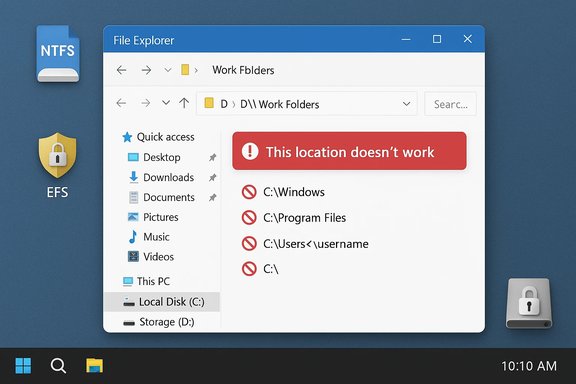
Microsoft’s Work Folders documentation makes a short but important point that trips up administrators and power users alike: some folders on a Windows PC simply cannot host Work Folders because they are reserved by the operating system or are already protected by file encryption. The official guidance lists system locations (Windows, Program Files, the root of a drive, the top of the user profile, redirected Documents) and Encrypting File System (EFS)-protected folders as places that will produce the error “This location doesn’t work.”
Work Folders is a Microsoft feature that gives users a synced, enterprise-controlled folder on their Windows devices and servers. It’s intended to let employees access work files across multiple devices while enabling corporate IT to enforce security policies such as encryption and remote wipe. By default Work Folders lives under C:\Users\<username>\Work Folders, but administrators or users with permission can relocate the Work Folders storage location to another NTFS-formatted drive if the destination is valid. The product documentation is explicit about where you can and cannot place that folder. The single-sentence restriction — “This location doesn’t work” — is blunt, but the reasons behind the ban are technical and security-driven. Understanding that reasoning helps avoid wasted time during rollouts, prevents sync failures, and protects both device stability and corporate data.
Source: Microsoft Support Work Folders FAQ - Microsoft Support
 Background
Work Folders is a Microsoft feature that gives users a synced, enterprise-controlled folder on their Windows devices and servers. It’s intended to let employees access work files across multiple devices while enabling corporate IT to enforce security policies such as encryption and remote wipe. By default Work Folders lives under C:\Users\<username>\Work Folders, but administrators or users with permission can relocate the Work Folders storage location to another NTFS-formatted drive if the destination is valid. The product documentation is explicit about where you can and cannot place that folder. The single-sentence restriction — “This location doesn’t work” — is blunt, but the reasons behind the ban are technical and security-driven. Understanding that reasoning helps avoid wasted time during rollouts, prevents sync failures, and protects both device stability and corporate data.Why certain locations are blocked
The security and stability rationale
Windows reserves a handful of locations for the operating system and installed applications, and these places are not suitable for a sync target that expects to read, write, and manage many user files. Placing a synced enterprise folder in those areas introduces several risks:- Interference with system or program files could break applications or Windows itself.
- Permissions and ACLs in system locations are tighter and different from standard user folders, which complicates sync agents that assume user‑level access patterns.
- Some locations (for example, the top-level of a user profile or a drive root) are used by numerous services and redirections; mapping Work Folders there can clash with folder redirection, roaming profiles, installer behavior, or backup tools.
Encryption: EFS and enterprise policy interactions
If a folder is already encrypted with EFS, Work Folders will refuse to use it as a target. The reasoning is twofold:- Work Folders itself is often governed by enterprise policies (for example, IT may mandate encryption for all work data). Mixing different encryption controls — a pre-existing EFS-protected folder plus Work Folders’ own enterprise-managed protection — produces ambiguous behavior and failures during sync.
- EFS ties encrypted files to certificates and user keys. If the Work Folders sync service or the enterprise’s recovery agent cannot reliably access or wrap those keys, data availability and recoverability can be compromised.
Practical implications for IT and power users
What administrators must plan for
- Enforce a standard Work Folders location policy: adopt the default C:\Users\<username>\Work Folders or choose a dedicated, non-system folder on an NTFS volume.
- Avoid redirecting known folders (Documents, Desktop) to Work Folders targets or vice‑versa, because folder redirection and sync can create double-protection or sync loops.
- Inventory devices for EFS use. If a device or user has EFS-protected folders, either exclude those users from automatic reconfiguration or provide clear instructions for decrypting or selecting alternative storage.
What users and helpdesks frequently miss
- Files inside EFS-protected folders will remain inaccessible if you merely change ownership or copy files; EFS ties encryption to certificates and SIDs. Without the original encryption key or a domain recovery agent key, decryption is impossible. This is a critical failure mode for casual recovery attempts.
- The choice of a target drive matters: it must be NTFS and must stay connected (removable drives can work but must remain present for expected sync behavior). Microsoft explicitly states the NTFS requirement when moving Work Folders to another drive.
How to fix or avoid “This location doesn’t work”
Quick checklist (for users)
- Confirm the destination is not:
- C:\Windows or any subfolder.
- C:\Program Files or C:\Program Files (x86) or their subfolders.
- The top-level of your user profile (C:\Users\<username>) or the root of any drive.
- The Documents folder (or any folder that’s redirected to another location).
- An EFS-encrypted folder.
- Confirm the target drive is formatted NTFS and remains connected.
- If you must use an alternate location, create a dedicated folder (for example, D:\WorkFolders) and ensure no redirections or system policies point at it.
- When in doubt, use the default location C:\Users\<username>\Work Folders.
Decrypting an EFS-protected location (the supported GUI way)
Microsoft’s Work Folders FAQ gives the GUI steps to decrypt a folder that is currently encrypted and therefore invalid as a Work Folders target:- Open File Explorer and find the folder you want to decrypt.
- Right‑click the folder and choose Properties.
- On the General tab click Advanced.
- Under “Compress or Encrypt attributes”, clear the “Encrypt contents to secure data” checkbox.
- Click OK, then OK again to apply changes.
When decryption is not possible
If the files were encrypted with EFS and the encryption certificate or keys are lost (for example, the user profile that created the EFS encryption was deleted or the system was reinstalled without exporting the certificates), those files cannot be reliably decrypted without the original key or a domain recovery agent (DRA) key. Users in that situation should:- Contact their corporate IT immediately — domain environments may have a DRA or recovery certificate that can decrypt files.
- Avoid destructive recovery attempts that overwrite metadata or the original encrypted files.
- If the device was personally managed and the keys are irrecoverable, accept that EFS-encrypted files may be permanently inaccessible. Community cases repeatedly show that re-installation of Windows or SID changes usually invalidate EFS access unless certificates were exported first.
Step-by-step migration pattern for administrators
- Define policy and chosen Work Folders path (recommendation: use default under user profile unless you have a dedicated data volume).
- Scan endpoints for EFS usage and redirected known folders. Flag any user accounts that have files encrypted or redirected.
- Communicate with flagged users: instruct them whether to decrypt specific folders (if permitted) or to move personal files out of Work Folders if the organization intends to stop using it.
- For devices where users must keep EFS, provision alternative storage (a corporate data partition or server-side storage) that aligns with policy.
- Use staged rollouts and monitoring: validate sync success and run a small pilot before broad deployment.
- Document recovery procedures for EFS and test the Domain Recovery Agent (DRA) flow in a lab environment.
Troubleshooting common failure modes
“This location doesn’t work” after choosing a folder
- Confirm the folder is not one of the blocked locations previously listed.
- Check whether the folder (or parent) is EFS-encrypted — encrypted folder names sometimes show green text in Explorer; the Advanced Attributes dialog will show the encryption state.
Sync errors mentioning encryption/compression
- Ensure the recovery environment for encryption (WinRE or domain recovery keys) is intact. Corrupt recovery components can cause Work Folders to fail when it attempts to apply enterprise encryption to a local directory. Community troubleshooting threads reported WinRE issues preventing correct encryption setup and forcing reinstallation in worst cases.
Files that appear but won’t open after migration
- This is often an EFS key/certificate issue. If the file was encrypted under a different account (different SID) or the certificate is missing, simply taking ownership or copying the file will not decrypt it. The original key or DRA is required to restore access.
Strengths and limits of Microsoft’s approach
Strengths
- The restricted-location model avoids a class of destructive resulting behaviors where OS or program files might be superseded by sync operations.
- Enforcing NTFS-only targets and refusing EFS-protected folders reduces complexity during encryption policy application and recovery planning. This design pushes administrators to create predictable, auditable storage patterns for enterprise data.
Limits and risks
- The error message itself is terse and unhelpful to many users. “This location doesn’t work” lacks immediate detail; users often have to open documentation or contact IT to know why a selection failed. Community threads show repeated help requests resulting from this blunt message.
- EFS dependency problems are a genuine risk in mixed admin/user environments. If users encrypt folders with EFS without exporting certificates or without domain recovery configured, those files can become unrecoverable after reinstallation or profile migration. That risk is not specific to Work Folders, but Work Folders’ refusal to use EFS-protected locations surfaces the problem aggressively — which is arguably helpful, but painful when the only available data is already locked.
- Organizations that use folder redirection heavily must plan carefully; redirects plus Work Folders can inadvertently create double‑handled locations or conflicts.
Recommendations and best practices (concise)
- Default-first: use C:\Users\<username>\Work Folders where possible. It’s the path Microsoft expects and is most compatible with other apps.
- NTFS-only: ensure alternate drives are formatted NTFS and remain mounted permanently if they host Work Folders data.
- Avoid EFS for personal fallback: if users rely on EFS for personal protection, require certificate export and DRA planning before any migration. Test DRA workflows.
- Clear communication: update helpdesk scripts to explain the “This location doesn’t work” message and include the short list of forbidden locations for rapid diagnosis. Community threads show faster resolution when front-line support has that simple checklist.
- Pilot and audit: run a pilot roll-out, scan endpoints for EFS and redirections, and audit failed syncs to identify systemic issues before enterprise-wide rollout.
Conclusion
Work Folders is a useful tool for delivering enterprise-controlled file sync across Windows devices, but its location restrictions are strict by design. They prevent destructive interactions with system and program folders and avoid the complexity of mixed encryption schemes. When administrators and users understand the blocked location list, the NTFS requirement, and the implications of EFS, deployment becomes straightforward. The most common failures are preventable with simple policy items: use the default path, avoid system and redirected folders, confirm NTFS volumes, and ensure enterprise recovery mechanisms exist for any EFS use. Microsoft’s documentation and community troubleshooting both point to the same practical reality: the error message is a signal to correct the storage choice, not a random failure — and the fix usually starts with selecting a proper, non‑encrypted, non‑system folder.Source: Microsoft Support Work Folders FAQ - Microsoft Support
