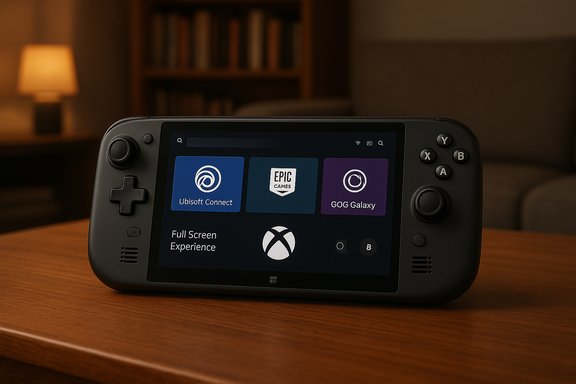
Microsoft’s new Xbox Full Screen Experience for Windows 11 handhelds is no longer a marketing tease locked to a single device — it can be enabled today on many modern Windows 11 handhelds, and ambitious owners are already doing so to get a console‑style, controller‑first launcher and a lower‑noise runtime state geared toward gaming.
Microsoft and hardware partners shipped a purpose‑built, full‑screen, controller‑first Xbox shell as part of a renewed push to make Windows feel more like a dedicated console on handheld PCs. The feature debuted as a core experience on the ASUS ROG Xbox Ally family, which boots directly into the Xbox full‑screen launcher, and Microsoft has rolled the underlying components into Windows 11’s 25H2/Insider preview stream so other OEMs and testers can adopt it. The Full Screen Experience (commonly shortened to FSE or “Xbox Mode” in community posts) is intentionally not a separate operating system or fork of Windows. Instead, it’s a session posture and layered shell: the Xbox PC app becomes the primary launcher and the session suppresses or defers many desktop‑oriented subsystems (wallpaper, some Explorer ornamentation and selected startup apps) to free memory, reduce idle CPU wakeups, and favor controller navigation. That design keeps the openness of Windows — Steam, Epic, GOG and other PC storefronts still run — while offering a cleaner, console‑like front end for thumb‑first play. This article explains what the Full Screen Experience actually does, how it’s being unlocked on non‑Ally devices, the verified steps people are using, measured and realistic performance expectations, and the stability, anti‑cheat and support trade‑offs every owner should understand before flipping the switch.
The practical upshot: owners of devices that ship with FSE (ROG Xbox Ally family) get the best experience out of the box. Owners of other handhelds may be able to enable the experience via Insider builds or community methods, but the stability and completeness of features depends heavily on OEM driver and firmware integration.
Appendix: quick reference of the community commands commonly cited (advanced users only)
Source: Пепелац Ньюс https://pepelac.news/en/posts/id10479-unlock-xbox-full-screen-on-any-windows-11-handheld/
 Background / Overview
Microsoft and hardware partners shipped a purpose‑built, full‑screen, controller‑first Xbox shell as part of a renewed push to make Windows feel more like a dedicated console on handheld PCs. The feature debuted as a core experience on the ASUS ROG Xbox Ally family, which boots directly into the Xbox full‑screen launcher, and Microsoft has rolled the underlying components into Windows 11’s 25H2/Insider preview stream so other OEMs and testers can adopt it. The Full Screen Experience (commonly shortened to FSE or “Xbox Mode” in community posts) is intentionally not a separate operating system or fork of Windows. Instead, it’s a session posture and layered shell: the Xbox PC app becomes the primary launcher and the session suppresses or defers many desktop‑oriented subsystems (wallpaper, some Explorer ornamentation and selected startup apps) to free memory, reduce idle CPU wakeups, and favor controller navigation. That design keeps the openness of Windows — Steam, Epic, GOG and other PC storefronts still run — while offering a cleaner, console‑like front end for thumb‑first play. This article explains what the Full Screen Experience actually does, how it’s being unlocked on non‑Ally devices, the verified steps people are using, measured and realistic performance expectations, and the stability, anti‑cheat and support trade‑offs every owner should understand before flipping the switch.What the Full Screen Experience changes — in practice
The FSE alters both what you see and what Windows chooses to run during a handheld gaming session.- Visible changes:
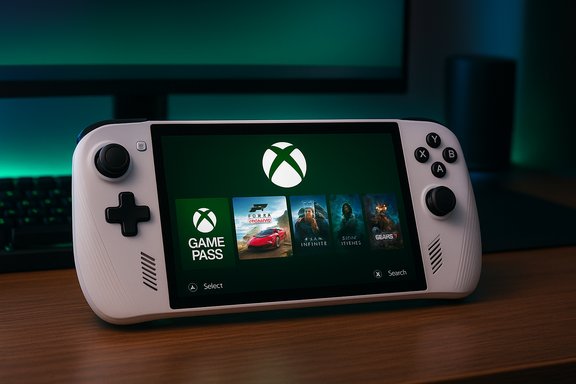
- A full‑screen, tile‑based launcher centered on the Xbox PC app that aggregates Game Pass games, Xbox purchases and many locally installed titles.
- Controller‑first navigation: larger UI targets, an on‑screen controller keyboard, and Game Bar workflows optimized for a physical Xbox button or a controller’s bumpers.
- The Task View and Quick Switch interfaces are refactored to work with bumpers and sticks rather than a mouse.
- Under‑the‑hood behavior (why it can help):
- Windows defers or suspends non‑essential startup apps and some Explorer subsystems during FSE sessions, which can reclaim RAM and reduce idle CPU wakeups. Independent reporting and OEM materials commonly cite directional gains on tuned handhelds (roughly 1–2 GB of memory reclaimed in some scenarios), although results vary by device, drivers and installed software.
- The mode does not change kernel scheduler behavior, driver stacks, or anti‑cheat enforcement — games still run on the same drivers and subject to the same DRM/anti‑cheat rules as in desktop mode.
Official (supported) way to enable FSE
If your device and channel are supported, follow the official path. This is the safest route because Microsoft and OEMs gate the experience with server‑side entitlements and firmware hooks; using the supported path avoids mismatches that commonly cause the biggest problems.- Enroll in the Windows Insider Program and pick the channel that exposes the handheld bits (Release Preview, Beta, or Dev depending on your OEM’s staged rollout).
- Update Windows to the preview build that contains the handheld/Full Screen Experience components (many hands‑on reports and Microsoft notes point to the 25H2 preview builds distributed in late preview flights).
- Update the Xbox PC app to its latest preview/beta release via the Microsoft Store so the compact/handheld UI components are installed.
- Open Settings → Gaming → Full screen experience. Set the “Home app” to Xbox and optionally enable Enter full screen experience on start‑up. Restart and verify the launcher appears at boot.
Community unlocks: how enthusiasts are making FSE appear on other handhelds
Where the Settings toggle doesn’t appear, the enthusiast community has converged on a repeatable, but unsupported, three‑step approach: enable internal feature flags, mark the device as a handheld in the registry, and reboot. Multiple independent guides and hands‑on reports confirm the same sequence. These are the mechanics people are using — only attempt on expendable or well‑backed systems.The commonly reported sequence (advanced, unsupported)
- Download ViVeTool (the community feature‑flag utility) and extract it. Use the Intel/AMD build if prompted.
- Open an elevated Command Prompt (Run as Administrator) in the ViVeTool folder and run:
- ViVeTool.exe /enable /id:52580392
- ViVeTool.exe /enable /id:50902630
These feature IDs are the ones repeatedly cited by hands‑on guides and community posts that exposed the compact handheld UI. - Edit the registry to mark the device as a handheld:
- Open regedit and navigate to Computer\HKEY_LOCAL_MACHINE\SOFTWARE\Microsoft\Windows NT\CurrentVersion\OEM
- Create or edit a DWORD named DeviceForm and set it to
0x2E(hex) or46(decimal). - Reboot. Many community reports confirm this DeviceForm tweak is required on PCs that do not self‑identify as handheld hardware.
- After the restart, check Settings → Gaming for Full screen experience. If present, choose Xbox as the home app and enable enter‑on‑startup, then reboot again to launch into the Xbox shell.
Important technical caveats about these flags and registry edits
- The ViVeTool toggles and DeviceForm registry values are community‑observed controls that appeared in preview builds and hands‑on documentation; Microsoft controls feature gating server‑side and can change flags or IDs between flights. Treat the published IDs as observational and transient — they may not survive future builds or server‑side entitlements. This is not an officially supported method.
- On some systems, additional tricks (panel dimension spoofing tools or scheduled tasks) were used in early community posts when Windows also validated panel size for form‑factor checks. Those extra steps are experimental and introduce additional security and reliability risks.
Step‑by‑step: an explicit checklist for advanced users (do not skip backups)
Before attempting community unlocks, do the following:- Create a full system backup image and prepare a Windows recovery USB — you may need to roll back if the desktop fails to restore.
- Confirm your device is on a Windows 11 preview build that contains the handheld components (25H2 preview builds or a relevant Insider flight).
- Update the Xbox PC app to the preview/beta build.
- Download ViVeTool from the official repository and verify checksums where available.
- Run the ViVeTool commands as Administrator to enable the reported feature IDs.
- Edit the DeviceForm registry key under HKLM\SOFTWARE\Microsoft\Windows NT\CurrentVersion\OEM to
0x2E(hex). - Reboot and look for Settings → Gaming → Full screen experience.
- If the toggle appears, set Xbox as home app and restart to enter FSE.
What to expect: performance, battery, and real‑world gains
Many early hands‑on tests and community benchmarks show real but contextual gains after enabling FSE.- Typical gains:
- Lower background memory: reclaimable RAM in the range of 1–2 GB in tuned handhelds, because desktop ornamentation and some startup apps are deferred.
- Smoother sustained framerates: fewer micro‑stutters caused by background CPU wakeups; some workloads show single‑digit to low double‑digit percentage FPS improvements in specific titles.
- Battery improvements: measured improvements are workload‑dependent; freeing background work can extend playtime modestly in long sessions, though gains are limited by the GPU/CPU efficiency and thermal profile.
- Why gains are not magical:
- FSE doesn’t change GPU drivers, power‑limit behavior, or anti‑cheat enforcement. The biggest wins come from removing background contention, not increasing raw GPU horsepower.
- Results vary dramatically by device: some handhelds with aggressive OEM power tuning see larger tangible benefits, while devices already trimmed for gaming will see smaller deltas.
Stability, compatibility and anti‑cheat considerations
Enabling FSE on unsupported hardware can expose multiple failure modes.- Known issues reported by community testers:
- The FSE option can appear and then vanish due to AB testing or gating, leaving users confused.
- Some systems boot into the Xbox app as a normal desktop window rather than the console shell; switching in and out of FSE may fail and require reboots.
- Input mappings (controller buttons, hardware Xbox button) can behave inconsistently on devices not tuned by the OEM, and overlays (Game Bar, vendor power utilities) can conflict.
- Anti‑cheat and DRM: Because the environment still uses the same kernel/drivers, anti‑cheat behaves the same — but unsupported tweaks to flags and registry entries can trigger unusual anti‑cheat interactions or break overlay/launcher handoffs. This is especially true for competitive titles with strict kernel-level drivers.
- Practical mitigations:
- Use the official preview route where possible (Insider + OEM‑enabled).
- Keep vendor utilities (Armoury Crate, power daemons) updated and test with them enabled/disabled to find stable combinations.
- Fully test major games you play before committing to boot‑into‑FSE at startup.
OEM rollout and device support — where FSE is available
Microsoft and ASUS launched the Xbox Full Screen Experience as a primary UX on the ROG Xbox Ally family; ASUS and Xbox marketing materials explicitly list the feature as built‑in for Ally devices that launched in mid‑October. Beyond Ally, Microsoft has used a staged Windows Insider preview rollout to extend the preview to other handhelds. Recent Insider notes and OEM announcements have named additional hardware in the staged expansion — MSI Claw models were specifically called out in an Insider preview build, and Lenovo has signaled a broader availability window for Legion‑class devices in subsequent product cycles. Availability is gated by OEM/firmware entitlements, meaning some devices may have the binaries present but remain invisible until Microsoft and the OEM enable them for that SKU.The practical upshot: owners of devices that ship with FSE (ROG Xbox Ally family) get the best experience out of the box. Owners of other handhelds may be able to enable the experience via Insider builds or community methods, but the stability and completeness of features depends heavily on OEM driver and firmware integration.
Real‑world troubleshooting tips
- FSE option disappeared after enabling: this behavior has been reported frequently during the preview phase; it may be caused by server‑side gating or AB testing. Reboot, double‑check Insider channel and Xbox app preview status, and, if necessary, revert the ViVeTool flags and reapply them.
- FSE enabled but Xbox app opens in a window: ensure you selected the Xbox app as the Home app in Settings → Gaming and that the Xbox PC app is the preview/beta release; some testers report needing the latest Xbox app to see correct behavior.
- Controller or overlay issues: disable conflicting vendor utilities one at a time (Armoury Crate, vendor power services) to isolate conflicts. Keep drivers and firmware current.
- If anti‑cheat blocks a game after experimenting: restore the registry and feature flags to their prior values or restore from your image; some anti‑cheat systems are sensitive to unexpected platform changes.
Risk summary — who should try this, and who should not
- Best candidates:
- Owners of supported Windows handhelds that OEMs explicitly list as FSE‑capable (devices shipping with the mode preinstalled).
- Advanced users comfortable with Windows Insider builds, system imaging and recovery.
- Not recommended:
- Primary work devices, systems used for competitive play where anti‑cheat stability matters, and users who cannot restore their system if something goes wrong. Community unlock methods are explicitly unsupported and can cause persistent desktop regressions.
The bigger picture: why this matters for handheld Windows gaming
Microsoft’s approach of layering a Full Screen Experience on top of Windows rather than shipping a separate fork preserves the platform’s interoperability with PC storefronts and tools — a meaningful advantage over closed console interfaces. At the same time, the session posture shows Microsoft and partners are seriously attempting to close the experiential gap between a desktop OS and a console‑grade handheld UI. If OEMs ship more devices with tuned firmware and Microsoft stabilizes feature gating, mainstream handheld Windows gaming could look far friendlier to the mainstream gamer. That said, the community unlocks and preview testing show just how delicate the final product will be: driver maturity, anti‑cheat compatibility, and consistent power/thermal tuning are the real gatekeepers of a smooth experience. The Full Screen Experience is a pragmatic compromise — it improves perceived playability by removing friction, but it won’t replace careful driver and firmware engineering.Conclusion
The Xbox Full Screen Experience represents the most significant UX shift for Windows handhelds in years: a controller‑first, full‑screen shell that trims desktop baggage and gives handheld gamers a faster, more focused way to play. For owners of devices that ship with FSE — notably the ROG Xbox Ally family — the experience is designed and tuned out of the box. For others, the feature can be enabled via Windows Insider builds or community methods, but doing so carries real risk and requires full backups and a recovery plan. If you value a console‑like launcher and are comfortable with Insider builds and potential troubleshooting, the Full Screen Experience is worth testing. If you depend on a stable work environment or competitive gaming titles with strict anti‑cheat, wait for official OEM enablement and firmware‑tuned releases — the safest path to the best experience is the one supported by Microsoft and your device vendor.Appendix: quick reference of the community commands commonly cited (advanced users only)
- ViVeTool feature IDs reported in community guides:
- ViVeTool.exe /enable /id:52580392
- ViVeTool.exe /enable /id:50902630.
- Registry DeviceForm:
- HKLM\SOFTWARE\Microsoft\Windows NT\CurrentVersion\OEM\DeviceForm = 0x2E (hex) / 46 (decimal).
Source: Пепелац Ньюс https://pepelac.news/en/posts/id10479-unlock-xbox-full-screen-on-any-windows-11-handheld/