

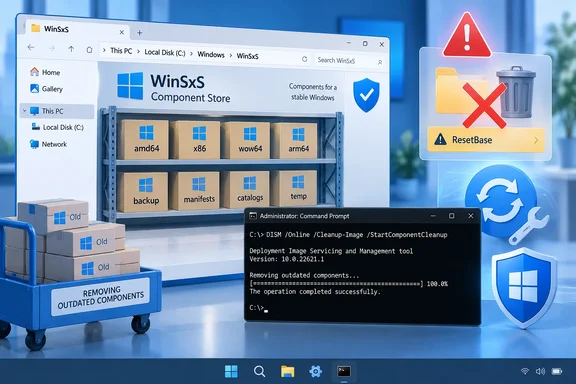
C:\Windows\WinSxS folder has a talent for alarming otherwise calm PC owners. It can look enormous in File Explorer, and the temptation to “tidy it up” manually is understandable—and catastrophic. Don’t delete anything from WinSxS. That folder is Windows’ component store: the service depot that supports updates, feature changes, repairs, and rollback operations.The good news is that Windows 10 and Windows 11 include a supported way to inspect and clean obsolete component files: Deployment Image Servicing and Management, better known as DISM. This guide explains what it removes, how to determine whether cleanup is worth doing, and why one aggressive option deserves a bright-red mental label.
 What the component store actually is
WinSxS is not a cache in the casual sense. It stores Windows components, including versions that may be needed to service the operating system, repair damaged files, or roll back a recently installed update.
Its apparent size can be misleading. Microsoft explains that Windows uses hard links: one physical file can appear in both WinSxS and another Windows location without consuming disk space twice. In other words, File Explorer’s folder-size figure is not a trustworthy estimate of how much storage WinSxS independently occupies.
The meaningful questions are:
Quick walkthrough
- Are there superseded component versions available to remove?
- Does Windows recommend component-store cleanup?
- How much of the store is actual cleanup overhead rather than files shared with Windows?
DISM answers all three.
Bottom line: WinSxS is vital infrastructure, not digital clutter. Clean it with Windows servicing tools—not File Explorer, third-party “registry cleaners,” or heroic acts of deletion.
Before you begin
This procedure applies to a running installation of Windows 10 or Windows 11.
You will need:
- An administrator account
- A few minutes of uninterrupted time
- AC power for a laptop, ideally
- No Windows update installation currently in progress
It is wise to install any pending Windows updates and restart before cleanup. That gives Windows a stable servicing state and avoids treating a half-finished update like a housekeeping project.
Step 1: Analyze the component store first
Open an elevated Command Prompt or Terminal:

- Right-click Start.
- Select Terminal (Admin), Windows PowerShell (Admin), or Command Prompt (Admin).
- Approve the User Account Control prompt.
- Run:
DISM.exe /Online /Cleanup-Image /AnalyzeComponentStore
/Online means you are working on the Windows installation currently running on the PC.
After DISM finishes, look for lines similar to these:
Actual Size of Component Store
Shared with Windows
Backups and Disabled Features
Cache and Temporary Data
Number of Reclaimable Packages
Component Store Cleanup Recommended
How to read the results
| DISM result | What it means |
|---|---|
| Actual Size of Component Store | The component store’s real disk use after accounting for hard links. |
| Shared with Windows | Files used both by WinSxS and elsewhere in Windows; this is not cleanup space. |
| Backups and Disabled Features | Older component versions and retained feature payloads that may contribute to reclaimable overhead. |
| Cache and Temporary Data | Servicing-related temporary data. |
| Number of Reclaimable Packages | Superseded update packages DISM may be able to remove. |
| Component Store Cleanup Recommended: Yes | Windows believes cleanup can reduce component-store overhead. |
Do not expect a universal number of gigabytes recovered. On a well-maintained PC, cleanup may free very little space. On a machine that has accumulated months of cumulative updates or undergone major Windows upgrades, the result can be more noticeable.
The output—not the WinSxS number displayed by File Explorer—is the sensible basis for deciding whether to proceed.
Step 2: Run the safe component cleanup
If DISM reports reclaimable packages or recommends cleanup, use this command:
DISM.exe /Online /Cleanup-Image /StartComponentCleanup
This removes superseded components: older update versions no longer required once newer replacements are installed.
Microsoft says this command is broadly similar to running the built-in StartComponentCleanup scheduled task, but with two important differences:
- It cleans eligible old component versions immediately rather than observing the scheduled task’s 30-day grace period.
- It is not constrained by the scheduled task’s one-hour timeout.
That makes it a useful manual maintenance tool when the system drive is genuinely tight on space.
What success looks like
DISM will show a progress percentage, then report that the operation completed successfully. The process can take a while, especially on a slower drive or a heavily serviced installation. Let it finish; do not close the terminal just because the percentage lingers for a moment. Windows servicing has never been famous for theatrical pacing.
When it completes:
- Restart Windows if DISM requests it.
- Run the analysis command again if you want to confirm the changed status:
DISM.exe /Online /Cleanup-Image /AnalyzeComponentStore
You may see fewer reclaimable packages, a new cleanup date, or a changed recommendation.
The command most users should avoid: /ResetBase
You may find this variation recommended in aggressive cleanup guides:
DISM.exe /Online /Cleanup-Image /StartComponentCleanup /ResetBase
It can reduce the component store further because it removes all superseded versions of components and establishes the currently installed update level as the new base.
The trade-off is permanent:
After using/ResetBase, you cannot uninstall Windows updates that were already installed at the time you ran the command.
Future updates can still be installed, and future update packages can still be removed where Windows supports it. But the existing update history is effectively cemented in place. If a troublesome update was installed yesterday and you run /ResetBase today, the ordinary option to uninstall that already-installed update is gone.
When /ResetBase can make sense
Consider it only when all of these are true:
- You need every practical bit of storage on the Windows drive.
- The computer is stable after its recent updates.
- You understand that existing updates can no longer be uninstalled.
- You have a current backup or a recovery plan.
This is more appropriate for tightly provisioned devices, stable reference systems, or carefully managed environments than for a PC that is actively troubleshooting an update-related problem.
When not to use it
Skip /ResetBase if:
- Windows began crashing, freezing, or misbehaving after a recent update.
- You are diagnosing a driver, application, or update compatibility issue.
- You expect to need Windows Update’s uninstall path as a fallback.
- You simply want routine maintenance.
For normal Windows maintenance, plain /StartComponentCleanup is the sensible choice.
Don’t confuse cleanup with repair
DISM uses the same /Cleanup-Image family for component-store maintenance and image-health repair. They are different jobs.
If Windows Update fails, sfc /scannow reports unrepairable files, or DISM itself suggests corruption, use the health commands instead:
DISM.exe /Online /Cleanup-Image /CheckHealth
DISM.exe /Online /Cleanup-Image /ScanHealth
DISM.exe /Online /Cleanup-Image /RestoreHealth
- CheckHealth checks whether corruption has already been flagged.
- ScanHealth performs a fuller scan.
- RestoreHealth attempts repair, normally using Windows Update as a repair source.
These commands do not exist to free space. Conversely, component cleanup is not a repair cure-all. Treating every DISM command as interchangeable is a little like using a vacuum cleaner to repair a refrigerator: same house, very different assignment.
What about Disk Cleanup, Storage Sense, and Cleanup recommendations?
DISM is a targeted tool for component-store servicing. It is not necessarily the first place to look if your drive is full.
For broader storage recovery, Windows 11 offers Settings > System > Storage > Cleanup recommendations. Windows 10 and Windows 11 also provide Storage Sense and the older Disk Cleanup utility. Microsoft’s storage guidance recommends reviewing temporary files, unused applications, cloud-synced content, and large personal files.
Those tools can address storage categories DISM does not touch, such as:
- Temporary files
- Recycle Bin contents
- Previous Windows installation files after an upgrade
- Large downloads, videos, and installers
- Unused apps
Be careful with Previous Windows Installation(s) or Windows.old. Removing it can reclaim substantial space after a feature update, but it also removes the ability to return to the prior Windows version.
Common questions and failure points
“WinSxS is still huge after cleanup. Did DISM fail?”
Probably not. Much of the folder consists of components shared with the active Windows installation. Cleanup removes superseded versions and temporary servicing data; it cannot remove files that Windows presently needs.
Check the Actual Size, Number of Reclaimable Packages, and Cleanup Recommended fields rather than judging the folder by File Explorer alone.
“DISM says cleanup is not recommended.”
That is a perfectly healthy result. Windows already schedules component cleanup during automatic maintenance, and there may simply be nothing meaningful left to reclaim. Running cleanup repeatedly will not manufacture free space out of polite determination.
“Access is denied.”
Close the terminal, then reopen Terminal (Admin) or Command Prompt (Admin). DISM needs elevation to service the live operating system.
“The command seems stuck.”
Give it time, particularly on hard drives, older PCs, or systems with many installed updates. Avoid forced shutdowns. If the PC is responsive and storage activity continues, DISM is likely still working.
“Can I delete individual WinSxS folders?”
No. Microsoft explicitly warns that deleting WinSxS files or the folder itself can make Windows unbootable and prevent future updates. The only safe route is supported cleanup through DISM, the scheduled servicing task, or Windows’ storage tools.
A practical maintenance routine
For most home and small-business PCs, the safe playbook is simple:
- Install Windows updates.
- Restart.
- Run the analysis command.
- Run
/StartComponentCleanuponly if cleanup is recommended or disk pressure is real. - Use Storage settings to investigate the larger storage picture.
- Reserve
/ResetBasefor deliberate, well-understood cases—not casual spring cleaning.
The component store is a safety net woven into Windows Update, system repair, and rollback behavior. DISM lets you trim the excess without cutting the rope—but only if you use the right command for the job.